
Expert Advisor User Manual
Thank you for choosing to use our expert advisor. We hope it enhances your trading experience and brings you closer to your goals. This manual will guide you through the settings and functionalities of the RSI GridMaster EA, helping you make the most of its features. If you have any questions, feel free to contact us.
Product page: MT5 version MT4 version
The MT4 version includes slightly fewer features.
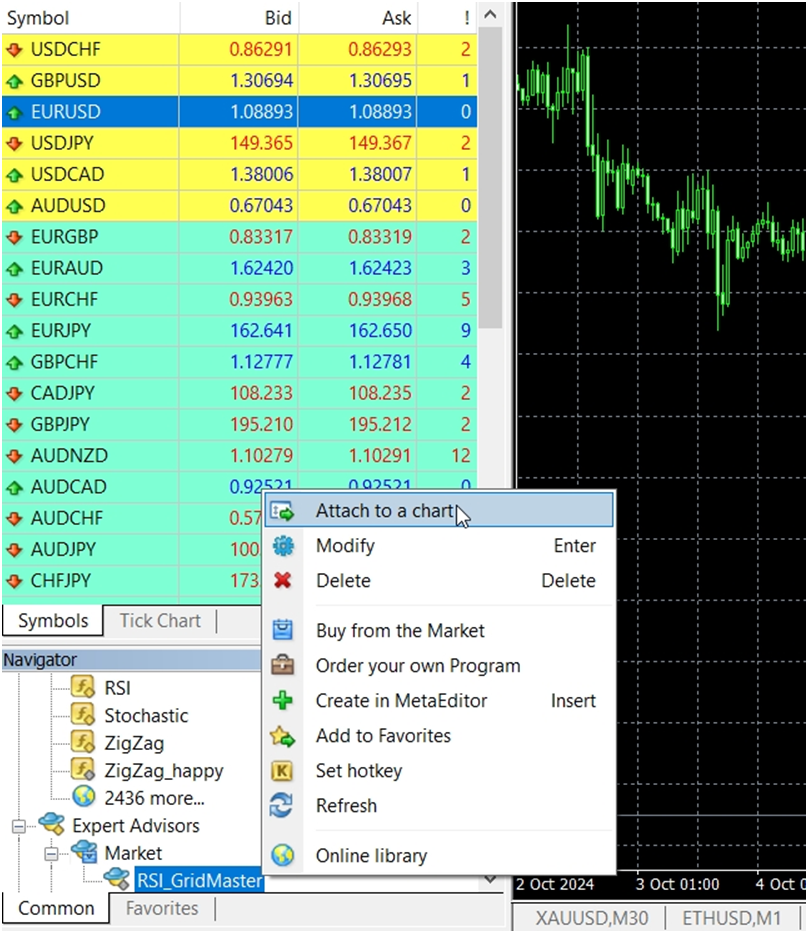
1. Attach the Expert Advisor to a Chart:
o In the Navigator window, locate your Expert Advisor under Expert Advisors.
o Drag and drop the Expert Advisor onto the chart of the currency pair or asset you wish to trade.
2. Enable Algo Trading:
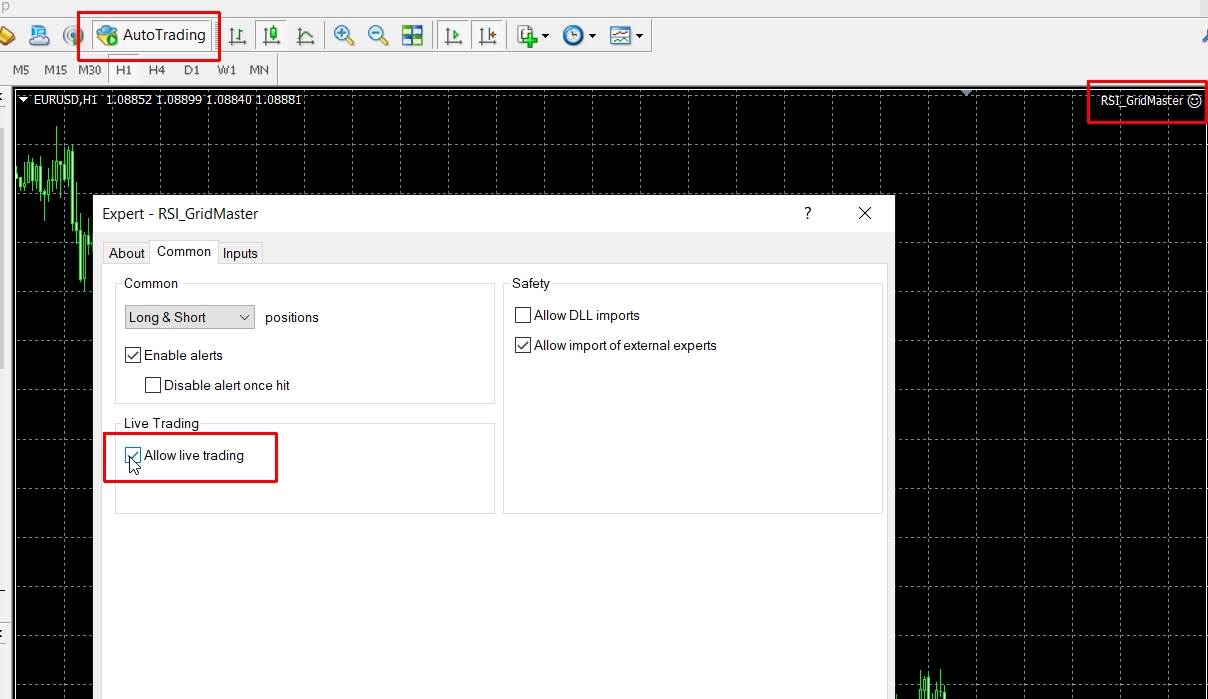
o Make sure the AutoTrading button on the toolbar is enabled (green).
o When you attach the EA to the chart, ensure that the Allow algo trading checkbox is ticked in the settings.
3. Check and Adjust Settings:
o Review the Expert Advisor settings to ensure they align with your trading strategy.
o Adjust any parameters as necessary before starting.
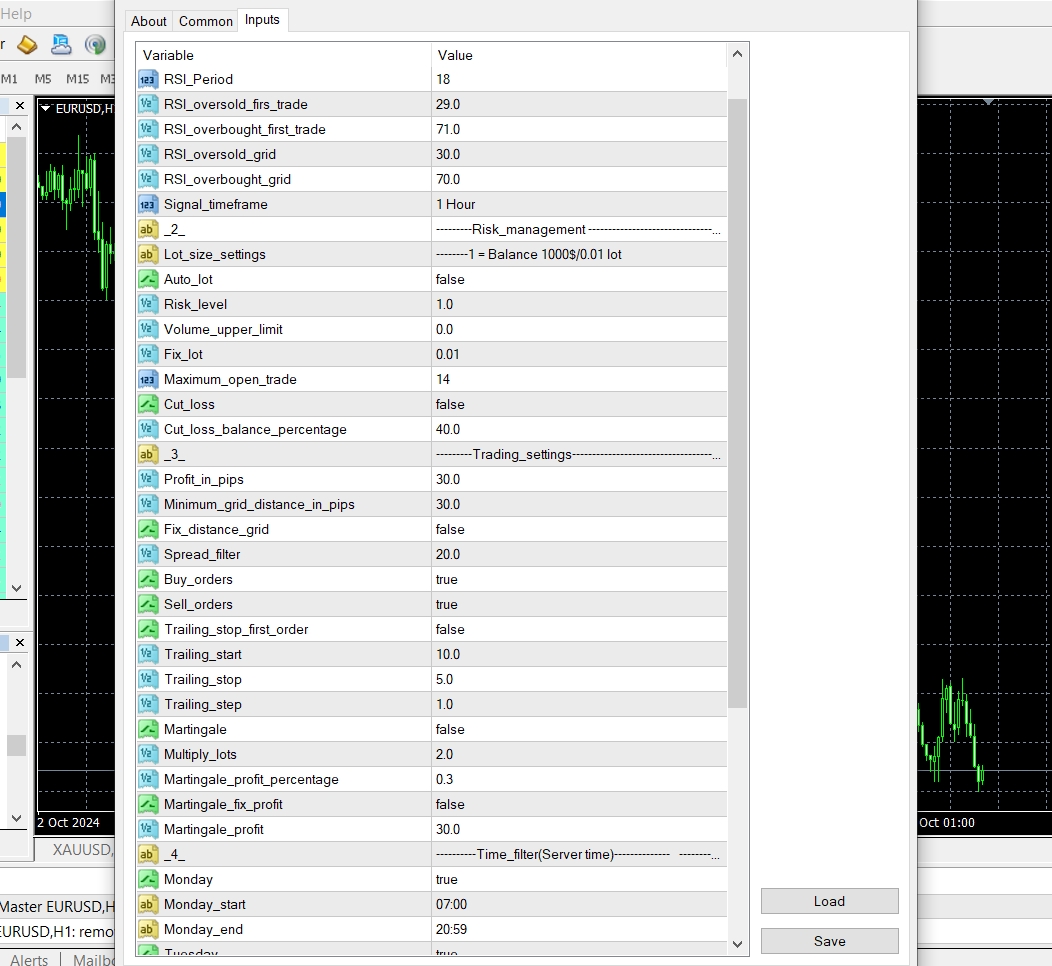
Once the installation is complete, you can start configuring the settings for optimal performance. Here's a step-by-step guide to help you get started:
o General Settings
-
EA's unique magic number: Unique ID for trades. Use a different number for each EA to prevent conflicts.
-
Comment for trades: Custom text shown in the trade's comment field.
o Display & Warnings
-
Show the on-screen info panel: Shows a chart panel with grid status, P/L, and key settings.
-
Show warnings (spread, margin, etc.): Displays on-chart warnings (e.g., "AutoTrading Disabled", high spread).
-
Show common Take Profit lines on the chart: Draws the calculated common Take Profit level on the chart.
o RSI Signal Settings
-
RSI period: Calculation period for the RSI indicator.
-
RSI timeframe for signals: Timeframe for RSI calculation (can be different from the chart's).
-
RSI level to open the FIRST buy trade: RSI level to open the first buy trade (when RSI crosses above).
-
RSI level to open the FIRST sell trade: RSI level to open the first sell trade (when RSI crosses below).
-
RSI level for subsequent grid buy trades: RSI level for adding more buy trades to the grid.
-
RSI level for subsequent grid sell trades: RSI level for adding more sell trades to the grid.
o Risk & Lot Management
-
Enable/Disable automatic lot sizing: Enables/disables auto lot sizing. If false, uses Fixed Lot.
-
Base for auto lot calculation (Balance or Equity): Base for auto lot. Equity is more conservative as it includes floating P/L.
-
Risk Level. A value of 1.0 means 0.01 lots per 1000 of account currency: Multiplier for Auto Lot. E.g., for a $5k account, 1.0 gives 0.05 lots.
-
Fixed lot size if AutoLot is disabled: Lot size used when Auto Lot is disabled.
-
Maximum allowed lot size (0 = no limit): Safety limit for the maximum lot size per trade. 0.0 = no limit.
o Grid Strategy Settings
-
Allow trading in both directions simultaneously: Allows simultaneous buy and sell grids (Hedging account required).
-
Maximum number of trades in the grid: Max number of trades allowed in a single grid (one direction).
-
Allow opening of BUY orders: Enables/disables opening of BUY orders.
-
Allow opening of SELL orders: Enables/disables opening of SELL orders.
-
Use a fixed pip distance for the grid: If true, opens grid trades based on a fixed pip distance, not RSI.
-
The fixed distance in pips between grid trades if the above is true: The fixed distance in pips if using the option above.
-
How to determine non-fixed grid distance? (Manual pips or ATR): Spacing method for RSI-based grids: fixed minimum pips or dynamic ATR.
-
Minimum distance in pips before a new RSI-based grid trade can open: Minimum pips between trades for RSI-based grid entries.
o ATR Grid Distance Settings
-
Timeframe for the ATR used for grid distance calculation: Timeframe for the ATR grid distance indicator.
-
Period for the ATR indicator used for grid distance: Period for the ATR grid distance indicator.
-
Multiplier for the ATR value to determine the minimum grid distance: Multiplies the ATR value to set the minimum grid spacing. E.g., if ATR is 20 pips and multiplier is 1.5, the distance is 30 pips.
o Profit & Loss Management
-
Grid TP mode (if Martingale is OFF): Total pips sum or pips from average price: Profit calculation method when Martingale is off. Total_Grid_Profit_Pips sums all pips; Profit_Per_Trade_Pips uses the average price.
-
Take Profit value in pips for the selected Grid TP Mode: The profit target in pips for the non-Martingale mode selected above.
-
Set to true to use a broker-side Take Profit for the whole grid: If true, sets a physical TP with the broker. If false, the EA closes trades virtually.
-
Cut Loss (Stop Loss) mode for the entire grid: Global stop loss for the entire grid. Options are Disabled, In_Account_Currency, In_Balance_Percentage, or In_Total_Pips_Drawdown.
-
Value for the selected Cut Loss mode (pips, currency, or %): The value for the chosen stop loss mode.
o Martingale Settings
-
Grid Lot Growth Mode: Selects the calculation logic for subsequent grid trades:
- Flat: No lot size increase. All grid positions use the same lot size (the initial base lot).
- Multiplier: Classic Martingale logic. Multiplies the previous position's lot size by a set factor.
- Fixed Addition: Additive grid growth. Adds a fixed lot increment to the previous trade's volume (e.g., +0.01).
- Custom Sequence: Uses a customized sequence of multipliers defined in the parameter below (applied to the initial base lot).
- Custom sequence (comma separated): A comma-separated list of multipliers used only when Custom Sequence mode is selected (e.g., "1.0, 1.5, 1.5, 2.0, 2.0, 2.5"). If the grid extends beyond the defined sequence length, the last multiplier in the sequence is used for all subsequent trades.
- Lot size multiplier: The factor to multiply the previous lot size by (e.g., 1.4). This parameter is only active when Multiplier mode is selected.
- Lot size increment: The fixed lot size added to the previous trade's volume (e.g., 0.01). This parameter is only active when Fixed Addition mode is selected.
- Profit target mode when grid increases (Pips, Money, or %): Profit-taking logic applied when any grid scaling mode (Multiplier, Fixed Addition, or Custom Sequence) is active. The Money and % modes dynamically recalculate and adjust the Common Take Profit (TP) level, fully compensating for any accumulated swaps and commissions.
- Profit target in pips (from avg price) if mode is selected: Value for the Profit_in_Pips mode.
- Profit target in account currency if mode is selected: Value for the Fixed_Money mode (net target in your deposit currency).
- Profit target as a percentage of balance if mode is selected: Value for the Balance_Percentage mode. E.g., on a $1,000 account, a value of 0.3 closes the grid once a net profit of $3.00 is achieved.
o Trailing Stop
-
Enable/Disable Trailing Stop (ONLY works for a single trade, not grid): Activates a trailing stop. IMPORTANT: This is automatically disabled if a grid (more than one trade) is active.
-
Pips in profit to activate the trailing stop: Profit needed to start the trailing stop.
-
Distance from current price to place the trailing stop loss: SL distance from the current price.
-
Step in pips to move the stop loss: SL is moved in steps of this size.
o Time Filter
-
Enable/Disable trading during specific hours: If true, only opens the first trade of a new grid during allowed times.
-
Allow trading on this day: Enables/disables trading for each day.
-
Start time for trading on this day (server time): Trading start time (broker's server time).
-
End time for trading on this day (server time): Trading end time (broker's server time).
o Trend Filter
-
Enable/Disable Moving Average trend filter for the FIRST trade: If true, checks an MA before opening a grid's first trade. Buys are allowed only above the MA, sells only below.
-
Timeframe for the trend filter MA: Timeframe for the MA calculation.
-
Period for the trend filter MA: Period for the MA (e.g., 200).
-
Method for the trend filter MA (Simple, Exponential, etc.): Calculation method for the MA.
o ATR Filter
-
Enable/Disable ATR volatility filter for the FIRST trade: If true, checks market volatility with ATR before opening a grid's first trade.
-
Timeframe for the ATR volatility filter: Timeframe for the ATR calculation.
-
Period for the ATR volatility filter: Period for the ATR calculation.
-
Do not trade if ATR (in pips) is ABOVE this value: Avoids trading in high volatility if ATR is above this threshold.
o Spread Filter
-
Enable/Disable spread filter: If true, checks the spread before trading.
-
Do not trade if spread is above this value in pips: Maximum allowed spread for opening new trades.
Recommended Brokers for Using the EA
For the best trading conditions and optimal performance of the RSI GridMaster, I recommend using XM.
Grid strategies often keep multiple positions open for extended periods, and swap fees can significantly reduce profitability over time. XM offers swap-free accounts, which makes it particularly suitable for this Expert Advisor.
In addition, XM provides:
· Low spreads and no commissions, ensuring cost-efficient trading
· Fast order execution, ideal for automated systems
· Reliable customer support with multilingual assistance
· Quick and hassle-free deposits and withdrawals
· Support for MetaTrader 4 and 5 platforms
These conditions make XM an excellent choice to achieve the best possible results with the RSI GridMaster EA.
XMGlobal for European Clients with trading leverage 1:500
That said, this EA should work well with other brokers too.
Keep in mind that low spreads, good customer support, and swap-free accounts are essential for maximizing the performance of your EA.
Before using the expert on a live account, test your settings in the strategy tester and on a demo account to understand how the system operates. This way, you can make any necessary adjustments and gain confidence in the settings.
If you have any questions or need further assistance, please don't hesitate to reach out. You can find our contact information here. We are always happy to help!
Successful trading!