Safety First Trade Manager
- Yardımcı programlar
-
Killian Roys
 I develop practical utilities for MetaTrader 5 focused on manual trading workflows, risk management, execution control and broker-aware safety checks.
 - Sürüm: 1.2
- Güncellendi: 21 Eylül 2026
- Etkinleştirmeler: 10
Safety First Trade Manager
Safety First Trade Manager is a manual trade planning and position management utility for MetaTrader 5.
It helps you define Entry, Stop Loss, Take Profit and risk before sending an order, while keeping every execution decision under your direct control.
It does not generate trading signals and does not trade automatically.
Quick Start
- Install Safety First Trade Manager from MetaTrader Market and attach it to the chart you want to trade.
- Enable Algo Trading in MetaTrader 5.
- In the utility inputs, set InpEnableExecution=true when you are ready to allow trading actions. Execution is disabled by default.
- Select BUY or SELL, then MARKET, LIMIT or STOP.
- Select Balance %, Equity % or Cash and enter the desired risk amount.
- Position Entry, Stop Loss and optional Take Profit on the chart.
- Review the calculated volume, estimated risk, margin and risk-to-reward ratio.
- Send the order only when the panel shows READY.
Trade planning
Select BUY or SELL and prepare MARKET, LIMIT or STOP orders directly from the panel.
During planning, Entry, Stop Loss and Take Profit levels are displayed on the chart and can be adjusted visually. The trade plan is automatically recalculated after a level is moved.
For MARKET orders, Entry follows the current market price. For pending orders, Entry represents the requested order price.
Risk-based position sizing
Position size is calculated from the selected risk method:
- Balance percentage
- Equity percentage
- Fixed amount in the account currency
The panel displays the calculated volume, estimated monetary risk, margin information and risk-to-reward ratio before execution.
Estimated monetary risk, margin values and position profit/loss are expressed in the account currency.
The sizing process takes the broker volume grid into account. If the requested risk would require a volume below the broker minimum, the plan is rejected instead of automatically increasing the volume and risk.
Broker-aware preflight checks
Before an order or management action can be sent, Safety First Trade Manager performs fresh checks using the current broker and symbol information.
Relevant checks include:
- Minimum and maximum volume
- Volume step
- Supported trading and order conditions
- Stop-level constraints
- Margin availability
- Final trade-request validation
The panel displays READY when the current plan passes the required checks. Invalid or unsupported conditions are shown as REJECT or WARN with a diagnostic message.
Position management
After a supported position is opened, the management panel provides:
- Partial close with an adjustable percentage
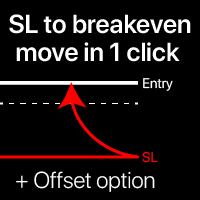
- Breakeven when the position becomes eligible
- Full position close
- Current volume and remaining volume
- Current profit/loss information
- Broker-authoritative Entry, Stop Loss and Take Profit levels
Entry remains read-only after the position is opened.
Stop Loss and Take Profit can be edited explicitly through EDIT SL/TP. Changes are prepared locally first and are not sent to the broker while levels are being dragged.
A valid draft can be sent with APPLY CHANGES. If a Stop Loss modification increases the risk distance, an additional CONFIRM CHANGES step is required before the request can be sent.
When no effective modification is pending, DONE exits edit mode without sending a broker request.
Take Profit can be enabled, moved or removed during editing. When a position has no Take Profit, the utility can propose a local TP draft based on the current Entry and Stop Loss distance when the required information is available. The proposed level remains a local draft until APPLY CHANGES is used.
Stop Loss can also be added, moved or removed during editing.
Removing an existing Stop Loss uses two explicit steps:
- REMOVE SL
- CONFIRM REMOVE SL
The first click does not modify the broker position. A second explicit confirmation is required while the position and broker state remain valid.
When a position has no Stop Loss, enabling SL creates a local visual SL draft on the appropriate side of the market. The proposed line is only a starting point and cannot be applied automatically. The user must explicitly move or edit the SL before APPLY CHANGES becomes available.
If the broker position changes externally while an SL/TP draft or confirmation is active, Safety First Trade Manager invalidates any armed confirmation and reconciles the draft with the current broker state. Broker information remains authoritative.
Pending orders
LIMIT and STOP orders remain visible after they are placed.
The panel displays the broker order price, Stop Loss, Take Profit, volume and order type. The corresponding chart levels remain visible and become read-only while the pending order is active.
An active or recovered supported pending order can be cancelled directly from the panel.
Cancellation uses two explicit steps:
- CANCEL ORDER
- CONFIRM CANCEL
The first click does not cancel the order. The second confirmation is required while the same pending order and broker state remain valid.
While a supported pending order is being tracked, the creation of another trade from the same panel is blocked.
Restart and recovery
Local planning information can be restored after the utility is removed and attached again.
Existing supported positions and pending orders are reconciled with the current broker state. Broker information remains authoritative during recovery.
Recovered positions and pending orders are displayed using their current broker values.
An unapplied SL/TP draft is not restored after restart, and recovered broker exposure is never automatically modified, cancelled or re-sent.
Execution safety
Trading execution is disabled by default and must be explicitly enabled by the user.
Fresh broker-aware checks are performed before trading actions so that current broker information is used before a request is sent.
Safety First Trade Manager does not decide when the user should enter or exit the market. It is a trade execution and risk-management utility, not an automated trading strategy.
Current scope
Entry remains read-only after a position is opened.
Stop Loss and Take Profit can be added, moved or removed through the SFTM edit workflow.
Removing an existing Stop Loss requires an explicit REMOVE SL → CONFIRM REMOVE SL sequence.
When a missing Stop Loss is enabled, Safety First Trade Manager creates a local visual draft level that must be explicitly adjusted by the user before it can be applied.
Pending LIMIT and STOP orders can be cancelled from the panel through the explicit CANCEL ORDER → CONFIRM CANCEL workflow.
Important
Always verify the calculated trade parameters and requested management changes before execution.
Broker specifications and available trading conditions vary by symbol, account and broker. A plan that is valid under one trading environment may be rejected under another.
Testing the utility on a demo account before live use is recommended.
User Guide
Complete user guide:
https://www.mql5.com/en/blogs/post/775911