Emergency Webhook Alert
- Yardımcı programlar
- Sürüm: 1.10
- Güncellendi: 7 Mayıs 2026

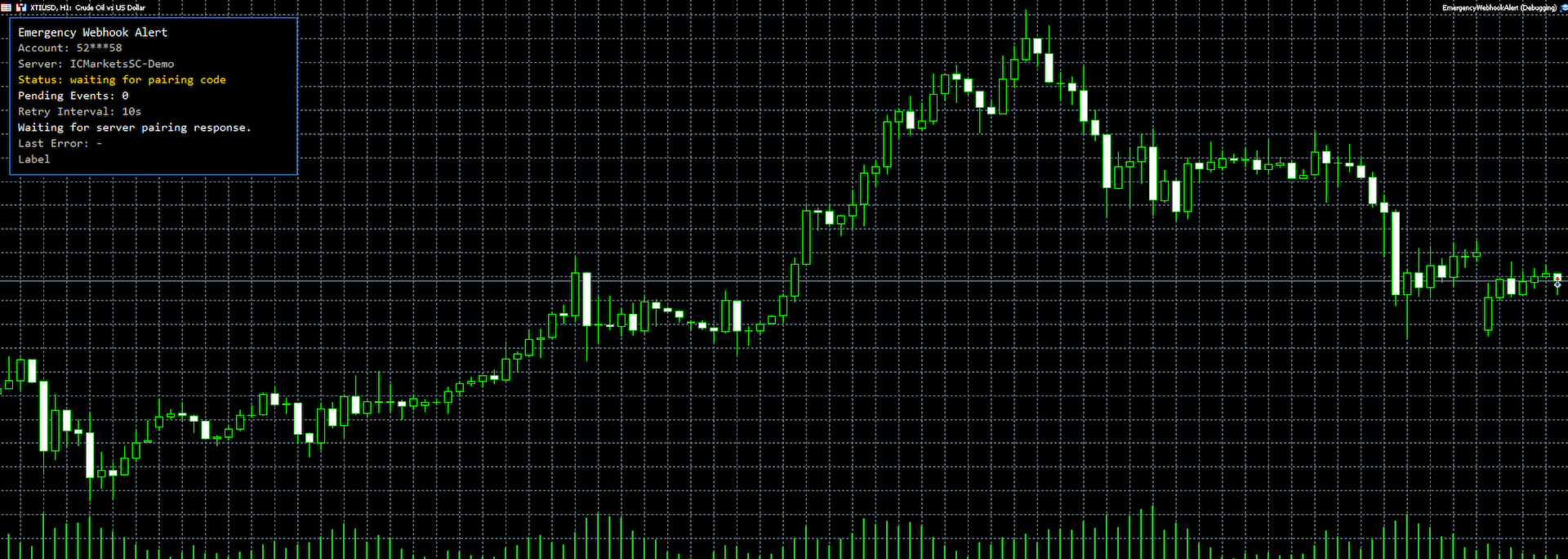
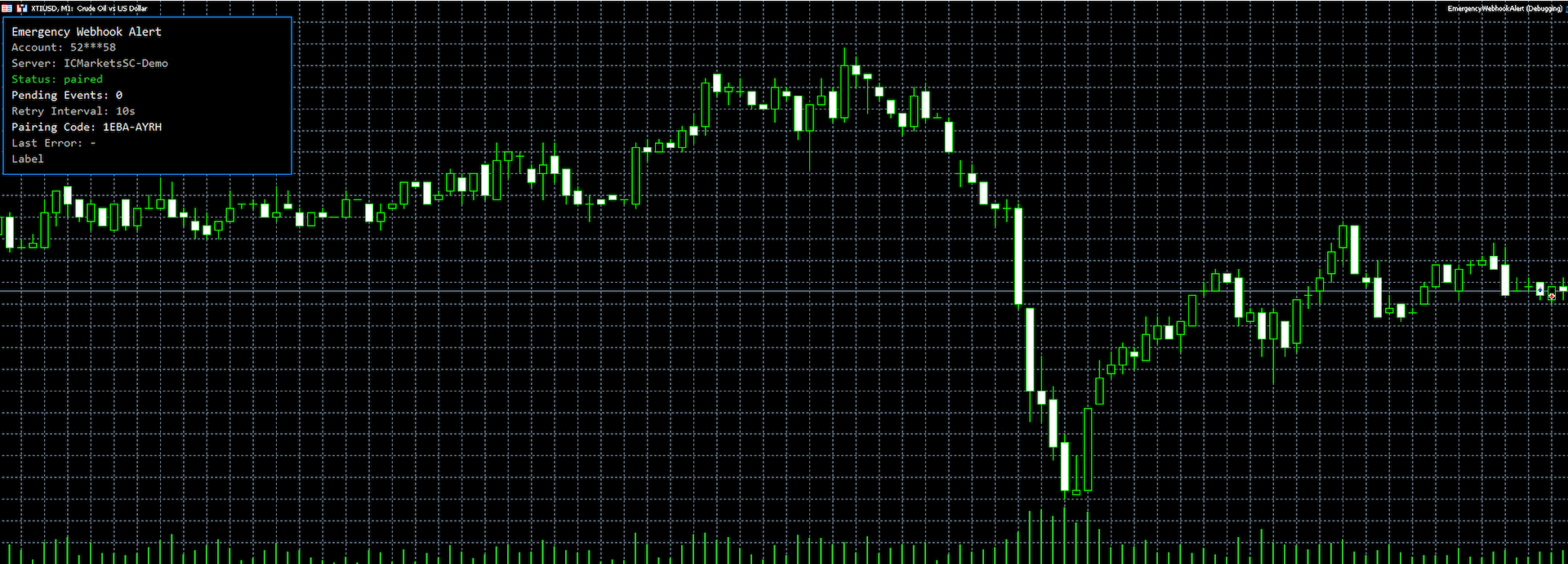
`Emergency Webhook Alert` is an MT5 Expert Advisor for trade event notifications. It monitors position opening, closing, stop loss, take profit, partial close, and reversal events, then sends trade events through a notification relay server to WeChat and Telegram. The EA includes an on-chart panel, supports English and Chinese UI, and is designed for real-time status, pairing status, and pending event monitoring.
▶ Want more than event alerts? Emergency Webhook Alert forwards your trade events — TradeAssist Remote Monitor (MT5→Telegram) is the
full cloud monitor: check your account from Telegram even when MT5 is closed, real offline/disconnect detection, multi-account
aggregation, and delivery audit. Observe, alert, report — it never trades for you.
👉 https://www.mql5.com/en/market/product/194805
The EA does not open, close, or modify trades. It only reads account trade events and sends notifications. Sensitive information such as account details and pairing data is masked in backend logs and admin views, which helps troubleshooting while reducing exposure risk. This tool is only for notifying users about their own trading events and does not constitute investment advice.
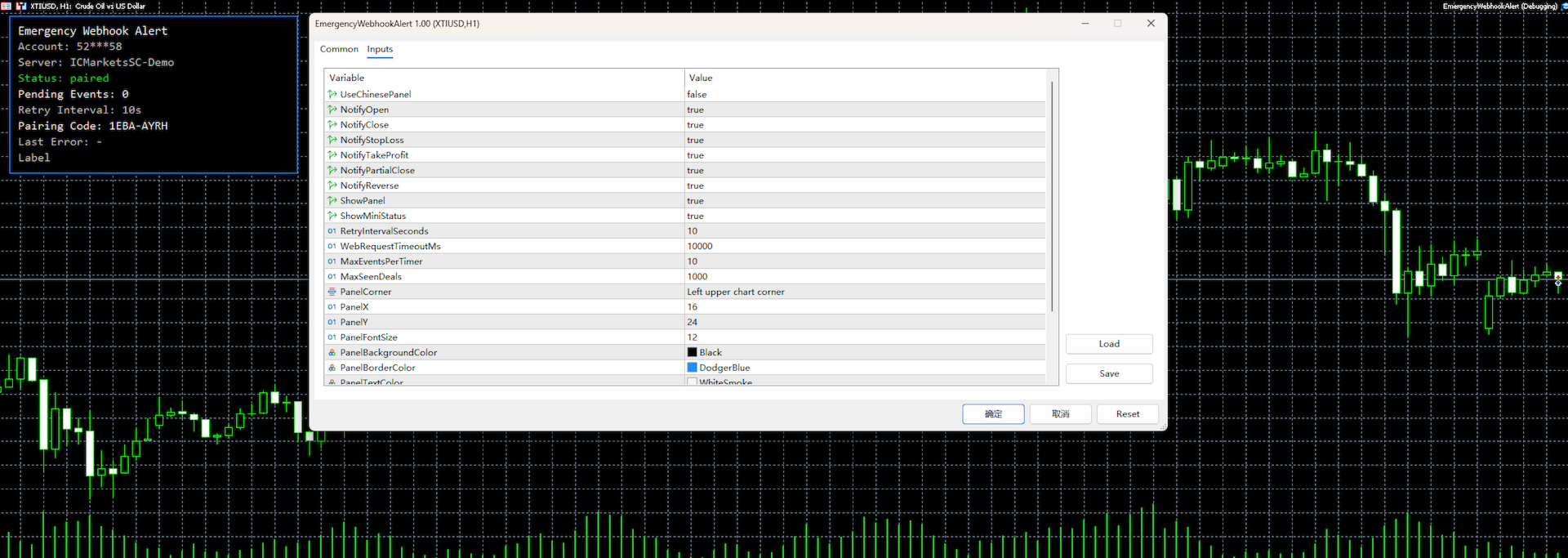
### Parameters
- `UseChinesePanel`: Enable Chinese panel text.
- `NotifyOpen`: Send open-position events.
- `NotifyClose`: Send close-position events.
- `NotifyStopLoss`: Send stop-loss close events.
- `NotifyTakeProfit`: Send take-profit close events.
- `NotifyPartialClose`: Send partial close events.
- `NotifyReverse`: Send reversal events.
- `ShowPanel`: Show the main chart panel.
- `ShowMiniStatus`: Show the small status label.
- `RetryIntervalSeconds`: Retry interval after a failure, in seconds.
- `WebRequestTimeoutMs`: WebRequest timeout, in milliseconds.
- `NotificationServerUrl`: Notification server root URL. Users need to add the address shown in this parameter to the MT5 WebRequest allow list.
- `MaxEventsPerTimer`: Maximum number of events processed per timer tick.
- `MaxSeenDeals`: Maximum number of processed deal records kept in cache.
- `PanelCorner`: Panel anchor corner.
- `PanelX`: Horizontal panel offset.
- `PanelY`: Vertical panel offset.
- `PanelFontSize`: Panel font size.
- `PanelBackgroundColor`: Panel background color.
- `PanelBorderColor`: Panel border color.
- `PanelTextColor`: Main panel text color.
- `PanelLabelColor`: Panel label color.
- `PanelOkColor`: Normal status color.
- `PanelWarnColor`: Warning status color.
- `PanelErrorColor`: Error status color.
### Features
- Automatic MT5 trade event notifications.
- WeChat official account template message support.
- Telegram notification support.
- On-chart panel and mini status display.
- English and Chinese UI support.
- Pairing code workflow before notification channels are enabled.
- Failed delivery retry and pending event cache.
- Admin logs and request logs for troubleshooting.
- Sensitive information is masked in logs and admin views.
### Data And Privacy
- The EA sends only the data required for trade event notifications through WebRequest, including masked account, broker server, broker company, symbol, event type, side, volume, execution price, profit, deal ticket, order ticket, position ID, Magic number, event time, and EA version.
- Account numbers keep the first 2 and last 2 characters, with the middle replaced by `***`, for example `52***58`.
- The EA does not read or send account passwords, investor passwords, emails, phone numbers, identity documents, or other unrelated personal data.
- Notifications are for the user's own trade event review only. They are not trading signals and do not constitute investment advice.
- WeChat and Telegram delivery depends on the external platform service, server network, and user binding configuration.
### Setup
1. Deploy the web service on your server and make sure it is reachable.
2. In MT5, open `Tools -> Options -> Expert Advisors -> Allow WebRequest for listed URL` and add the notification server root URL shown in the EA input parameter `NotificationServerUrl`.
3. Attach the EA to any trading chart and enable AutoTrading.
4. Account pairing is not self-service. Please contact the author via MQL5 private message, and the author will assist with the backend setup and account binding.
5. Bind Telegram `chat_id`.
6. Enable the notification channels you want.
7. Trade events will then be sent automatically.
8. You can review event records, sending records, and request logs in the admin panel.
### Notes
- The EA input parameter `NotificationServerUrl` shows the notification server root URL. Users need to add this address to the MT5 WebRequest allow list.
- Sensitive account and pairing data is masked in the logs.
- In Strategy Tester, the EA does not send real WebRequest notifications to avoid external notifications from test runs.
- If the panel shows a network or WebRequest permission error, check the MT5 WebRequest allow list, server status, and network connectivity first.