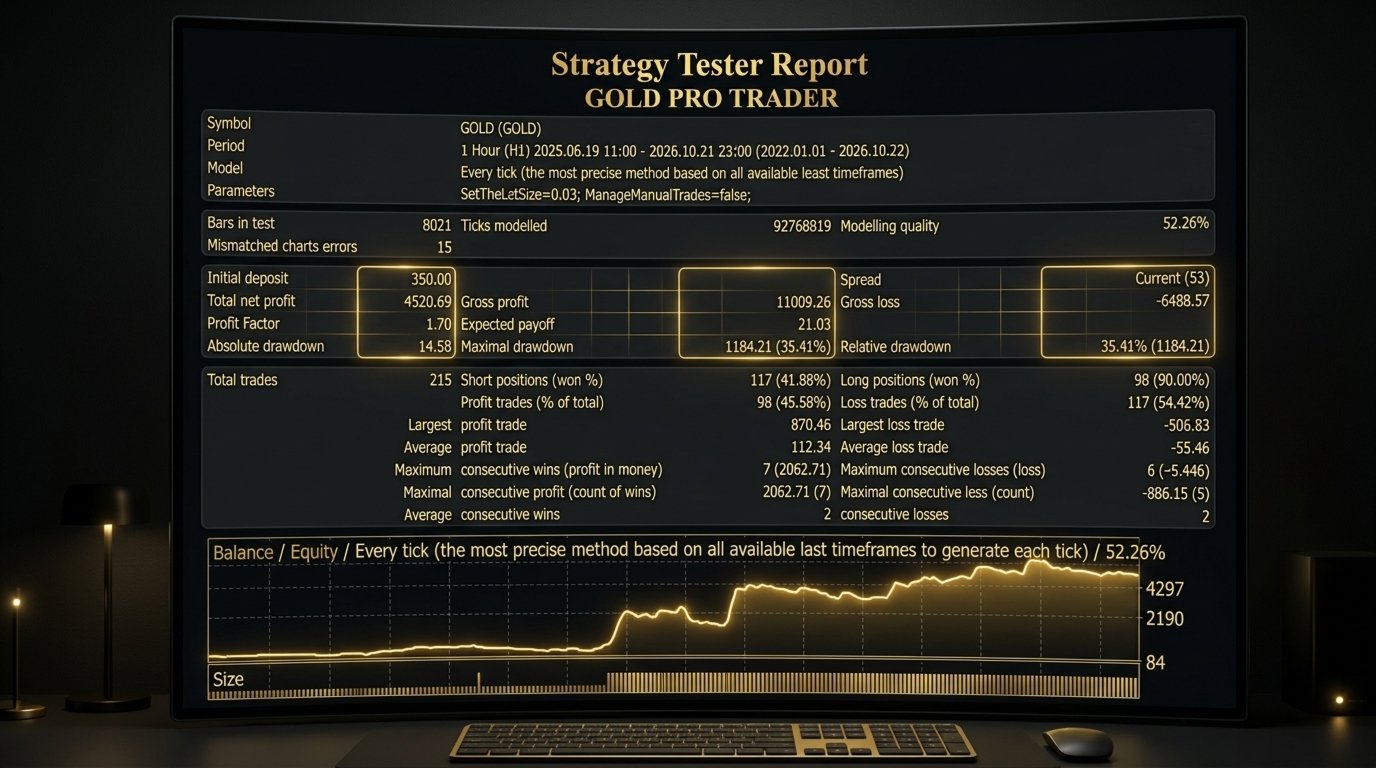
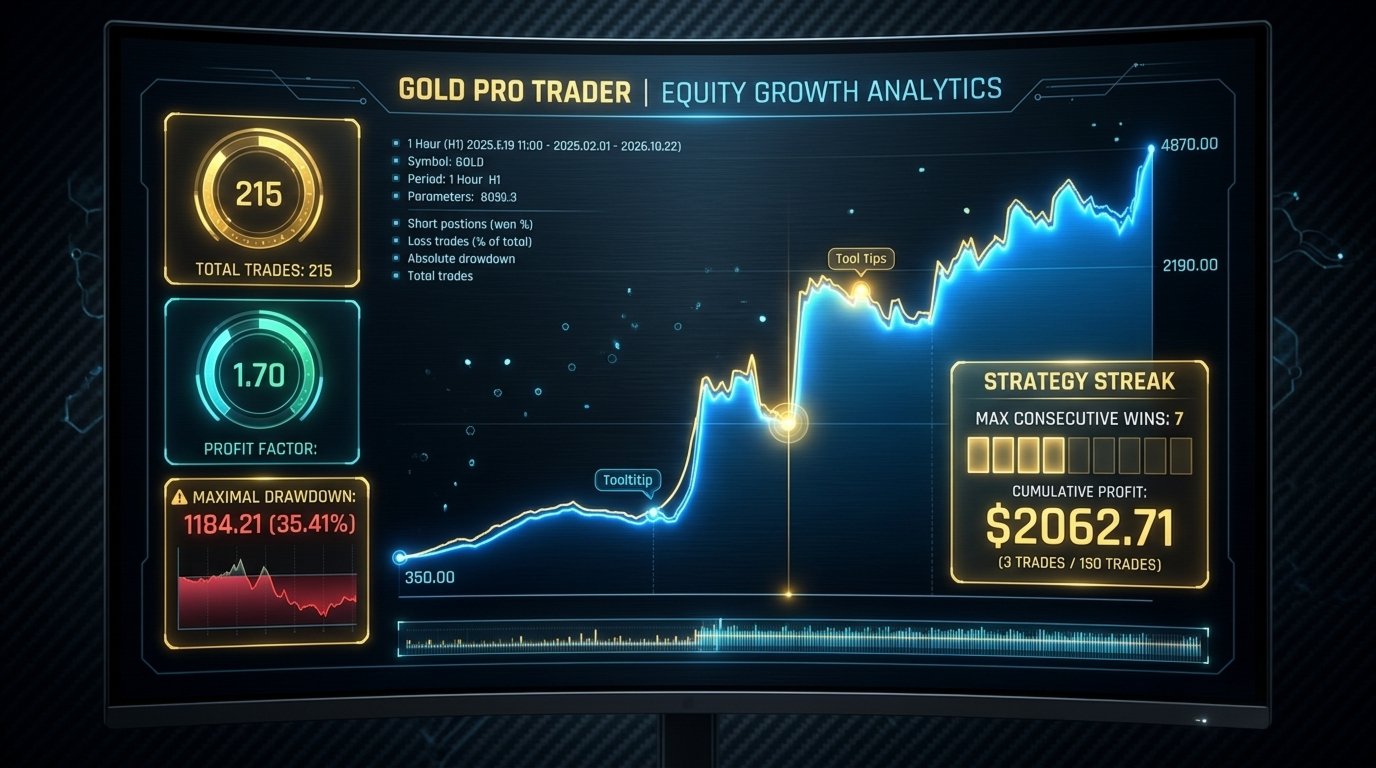
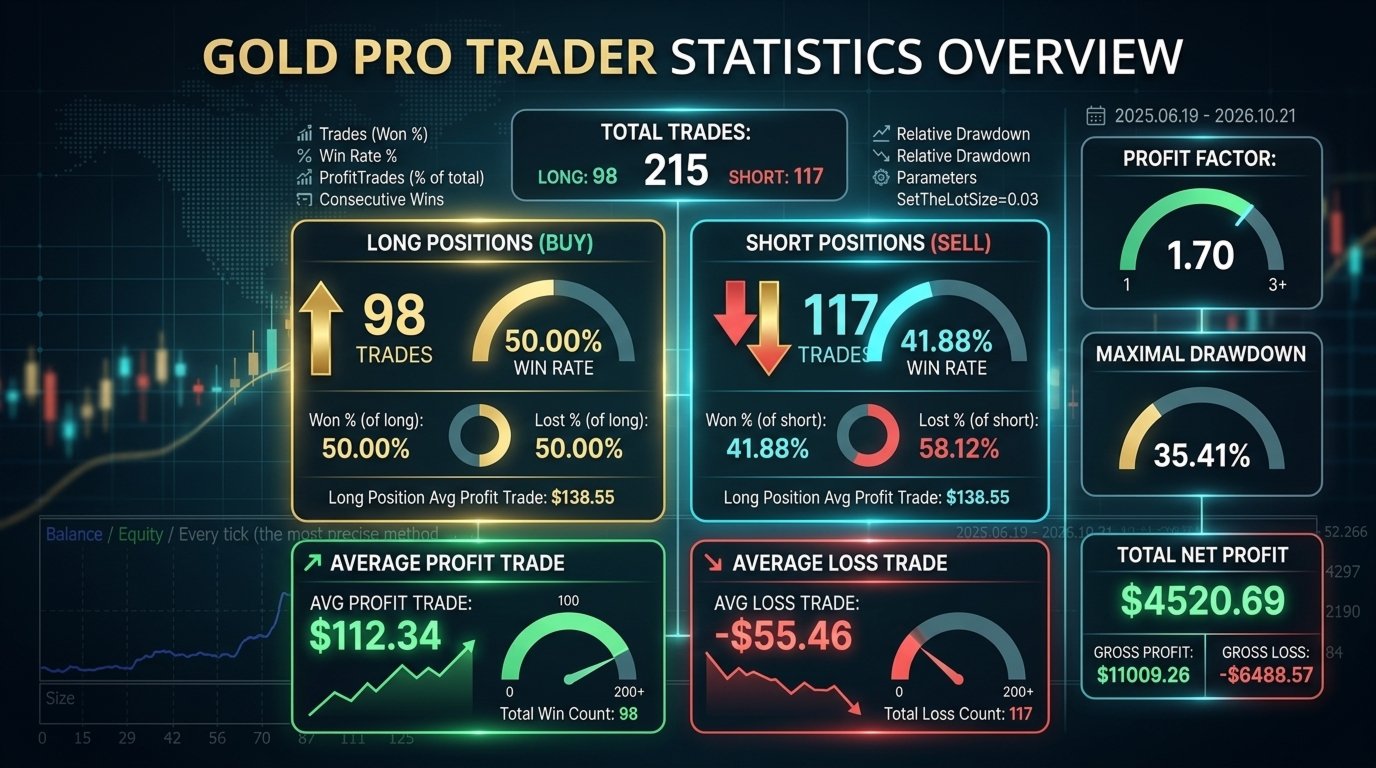
Gold ProTrader
- Эксперты
- Версия: 1.1
- Обновлено: 28 октября 2026
- Активации: 5

1. Introduction
Gold ProTrader is an Expert Advisor (EA) designed to automate trading on gold instruments through MetaTrader 4 (MT4).
Once installed and configured, the EA can manage its trading activity automatically while MT4 is running and connected to the broker.
This guide explains how to install the EA, prepare your trading account, configure the essential settings, start it correctly, and monitor its operation.
2. Requirements Before Installation
Before you begin, make sure you have the following:
- MetaTrader 4.
- An active trading account with a broker that offers gold trading.
- A stable internet connection.
- A sufficient account balance of at least $350.
- Permission to use automated trading on your account.
- Access to a demo account for initial testing.
Minimum account balance: The supplied EA version checks for a minimum account balance of $350 before it allows trading to start. This is a software requirement, not a recommendation that $350 is sufficient for safe trading. The appropriate capital level depends on the broker, leverage, contract specifications, lot size, and your tolerance for losses.
3. Installing the EA in MetaTrader 4
Follow these steps carefully.
Step 1 — Open MetaTrader 4
Launch MT4 and log in to your intended trading account.
Step 2 — Open the data folder
From the MT4 menu, select:
File → Open Data Folder
Step 3 — Open the Experts folder
Navigate to:
MQL4 → Experts
Copy the GOLD PRO TRADER.ex4 file into this folder.
Step 5 — Refresh the Expert Advisors list
Return to MT4. In the Navigator panel, right-click Expert Advisors and select Refresh. Alternatively, restart MT4.
GOLD PRO TRADER should now appear in the Expert Advisors list.
4. Preparing the Gold Chart
The supplied version is designed for gold instruments. It recognises chart symbols containing names such as XAUUSD, GOLD, or XAU/USD.
Broker symbol names vary. Some brokers add suffixes or prefixes to their gold symbols.
· Open Market Watch using Ctrl+M.
· Locate the broker’s gold instrument.
· Open its chart.
· Confirm that the chart is displaying live prices and updating normally.
· Check that the account is connected and trading is enabled.
Attach GOLD PRO TRADER to the gold chart, not to an unrelated currency pair or other instrument.
Timeframe: The EA uses the timeframe of the chart to which it is attached. While it is okay to trade on any timeframes, it is most effective on the 1 Hour (H1) timeframe. But it can also be used with some relative profitability on 30 minutes (M30) and 15 minutes (M15) timeframes.
5. Attaching and Starting the EA
Once the correct gold chart is open:
· Find GOLD PRO TRADER in the Navigator.
· Drag it onto the chart, or double-click its name.
· Review the settings window.
· Under the Common tab, enable Allow live trading if you intend to permit automated order placement.
· Click OK.
· Check the toolbar’s AutoTrading control and make sure automated trading is enabled.
The EA should display its status text on the chart.
A smiling EA icon or another MT4 status indicator can help confirm that automated trading is permitted, but it does not guarantee that an order will be opened.
Keep MT4 open and connected while the EA is expected to operate. If you want it to run continuously, use a reliable computer with MT4 configured correctly.
· Understanding the Main User Settings
The EA includes numerous configuration options. For ordinary users, the safest starting point is to keep the supplied default settings until demo testing has confirmed that the installation works as expected.
The following are the main settings a user may encounter.
Lot size — SetTheLotSize
The default value in the supplied version is 0.01 lots.
However, the user can set his/her preferred lot size although the EA has a threshold of when it can trade using the selected lot size. What the EA does is it uses the default 0.01 lot size until the account balance rises to the threshold allowed for the user input lot size and then starts using the set lot size. If per adventure the account balance falls back below the threshold, the EA drops back to the immediate former lot size allowed in the current account balance.
NB: Lot size affects the monetary impact of price movements. A larger lot size can increase both gains and losses. Do not increase the lot size simply because the EA has not opened a trade recently.
Also, check the broker’s minimum volume, volume step, margin requirements, and contract specifications before choosing a lot size.
Manual trade management — ManageManualTrades
This option is disabled (false) by default. It concerns whether the EA also manages eligible trades opened manually on the same instrument (GOLD).
Leave it disabled unless you deliberately want the EA to manage manual positions. If you want the EA to take up the management of any manually opened trade, set this to true and the EA will add stop loss and take profit and will activate trailing stops if necessary and also control when the order should close.
5. Trade management and account protection
The EA includes position-management and account-protection settings. These are treated as important safety features.
Visual chart options
The EA can display chart annotations and detected-pattern markings. These are visual aids, not a promise that a trade will occur or that a particular outcome is guaranteed.
6. What to Expect After Starting the EA
The EA does not necessarily open a trade immediately after being attached to a chart. It may remain idle while waiting for suitable conditions or while a trading restriction is active.
The status text displayed on the chart changes as the EA operates. Depending on the current state, it may show that it is waiting, managing an existing position, or unable to proceed because of a requirement.
An extended period without trades does not automatically mean that the EA is broken.
7. Troubleshooting
The EA does not appear in the Navigator
- Check that the file is inside MQL4/Experts.
- Refresh the Expert Advisors list.
The EA is attached but no trades open
- Confirm the gold symbol is supported.
- Check that the account balance meets the minimum requirement.
- Confirm AutoTrading and live-trading permission are enabled.
- Check for an existing open position.
- Review the Experts and Journal tabs for errors or restrictions.
- Allow the EA time to operate; do not force entries by changing settings without testing.
The EA reports that the symbol is unsupported
Open the EA on the broker’s correct gold instrument. If the broker uses an unusual symbol name, contact the EA provider to confirm compatibility.
Orders fail to open or modify
Check the MT4 Experts and Journal tabs for the reported error. Confirm that the market is available, the account has sufficient free margin, and the broker permits trading at the requested volume.
If the issue continues, provide the error message, broker symbol, account type, and MT4 build information to the EA provider.
The EA stops trading after losses
Account-protection rules may halt new entries when a configured limit is reached.
Review the account history and contact the provider if the reason for the halt is unclear.
The chart status is not updating
Confirm that price data is arriving and that the EA remains attached to the chart. Check for errors in the Experts tab. If necessary, save the current settings before restarting MT4 or reattaching the EA.
8. Risk Management and Responsible Use
Gold can experience rapid price movements and sudden changes in spread. A trading system can lose money even when it operates as intended.
Keep these principles in mind:
- Only trade with money you can afford to lose.
- Use a lot size appropriate to your balance and broker contract specifications.
- Maintain sufficient free margin.
- Never assume that the $350 minimum balance requirement makes an account adequately funded.
- Do not increase position size to recover previous losses.
- Check the account and open positions regularly.
- Understand that stop-loss orders may not always execute at the requested price during fast markets or gaps.
- Keep your computer and protect your broker login credentials.
- Do not share account passwords with anyone offering unofficial support.
If the account experiences losses beyond your comfort level, stop the EA and reassess before continuing.
9. Final Checklist
Before allowing Gold ProTrader to operate unattended, confirm that:
- The correct version is installed.
- The EA is attached to a supported gold chart.
- The selected timeframe is appropriate.
- The lot size is suitable for the account.
- MT4 is connected and automated trading is permitted.
- Demo testing has been completed.
- You understand that losses are possible and that profitability is not guaranteed.
Final reminder: Gold ProTrader is an automated trading tool, not a guaranteed source of income. Correct installation, sensible account sizing, careful monitoring, and realistic testing are essential to responsible use.