Rocket One
- Индикаторы
- Версия: 1.0
- Активации: 5

Your Trading Companion for Scalping and Multi-Timeframe Trading
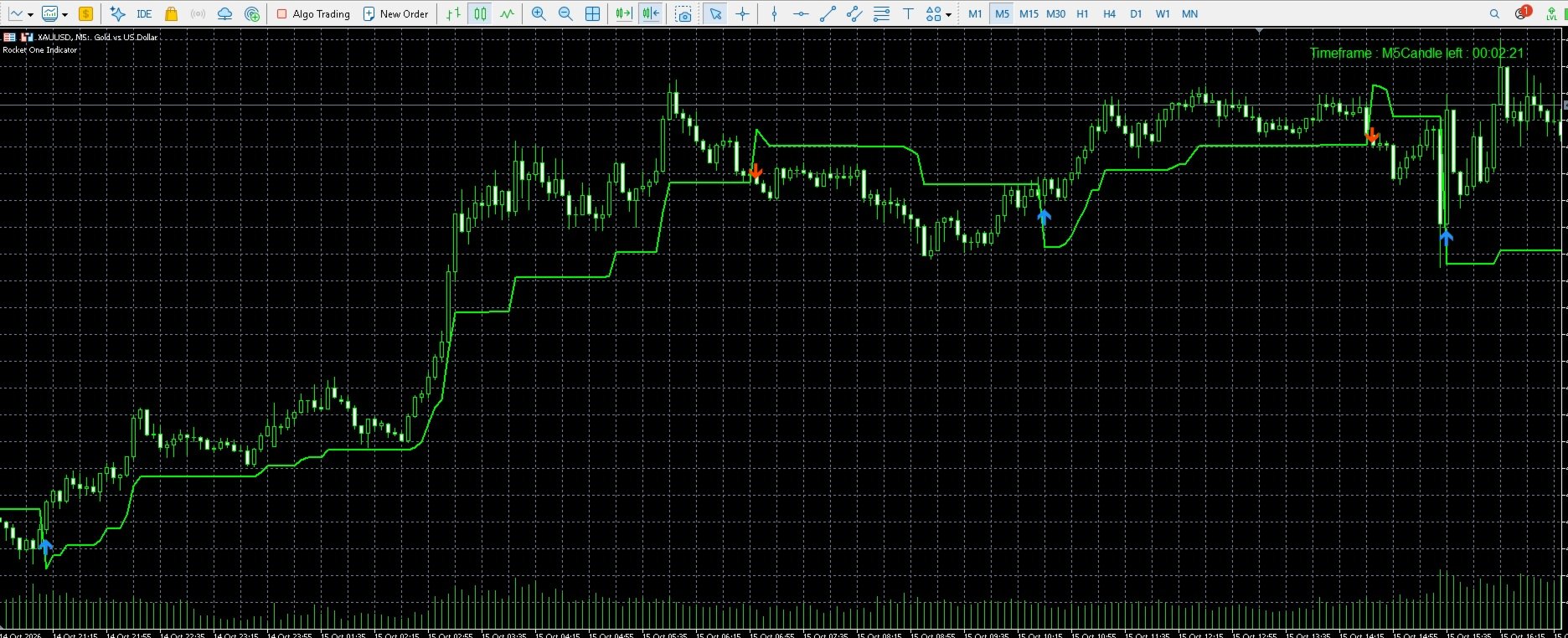
Rocket One is a custom indicator for MetaTrader 5 that displays visual BUY and SELL signals directly on your trading chart, together with a stepped green line that helps you follow price movement.
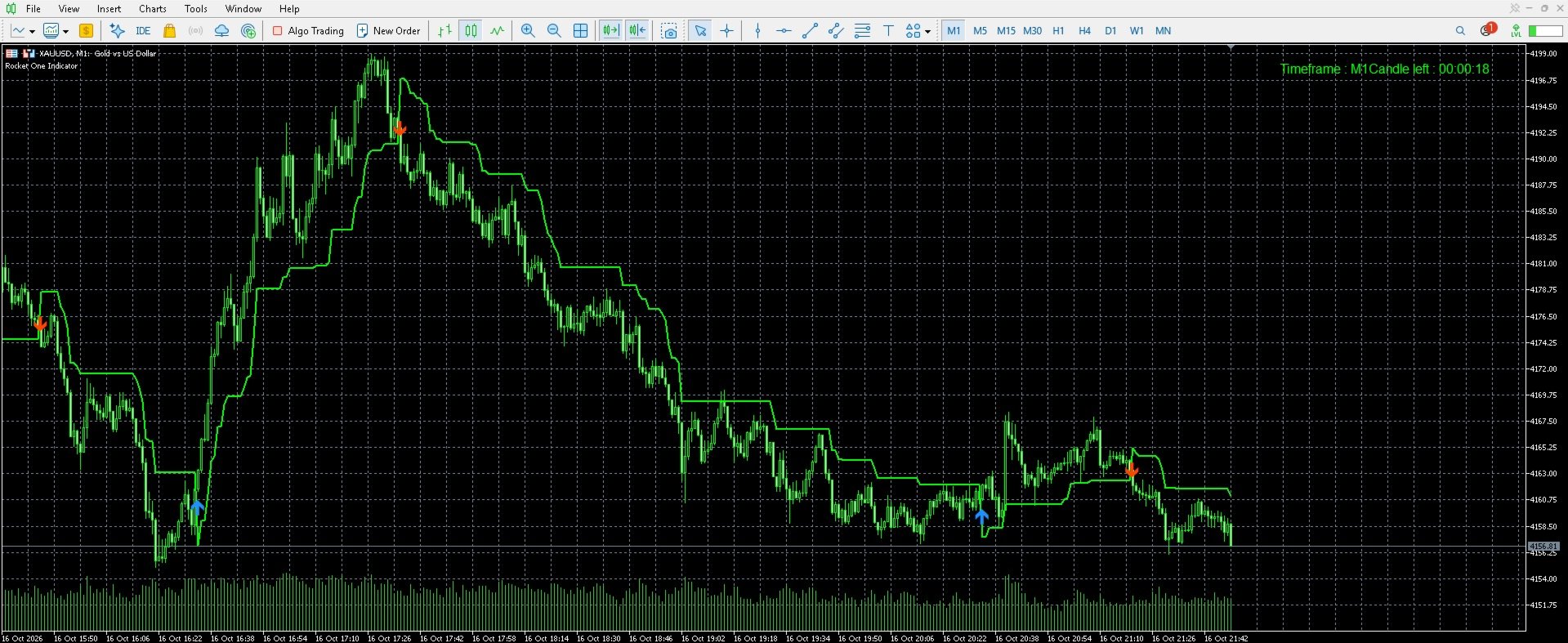
Designed for traders with different trading styles, Rocket One can be used for scalping on the 1-minute (M1) and 5-minute (M5) charts, as well as for short-term intraday trading and analysis on higher timeframes.
The indicator provides a visual way to monitor potential trading opportunities across Forex pairs, Gold, and other instruments supported by your broker.
This product is an indicator, not an automated trading robot. It does not open or close trades on your behalf.
1. UNDERSTANDING THE BUY AND SELL SIGNALS
Rocket One displays two types of directional signals on the chart.
BUY Signal — Blue Upward Arrow
A blue upward arrow identifies a potential bullish trading opportunity.
When a BUY arrow appears:
-
Observe the price action around the signal candle.
-
Check the position and direction of the stepped green line.
-
Evaluate the market conditions before deciding whether to enter a buy trade.
-
Define your entry, stop-loss, take-profit, and position size according to your trading plan.
The blue arrow highlights a potential buying opportunity. It does not guarantee that the price will continue rising.
SELL Signal — Orange Downward Arrow
An orange downward arrow identifies a potential bearish trading opportunity.
When a SELL arrow appears:
-
Observe the price action around the signal candle.
-
Check the position and direction of the stepped green line.
-
Evaluate the market conditions before deciding whether to enter a sell trade.
-
Define your entry, stop-loss, take-profit, and position size according to your trading plan.
The orange arrow highlights a potential selling opportunity. It does not guarantee that the price will continue falling.
Signal colors at a glance:
-
Blue upward arrow: BUY
-
Orange downward arrow: SELL
-
Green stepped line: Visual price-following reference
Always use the signals as part of your trading decision process rather than treating every arrow as an automatic entry instruction.
2. UNDERSTANDING THE GREEN STEPPED LINE
The green stepped line is an important visual component of Rocket One. Its position and changes help you observe how the indicator follows price movement.
Depending on the market movement, the line can move upward or downward in steps and remain relatively flat between adjustments.
When the Line Is Below Price
When the stepped line is positioned below the current price, it provides a visual reference beneath the market movement.
During a rising market, an upward-moving line can help you monitor the ongoing movement and observe how the reference level changes as price advances.
When the Line Is Above Price
When the stepped line is positioned above the current price, it provides a visual reference above the market movement.
During a falling market, a downward-moving line can help you monitor the ongoing movement and observe how the reference level changes as price declines.
How to Use the Line
-
Observe the relationship between the current price and the green line.
-
Pay attention to changes in the line's position and direction.
-
Compare the line with the BUY and SELL arrows appearing on the chart.
-
Use the line as an additional visual reference when managing a trade.
The green line should not automatically be assumed to represent a guaranteed stop-loss price or an exact recommended trade exit. Apply your own risk management rules when determining protective stop levels.
3. ROCKET ONE FOR SCALPING — M1 AND M5
Rocket One can be applied to lower timeframes for traders who prefer scalping and short-term trading.
The M1 and M5 charts are useful starting points for evaluating how the indicator behaves during faster market movements.
M1 — One-Minute Scalping
The M1 timeframe is intended for traders who prefer a fast trading pace and want to monitor short-term price movements.
Recommended workflow:
-
Open the chart of your preferred instrument in MetaTrader 5.
-
Select the M1 timeframe.
-
Attach Rocket One to the chart.
-
Monitor the blue BUY and orange SELL arrows.
-
Observe the stepped green line and the surrounding price action.
-
Evaluate the trading opportunity before entering a position.
-
Set your stop-loss, take-profit, and position size before executing the trade.
-
Manage the position according to your predefined trading plan.
M1 candles develop quickly, and market conditions can change within a short period. Spreads, slippage, and execution speed are particularly important when scalping.
Avoid entering a trade solely because an arrow has appeared.
M5 — Five-Minute Scalping and Short-Term Trading
The M5 timeframe provides a longer candle interval than M1 and can be used for scalping or short-term intraday trading.
Recommended workflow:
-
Open your preferred trading instrument.
-
Select M5.
-
Attach Rocket One to the chart.
-
Monitor the BUY and SELL signals.
-
Review the green line and the surrounding price movement.
-
Evaluate whether the signal fits your trading plan.
-
Define your risk and exit levels before placing the trade.
M5 may be suitable for traders who prefer to evaluate price movement over a longer interval than M1.
Important: M1 and M5 are recommended starting timeframes for scalping, but neither timeframe guarantees better results. Test the indicator on your preferred instrument and broker before live trading.
4. USING ROCKET ONE ON HIGHER TIMEFRAMES
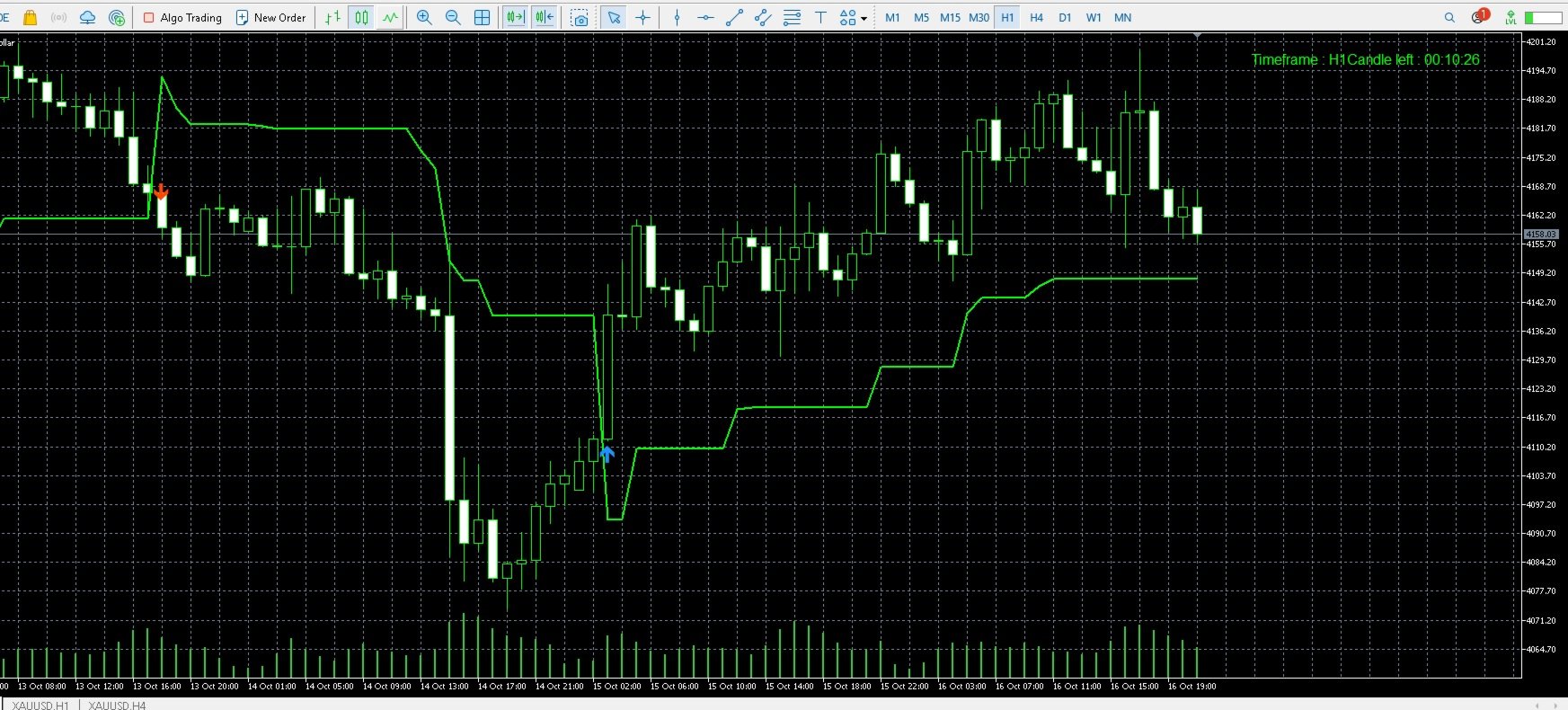
Rocket One can also be applied to higher chart periods for traders who prefer longer intraday movements or higher-timeframe analysis.
| Timeframe | Typical use |
|---|---|
| M1 | Fast scalping |
| M5 | Scalping and short-term trading |
| M15 | Intraday trading |
| M30 | Intraday analysis |
| H1 | Hourly market analysis |
| H4 | Higher-timeframe analysis |
| D1 | Daily market analysis |
| W1 | Weekly market analysis |
| MN | Monthly market analysis |
On higher timeframes, each candle represents a longer period of market activity. Signal frequency and timing can differ from those on lower timeframes.
You can attach Rocket One to a chart using the timeframe that best matches your preferred trading style and holding period.
The indicator can also be used on multiple charts, allowing you to monitor different instruments or timeframes independently.
5. USE ROCKET ONE ON DIFFERENT MARKETS
Rocket One can be applied to supported trading instruments available through your MetaTrader 5 broker.
Examples include:
Gold
-
XAUUSD
Major Forex pairs
-
EURUSD
-
GBPUSD
-
USDJPY
Other Forex pairs
-
AUDUSD
-
USDCAD
-
USDCHF
-
Other currency pairs offered by your broker
You can also evaluate the indicator on other supported instruments available in your trading account.
The availability of instruments, trading hours, spreads, contract specifications, and execution conditions depends on your broker.
Always verify the symbol specifications and trading conditions before using the indicator on a new instrument.
6. INDICATOR SETTINGS AND CUSTOMIZATION
Rocket One provides input settings that allow you to configure its behavior and visual appearance.
The exact available options are displayed in the indicator's Inputs tab in MetaTrader 5.
StepSize
Controls the indicator's step-size parameter.
Different values may affect how the stepped line responds to price movement. Adjust this parameter carefully and evaluate the resulting chart behavior before adopting a new setting.
Sensitivity
Controls the indicator's sensitivity parameter.
Changes to sensitivity may affect the indicator's response to market movements. Start with the default configuration and make adjustments gradually.
BuyArrowColor
Sets the color of the BUY arrows.
The default visual color shown in the product examples is blue.
SellArrowColor
Sets the color of the SELL arrows.
The default visual color shown in the product examples is orange.
ArrowSize
Adjusts the displayed size of the signal arrows.
Choose a size that makes the signals easy to identify without unnecessarily covering price candles.
ArrowOffsetPoints
Adjusts the distance between the signal arrows and their corresponding candles.
This setting can help improve chart readability.
AlertOn
Enables or disables the indicator's supported alert functionality.
NotificationOn
Enables or disables push notifications when supported by the indicator's signal logic.
To receive push notifications, configure the MetaTrader 5 notification settings on your trading terminal and mobile device as required.
SoundOn
Enables or disables sound notifications when supported by the indicator.
Configuration advice: Begin with the default settings. Change one parameter at a time and compare the behavior on your preferred instruments and timeframes.
7. ALERTS AND NOTIFICATIONS
Rocket One includes configurable notification options, where supported by the selected settings.
Depending on the available inputs and your configuration, you can enable or disable:
-
On-screen alerts.
-
Push notifications.
-
Sound notifications.
These features can help you monitor signal activity without continuously watching the chart.
To use mobile push notifications, configure the MetaTrader 5 notification settings correctly and enable the corresponding indicator option.
Notifications are informational. They do not place orders, manage positions, or guarantee that a trading opportunity remains available when you receive the notification.
8. HOW TO INSTALL ROCKET ONE
Follow these steps to install and start using the indicator.
Step 1 — Obtain the Indicator
Purchase or download Rocket One through the official MetaTrader 5 Market.
Step 2 — Open MetaTrader 5
Launch your MetaTrader 5 trading terminal and connect to your trading account.
Step 3 — Locate Rocket One
Find Rocket One in the Navigator panel under Indicators, using the installation method provided by MetaTrader 5.
Step 4 — Open a Chart
Select the instrument you want to monitor, such as XAUUSD or EURUSD.
Step 5 — Select Your Timeframe
Choose M1 or M5 for scalping, or select a higher timeframe that matches your trading approach.
Step 6 — Attach the Indicator
Drag Rocket One onto the chart or double-click its name in the Navigator panel.
Step 7 — Review the Settings
Open the Inputs tab and review the available parameters. Adjust the visual settings and notification options as needed.
Step 8 — Start Monitoring the Chart
Observe the blue BUY arrows, orange SELL arrows, and green stepped line.
Evaluate each signal in the context of price movement and your trading plan.
Step 9 — Manage Your Risk
Before placing any trade, determine your entry, stop-loss, take-profit, and position size. Use appropriate risk management at all times.
9. PRACTICAL TIPS FOR BETTER USE
To become familiar with Rocket One:
-
Start by testing M1 and M5 if your main objective is scalping.
-
Evaluate higher timeframes if you prefer a slower trading pace.
-
Begin with the default indicator settings.
-
Observe how the arrows and green line behave on different instruments.
-
Consider the surrounding price action before acting on a signal.
-
Pay attention to spreads, slippage, and execution speed when scalping.
-
Avoid making decisions solely on the basis of a single arrow.
-
Test your preferred configuration on a demo account before live trading.
-
Use appropriate stop-loss levels and position sizing.
-
Never assume that a previous signal's outcome predicts the next signal.
The behavior of an indicator can vary with market conditions, timeframe, symbol specifications, and broker execution.
10. PRODUCT INFORMATION
-
Product Name: Rocket One
-
Platform: MetaTrader 5
-
Product Type: Custom Indicator
-
Trading Styles: Scalping, short-term trading, and higher-timeframe analysis
-
Recommended Scalping Timeframes: M1 and M5
-
Additional Timeframes: M15, M30, H1, H4, D1, W1, and MN
-
Markets: Forex, Gold, and other supported broker instruments
-
Signal Display: Blue BUY arrows and orange SELL arrows
-
Chart Reference: Green stepped line
-
Customization: Available indicator inputs and visual settings
-
Notifications: Configurable notification options, subject to the available inputs
-
Automated Trading: No; Rocket One is an indicator and does not automatically execute trades
RISK DISCLAIMER
Rocket One is a technical analysis indicator intended to help traders monitor potential trading opportunities.
No indicator can guarantee the direction of future price movements or ensure profitable trading results. Financial markets involve risk, and losses can occur even when a signal appears favorable.
Always evaluate the indicator before using it in live trading and apply your own trading strategy and risk management rules.
Rocket One does not automatically open or close trades. All trading decisions, order execution, and risk management remain the responsibility of the user.