Multi Currency Stocastic Cross Scanner
- Indicadores
-
Shin Kojima
 MT4 indicator developer with 10+ years of live trading experience.
Specializing in alert tools and scanners for ICT-based traders.
Zero complaints. Reliable tools. Real support.
MQL4 / MQL5 Development Services
• Custom Indicator Modifications - Versão: 1.0
Stoch Cross 448 Scanner
Scan 64 pairs x 7 timeframes for stochastic golden/dead crosses — all from a single chart. | User Manual
------------------------------------------------------------------------
1. Overview
------------------------------------------------------------------------
Stoch Cross 448 Scanner is a MetaTrader 4 indicator that monitors
stochastic cross signals across 64 currency pairs and 7 timeframes
simultaneously, displaying all results in a single panel.
Drop it onto any chart and it instantly scans every selected symbol and
timeframe for stochastic golden crosses and dead crosses — no need to
switch charts manually.
Signal logic:
- Buy signal:
Stochastic main line crosses the signal line from below to above
while the stochastic is at or below the buy level.
Default buy level: 20
- Sell signal:
Stochastic main line crosses the signal line from above to below
while the stochastic is at or above the sell level.
Default sell level: 80
Key specs:
- Signals fire on confirmed (closed) candles only. No repainting.
- Uses built-in MT4 iStochastic calculation. No external custom
indicator reference is required.
- Works on FX pairs, Gold (XAUUSD), indices, crypto — any symbol in
your broker's Market Watch.
- Default display: 29 symbols x 7 timeframes.
- Full capacity: 64 pairs x 7 timeframes = 448 combinations.
- Settings are fully adjustable per symbol and timeframe.
------------------------------------------------------------------------
2. Typical Workflow
------------------------------------------------------------------------
Step 1 Find signals with 448 Scanner
The panel highlights a cell when a stochastic cross signal is
detected on the latest confirmed bar.
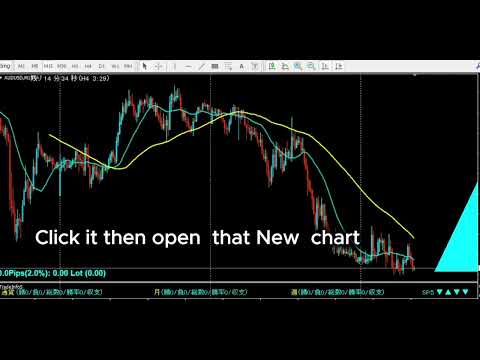
Step 2 Open chart with one click
Click the timeframe label in the panel to open a new chart
for that symbol and timeframe instantly.
Step 3 Check the chart context
Use the opened chart to confirm trend direction, support and
resistance, higher timeframe bias, and your own entry rules.
Step 4 Restore your chart workspace anytime with AutoLineSaver for 448
Use AutoLineSaver to save and restore your drawn lines at any time.
------------------------------------------------------------------------
3. Color Guide
------------------------------------------------------------------------
Each cell in the panel represents one symbol x timeframe combination.
Color Meaning
---------- -------------------------------------------------------
Cyan Buy condition detected.
Dodger Blue A new buy signal was just detected on this bar.
Reverts to Cyan on the next scan cycle.
Red Sell condition detected.
Magenta A new sell signal was just detected on this bar.
Reverts to Red on the next scan cycle.
White/Gray No signal detected.
Yellow Signal ended, or symbol is excluded from scan when the
SymOnOff feature is used.
- When an alert fires, the symbol name turns Red temporarily.
It returns to its normal color on the next scan cycle.
- The number shown next to each symbol name is the current spread.
When the spread turns Red, the symbol is skipped due to the
MaxSpread filter.
------------------------------------------------------------------------
4. Installation
------------------------------------------------------------------------
1. Copy StochCrossAllSearch.mq4 to your MT4 MQL4/Indicators/ folder.
2. Restart MetaTrader 4, or press F5 in MetaEditor to refresh.
3. Attach the indicator to any chart.
The timeframe of the host chart does not affect scan results.
This version is a built-in single-file scanner.
AllSearch.mqh is already embedded in the mq4 file, so no Include file
is required.
------------------------------------------------------------------------
5. First Launch Warning
------------------------------------------------------------------------
Immediately after attaching the indicator, symbols that have not been
recently loaded in Market Watch may lack price history.
If this occurs, the following alert may appear:
"Please load [Symbol][Timeframe] chart once"
Open a new chart for the indicated symbol and timeframe. Once the chart
loads, MT4 downloads the required history and the scanner works normally
from that point on.
------------------------------------------------------------------------
6. How to Specify Symbols (UseSymbols)
------------------------------------------------------------------------
Only symbols visible in MT4's Market Watch window are scanned.
Add any symbol you want to monitor to Market Watch before starting.
There are two ways to enter symbols in UseSymbols:
Method 1 — Currency codes (auto-combination)
Enter 3-letter currency codes separated by spaces.
All valid pairs are generated automatically.
Example: EUR USD JPY -> EURUSD, EURJPY, USDJPY
Method 2 — Full symbol names (direct)
Enter the full symbol name to add it directly.
Example: XAUUSD -> Gold is added to the scan list
You can combine both methods.
Example: XAUUSD USD EUR JPY -> XAUUSD, EURUSD, EURJPY, USDJPY
- Display order follows the order of entry in UseSymbols.
- If your broker adds a suffix to symbol names (e.g. EURUSDm or
EURUSDPro), enter the suffix in AddSymbol (e.g. AddSymbol = m).
------------------------------------------------------------------------
7. Parameters
------------------------------------------------------------------------
Stochastic Settings
StochKPeriod 7 Period of the stochastic %K line.
StochDPeriod 3 Period of the stochastic %D signal line.
StochSlowing 3 Slowing value of the stochastic.
StochBuyLevel 20 Lower level used for buy signal detection.
A buy signal is detected when the main line
crosses above the signal line in this zone.
StochSellLevel 80 Upper level used for sell signal detection.
A sell signal is detected when the main line
crosses below the signal line in this zone.
StochMethod MODE_SMA
Moving average method used for stochastic
calculation.
0=MODE_SMA 1=MODE_EMA
2=MODE_SMMA 3=MODE_LWMA
StochPriceField 0 Price field used for stochastic calculation.
0 = Low/High
1 = Close/Close
bMainLineLevelOnly true true: The 20/80 zone is judged by the main
line only.
false: Both the main line and signal line
must be inside the 20/80 zone.
Signal Detection Details
The scanner compares the latest confirmed bar (shift 1) with the
previous confirmed bar (shift 2).
Buy:
main(shift 2) < signal(shift 2)
main(shift 1) > signal(shift 1)
and the selected 20-zone condition is met.
Sell:
main(shift 2) > signal(shift 2)
main(shift 1) < signal(shift 1)
and the selected 80-zone condition is met.
Timeframe Selection — Display ON/OFF
Controls which timeframes appear in the panel and are scanned.
Set to false to exclude a timeframe entirely.
bUseM1 false Show M1 in the panel and scan it.
bUseM5 false Show M5 in the panel and scan it.
bUseM15 true Show M15 in the panel and scan it.
bUseM30 true Show M30 in the panel and scan it.
bUseH1 true Show H1 in the panel and scan it.
bUseH4 true Show H4 in the panel and scan it.
bUseD1 true Show D1 in the panel and scan it.
bUseW1 true Show W1 in the panel and scan it.
Alert Settings — Alert ON/OFF (independent from display)
Display and alerts are controlled separately.
A timeframe can be visible in the panel but fire no alert.
Example: bUseH1=true + bAlertH1=false
H1 is shown in the panel, but no alert fires on H1 signals.
bAlertOnce true true: Log detailed messages to Experts tab
and show one summary pop-up.
false: Show pop-up alert dialog for each
detected signal.
bFindAlert true Alert when a new cross signal is detected.
bLostAlert false Alert when an existing signal ends.
bAlertM1 true Fire alerts on M1 signals.
bAlertM5 true Fire alerts on M5 signals.
bAlertM15 true Fire alerts on M15 signals.
bAlertM30 true Fire alerts on M30 signals.
bAlertH1 true Fire alerts on H1 signals.
bAlertH4 true Fire alerts on H4 signals.
bAlertD1 true Fire alerts on D1 signals.
bAlertW1 true Fire alerts on W1 signals.
Spread Filter
bUseSpread true Show the current spread next to each symbol name.
Aqua = within the allowed range.
Red = spread exceeds MaxSpread. Symbol is skipped
for that scan cycle automatically.
MaxSpread 6.0 Spread threshold in pips. Symbols above this value
are excluded from scanning until spread drops back
below the limit.
Notification Settings
bMail false Send an email when an alert fires.
Requires MT4 email settings to be configured.
bPush false Send a mobile push notification when an alert fires.
Requires MT4 notification settings to be configured.
Symbol Settings
UseSymbols XAUUSD USD EUR JPY GBP CAD AUD NZD CHF
Space-separated list. See section 6 for details.
AddSymbol (empty) Suffix appended to every symbol name.
Example: enter "m" if your broker uses EURUSDm.
Special Features
SelfRifresh false Controls color update behavior for multi-instance use.
false (default): Colors reset each cycle automatically.
DodgerBlue -> Cyan, Magenta -> Red, Yellow -> White.
true: Colors set by other indicators on the same panel
are preserved. Use this on secondary instances when
running multiple scanners on the same chart.
SymOnOff false Enables click-to-exclude on symbol names.
false (default): Clicking a symbol has no effect.
true: Click a symbol name to toggle it Yellow
(excluded from scan). Click again to restore.
Useful for hiding specific symbols temporarily
without editing UseSymbols.
AddText (empty) Prefix added to all chart object names for this
instance. Set a unique value (e.g. "A", "B") when
running multiple instances on the same chart to
prevent object name conflicts.
Display Position Settings
ATRCorner 1 Corner where the panel is anchored.
0 = Upper-Left
1 = Upper-Right (default)
2 = Lower-Left
3 = Lower-Right
TxtXBase 0 Horizontal offset of the entire panel from the
anchored corner (pixels). Increase to shift the
panel away from the chart edge.
LineMax 30 Maximum symbol rows per column. When the symbol
count exceeds this, a new column is added
automatically.
FontSize 10 Font size of all panel text. Changing this value
also scales the spacing between columns and rows.
TxtXPos 5 Horizontal spacing between each timeframe column
in the panel (pixels).
TxtXSpace 5 Additional horizontal padding between timeframe
columns. Adjust together with TxtXPos to fine-tune
column spacing.
TxtYPos 5 Vertical spacing between symbol rows (pixels).
Increase if rows overlap at larger font sizes.
------------------------------------------------------------------------
8. Tips
------------------------------------------------------------------------
- All signals are based on completed bars only.
The current open bar is never used for signal generation.
- The scanner uses shift 1 and shift 2 to confirm the stochastic cross.
- Enabling many timeframes with a large symbol list increases CPU load.
Disable unused timeframes with bUseM1, bUseM5, etc.
- If you want stricter overbought/oversold filtering, set
bMainLineLevelOnly=false.
- To run multiple instances on the same chart with different settings,
set a unique value for AddText on each instance.
------------------------------------------------------------------------
9. All-Currency Monitoring Series
------------------------------------------------------------------------
Tools that monitor all currency pairs at once become an incredibly powerful weapon once mastered ? a trading tool for life.
The key is to match the right tool to your trading strategy.
Here are the hottest tools available right now:
- IFVG All-Currency Scanner
The most effective tool for catching ICT fake-out moves.
Especially powerful for targeting AMD movement setups.
- MA + Pin Bar All-Currency Scanner
A precision tool that finds pin bars bouncing off moving averages to catch pullback entries.
The ultimate edge comes from knowing [what was swept]. Works perfectly with ICT methodology.
- AutoLineSaver
An almost essential companion for all-currency monitoring.
Automatically saves and restores your drawn lines even after closing charts ? an extremely
convenient tool that dramatically improves the efficiency of multi-pair chart analysis.