Backtest Pro Improve Your Trading Skill
- Utilitários
- Versão: 19.0
- Ativações: 5

Welcome to the ultimate manual trading simulator cockpit for MetaTrader 4. This guide provides comprehensive instructions on how to install, configure, and operate the interactive features of the Expert Advisor.
"Why Experts Choose MT4 for Manual Backtesting"
You might wonder why we designed this for MT4. The answer is simple: Speed and Control. MT4’s Visual Mode is the gold standard for manual simulation. Unlike the restrictive environment of MT5, MT4 allows our engine to provide a seamless, real-time interaction loop. You don't just "watch" historical data—you interact with it.
-
MT4: Ultra-responsive, fluid drag-and-drop, professional-grade manual simulation.
-
MT5: Often clunky for manual interaction in the tester, hindering your ability to practice high-speed trade execution.
Don't compromise your training. Use the tool where it was built to shine.
1. How to Initialize the Simulator
Because this utility is built exclusively for visual practice and historical strategy validation, it must be launched inside the MT4 Strategy Tester environment.
-
Copy the compiled .ex4 file into your MetaTrader 4 directory: Go to File -> Open Data Folder -> MQL4 -> Experts and paste the file there.
-
Restart your MT4 terminal or right-click Experts in the Navigator window and select Refresh .
-
Open the Strategy Tester window by pressing Ctrl + R .
-
In the Expert Advisor dropdown list, select Backtest Pro: Improve Your Trading Skill .
-
Choose your desired trading instrument (Symbol) and Timeframe.
-
CRITICAL STEP: Check the Visual Mode box. (Note: If Visual Mode is unchecked, the EA will automatically trigger an initialization failure to protect terminal memory).
-
Adjust the speed slider next to the Visual Mode checkbox to control the pace of candle formation.
-
Click the Start button. The control dashboard and the account monitoring terminal grid will initialize immediately on the chart.
2. Interactive Feature Guide
A. Execution of Instant Market Orders
-
Click the BUY or SELL buttons on the top control panel to execute an instant position at current market liquidity ( Ask / Bid prices).
-
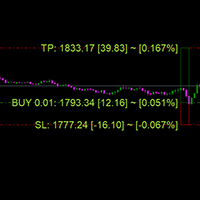
Once an order is registered, the graphical engine deploys dynamic Risk/Reward matrix zones:
-
Green Box Zone: Represents your Take Profit target historical block.
-
Red Box Zone: Represents your Stop Loss protection historical block.
-
B. Visual Pending Orders Matrix
-
Click on any of the four pending order buttons: BUY LIMIT , SELL LIMIT , BUY STOP , or SELL STOP .
-
The system will instantly project three interactive horizontal guidance lines onto the active screen area:
-
Solid Orange Line: The trigger price level ( ENTRY ).
-
Dashed Red Line: The protection level ( SL ).
-
Dashed Blue Line: The target profit level ( TP ).
-
-
Mouse Interactions: Double-click any of these three lines to unlock them, then drag them freely to align with your technical key levels or price action structures.
-
Once you are satisfied with the geometric setup, click the dynamic CONFIRM button (which dynamically displays the selected order type) on the right side of the panel to inject the order into the simulation architecture.
C. Real-Time SL/TP Drag-and-Drop Modifications
-
For any active open market position, you can dynamically modify its safety brackets at any moment.
-
Simply double-click the dotted SL or TP lines anchored to that specific order on the live chart and drag them to a new price level. The EA handles the backend OrderModify() loop seamlessly without interrupting candle printing.
D. 1-Click Execution Liquidation
-
Every order entry line contains a crimson X button floating near the current candle structure.
-
To exit a market trade or cancel a pending matrix order instantly, click its corresponding X button. The simulator will liquidate the transaction data structure immediately.
-
Anti-Overlap Protection: If an execution marker crosses paths with the main control panel coordinates, the "X" button automatically hides itself to prevent accidental click misfires.
E. Account Terminal Data Grid
-
The locked black grid infrastructure at the lower quadrant of your workspace provides real-time streaming account data: ticket numbers, exact open times, lot allocations, order classification strings, precision entry fills, dynamic SL/TP targets, and net floating PnL (including automated deduction of simulated spreads, commissions, and overnight swaps).
3. Demo Evaluation Constraints (Free Version Notice)
-
If you are evaluating this software utilizing the Free Demo Version downloaded directly from the MQL5 Market, you will have unrestricted access to all visual interfaces, drag-and-drop mechanics, and dashboard diagnostics.
-
However, the evaluation matrix enforces a strict 5-trade execution limit per backtest session. Once 5 total transactions ( Market or Pending fills) have been logged, the panel buttons will lock, and a red alert status will display on the screen.
-
To unlock unlimited training sessions and unrestricted trade execution counts, please purchase the Full Version via the official MQL5.com Market page.
⚠️ Important Compatibility Note: Why MT4?
While MetaTrader 5 (MT5) offers many advanced features, its Strategy Tester does not currently allow for the same level of fluid, real-time manual object interaction (such as drag-and-drop trading, instant visual order modification, and rapid manual execution) that MetaTrader 4 (MT4) provides.
For the most immersive, responsive, and effective training experience, we strongly recommend using this tool on the MetaTrader 4 (MT4) platform.
By using our simulator on MT4, you can:
-
Drag-and-Drop SL/TP lines instantly to react to market shifts.
-
Execute orders with zero lag as you would in a live environment.
-
Master your psychology by simulating the exact pressure and speed of a professional trader.
"Backtest Pro" is specifically engineered to unlock the full potential of MT4’s visual backtesting, turning your historical data into a high-octane trading gym. Download your preferred broker's MT4 platform today and start sharpening your skills to a professional level!