ERV Auto SLTP and Trailing Manager
- 유틸리티
- 버전: 1.53
- 업데이트됨: 27 11월 2026

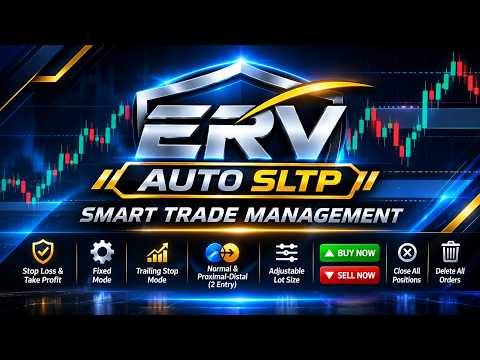
ERV AUTO SLTP – Smart Trade Management for MT5
Take control of your trades with a flexible and easy-to-use trading management panel.
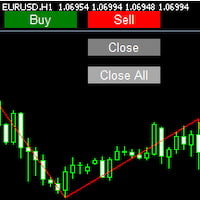
ERV AUTO SLTP is an Expert Advisor for MetaTrader 5 designed to simplify trade execution and position management. It provides automatic Stop Loss, Take Profit, and Trailing Stop management, combined with convenient BUY and SELL controls in one compact panel.
Whether you prefer entering trades manually or using the EA's built-in trading buttons, ERV AUTO SLTP helps you manage your trading parameters directly from the chart.
Key Features
1. Automatic Stop Loss & Take Profit
- Automatically applies SL and TP to eligible manual market positions.
- Automatically sets SL and TP for eligible pending orders.
- Configurable Stop Loss and Take Profit distances.
- Supports Pips and Points units.
2. Two SL/TP Management Modes
Fixed Mode
- Uses predefined Stop Loss and Take Profit distances.
- SL and TP are calculated from the entry price.
Trailing Mode
- Automatically moves Stop Loss as the market moves in your favor.
- Adjustable trailing start distance.
- Adjustable trailing distance.
- Keeps the existing Take Profit unchanged.
3. Flexible Entry Modes
Normal Entry
- Standard single-entry trading mode.
Proximal-Distal (2 Entry)
- Automatically places an additional pending Limit Order at a configurable distance from the initial entry.
- Supports BUY and SELL entry configurations.
4. Built-in Trading Panel
- BUY NOW
- SELL NOW
- Adjustable Lot Size
- Adjustable Stop Loss
- Adjustable Take Profit
- Adjustable Trailing Start
- Adjustable Trailing Distance
- Adjustable Proximal-Distal Gap
- Pips / Points selection
- Fixed / Trailing mode selection
- Normal / Proximal-Distal entry selection
5. Trade Management Controls
- Close All Positions
- Delete All Pending Orders
- Live position and pending order counters.
- Floating P/L information.
- Risk-to-reward ratio display.
- Candle countdown timer.
- Reset settings to defaults.
- Minimize and restore the trading panel.
6. Symbol Management
- Option to manage trades on the current chart symbol only.
- Option to manage eligible manual trades across other symbols.
Input Parameters
All important trading parameters can be adjusted directly from the EA settings or trading panel.
- Initial Lot
- SL/TP Unit (Pips or Points)
- Entry Mode
- Distal Gap
- SL/TP Mode
- Stop Loss
- Take Profit
- Trailing Start
- Trailing Distance
- Panel Position
Important Notes
- This EA is a trade management tool, not an automatic trading signal generator.
- It does not guarantee profits or prevent trading losses.
- Automatic management is intended for eligible manual trades (Magic Number 0).
- Positions or pending orders that already have SL or TP are not automatically overwritten.
- Always test the EA on a demo account before using it on a live account.
- Trading results depend on market conditions, broker execution, spreads, and your trading decisions.
ERV AUTO SLTP – Trade Smarter. Manage Better.
(Optional) Sounds
Download the sound files, copy the .wav files into MQL5 → Sounds with their original names, then type each file name, including .wav , into its sound input. If a sound does not play, check the spelling and restart MT5.
How to install the sounds
- Download the sound files from the link above and save all the .wav files.
- In MT5, click File → Open Data Folder.
- Go to the MQL5 folder, then Sounds .
- Copy all the .wav files into the Sounds folder. Do not rename them.
- Attach the EA to a chart, open the Inputs tab and find the Sound group.
- Type the file name into each input, including .wav :
- Sound: BUY active = ORDERBUY.wav
- Sound: SELL active = ORDERSELL.wav
- Sound: Take Profit hit = TAKEPROFIT.wav
- Sound: Stop Loss hit = STOPLOSS.wav
- Make sure Sound on/off is true, then click OK.
- Restart MT5 if the sounds do not play, then test with BUY NOW.
Troubleshooting: if it is still silent, check the Experts tab. The message "ERV SOUND FAILED" means the file name is misspelled or the file is not in the Sounds folder. Also make sure the PC volume is not muted.