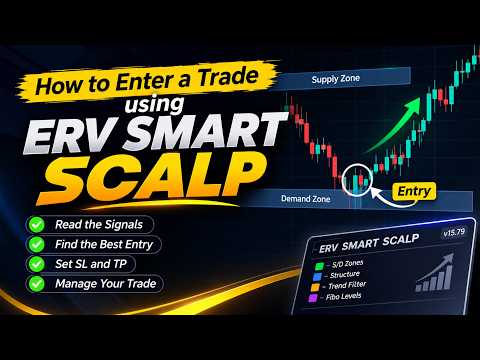
Erv Smart Scalp Supply Demand Multi Layer Zone
- 유틸리티
- 버전: 15.79
- 활성화: 5

ERV SMART SCALP v15.79
Smart Zone-Based Multi-Layer Trading System for MetaTrader 5
ERV SMART SCALP is an integrated trading system designed to combine SMARTZONE analysis, multi-layer trading management, Fibonacci-based price levels, market structure visualization, and an economic news calendar.
The EA provides a customizable trading environment with flexible order management and an interactive chart panel, allowing traders to manage their trading activities according to their own strategies.
KEY FEATURES
1. MULTI-LAYER TRADING SYSTEM
-
BUY and SELL trading operations.
-
Adjustable lot size.
-
Configurable number of trading layers.
-
Customizable lot multiplier pattern.
-
Configurable Magic Number.
-
Individual trade management.
2. SMARTZONE MANAGEMENT
-
Proximal and Distal price levels.
-
Automatic Take Profit calculation.
-
Adjustable Take Profit offset.
-
Cut Loss configuration based on zone width.
-
Fibonacci-based Stop Loss calculation.
-
Adjustable Distal offset.
-
Visual trading levels directly on the chart.
3. SMARTZONE PATTERN DETECTION
Supports four major price patterns:
-
RBR – Rally Base Rally
-
DBD – Drop Base Drop
-
DBR – Drop Base Rally
-
RBD – Rally Base Drop
Additional capabilities:
-
Trade Mode and Pattern Map display.
-
Configurable pattern visibility.
-
ZigZag pivot visualization.
-
Pivot dots and warning indications.
-
Historical zone scanning.
4. MARKET STRUCTURE
Visual market structure analysis, including:
-
HH – Higher High
-
HL – Higher Low
-
LH – Lower High
-
LL – Lower Low
5. INTEGRATED ECONOMIC NEWS CALENDAR
Economic calendar integration using the Forex Factory news feed.
Features:
-
High, Medium, and Low impact news.
-
Currency filtering.
-
Chart currency filtering.
-
Custom GMT time zone.
-
Upcoming and historical news.
-
Live news highlighting.
-
Configurable news alerts.
-
Popup and sound notifications.
6. TRADING PANEL & CHART INTERACTION
-
Integrated trading panel.
-
BUY and SELL controls.
-
Customizable panel position.
-
Interactive Proximal line.
-
Live market price display.
-
Zone size information.
-
Cut Loss historical line display.
7. SOUND & NOTIFICATIONS
Notifications for important trading events:
-
BUY and SELL execution.
-
Take Profit.
-
Cut Loss.
-
Stop Loss.
-
Proximal price reached.
-
Distal price reached.
-
Economic news events.
Individual sound files can be configured through the EA settings.
SETUP & INSTALLATION
STEP 1 – INSTALL THE EA FILE
-
In MT5, click File → Open Data Folder.
-
Open MQL5 → Experts and copy ERV_SMART_SCALP.mq5 into this folder.
-
Open the file in MetaEditor (press F4 in MT5), then press F7 to compile. Make sure it shows 0 errors.
-
Back in MT5, right-click Navigator → Refresh. ERV SMART SCALP now appears under Expert Advisors.
STEP 2 – ATTACH THE EA TO A CHART
-
Drag ERV SMART SCALP from the Navigator onto your chart.
-
In the Common tab, tick Allow Algo Trading, then click OK.
-
Adjust the inputs to your preference: lot size, number of layers, lot multiplier pattern, and SMARTZONE display settings.
STEP 3 – ENABLE WEBREQUEST (NEWS CALENDAR)
The news calendar loads data from the Forex Factory feed, so this URL must be allowed:
-
Go to Tools → Options → Expert Advisors.
-
Tick Allow WebRequest for listed URL.
-
Click the add button and enter: https://nfs.faireconomy.media
-
Click OK.
Without this step, the news calendar will not load.
STEP 4 – SET UP THE SOUND FILES
-
Download the sound files from the SOUND EA folder, Download here.
-
In MT5, click File → Open Data Folder → MQL5 → Sounds.
-
Copy the .wav files into this folder. Keep the original file names.
-
Right-click the chart, choose Expert Advisors → Properties, and open the Inputs tab.
-
For each sound event (BUY, SELL, Take Profit, Cut Loss, Stop Loss, Proximal price reached, Distal price reached, and Economic news), type the exact file name, including .wav, into its sound input.
If a sound does not play, check the spelling of the file name and confirm the file is in the MQL5\Sounds folder, then restart MT5.
STEP 5 – MAGIC NUMBER
The default Magic Number is 260826. Change it in the EA inputs only if you run another copy of this EA on the same account.
STEP 6 – ENABLE ALGO TRADING
Make sure the AutoTrading button on the toolbar is green. Check your broker's trading conditions (minimum lot, spread, stop level) before starting.
STEP 7 – DEMO TESTING
Test the EA on a demo account before using it on a live account.
CUSTOMIZATION
ERV SMART SCALP offers flexible input parameters to adapt the trading environment to your preferences, including:
-
Trading volume and layer configuration.
-
Lot multiplier settings.
-
SMARTZONE parameters.
-
Fibonacci settings.
-
Market structure display.
-
Economic news filters.
-
Notification settings.
-
Chart panel appearance and position.
IMPORTANT INFORMATION
-
This EA is a trading tool, not a guaranteed-profit system.
-
Trading decisions and risk management remain the responsibility of the user.
-
Trading results may vary depending on broker conditions, spreads, execution, and market conditions.
-
Always test the EA on a demo account before live trading.
NOTE BY ERV
Scalping on the M1 timeframe uses the Pivot and Control technique / Supply and Demand zones / RBR, DBD, DBR, and RBD patterns (Rally-Base-Rally, Drop-Base-Drop, Drop-Base-Rally, and Rally-Base-Drop).