DBZ Trading Assistant
- 유틸리티
-
Thokozani Harry Mkize
 9 Years of trading experience, new age thinker.
 - 버전: 1.1
- 활성화: 5
DBZ Trading Assistant
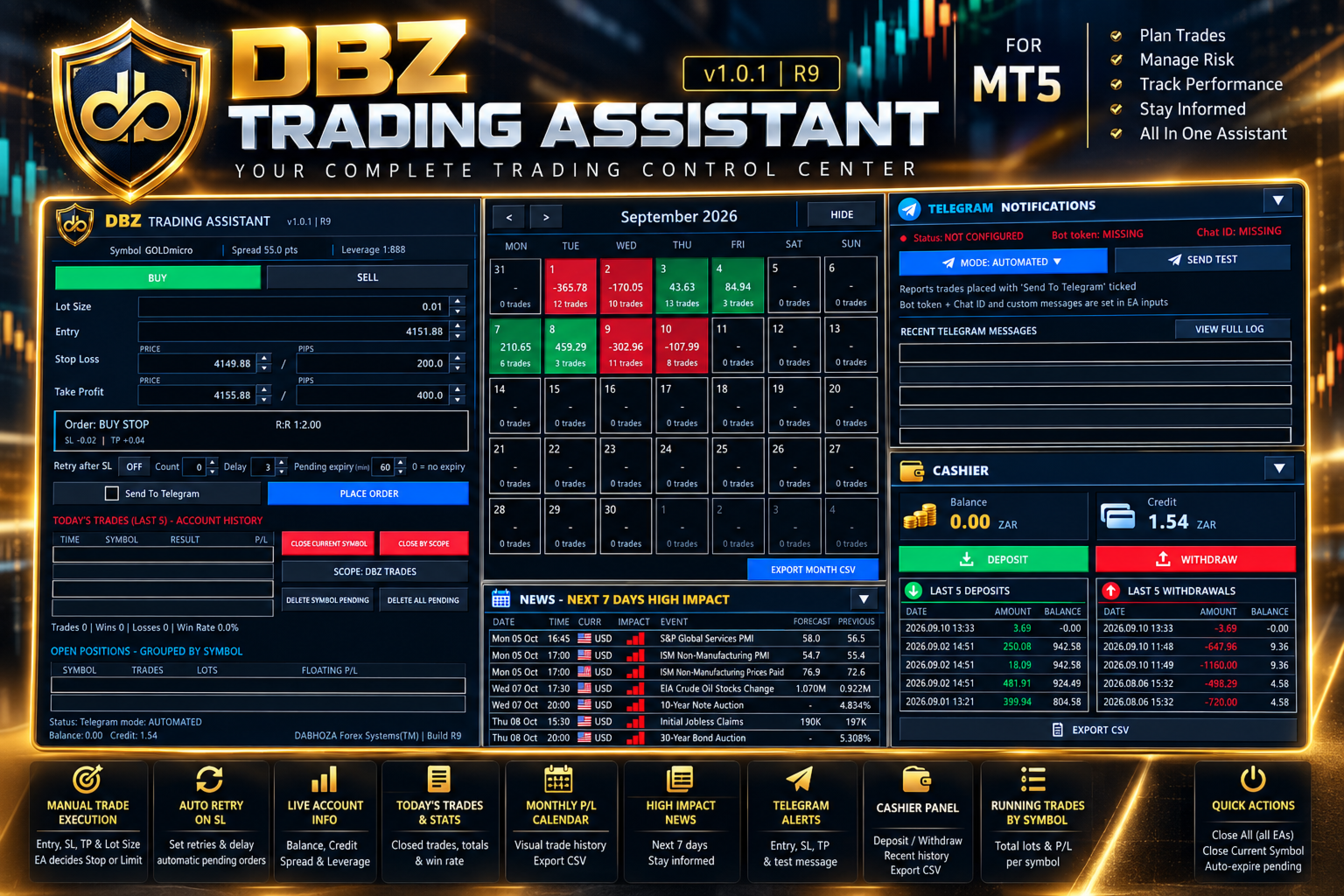
A trading panel for MetaTrader 5. You plan the trade, and the panel places it, manages it and records the results.
ABOUT THIS PRODUCT
DBZ Trading Assistant is an Expert Advisor for manual traders. It does not give trading signals and does not decide when to buy or sell. You do your own analysis and choose the direction, lot size, entry price, Stop Loss and Take Profit. The assistant then helps with placing the order, managing it, and reviewing your account history.
Everything is shown in panels on your chart.
TRADE ENTRY
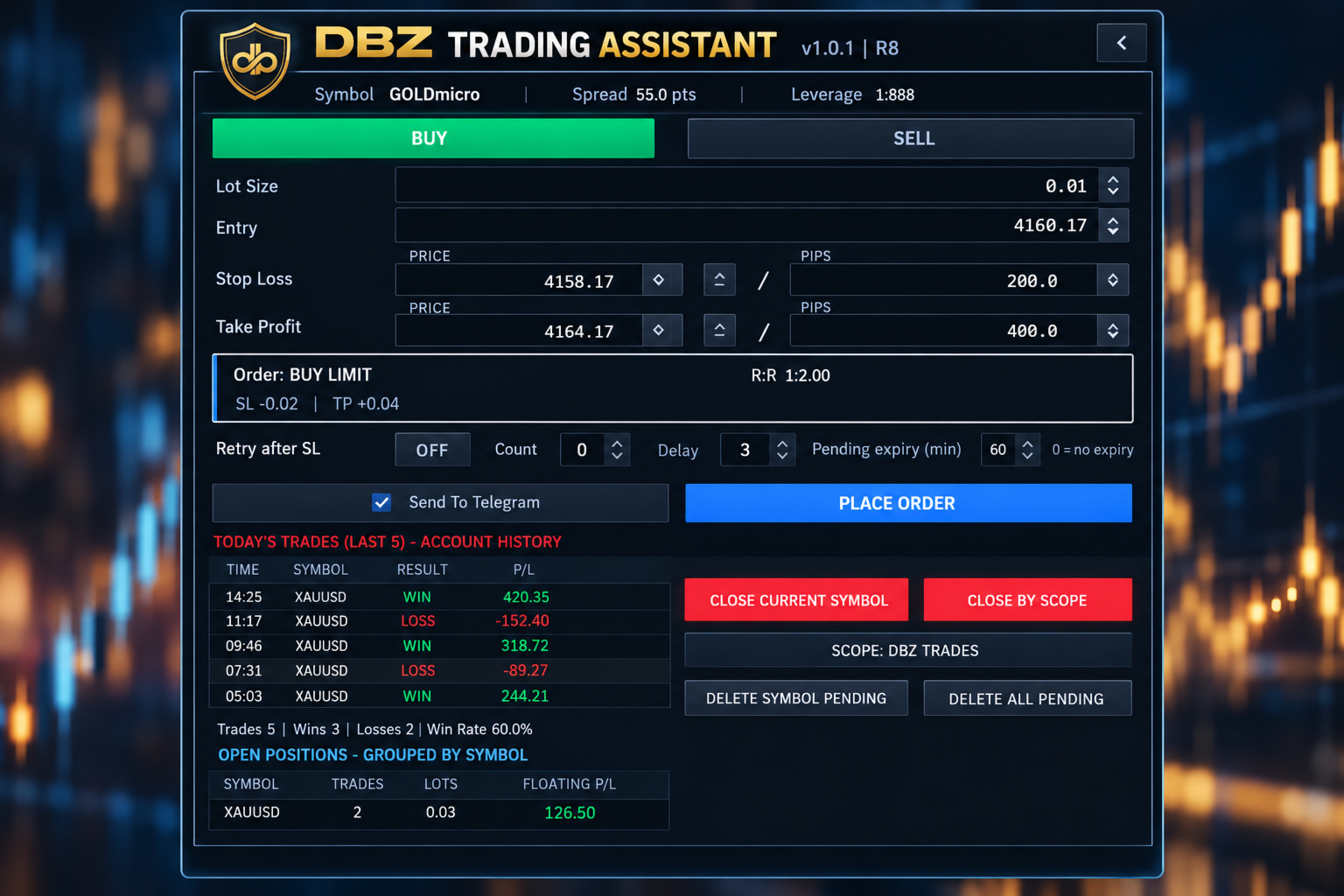
Choose Buy or Sell, then enter the lot size, the entry price, the Stop Loss and the Take Profit.
The assistant compares your entry price with the current market price. It then selects the order type for you: Buy Limit, Buy Stop, Sell Limit, Sell Stop or Market Order.
Before you place the order, the panel shows the order type it selected and the risk-to-reward ratio.
PRICE OR PIP INPUT
You can enter the Stop Loss and Take Profit as a price or as a distance in pips. The two fields stay linked. If you change one, the other updates, always measured from the entry price.
Up and down buttons next to each field let you adjust the values in small steps.
TRADE DISPLAY ON THE CHART
After an order is placed, the assistant can draw the trade on your chart. The display includes:
- The entry level, Stop Loss level and Take Profit level
- A risk area and a reward area
- The risk-to-reward ratio
- The distance to the Stop Loss and to the Take Profit
- The estimated amount at risk and the estimated reward, in your account currency
RETRY AFTER STOP LOSS (OPTIONAL)
Some traders prefer to enter again after a trade is stopped out. This option is switched off by default. When you switch it on, you can set the number of attempts and the delay between them. If a trade placed with the assistant is stopped out, the assistant places a new order using the stored setup.
PENDING ORDER EXPIRY (OPTIONAL)
You can set how long a pending order may stay in the market. For example, with a setting of 60 minutes, a pending order that has not been triggered is removed after 60 minutes. A setting of 0 means the order does not expire.
TODAY'S TRADES
The panel reads your MetaTrader 5 account history. It lists your latest closed trades with the time, symbol, result and profit or loss. It also shows the number of trades, the number of wins and losses, and the win rate for the day.
These figures come from the account history, so they include trades that were not placed with this panel.
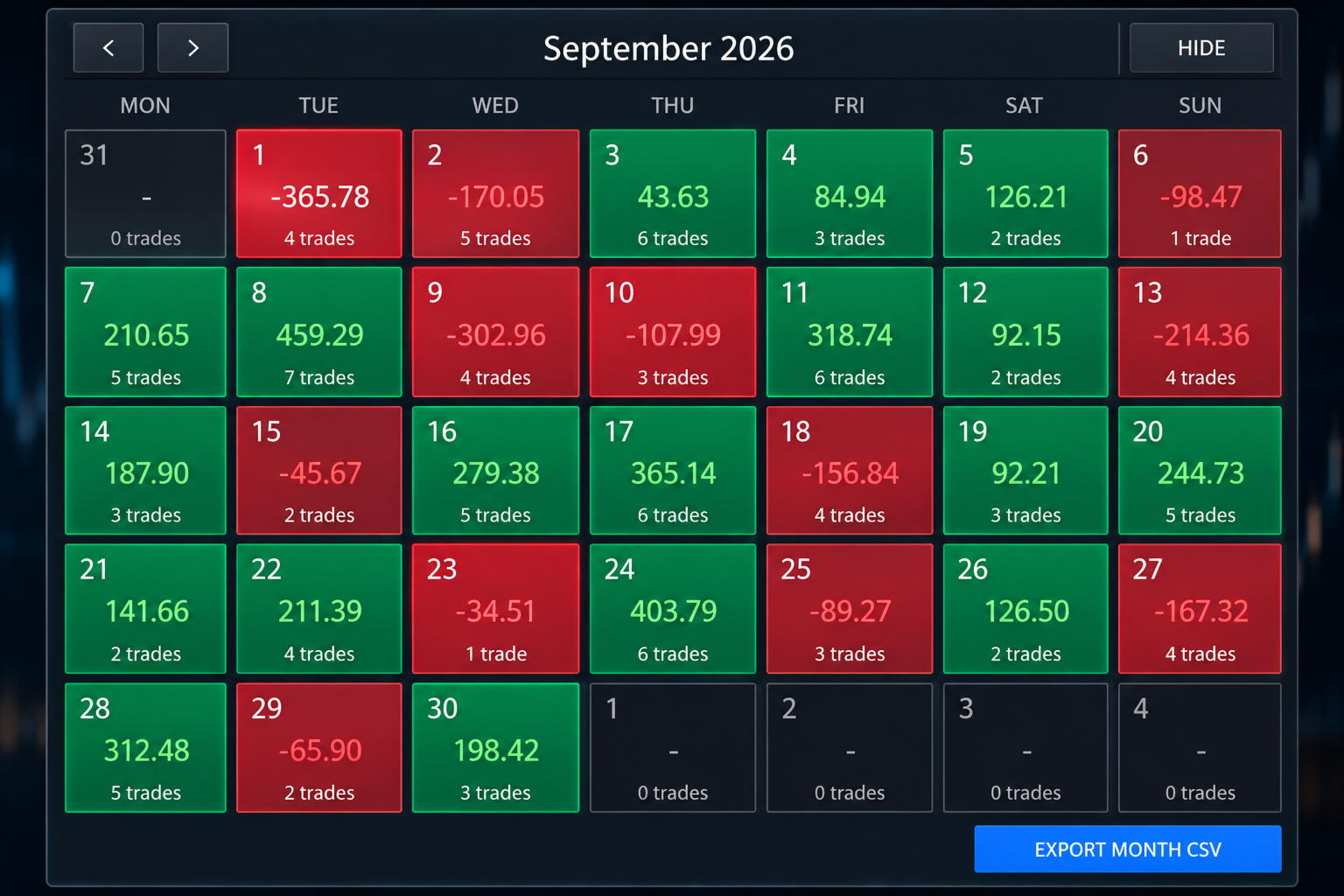
MONTHLY CALENDAR
The calendar shows one month of your account history. Each trading day is coloured:
- Green for a day with a net profit
- Red for a day with a net loss
- Dark for a day without trades
Each day shows its net result and the number of trades. Click a day to see its trades. Use the arrows to move to earlier months.
MONTHLY FILE EXPORT
You can save the selected month as a CSV file, which opens in spreadsheet programs such as Microsoft Excel. The file contains the date, time, symbol, deal type, volume, profit, swap, commission, fees and net result of each closed trade. The file is saved in the MQL5/Files folder of your terminal data folder.
OPEN POSITIONS
Open positions are grouped by symbol. For each symbol the panel shows the number of trades, the total lots and the floating profit or loss. For example, several gold positions appear on one line.
TRADE MANAGEMENT BUTTONS
- Close Current Symbol closes the positions of the symbol on the chart.
- Close By Scope closes positions according to the scope you select. The selected scope is always shown on the button.
- Delete Symbol Pending removes the pending orders of the symbol on the chart.
- Delete All Pending removes the pending orders handled by the assistant.
ECONOMIC NEWS
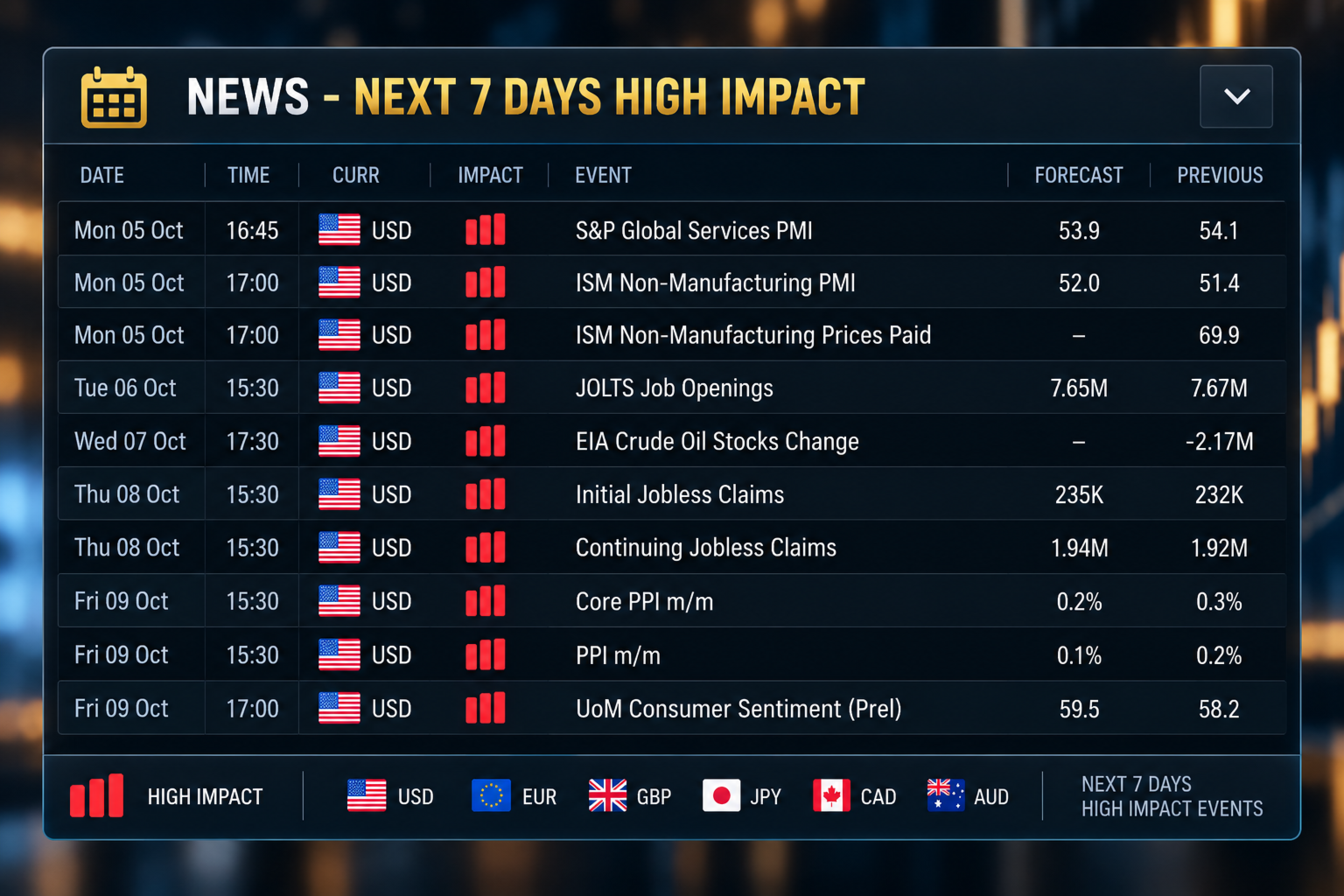
A news panel lists the high-impact economic events of the next seven days. For each event it shows the date, time, currency, impact, event name, forecast value and previous value. The data comes from the MetaTrader 5 economic calendar. A short warning is also shown on the main panel on days with high-impact events.
TELEGRAM NOTIFICATIONS
The assistant can send trade messages to Telegram. The panel offers two modes:
- Automated mode sends a message when a trade placed with the Send To Telegram option ticked is placed, triggered, closed, or reaches its Stop Loss or Take Profit.
- Manual mode lets you type and send your own message.
The panel shows the connection status and has a Send Test button. It also lists the last eight messages that were sent. The complete message history is saved in a file.
Messages for Stop Loss, Take Profit and closed trades include the result in pips and in your account currency. You can add your own text to each type of message in the inputs.
To use Telegram you need a bot token and a chat identifier from Telegram. You also need to allow the Telegram address in the WebRequest list of MetaTrader 5 (Tools, Options, Expert Advisors). The bot token is entered in the inputs and is never shown on the panel.
MOBILE NOTIFICATIONS
The assistant can also send notifications to the MetaTrader mobile application. Notifications must first be set up in the terminal.
CASHIER PANEL
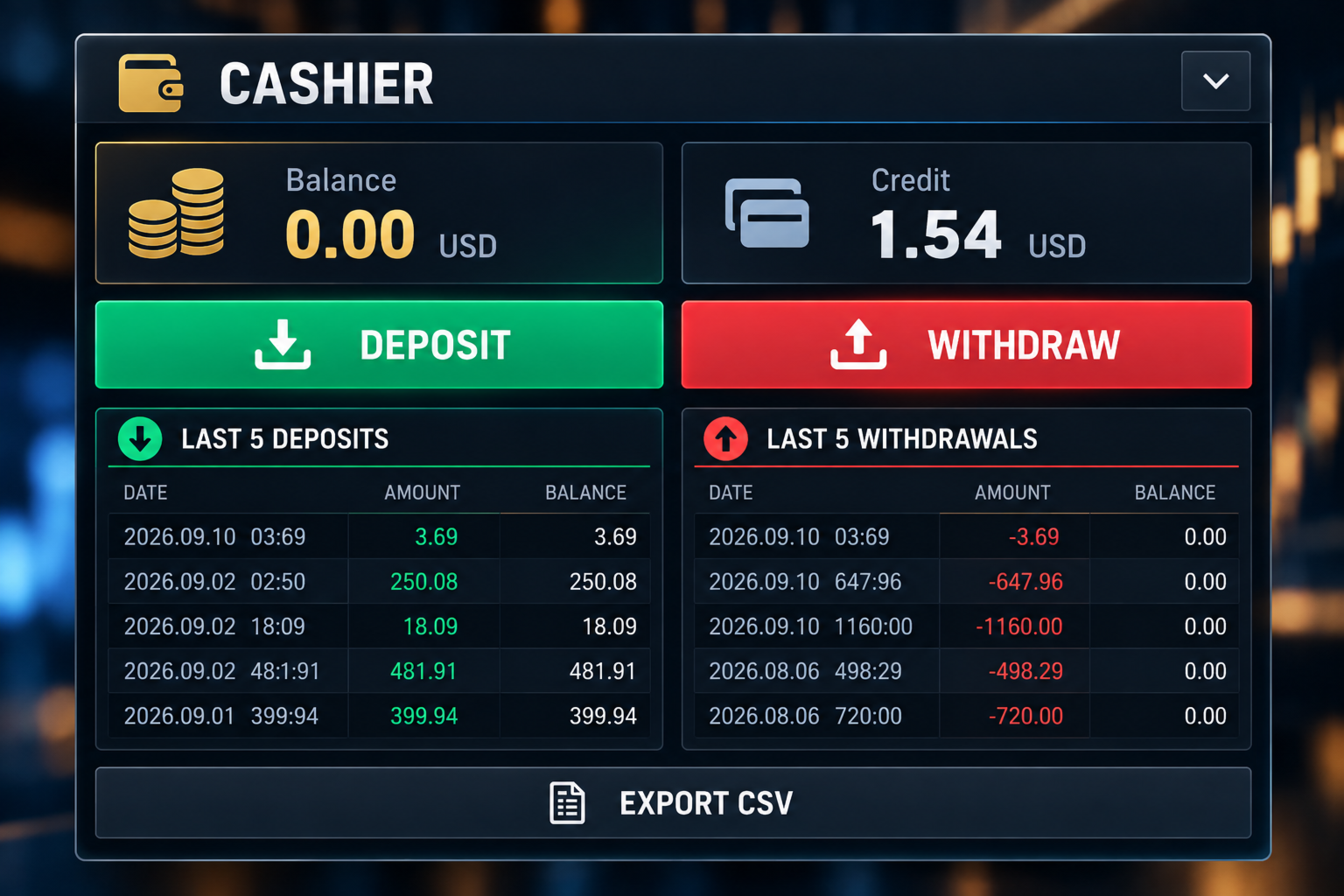
The Cashier panel shows your balance and credit. It lists your last five deposits and last five withdrawals, with the date, amount and the balance after each one. You can save the funding history as a CSV file.
The Deposit and Withdraw buttons show your broker's cashier link, which you can copy into your web browser. You can enter the links in the inputs. For some brokers the link is detected automatically. On demo accounts these buttons are disabled.
ACCOUNT INFORMATION
The main panel shows the symbol, the spread, the leverage, the balance and the credit, together with your trade values, the selected order type, the risk-to-reward ratio and the Telegram mode.
LAYOUT
The panels are the trading panel, the calendar, the Telegram panel, the Cashier panel and the news panel. You can collapse the panels you do not need to free space on the chart.
FEATURES
- Manual Buy and Sell planning
- Lot size, entry, Stop Loss and Take Profit fields
- Stop Loss and Take Profit as price or pips
- Automatic selection of the order type
- Risk-to-reward ratio
- Trade drawn on the chart
- Estimated risk and reward in account currency
- Pending order expiry
- Optional retry after Stop Loss
- Today's trades with wins, losses and win rate
- Open positions grouped by symbol
- Close and delete buttons
- Monthly calendar with daily results
- Monthly CSV export
- Economic news for the next seven days
- Telegram notifications with message list
- Mobile notifications
- Balance and credit display
- Cashier panel with deposit and withdrawal history
WHO IT IS FOR
The assistant is made for traders who place their own orders. It may suit you if you:
- Do your own analysis
- Use pending orders
- Set a Stop Loss and Take Profit for each trade
- Want to see the risk-to-reward ratio before placing an order
- Want to review your results by day and by month
- Want trade messages sent to Telegram
IMPORTANT
This is not a signal product. It does not analyse the market and does not tell you when to buy or sell. It does not promise profit and does not predict price movements. Trading carries risk of loss. You decide the direction, entry, lot size, Stop Loss and Take Profit.
BEFORE USING A LIVE ACCOUNT
Please test the assistant on a demo account first. Check how it handles order placement, lot sizes, Stop Loss and Take Profit, pending order expiry, retry after Stop Loss, the close buttons, Telegram messages and file exports.
Brokers differ in minimum stop distance, tick size, contract size, trading permissions and symbol names. Make sure the assistant works as you expect with your broker before you trade with real money.
This version does not use DLL files. A separate version that opens the broker website directly is available from the author.
DaBhoza Forex Systems