TradeMasterPlus
- Utilità
-
Ernazar Kuular
 I am an active trader. I create useful tools for effective trading.
- Versione: 1.0
- Attivazioni: 10
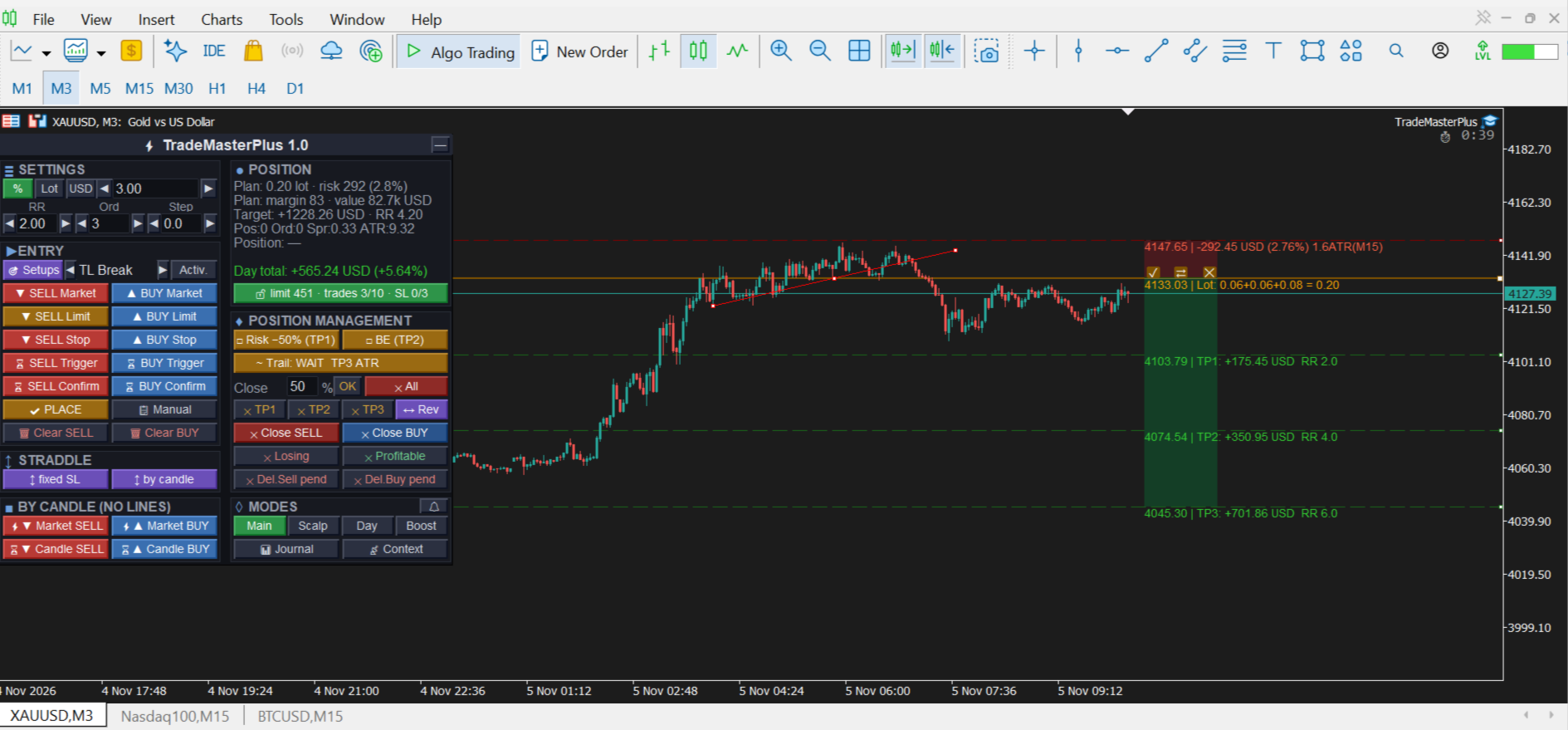
Easy in use, multifunctional trade manager panel for MetaTrader 5, for manual and semi-automated trading: risk-based lot calculator, multi-leg trades with partial take profits, staged management (risk reduction, breakeven, trailing stop), confirm and level-touch entries, popular auto setups on your own lines. Four mode presets, account protection with daily limits, a 0–100 context score before entry and a trade journal in R.
Full description
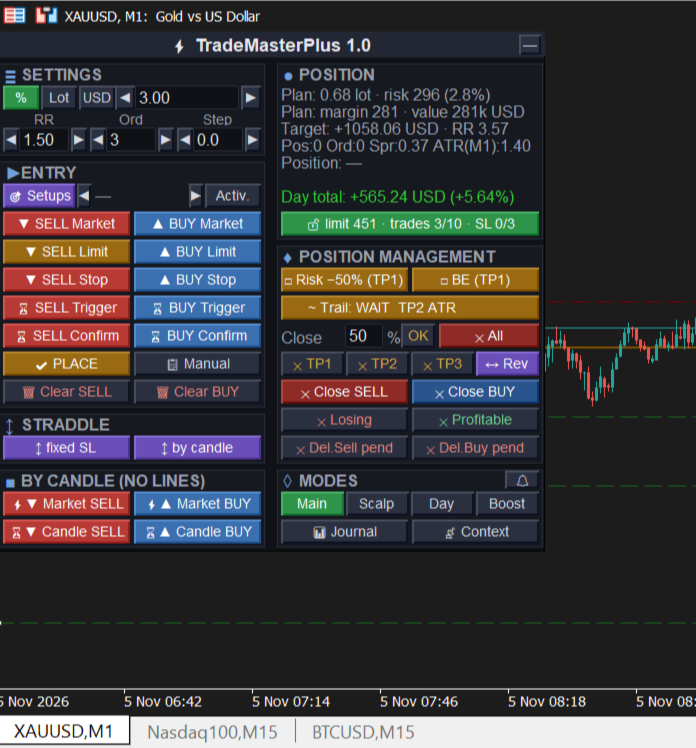
TradeMasterPlus is a trade manager panel for MetaTrader 5 that handles position sizing, order placement and trade management. The entry decision stays with you; the EA makes sure your risk, limits and trade plan are respected.
Risk and size
• Risk as % of balance or equity, a fixed lot or an amount in account currency.
• Built-in lot calculator: the volume is calculated from the distance to SL, including broker commission and a slippage reserve, and is rounded down only, so risk never exceeds the set value.
• A trade may be split into 1–10 legs with their own targets (TP1, TP2…) and volume shares. Legs can share one price or form a grid with a step.
• The panel RR is the RR of the first target (TP1). The other legs' targets scale with it — RR multipliers are set in the «Legs TP, ×RR» parameter (default 1 / 2 / 3 / 4 / 5: with RR 2 you get TP1 = 2, TP2 = 4, TP3 = 6), volume shares in «Legs volume, %» (empty — equal). Legs beyond the list get each target 1×RR further.
• Volume, risk and position value are shown before the order is sent — on the Entry, SL and TP lines and in the panel. If the broker commission is large relative to the risk to SL (adjustable threshold) or its rate for the symbol is not known yet, the panel warns you.
• The trade plan is shown as Long/Short zones (risk in red, target in green). Drag the zone and Entry, SL and all TPs move together with the same lot and risk; any line can still be dragged on its own and the zone follows it. Entry and SL cannot swap and a TP cannot cross Entry — the line stops at the limit.
• Zone buttons: ✓ — place the plan, ⇄ — flip it to the other direction (SL and TP mirrored around Entry, RR kept), ✕ — clear. The plan stays on the chart when you change the timeframe or the inputs.
• The «Target» row in the panel shows the profit of all legs at their TPs net of commission and the total RR of the trade. It is calculated for armed Confirm and Trigger orders too.
Entries
• Market, Limit, Stop — by lines you drag on the chart.
• Confirm — entry after a candle of the chosen timeframe closes beyond the level (protection against a false touch).
• Trigger — a level touch places a stop order, then the averaging limit orders.
• An armed Confirm or Trigger is removed if the price reaches its SL before the entry (can be turned off in the inputs).
• By candle — market entry now or at the next candle open, SL beyond the candle extreme.
• Straddle — buy stop and sell stop at once; when one side fills, the other is removed.
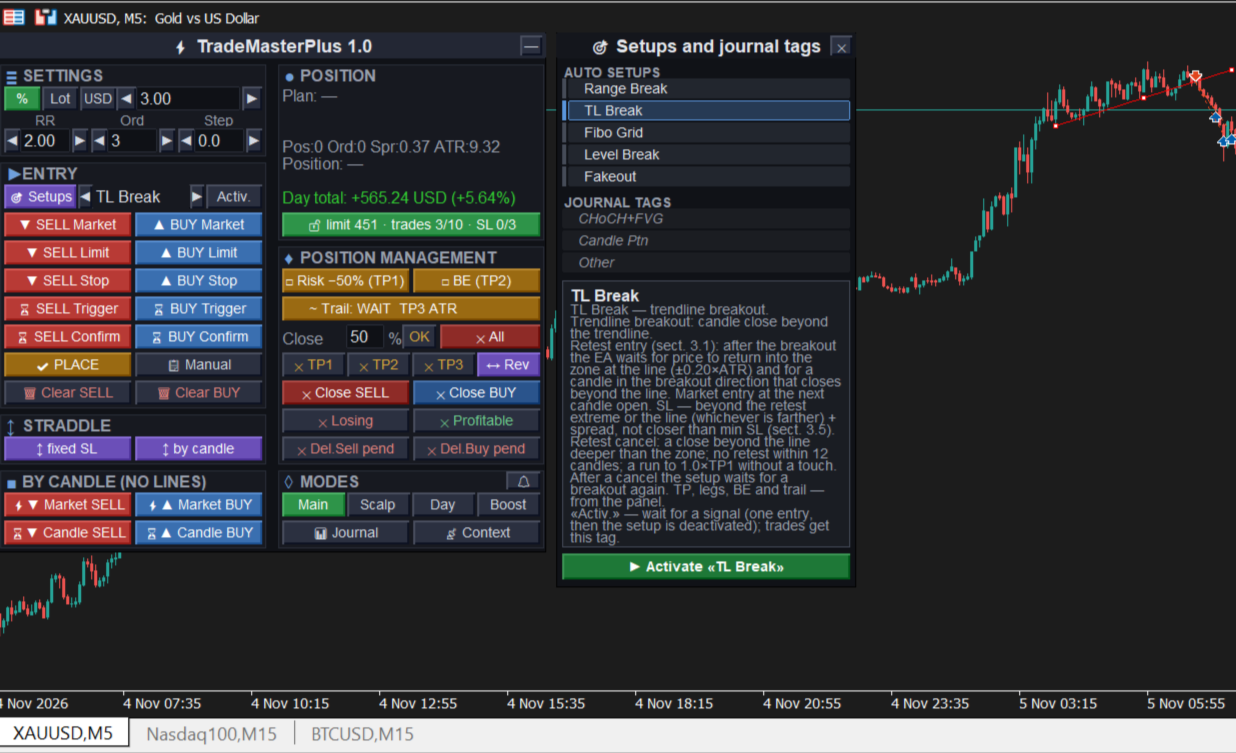
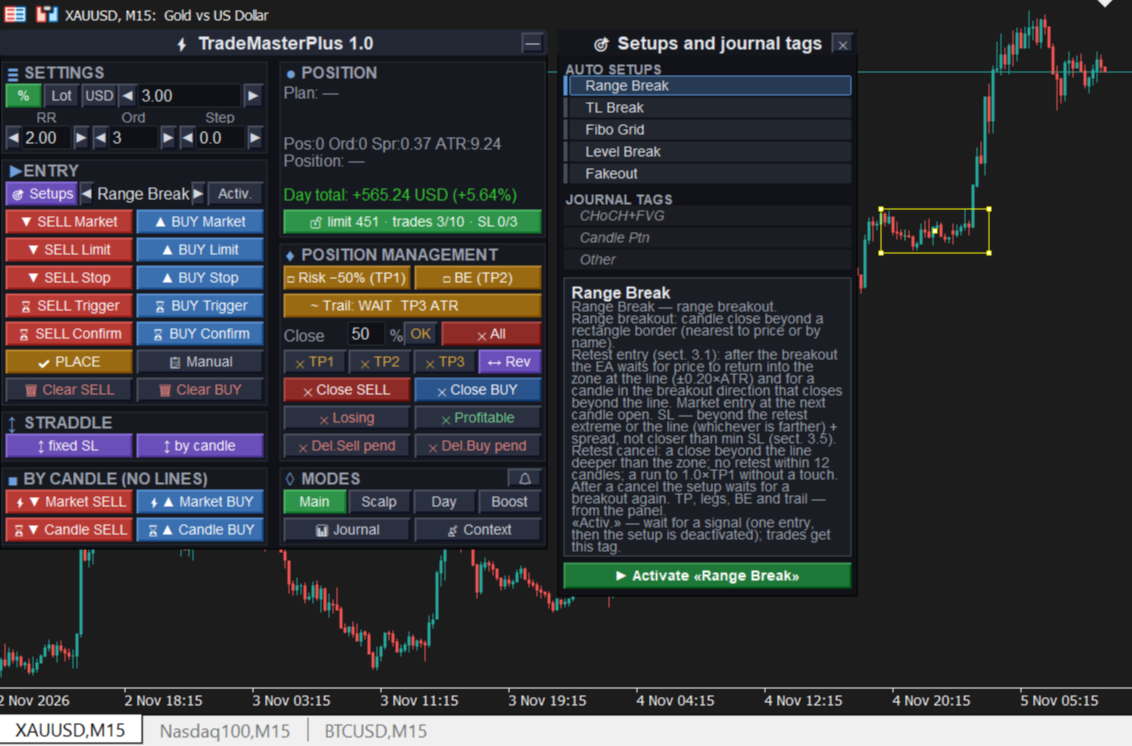
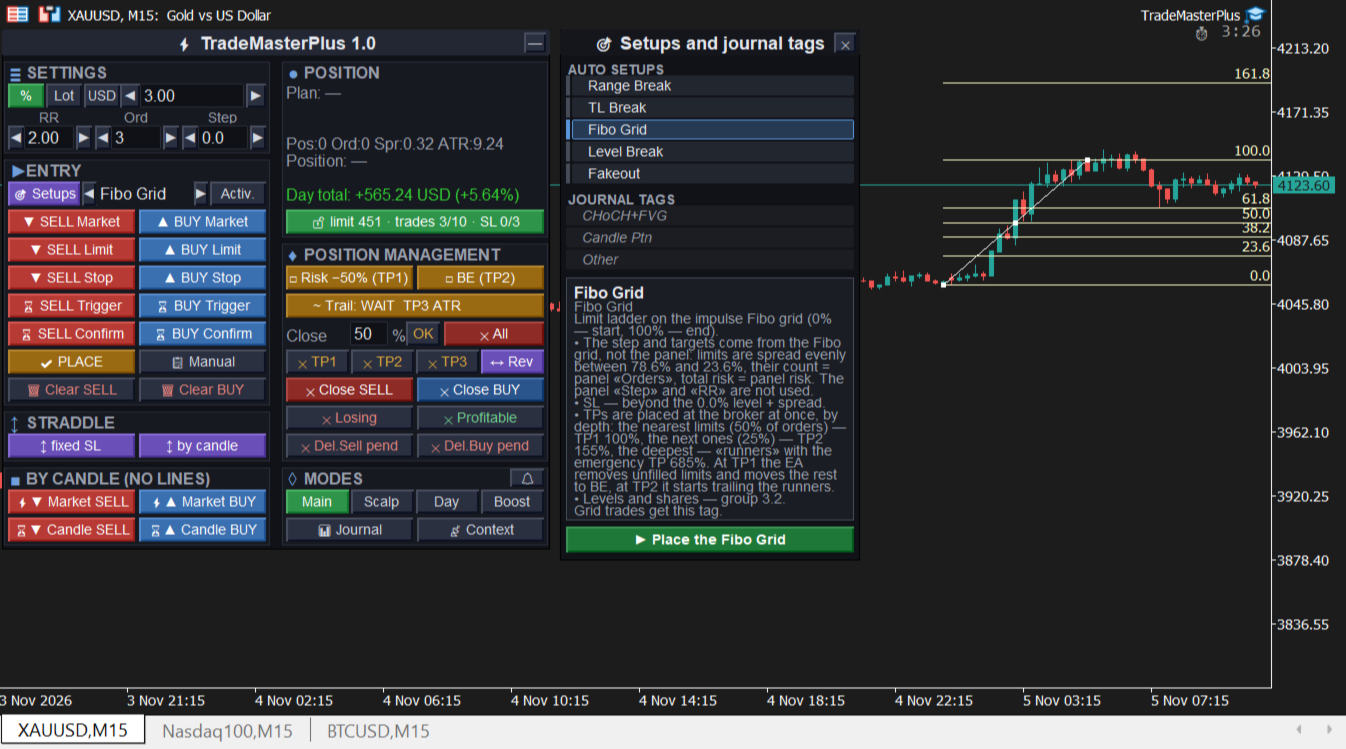
• Popular auto setups on your own lines: level breakout, trendline breakout, range breakout, fakeout, Fibo Grid (limit grid on a pullback). By default breakouts enter on a retest: the EA waits for price to return to the broken line and for a confirmation candle, SL goes beyond the retest; if there is no retest or the breakout fails, the entry is cancelled. The mode can be turned off in the settings.
• Reverse the position with one button.
Management
• Staged management — each stage after its own TP, set separately. By default: after TP1 — risk reduction (SL moves 50% of the way from the initial SL to entry), after TP2 — breakeven, after TP3 — trailing. The «Risk −50%» and «BE» buttons run a stage at once.
• Breakeven covers commission and swap. If the level that covers costs is still beyond the price, SL moves at once to the best possible level, no worse than pure breakeven, and is tightened further as the price allows.
• Trailing stop: ATR of the chosen timeframe, % of the initial SL, distance at start or behind an EMA (closed bar). SL only moves in the profit direction.
• One SL line for the whole trade: drag it and the SL of every leg changes. If the risk would exceed the plan, the EA asks for confirmation or reduces the volume of unfilled legs.
• Partial close: by TP1–TP3, by percentage, losing or profitable, by direction.
Mode presets
Four modes — Main, Scalp, Day and Boost — switch with one button. Each holds its own position size (risk), RR, number of orders and step between them, so the trade parameters change in one click to fit the current market. A mode also sets the timeframes and structure settings the EA uses to analyse the context.
Context score before entry
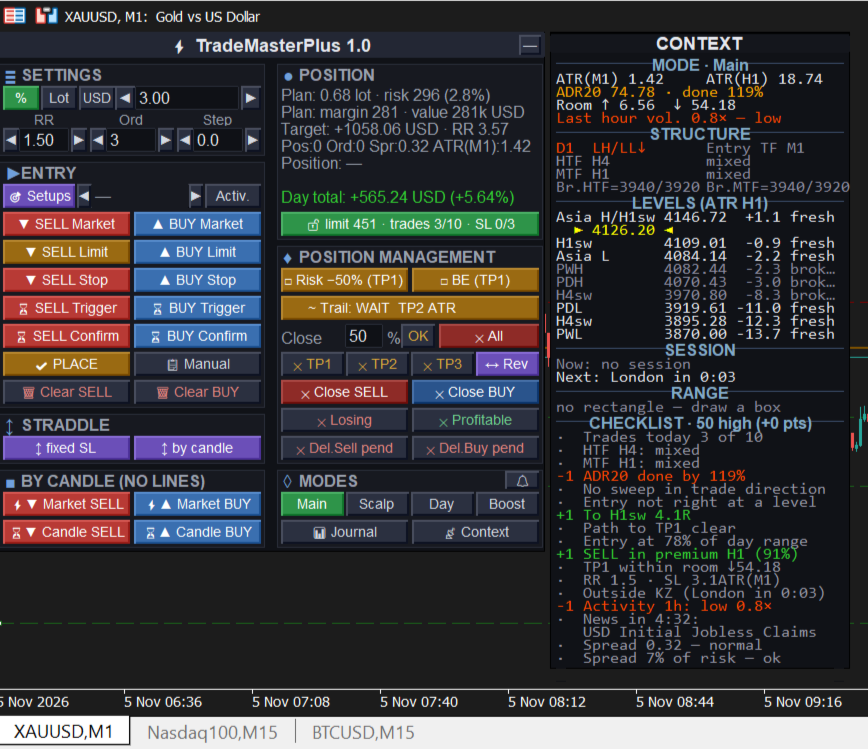
Before every entry the EA checks the context: higher-timeframe structure, levels and room to target, day range, entry position in the MTF range (premium/discount), news, spread and costs, discipline. The result is a 0–100 score with the list of reasons. The filter works in three score bands: a high score — full risk, a medium one — reduced trade volume, a low one — entry confirmation or a block (it can also just show the score without restricting anything). The volume reduction applies to manual entries too — with a warning. Band thresholds and weights are adjustable; any code can be made a hard block.
In Main mode the timeframes are set in the inputs: by default entry M15, structure H4 and D1. If you set the entry timeframe to «Current», the entry timeframe is the chart timeframe and the higher timeframes are matched to it: on M1–M15 — MTF and HTF from the inputs, on M30–H1 — H4 and D1, on H4 — D1 and W1, on D1 — W1 and MN. With an entry timeframe of H4 and above the assessment switches to swing scale: the average weekly range instead of the daily one, previous month levels and D1 swings instead of session levels, and KillZones and last-hour activity are not scored. Scalp, Day and Boost modes use their own fixed timeframes regardless of the chart.
Asia, London and New York sessions and KillZones are set in local exchange time (London 08:00, NY 09:30). Daylight saving changes in Europe and the US and the broker server offset are handled automatically.
Account protection (risk manager)
• Daily loss limit from the start-of-day balance, including the SL of open positions.
• Max number of trades per day and a pause after an SL series.
• Strict mode for prop accounts: no opposite positions, no entries without SL, closing new trades during a block, hard day stop.
• Several charts on one account: the strictest limit of all instances applies. A limit can only be loosened from the next day.
• The protection button shows the daily limit room, trades and SL series; its color warns about the last attempt.
Journal
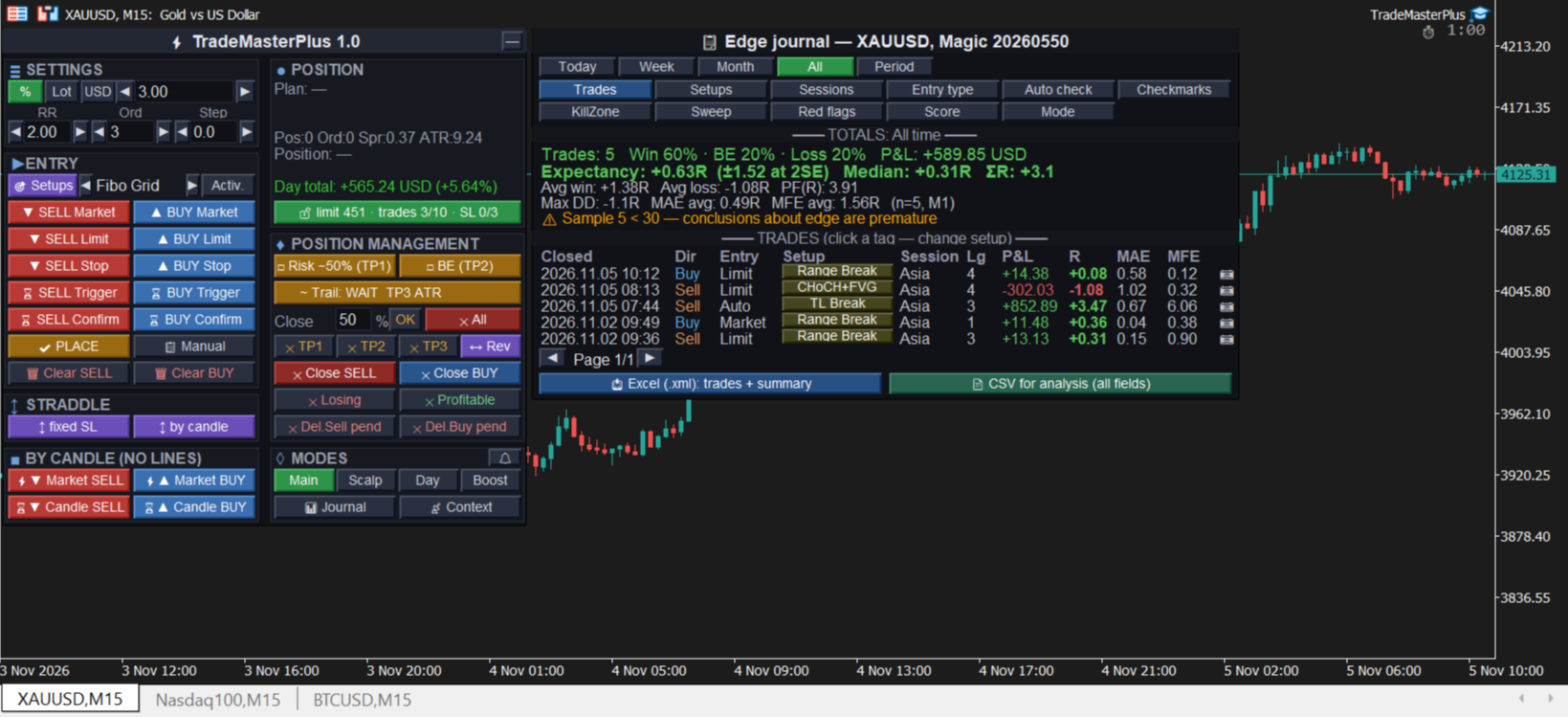
• Every trade is recorded in R with setup tag, session, entry type and a context snapshot.
• Expectancy in R with a confidence interval, MAE/MFE, breakdowns by setup, session, score and red flags.
• The Red flags tab shows which conditions actually hurt your results and recommends weights.
• Export to Excel and CSV.
• Automatic trade screenshots at entry and at close (PNG, linked in the journal and the Excel export).
• Entry and result screenshots with a caption (entry, SL, TP, risk, result in R) sent to Telegram; optionally — messages about TP, SL, pause and day stop.
Interface
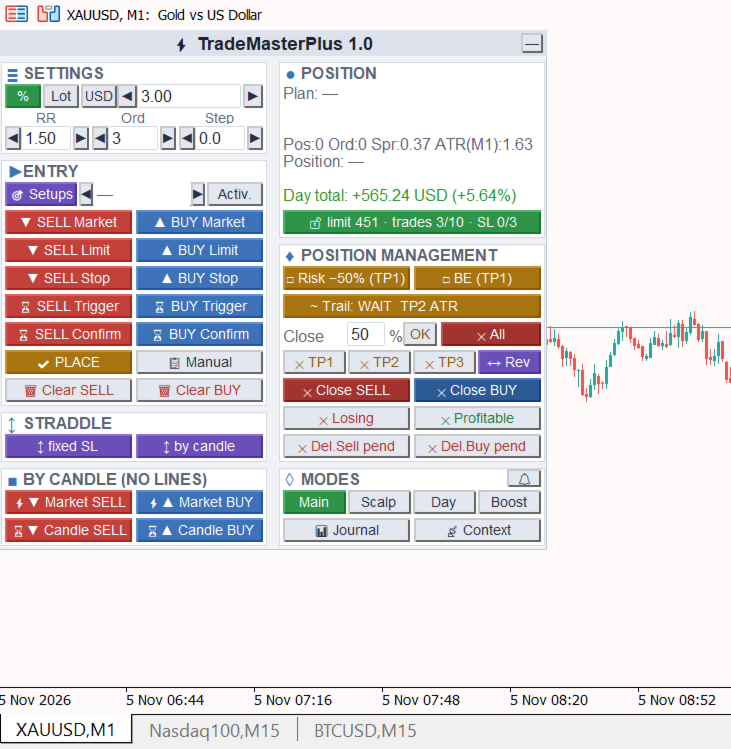
Russian and English, dark and light theme, panel scale, one or two columns, tooltips on every button. Works on Windows and Mac.
The panel can be dragged by its header and collapsed with one button — the collapsed view keeps the day status (limit room, trades, SL series), while management and protection keep working.
Price alerts — the 🔔 button: a short marker appears at the price, drag it to the level you need. When the price reaches it, you get a notification by popup with sound, push to your phone and Telegram. Works while the terminal is running.
All in all, the panel combines broad functionality with a compact, intuitive interface: everything you need to enter and manage a trade is in one window on the chart.
Other notes
Account protection is a discipline tool. Daily limits (loss, number of trades, pause after an SL series) prevent impulsive rule-breaking: a block cannot be removed from the panel, and a limit can only be loosened from the next day. However, the EA runs in your terminal and does not replace broker or prop-firm limits. For prop accounts use the «Whole account» protection scope and the «After day stop close new» mode.
One fully managed trade at a time. The EA fully manages one trade (group of orders) — the most recent one. This does not prevent opening new trades: before a replacement the EA warns and asks for confirmation. Previous positions and orders stay at the broker with their SL and TP, and a «safety net» keeps watching them: when a TP of such a group is hit, its other positions are moved to breakeven and its unfilled orders are removed. Previous groups are not trailed. To fully manage several trades at once, including on the same symbol, run the EA on several charts with different Magic numbers.
Pending orders and the trade limit. Orders placed before the daily trade limit was reached are not closed when they fill (unless «While blocked close new trades» is on).
Which lines auto setups use. By default a setup finds the object on the main chart by itself: the horizontal line, trendline or rectangle nearest to the price, and the most recently drawn Fibo. Objects of indicators, other programs and the terminal trade history are ignored. If the chart has many lines, pin the one you need: give it a name in the object properties (for example, «TL1») and enter that name in the setup parameter in section 3.1 or 3.2. The line a setup is currently watching is shown in the Experts log.
Telegram (optional). Enter the bot token (@BotFather) and chat_id in section 4.1 and allow https://api.telegram.org in «Tools → Options → Expert Advisors → Allow WebRequest». Sending does not work in the strategy tester.
Strategy tester and demo version. The Market demo version runs only in the strategy tester. Without visualization the EA opens service trades with the minimum lot and the TM5_TEST comment — this is required for the automatic MQL5 Market check and is not a strategy. In visual mode the MT5 tester does not pass the mouse to the EA, so lines and zones cannot be dragged: use the «Lines — for tester only» block below the panel instead (pick a line, move it ▲▼ or type an exact price). Use the lowest speed without acceleration: actions run while the tester is running; when paused — after a step forward (▶|). Input fields may not refresh on screen — click the field, the value is correct. Server time cannot be detected in the tester — set «Server GMT offset» manually; there is no deal history — for risk with commission set «Commission per lot, if unknown».
Commission. MT5 does not report the commission rate in advance — the EA takes it from your deals on the symbol over the last 90 days. Before the first trade on a new symbol, enter the round-trip rate per lot in «Commission per lot, if unknown»; otherwise risk is calculated without commission (the panel will warn you).
Important
This is not a trading strategy. The EA does not open trades on its own: you make the entries — with buttons, lines or activated setups. Its job is to take over the routine of opening and managing trades and to reduce technical mistakes: a wrong lot, a forgotten SL, an extra trade over the limit.
Account type. The EA is designed for hedging accounts (Forex/CFD, most prop firms), where all features are available. The account type is detected automatically; on a netting account the panel header shows «netting».
Netting accounts only
On netting accounts (one position per symbol) a simplified mode is used. The limitations below do not apply to hedging accounts:
• all legs of a trade are opened as one order; partial TPs (except the last one) are closed by the EA, so the terminal must stay running;
• leg step, Straddle and Fibo Grid are not available;
• one EA trade per symbol at a time; manual trades on the same symbol merge with the EA position.
TradeMasterPlus — an easy-to-use assistant with a rich and convenient feature set. Happy trading!