A Chart Manager
- Utilità
- Versione: 2.0
- Aggiornato: 20 novembre 2026

The Chart Theme and Settings Manager for MetaTrader 5
Why I built itI trade from many charts at once, and I like each of them to look the same: calm colours, dimmed grid, only the price lines I need. Yet every indicator's or Expert Advisor's author seemed to have its own idea of how my chart should look. Some changed the colours when they loaded, some switched the grid off, and others left arrows, lines and boxes behind long after I had removed these products from chart. Setting it all right by hand in the Properties window, chart after chart, took more time than it should. So I wrote this advanced tool that does it for me and keeps it that way. I use it every day, and I hope it saves you the same clicks.
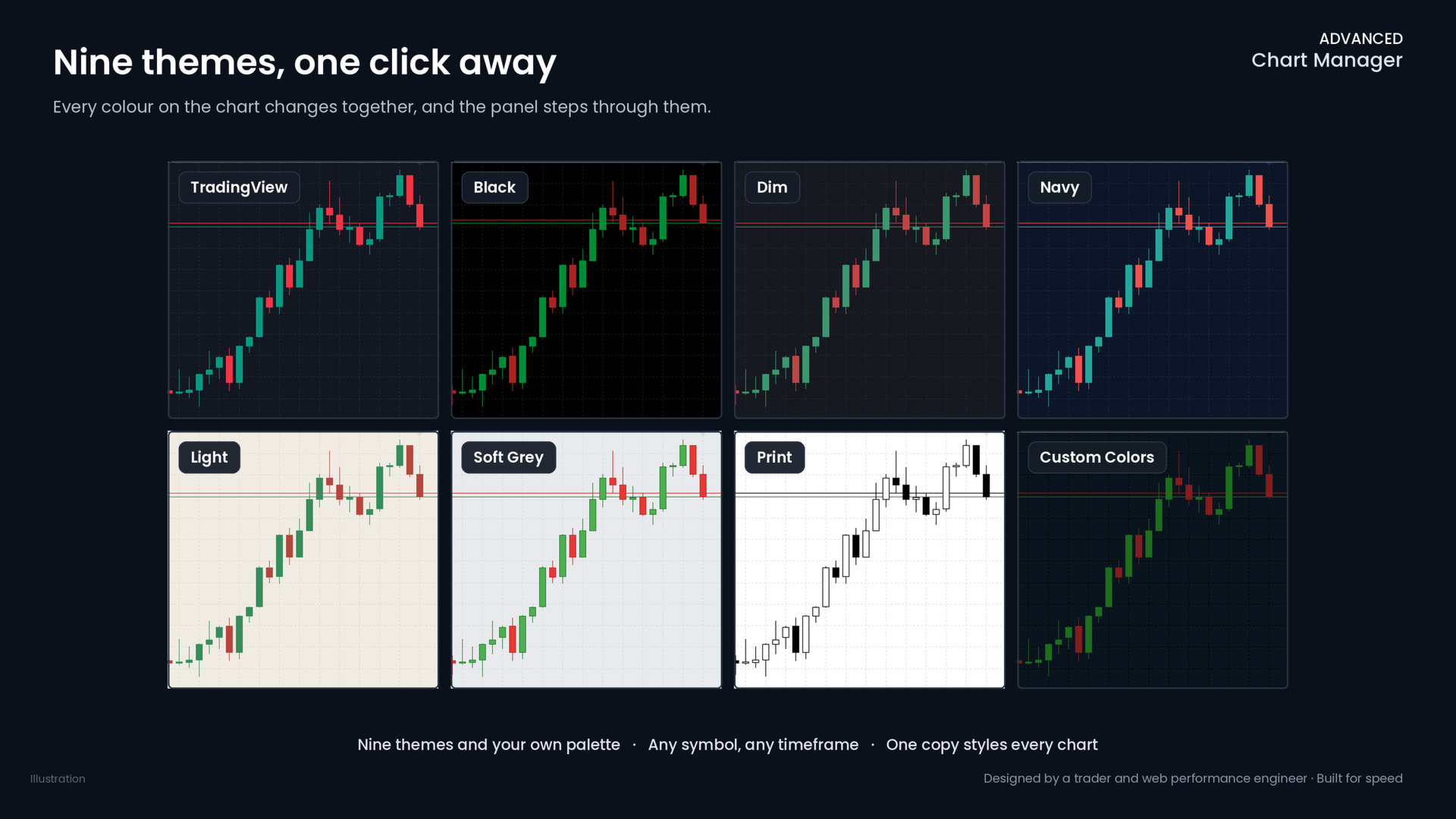
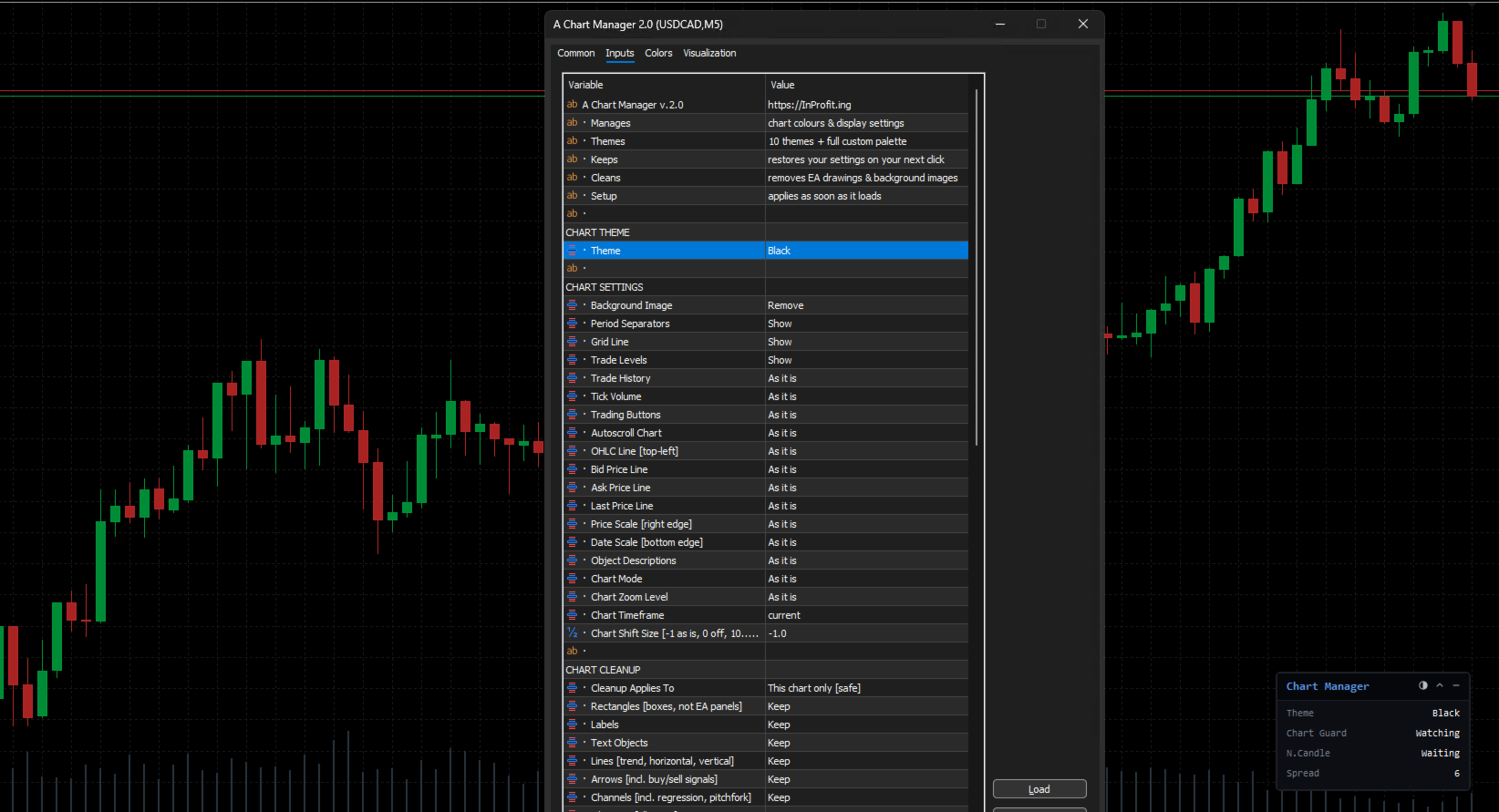
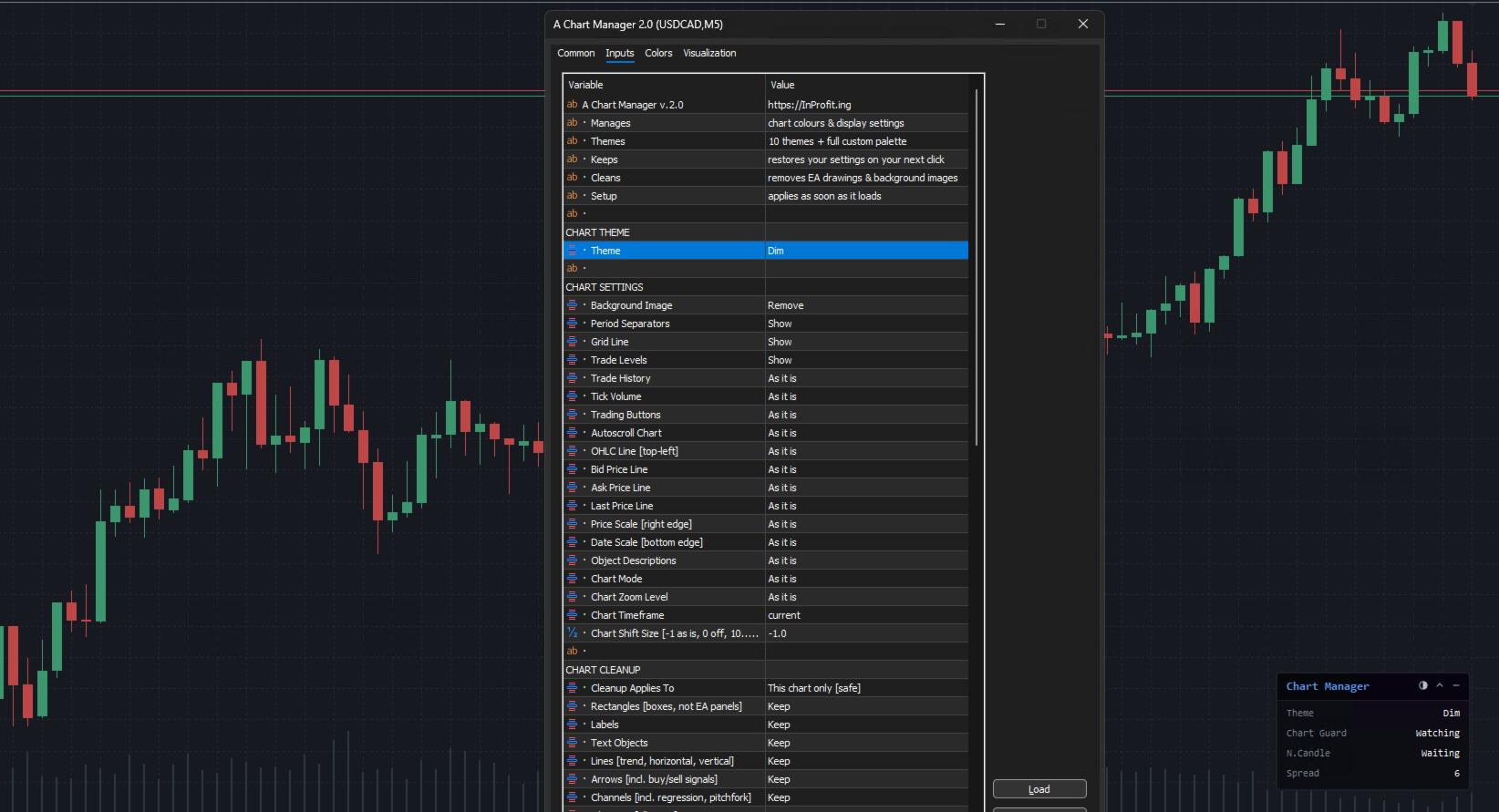
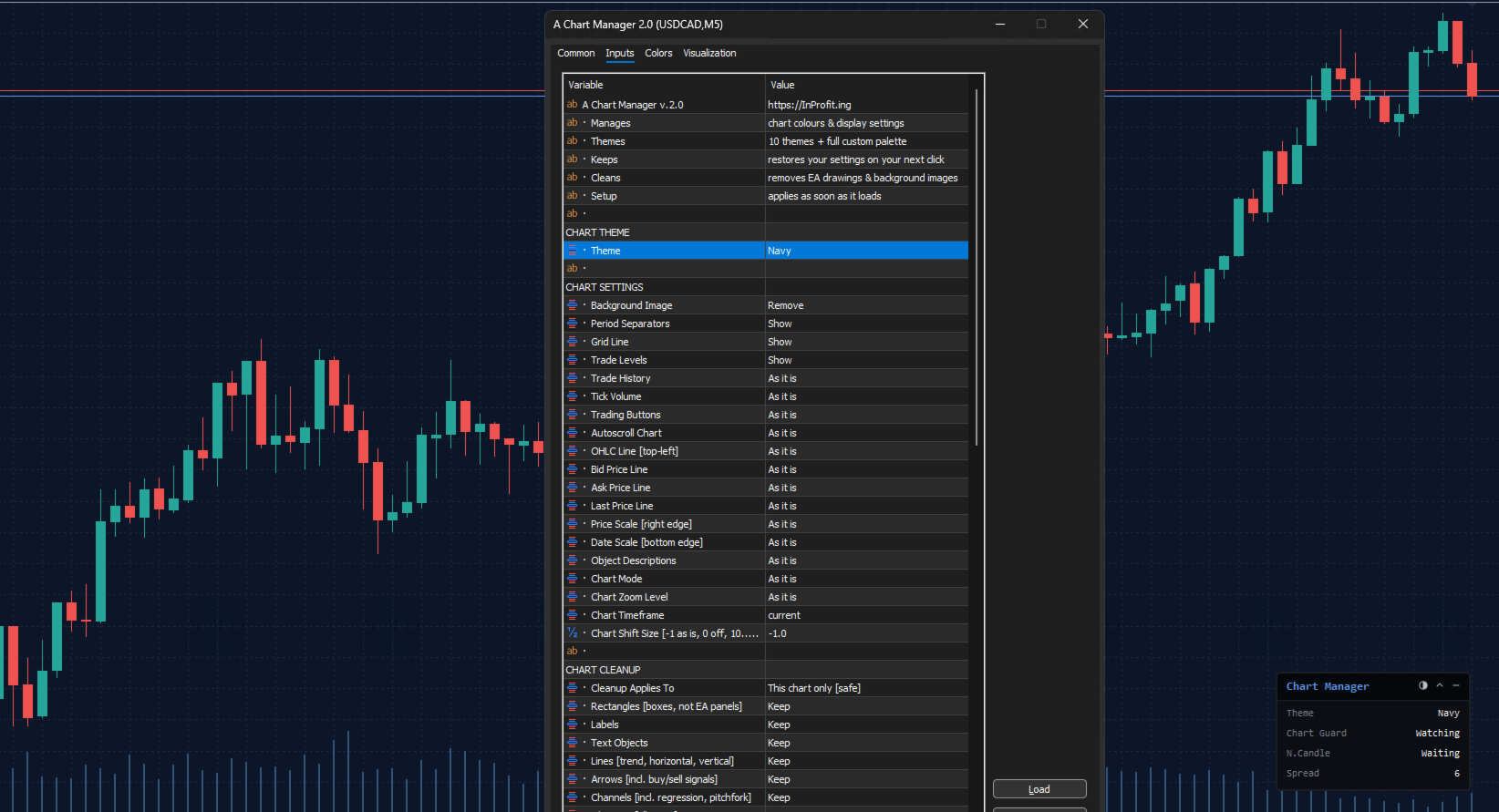
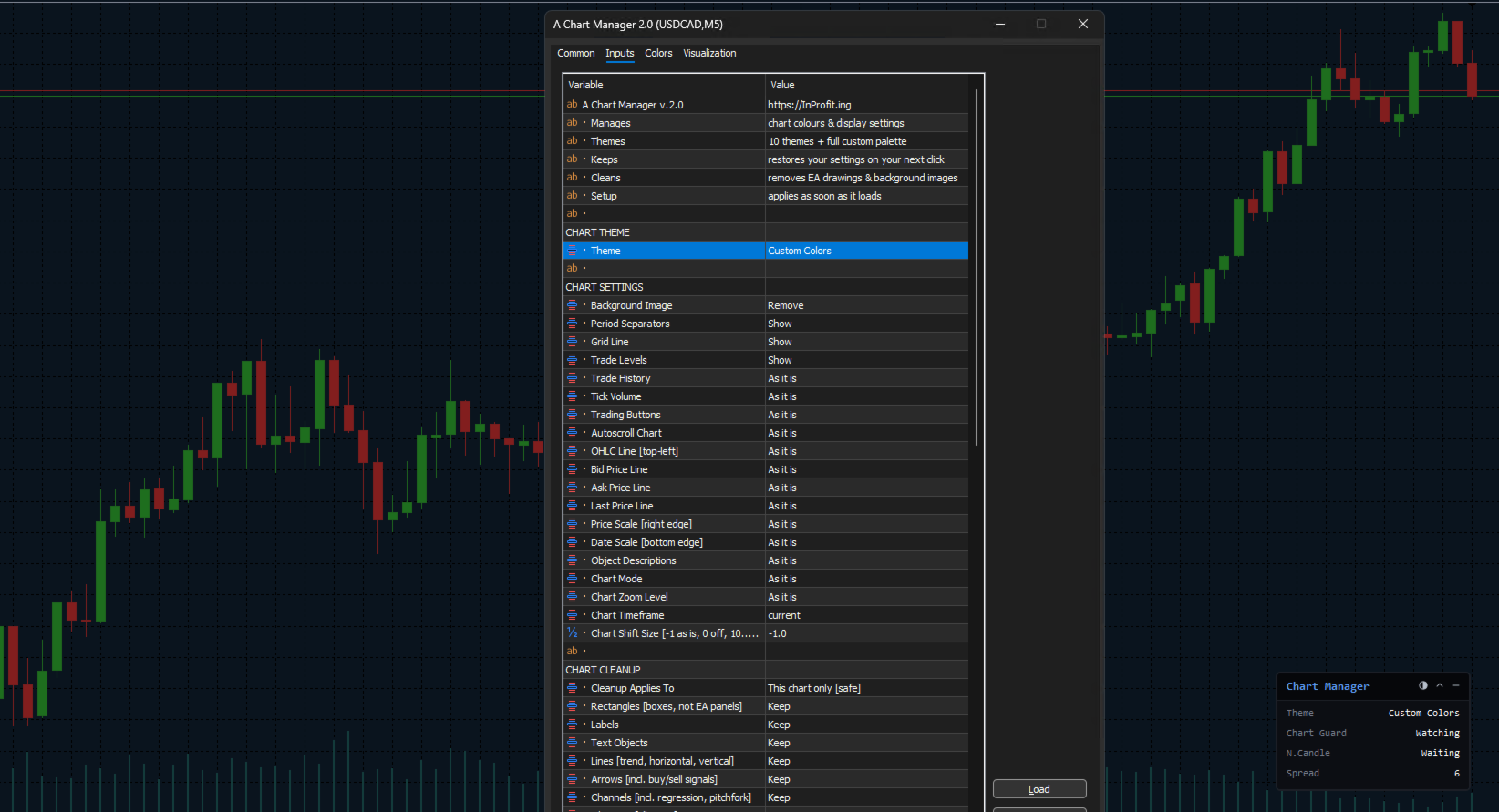
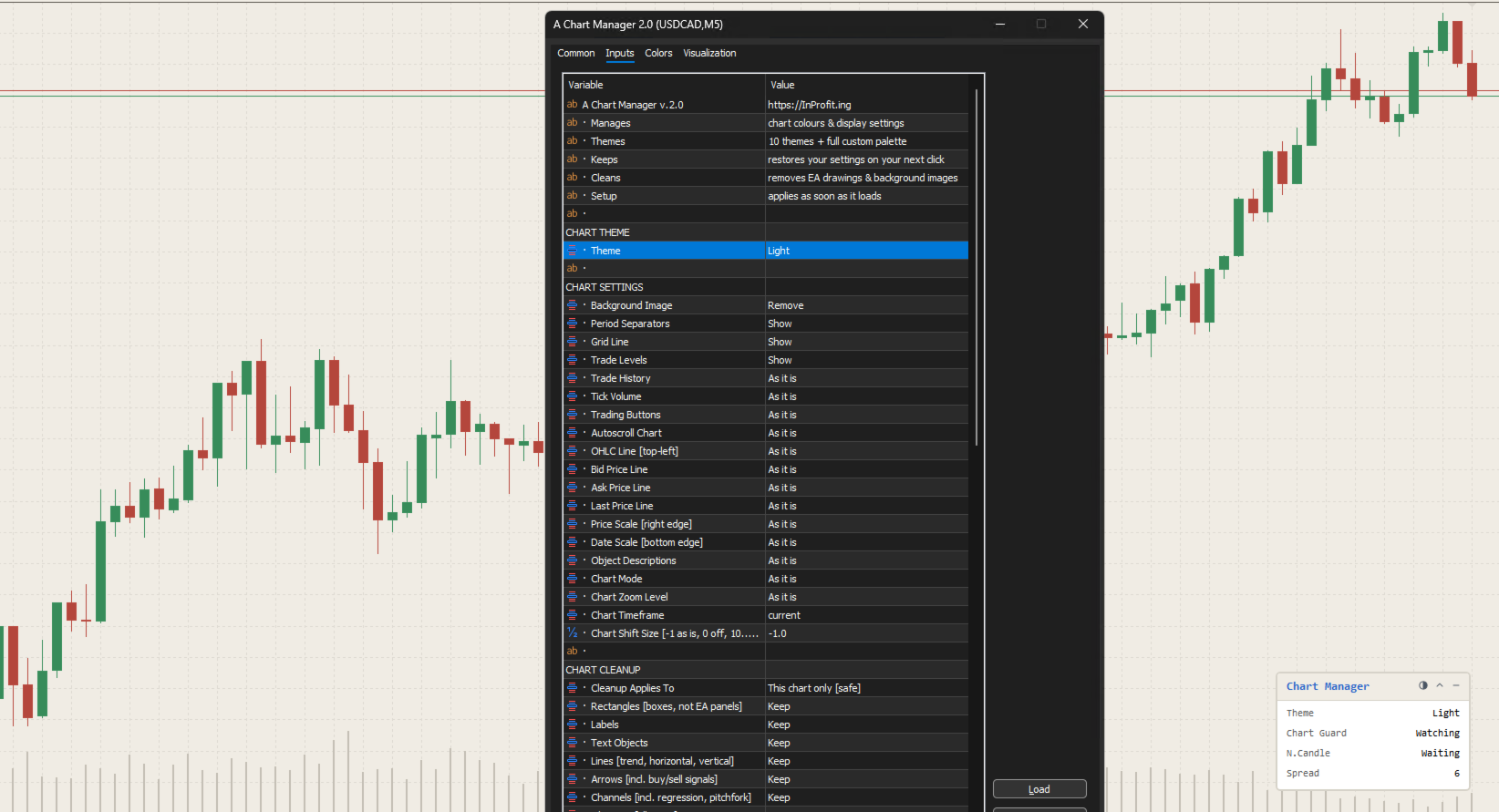
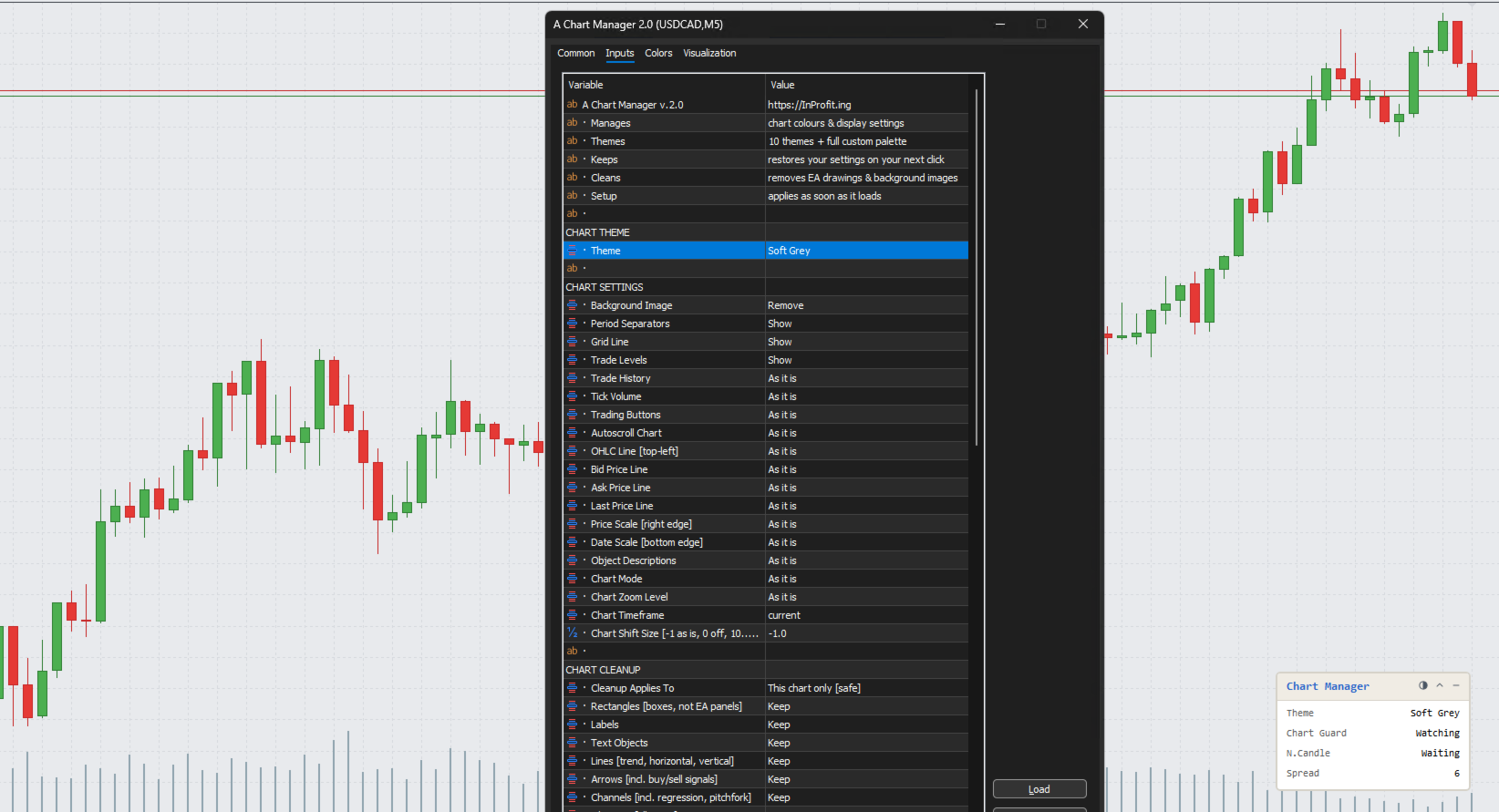
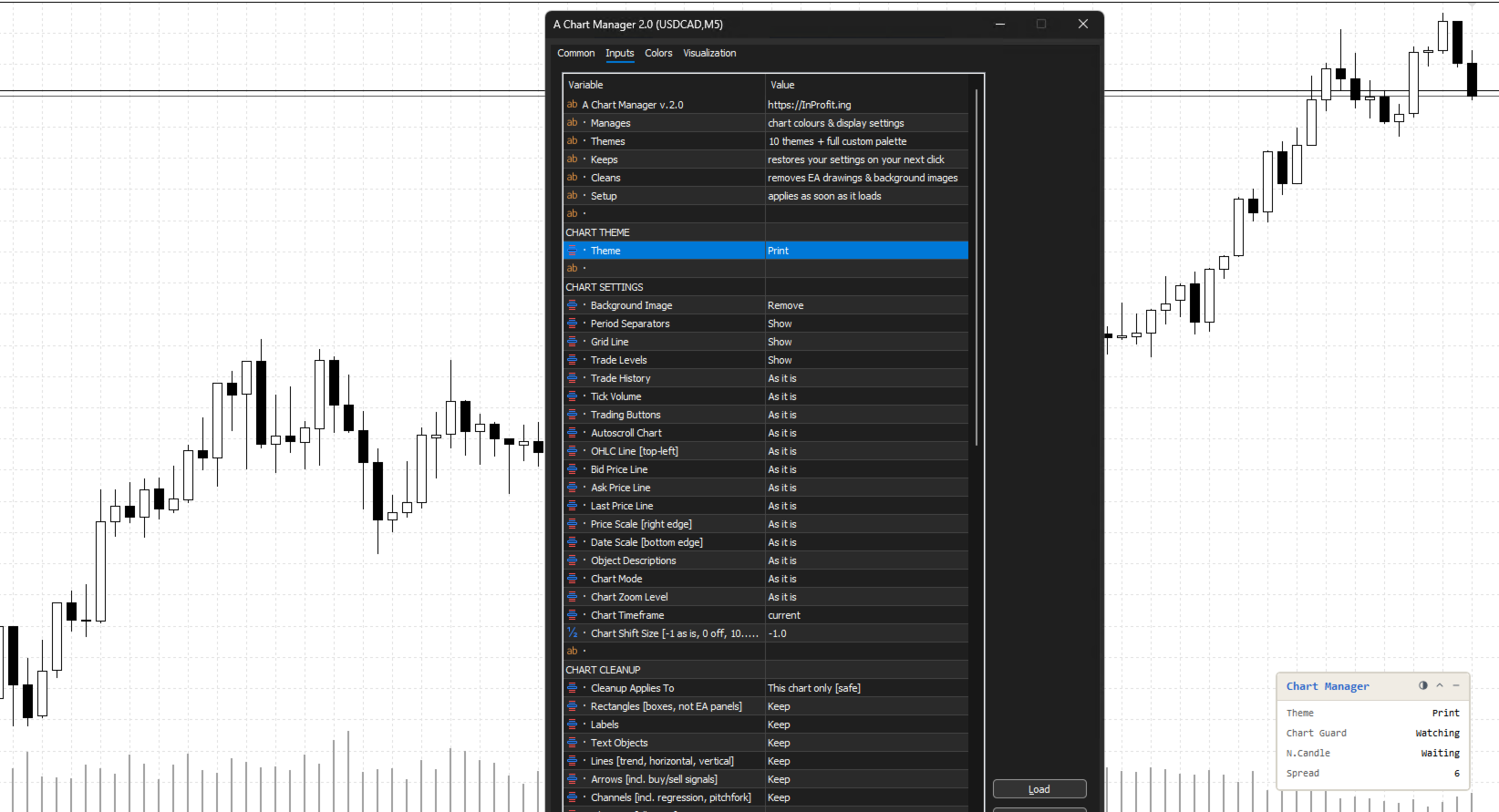
What Advanced Chart Manager does for youAttach it once, choose your look in the settings, and the chart takes it at once. Colour themes for a chart that is easy on the eyesPick a ready theme and the whole chart changes together: background, text, grid, candles, bars, volumes and every price line. Nine themes are built in, and the tenth choice is your own palette.
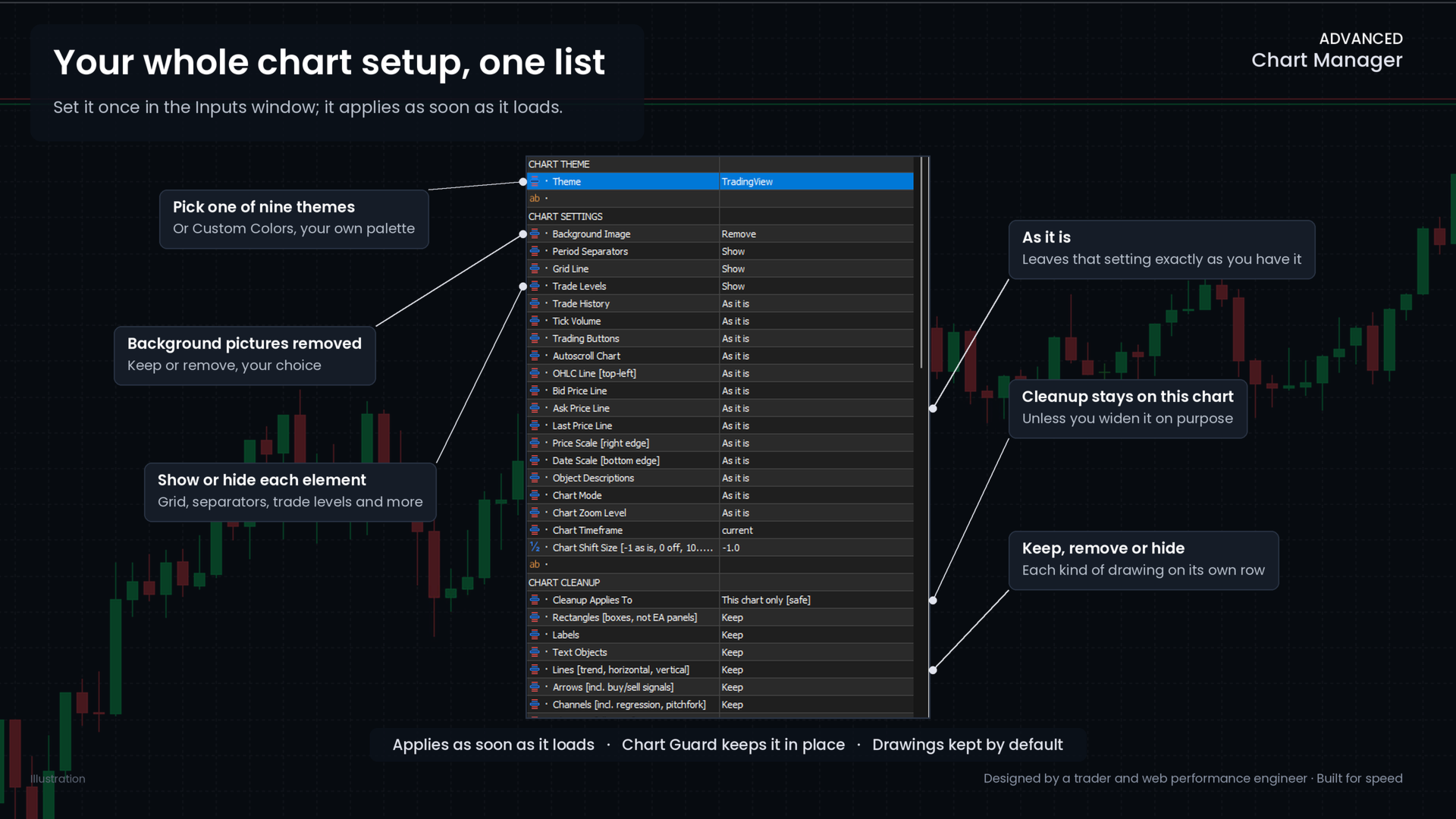
Chart settings in one placeThe display switches you would otherwise look for in the Properties window are all in one list: the grid, period separators, trade levels and trade history, tick volume, the trading buttons, autoscroll, the OHLC line, the bid, ask and last price lines, both scales and object descriptions. You can also set the chart mode, the zoom, the timeframe and the chart shift. Every row has an As it is choice, so the tool changes only what you ask it to. Chart Guard keeps your look in placeSome programs change the chart's colours or settings behind your back. Chart Guard notices it and puts your look back the next time you click on the chart. Right after the chart loads, it also watches more closely for another minute, because slower tools often change the colours only when they finish loading. If you prefer a schedule, the colours, the settings and the cleanup can each be applied again every 5 minutes, 15 minutes, hour, 12 hours or day. A clean chart, without losing your workLeftover drawings make a chart hard to read. You decide, for each kind of drawing, whether to keep it, remove it, or hide it, so it stays on the chart but is not drawn. Hidden drawings come back as soon as you switch hiding off or remove the indicator.
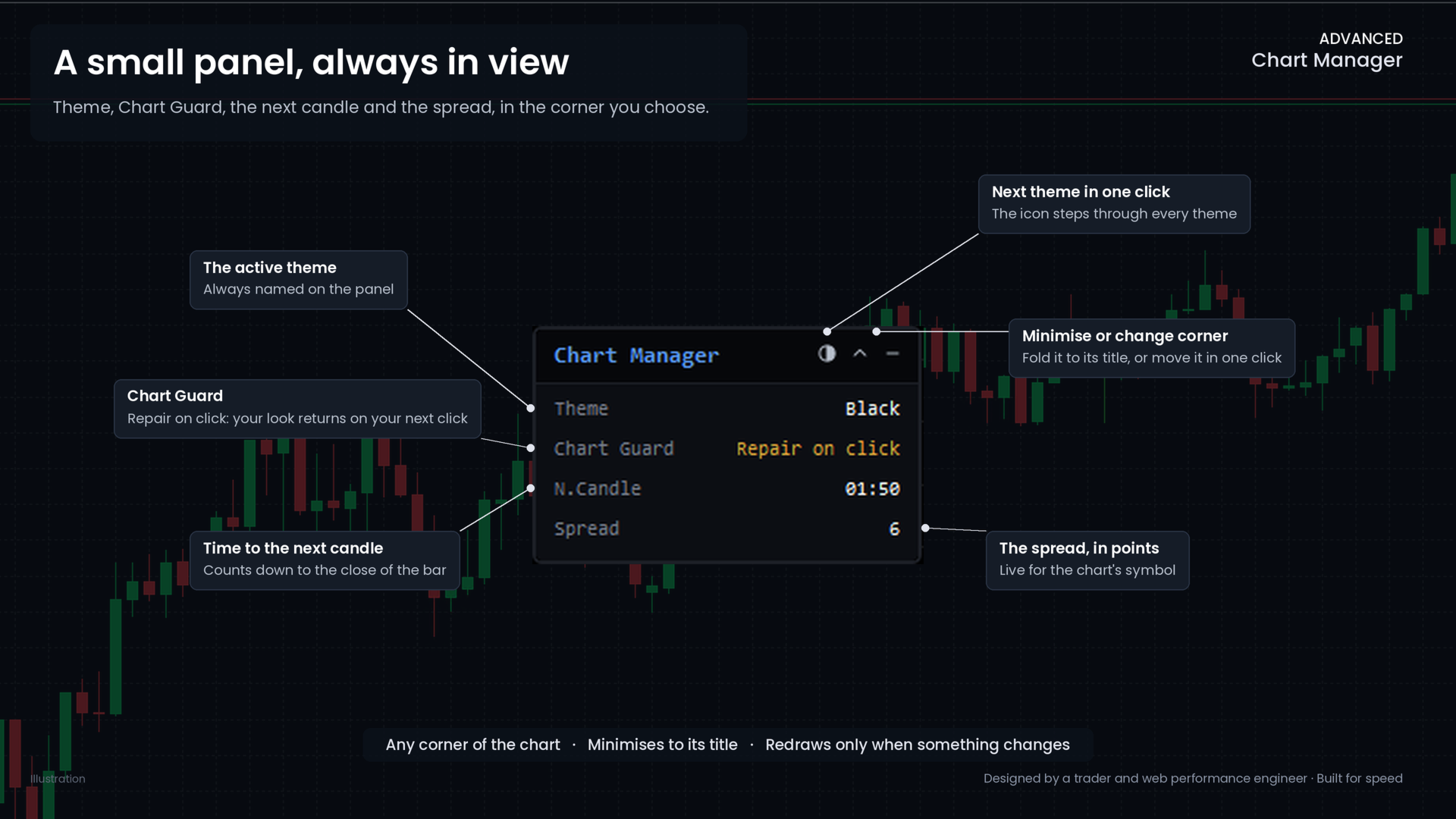
Every open chart from one copySet Manage to all open charts, and one copy gives every chart the same theme, settings and protection. The cleanup stays on the chart you attached it to unless you ask it to follow, so your drawings on other charts stay safe. A small panel with what you look at mostThe panel sits in the corner you choose and shows the active theme, Chart Guard, the time left in the current candle and the spread. A click on the theme icon moves to the next theme, and a click on Chart Guard turns it on or off. You can minimise the panel to its title or move it to another corner in one click. A watermark that tells you where you areIf you switch it on, the symbol and timeframe appear large and faint behind the candles, so you always know which chart you are looking at when many are open.
Frequently asked questionsWill it delete my own drawings?Not unless you ask it to. Every kind of drawing is kept by default. When you do want a cleaner chart, you can hide drawings instead of removing them, and they come back when you change your mind. Will it change my Expert Advisor's panel?Panel backgrounds, buttons and input boxes are never removed or hidden. The Labels row removes or hides text placed on the screen, which some panels use, so keep it on Keep for such a panel, or add the start of its object names to Never Delete Prefixes. Why does Chart Guard wait for my click?A change from another program is noticed at once, and the repair is made on your next click on that chart. This way the tool never writes to a chart you are not looking at, which keeps the terminal calm and your other charts undisturbed. What happens when I restart the terminal or change the timeframe?The look is applied as soon as the indicator loads. A chart that already has your look is not touched, so a restart stays quiet. A theme you pick on the panel is remembered for that chart until you press OK in the settings. Can one copy manage all my charts?Yes. Attach it to one chart, set Manage to all open charts, and every chart follows. Only one copy leads at a time, so two copies never fight over the same charts. Which symbols and timeframes does it work on?Any symbol and any timeframe. It changes only how the chart looks, never your trades, orders or Expert Advisors.
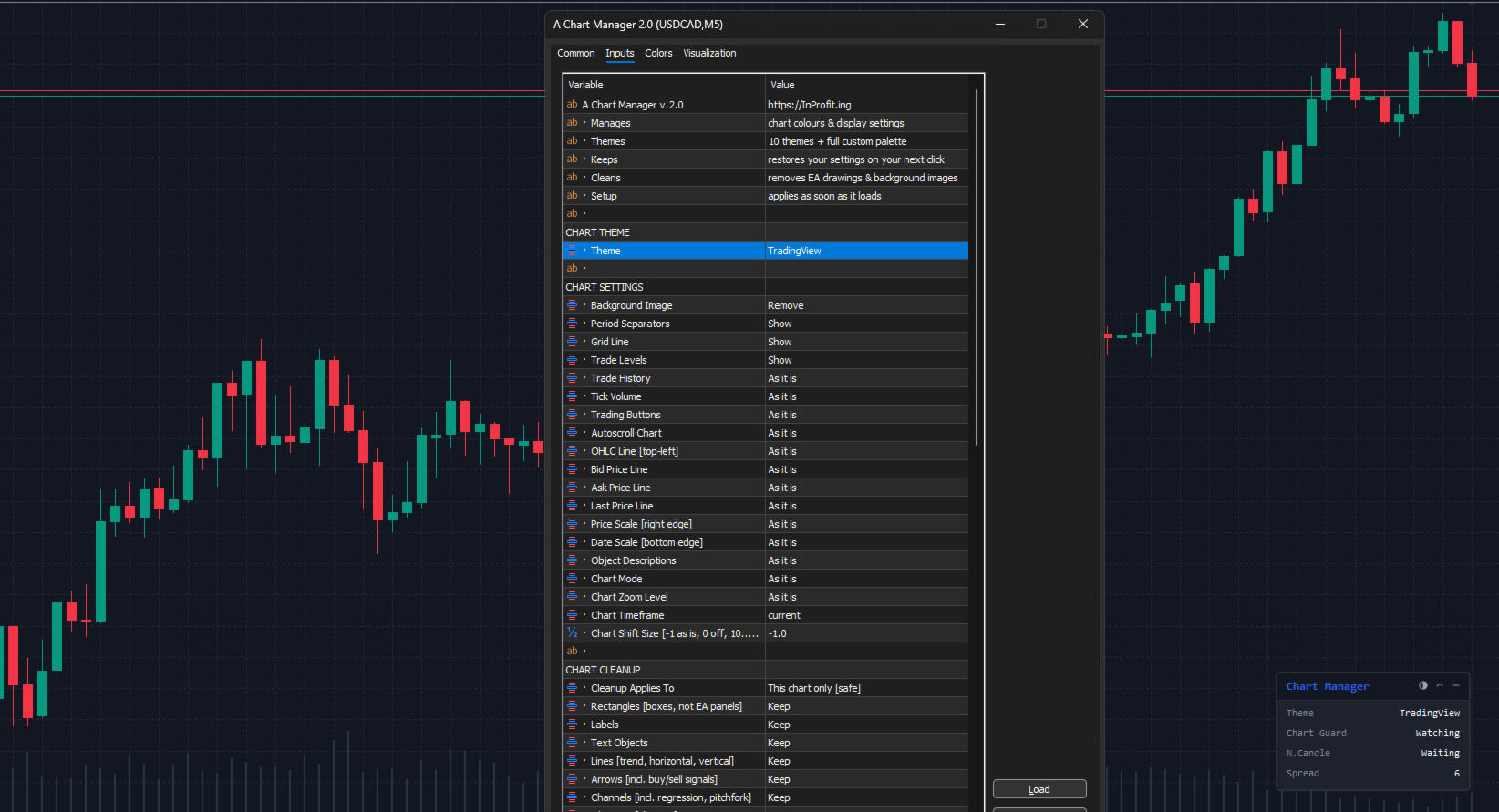
SettingsThe settings follow the groups of the Inputs window. Most rows offer As it is or Keep, so you change only what you want. CHART THEME
CHART SETTINGS
The other rows switch trade history, tick volume, the trading buttons, autoscroll, the OHLC line, the bid, ask and last price lines, both scales and object descriptions. Each is left as it is by default. CHART CLEANUP
EXTRAS
REFRESH & PERFORMANCE
PANEL and CORNER OFFSET
CUSTOM THEME COLORSThirteen colours for the Custom Colors theme: background, text, grid, bars, candle bodies, the line chart, volumes, the bid, ask and last price lines, and stop levels. The defaults are the dark palette I use myself.
How it is madeI am an experienced trader and a performance developer, and I built Advanced Chart Manager for my own charts before sharing it. I kept speed in mind throughout: it does no work on each price tick, and it writes to a chart only when something there differs from your look. The panel redraws only when something it shows has changed, and its one-second clock runs only while the panel is open. With a copy on many charts, the terminal stays light.
Start in a minute
Questions, comments, reviewsI share Advanced Chart Manager free of charge, though many evenings went into making it quick, careful with your drawings and calm on a busy terminal. If a question comes up, or you have an idea for it, the Comments tab of this page is open. If it has given you back a clean, quiet chart, a short review helps other traders find it. |