A Chart Manager
- Utilitaires
- Version: 1.91
- Mise à jour: 16 octobre 2026

A. Chart Manager:
- Designed by an experienced trader and web performance engineer.
- Developed and built with performance, speed and optimization in mind.
- Uses unique clean outline of events, even when there are multiple events.
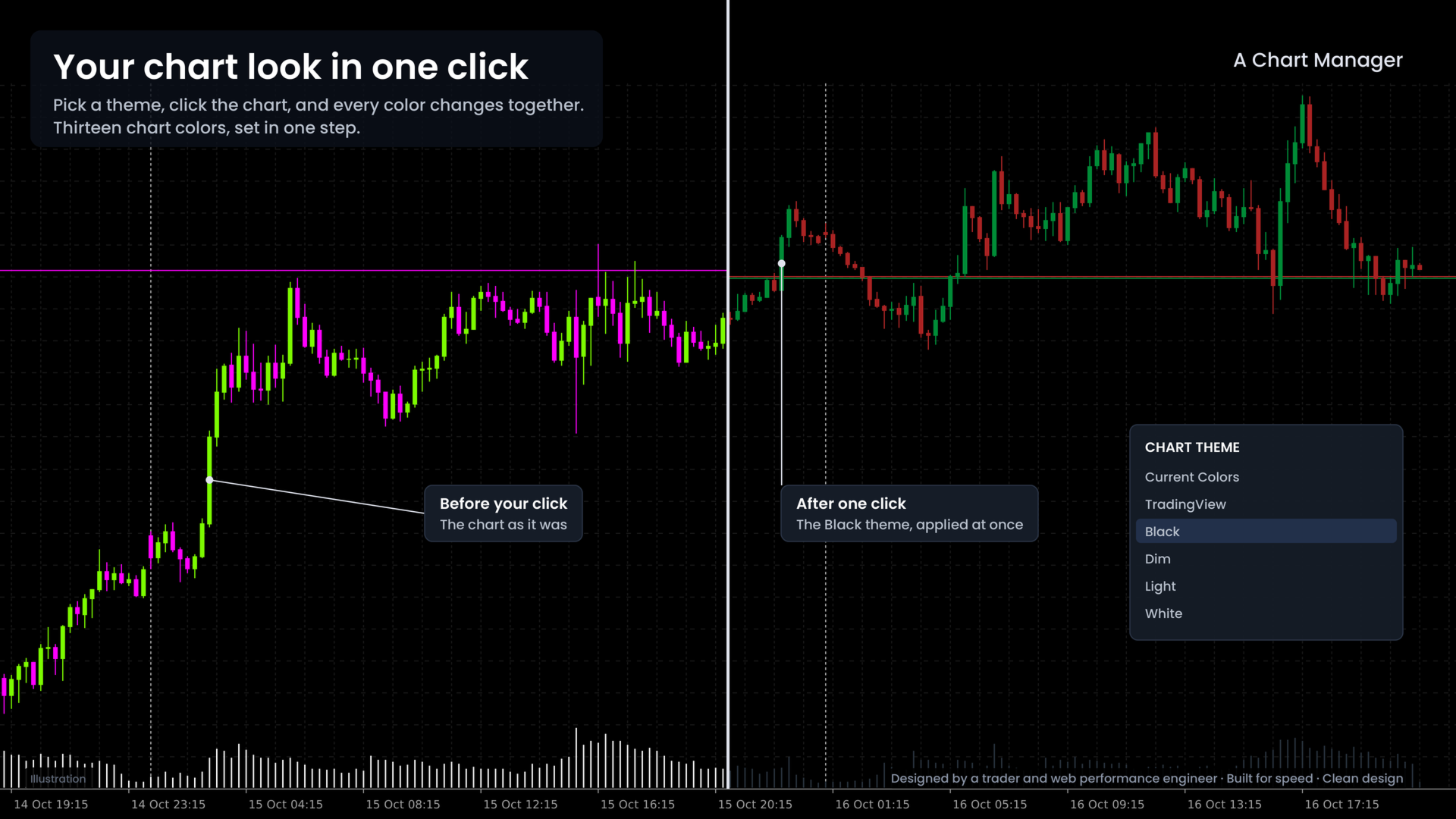
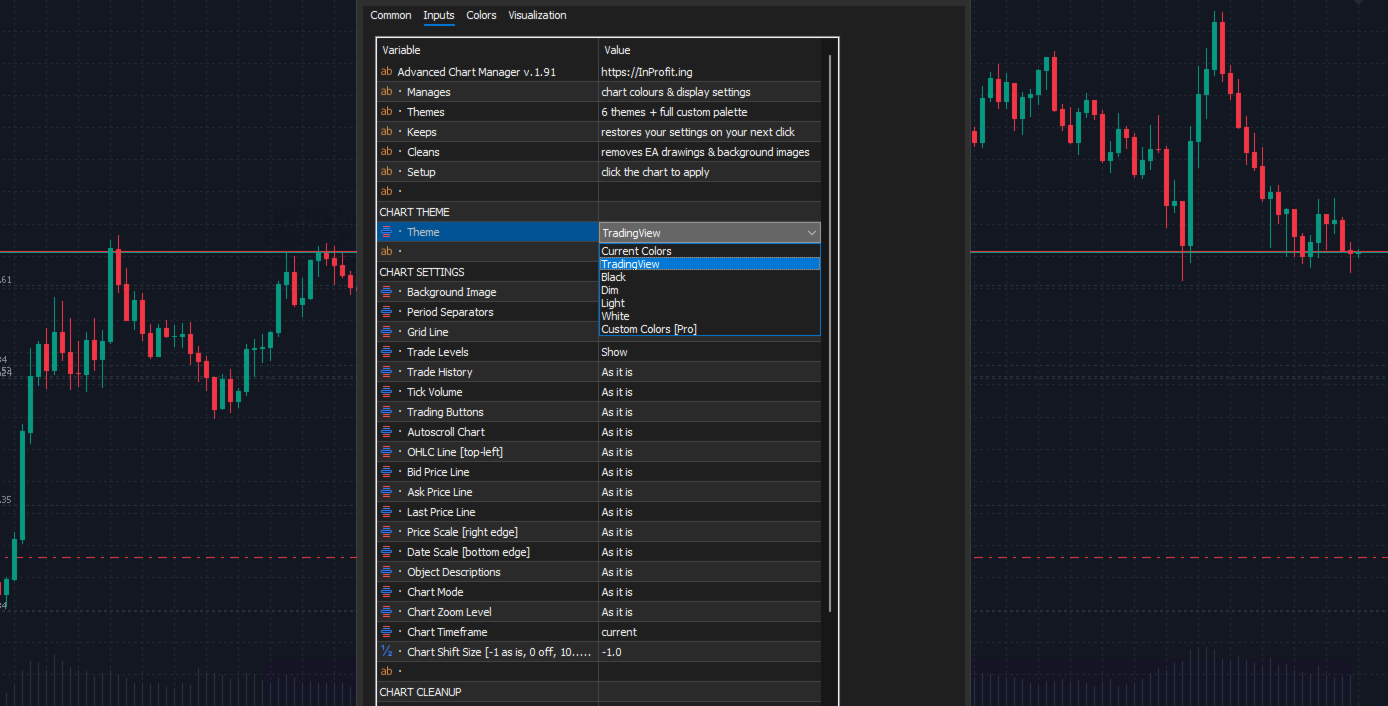
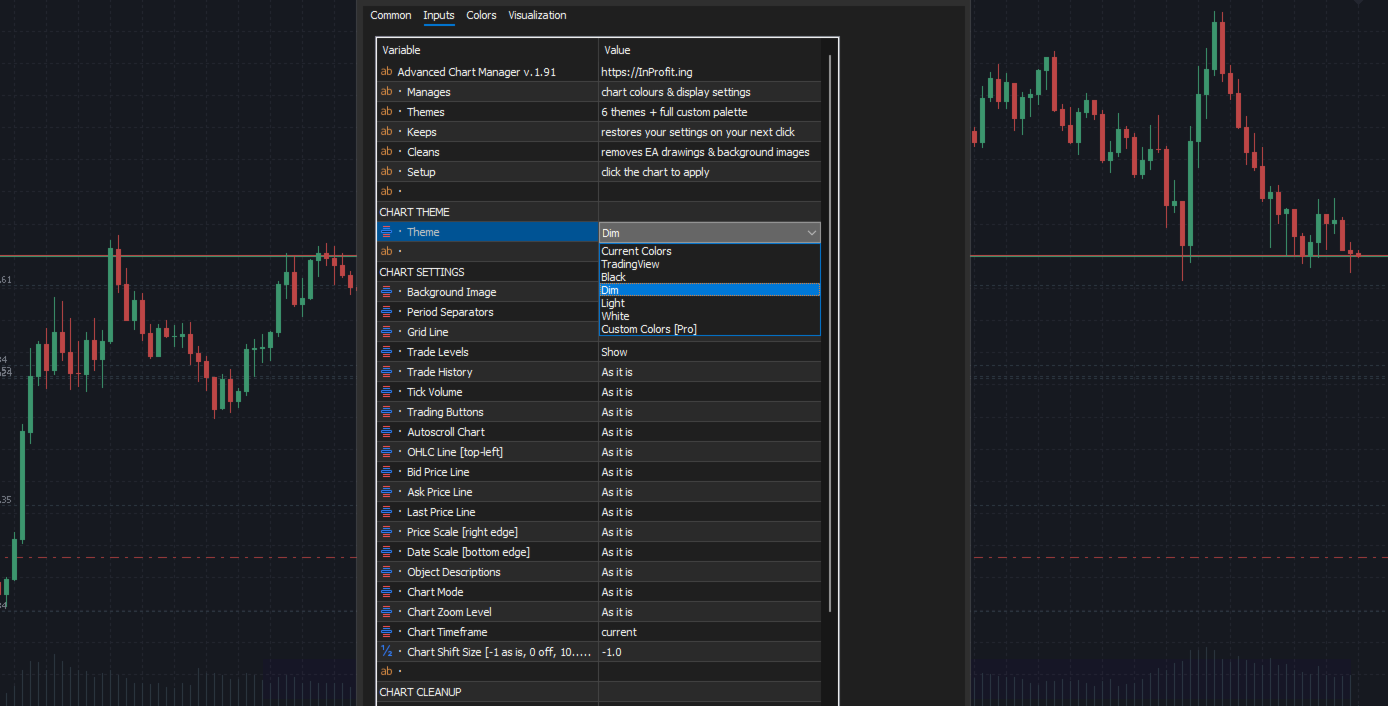
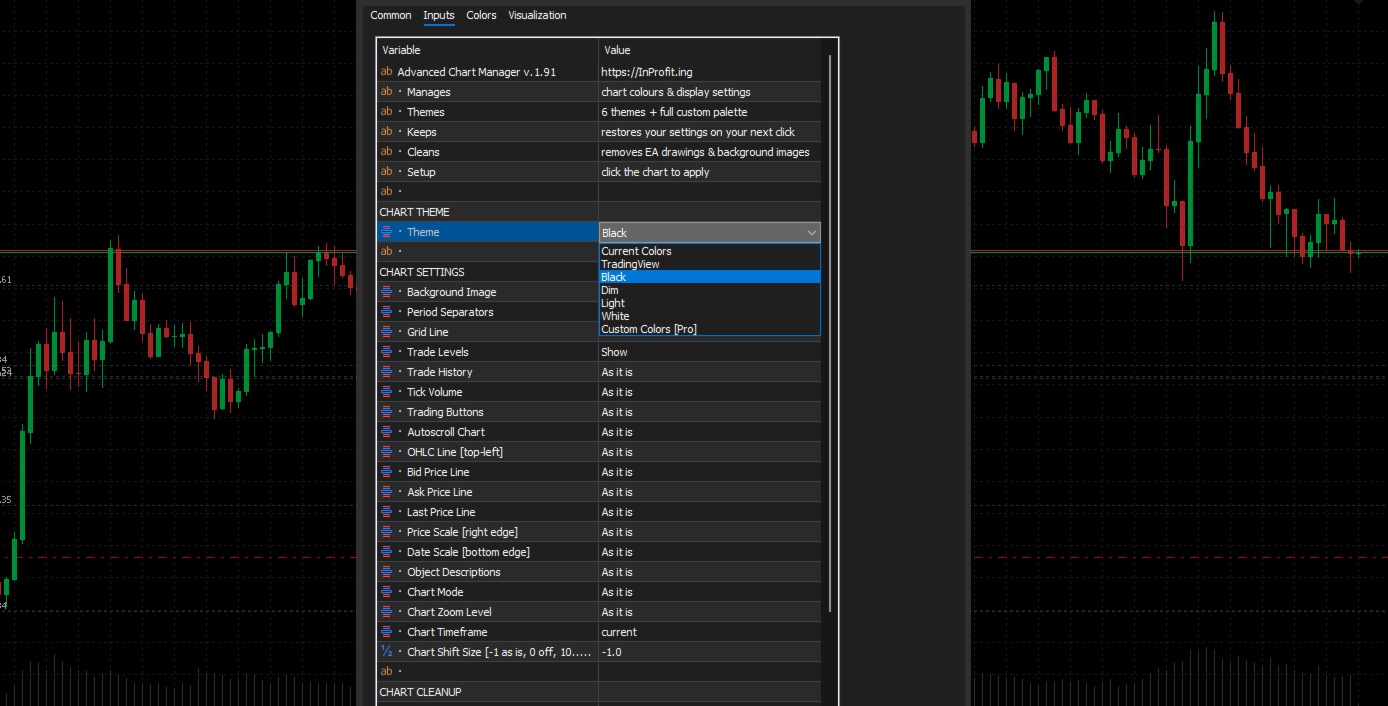
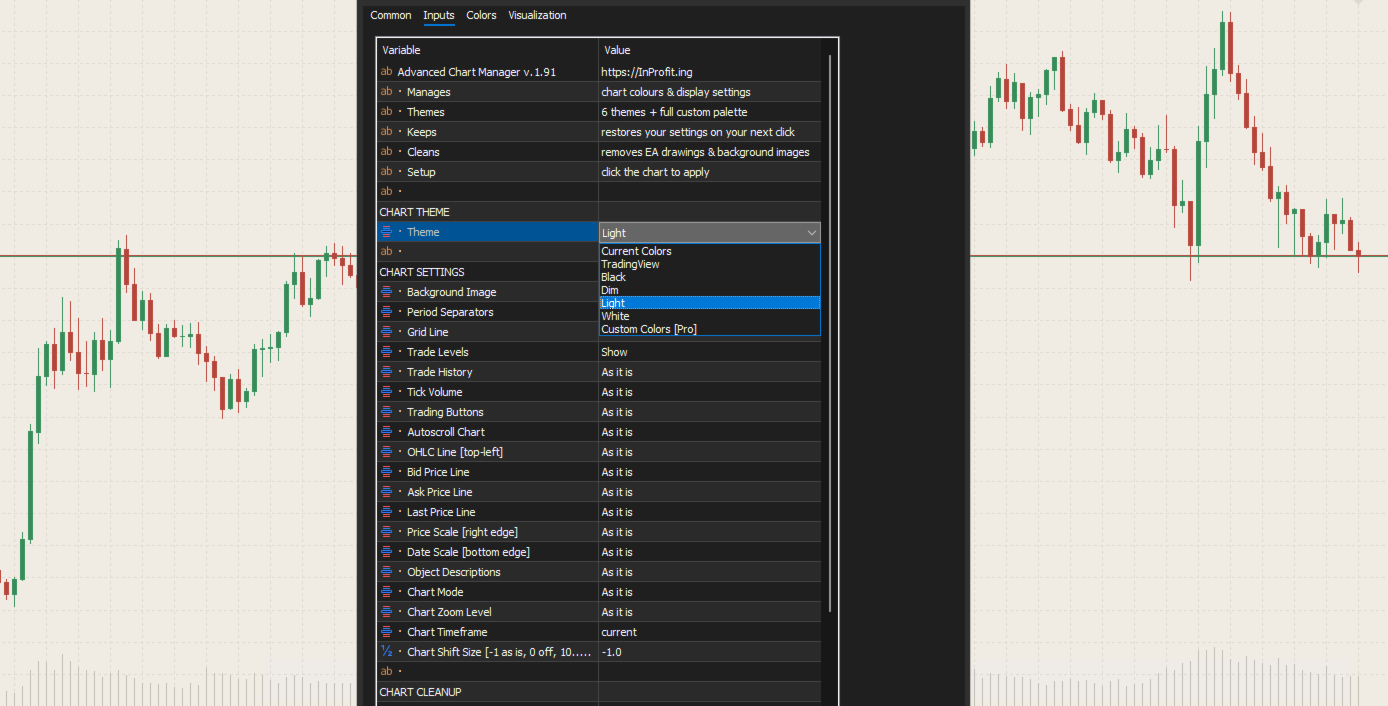
- Restyles your chart with one of five color themes when you click it.
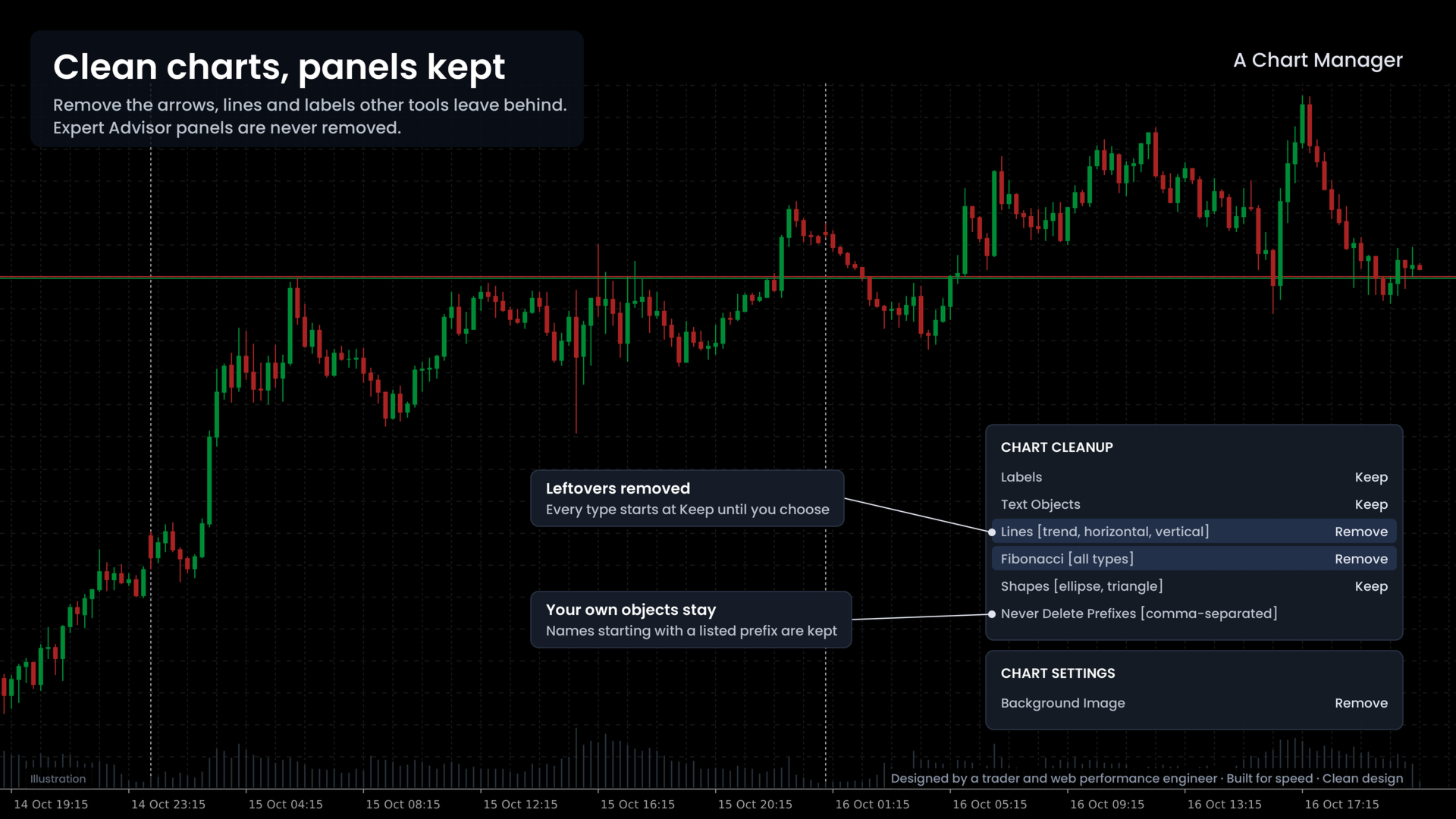
- Removes background images and the objects other tools leave on the chart.
- Never removes the rectangle labels that Expert Advisor panels are built from.
- Shows or hides the grid, volumes, trade levels, price lines and more.
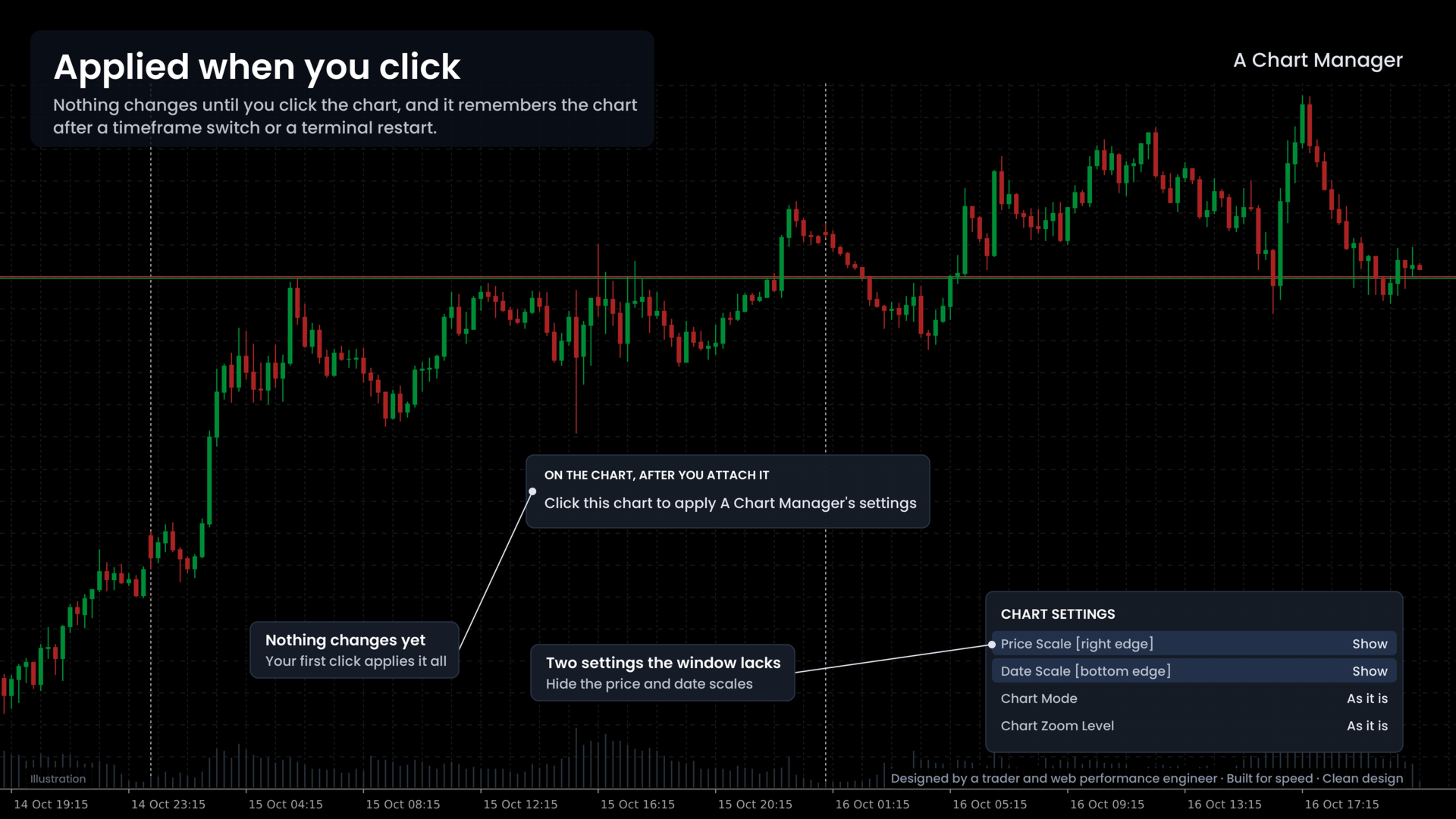
- Hides the price and date scales, which the chart properties window cannot do.
- Sets chart mode, zoom, timeframe and chart shift in the same click.
Sound familiar?
You add an Expert Advisor to the chart, and your favorite chart settings are gone.
- Many Expert Advisors make changes you never asked for.
- Indicators leave behind boxes, arrows, lines and labels.
- It takes forever to get the styles back again and again.
Then you do it again on the next chart. And the cleanup is the risky part: delete the wrong object, and your Expert Advisor's panel goes with it.
One look, applied when you choose
Keep your whole chart look in one place: colors, display settings and cleanup. Apply it all at once, to the chart you pick, at the moment you pick it. And let the cleanup know what it must never touch.
That is what A Chart Manager does. It is an indicator that holds your settings and applies them with one click on the chart.
Five color themes
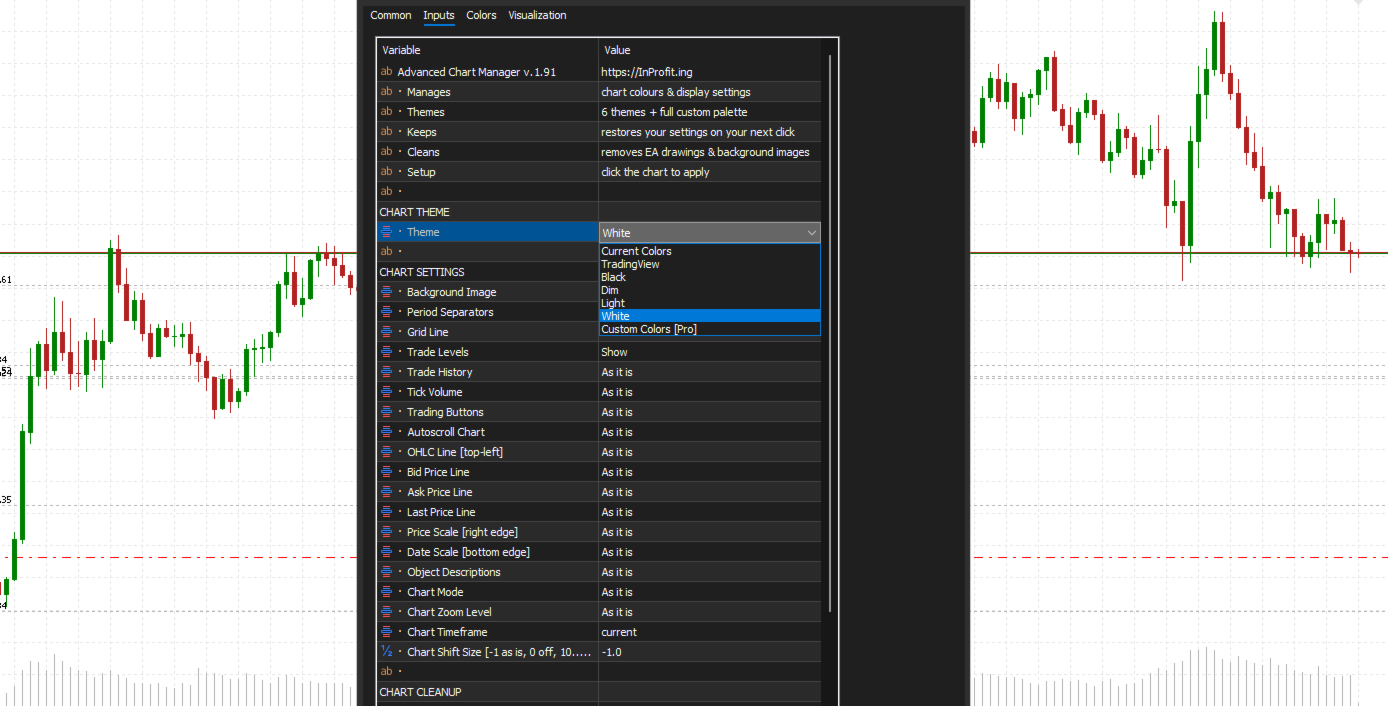
Choose TradingView (dark blue), Black, Dim, Light (warm linen) or White. Each theme sets thirteen chart colors together: background, text, grid, bars, candle bodies, line chart, volumes, the bid, ask and last price lines, and stop levels. Black is the default, and Current Colors leaves your colors exactly as they are.
Applies when you click
After you attach it, a short line appears in the middle of the chart: "Click this chart to apply A Chart Manager's settings". Your first click or key press on that chart applies everything and removes the line. So a terminal that opens many charts at once never restyles a chart you did not pick.
It remembers the chart. After a timeframe switch or a terminal restart it does not ask again. When you change its inputs and press OK, the new settings apply straight away.
Cleanup that you control
Choose which kinds of objects to remove: rectangles, labels, text, lines (trend, horizontal and vertical), arrows including buy and sell signal arrows, channels, Fibonacci tools, and shapes. Every type starts at Keep, so nothing is removed until you set it to Remove.
Background images are removed by default. Set Background Image to As it is if you want to keep yours.
Safe for your Expert Advisor panels
Expert Advisor panels are built from rectangle labels, and the cleanup never removes those. Background image removal only touches pictures drawn behind the chart, so panel images stay. Any object whose name starts with a prefix you list in Never Delete Prefixes is always kept.
Panel text is often drawn as ordinary labels. Before you set Labels to Remove, add your Expert Advisor's object prefix to Never Delete Prefixes.
Display settings
Show or hide period separators, the grid, tick volume, trade levels, trade history, the one-click trading buttons, autoscroll, the line at the top left that shows each bar's open, high, low and close, the bid, ask and last price lines, and object descriptions. Every one of them has As it is, which leaves that setting alone.
Three start at Show: period separators, the grid and trade levels. The rest start at As it is.
Price and date scales
Hide the price scale on the right and the date scale at the bottom for a bare chart, or show them again. The chart properties window has no option for either.
Mode, zoom, timeframe and shift
Set the chart to Candlesticks, Bars or Line, pick one of six zoom levels from Panoramic to Micro, switch the timeframe, and set the chart shift from 10 to 50 percent or turn it off. Each one starts at As it is.
How it is made
A Chart Manager is designed by an experienced trader who is also a web performance engineer, and built with performance, speed and optimisation in mind. It writes nothing until you click the chart, and a setting left at As it is is never written at all.
How to start
- Drag A Chart Manager from the Navigator onto your chart.
- In the Inputs tab, choose a theme and the settings you want, then press OK.
- Click the chart.