 MetaTrader 5
 Experts
 Indicators
 Scripts
 Libraries
 Storage
Watch how to download trading robots for free
Find us on Facebook!
Join our fan page
Join our fan page
You liked the script? Try it in the MetaTrader 5 terminal

Net Currency Exposure and Hedged Margin Simulator Panel - indicator for MetaTrader 5
Aakash Sour

Hello! I am Aakash Sour, an Independent Algorithmic Trader and MQL5 Developer based in Sagar (Bundelkhand), Madhya Pradesh, India.
- Views:
- 23
- Published:
-
 You are missing trading opportunities:
- Free trading apps
- Over 8,000 signals for copying
- Economic news for exploring financial markets
Registration Log inYou agree to website policy and terms of use
If you do not have an account, please register -
 Need a robot or indicator based on this code? Order it on Freelance
Go to Freelance
Overview
Managing multiple open positions across different symbols in MetaTrader 5 often hides two practical account risks: overlapping currency exposure and broker-specific hedged margin rules. For example, holding simultaneous buy trades on EURUSD, GBPUSD, and XAUUSD creates a concentrated short exposure to the US Dollar, even though they appear as three separate instruments. Similarly, opening an opposite position on an already traded symbol affects required margin differently depending on whether the broker uses the Larger-Leg rule or a specific hedged margin rate.
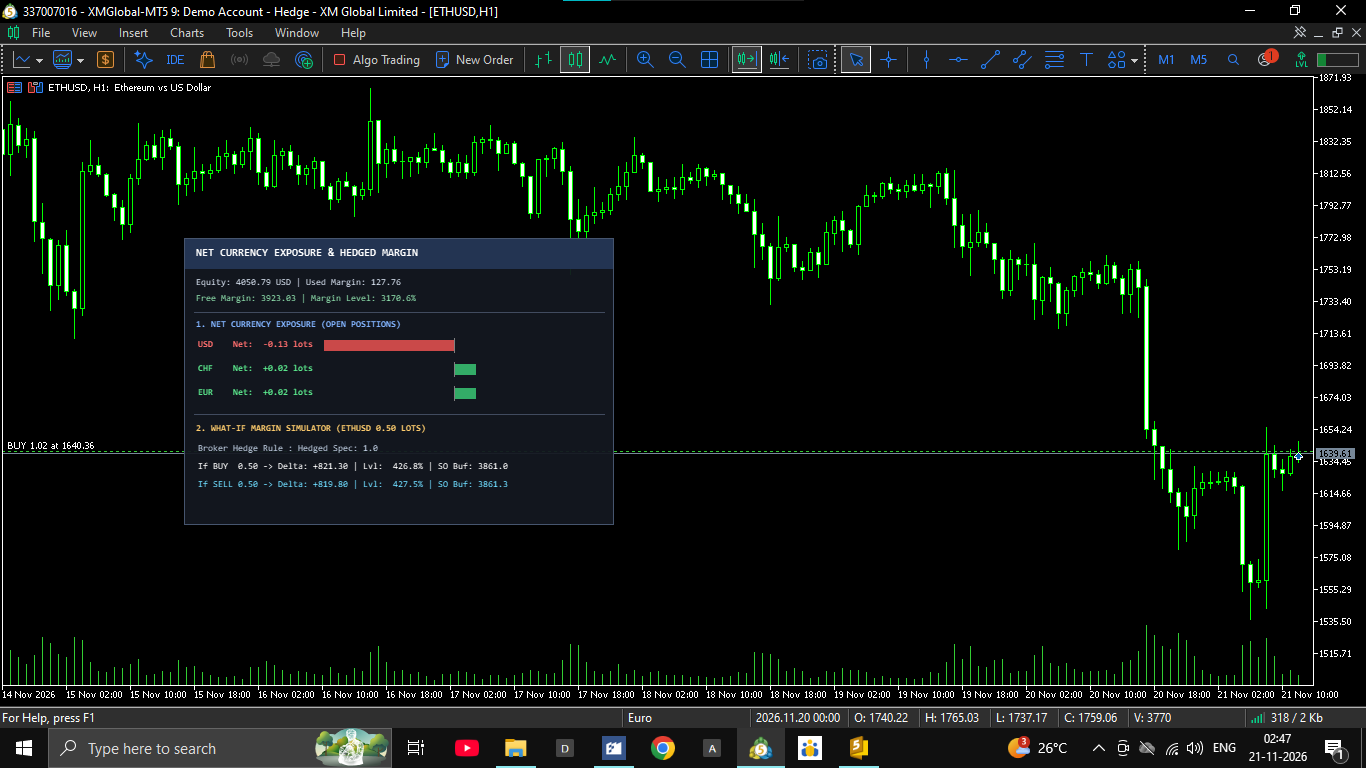
Net Currency Exposure & Hedged Margin Simulator Panel is a lightweight, real-time on-chart utility built with CCanvas. It aggregates all open positions across the account to display net lot exposure per currency and simulates the exact margin and Stop-Out impact of placing a new Buy or Sell order before execution.
Key Features
1. Real-Time Account & Margin Telemetry
- Displays live Account Equity, Used Margin, Free Margin, and Margin Level (%) directly on the chart.
- Updates automatically every second via OnTimer() as well as on every incoming tick.
2. Net Currency Exposure Breakdown (Visual Bar Chart)
- Scans all open positions across every symbol on the account and splits each trade into its Base and Profit currencies.
- Calculates exact Long, Short, and Net lot exposure for each individual currency.
- Renders color-coded horizontal exposure bars (green for net long, red for net short) scaled dynamically to the largest currency exposure.
3. Pre-Trade "What-If" Hedged Margin Simulator
- Automatically detects your broker's margin calculation mode (SYMBOL_MARGIN_HEDGED_USE_LEG or SYMBOL_MARGIN_HEDGED contract specification).
- Simulates opening a Buy or Sell order of a user-defined volume (InpSimLots) on the current chart symbol.
- Shows the exact Margin Delta (change in required margin), projected Margin Level (%), and the remaining monetary buffer before reaching the account Stop-Out threshold.
- Highlights hedged leg pairs in cyan when the simulated order offsets an existing opposite position.
4. Draggable CCanvas Interface & Auto-Resizing
- Clean, dark-themed HUD built using the standard CCanvas library.
- Click and drag the top header bar anywhere on the chart without interfering with chart scrolling.
- Automatically adjusts panel height based on the number of active currencies in your portfolio.
Input Parameters
- InpSimLots (default: 0.50) — Order volume (in lots) used for the Buy/Sell "What-If" margin simulation on the current symbol.
- InpPanelX (default: 20) — Initial horizontal position of the dashboard from the left edge of the chart (in pixels).
- InpPanelY (default: 30) — Initial vertical position of the dashboard from the top edge of the chart (in pixels).
- InpLogToExperts (default: true) — Enables or disables printing a detailed diagnostic summary to the MetaTrader 5 Experts tab every 30 seconds.
Step-by-Step Download & Installation Guide
Important: This tool consists of two files — MarginExposurePanel.mq5 (main indicator) and MarginExposureAnalyzer.mqh (calculation engine). Both files must be placed inside the same folder so the indicator can compile properly.
Method 1: Manual Download & Setup
1. On this CodeBase page, download both files: MarginExposurePanel.mq5 and MarginExposureAnalyzer.mqh (or click "Download as ZIP" to get both files together).
2. Open your MetaTrader 5 terminal, click File in the top-left menu, and select Open Data Folder.
3. Navigate to MQL5 -> Indicators -> Free Indicators (or create a new folder such as MQL5 -> Indicators -> MarginExposure).
4. Copy and paste BOTH MarginExposurePanel.mq5 and MarginExposureAnalyzer.mqh into that exact same folder.
5. Press F4 in MetaTrader 5 to open MetaEditor, locate MarginExposurePanel.mq5 in the Navigator panel on the left, double-click to open it, and press F7 (Compile) to ensure 0 errors.
6. Return to MetaTrader 5, open the Navigator window (Ctrl + N), expand Indicators, and drag MarginExposurePanel onto any live chart.
Method 2: Direct Download via MetaTrader 5 Terminal
1. Open MetaTrader 5 and open the Toolbox window at the bottom (Ctrl + T).
2. Switch to the Code Base tab, search for "Net Currency Exposure and Hedged Margin Simulator Panel", right-click on it, and select Download.
3. Once downloaded, drag it from the Navigator -> Indicators -> Downloads folder onto your chart.
Risk Disclaimer & Important Notice
This indicator is an analytical and educational calculation utility designed solely to help traders visualize portfolio currency exposure and estimate pre-trade margin requirements. It does NOT generate buy/sell trade signals, execute orders, or provide financial or investment advice.
Trading Forex, CFDs, metals, and leveraged instruments carries a high level of risk and may not be suitable for all investors. Simulated margin values, projected Margin Levels, and Stop-Out buffers are estimates based on current symbol specifications and live quotes, and may differ slightly from actual broker execution due to spreads, slippage, swaps, or dynamic leverage adjustments. Always test this tool thoroughly on a Demo account first. By downloading and using this utility, you acknowledge that you trade entirely at your own risk, and the author assumes no responsibility or liability for any financial losses or trading decisions resulting from its use.
Prop Firm Daily Loss and Drawdown Monitor
Free panel indicator for funded / prop-firm accounts: shows the room left before the daily loss limit and the static maximum drawdown, and alerts when you get close. Monitor only: it never opens, closes or blocks trades.
 Trade History Export to CSV with Summary (win rate, profit factor, drawdown)
Exports the closed positions of the account to a CSV file (one row per position) and shows a summary: trades, win rate, profit factor, net result, max drawdown and results per symbol. Read-only.
Accelerator Oscillator (AC)
The Acceleration/Deceleration Indicator (AC) measures acceleration and deceleration of the current driving force.
MACD Signals
Indicator edition for new platform.