
Strategy Ledger Pro: Portfolio Link, step by step. All your accounts on one page, across PCs and VPS


If you run EAs on more than one computer or VPS, each Strategy Ledger Pro panel so far only knew the accounts on its own machine. Portfolio Link connects them. Every linked panel shows all your accounts on its PORTFOLIO page, wherever they run, and keeps them up to date by itself.
This post explains what Portfolio Link does, what you need, and how to set it up in about ten minutes.
WHAT IT DOES
- Each panel saves a small encrypted summary of its own account into a storage space that belongs to you.
- Your other panels fetch that summary, decrypt it and list the account on the PORTFOLIO page with a LINKED mark.
- Combined balance, profit, growth, drawdown, BY EA, BY SYMBOL, CORRELATION and the other PORTFOLIO tables then cover every linked account.
WHAT STAYS PRIVATE
- The storage is your own. Nothing is sent to a server of ours, and we cannot see your accounts.
- The summary is encrypted on your computer before it leaves, with a key made from your Link code. The storage provider only ever holds unreadable data.
- Strategy Ledger Pro stays read-only. It never places, changes or closes a trade. Portfolio Link is off until you switch it on.
WHAT YOU NEED
- Strategy Ledger Pro 5.10 or newer on every terminal you want to link, each on its own account.
- A storage space of the kind called "S3-compatible". Cloudflare R2, Backblaze B2, Amazon S3 and Wasabi are examples. Several of them have a tier that costs nothing for this amount of data. From your storage provider you need four things:
- the storage address (it starts with https://)
- the name of your bucket
- a key ID
- a secret key
- A computer clock that is right. If the clock is more than 15 minutes off, the storage refuses the connection.

STEP 1: ALLOW THE STORAGE ADDRESS (on every terminal)
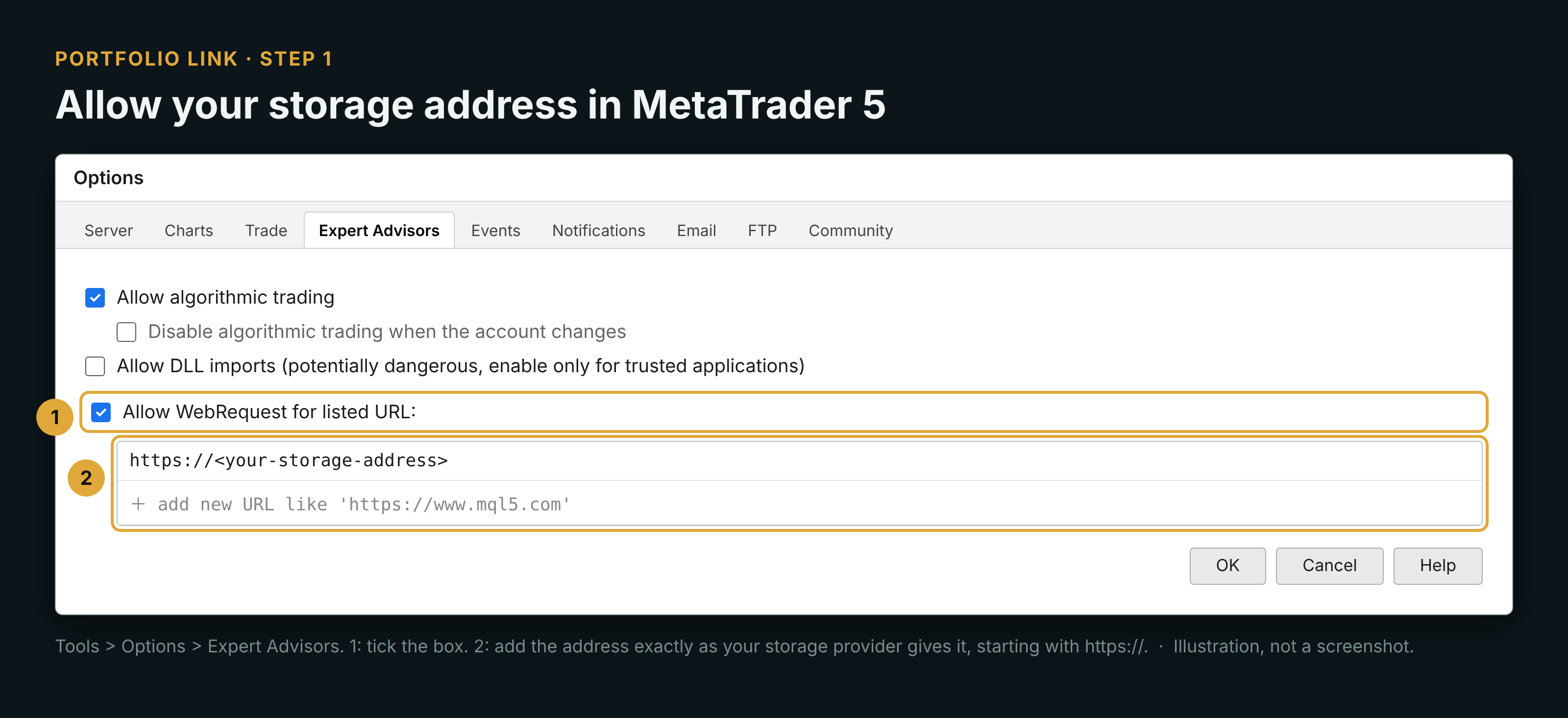
In MetaTrader 5 open Tools > Options > Expert Advisors. Tick "Allow WebRequest for listed URL" and add your storage address exactly as your provider gives it, with https:// at the start. Press OK.
STEP 2: THE FIRST TERMINAL MAKES THE LINK
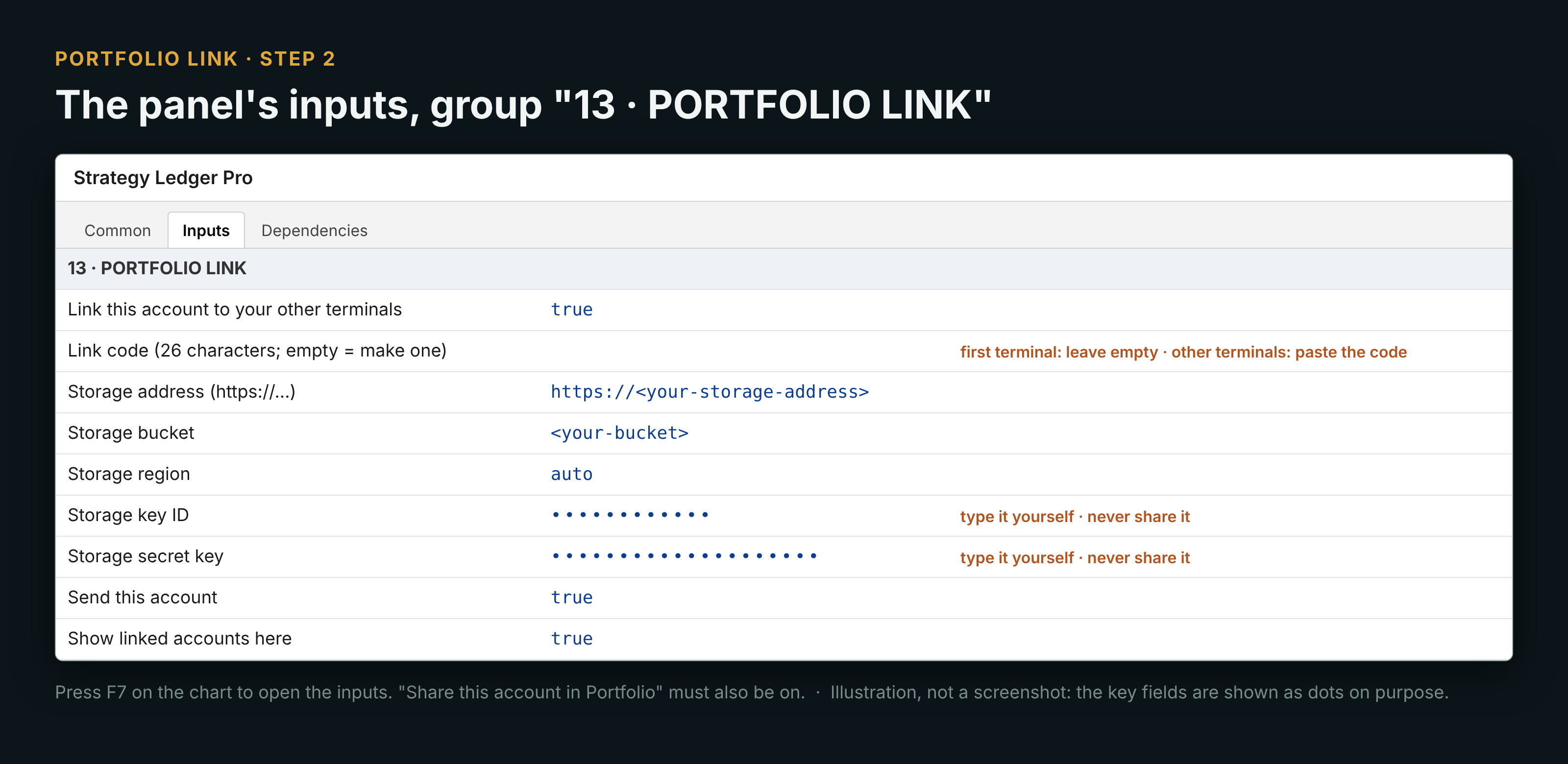
Open the panel's inputs (press F7 on the chart).
- Switch on "Share this account in Portfolio".
- In the group "13 · PORTFOLIO LINK" set:
- "Link this account to your other terminals": true
- "Link code (26 characters; empty = make one)": leave it empty
- "Storage address (https://...)": your storage address
- "Storage bucket": your bucket name
- "Storage key ID" and "Storage secret key": type them in yourself
- Press OK, then move the mouse over the panel for a few seconds. The panel uses that movement to make a random Link code.
- The code is saved in a small text file in the terminal's data folder (File > Open Data Folder):
MQL5\Files\StrategyLedgerPro_<account>_link\link_code.txt
Open the file and copy the 26 characters.
STEP 3: EVERY OTHER TERMINAL JOINS
Repeat step 1 and step 2 on each other terminal, with one difference: paste the code from the first terminal into "Link code". Do not leave it empty there, or that terminal starts a second, separate link.
STEP 4: CHECK IT
Open the PORTFOLIO page on each terminal. The LINK line shows the state, for example:
LINK · 1 linked · synced 14:05
Each panel sends at most every 15 minutes and shortly after a trade closes, and it fetches when you open the PORTFOLIO page and every 5 minutes while the page is shown. Give it up to 20 minutes after the last terminal joined.
WHAT THE LINK LINE TELLS YOU
- "LINK · storage not set": the address, bucket or keys are missing.
- "LINK · allow the address in Options": step 1 is missing on this terminal, or the address there is not exactly the same as in the inputs.
- "LINK · storage refused the key": the key ID or secret key is wrong, the key may not read and write in the bucket, or the computer's clock is more than 15 minutes off. Check the clock first.
- "LINK · offline": the terminal cannot reach the storage right now.
- "LINK · code not valid": the Link code is not 26 valid characters. Paste it again without spaces.
- "LINK · turn on Portfolio sharing to send": switch on "Share this account in Portfolio".
- "LINK · 0 linked" on a terminal that should see others: most often this terminal has a different Link code. A different but valid code gives no error, so compare the codes on both sides.
GOOD TO KNOW
- Two terminals on the same computer already see each other in PORTFOLIO without Link. The LINKED mark appears for accounts on another computer.
- The times on the LINK line and on linked rows are UTC.
- An account with no "Portfolio alias" on its own terminal is listed by its masked number. To give it a name, set "Portfolio alias" on the terminal that sends it.
- A linked account is marked STALE about two hours after its terminal last sent, while its market is open.
KEEP YOUR KEYS AND YOUR CODE TO YOURSELF
MetaTrader stores an EA's inputs in clear text in its chart, template and profile files. That includes your storage keys and your Link code. Do not share those files, and do not post a screenshot of the Inputs window.
LINKS
Strategy Ledger Pro: https://www.mql5.com/en/market/product/192540
News channel: https://www.mql5.com/en/channels/015c7212c6d0db01
Discussion group: https://www.mql5.com/en/messages/012791f7fd44dd01


