

| Core Gold: Web User Guide |

Understand the setup, read the native Inputs and test changes consistently. Core Gold is a gold breakout Expert Advisor for MetaTrader 5 with six independently selectable timeframe engines and virtual levels that can become broker pending orders when conditions permit.
This guide follows the supplied platform views. All 34 exposed controls appear below in their native order. Stored values are not necessarily active: the selected sizing mode and protection switches determine which fields are used.
| Contents |
1. Start here: account, platform and hosting
2. Read the complete Inputs view
3. Core Engine
4. Entry Quality
5. Position Sizing
6. Automatic, Fixed and Quality Sizing Limits
7. Stop Loss
8. Account Protection
9. Chart and Dashboard
10. Identification
11. Read the dashboard
12. Test one active change at a time
13. Troubleshooting and safe changes
Contents. Select the image to open the original.
| 1. Start here: account, platform and hosting |
Setup. Select the image to open the original.
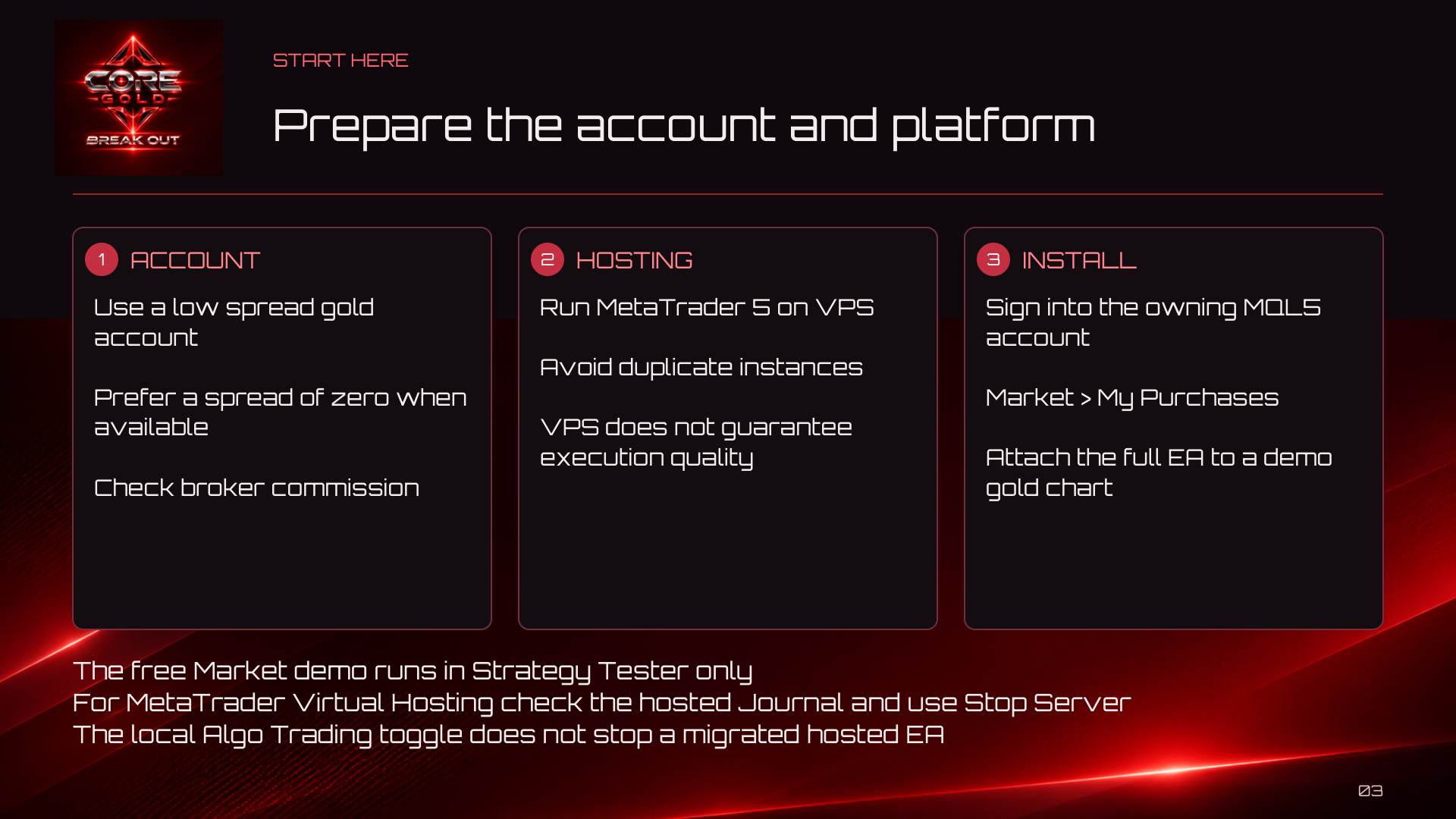
Use a low-spread gold account, preferably with a spread of zero when available. Check the broker's commissions, symbol specifications and execution conditions. A zero-spread label does not mean trading is free.
A VPS is recommended to keep MetaTrader 5 running with reliable connectivity. It does not guarantee fills or remove slippage. Avoid running duplicate instances unintentionally on the same account.
For a purchased Market copy, sign into the owning MQL5 account in MetaTrader 5, open Market > My Purchases, install the product and attach the full EA to a demo gold chart. Review Common, Inputs, automated-trading permissions and the Experts/Journal messages. The free Market demo runs in Strategy Tester only.
With MetaTrader Virtual Hosting, check the hosted Journal and use Stop Server to stop the hosted instance. The local Algo Trading toggle does not stop a migrated hosted EA. With a Windows VPS, check the actual MT5 terminal running on that remote desktop.
Start with a saved baseline preset on demo. Verify incoming quotes, the correct symbol and account, and the intended running instance before testing changes.
| 2. Read the complete Inputs view |
The screenshot shows Automatic sizing and the baseline defaults. Equity Risk, Quality-scaled range and Fixed lot size are not all used together. The disabled optional filters and guards retain their stored values without becoming active.
| 3. 01 - CORE ENGINE |
Core engine. Select the image to open the original.
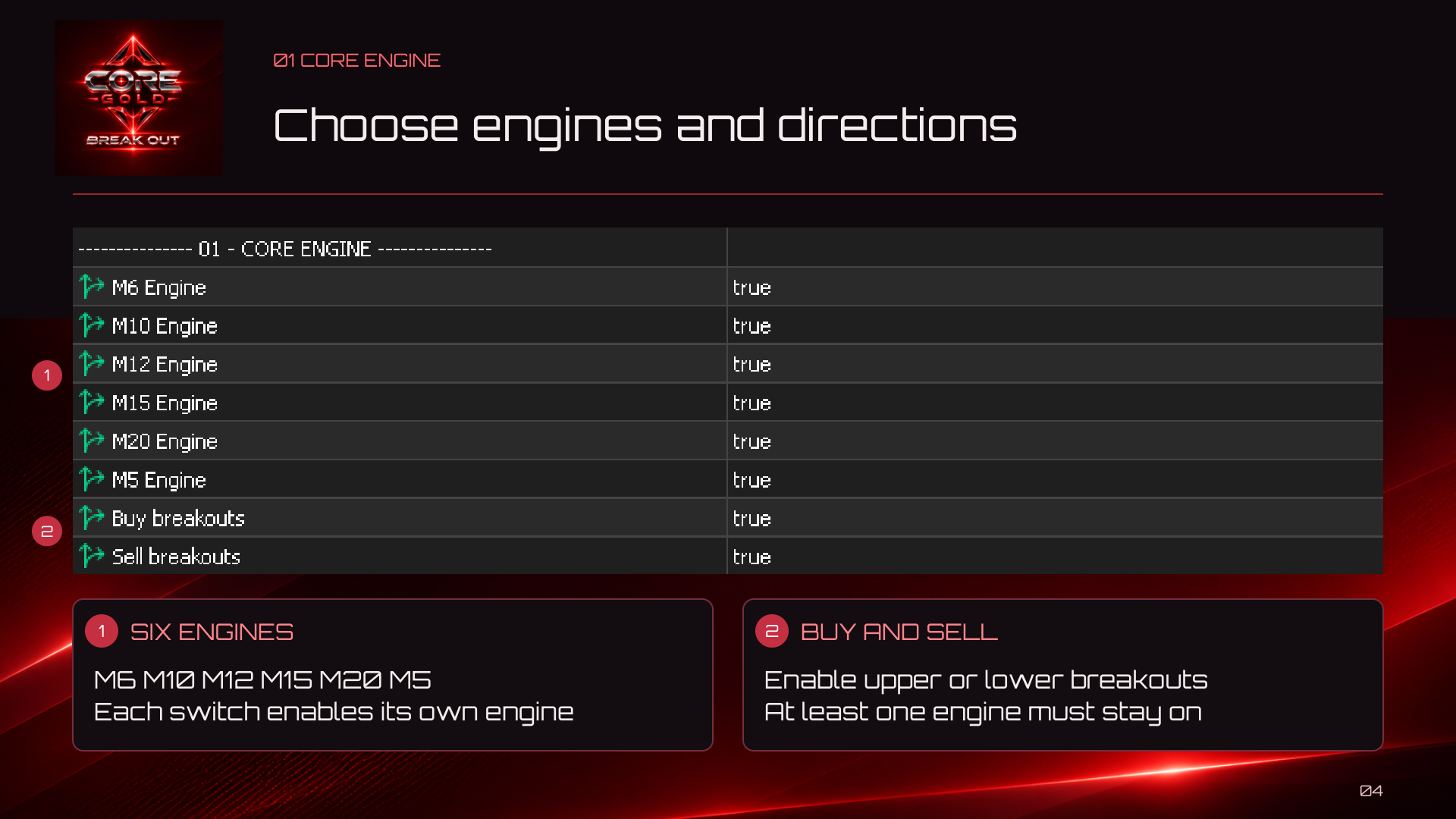
Each engine uses its own timeframe. Changing the attached chart period does not replace these six periods. At least one engine must stay enabled. Nearby structural levels can be consolidated, so six enabled engines do not promise six simultaneous positions. Direction switches govern new setups; do not use them as a close-all command.
| M6 Engine |
Default: true. Enables the six-minute structural breakout engine.
| M10 Engine |
Default: true. Enables the ten-minute engine.
| M12 Engine |
Default: true. Enables the twelve-minute engine.
| M15 Engine |
Default: true. Enables the fifteen-minute engine.
| M20 Engine |
Default: true. Enables the twenty-minute engine.
| M5 Engine |
Default: true. Enables the five-minute engine.
| Buy breakouts |
Default: true. Allows new upper-level buy breakout setups.
| Sell breakouts |
Default: true. Allows new lower-level sell breakout setups.
| 4. 02 - ENTRY QUALITY |
Entry quality. Select the image to open the original.
| Quality filter |
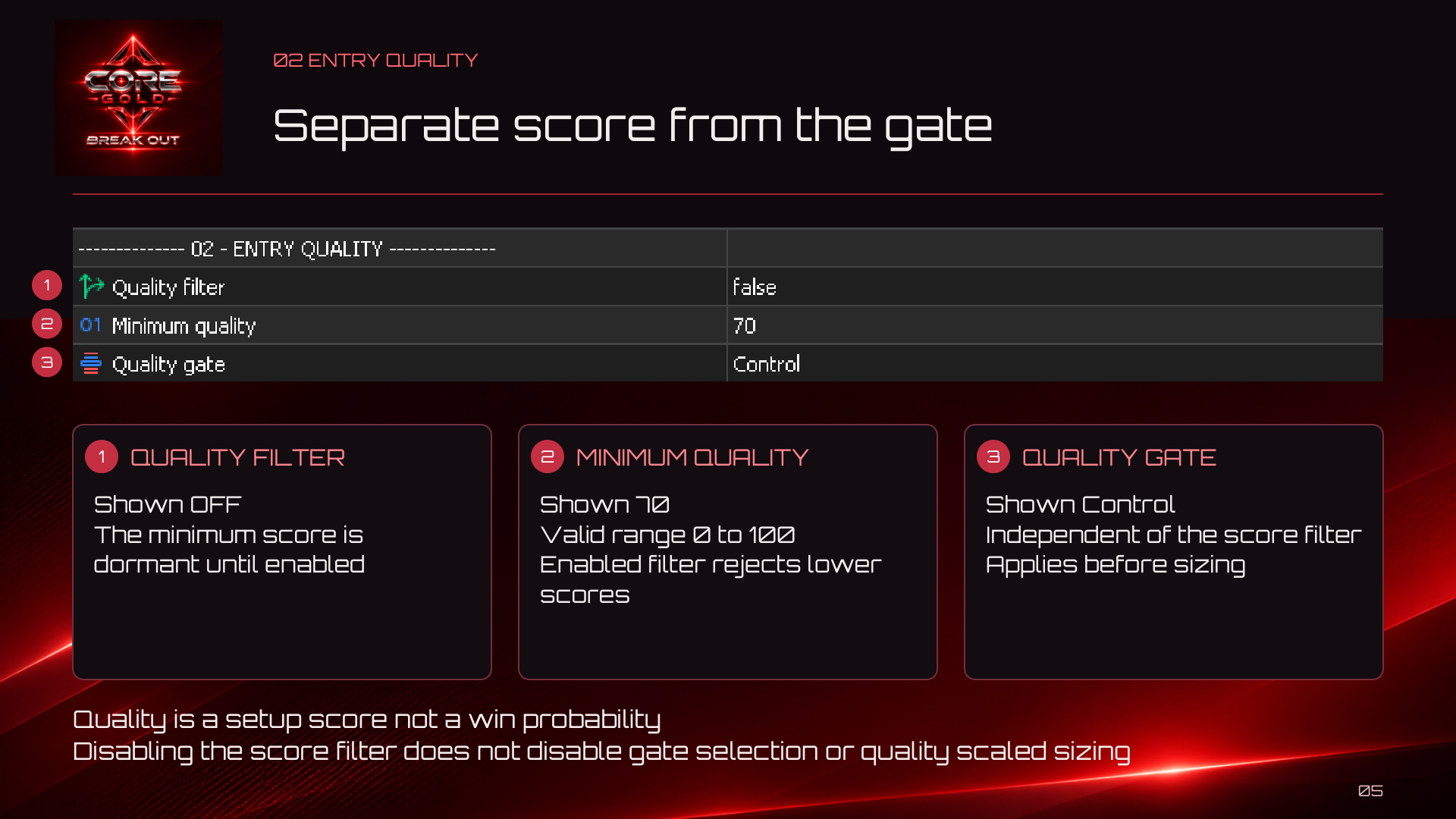
Default: false. When enabled, rejects unarmed candidates below Minimum quality. Turning it off does not disable the separate gate or Quality-scaled sizing.
| Minimum quality |
Default: 70. Minimum total score when Quality filter is enabled. Accepts 0–100; dormant when that filter is off.
| Quality gate |
Default: Control. Selects Control, Conservative, Balanced or Strict. These cumulative component vetoes are independent of the total-score filter.
| What the four gates actually do |
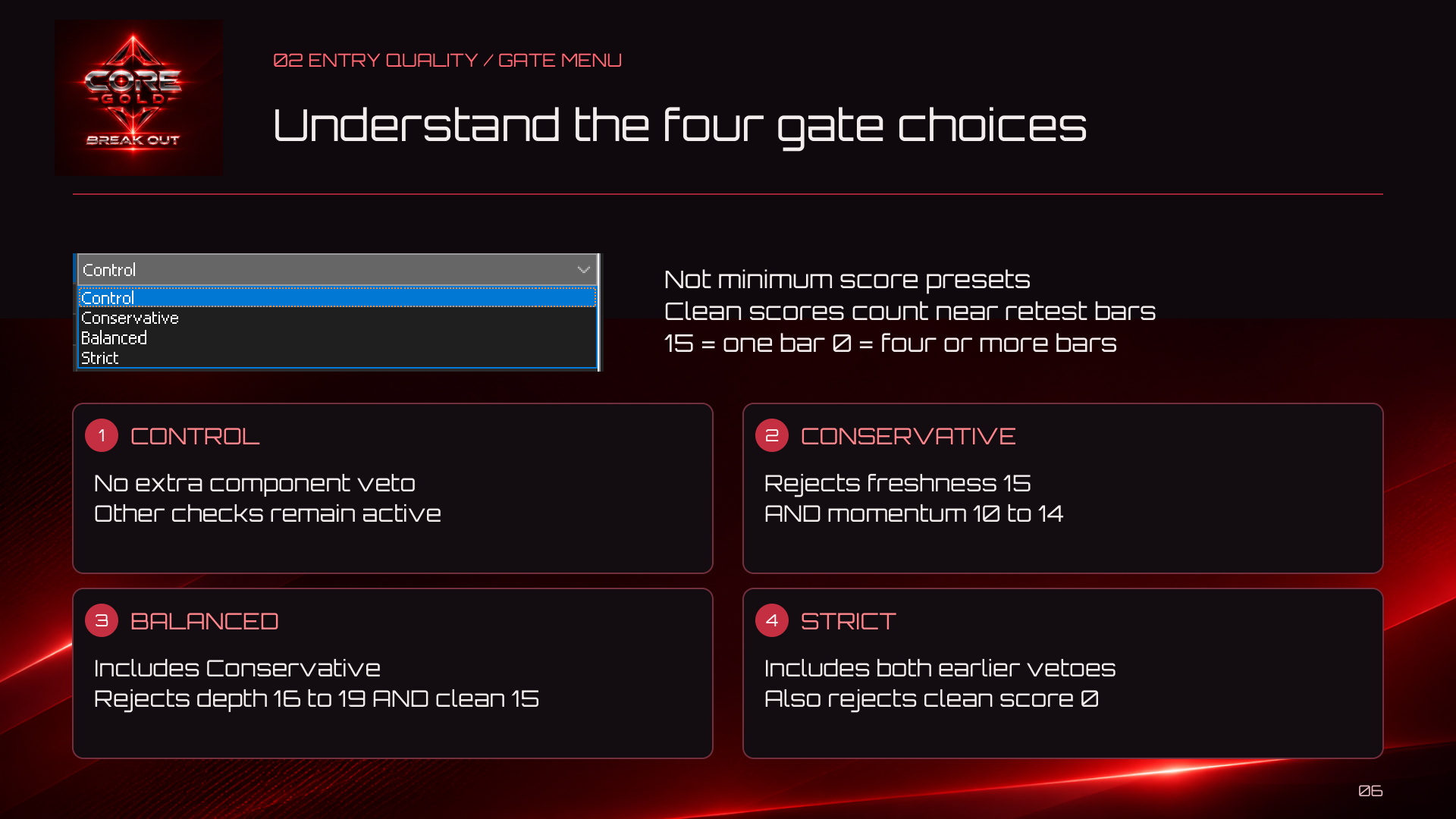
Quality gate profiles. Select the image to open the original.
- Control: no additional component veto; all other execution checks remain active.
- Conservative: rejects the combination of freshness 15 and momentum 10–14, inclusive.
- Balanced: includes Conservative and also rejects depth 16–19 combined with cleanliness 15.
- Strict: includes both earlier vetoes and also rejects cleanliness 0.
Cleanliness 15 means one counted near-retest bar; 0 means four or more counted near-retest bars. These are counted closed bars, not necessarily separate swing revisits. The profiles are not minimum-score presets or profitability rankings.
The total score combines structural extension (0–25), swing depth (0–20), freshness (0–15), cleanliness (0–20) and momentum (0–20). It is a setup score, not a win probability. A high total can still fail a gate.
The optional total-score filter and the selected gate apply before sizing. An unarmed intent may be reevaluated; quality deterioration alone does not retroactively cancel an already armed broker order.
| 5. 03 - POSITION SIZING |
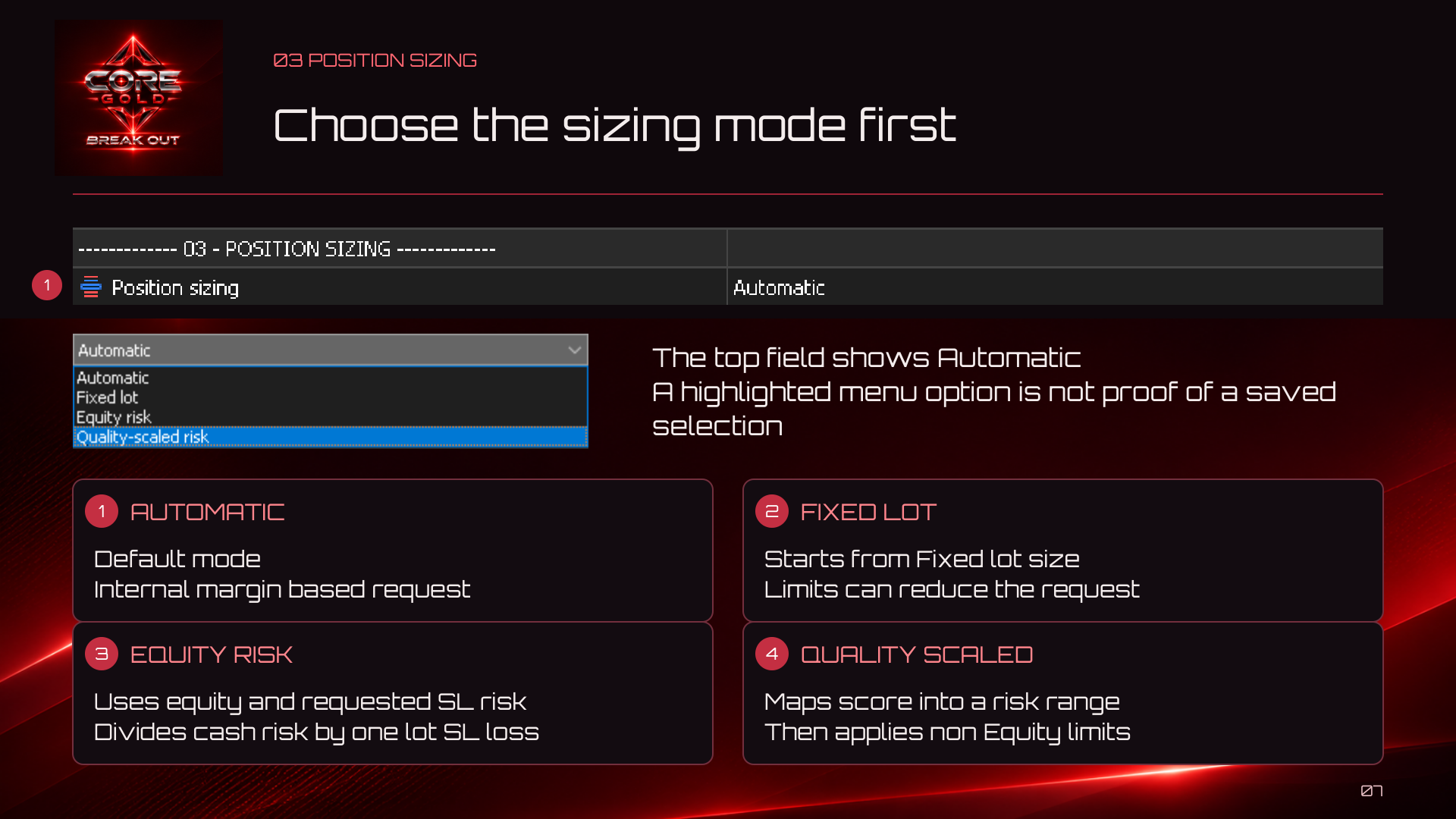
Position sizing. Select the image to open the original.
The supplied menu shows Automatic in its top field. A highlighted alternative is not proof of a saved selection.
| Position sizing |
Default: Automatic. Selects Automatic, Fixed lot, Equity risk or Quality-scaled risk. Choose this first: fields for other modes remain visible but inactive.
| Equity Risk (%) - requested SL risk, Equity mode only |
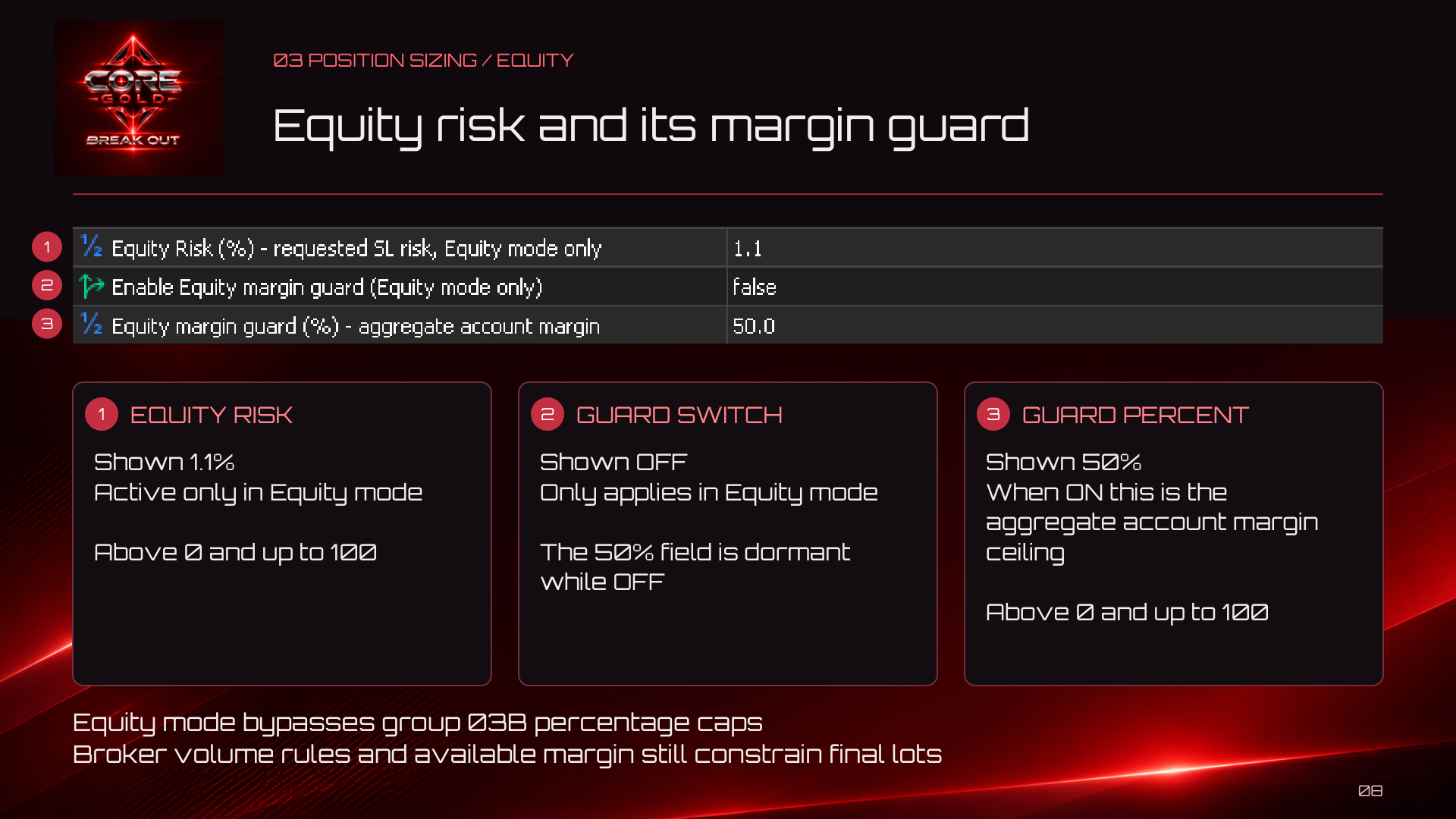
Equity risk. Select the image to open the original.
Default: 1.10. Requested stop-loss risk as a percentage of equity, in Equity mode only. Must be finite, above 0 and at most 100. This is an estimated risk request, not a guaranteed maximum loss.
| Enable Equity margin guard (Equity mode only) |
Default: false. Optional aggregate account-margin guard, active only in Equity mode. OFF by default.
| Equity margin guard (%) - aggregate account margin |
Default: 50.0. When its switch is ON in Equity mode, sets an equity-based aggregate margin budget. Used account margin and conservative pending reservations consume this budget. Must be above 0 and at most 100; ignored while OFF. No hidden 10% reserve is applied to this percentage.
| Quality-scaled only - minimum (%) |
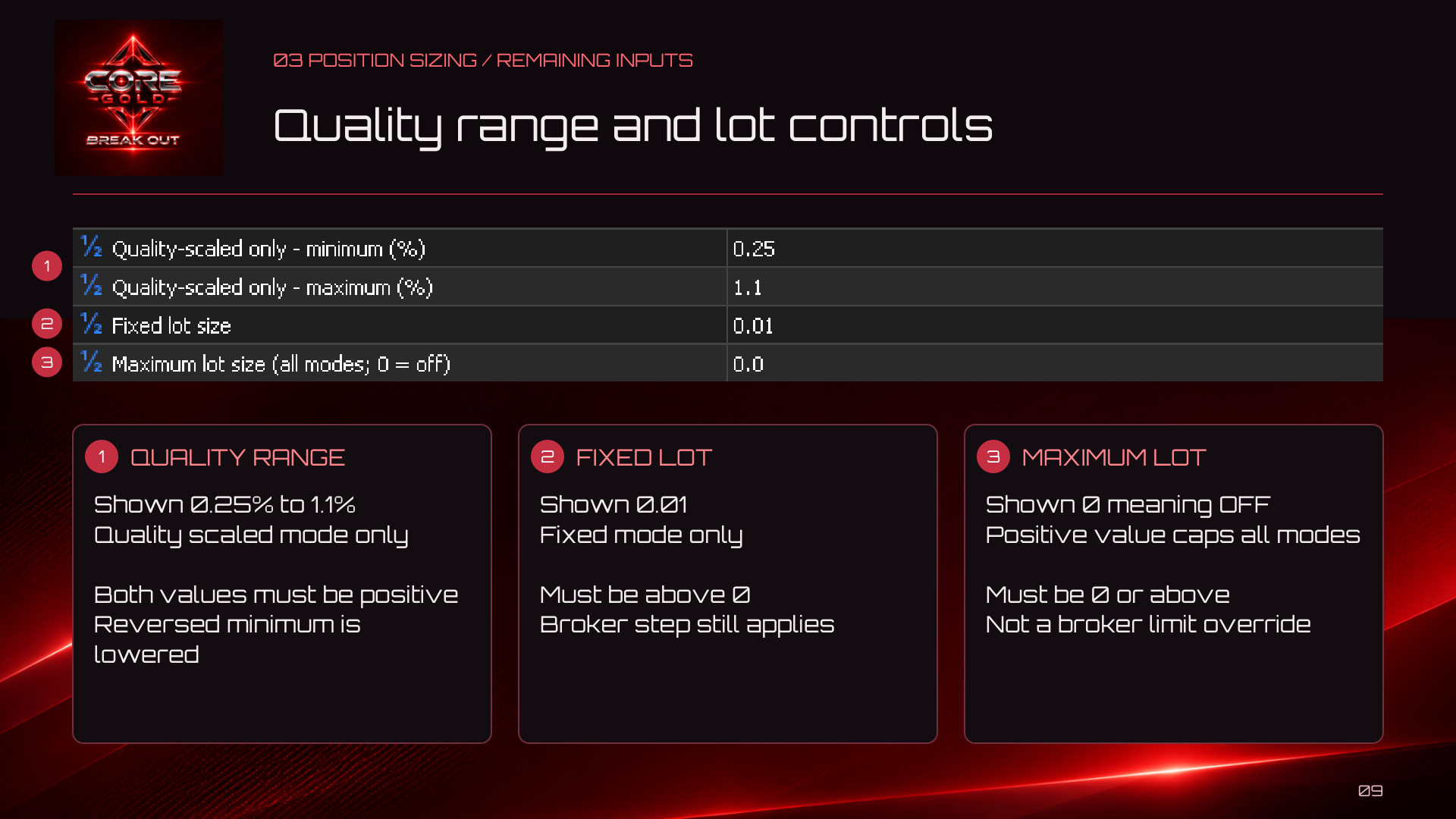
Quality and lot controls. Select the image to open the original.
Default: 0.25. Lower requested percentage in Quality-scaled risk mode. Must be finite and positive. If higher than the maximum, the effective minimum is lowered to the maximum, never the reverse.
| Quality-scaled only - maximum (%) |
Default: 1.10. Upper requested percentage in Quality-scaled risk mode. Must be finite and positive. The interpolated request is then subject to the non-Equity limits.
| Fixed lot size |
Default: 0.01. Requested lot size in Fixed lot mode only. Must be finite and positive. Sizing and funding limits can reduce or prevent the order.
| Maximum lot size (all modes; 0 = off) |
Default: 0.0. Optional user volume ceiling in every sizing mode. Zero disables this user ceiling, not broker limits. Must be finite and nonnegative.
| How the modes differ |
Automatic starts from the internal margin-based request. Fixed lot starts from the chosen volume. Both remain subject to relevant limits.
Equity risk calculates requested cash risk as equity × risk percentage, then divides by the estimated loss for one lot at the initial SL. Group 03B percentage caps do not apply in Equity mode. Broker volume constraints, optional Maximum lot size, loss-streak protection, available margin and the optional enabled Equity margin guard still matter.
Equity funding conservatively reserves estimated margin for pending orders before admitting more volume. This can constrain volume even when the optional margin guard is OFF. High saved Equity percentages can materially increase exposure; inspect old presets before reuse.
Quality-scaled risk interpolates between its effective minimum and maximum using the score. With the defaults, score 0 requests 0.25%, score 50 requests 0.675%, and score 100 requests 1.10%, before applicable caps. If maximum is lower than minimum, effective minimum equals maximum.
Requested risk is not a guaranteed loss amount. Costs, execution, gaps and slippage can change the realized outcome. Final lots may be reduced or an order may not be admitted.
| 6. 03B - AUTO / FIXED / QUALITY LIMITS |
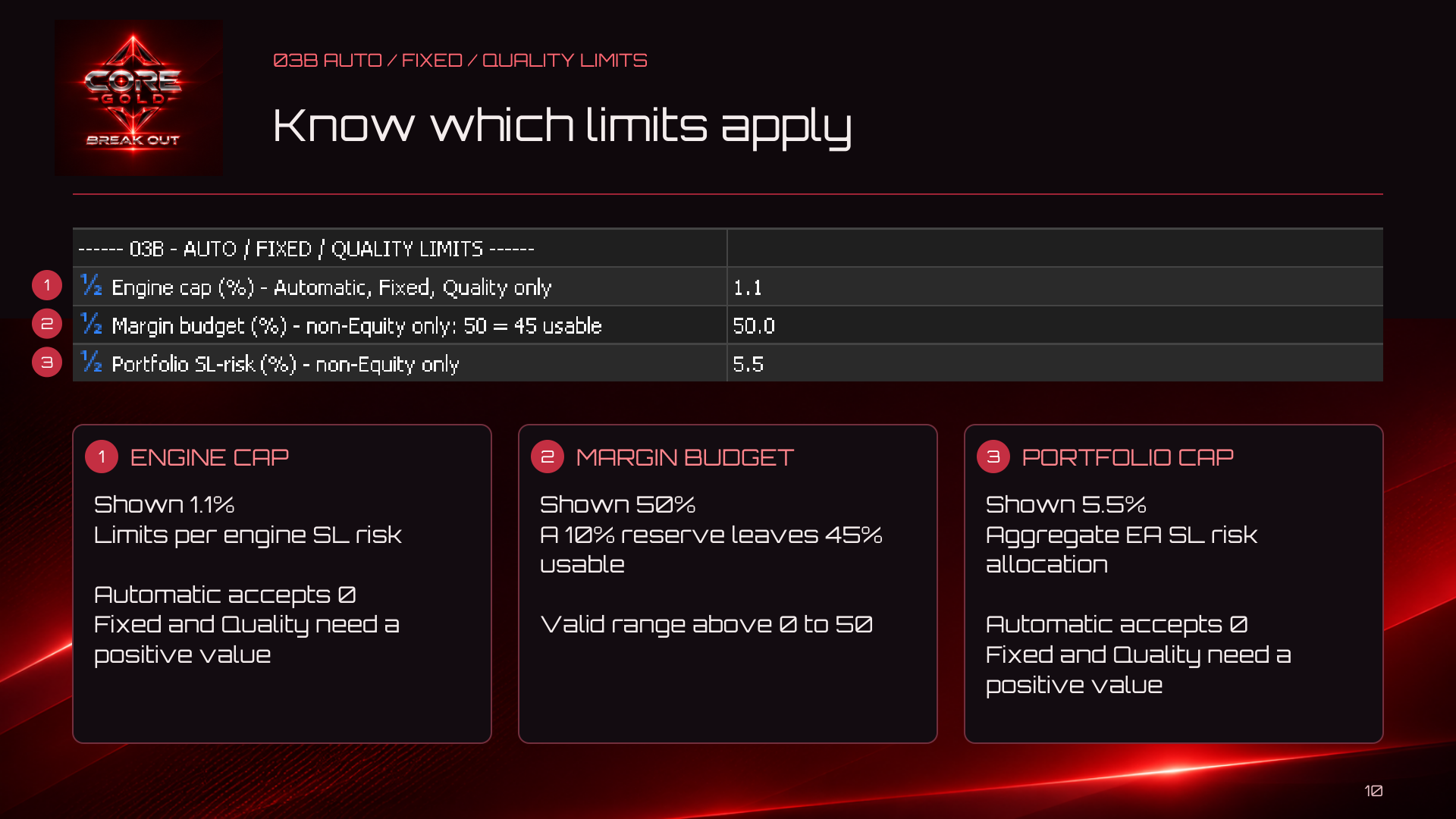
Sizing limits. Select the image to open the original.
These three percentage settings apply to non-Equity modes only. Do not confuse the margin budget here with the separate optional Equity margin guard.
| Engine cap (%) - Automatic, Fixed, Quality only |
Default: 1.10. Per-engine estimated stop-loss risk cap in Automatic, Fixed and Quality-scaled modes. Automatic accepts zero; Fixed and Quality require a positive value. Does not cap Equity mode.
| Margin budget (%) - non-Equity only: 50 = 45 usable |
Default: 50.0. Non-Equity margin budget. The internal 10% reserve makes a setting of 50 mean 45% usable. Active range is above 0 through 50. This is not the optional Equity margin guard.
| Portfolio SL-risk (%) - non-Equity only |
Default: 5.50. Aggregate EA stop-loss risk allocation for non-Equity modes. Automatic accepts zero; Fixed and Quality require a positive value. Admission can reject a candidate that exceeds the remaining allocation.
| 7. 04 - STOP LOSS |
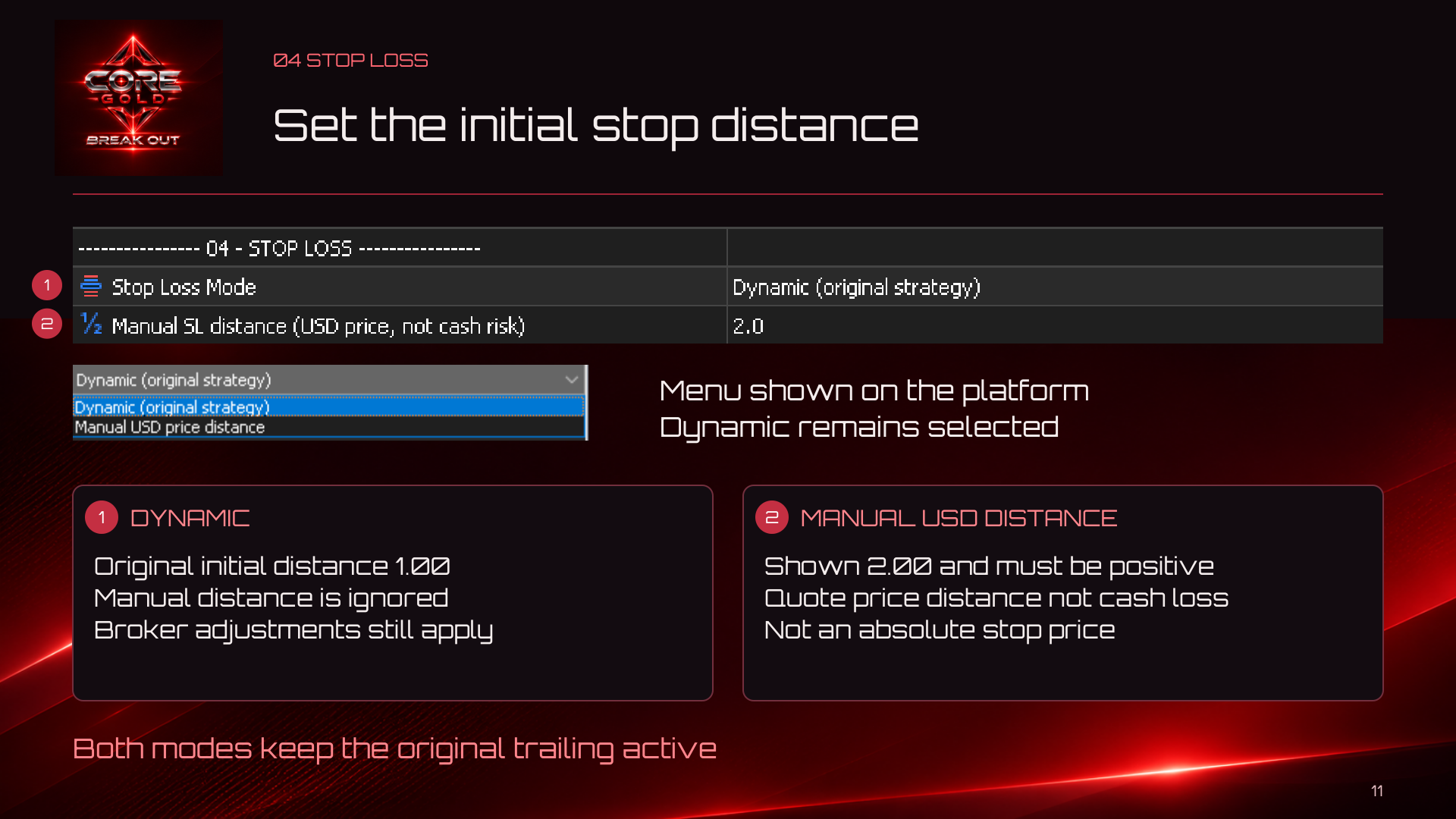
Stop loss. Select the image to open the original.
| Stop Loss Mode |
Default: Dynamic (original strategy). Dynamic (original strategy) preserves the original initial-stop calculation. Manual USD price distance uses the following distance instead. Both modes retain trailing.
| Manual SL distance (USD price, not cash risk) |
Default: 2.0. Initial SL distance in quote-price units, only in Manual mode. Must be finite and positive. It is neither an absolute SL price nor an amount of account cash risk. Tick alignment and broker minimum distances still apply.
| Initial stop examples |
At an illustrative buy entry of 2300.00, a Manual distance of 2.00 places the initial SL around 2298.00. For a sell at 2300.00, it is around 2302.00. Actual prices depend on tick alignment and broker constraints. Outward tick alignment can slightly increase the distance; sizing uses the actual rounded stop. An unsupported manual distance can cause the new entry to be skipped.
Dynamic preserves the original initial distance of 1.00 in quote-price units before broker adjustments. The Manual field is ignored in Dynamic mode.
| Trailing stays active |
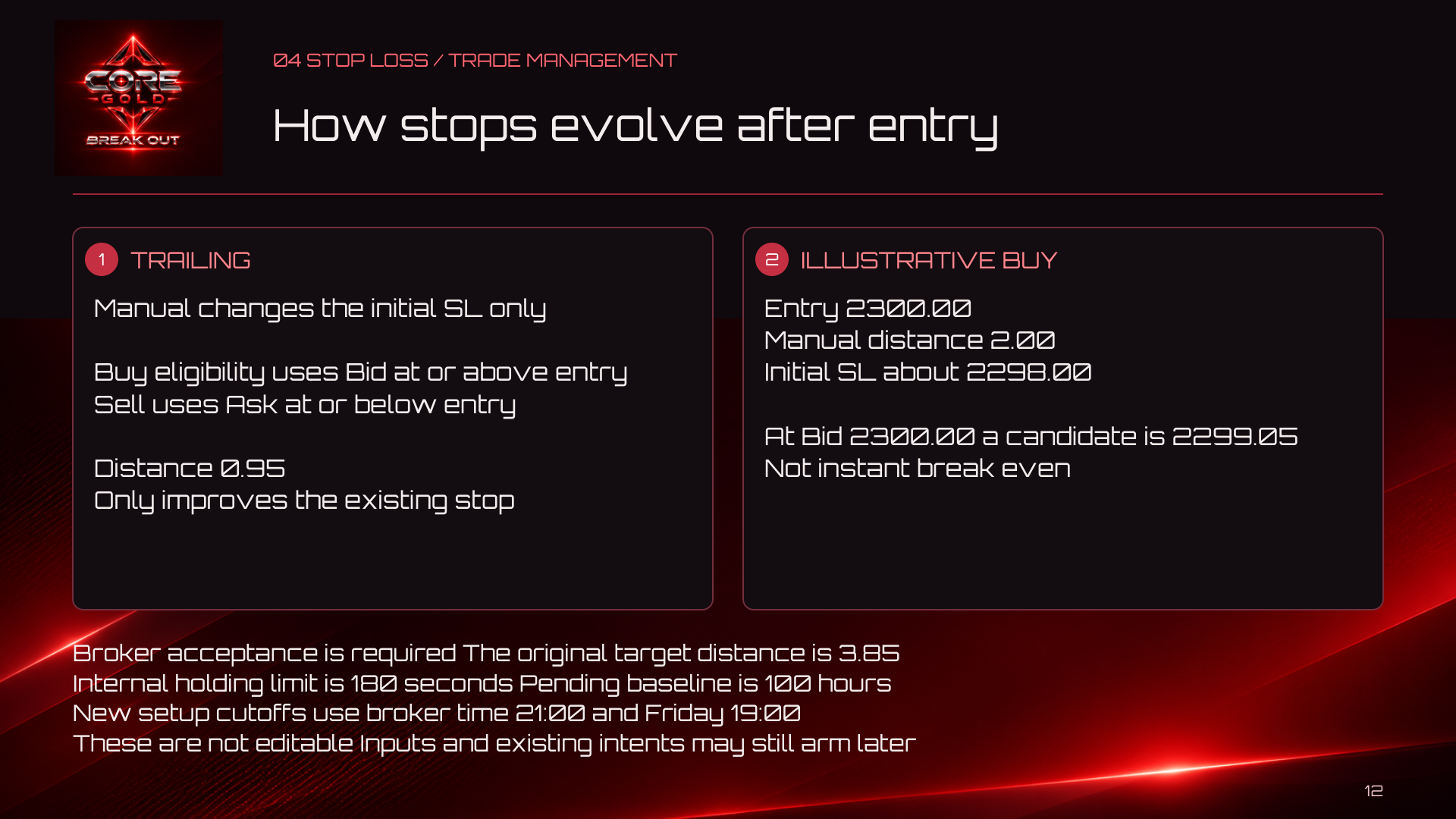
Trailing and management. Select the image to open the original.
Both modes retain the original trailing distance of 0.95 quote-price units. Buy eligibility uses Bid at or above entry; sell eligibility uses Ask at or below entry. Trailing only improves the existing stop and still requires broker acceptance.
For the buy example, Bid at 2300.00 can produce a trailing candidate around 2299.05. This can tighten a Manual SL of 2298.00, but it is not instant break-even. A wide initial manual stop does not postpone trailing until price approaches the target.
Other internal management settings include the original target distance of 3.85, holding limit of 180 seconds, and pending lifetime baseline of 100 hours. These are not editable Inputs. Exits remain subject to market conditions and broker execution.
New virtual setup registration uses broker-time cutoffs of 21:00, or 19:00 on Friday. Existing intents may still arm later; Friday safety and session checks can impose earlier restrictions. A paused entry state does not imply all positions are closed or all pending orders removed.
| 8. 05 - ACCOUNT PROTECTION |
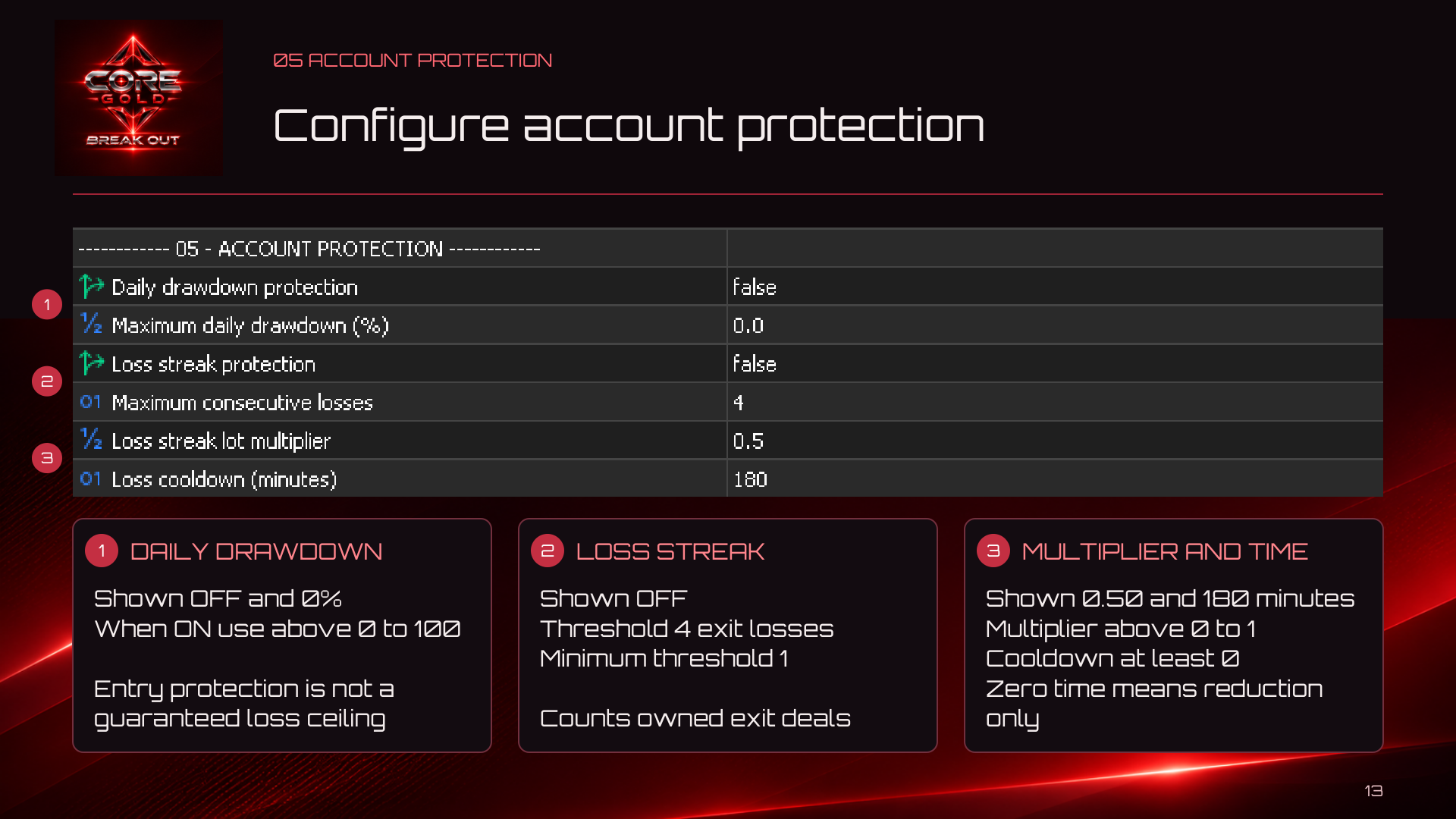
Account protection. Select the image to open the original.
All three optional protections are OFF in the supplied baseline. Configure a valid threshold before enabling a check. They are not guarantees against account losses.
| Daily drawdown protection |
Default: false. Optional entry protection based on the daily drawdown calculation. OFF by default. It is not a guaranteed account-loss ceiling or an instruction to close all positions.
| Maximum daily drawdown (%) |
Default: 0.0. When daily protection is enabled, must be above 0 and at most 100. Zero is the stored default while the protection is OFF; set a valid positive threshold before enabling it.
| Loss streak protection |
Default: false. Enables the loss-streak reduction/cooldown logic. Counts owned exit deals, which are not necessarily complete position outcomes.
| Maximum consecutive losses |
Default: 4. Loss-deal threshold for enabled loss-streak protection. Must be at least 1 when active.
| Loss streak lot multiplier |
Default: 0.50. Reduction applied by enabled loss-streak protection. Must be above 0 and at most 1. The shown 0.50 means half of the otherwise applicable request, subject to volume constraints.
| Loss cooldown (minutes) |
Default: 180. Waiting interval for loss-streak protection. Must be nonnegative when active. Zero disables the waiting interval, leaving the reduction logic.
| Spread protection |
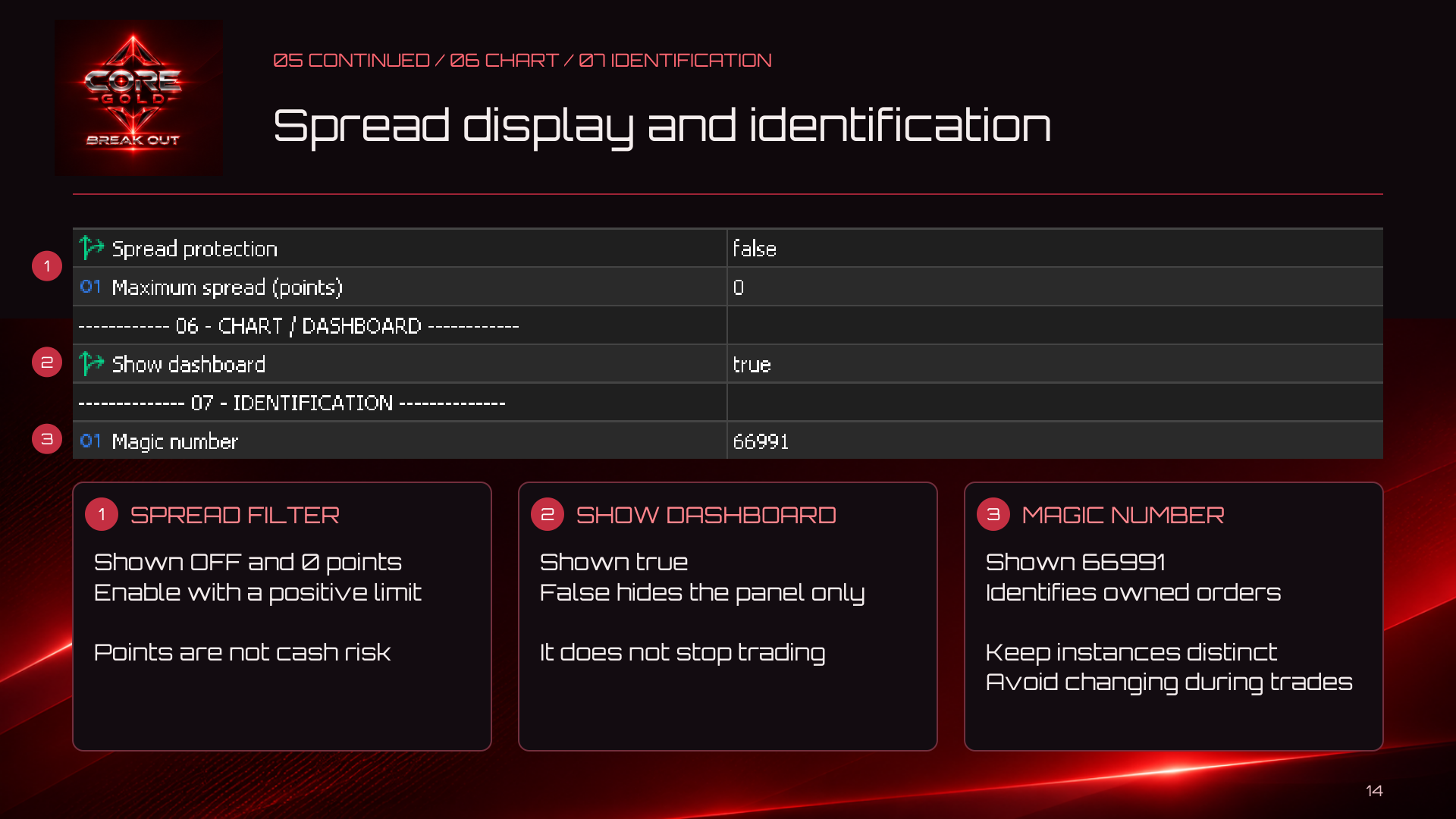
Spread, display and identity. Select the image to open the original.
Default: false. Optional new-entry spread check. OFF by default. It does not guarantee the spread or price at execution.
| Maximum spread (points) |
Default: 0. Maximum spread in broker points when the spread check is enabled. Must be positive when active. Points are not dollars of account loss.
| 9. 06 - CHART / DASHBOARD |
| Show dashboard |
Default: true. Shows or hides the dashboard. False does not disable trading. Nonvisual tests do not display the panel.
| 10. 07 - IDENTIFICATION |
| Magic number |
Default: 66991. Base identifier for EA-owned orders and positions. Must be positive and leave room for the six engine identifiers. Avoid identifier conflicts and do not change it casually while trades remain open.
| 11. Read the dashboard |
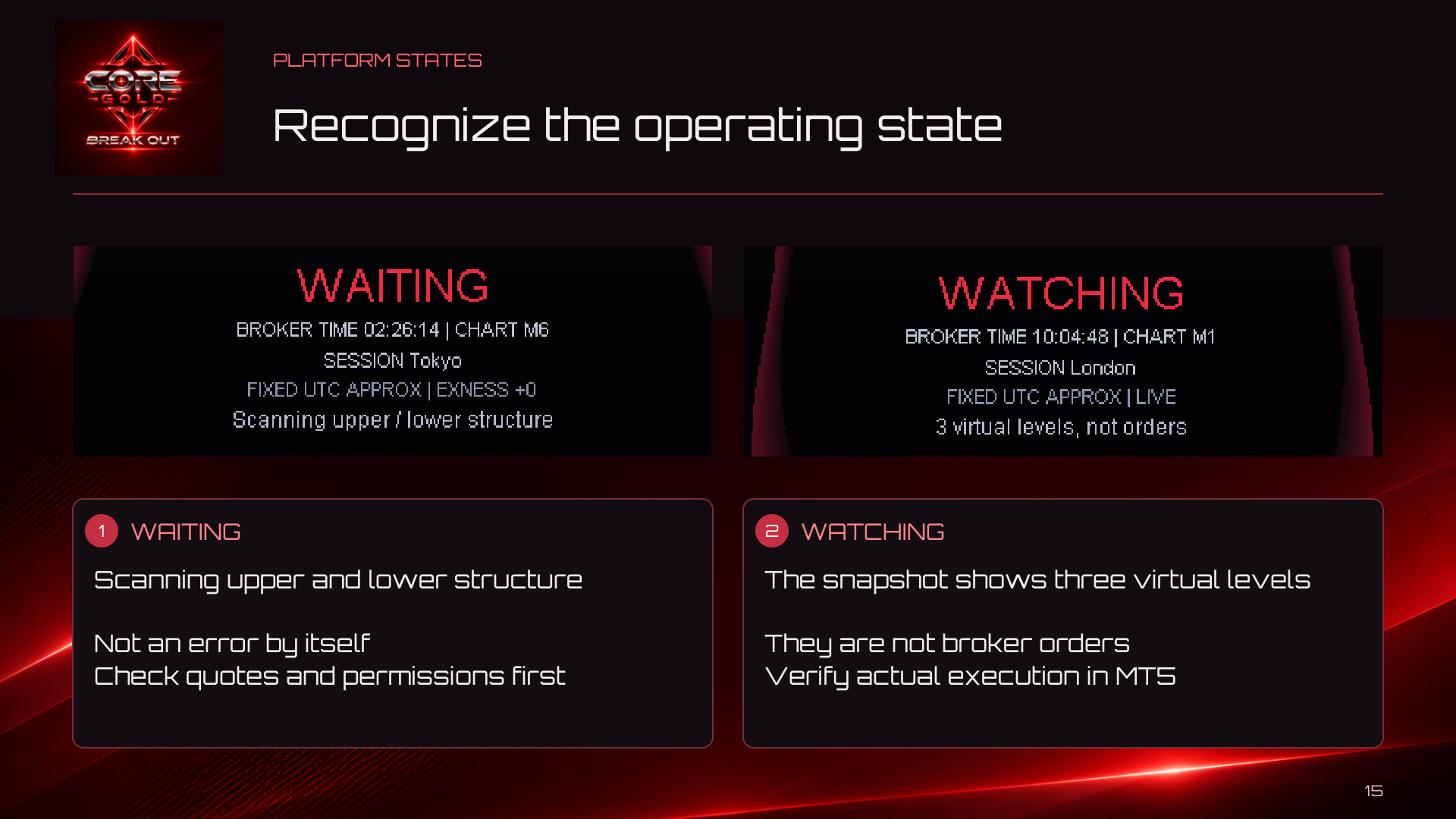
Operating states. Select the image to open the original.
WAITING means the EA is scanning upper/lower structure; it is not necessarily an error. WATCHING indicates virtual levels, which are intentions rather than broker orders. ARMED indicates pending activity; MANAGING indicates position management. ENTRY PAUSED calls for reading the displayed reason.

Account cards and pauses. Select the image to open the original.
Spread is shown in points. Equity includes floating results. The attached chart timeframe is shown for context and is not a substitute for engine selection. Period totals and trade figures are historical snapshots, not forecasts.
DETAILS / OVERVIEW changes the dashboard view. The top minus/plus control folds or expands it. These are display controls, not manual trade buttons. Verify real orders, positions and execution in MetaTrader 5 itself.
| 12. Test one active change at a time |
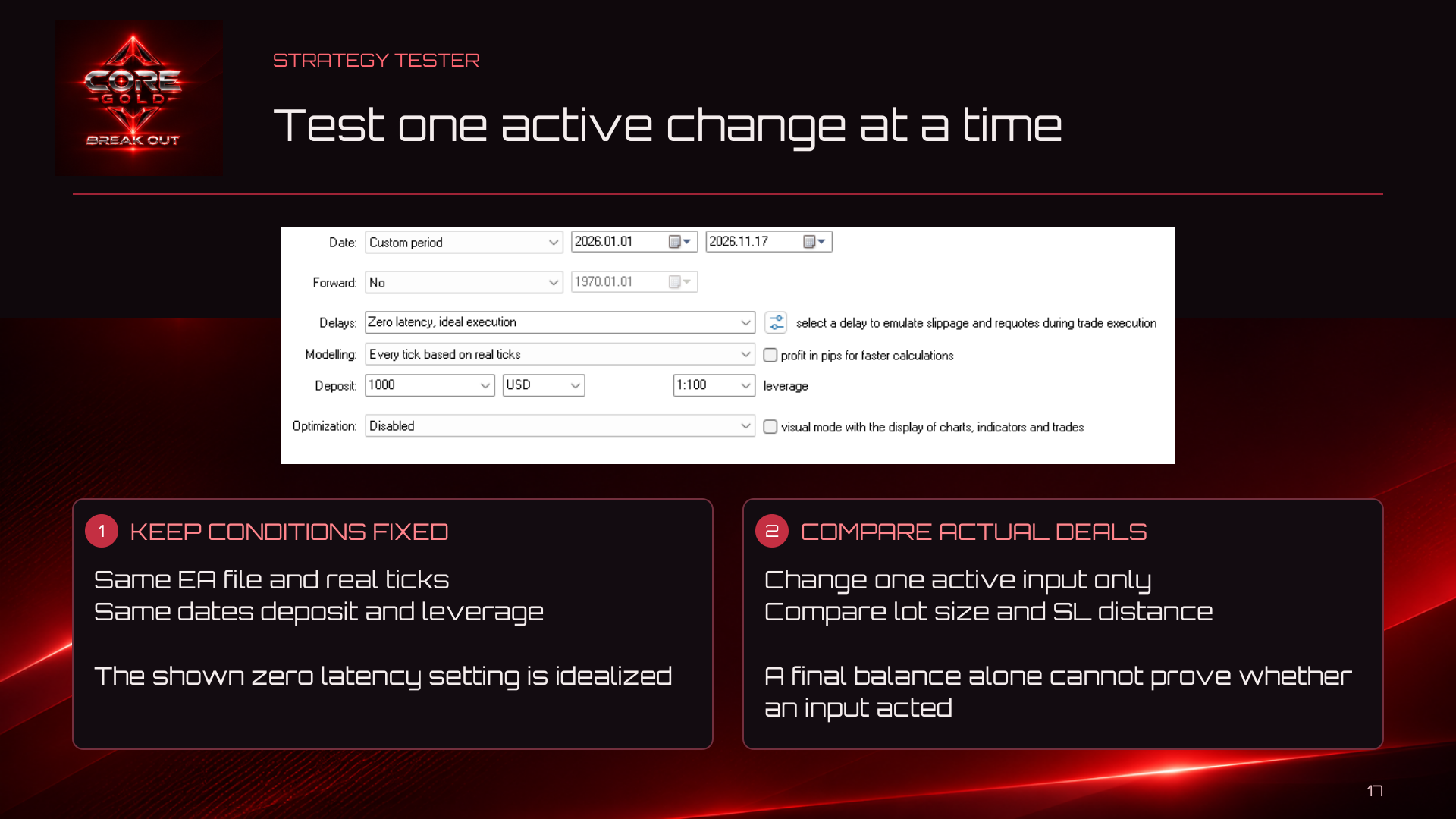
Strategy Tester. Select the image to open the original.
- Use the same EA file, symbol, data and real-tick model.
- Keep dates, deposit, account currency, leverage and execution assumptions fixed.
- Change one active input only, then rerun the test.
- Compare actual lot sizes, initial SL distances, trade records and rejection messages.
- Test realistic execution delays and review drawdown as well as profit.
The supplied zero-latency tester setting is idealized. It does not promise live execution quality.
Final balance alone cannot prove whether an input acted. A larger risk request may produce the same final lot because of volume steps, funding constraints or active limits. A setting in another mode is dormant. A quality or timing check may prevent the candidate from reaching sizing at all.
| 13. Troubleshooting and safe changes |
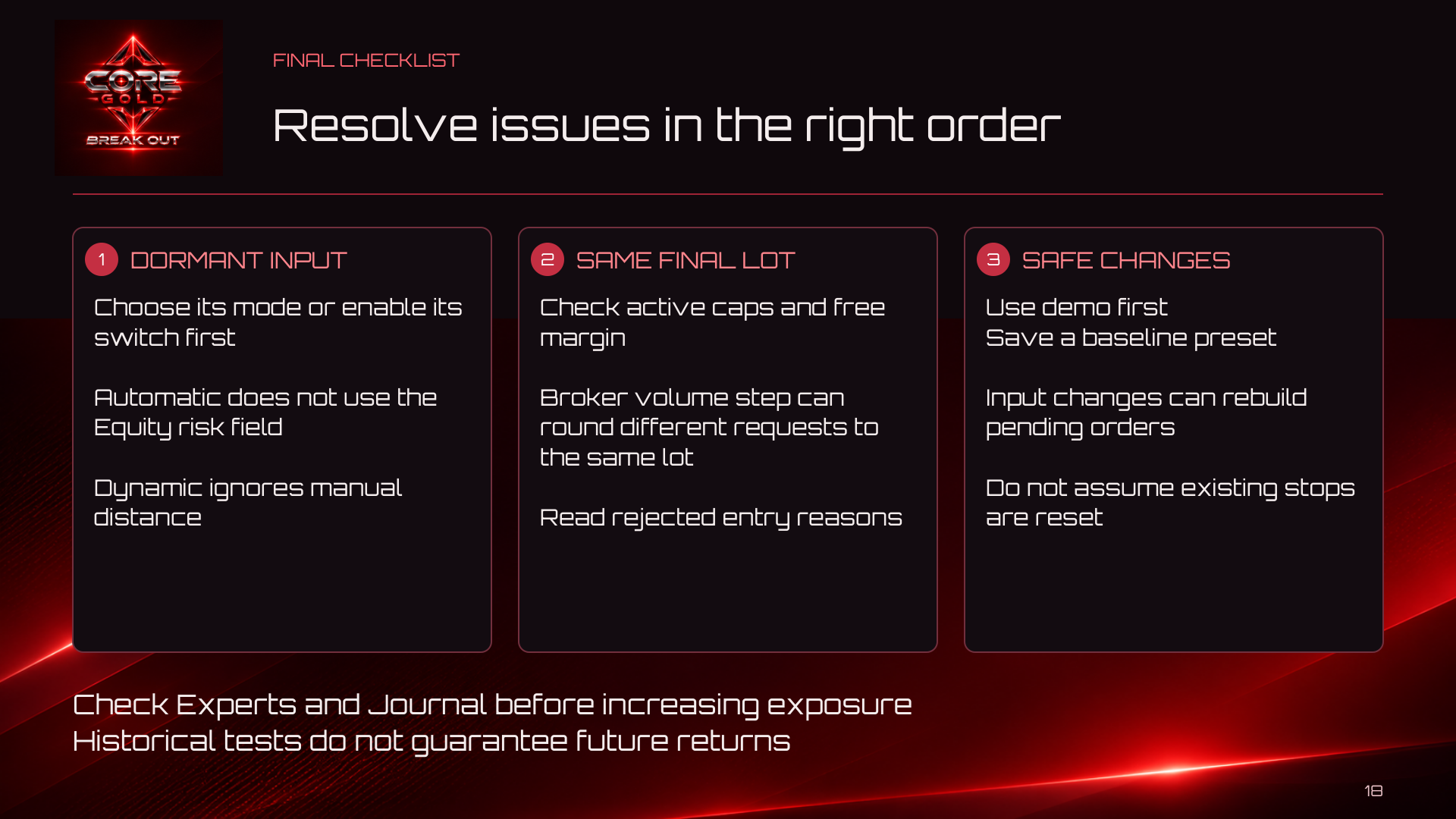
Final checklist. Select the image to open the original.
- No trades: check quotes, automated-trading permissions, enabled engines/directions, quality checks, spread, timing and funding.
- Initialization rejected: inspect Experts and Journal for the named input error. Check active-mode ranges and enabled protection thresholds.
- Same lots after changing risk: confirm the selected mode; inspect Maximum lot size, funding and broker step constraints. Compare actual deals, not just the ending balance.
- Changing inputs: reinitialization can remove owned pending orders and rebuild setups. Changing the initial SL mode does not simply reset every existing position stop. Test changes in isolation without open orders or positions.
- Moving to VPS: verify the intended instance is running and avoid accidental duplicate execution. Check reconnect and restart behavior on demo.