
TRADING VIEW TOOLKIT MT5 — USER MANUAL v1.72
Product link:
MT5: https://www.mql5.com/en/market/product/203784
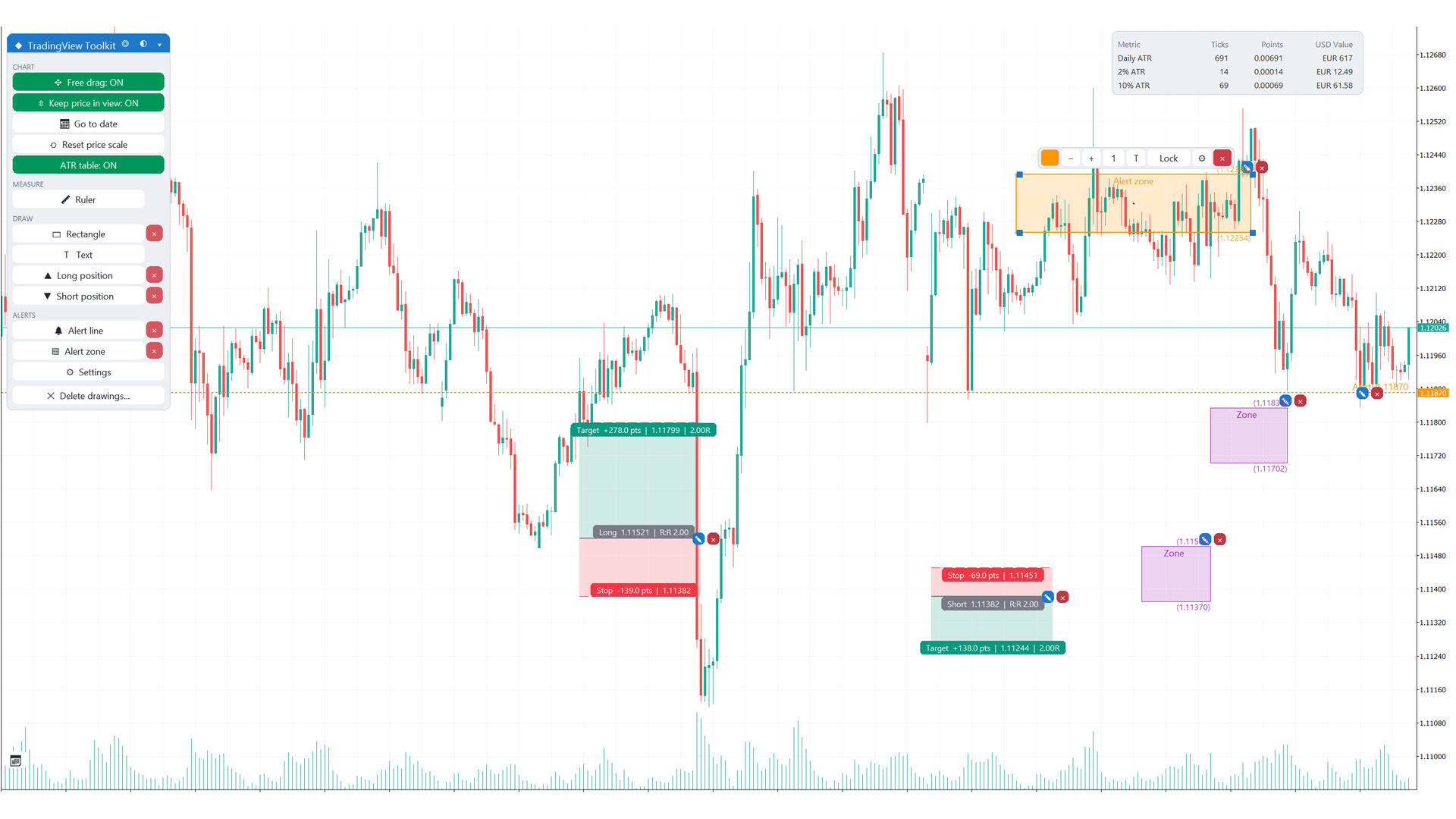
Trading View Toolkit is a chart-tools indicator for MetaTrader 5. It adds a floating icon menu with free chart drag, wheel zoom, go-to-date calendar, line tools, Fibonacci retracement and extension, annotations, rectangle, text, ruler, alert line and zone, Long and Short position with reward:risk, a magnet that snaps to bars, a daily ATR table, a select-and-edit toolbar with a Properties popup, colour palettes, undo of deletes and a tabbed settings panel. It does not trade. This manual covers version 1.72.
Every section below starts with a short explanation of what that part of the indicator is for, followed by the steps or the reference tables. If you are installing the indicator for the first time, read sections 0 to 3 in order; the rest can be used as a reference.
Summary
0 — IMPORTANT INFORMATION
What this section is about. Trading View Toolkit is a set of drawing and chart tools. It does not open, modify or close trades on its own. The tools you use (drawings, alerts, the position tool) are for analysis and planning on the chart.
The rules that matter
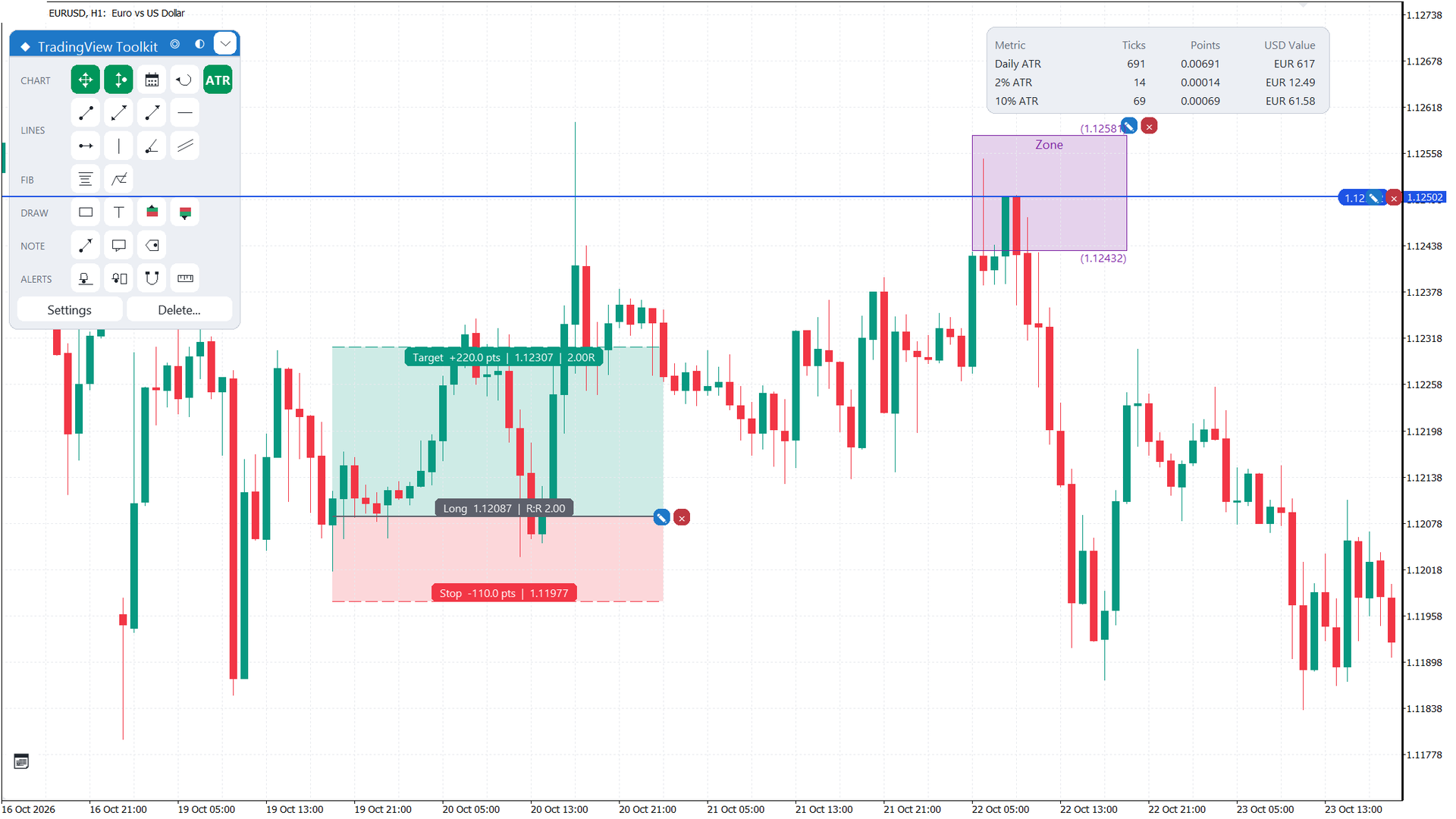
- The indicator does not trade. Long and Short positions drawn with the position tool are chart objects only; no order is sent to the broker.
- It works next to other tools. Mouse-move events stay enabled, so Expert Advisors and panels such as Trade Sentinel keep working on the same chart.
- Strategy Tester limit. Market demos run in the tester, where mouse events are not delivered. The tools need a live or demo account chart to be used.
- Drawings stay on the chart. Your drawings are kept on timeframe change, recompile, parameter change and indicator removal. They are deleted only if you choose that option in the input "When the indicator is removed" (section 16).
- One instance per chart. Attach the indicator once to each chart.
1 — INSTALLATION
What this section is about. Getting the indicator onto a chart takes about a minute. If you bought it on the Market, MetaTrader installs it for you and you only need the last steps. The manual copy is for files you received outside the Market.
From the Market
- In MetaTrader 5 open the Navigator.
- Expand Indicators and then Market.
- Drag Trading View Toolkit onto the chart.
- Check the Inputs tab and keep the defaults for the first run.
- Press OK. The floating menu appears on the chart.
Manual copy
- In MetaTrader 5 open File → Open Data Folder.
- Go to MQL5\Indicators\ and copy the Trading View Toolkit files into the MQL5\Indicators\ folder, keeping the folder structure of the package.
- Restart MetaTrader, or right-click in the Navigator and choose Refresh.
- Drag the indicator onto the chart as in the Market steps above.
2 — THE FLOATING MENU
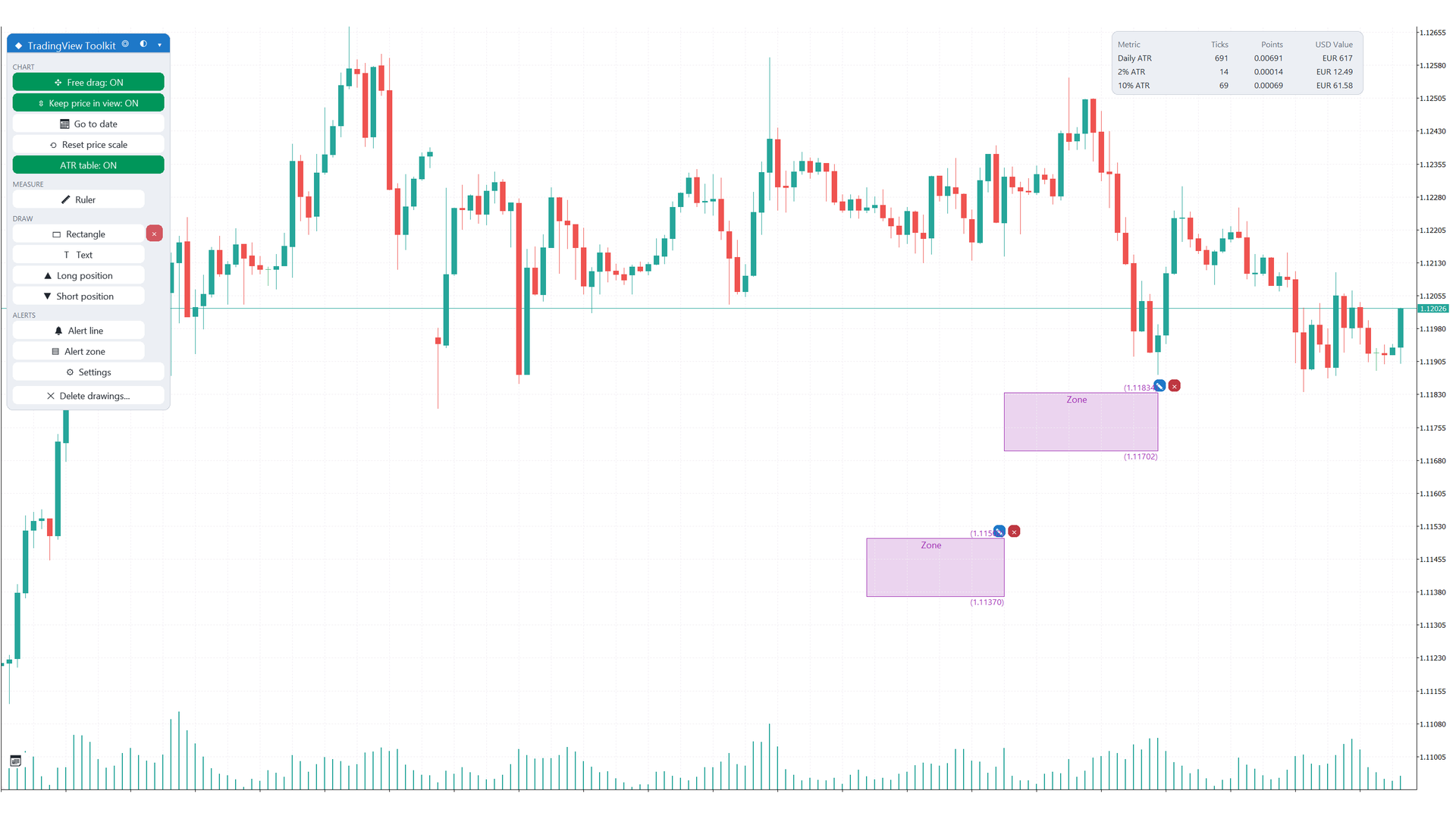
What this section is about. Everything you use is in one compact floating menu on the chart. It is an icon grid: each icon is a tool or a switch, and the icons are grouped by job. You can move the menu, minimize it and change its theme. The menu position, the minimized state and the theme are remembered for each chart.
2.1 — Title bar. The title bar carries the drag handle, the quick buttons and the minimize button.
| Control | What it does |
|---|---|
| Title (drag) | Drag the title bar to move the whole menu anywhere on the chart. A click on the title also collapses the menu to the title bar; click it again to expand. |
| Minimize / Expand button | Tooltip "Minimize / Expand". Collapses the menu to the title bar and expands it again. Use it when the menu covers too much of a short chart. |
| Center button | Tooltip "Center price and follow". Jumps to the live bar and centres the bid price. See section 3. |
| Theme button | Tooltip "Theme: X (click to change)". Each click cycles the menu theme: Auto, Dark Slate, Light, Navy, Midnight. |
2.2 — Icon grid. The icons are placed in six groups, in this order. Hover an icon to read its full name, its state (ON or OFF where it is a switch) and its hotkey.
| Group | Icons | Hotkey and state |
|---|---|---|
| CHART | Free drag; Keep price in view; Go to date; Reset price scale; ATR table | Free drag, Keep price in view and ATR table show ON or OFF in the tooltip. |
| LINES | Trend line; Extended line; Ray; Horizontal line; Horizontal ray; Vertical line; Angle line; Parallel channel | Trend line Alt+T; Horizontal line Alt+H; Vertical line Alt+V. |
| FIB | Fib retracement; Fib extension | Fib retracement Alt+F. |
| DRAW | Rectangle; Text; Long position; Short position | Rectangle Alt+R; Text Alt+X; Long Alt+L; Short Alt+S. |
| NOTE | Arrow; Callout; Price label | No hotkey. |
| ALERTS | Alert line; Alert zone; Magnet; Ruler | Alert line Alt+A; Ruler Alt+J. The Magnet icon shows the state as a W (WEAK) or an S (STRONG) letter; see section 10. |
2.3 — Footer. Two text buttons, half width each: Settings opens the settings panel (section 15), and Delete... opens the delete popup (section 16).
While a tool is active, a hint box explains what to do next. Press Esc to cancel the tool. The menu does not scroll; if it is too tall for a short chart, use the minimize button.
3 — MOVING THE CHART
What this section is about. The standard MetaTrader chart is moved and scaled with the scrollbar and the mouse. This indicator adds free drag in time and price, mouse-wheel zoom on each axis, a fixed vertical window that follows the live price, and a calendar to jump to a date.
3.1 — Free drag and zoom. With Free drag ON (input "Free drag and wheel zoom" = true, or the menu toggle), drag the chart with the left mouse button to move it in time and in price.
| Action | Result |
|---|---|
| Drag the chart | Moves the chart in time and price. |
| Mouse wheel | Zooms the time axis. |
| Ctrl + wheel | Zooms the price axis. |
| Shift + wheel | Scrolls the chart. |
| Drag the price scale or the time scale | Does not pan the chart; it only changes the scale. |
| Press on a drawing (anchors, edges, Fibo levels, lines) | Does not pan the chart; the press goes to the drawing. |
3.2 — Reset price scale. The Reset price scale icon returns the vertical scale to automatic.
3.3 — Keep price in view. When the bid or ask comes within the outer edge of the chart, the fixed price window shifts so that the live price stays visible. The edge is set by the input "Edge of the chart kept in view" (default 20 %, range 5-40). The function turns itself OFF when you or another tool change the scale (drag, wheel zoom, reset). It pauses for 1.5 seconds after a mouse release, so it does not fight your drag.
3.4 — Center. The Center button in the title bar (tooltip "Center price and follow") jumps to the live bar, puts the bid price in the middle of the current vertical range and turns Keep price in view ON in follow mode. In follow mode the chart re-centres when the bid enters the edge margin. The button is lit while following.
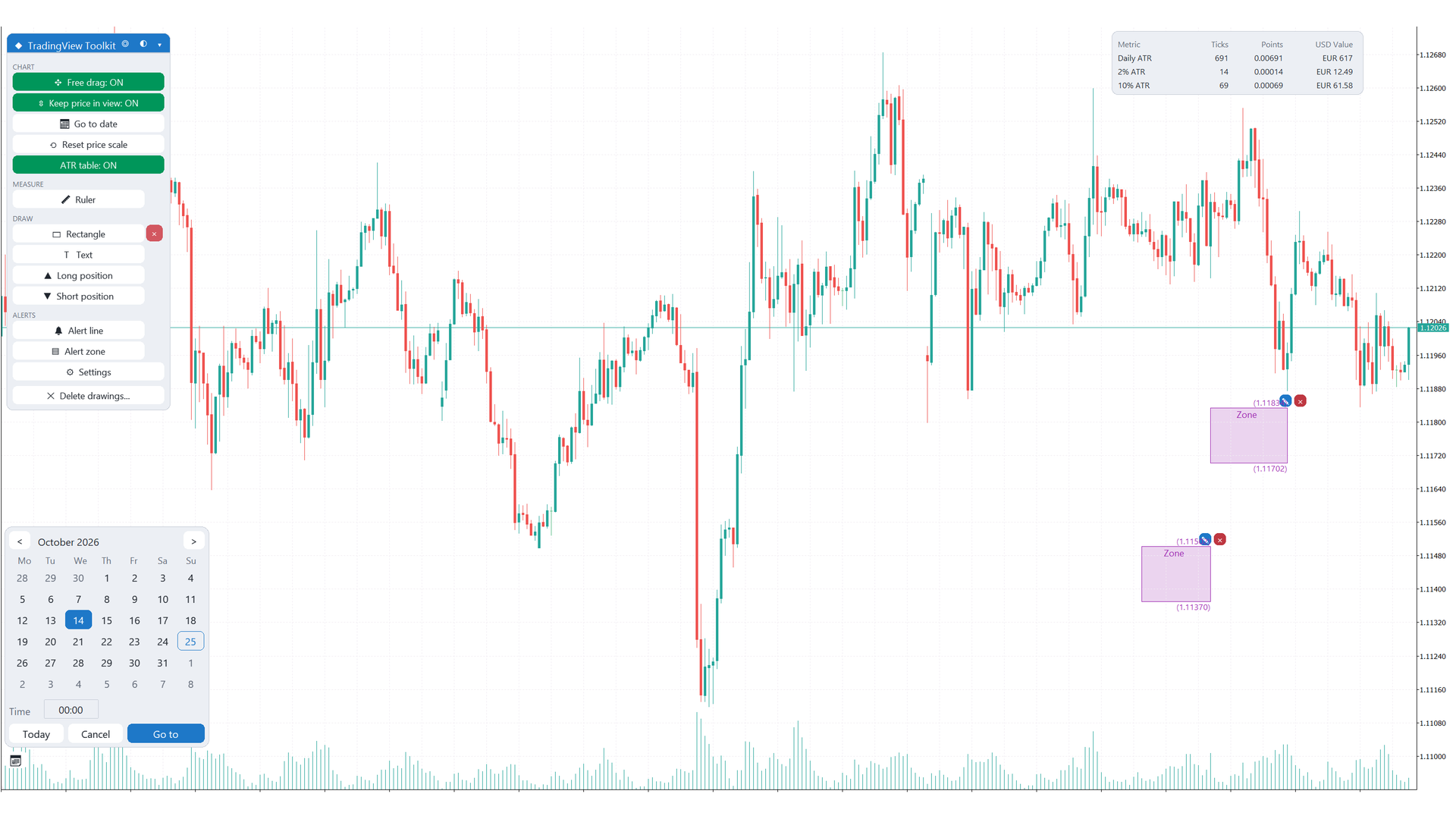
3.5 — Go to date. The calendar popup opens from the Go to date icon in the CHART group, or from the button at the bottom-left of the chart.
- Use the month arrows < and > to change the month.
- Click a day in the day grid.
- Set the time in the Time field (HH:MM).
- Press Go to to move the chart to that date and time. Press Today to select the current day, or Cancel to close the popup.
4 — MEASURING: RULER AND LOCK
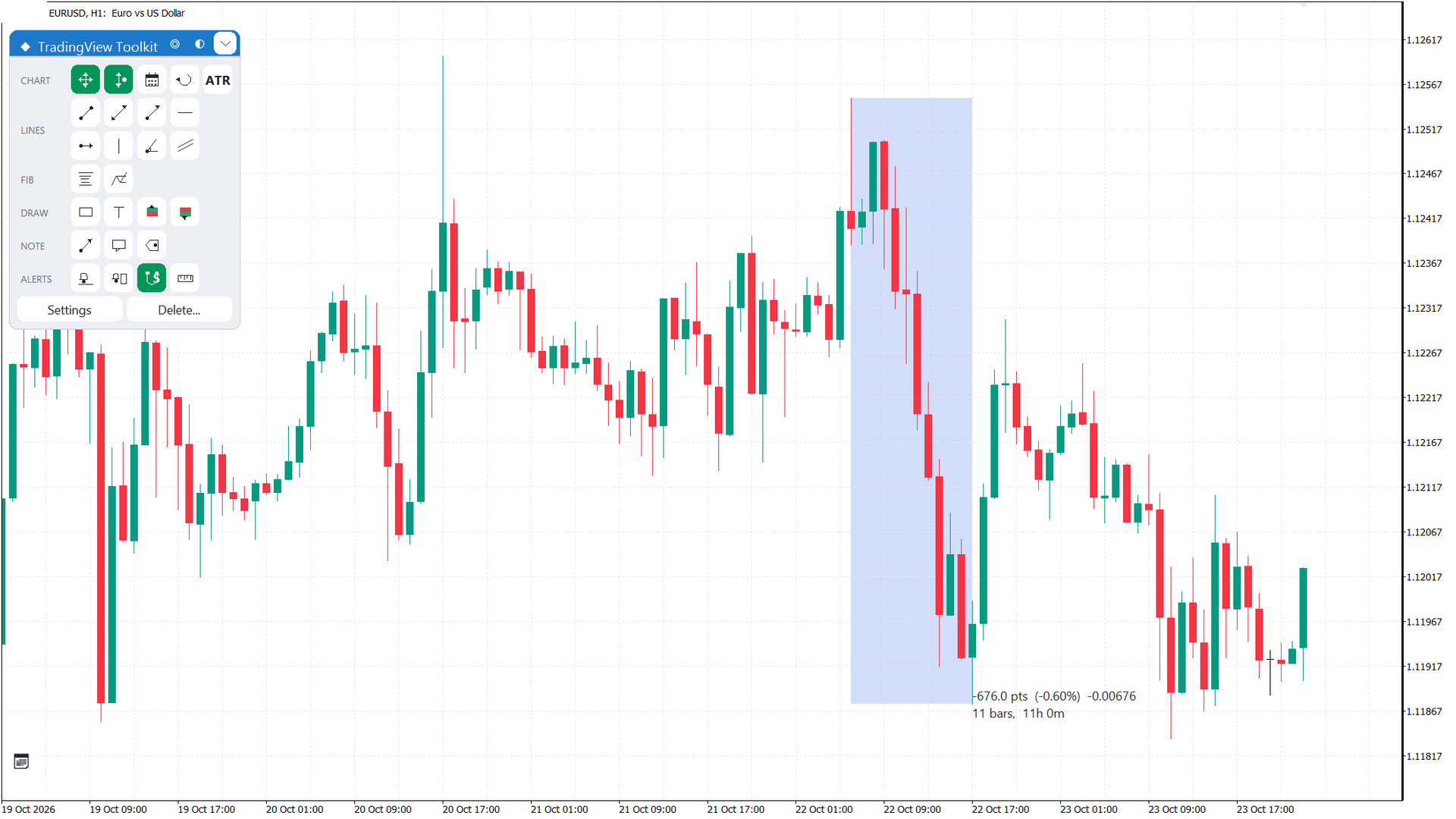
What this section is about. The ruler measures the distance between two points on the chart: price difference and bars. Use it to check a stop distance or a target before you place an order.
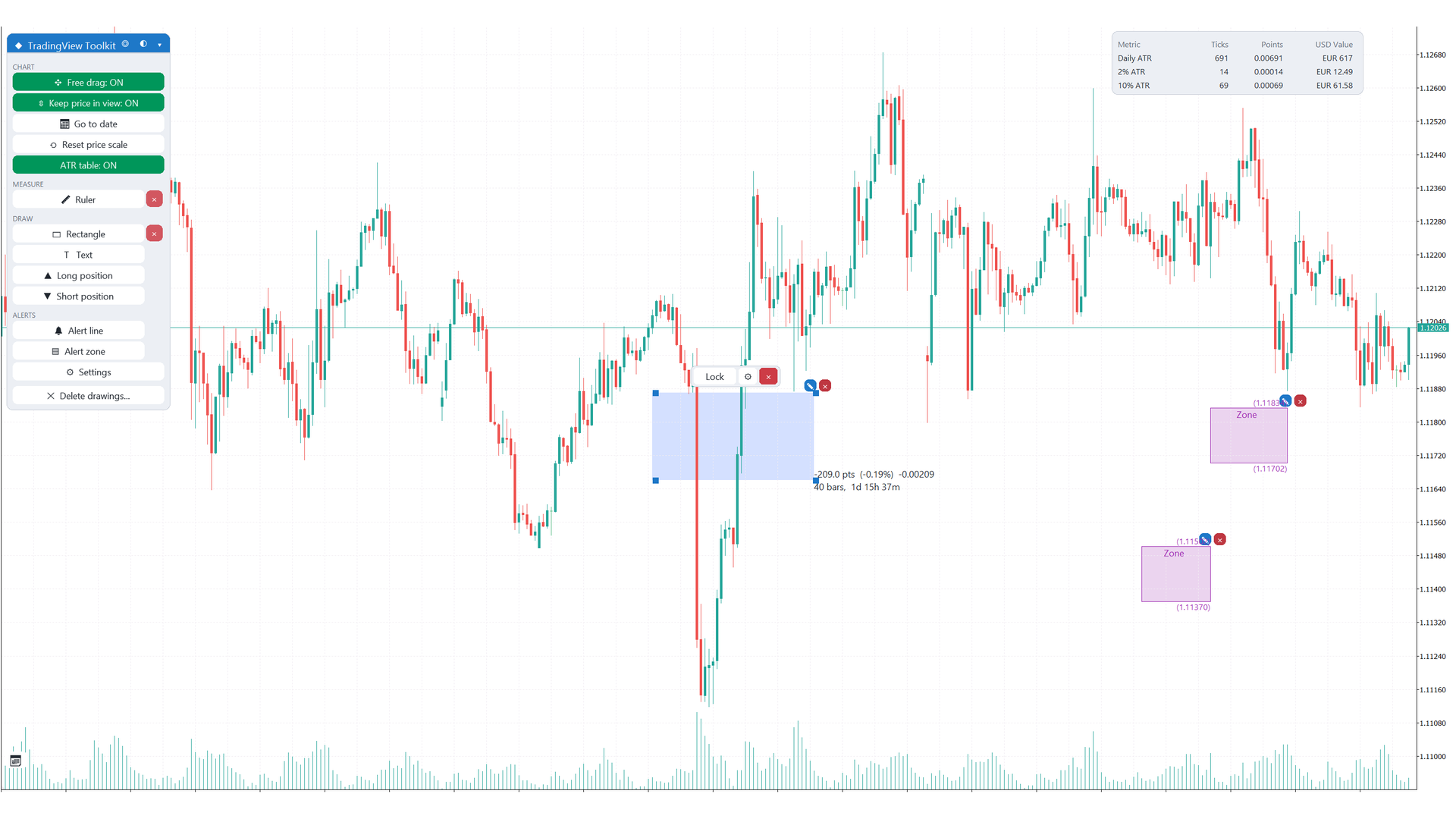
- Press the Ruler icon (Alt+J).
- Drag from the first point to the second point.
- Read the info box, which shows the measure between the two points.
- To keep the ruler on the chart, press the Lock pill in the info box. A locked ruler stays on the chart as a locked drawing.
5 — DRAWING: RECTANGLE AND TEXT
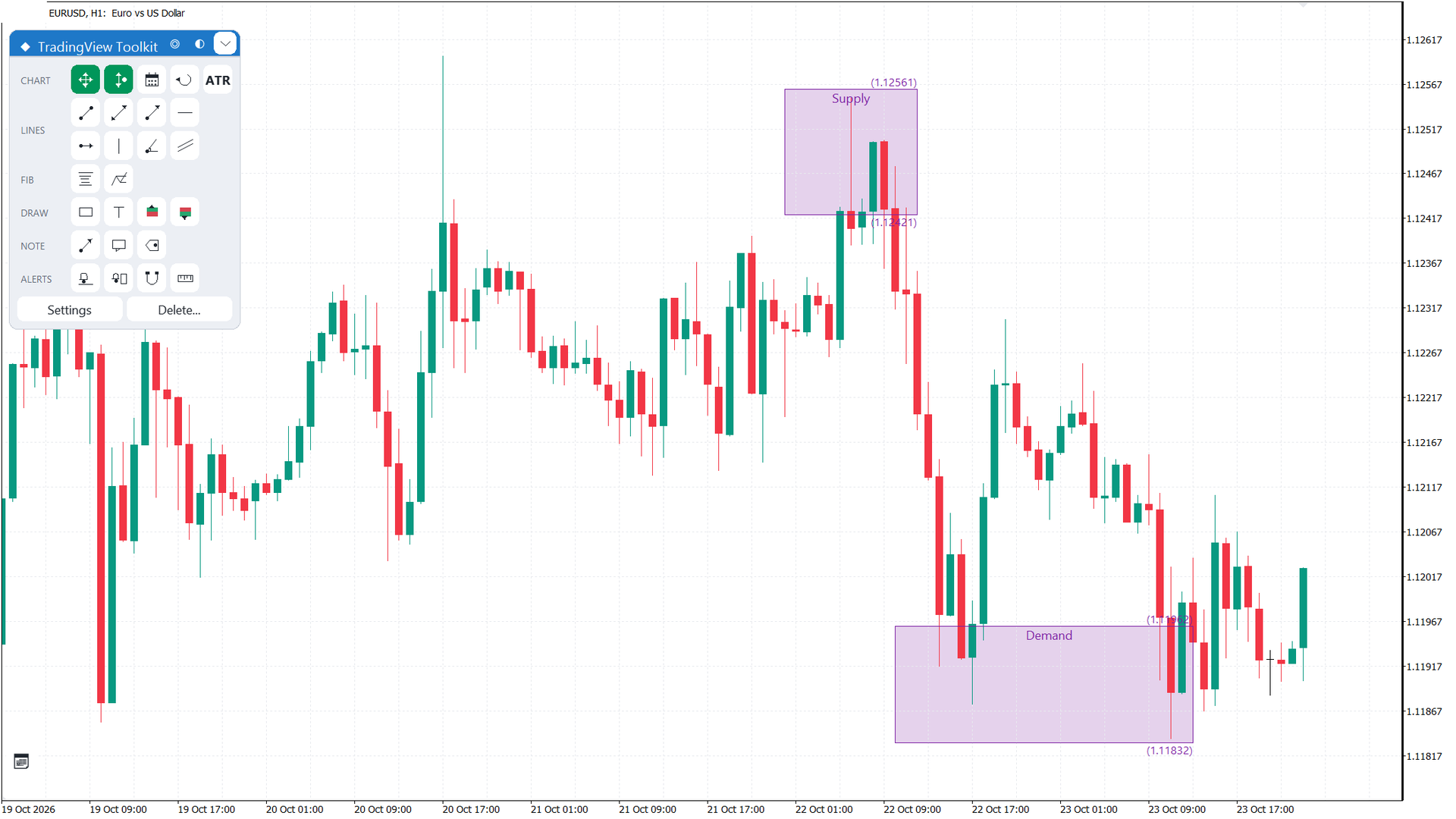
What this section is about. Rectangles mark a price area, such as a supply or demand zone. Text places a note at a point on the chart. Both are user drawings: they stay on the chart until you delete them.
5.1 — Rectangle. Press Rectangle (Alt+R), then drag to draw the box. The rectangle has a translucent fill and a border. A description label and price tags appear at the top and bottom edges. Colours follow the palette in section 14.
5.2 — Text.
- Press Text (Alt+X), then click where the text must go.
- The default text comes from the input "Default text for the Text tool" (default "Text").
- To change the text later, double-click it, or use the edit button in the select-and-edit toolbar (section 12).
6 — LINE TOOLS
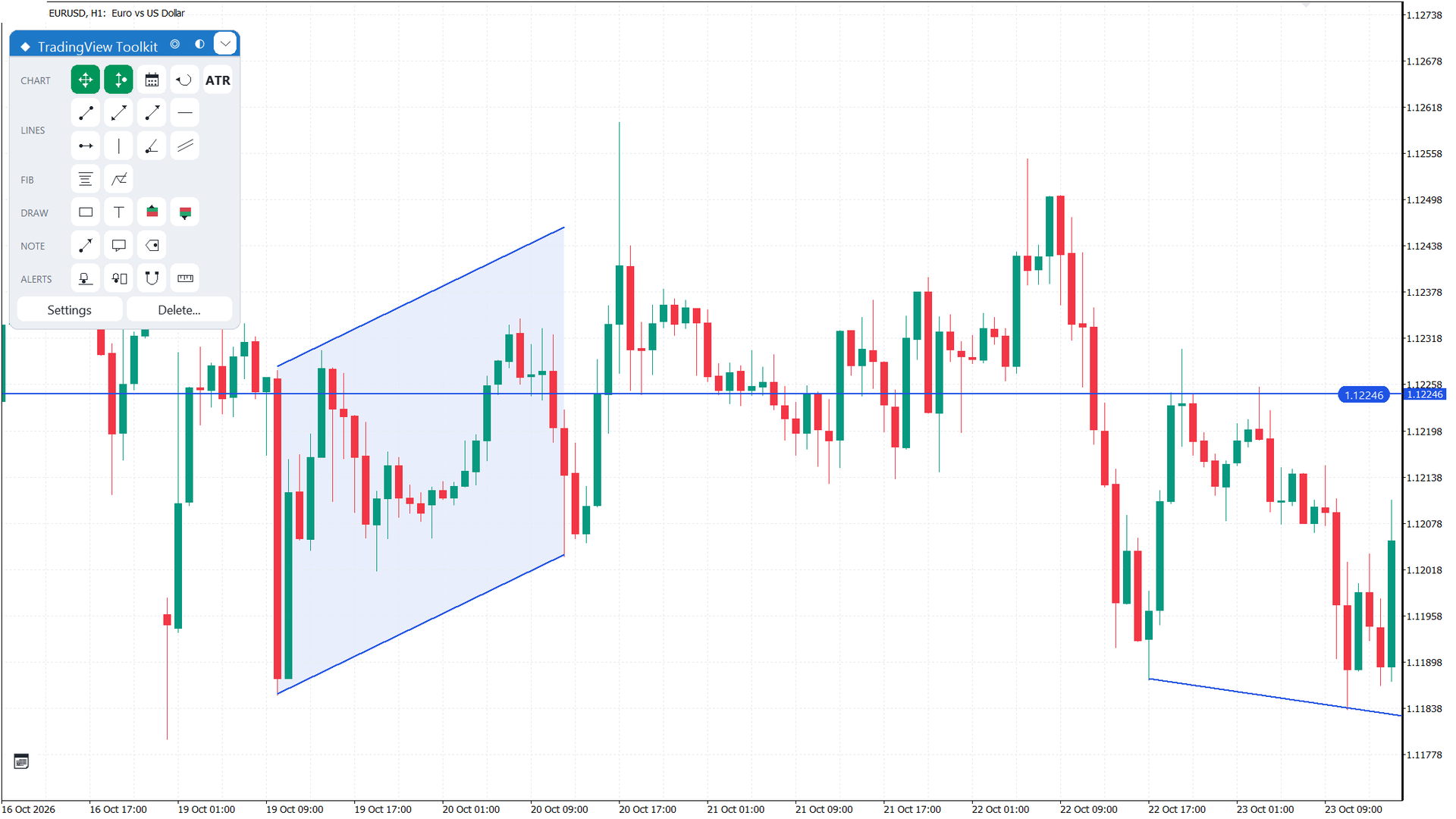
What this section is about. The LINES group draws the lines used for trend, support and resistance, and for timing. Each line keeps its own colour and width, and can be locked, selected and edited like the other drawings.
| Tool | How to place it |
|---|---|
| Trend line (Alt+T) | Two clicks: start point, end point. |
| Extended line | Two clicks; the line runs on both sides of the two points. |
| Ray | Two clicks; the line starts at the first point and runs to the right. |
| Horizontal line (Alt+H) | One click at a price level. Its price tag is a rounded pill at the right edge of the chart. |
| Horizontal ray | One click; the horizontal line starts at that point and runs to the right. |
| Vertical line (Alt+V) | One click at a bar time. |
| Angle line | Two clicks. The angle in degrees is shown next to the line, close to the first point. |
| Parallel channel | Click the base line (two points), then click the width point. The middle line is dashed and the channel fill is a light tint of the line colour. |
Alerts on lines. Trend, extended, ray, horizontal, horizontal ray and angle lines can carry a bid-cross alert. It fires once; a drag of the line re-arms it. The alert is set in the Properties popup (section 12).
7 — FIBONACCI
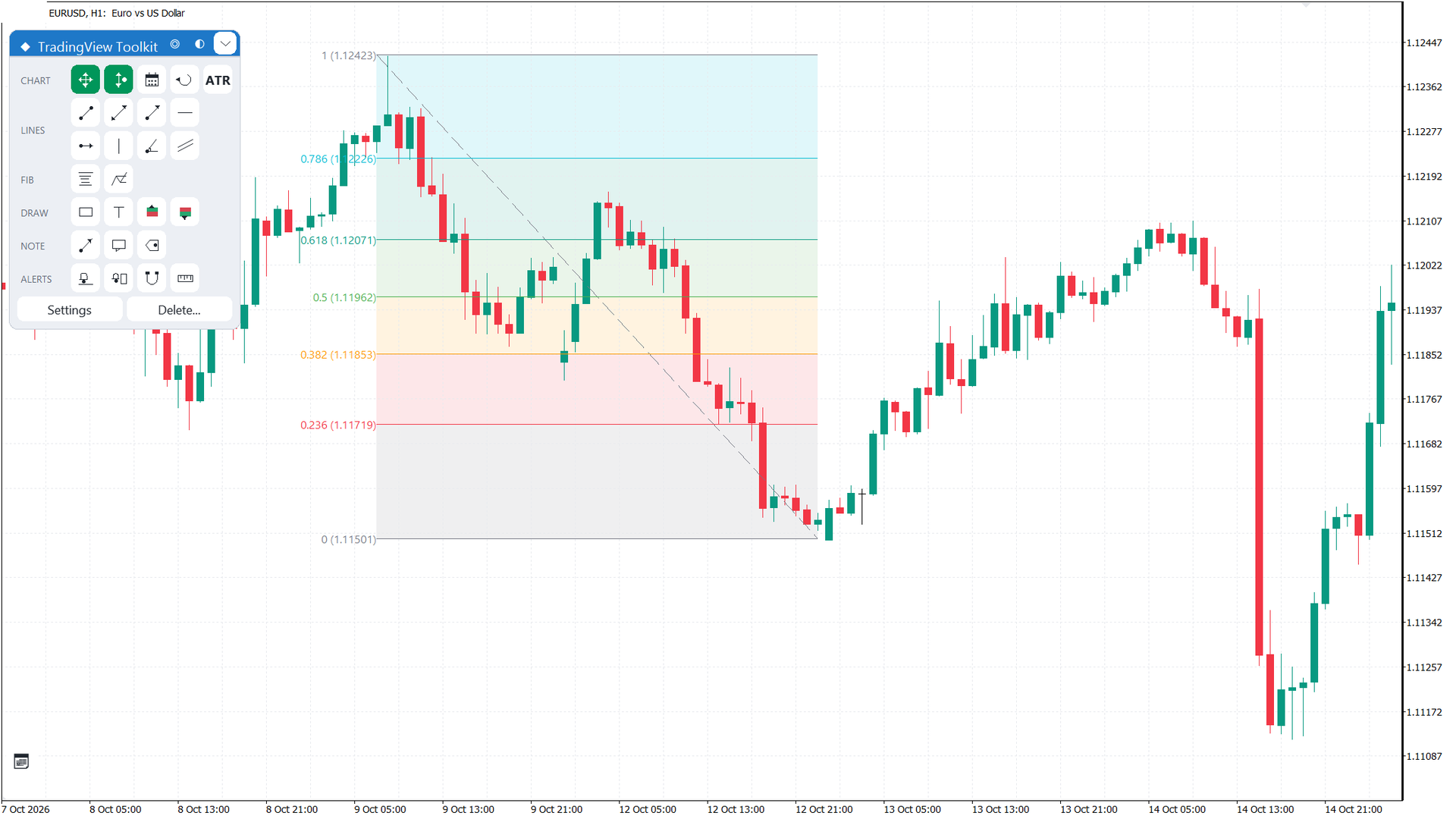
What this section is about. The FIB group draws Fibonacci retracement and extension levels between two or three swing points. The levels, the bands between them and the labels make it easy to read where price may pause or turn.
- Fib retracement (Alt+F): click the swing start (A), then the swing end (B). The levels are drawn between A and B.
- Fib extension: click A, B and then C.
- Use Extend to the right in the Properties popup to run the levels past the last bar.
Each level has its own colour, using the Trading View level colours by default. Bands are shaded between neighbouring levels. The level labels sit 4 px from the start of each level; when two labels are closer than 10 px, the lower-priority one is hidden. The level list is editable in the Properties popup, as a comma-separated list. The line width is 1 to 4 px.
8 — ANNOTATIONS
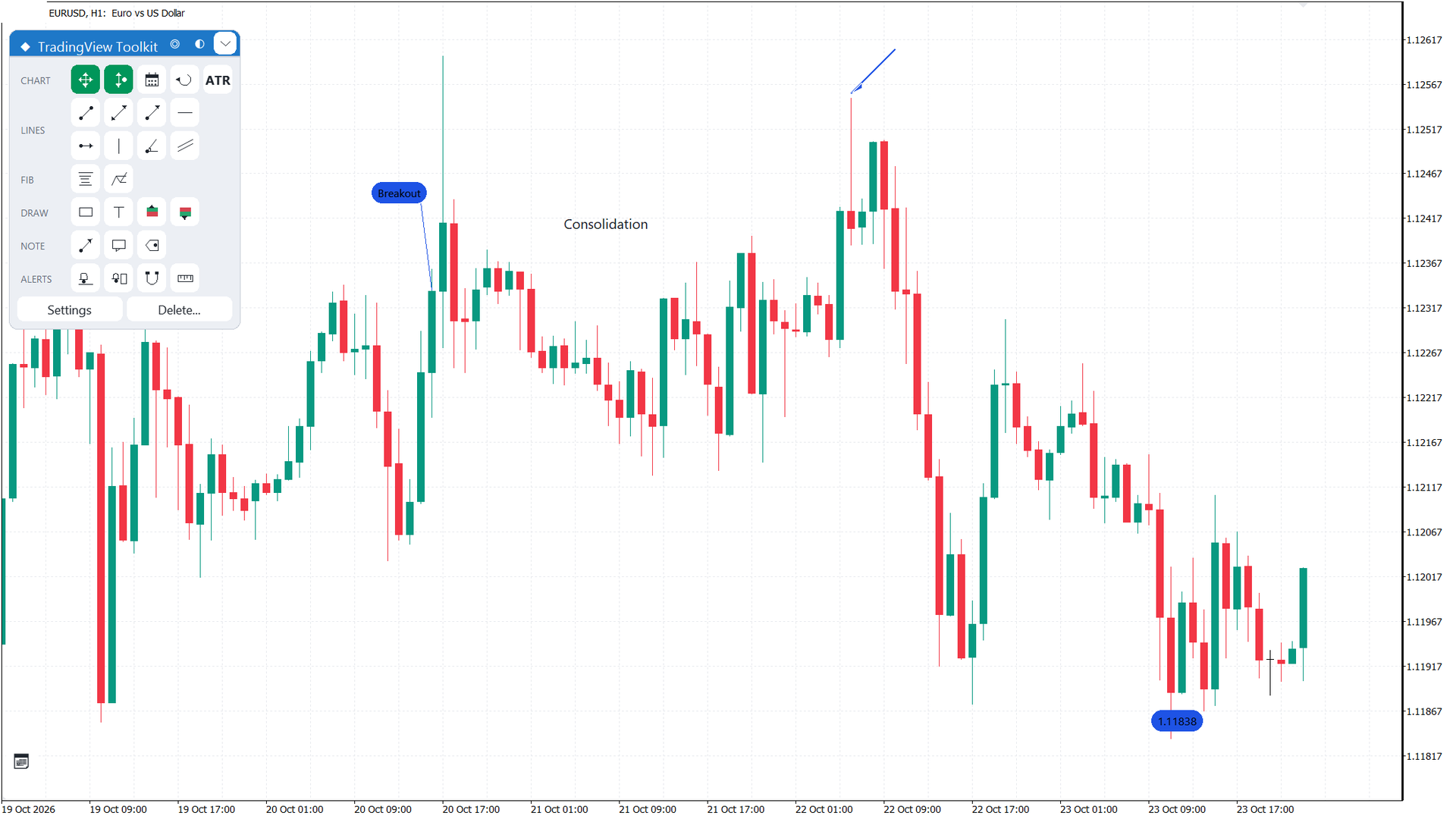
What this section is about. The NOTE group adds marks that explain a chart: an arrow pointing at a bar, a callout with a longer text, and a price label that marks a level.
- Arrow: a line with an arrowhead, for colour and width see the toolbar and Properties popup.
- Callout: a text box with a leader line to a point; the point is marked with a dot. Edit the text from the toolbar or the Properties popup.
- Price label: a price pill placed at the clicked point, showing the price of that point.
Annotation colour and size are set in the toolbar or in the Properties popup (section 12).
9 — LONG AND SHORT POSITION
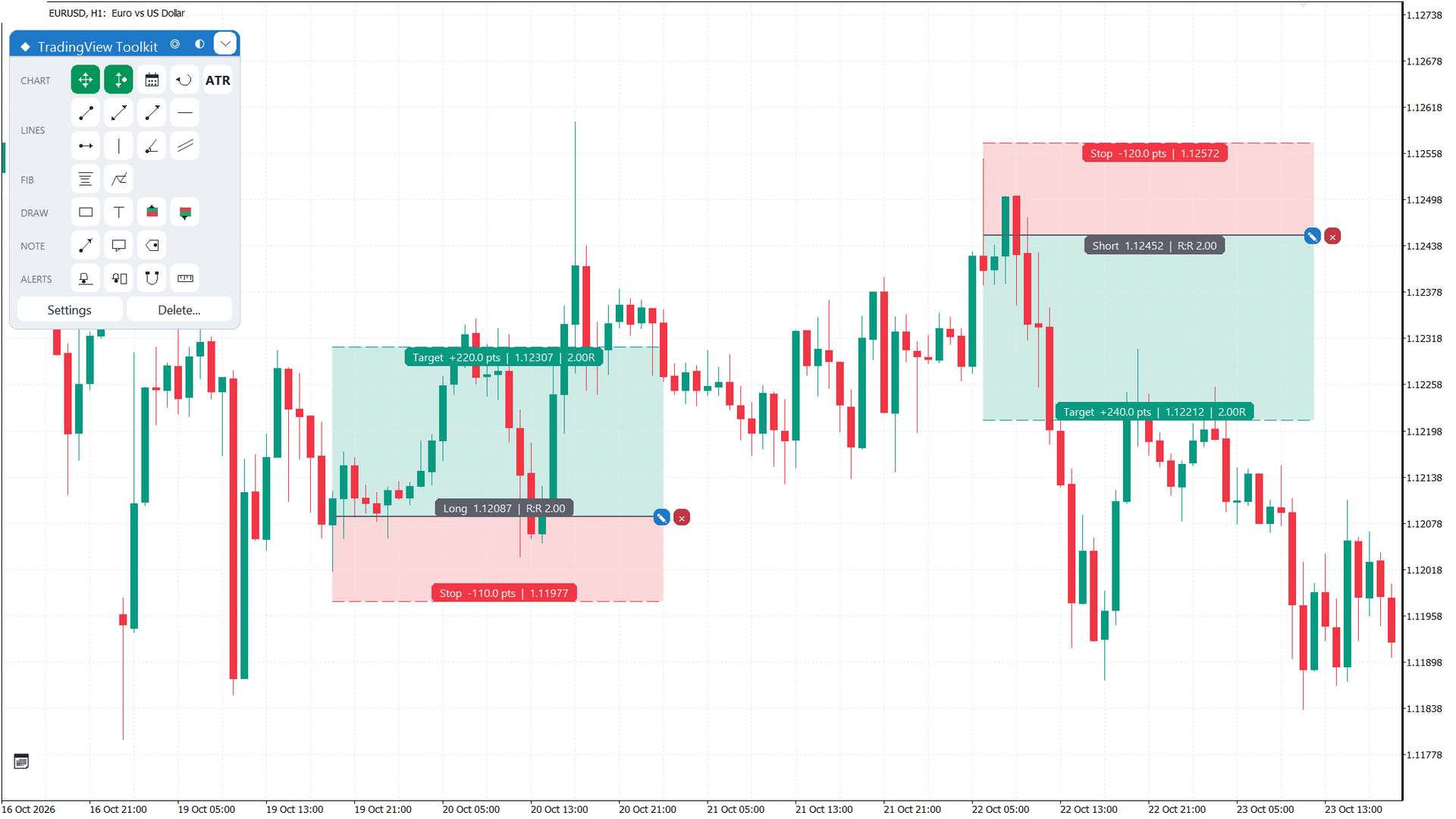
What this section is about. The position tool draws a planned trade on the chart: entry, stop loss and target, with the reward:risk shown on the bars. It is a planning drawing. It does not send an order.
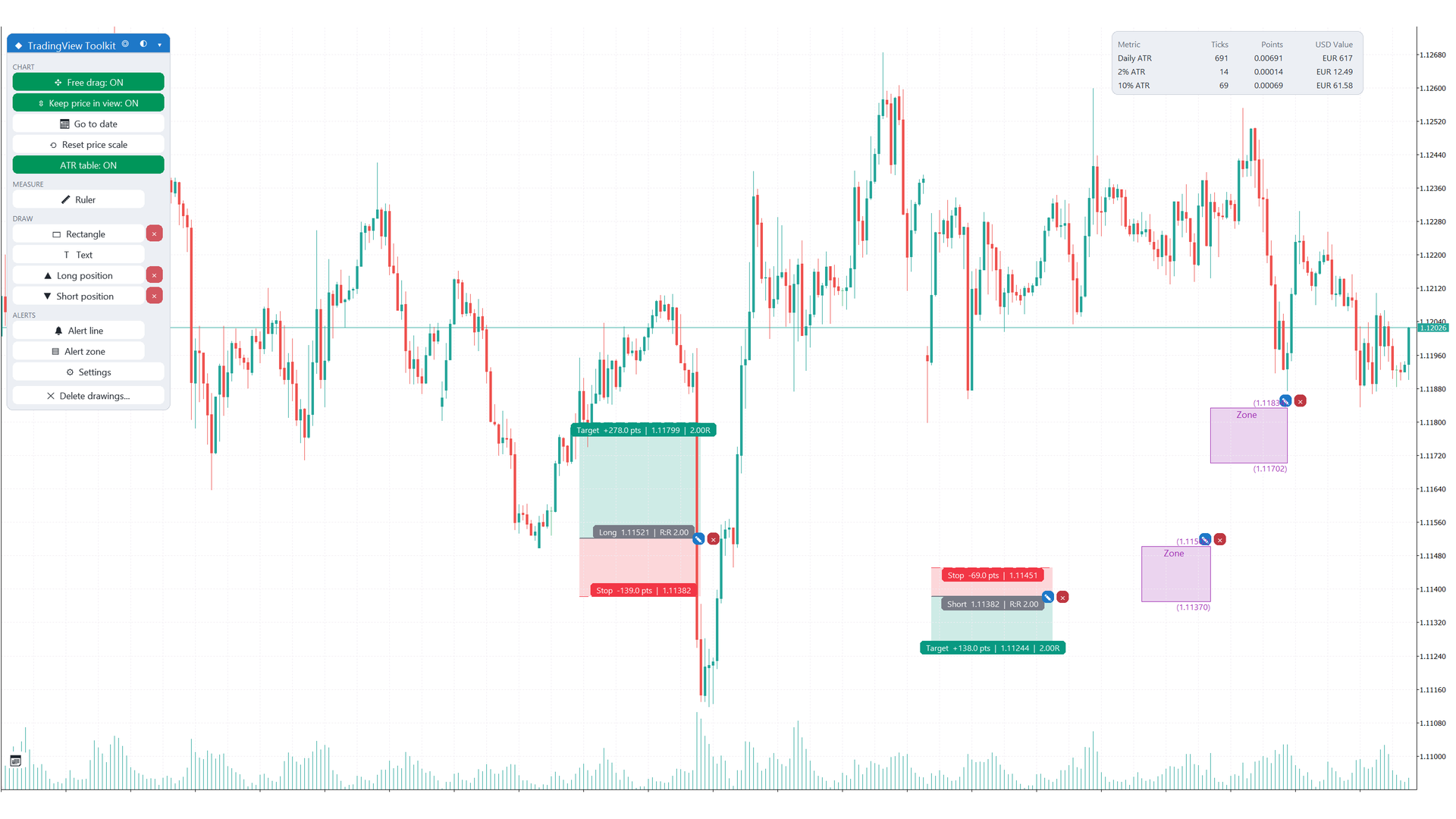
- Press Long position (Alt+L) or Short position (Alt+S) in the DRAW group.
- Click the entry point. The stop and the target are placed automatically; the target follows the default reward:risk (input "Default reward:risk for Long/Short", default 2.0).
- Drag the stop line (SL), the target line (TP) or the entry line to change them.
- Drag the entry bar to move the whole position.
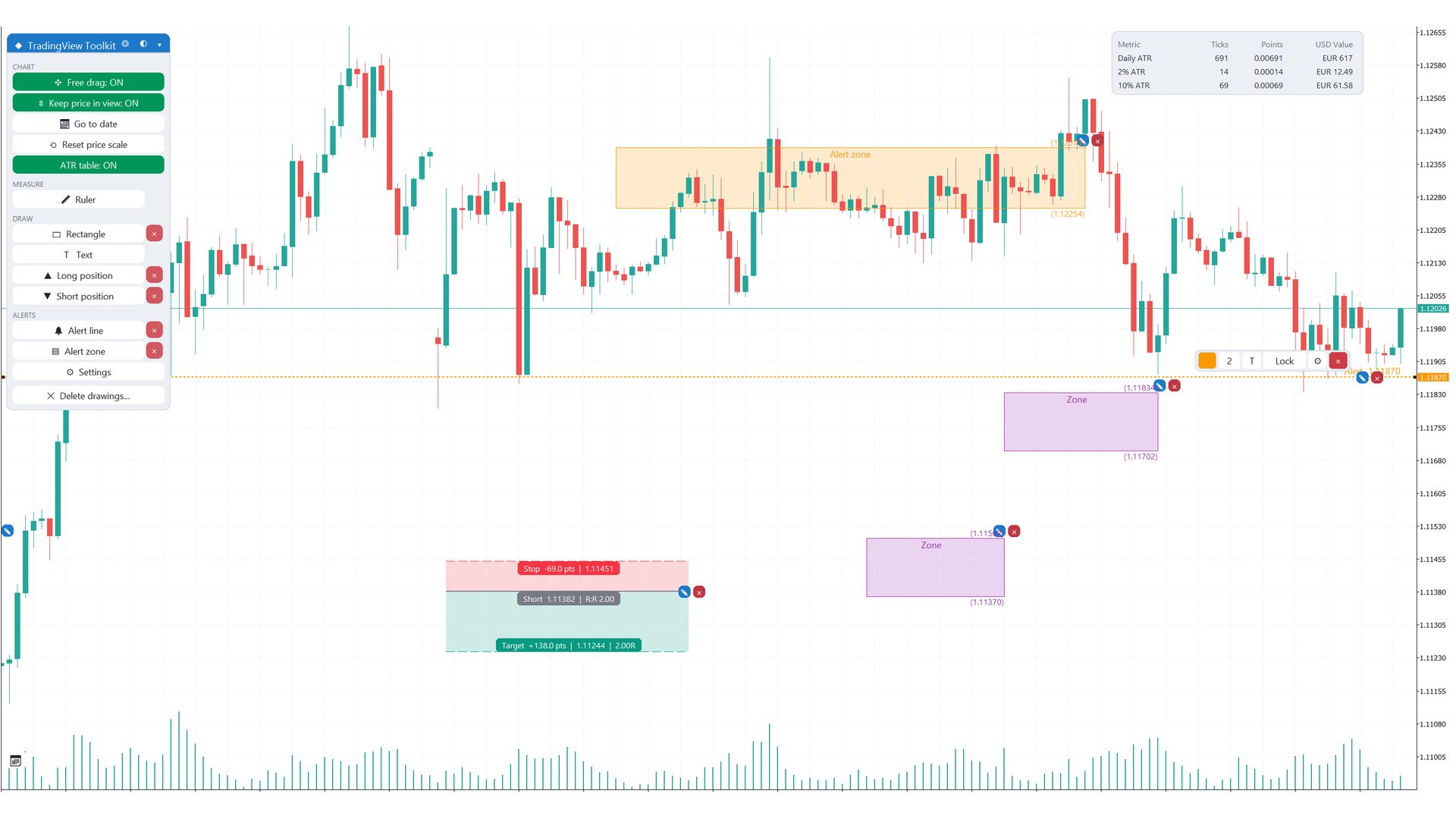
Three info bars show Target, Stop and Entry. The area between entry and target is shaded as the profit zone, and the area between entry and stop as the loss zone.
10 — MAGNET
What this section is about. The magnet makes the drawing tools snap to prices of the bars, so that the points you click sit exactly on a High, a Low or a Close instead of an approximate place.
- OFF: no snapping.
- WEAK: snaps to the Open, High, Low or Close of the bar under the cursor when the cursor is within 12 px of it.
- STRONG: always snaps to the nearest of those prices.
Click the Magnet icon in the ALERTS group to change the mode; the icon shows W for WEAK or S for STRONG. The mode is kept for the terminal. The magnet applies to the ruler, rectangle, text, Long and Short, alert, line, Fibonacci and annotation tools. You can also set it in the General tab of the settings panel.
11 — ALERTS
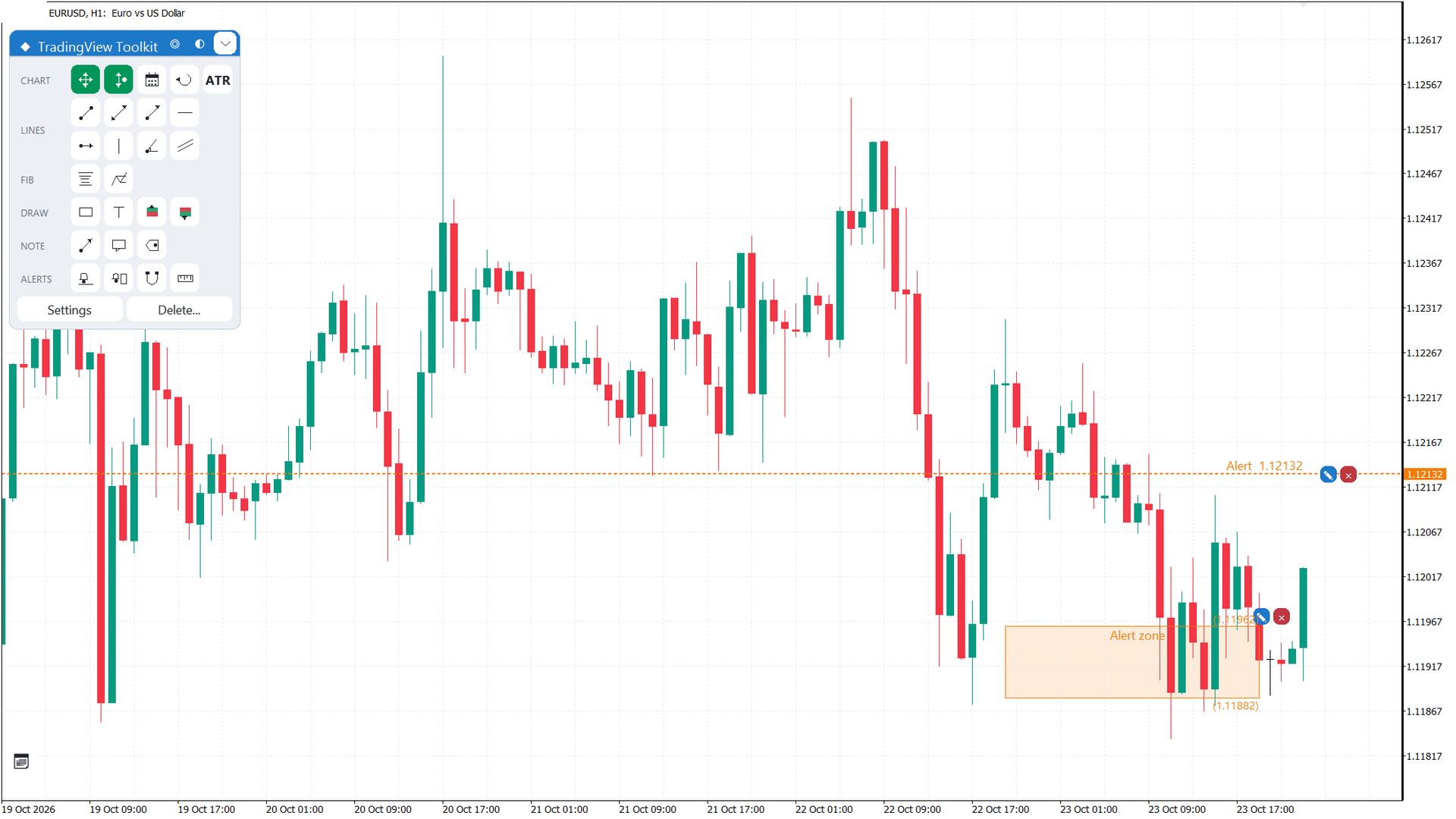
What this section is about. Alerts warn you when price reaches a level or enters a zone. They are chart drawings with a notification attached, and they keep their labels and price tags on the chart.
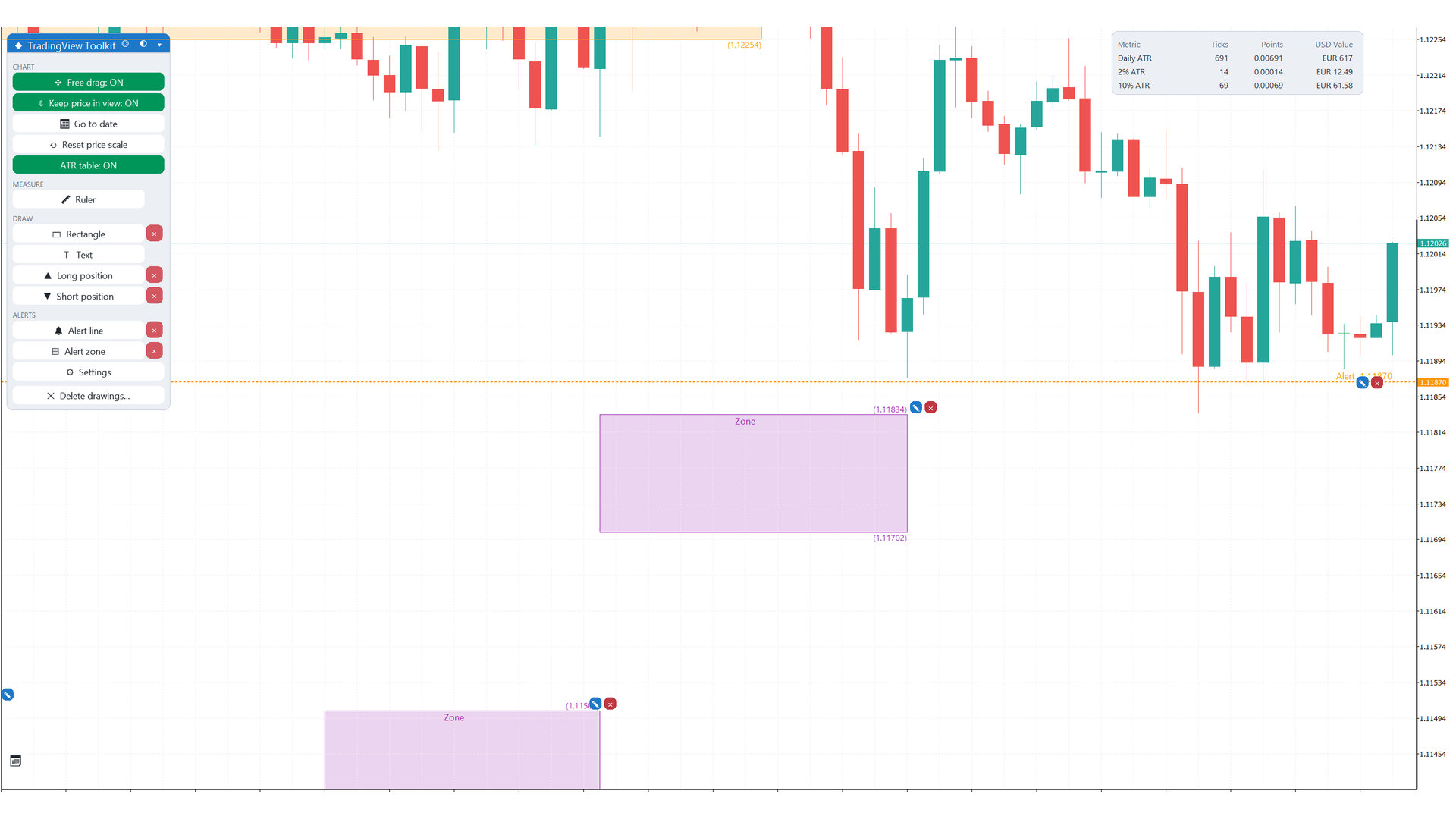
- Alert line (Alt+A): press Alert line, then click a price level. You are alerted when price crosses that level.
- Alert zone: press Alert zone, then drag a price zone. You are alerted when price enters the zone.
- Line tools: a bid-cross alert on a line works as described in section 6.
What happens when an alert fires depends on the inputs in the group Alerts: Show popup (default true), Play sound (default true) and Send push notification (default false). The drawing shows its fired state on the chart, so you can see which alerts have already triggered.
Push notifications need the MetaQuotes ID set in the terminal options (see section 19).
12 — SELECT AND EDIT, PROPERTIES
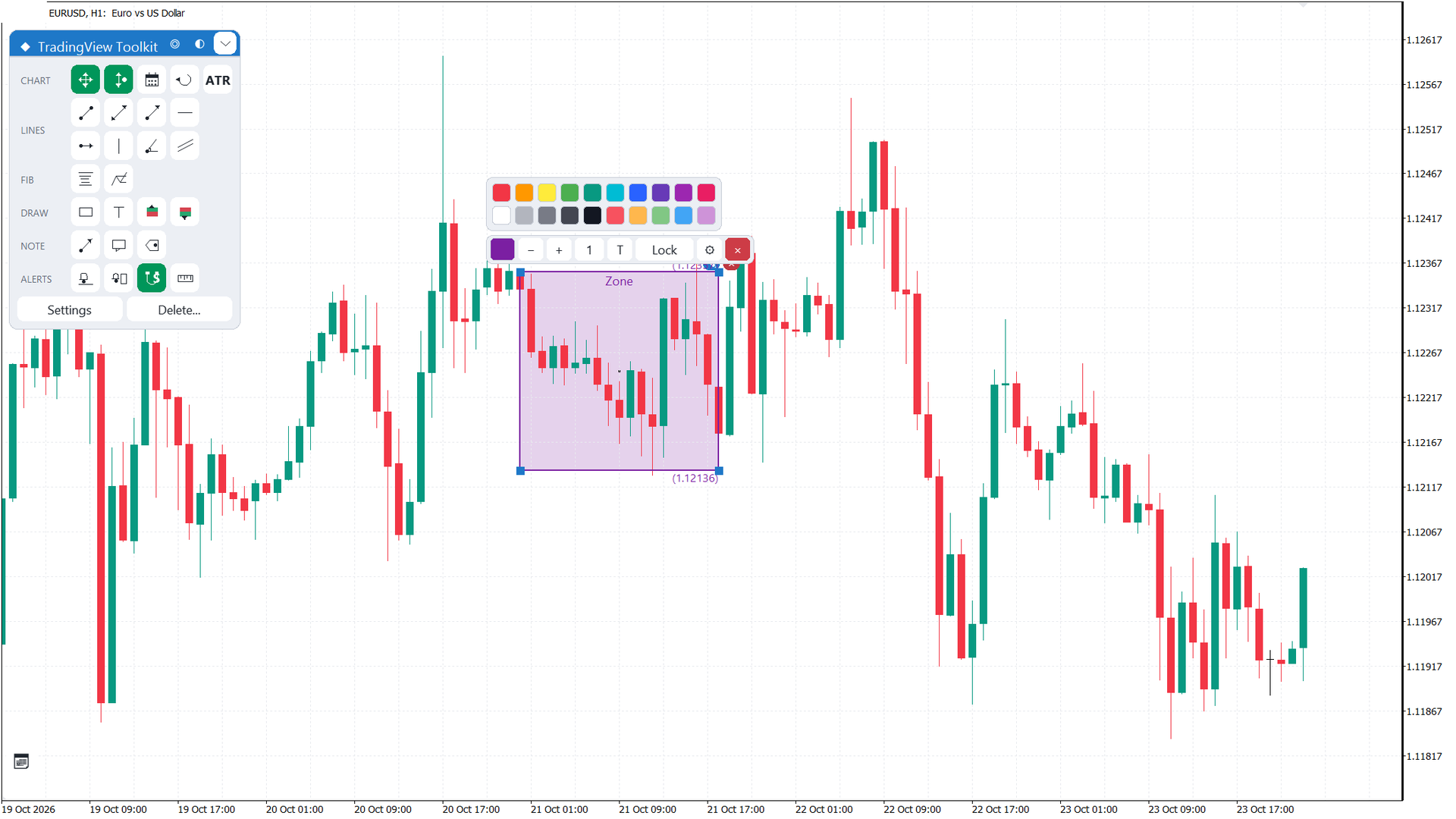
What this section is about. Click a drawing to select it. A floating toolbar appears next to it with the common actions for that kind, so you do not need the settings panel for a single object. The Properties popup gives the exact values of the object.
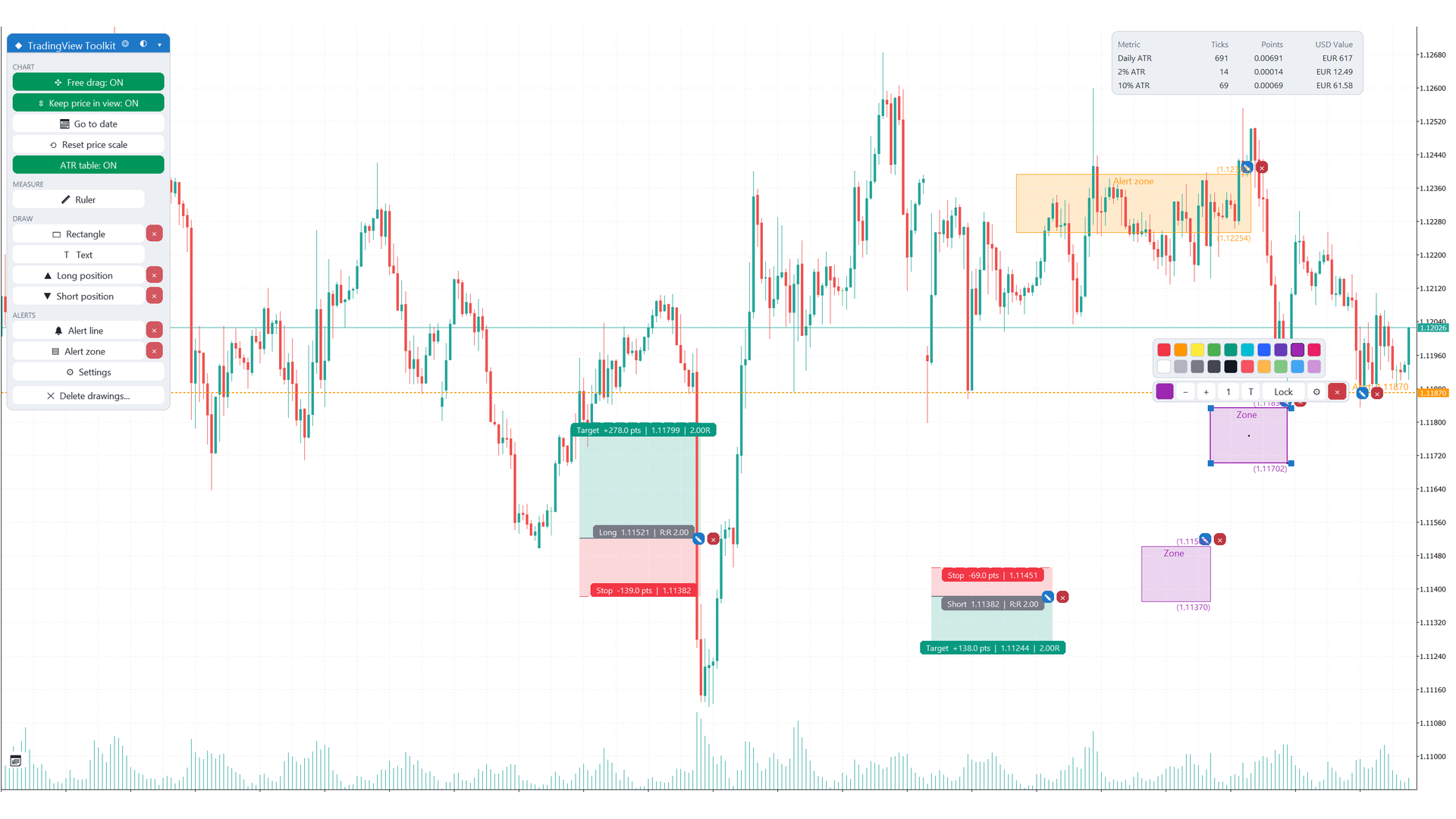
Click a drawing or position to select it. Corner handles appear on boxes so you can resize them. Press Esc or click an empty part of the chart to clear the selection. A locked object cannot be dragged and does not pan the chart. Pressing inside a rectangle, ruler or position zone does not pan the chart: a click selects it, and dragging inside the selected box moves it.
The toolbar shows the actions that apply to the selected kind, such as colour, width, opacity, text edit, lock, Properties and Delete. Every drawing and every position also has a small X delete button (section 16). Just left of the X there is a small round pencil button (tooltip "Edit"). Click it to select the drawing and open its toolbar; a second click deselects it.
Auto-select. A new drawing or position is selected right after it is created, with its toolbar open. A locked ruler opens its toolbar too.
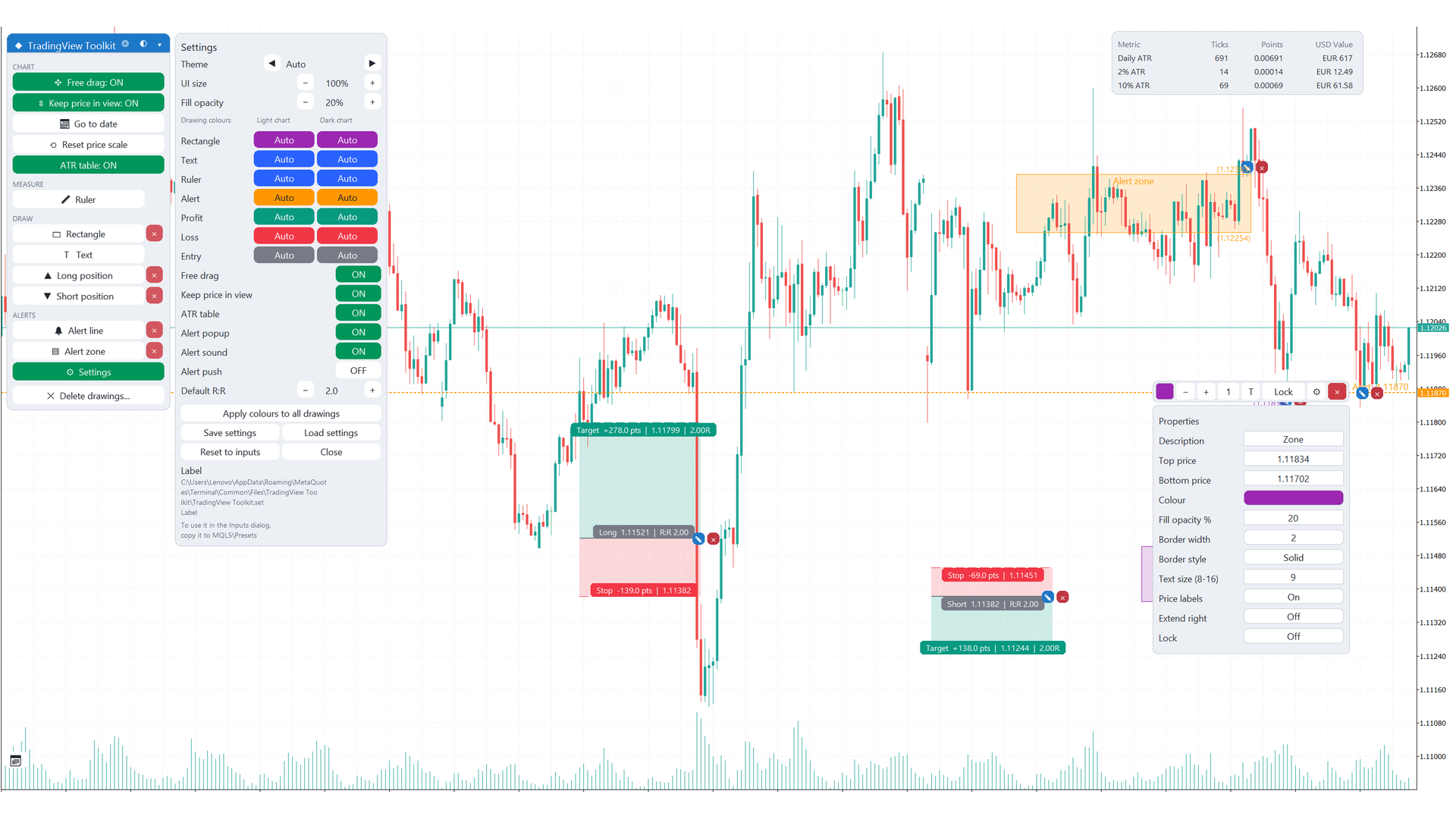
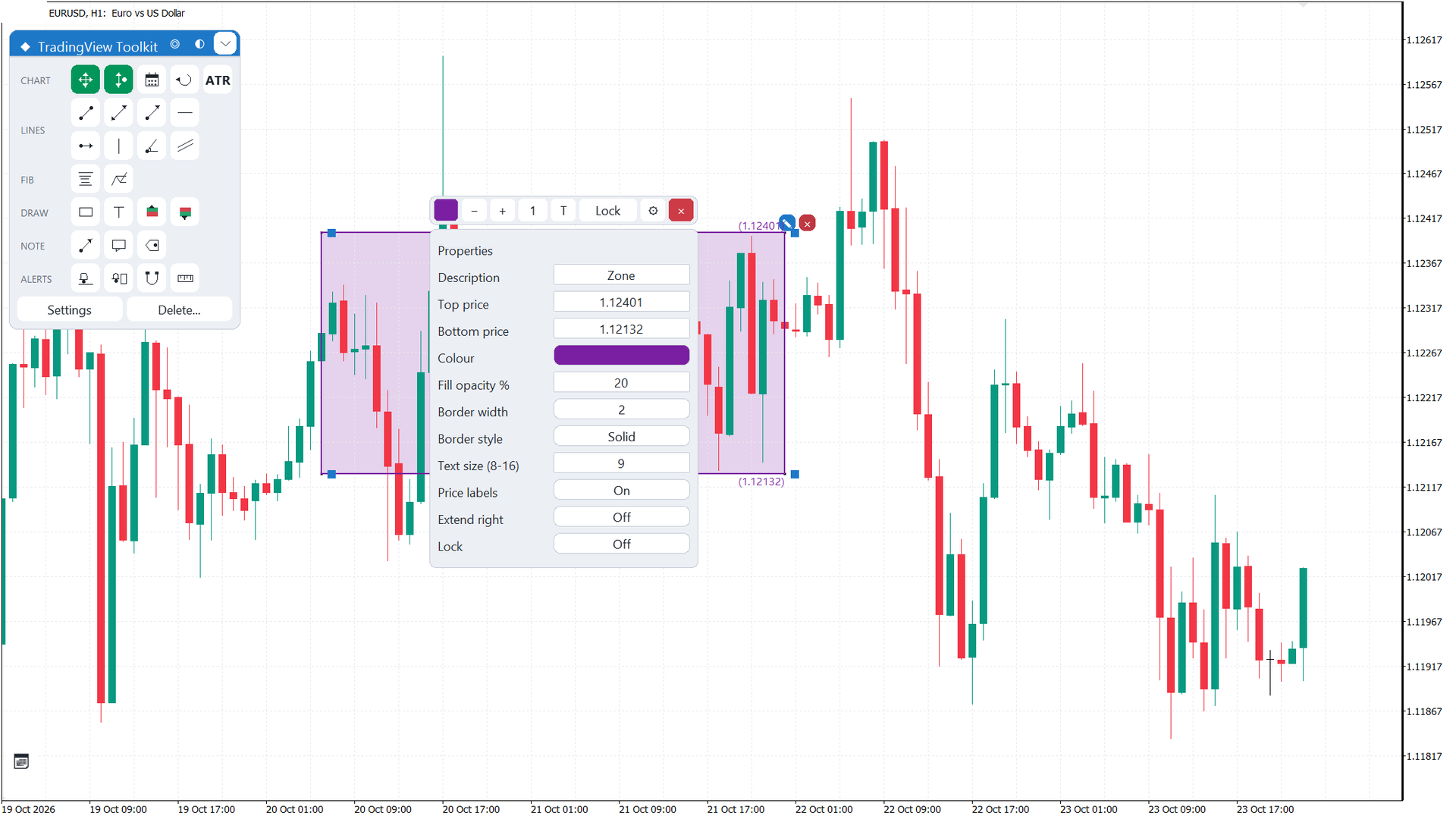
Properties popup. The gear button on the toolbar opens the properties popup. Typed fields are applied when you finish editing; invalid input reverts. Colour buttons step through the palette; other buttons cycle or toggle.
| Object | Properties |
|---|---|
| Rectangle / Alert zone | Description, top price, bottom price, colour, fill opacity, border width 1-4, border style, text size 8-16, price labels On/Off, extend right On/Off, lock. |
| Text | Text, colour, size 8-24, bold, price, lock. |
| Alert line | Price, description, colour, width 1-4, style, alert armed (On re-arms, Off disarms), lock. |
| Long / Short | Entry, stop loss, take profit (must be on the correct side of entry), R:R (moves the take profit), Long/Short flip, profit colour, loss colour (Auto = palette), fill opacity (0 = global setting), lock. |
| Line tools | Colour, width, style, text, alert armed where allowed, lock. |
| Fibonacci | Levels as a comma-separated list, extend, bands, width, colour of levels 1-7, lock. |
| Arrow | Colour, width, lock. |
| Callout | Text, text colour, size 8-24, colour, leader width, lock. |
| Price label | Colour, size, lock. |
| Locked ruler | Colour, lock. |
13 — HOTKEYS AND UNDO
What this section is about. Hotkeys select a tool or delete the selected drawing without going to the menu. They work with the chart in focus, and they are off while a text or property field is open.
| Key | What it does |
|---|---|
| Delete or Backspace | Deletes the selected drawing or position. |
| Ctrl+Z | Undoes the last delete step. |
| Alt+H | Horizontal line. |
| Alt+V | Vertical line. |
| Alt+T | Trend line. |
| Alt+F | Fibonacci retracement. |
| Alt+R | Rectangle. |
| Alt+J | Ruler. |
| Alt+L | Long position. |
| Alt+S | Short position. |
| Alt+A | Alert line. |
| Alt+X | Text. |
Undo. Ctrl+Z restores what the last delete removed. The undo keeps up to 10 steps. One step is one delete action: an X button, a row of the Delete popup, Delete ALL, a toolbar Delete or Clear all. The undo recreates each drawing from its points, colour, width, style, text and font; the lock state and the armed flag of a restored alert are not guaranteed. The undo history is kept in memory only: it is lost when MetaTrader restarts.
14 — COLOURS AND THEMES
What this section is about. Drawings have two colour palettes: one for a light chart and one for a dark chart. The indicator chooses the palette from the brightness of the chart background. It does not follow the menu theme.
- There are ten colour kinds: rectangle, text, line tools, Fibonacci, ruler, alert, profit, loss, entry and annotation.
- The light and the dark palette have different defaults. The inputs set them to Auto.
- Fill opacity is set per kind, with its own default: rectangles 20 %, rulers 20 %, alert zones 15 %, profit zones 20 %, loss zones 20 %, Fibonacci bands 12 % and parallel channels 10 %.
- When you change the chart background, drawings that use Auto colours are restyled to match.
You can change the colours in the Colours tab of the settings panel (section 15) or per object with the colour button of the toolbar (section 12).
15 — SETTINGS PANEL AND THE .SET FILE
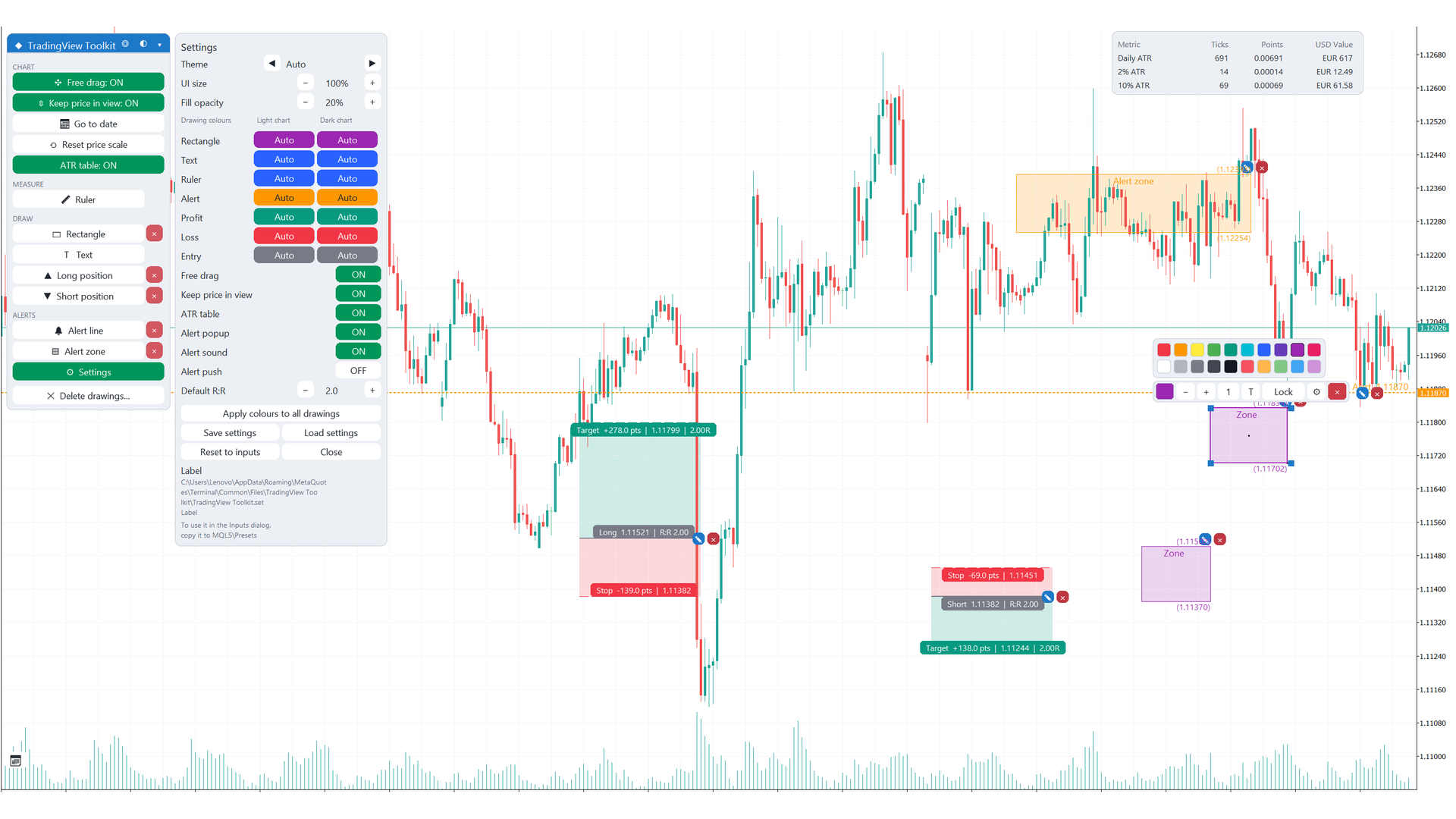
What this section is about. The settings panel gathers the choices you make most often in one popup, split into tabs. You can save these choices to a file and load them again.
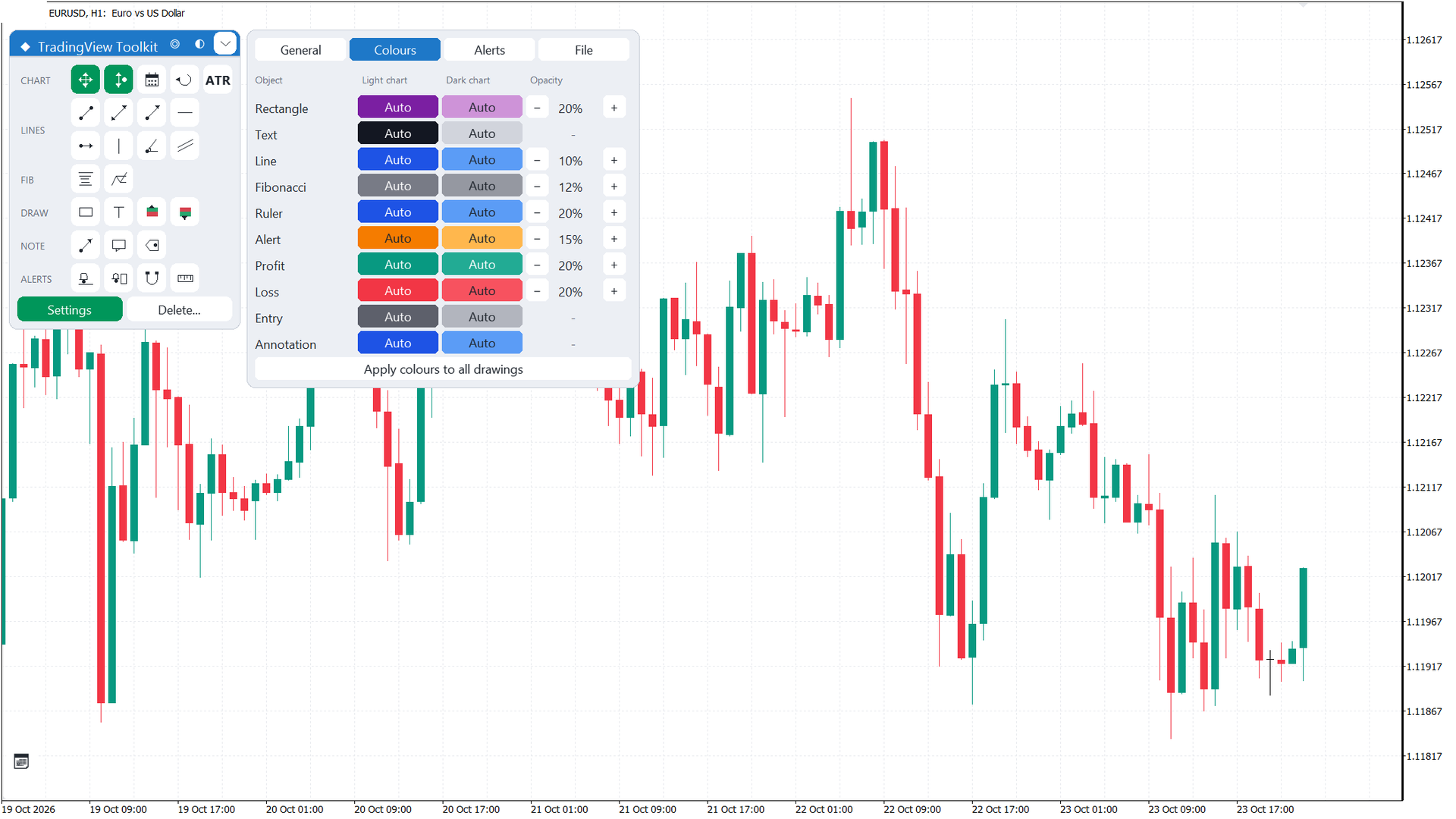
Open the panel with Settings in the footer of the menu. Switch between the tabs at the top of the panel.
| Tab | Rows |
|---|---|
| General | Theme; UI size % (80 to 200); Free drag; Keep price in view; ATR table; ATR period; Default R:R; Magnet. |
| Colours | One row per kind (Rectangle, Text, Line, Fibonacci, Ruler, Alert, Profit, Loss, Entry, Annotation), with a light swatch and a dark swatch, and an opacity control for the kinds with a fill. "Apply colours to all drawings" applies the current colours to all existing drawings; click once, then click again to confirm. |
| Alerts | Alert popup; Alert sound; Alert push. |
| File | Save settings; Load settings; Reset to inputs; Close; a status line that shows the result of the last action, for example "Loaded ..." or "No saved file". |
The .set file. The file is saved as %APPDATA%\MetaQuotes\Terminal\Common\Files\TradingView Toolkit\TradingView Toolkit.set, in the MT5 .set format. To load it as a preset, copy it to MQL5\Presets and select it from the Inputs dialog.
- At start, the saved file is applied only if the inputs have not been changed since the save.
- The per-chart toggles (Free drag, Keep price in view, ATR table) are remembered for each chart and take priority over the file and the inputs.
- Load settings and Reset to inputs override the per-chart toggles.
16 — DELETING DRAWINGS
What this section is about. Drawings are kept on the chart, so deleting them is always a deliberate action. There are three ways to delete. Mass deletes ask for a second click or a confirm before anything is removed.
16.1 — X button on each object. Every drawing and every position has a small X. Click it to delete that object.
16.2 — Hotkey. Select a drawing and press Delete or Backspace (section 13).
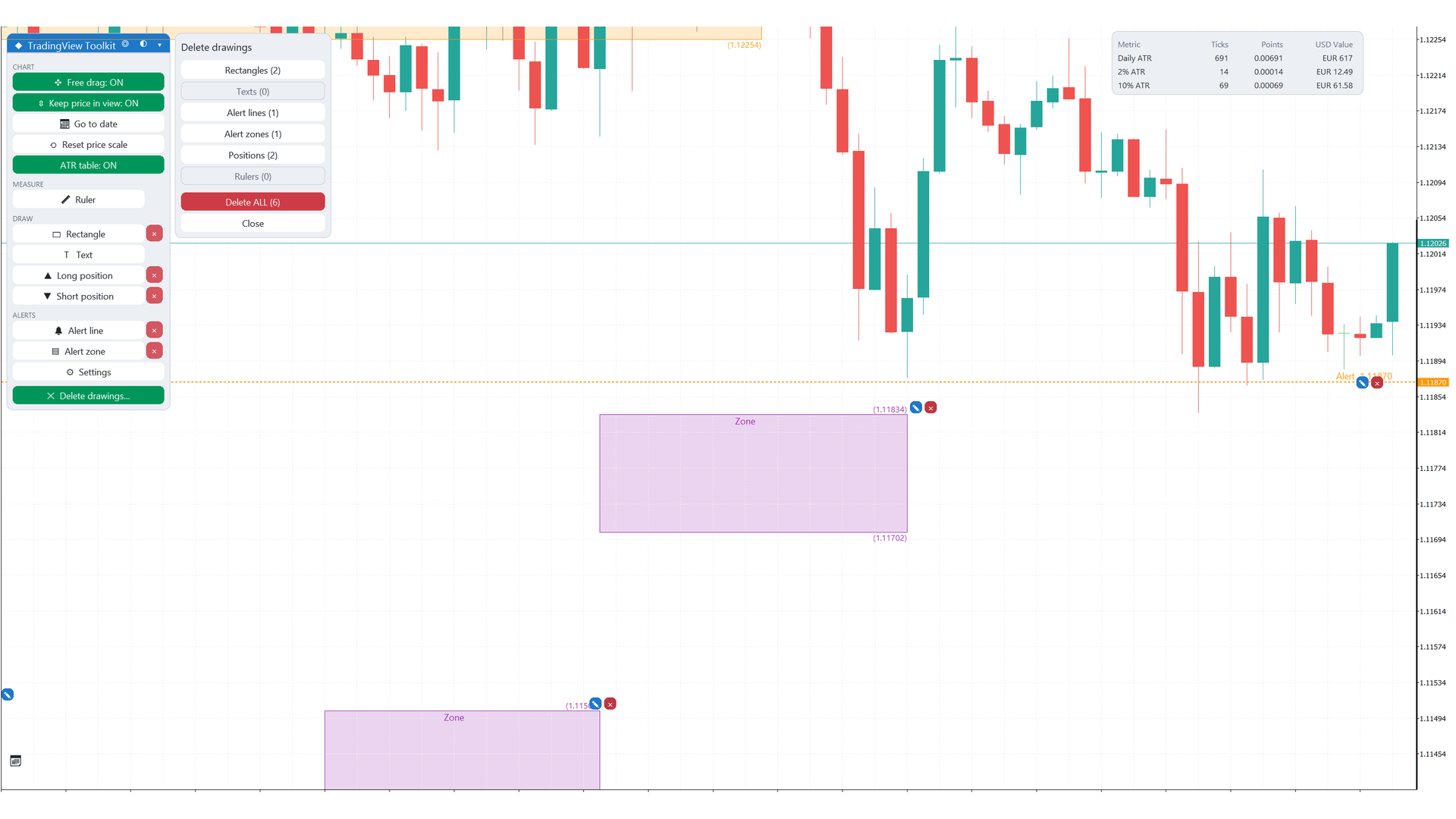
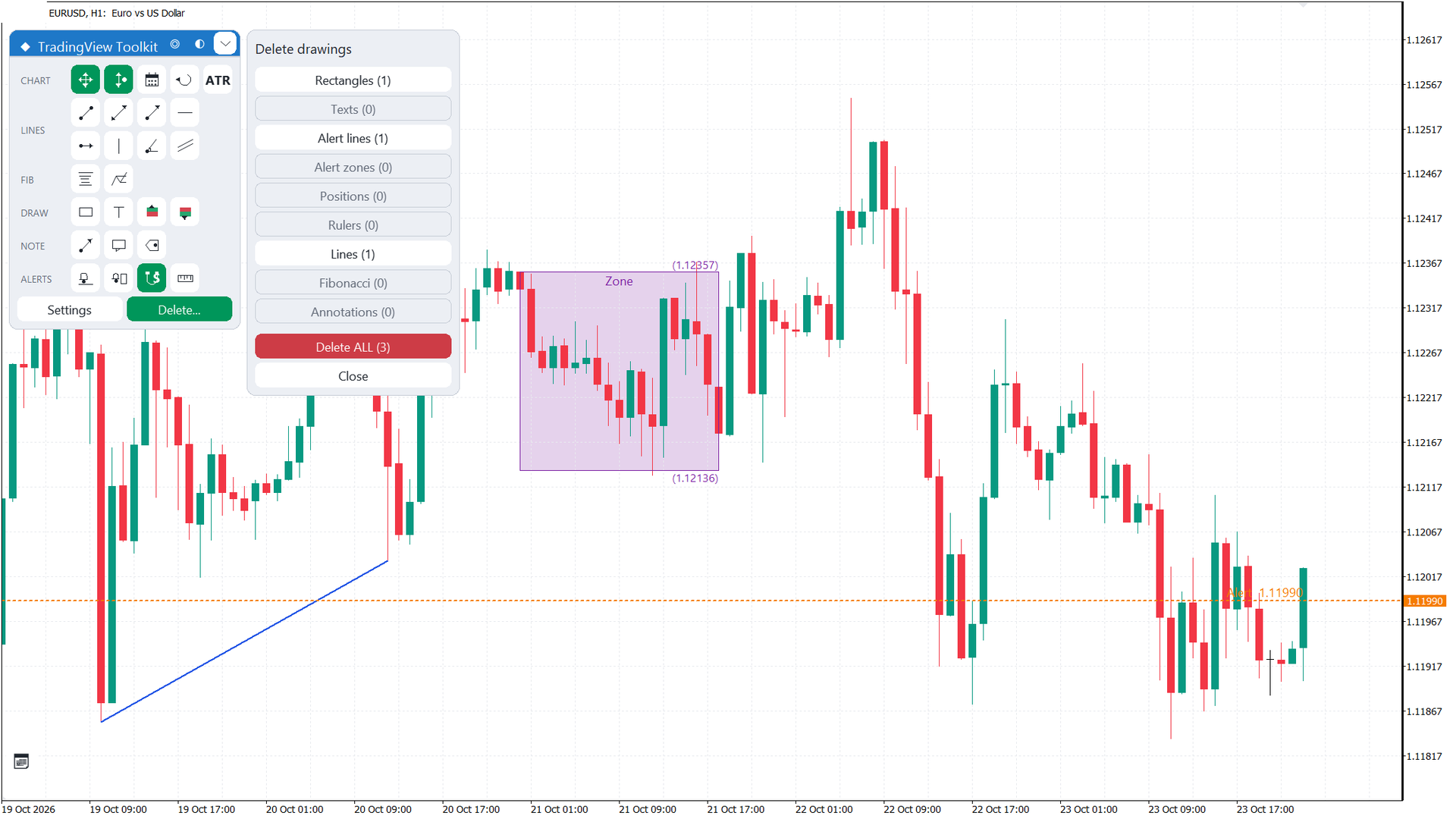
16.3 — Delete drawings popup. The Delete... button in the menu footer opens a popup with one row per family: Rectangles, Texts, Alert lines, Alert zones, Positions, Rulers, Lines, Fibonacci and Annotations. Each row shows the live count. The first click on a row shows "Click again to delete N"; the second click deletes that family. The Delete ALL button removes every drawing after a confirm. Each of these actions is one undo step (section 13).
The menu no longer has a small x on each group: mass deletes are only in the popup, with the confirm.
16.4 — When the indicator is removed. The input "When the indicator is removed" controls what happens to the drawings when you remove the indicator from the chart.
- Keep drawings (default): the drawings stay on the chart.
- Delete drawings: the drawings are deleted, but only on a real removal. A change of timeframe, a recompile or a change of parameters never deletes them.
17 — ATR TABLE
What this section is about. The ATR table shows the average daily range of the symbol, so you can see how far price usually moves in a day and how big a stop or target should be to match.
The table sits in the top-right corner of the chart. It shows:
- Daily ATR;
- the first percentage of ATR (input "First ATR percentage", default 2.0);
- the second percentage of ATR (input "Second ATR percentage", default 10.0).
Each value is given in ticks, in points and as the value per 1 lot. The ATR period is 14 daily bars (input "ATR period (daily bars)"). Turn the table on or off with the ATR table icon in the CHART group, or in the General tab; the setting is remembered per chart.
18 — INPUT PARAMETERS
What this section is about. The inputs set the starting values of the indicator. Most of them can also be changed later from the menu or from the settings panel.
| Group | Input | Default | Description |
|---|---|---|---|
| Chart movement | Free drag and wheel zoom | true | Enables free drag of the chart and wheel zoom. |
| Chart movement | Keep live price away from the chart edges | true | Enables Keep price in view at start. |
| Chart movement | Edge of the chart kept in view (%) | 20 | Outer margin of the chart where the live price triggers a shift. Range 5-40. |
| Tools | Default reward:risk for Long/Short | 2.0 | Target distance of new Long and Short positions, as a multiple of the stop distance. |
| Tools | Default text for the Text tool | Text | Text placed by the Text tool. |
| Drawing colours - light chart | Rectangle, Text, Ruler, Alert line/zone, Long/Short profit, loss, entry, Line tools, Fibonacci legs, Annotation | Auto (10 inputs) | The colour of each kind on a light chart. Auto uses the palette default. |
| Drawing colours - dark chart | The same ten kinds | Auto (10 inputs) | The colour of each kind on a dark chart. Auto uses the palette default. |
| Drawing colours - fill opacity | Rectangle fill (%) | 20 | Fill opacity of rectangles. |
| Drawing colours - fill opacity | Ruler fill (%) | 20 | Fill opacity of rulers. |
| Drawing colours - fill opacity | Alert zone fill (%) | 15 | Fill opacity of alert zones. |
| Drawing colours - fill opacity | Long/Short profit zone fill (%) | 20 | Fill opacity of the profit zone. |
| Drawing colours - fill opacity | Long/Short loss zone fill (%) | 20 | Fill opacity of the loss zone. |
| Drawing colours - fill opacity | Fibonacci band fill (%) | 12 | Fill opacity of the bands between Fibonacci levels. |
| Drawing colours - fill opacity | Parallel channel fill (%) | 10 | Fill opacity of parallel channels. |
| Alerts | Show popup | true | Shows a popup when an alert fires. |
| Alerts | Play sound | true | Plays a sound when an alert fires. |
| Alerts | Send push notification | false | Sends a push notification to the mobile app. |
| Menu | Menu start X | 10 | Starting horizontal position of the menu. |
| Menu | Menu start Y | 40 | Starting vertical position of the menu. |
| Menu | UI theme | Auto | Menu theme at start: Auto, Dark Slate, Light, Navy or Midnight. |
| Menu | UI size (%) | 100 | Size of the menu and panels. Range 80-200. |
| Menu | When the indicator is removed | Keep drawings | Keep drawings, or Delete drawings (only on real removal). See section 16. |
| ATR table | ATR table on at start | true | Shows the ATR table when the indicator starts. |
| ATR table | ATR period (daily bars) | 14 | Number of daily bars used for the ATR. |
| ATR table | First ATR percentage | 2.0 | First percentage of the daily ATR shown in the table. |
| ATR table | Second ATR percentage | 10.0 | Second percentage of the daily ATR shown in the table. |
19 — FAQ AND TROUBLESHOOTING
What this section is about. The most common questions, with the cause and the fix.
The chart does not move when I drag it. Check that Free drag is ON in the menu. Also, if you pressed on a drawing (an anchor, an edge, a Fibo level or a line), the press goes to the drawing and does not pan the chart. Press on an empty part of the chart to drag it.
The live price left the screen. Keep price in view turns itself OFF when you change the scale by hand (drag, wheel zoom or reset). Press Center in the title bar to centre the price and turn follow mode back on.
The menu covers too much of the chart. Press the Minimize / Expand button in the title bar to collapse the menu to its title bar, and press it again to expand it. The state is kept for each chart. You can also move the menu with its title, or lower the UI size % in the settings panel.
I pressed Ctrl+Z and nothing came back. Undo covers the last 10 delete steps, and only while MetaTrader stays open. The undo history is kept in memory, so it is lost when the terminal restarts. A drawing deleted before the restart cannot be restored with Ctrl+Z.
My drawings disappeared after I removed the indicator. The input "When the indicator is removed" is probably set to Delete drawings. With Keep drawings (the default), the drawings stay on the chart after removal.
My alerts do not reach my phone. Push notifications need the input Send push notification set to true, and the MetaQuotes ID entered in the MetaTrader terminal options. The popup and the sound work without it.
Nothing works in the Strategy Tester. Market demos run in the tester, where mouse events are not delivered. Use a live or demo account chart to draw, drag and manage the tools.
The menu is too small or too large. Change UI size % in the General tab of the settings panel, or the input "UI size (%)" (range 80-200). The indicator is DPI aware.
My colours changed when I changed the chart background. Drawings that use Auto colours are restyled when the background changes, and the palette is chosen by the background brightness. Set a fixed colour on the object or in the inputs to keep it.
My settings file is not applied at start. The saved file is applied at start only if the inputs have not been changed since the save. Use Load settings in the File tab to apply it after start.
20 — SUPPORT
What this section is about. How to get help with the indicator.
- Write a comment on the product page in the MQL5 Market.
- Or send a private message through MQL5 to the seller.
- Seller page: https://www.mql5.com/en/users/edl2/seller
When you report a problem, please include the MetaTrader build, the broker, the symbol and timeframe, and a short description of what you did before the problem appeared.