
Discipline Trader — Smart Trade Panel for MT5: Features and a Step-by-Step User Guide
10 October 2026, 03:50

2
36
![Discipline Trader — Smart Trade Panel for MT5]
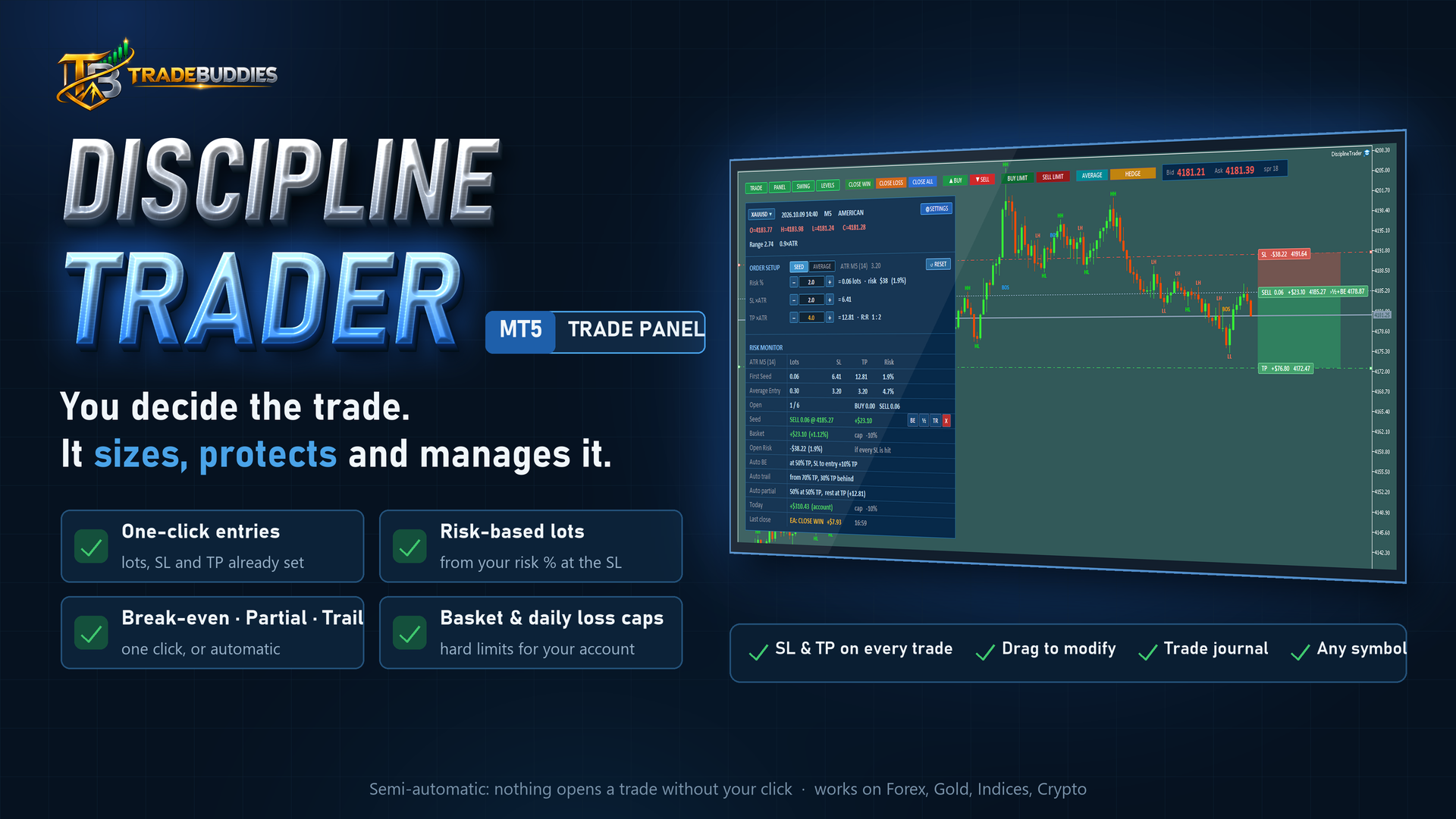
Most trading accounts are not lost on bad ideas. They are lost on a lot size typed in a hurry, a
stop loss that was going to be "added later", or one more trade after a red day.
**Discipline Trader** is a trade panel for MetaTrader 5 built to stop exactly that. You still
decide every trade — **nothing opens without your click** — but the moment you click, the panel
sizes the order from your risk %, places the stop loss and take profit, draws everything on your
chart and keeps watching your daily and basket loss limits.
This post has two parts:
- **Part 1 — What it does:** the main features, one picture each.
- **Part 2 — User guide:** set it up and trade with it, step by step.
The complete illustrated **User Manual (PDF)** is attached at the end.
---
# Part 1 — What Discipline Trader does
## 1. One click: lots, SL and TP done
![One click — lots, SL and TP done]
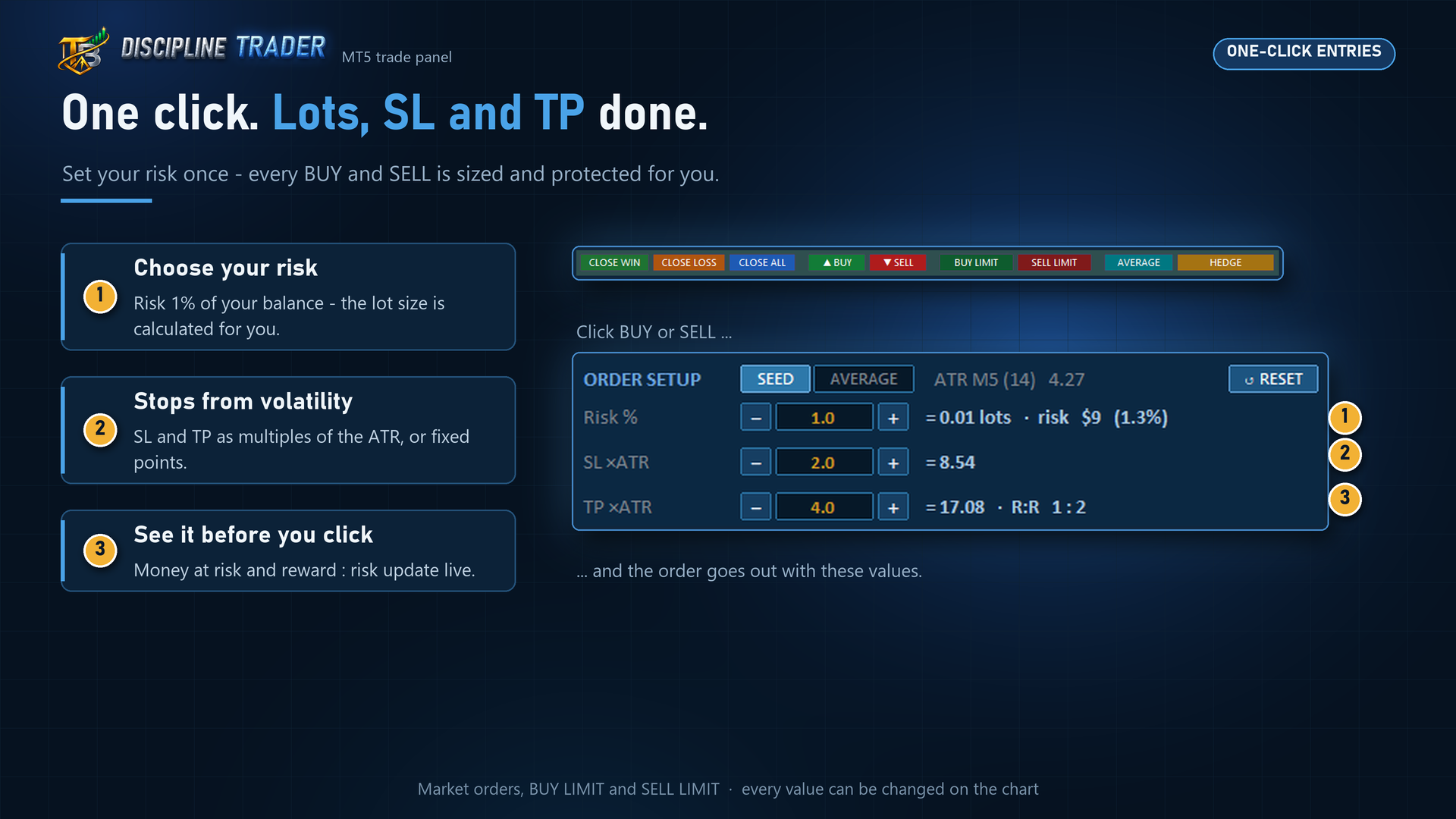
Set your risk once. Every BUY and SELL is then sized and protected automatically.
- **Risk-based lots** — choose a % of your balance (default 1 %); the panel calculates the lots
from the stop-loss distance. Prefer fixed lots? One switch.
- **Smart ATR stops** — SL and TP as multiples of the ATR, so they are wide on a busy day and
tight on a quiet one. Prefer fixed points? Also one switch.
- **See it before you click** — ORDER SETUP shows the lots, money at risk, distance and
reward : risk of your next trade, live.
- **BUY LIMIT / SELL LIMIT** — set a pending order up on the chart, drag it to your level, then
click **✔ PLACE**.
## 2. Your trades, on your chart
![Manage every trade on the chart]
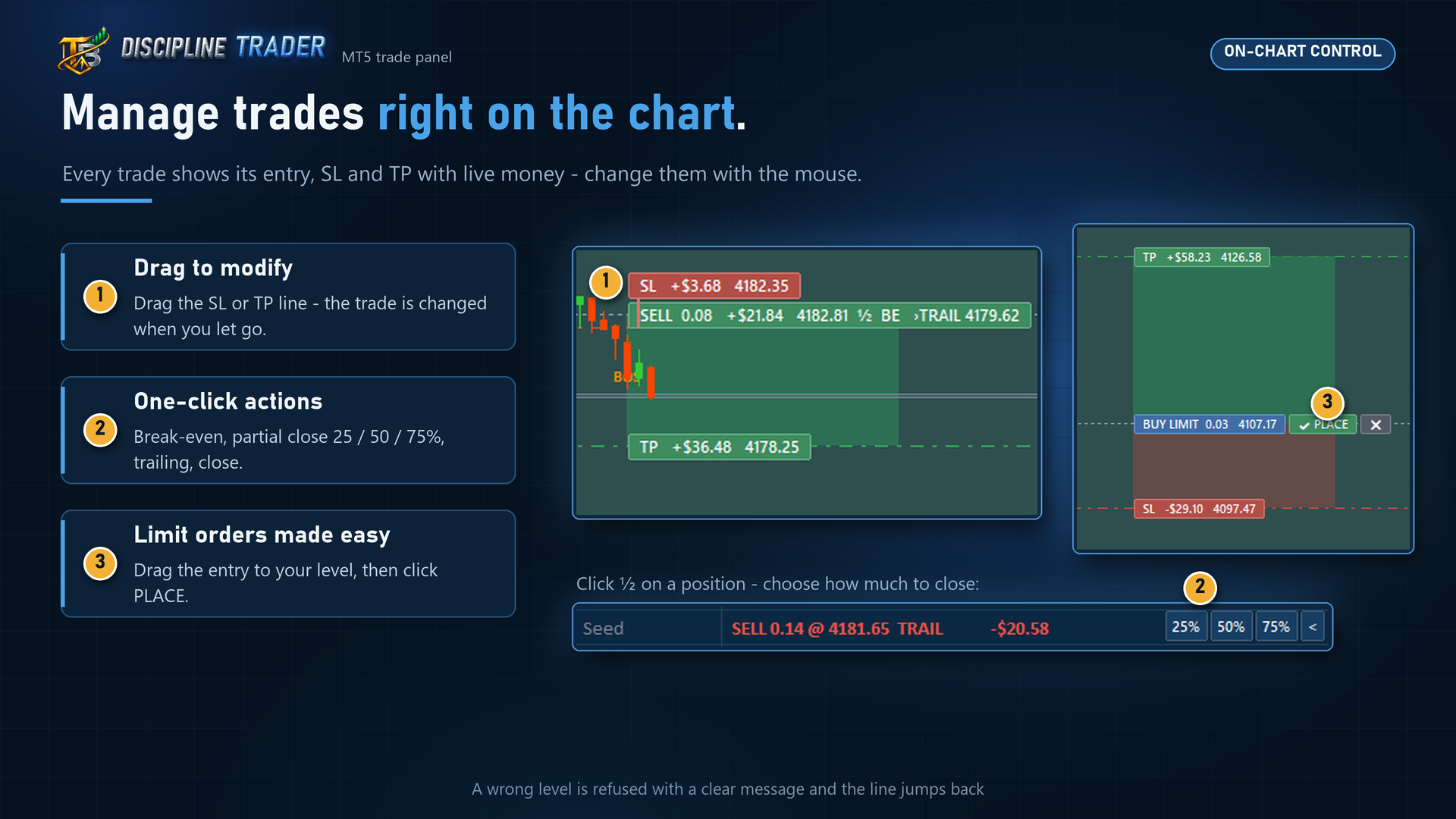
Every position and pending order is drawn with its entry, a red SL zone and a green TP zone.
Each line carries a tag with the money at that level.
- **Drag** an SL or TP line — the trade is modified when you let go.
- **Click a trade's tag** for one-click actions: **BE · PART (25 / 50 / 75 %) · TRAIL · CLOSE**.
- **CLOSE WIN · CLOSE LOSS · CLOSE ALL** close the whole group at once, not one by one.
## 3. Exits on autopilot — if you want
![Automatic break-even, trailing and partial close]
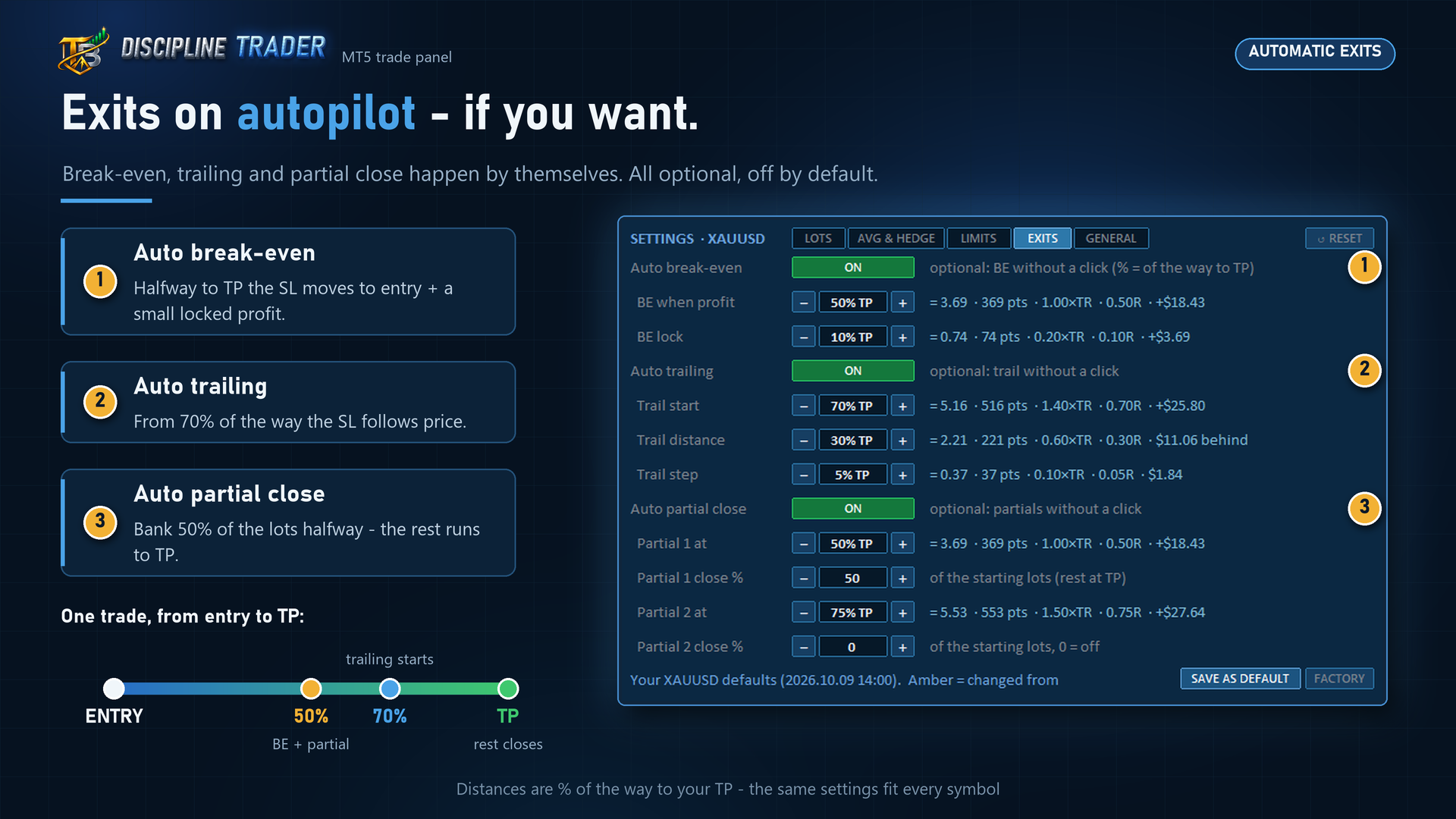
Switch on any of these and they run on every trade:
- **Auto break-even** — SL to entry plus a small locked profit.
- **Auto partial close** — bank part of the position at one or two levels.
- **Auto trailing** — the stop follows price in steps.
Every distance is a **% of the way to your take profit** (50 % = halfway to TP), so one set of
numbers works on gold, indices and forex alike. All automatic exits are **off** until you switch
them on.
## 4. Hard limits that protect your account
![Basket cap and daily cap]
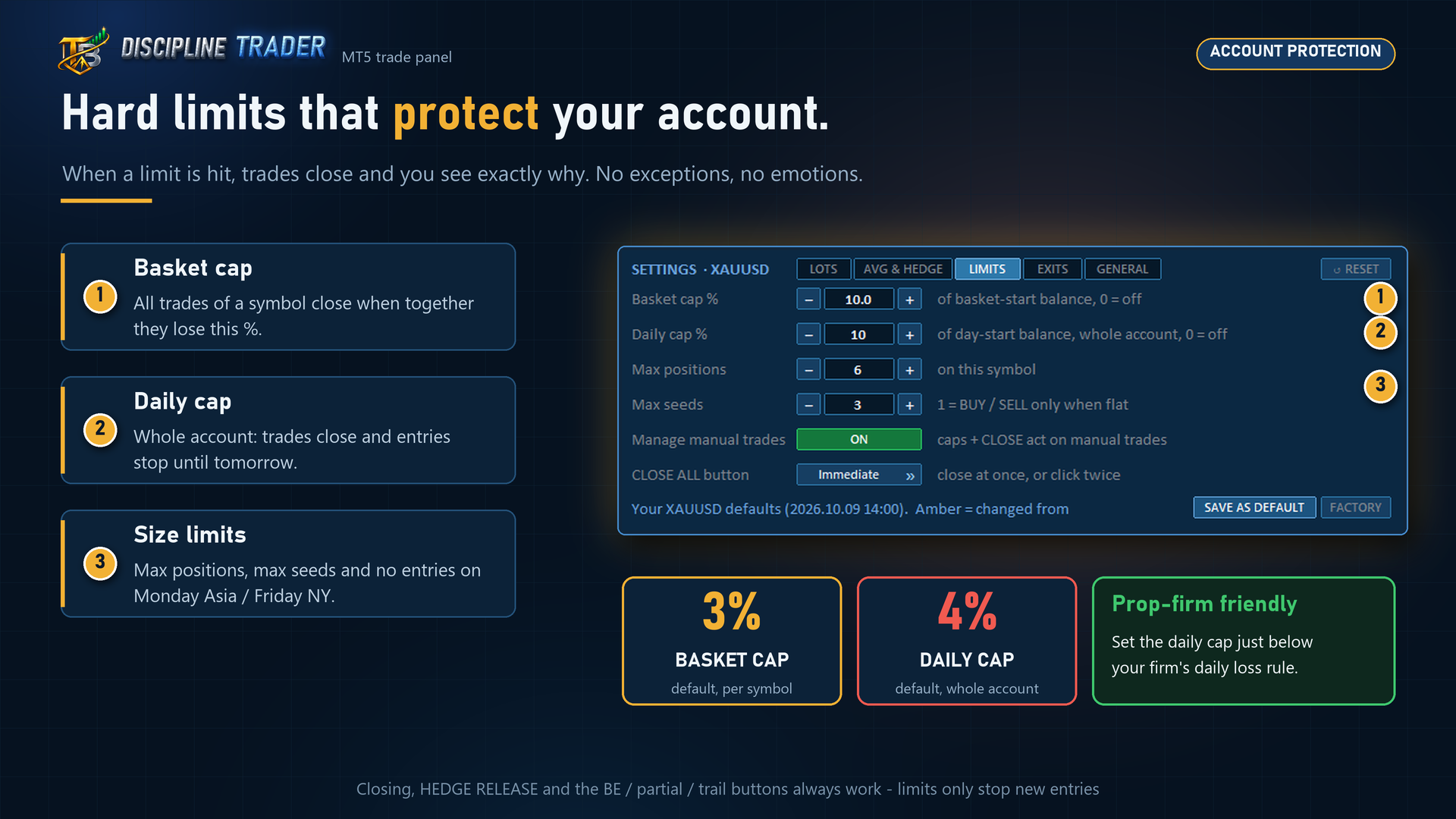
- **Daily cap (whole account)** — when the account is down your limit for the day (default 4 %),
every chart running the panel closes its trades and new entries stop until the next server
day. Prop-firm traders: set it a little below your firm's daily loss rule.
- **Basket cap (per symbol)** — all trades of one symbol close when together they lose your
limit (default 3 %).
- **Max positions, session blocks and hedge prevention** keep a position from growing out of
control.
The limits only stop **new** risk. Closing a trade and the BE / partial / trail buttons always
work.
## 5. The Risk Monitor
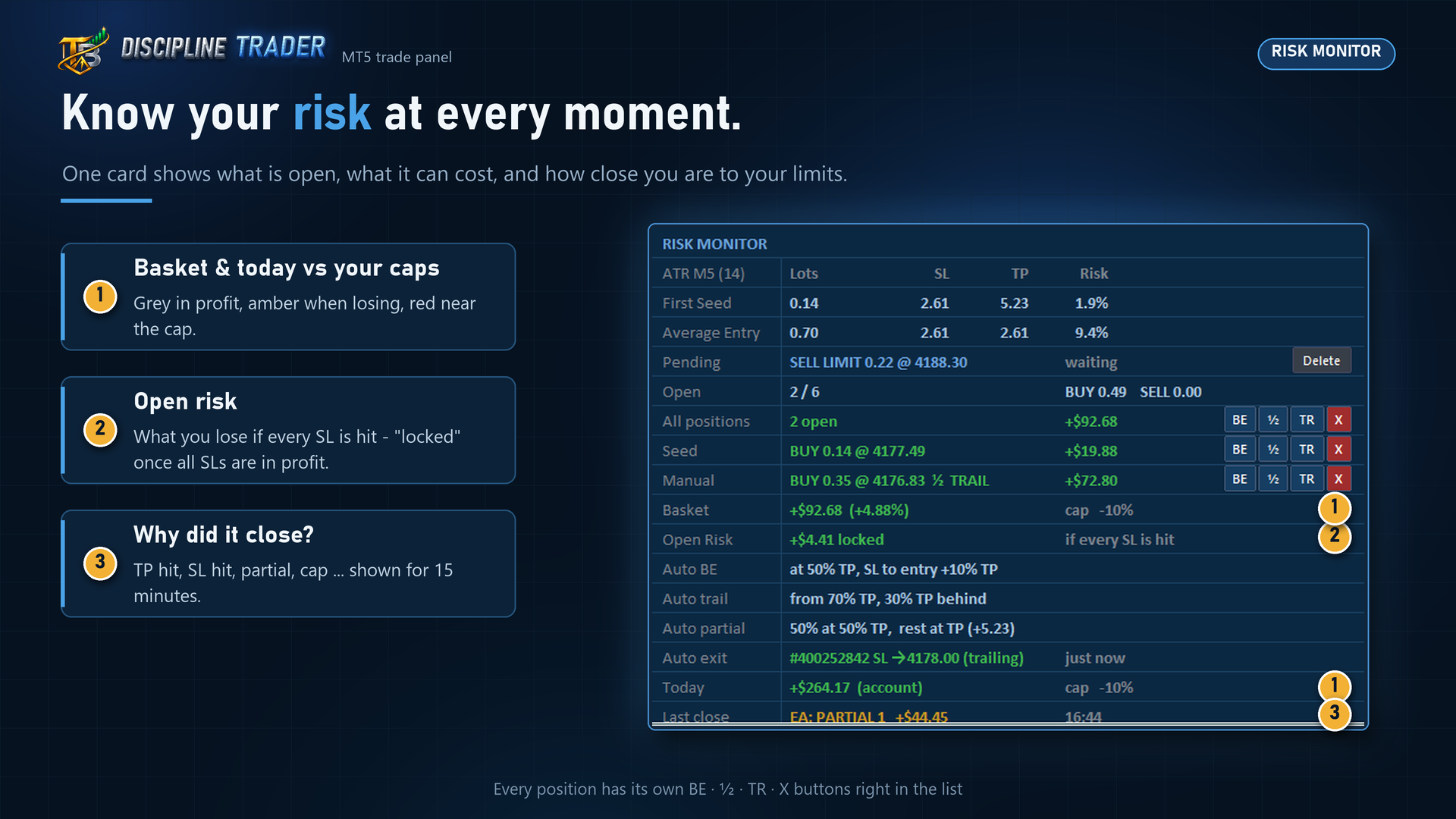
One card that answers "how exposed am I right now?":
- every open trade with its P/L and action buttons,
- **Open Risk** — what you lose if every stop is hit,
- **Today** — the whole account's P/L against your daily cap,
- **Last close** — why the last trade closed (TP, SL, partial, basket cap, daily cap…).
Cap notes turn amber while you are losing and red past 75 % of the limit.
## 6. One panel, every symbol
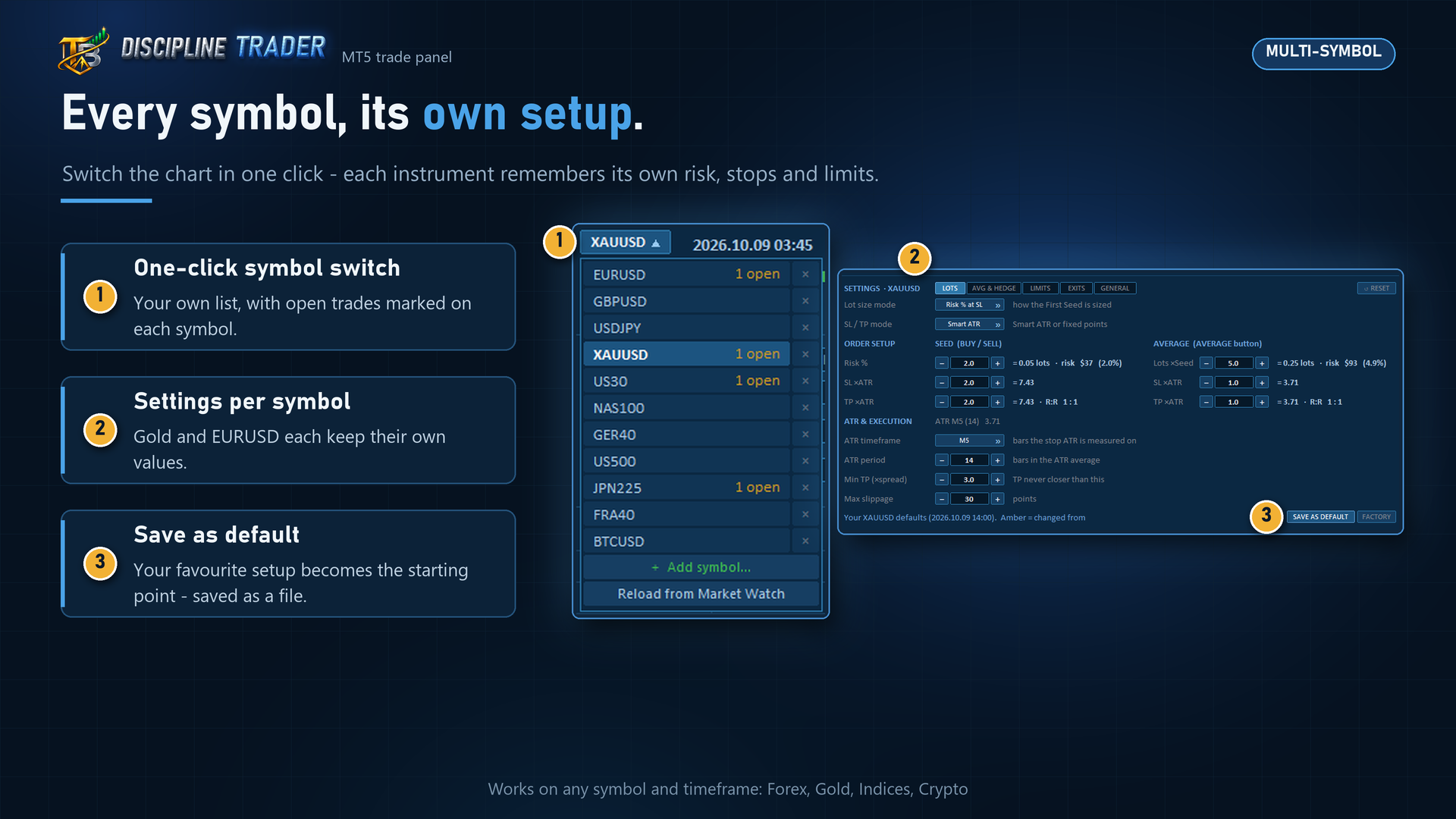
Switch the chart's instrument from the panel. Each symbol keeps its **own** settings — your
gold setup and your EURUSD setup never mix. Live Bid/Ask, candle info, the session and the
swing structure (HH / HL / LH / LL, BOS, CHoCH) are always on screen.
## 7. A journal of every decision
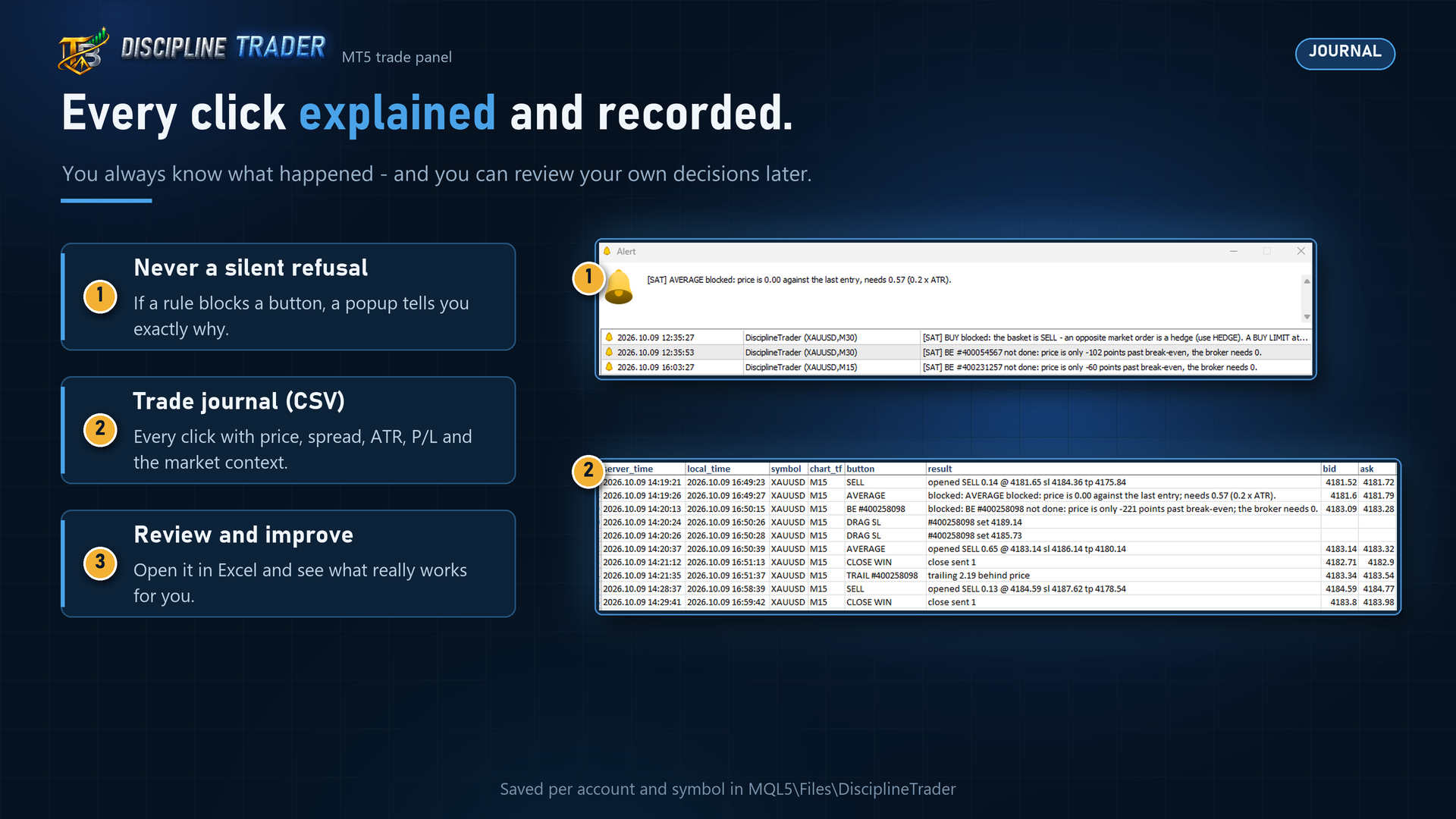
Every click is written to a CSV file with the market situation at that moment — prices, spread,
ATR, open positions, P/L, the day's range, swing structure and session — including refused
clicks and the reason. Open it in Excel and review how well you follow your own plan.
## 8. Basket tools — optional, with rules
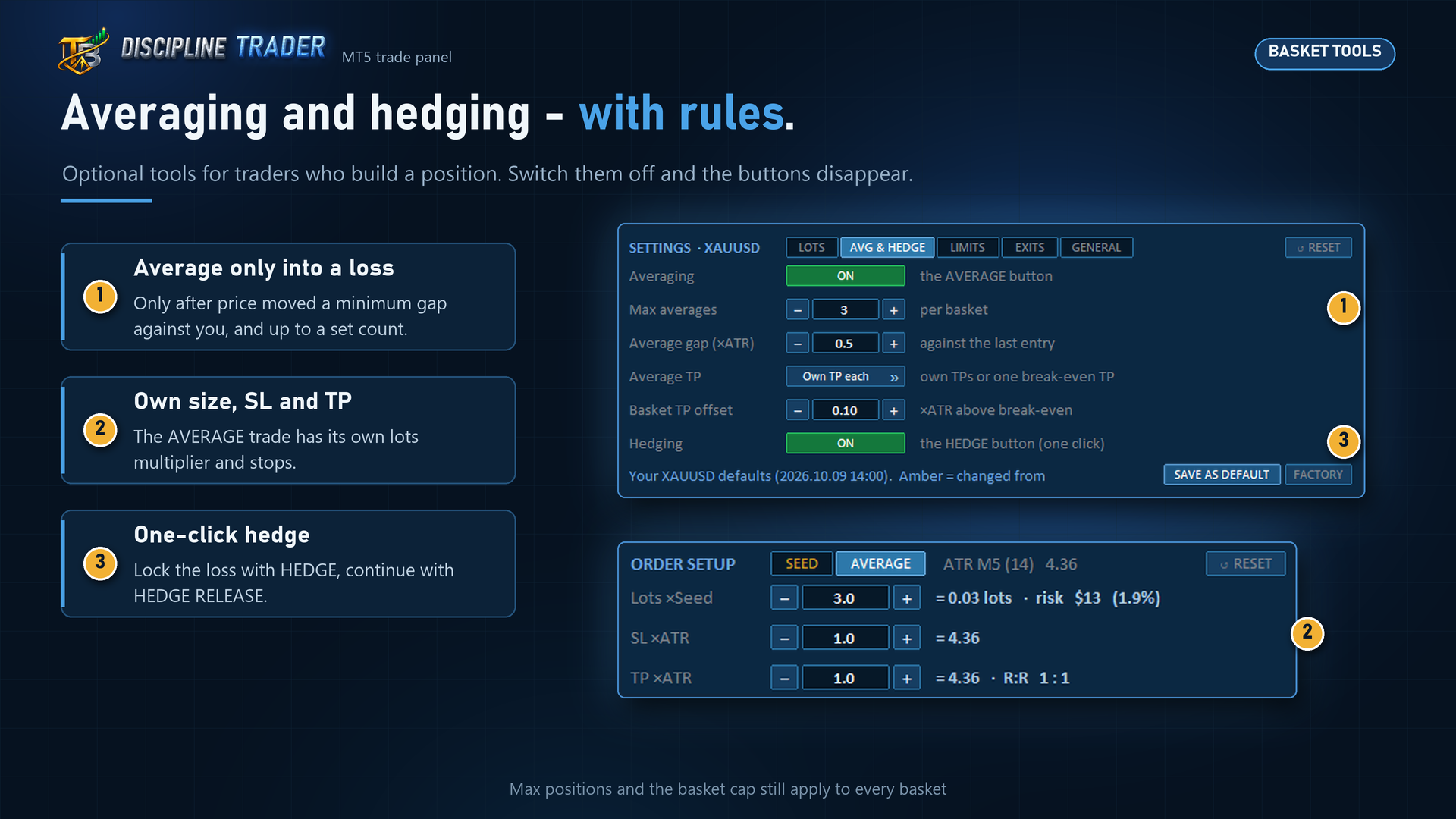
For traders who build a position: **AVERAGE** adds to a losing basket only after a minimum price
gap and up to a set count; **HEDGE** locks the loss and **HEDGE RELEASE** returns to the
original trades. Both are advanced tools — switch them off and the buttons disappear.
---
# Part 2 — User guide
## Step 1 — Install and start
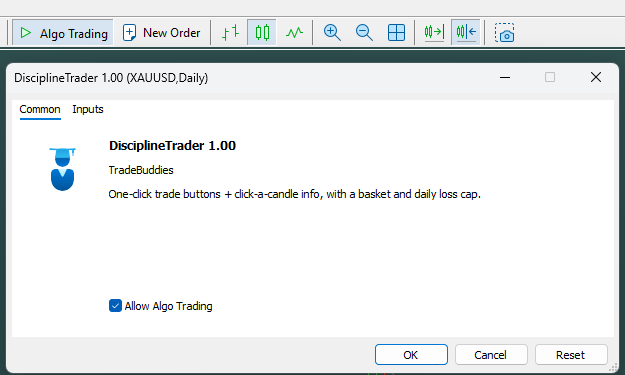
1. Open a chart of the instrument you want to trade (for example XAUUSD M5).
2. Drag **Discipline Trader** from the Navigator (Expert Advisors) onto the chart.
3. In the **Common** tab tick **Allow Algo Trading**, and make sure the **Algo Trading** button
in the toolbar is on.
4. In the **Inputs** tab check **Risk %** and **Daily cap %**, then click OK.
> **Clicks do nothing?** Algo Trading is switched off — MetaTrader refuses every order without
> it.
Use one chart per instrument; each chart keeps its own settings.
## Step 2 — Know the screen
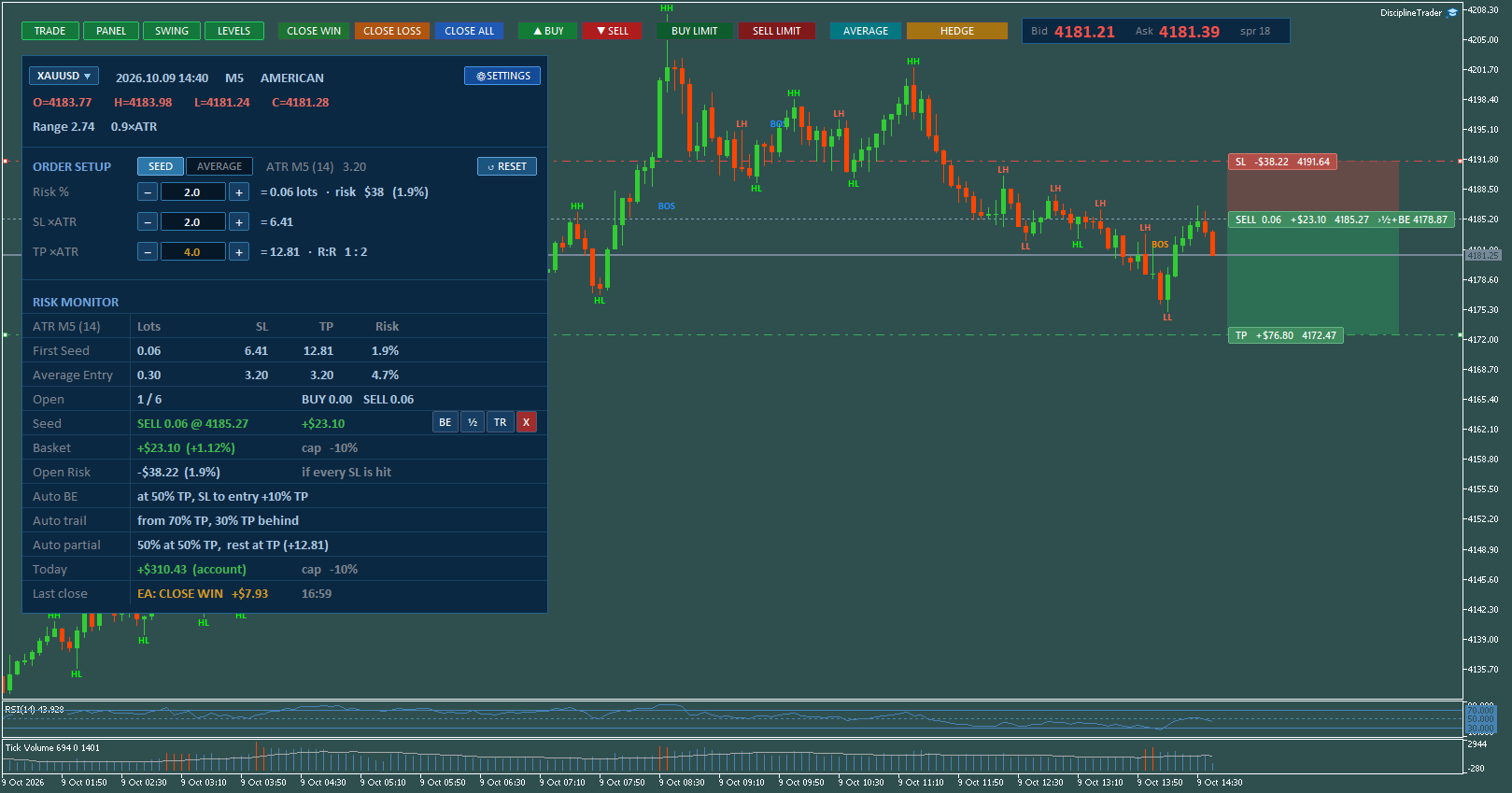
Everything sits in the top-left corner:
| Part | What it is |
| -------------- | ------------------------------------------------------------------------------ |
| Toggle buttons | TRADE, PANEL, SWING, LEVELS — show or hide parts of the tool |
| Trade buttons | CLOSE WIN / LOSS / ALL · BUY · SELL · BUY LIMIT · SELL LIMIT · AVERAGE · HEDGE |
| Bid / Ask | Live prices and the spread |
| Header | Symbol switcher, time, session, candle O/H/L/C and the ⚙ SETTINGS button |
| ORDER SETUP | Size, SL and TP of your next trade |
| RISK MONITOR | Open trades, P/L, risk and limits |
| On the chart | Entry / SL / TP lines with money tags, swing labels |
**Tip:** click any candle and the header shows its values for 3 seconds. Rest the mouse on a
button for a one-line explanation.
## Step 3 — Set up your next trade
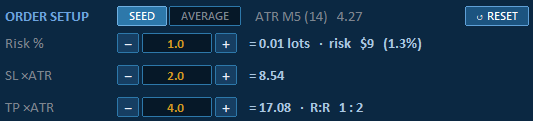
ORDER SETUP has three rows:
| Row | Meaning |
| ------------ | ---------------------------------------------------------------------------- |
| **Risk %** | How much of your balance you lose if the SL is hit. The lots follow from it. |
| **SL × ATR** | Stop distance as a multiple of the ATR (the average candle size). |
| **TP × ATR** | Target distance as a multiple of the ATR. The reward : risk is shown. |
Click **−** / **+** or type a value. A changed value turns amber; **↺ RESET** goes back to your
defaults. On a small account, if the broker's minimum lot means more risk than you asked for,
the row turns amber and shows the real %.
## Step 4 — Place a trade
**Market order:** click **▲ BUY** or **▼ SELL**. The trade opens at once with the ORDER SETUP
lots, SL and TP.
**Limit order:**
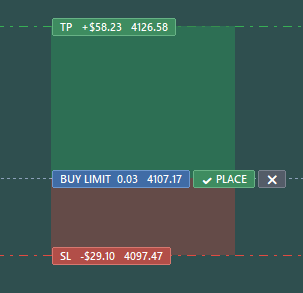
1. Click **BUY LIMIT** or **SELL LIMIT** — the order appears on the chart with its SL and TP.
2. Drag the entry line to your price (SL and TP move with it), or drag SL / TP on their own.
3. Click **✔ PLACE** to send it, or **✖** to cancel. An invalid set-up turns amber and tells you
why.
## Step 5 — Manage the open trade
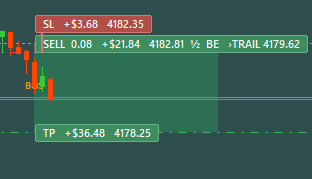
- **Drag** the SL or TP line to change it.
- **Click the entry tag** — or use the row in RISK MONITOR — for the actions:

| Button | What it does |
| ------ | ---------------------------------------------------------- |
| **BE** | SL to break-even (entry + a small locked profit) |
| **½** | Partial close: 25 %, 50 % or 75 % |
| **TR** | Trailing on / off — the SL follows at its current distance |
| **X** | Close the trade |
Marks on the tag show the state: **½** partly closed, **BE** at break-even, **TRAIL** being
trailed, and **›** the next automatic step with its price.
## Step 6 — Set your limits and automatic exits
Click **⚙ SETTINGS** (top-right of the panel). Five tabs:
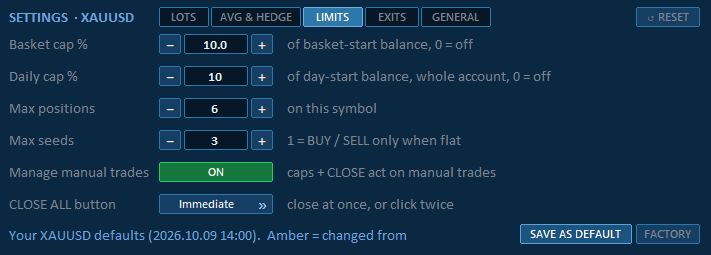
- **LIMITS** — Basket cap %, Daily cap %, Max positions, Max seeds, Manage manual trades,
CLOSE ALL safety (click twice).
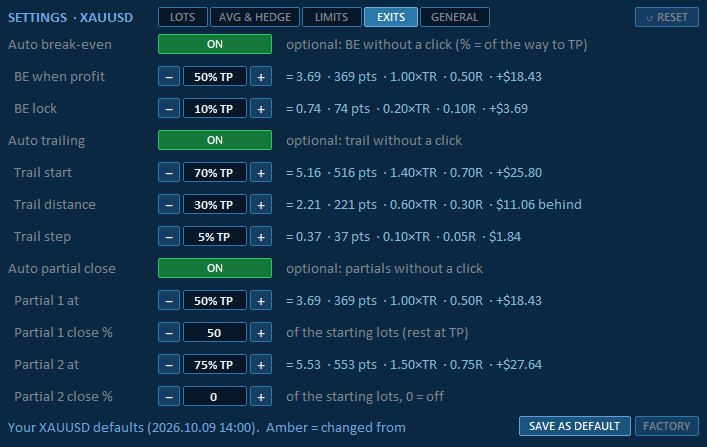
- **EXITS** — Auto break-even, Auto trailing and Auto partial close. Each row shows what the
setting means right now in price, points and money. These are shared by every chart of your
account — set them once.
- **LOTS** — lot mode, SL/TP mode, ATR timeframe and period.
- **AVG & HEDGE** — switch averaging and hedging on or off.
- **GENERAL** — Monday / Friday session blocks, journal, button tips.
Happy with a symbol's setup? Click **SAVE AS DEFAULT** — RESET then returns to your values.
## Step 7 — When a click is refused

If a rule blocks a button, **nothing is sent** and a popup says exactly why — daily cap hit,
session block, max positions, market closed… The same message is in the Experts tab.
## Step 8 — Review your day

- **RISK MONITOR → Today** shows the whole account's P/L against your daily cap.
- **Last close** tells you why the last trade closed.
- The **journal** (`MQL5\Files\DisciplineTrader\`, File › Open Data Folder) holds every click
with its market context — open it in Excel at the end of the week.
---
## Quick answers
**A button does nothing.** Turn on Algo Trading in the toolbar.
**BUY / SELL is blocked while I have a trade open.** *Max seeds* is 1 — raise it in Settings ›
LIMITS, or use AVERAGE.
**The opposite market order is blocked.** By design: it would be a hedge. Use HEDGE, or a limit
order at your level.
**Partial close is refused.** The trade is too small to split (half of 0.01 lots is below the
broker minimum). Use X.
**I can't trade for the rest of the day.** The daily cap was hit; trading resumes on the next
server day.
**Settings differ on another chart.** Intended — each symbol keeps its own settings. The daily
cap and the EXITS are shared by the whole account.
---
## Get Discipline Trader
📄 **Full User Manual (PDF):** attached below — every button, setting and message explained.
*Trading leveraged products involves substantial risk. Discipline Trader is an execution and
risk-management tool; it does not guarantee profits. Test it on a demo account before using it
on a live account.*
Files:



![[iVISTscalp5]: XAUUSD. Forecast First. Market Reaction Afterwards](https://c.mql5.com/6/1035/splash-preview-777232.png "[iVISTscalp5]: XAUUSD. Forecast First. Market Reaction Afterwards")