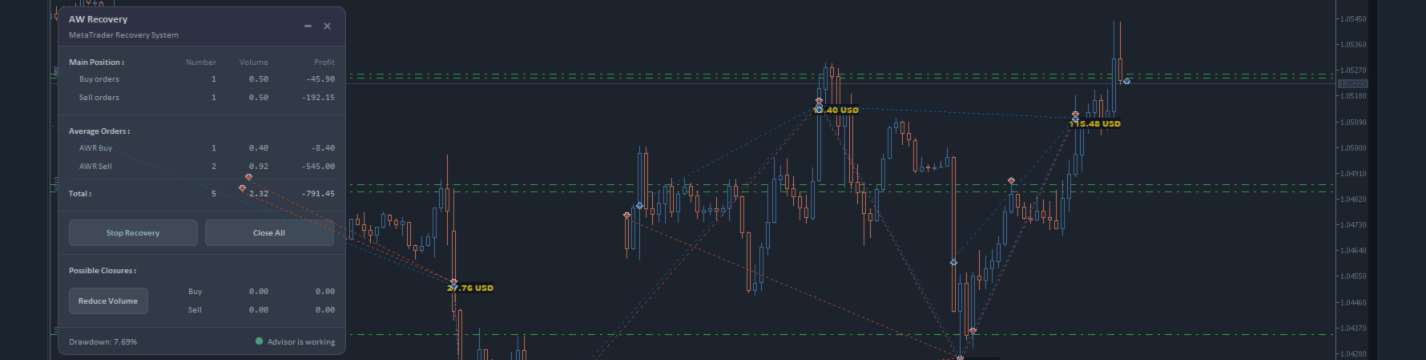

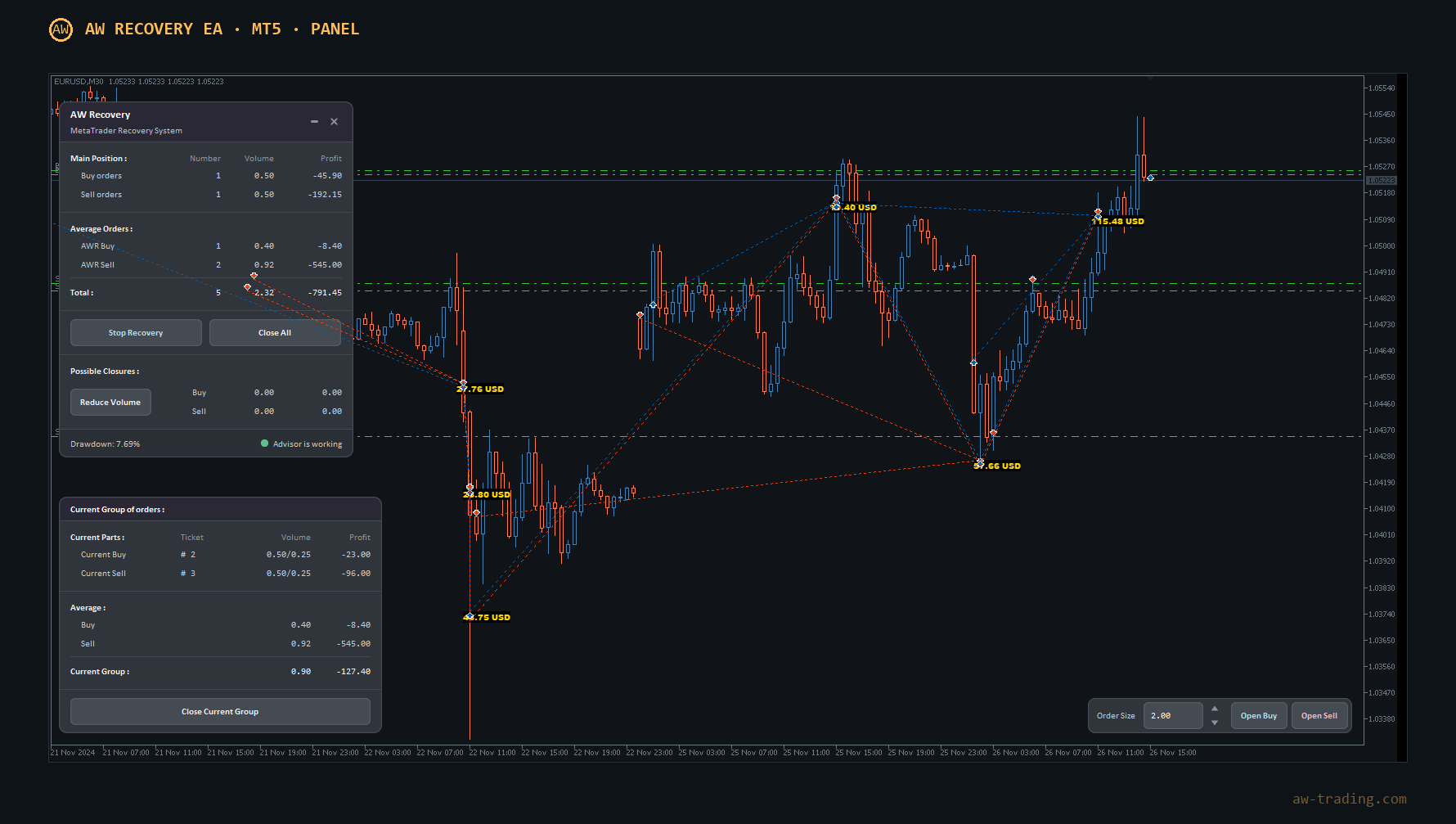
AW Recovery EA shows a panel on the chart. The panel shows how much of the losing position is left, which orders the EA has opened and what it will close next. The panel also has buttons for manual control. The article explains what each number and each button means, and when it is better not to touch a button.
Note! Other articles about the EA:
How to set up the EA, ready set files for EURUSD, XAUUSD and BTCUSD: HERE
All inputs with descriptions: HERE
The article has the following sections:
- Three words needed to understand the panel
- What to press and what not to press
- How to choose the panel style
- Main panel
- Possible Closures block and the Reduce Volume button
- Current group panel
- Order bar
- Panel color: what the EA is doing now
- Collapsed panel
- Simple panel
- Panel in the tester
1. Three words needed to understand the panel
- Lock - the EA opens an opposite order so that the Buy and Sell volumes become equal. After that, the loss stops growing, wherever the price goes.
- Averaging order - an order that the EA opens itself. Its profit goes to closing the loss.
- Part - a piece of a losing order that the EA closes at one time. For example, 0.03 lots from a 0.50 order.
2. What to press and what not to press
| Button | When to press |
|---|---|
| Collapse panel | at any time, the EA keeps working |
| Stop Recovery | at any time, this is a pause; press it again - the work continues |
| Close Current Group | only if the number in the Current Group row is positive |
| Reduce Volume | if in doubt, do not press: the EA uses this profit itself too |
| Close All | only if everything has to be closed at once; the whole current loss becomes final |
| Cross in the header | do not press while there are open orders: after confirmation in the "Remove AW Recovery EA from the chart?" window, the EA is removed from the chart, and the orders are left unattended |
| Open Buy / Open Sell | in the tester - to open a losing position; on a real account - only if "Open Average orders via Panel" = On |
3. How to choose the panel style
The EA has two panels: the new panel and the simple panel. They have the same data and buttons, only the look is different.
Action 1 - Open the EA settings: double-click its icon in the upper right corner of the chart, the Inputs tab.
Action 2 - In the GRAPHICS SETTINGS section, select "Panel style":
- "Canvas panel (rasterized)" - the new panel, sharp on any monitor. The size is changed in "Panel size (Canvas panel)" and "Font size (Canvas panel)".
- "Simple panel (standard chart objects)" - the old look made of standard terminal buttons. Suitable for a weak VPS.
- "Do not show Advisor Panel" - no panel. The EA works the same way, but there are no buttons.
Action 3 - In "Color Cheme for Panels", select the dark or light scheme to match the chart color.
The panel has three parts: the main panel, the current group panel and the order bar. All three collapse with one button.
4. Main panel
The main panel shows the whole position: the losing orders, the EA orders and the total result.
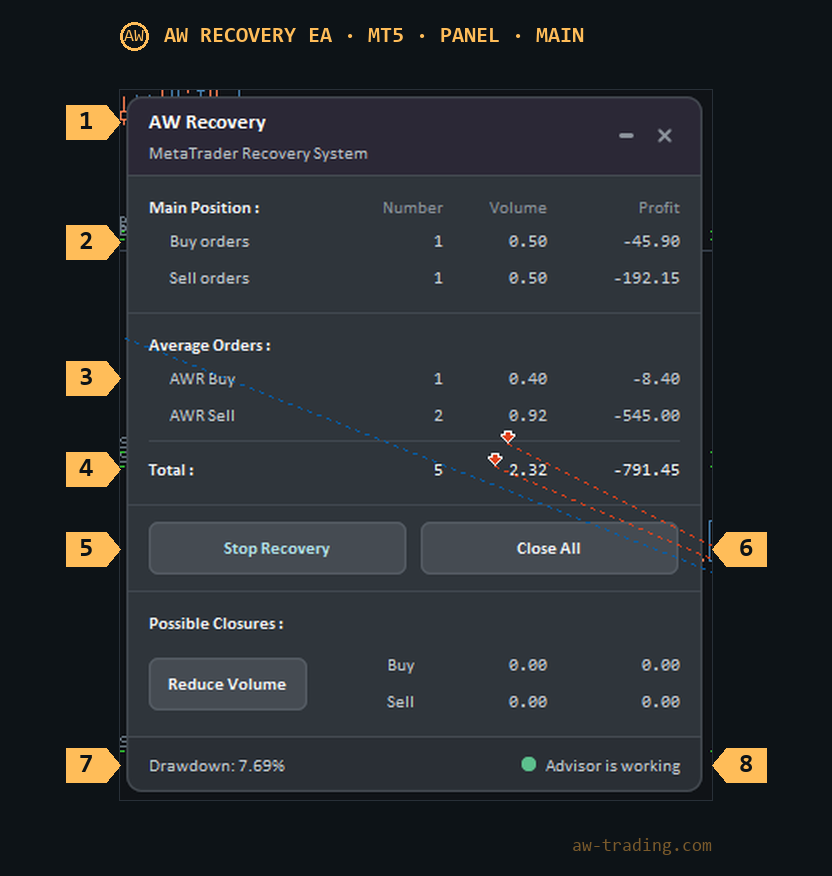
| No. | What is on the panel | What it means |
|---|---|---|
| 1 | Header | The EA name. On the right there are two buttons: collapse the panel, and a cross - remove the EA from the chart. |
| 2 | Main Position | The losing position that the EA recovers: how many Buy and Sell orders (Number), their volume (Volume) and result (Profit). The lock is included here too - the EA also closes it in parts. |
| 3 | Average Orders | The averaging orders of the EA: AWR Buy and AWR Sell. |
| 4 | Total | Everything together: how many orders, what volume and the total result. |
| 5 | Stop Recovery | Pause. The EA does not open or close anything - except closing the whole basket if "Use TP for total busket if possible" is on. To continue, press the same button, now it is called Start Recovery. After a terminal restart, the pause is removed by itself. |
| 6 | Close All | Close everything: the position, the lock and the averaging orders. It cannot be undone. On a real account, the terminal asks for confirmation first if "Confirmation window for "Close All" button" = On. |
| 7 | Drawdown | Bottom left - the current drawdown in percent of the balance. If the total is positive, "Grown" is shown instead. If there are no orders - "No orders to recover". |
| 8 | Status | Bottom right - what the EA is doing now. Details are in section 8. |
Why does the total barely change while the price moves? The position is in a lock: what Buy loses, Sell gains. The total changes when the EA closes the next part.
5. Possible Closures block and the Reduce Volume button
The block appears if "Show Possible Closures panel" = On in the settings. It shows how much of the loss can be closed right now with the profit already collected.
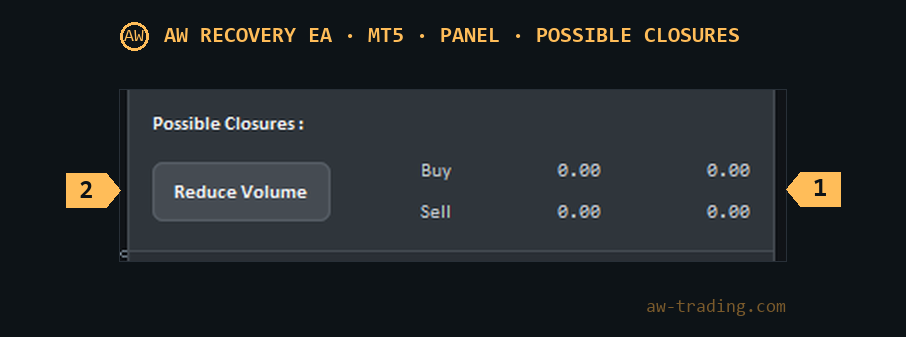
1 - the Buy and Sell rows, 2 - the Reduce Volume button.
- Buy and Sell rows - what volume and what result will be closed on each side.
- Reduce Volume - close it now. The button closes the profitable orders and uses their profit to close a part of the losing ones, so the position becomes smaller.
Press - when the Buy and Sell volumes (Volume) in the block are almost equal.
Do not press - when the difference is large: the EA will open a new order for this difference, and the rest will be harder to close.
If in doubt, do not press the button. The EA uses this profit itself too.
6. Current group panel
The current group is what the EA will close next.
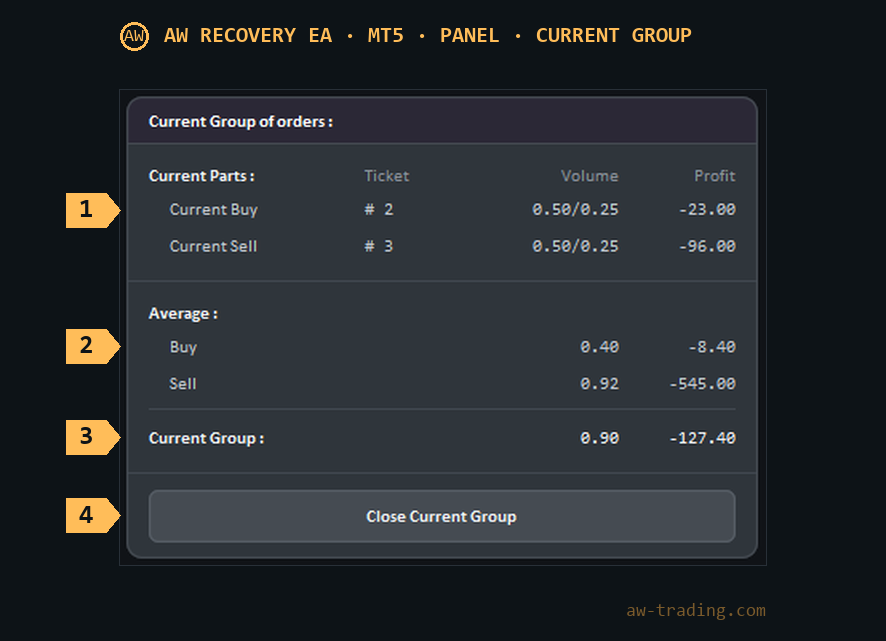
| No. | What is on the panel | What it means |
|---|---|---|
| 1 | Current Parts | The parts that will be closed next: one from Buy, one from Sell. Ticket - the order number. Volume, for example "0.50/0.03": the order is 0.50 lots, 0.03 of it will be closed. Profit - the result of this part. |
| 2 | Average | The Buy and Sell averaging orders: volume and result. |
| 3 | Current Group | The group total: two parts plus the averaging orders of one side - the side with more profit. |
| 4 | Close Current Group | Close the group manually, without waiting for the EA. Press it only when Current Group is positive: if it is negative, the loss comes off the balance. |
Why did the EA close the group while Current Group was negative? This is the overlap at work: the EA closed the first and the last averaging order together with the two parts. The panel does not show this kind of closing, so at this moment Current Group can be negative.
7. Order bar
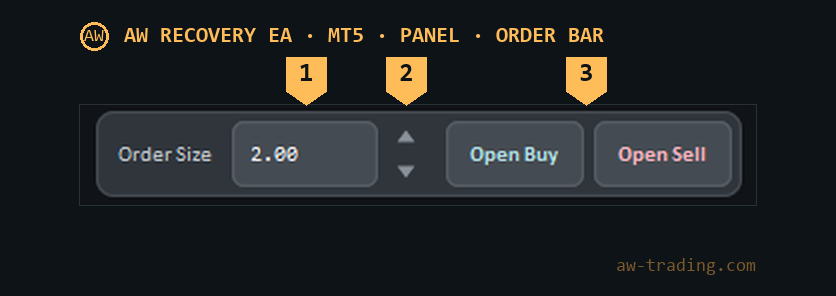
1 - the Order Size field, 2 - the arrows, 3 - the Open Buy and Open Sell buttons.
- Order Size - the order volume in lots. The number can be typed in.
- Arrows - make the volume one lot step (usually 0.01) larger or smaller.
- Open Buy / Open Sell - open an order with this volume.
The type of the order is set by the "Open Average orders via Panel" input:
- Off - the order is added to the losing position. This is how a position similar to the trader's own is opened in the tester.
- On - the order becomes an averaging order: the EA manages it as its own.
On a real account with Off, do not press Open Buy / Open Sell. A new order will increase the losing position.
8. Panel color: what the EA is doing now
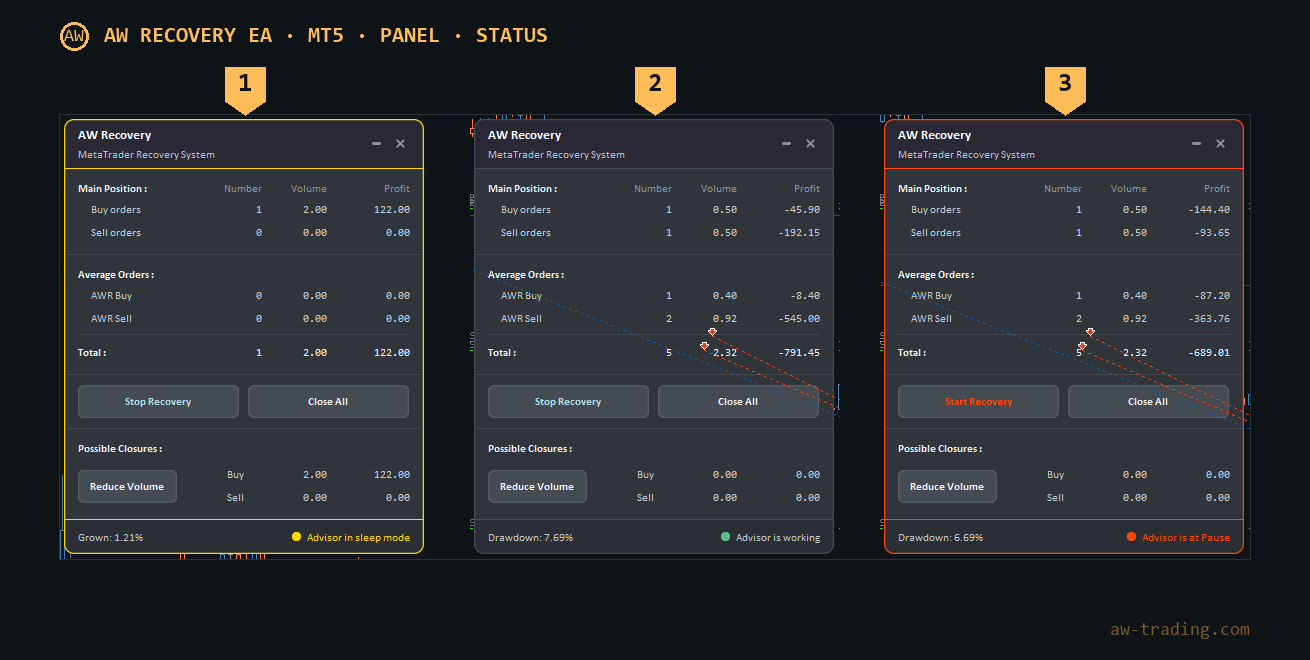
1 - Advisor in sleep mode (waiting), 2 - Advisor is working, 3 - Advisor is at Pause.
| Text at the bottom | Color | What it means and what to do |
|---|---|---|
| Advisor is working | green dot | the EA is recovering the position, nothing needs to be done |
| Advisor in sleep mode | yellow frame and dot (orange in the light scheme) | the EA waits until the drawdown reaches the set percent, or there are no orders to recover |
| Advisor is at Pause | red frame and dot | Stop Recovery is pressed; to continue, press Start Recovery |
| Trades are not allowed | red frame and dot | trading is not allowed: turn on the "Algo Trading" button on the top toolbar of the terminal and the "Allow Algo Trading" checkbox in the EA properties |
9. Collapsed panel
The collapse button in the header hides all three parts of the panel. A narrow bar stays on the chart: the name, the restore button and a dot of the same color as in section 8. The EA keeps working as usual during this time.
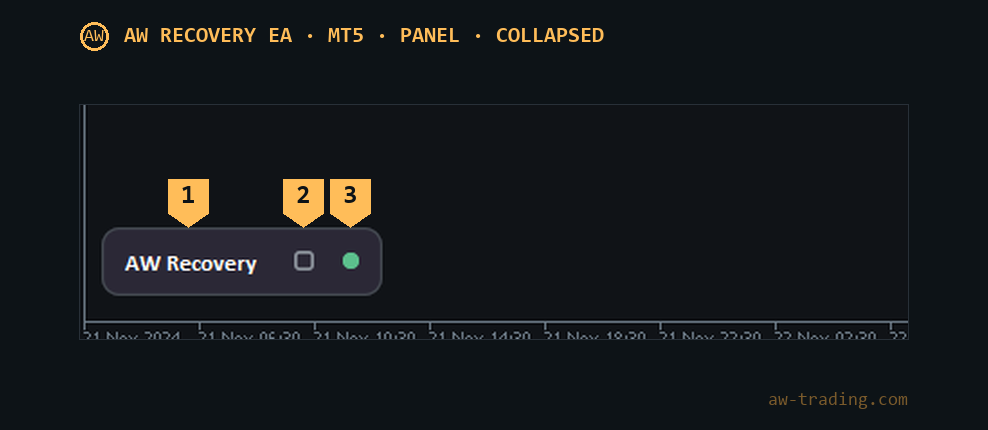
1 - the name, 2 - the restore button, 3 - the status dot.
10. Simple panel
The simple panel is made of standard terminal buttons and labels. The blocks, numbers and buttons are the same as in the new panel, the numbering matches sections 4-7. There are two differences: there is no cross to remove the EA, and the status is shown by a colored square in the header.
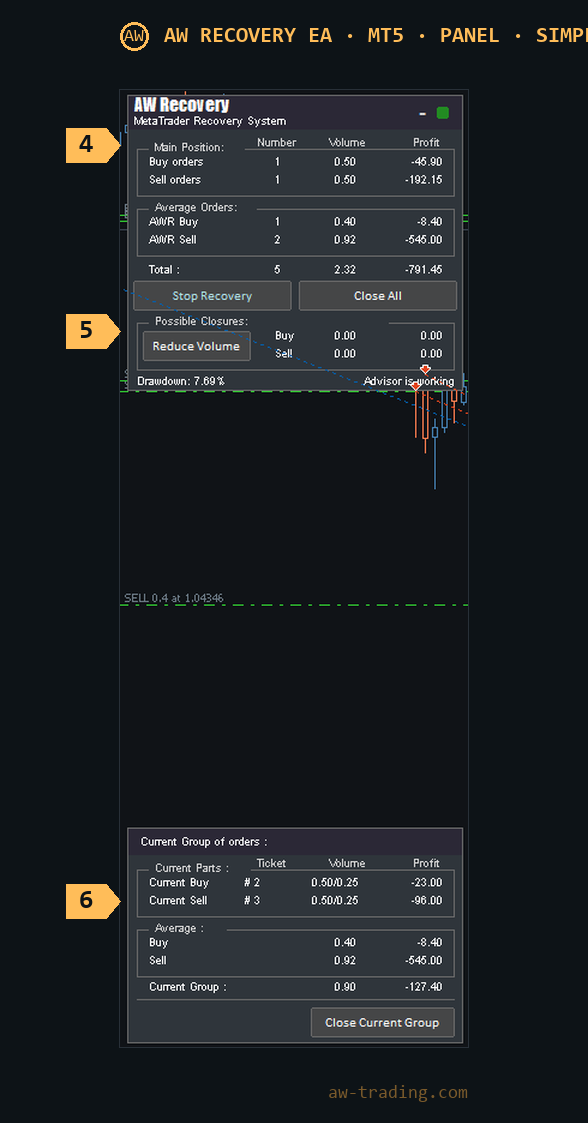
4 - the main panel, 5 - the Possible Closures block, 6 - the current group panel. The order bar is at the bottom right, as in the new panel.
11. Panel in the tester
In the tester, all buttons work right during the test if "Visual mode" is on. This way the trader's own situation can be checked:
Action 1 - In the EA settings: "Type of Launch" = "Start at drawdown in percents", "Drawdown in percentage or in money to Launch" = 10, "Open Average orders via Panel" = Off.
Action 2 - Start the test in visual mode. Type the volume of the real position into the Order Size field, press Open Buy or Open Sell. The panel turns yellow: the EA waits for the drawdown.
Action 3 - Wait. When the drawdown reaches 10 %, the EA places a lock and starts the recovery, the dot turns green.
In the tester, Close All closes without asking, and the cross in the header does not remove the EA. More about testing is in the main article: HERE.
Buy AW Recovery EA:
MT5 version
👉 https://www.mql5.com/en/market/product/49692
MT4 version
👉 https://www.mql5.com/en/market/product/49453

AW Trading Software