
# UTrade Risk Guard for MetaTrader 5 — Complete Setup and Feature Guide
This guide applies to UTrade Risk Guard v2.2.18.
Trading discipline is often described as something a trader must control through willpower alone. After five years of live trading, I came to a different conclusion.
Monitoring daily limits, counting entries, checking risk, remembering cooldowns and stopping after a series of losses consumes attention that should be used for trading decisions. UTrade Risk Guard was created to automate this part of the process.
It does not open trades, generate signals or choose market direction. It monitors the trading account, applies the limits selected by the user and reacts when a controlled rule is violated.
This guide explains how every main rule works and how to configure the utility safely.
## 1. How UTrade Risk Guard works
UTrade Risk Guard is attached to one MetaTrader 5 chart but monitors controlled trading activity across the account.
Depending on the selected monitoring scope, it can control:
• trades opened manually;
• trades opened by Expert Advisors;
• the entire account;
• or trades associated with a selected Magic Number.
A Magic Number is a technical identifier used by MetaTrader 5 to associate trades with a particular Expert Advisor or strategy.
The utility operates reactively. MetaTrader first processes a trading transaction and then informs the program about it. Therefore, when an entry violates a rule, the position may appear briefly before UTrade Risk Guard sends a closing request.
It is not a broker-side firewall and does not replace a broker-side Stop Loss.
## 2. First launch
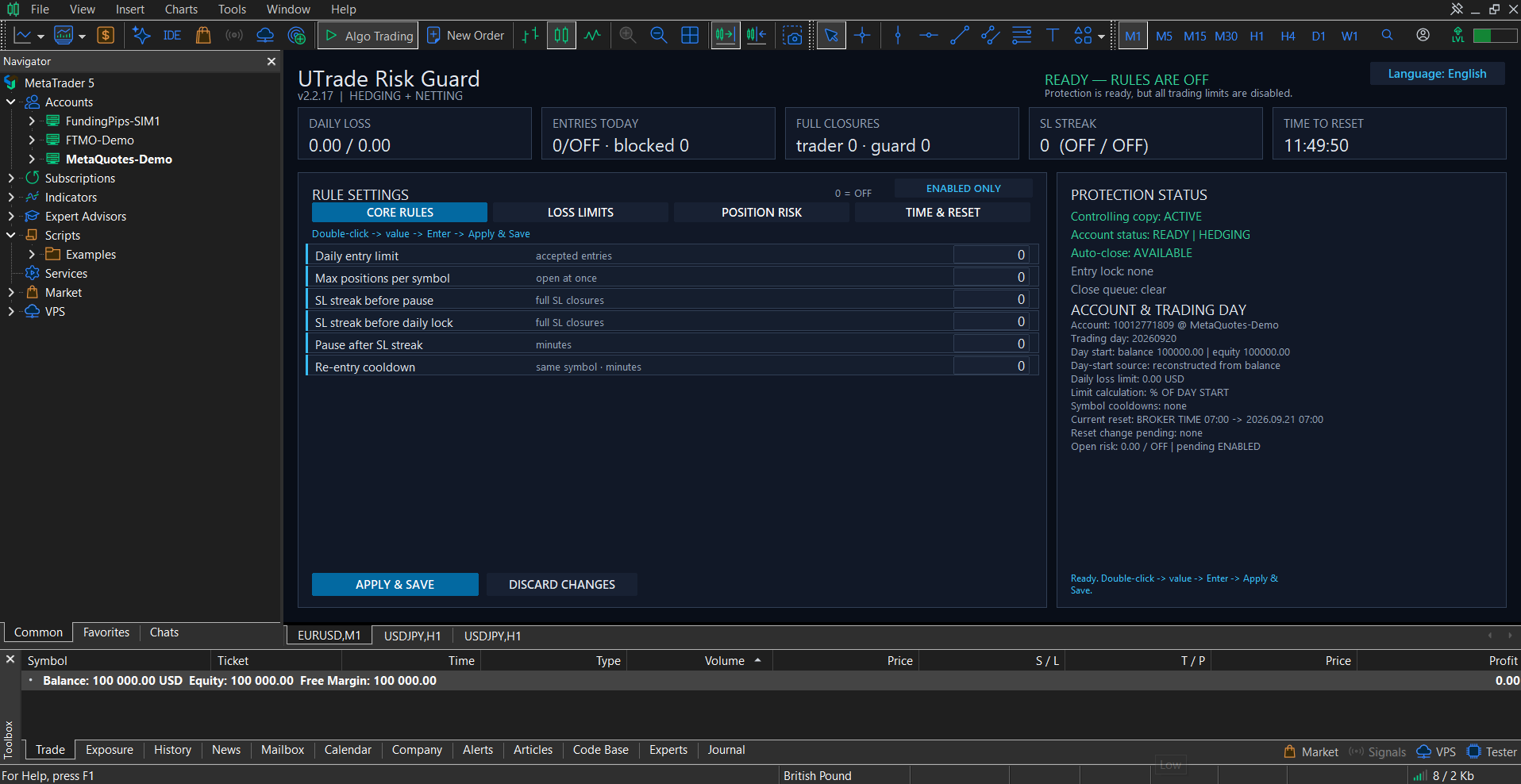
On the first launch, all protection limits are set to “0” or “OFF”. This prevents unexpected trading actions before the user finishes configuring the utility.
Recommended first-launch procedure:
1. Attach UTrade Risk Guard to a chart of a symbol available on the currently connected trading account.
2. Enable Algo Trading in MetaTrader 5.
3. Wait until account synchronization is complete. On a clean first launch, the dashboard shows “READY — RULES ARE OFF”. After at least one rule is enabled, it shows “PROTECTION ACTIVE”.
4. Select the required dashboard language.
5. Configure the monitoring scope.
6. Configure the required rules.
7. Click “Apply & Save”.
8. Test the configuration on a demo account before using it in live trading.
A value of “0” normally means that the corresponding rule is disabled.
## 3. Monitoring scope and Magic Number
“Monitor Magic = 0” means account-wide monitoring. The utility controls manual trades and trades opened by any Expert Advisor.
A positive Magic Number limits monitoring to trades belonging to a particular Expert Advisor or strategy.
Retail hedging and retail netting accounts are supported. Exchange and unknown account modes are blocked for safety.
On a hedging account, where MetaTrader can keep several separate positions on one symbol, either mode can be used.
On a netting account, where MetaTrader maintains one combined position per symbol, “Monitor Magic” must be set to “0”. Individual strategies cannot be separated reliably after their volumes are combined into one net position.
Only one attached copy becomes the controlling copy. Additional copies do not create duplicate closing commands or duplicate counters.
## 4. Entry and closure counters
### Accepted entries
An accepted entry is a new entry that becomes part of the trading activity controlled by the utility.
If the daily limit is four, the first four accepted entries are allowed. After the fourth accepted entry, further entries are locked until the next daily reset.
### Guard-blocked entries
If an entry violates another rule and is immediately closed by the guard, it is recorded separately as a blocked attempt. It does not consume the accepted-entry quota.
This prevents a position rejected by the guard from reducing the number of valid entries available for the day.
### Split execution
A broker can execute one source order in several smaller deals. UTrade Risk Guard identifies these parts as one source order and counts them as one entry.
### Position additions
A separate order that adds volume to an existing position is another accepted entry, because it is a new decision that increases market exposure.
### Full and partial closures
A full closure means that the controlled position has been closed completely.
A partial closure does not count as a full closure and does not reset or increase the Stop Loss streak.
The dashboard separates positions closed by the trader from positions closed by the guard.
On a netting account, a reversal is treated as one full closure of the previous direction and one new entry in the opposite direction.
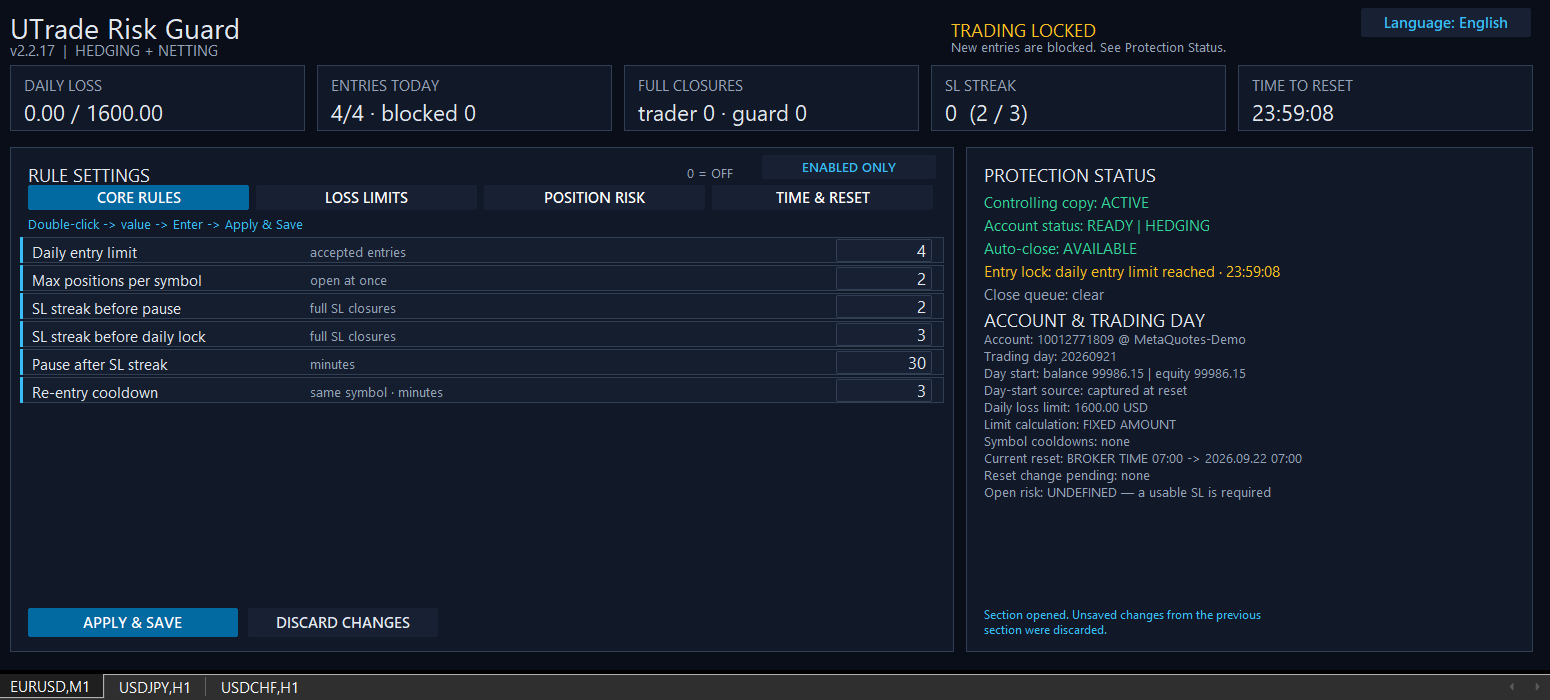
## 5. Core Rules
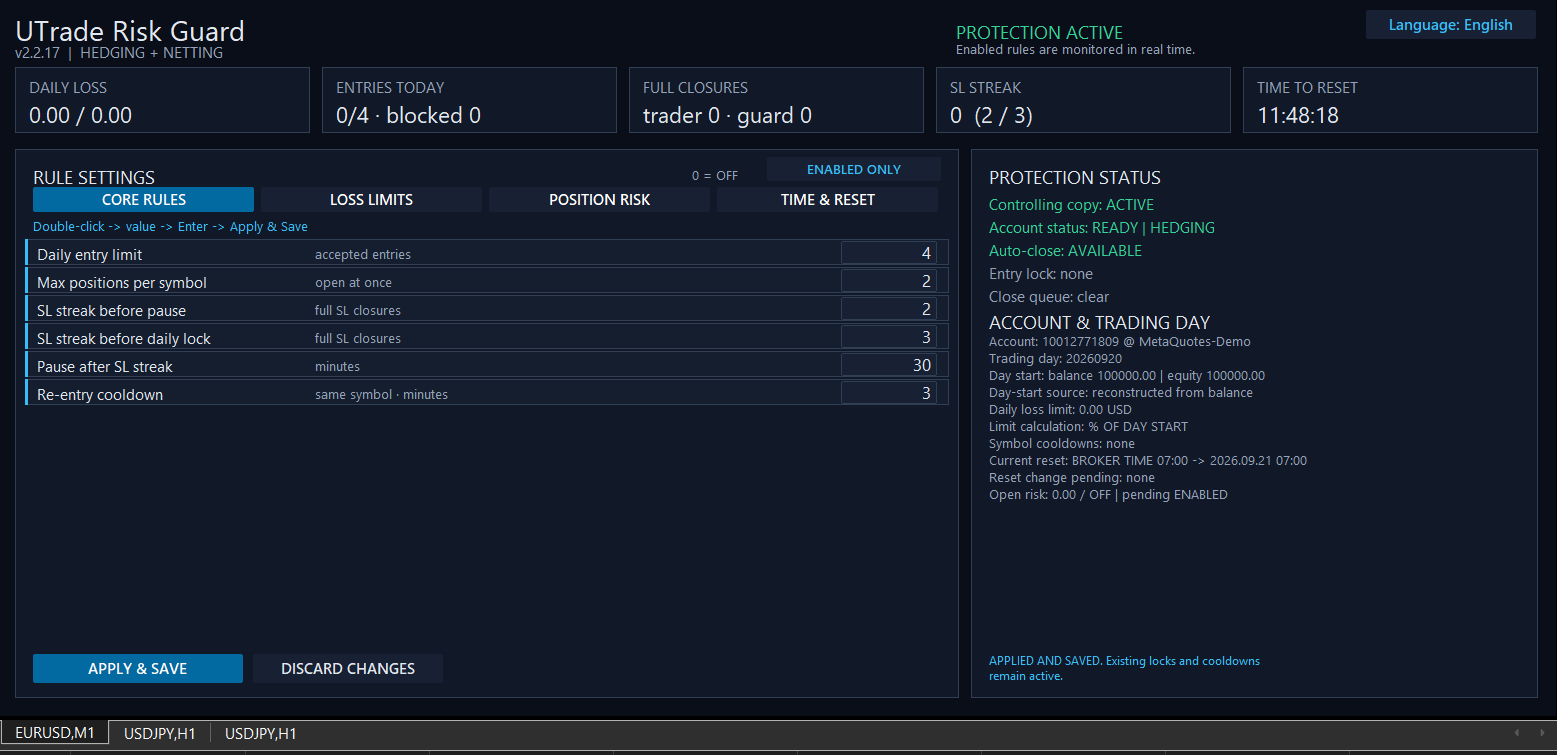
### Daily Entry Limit
This rule limits the number of accepted entries during one trading day.
The limit does not represent the number of positions currently open. Closed positions remain part of the daily entry count until the next reset.
Example:
• daily entry limit: 4;
• two positions were opened and later closed;
• two additional entries are still available;
• after the fourth accepted entry, new entries are locked.
Already open positions are not closed merely because the daily entry limit has been reached.
### Maximum Positions per Symbol
On a hedging account, this rule limits the number of simultaneously open controlled positions on one symbol. A netting account maintains one combined position per symbol.
If the limit is two and a third position is opened, the guard identifies the excess position and sends a closing request for it.
### Short Stop Loss Pause
After the selected number of consecutive full Stop Loss exits, new entries are temporarily paused.
This is intended to interrupt repeated trading after a short losing sequence without blocking the entire day.
### Daily Stop Loss Lock
After the selected number of consecutive full Stop Loss exits, new entries are blocked until the next daily reset.
A complete normal exit resets the Stop Loss streak to zero. A partial exit does not change it. A position closed by the guard also does not change this behavioural streak.
### Same-symbol cooldown
After a normal full closure, the utility can prevent a new entry on the same symbol for the selected number of minutes.
Other symbols remain available unless another account-wide rule is active.
## 6. Safe changes to the Daily Entry Limit
The daily entry limit has additional protection against changing discipline rules during the trading day.
After the first accepted entry:
• increasing the limit is scheduled for the next daily reset;
• disabling the limit is scheduled for the next daily reset;
• enabling a previously disabled limit is treated as a stricter change and can be applied immediately;
• lowering the limit can also be applied immediately;
• if the new stricter value would lock entries immediately, the utility asks for a second confirmation within eight seconds.
This prevents the limit from being increased impulsively after the original quota has already been used.
A current lock cannot be bypassed simply by disabling a rule. The lock remains authoritative until its planned expiration or reset.
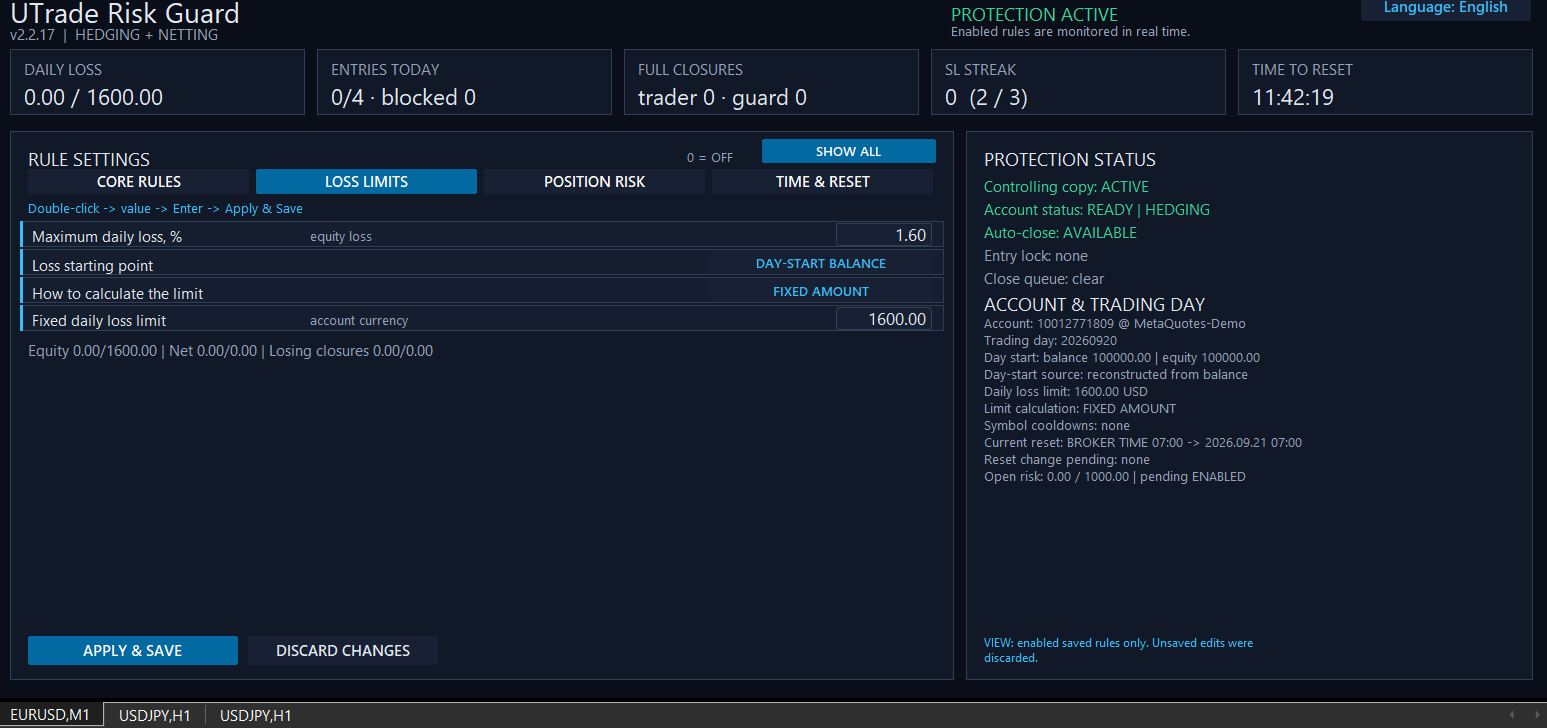
## 7. Loss Limits
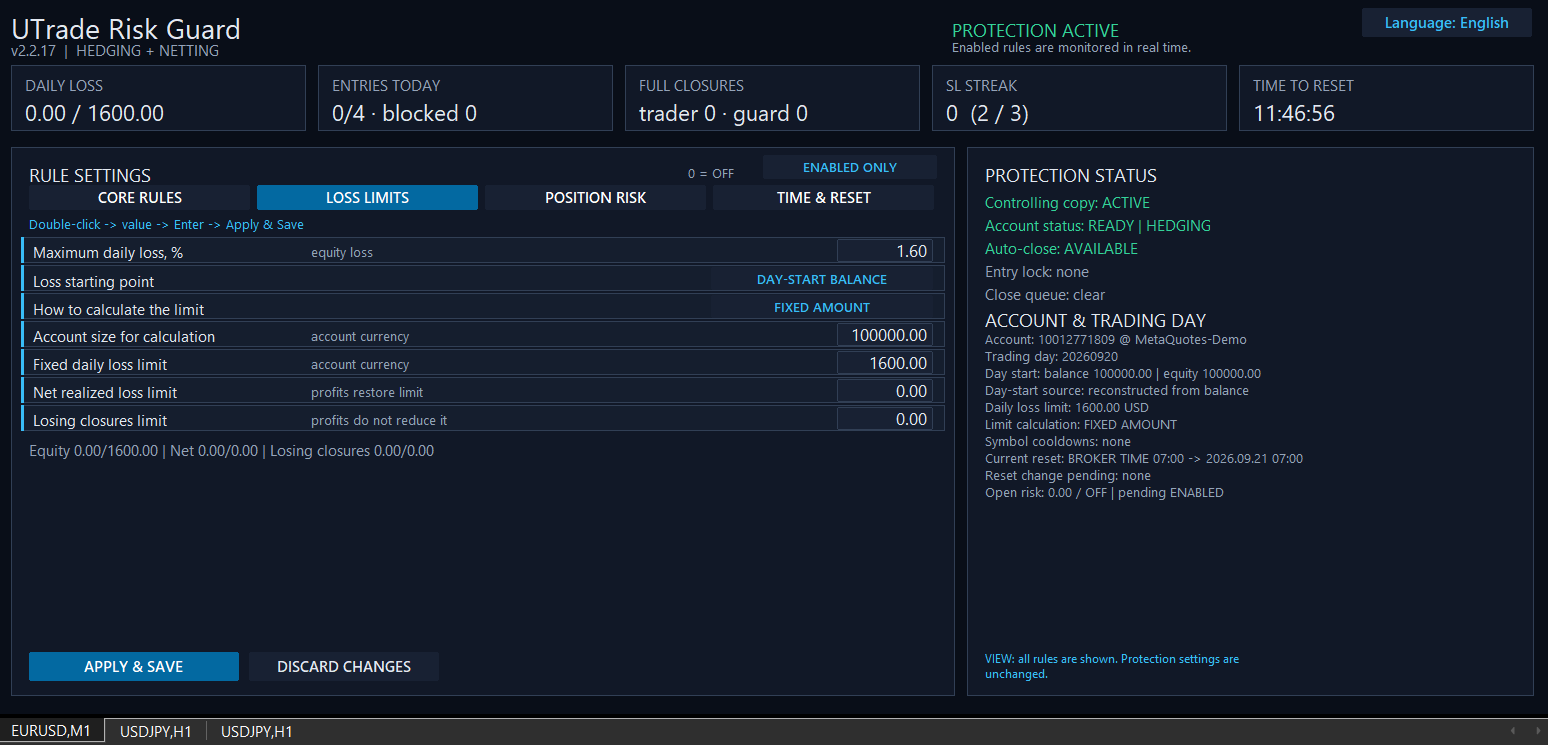
UTrade Risk Guard provides three independent ways to monitor daily losses.
### Daily loss based on current account value
The current account value, called Equity in MetaTrader 5, is the balance plus the current result of open positions.
This rule therefore reacts to both:
• realized results from closed trades;
• unrealized results from positions that are still open.
The reference can be based on the balance or current account value recorded at the start of the trading day.
### Limit calculation modes
The daily loss budget can be calculated in three ways.
#### Percentage of the day-start reference
Example:
• day-start reference: USD 100,000;
• daily loss percentage: 1.6%;
• daily loss budget: USD 1,600.
#### Percentage of a fixed account size
Example:
• fixed account size: USD 100,000;
• percentage: 1.6%;
• daily loss budget: USD 1,600.
This budget does not change when the real account balance changes.
#### Fixed money amount
Example:
• fixed loss amount: USD 1,600;
• daily loss budget: exactly USD 1,600.
In this mode, the fixed money amount is authoritative and the percentage value is not used.
All monetary values are calculated in the account deposit currency. On a EUR account, monetary limits and calculated risk are expressed in EUR.
### Net Realized Loss Limit
This rule monitors the combined realized result of completed controlled trades.
Profitable exits restore part of the budget.
Example:
• first result: −300;
• second result: +100;
• net realized result: −200.
### Gross Losing Exits Limit
This rule adds only losses from completed losing episodes. Profitable exits do not reduce the accumulated value.
Example:
• first result: −300;
• second result: +100;
• gross losing exits: 300.
These loss rules can be enabled independently or used together.
When a daily loss hard stop is reached, UTrade Risk Guard blocks new entries and sends closing requests for all controlled open positions. The lock remains active until the next daily reset.
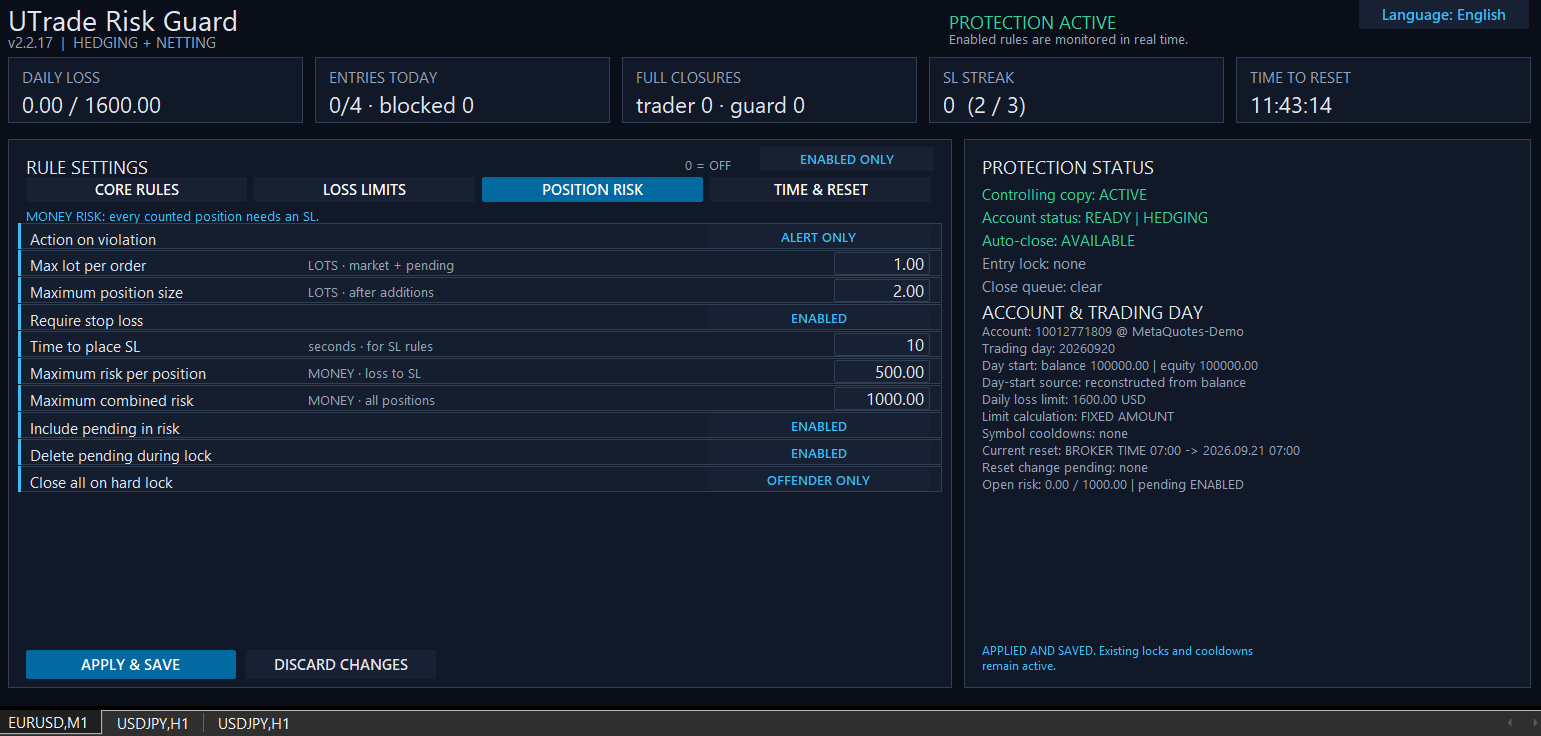
## 8. Position Risk Rules
Position-risk rules evaluate the size and protective structure of newly created exposure.
Available controls include:
• maximum volume of one source order;
• maximum resulting position volume;
• mandatory Stop Loss;
• allowed time for setting a Stop Loss;
• maximum money risk per position;
• maximum combined open risk;
• optional inclusion of pending orders in combined risk;
• optional deletion of pending orders during a hard lock.
Risk is calculated using the broker’s symbol specifications and is expressed in the deposit currency of the account.
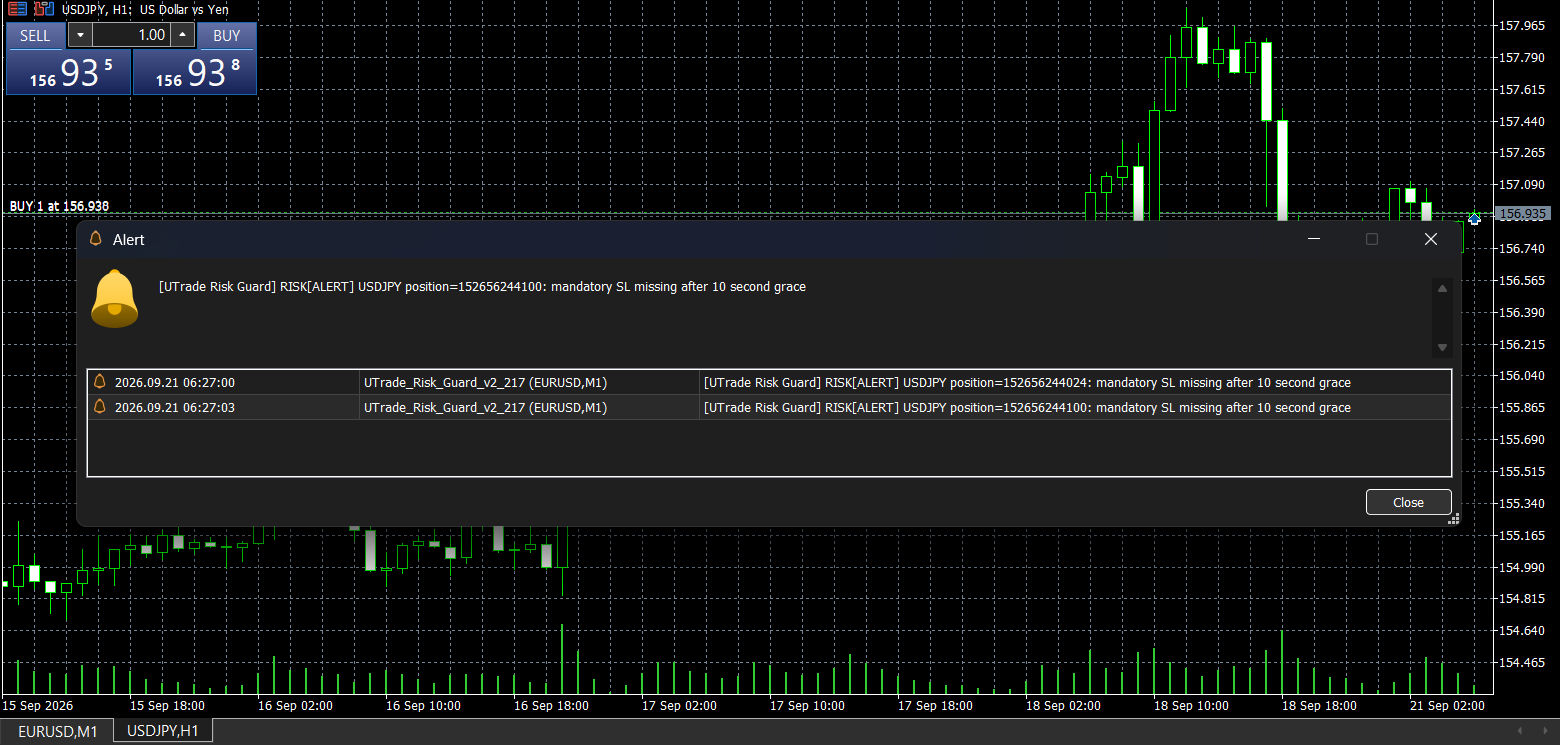
### Missing Stop Loss
If a controlled position has no usable Stop Loss, its monetary risk cannot be calculated. The dashboard reports this risk as undefined.
The Stop Loss grace period allows the trader or another Expert Advisor a selected number of seconds to add the Stop Loss before the guard applies the configured response.
### Response modes
Position-risk violations can use one of three responses:
• “Alert Only” — show the violation without closing the position;
• “Close Offender” — send a closing request for the violating position;
• “Close + Lock” — send a closing request and block further entries.
An additional setting can close all controlled positions when a hard entry-risk lock is activated. If it is disabled, only the violating position is closed.
Daily loss hard stops are different: they always send closing requests for all controlled open positions.
## 9. Pending orders
Pending orders can optionally be included in combined open-risk calculations.
The utility can also delete controlled pending orders when a hard lock is active. This prevents a pending order from opening a new position after trading has already been stopped.
If pending-order monitoring is disabled, pending orders are not included in the calculated combined risk.
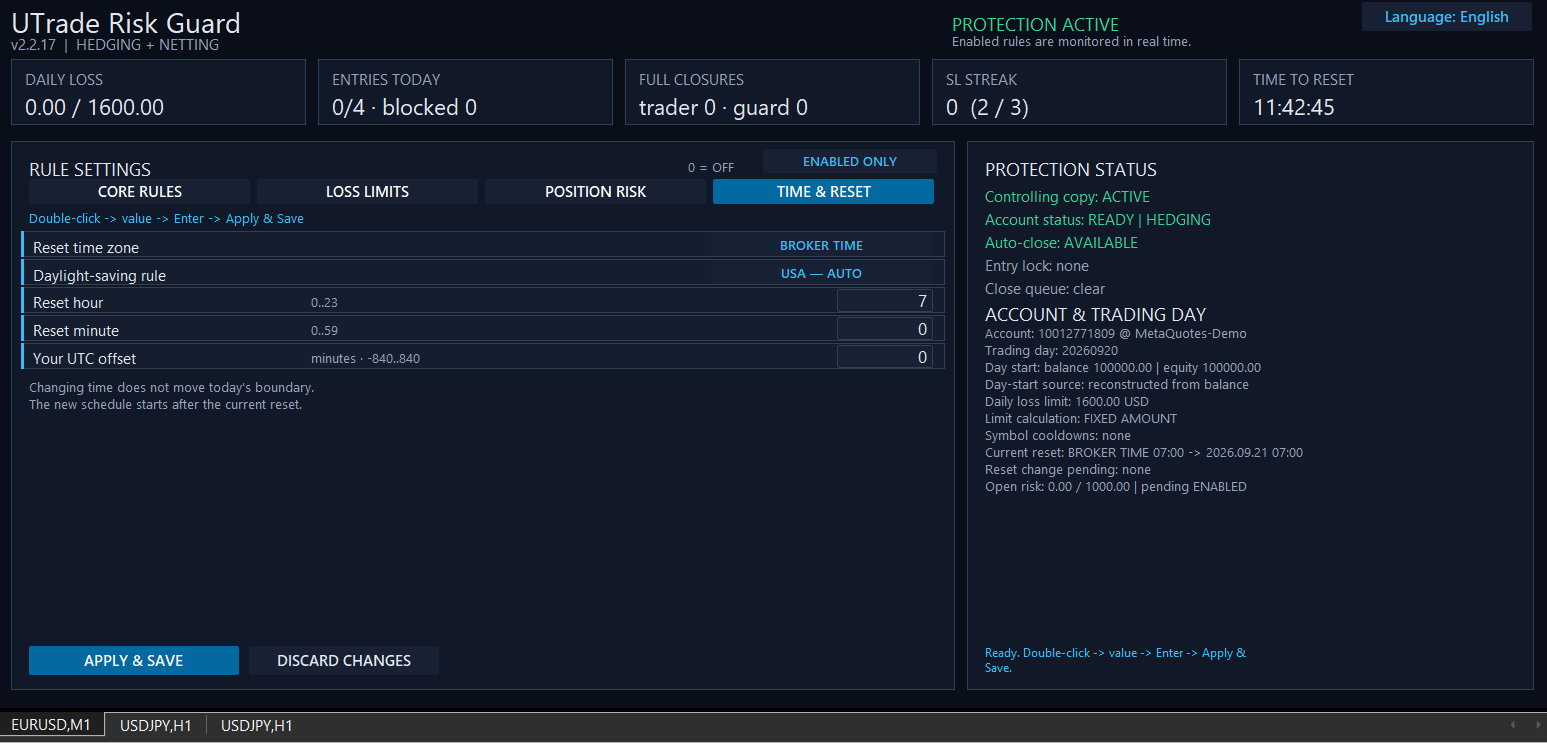
## 10. Trading day and reset time
The trading day does not have to follow midnight on the computer.
Available time references include:
• broker server time;
• UTC;
• a custom UTC offset.
For a custom offset, daylight-saving rules can be disabled or calculated according to European or United States rules.
The selected reset time defines when daily counters, daily pauses and daily locks begin a new trading day.
Changing the time configuration does not move the current trading-day boundary retroactively. The new schedule is stored as pending and becomes active after the current boundary is completed. This prevents a time change from unexpectedly resetting an active lock or daily limit.
## 11. Dashboard and Control Center
The dashboard shows the most important account state in real time:
• current daily loss and active limit;
• accepted entries and blocked attempts;
• full closures by the trader and by the guard;
• Stop Loss streak;
• time remaining until reset;
• account and trading-day information;
• active lock and its reason;
• close queue status;
• calculated open risk;
• active symbol cooldowns.
Settings are divided into four sections:
• Core Rules;
• Loss Limits;
• Position Risk;
• Time & Reset.
The “Show enabled only” function hides disabled fields from the dashboard. It changes only the display and does not enable, disable or modify any trading rule.
The dashboard is available in English, Ukrainian and Russian.
## 12. Applying and saving settings
After changing values, click “Apply & Save”.
Unsaved values do not become active merely because they are visible in an edit field.
Some safety-sensitive changes can be queued for the next reset. The dashboard indicates when a pending change exists and continues to show the currently active rule.
## 13. Account synchronization and persistence
UTrade Risk Guard separates its state by account login, broker server and deposit currency.
When the account changes, the utility temporarily pauses enforcement while MetaTrader synchronizes:
• account identity;
• balance and current account value;
• trading history;
• open positions;
• active orders.
Protection is armed only after stable account information has been received.
Daily state is restored after a restart. The utility can rebuild counters from account history and retain a pending close queue until the result of a closing request is confirmed.
Before saving state or sending a trading command, the utility verifies that it is still bound to the expected account.
## 14. Closing requests and broker execution
A successful function call does not always mean that a position has already been closed.
UTrade Risk Guard checks the broker’s return code and then verifies whether the position still exists. Temporary failures can be placed into the close queue and retried.
Final execution remains controlled by the broker and market conditions. Slippage, gaps, market closure, rejected requests, connection loss and insufficient liquidity can delay or prevent execution.
## 15. Alerts and push notifications
The utility can display terminal alerts for important events, including locks and rule violations.
Push notifications require a valid MetaQuotes ID to be configured in MetaTrader 5 terminal settings. Without that terminal configuration, mobile push notifications cannot be delivered.
## 16. Requirements and limitations
For protection actions to work:
• MetaTrader 5 must remain running and connected;
• Algo Trading must be enabled;
• the utility must remain attached to a chart whose symbol is available on the currently connected account;
• the trading account must allow the requested operation.
After changing the account or broker, verify that the chart symbol is available and that the dashboard returns to a ready status. If the old symbol is unavailable or has a different broker suffix, open a valid symbol chart and attach UTrade Risk Guard there.
For continuous protection, a properly configured VPS can be used.
UTrade Risk Guard is a discipline and risk-control utility. It does not guarantee profits, prevent every possible loss, guarantee prop-firm compliance or override broker and market limitations.
Test every configuration on a demo account before using it with live funds.
## 17. Final setup checklist
Before live use, confirm that:
1. The correct account is displayed.
2. Account synchronization is complete.
3. The chart symbol is available on the connected account.
4. The correct monitoring scope is selected.
5. Netting accounts use “Monitor Magic = 0”.
6. All required rules have been applied and saved.
7. The daily reset time is correct.
8. The loss calculation mode matches the intended budget.
9. Mandatory Stop Loss and risk-response settings behave as expected.
10. Algo Trading is enabled.
11. The configuration has been tested on a demo account.
UTrade Risk Guard does not replace the trader’s strategy. Its purpose is to keep predefined discipline and risk rules active while the trader focuses on execution and decision-making.
Files:
01_MT5_Context.png
145 kb
02_Core_Rules.png
74 kb
03_Loss_Limits.png
80 kb
04_Position_Risk.png
83 kb
05_Time_and_Reset.png
72 kb
06_Enabled_Only.png
74 kb
07_Stop_Loss_Alert.png
81 kb