
Installing from the Market
To download the application from the market, you need to enter your MQL5 account data into the MetaTrader platform . Open the MetaTrader 4 or 5 platform, in the top menu select the Tools - Options.

Click on the Community tab, on the Community tab fill in the MQL5 account login and password fields.

After clicking Ok, go to your Markets tab under Purchases and install Trade Indicator Assistant.
How does Trade Indicator Assistant detects an indicator?
Attach any MT4 indicator into your chart

Attach Trade Indicator Assistant into the same chart as the indicator
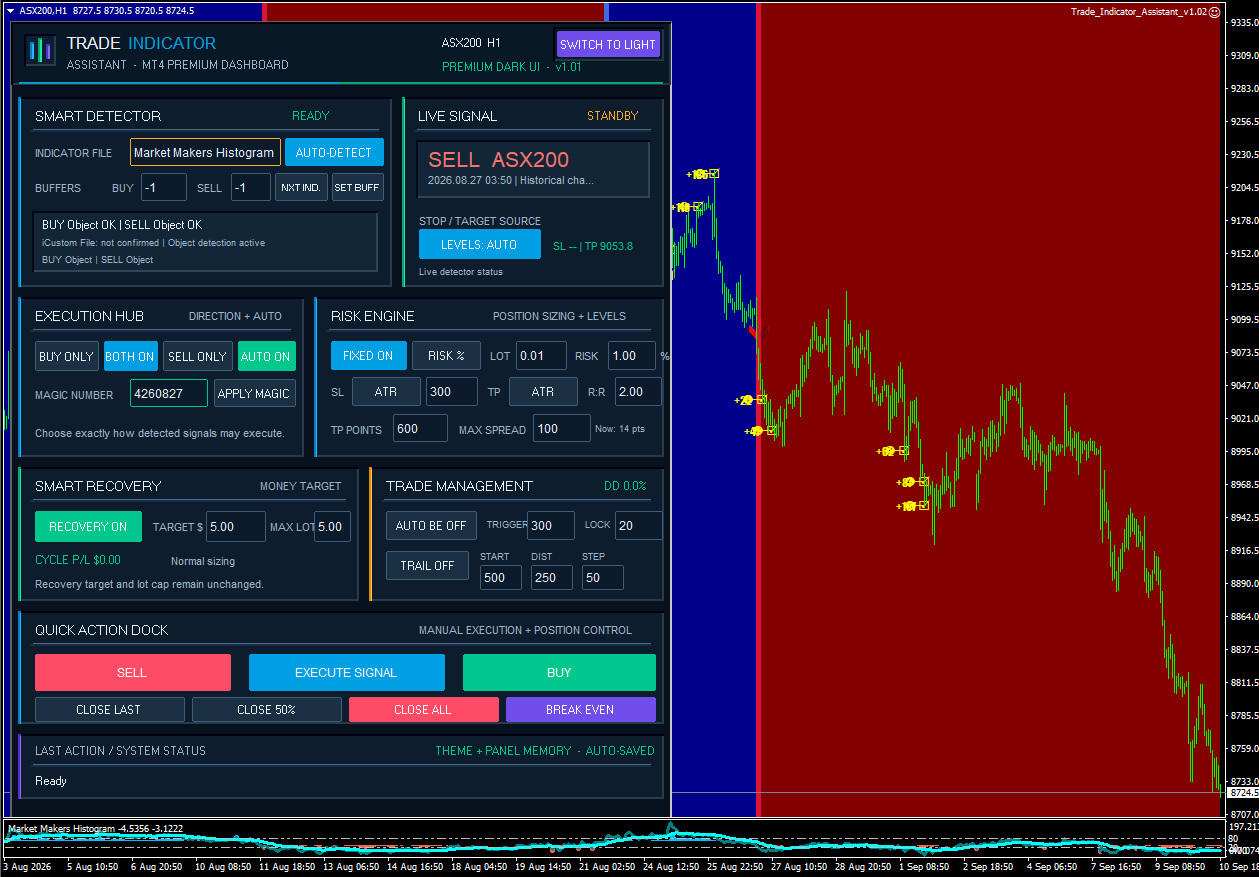
If smart detector section says ready, it means that the utility EA was able to automatically detect the indicator buffer signals. You can also click on the auto-detect button to make it detect the buffers.
What happens if the utility EA doesn't recognize the indicator?
Simple as 1-2-3! Click inside the box next to indicator file and type the exact indicator file name

Click on Auto-Detect and voila, the utility EA is ready to automatically trade!
How to change buffers if it's not the right buy/sell signals?

By default, -1 for buy and -1 for sell means that the utility EA will automatically try and detect the buy/sell buffers. If you want to change to your own numbers, please change it directly inside the panel and click on SET BUFF.
Interactive Dashboard Controls
All highlighted controls can be clicked directly from the dashboard. Buttons change modes instantly, while numerical fields can be edited to customize the trading settings.
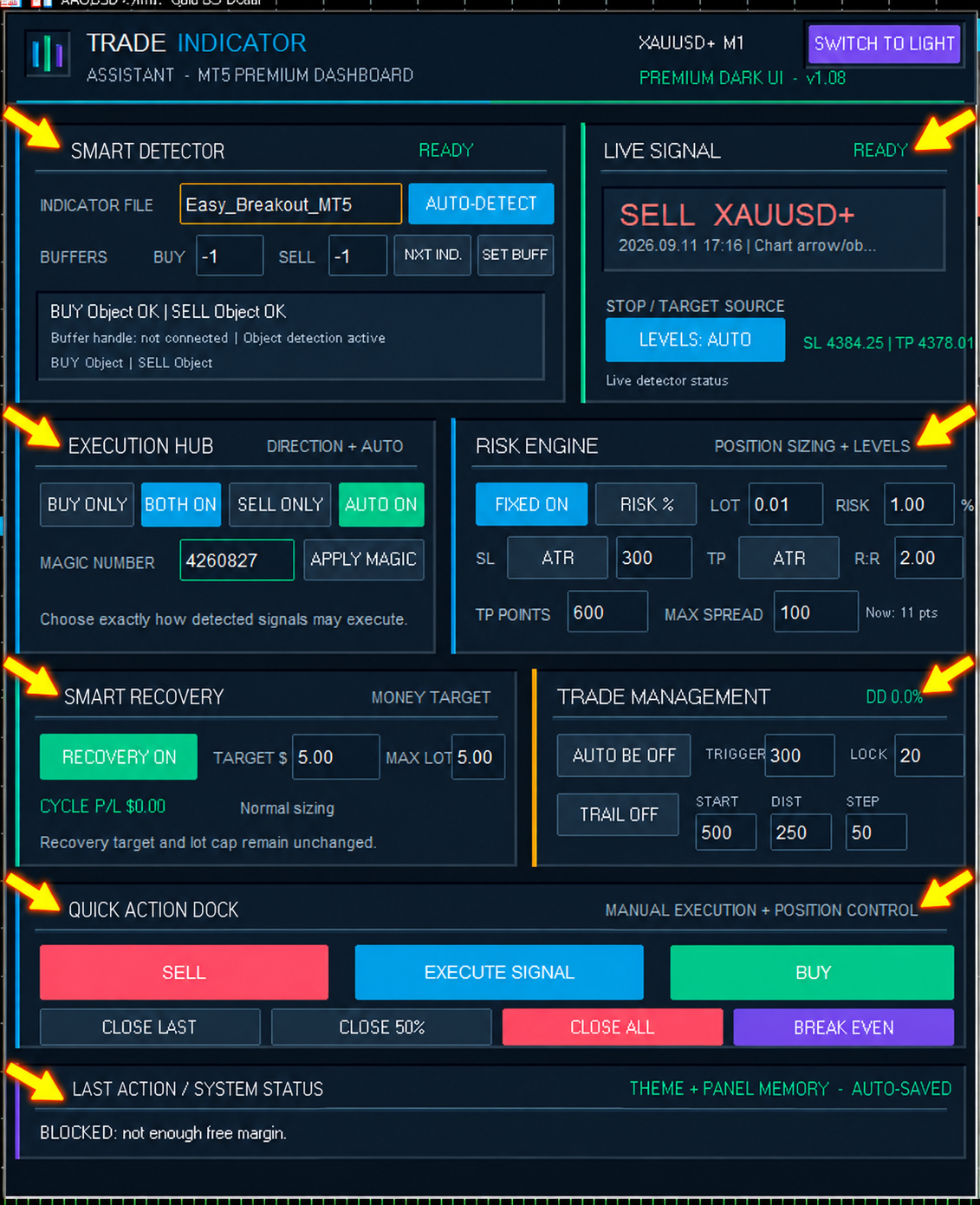
Each section of Trade Indicator Assistant contains clickable buttons and/or editable settings. You can configure the utility directly from the dashboard without reopening the EA inputs.
- Smart Detector — Select or enter the indicator, run Auto-Detect, review detected BUY/SELL buffers, move between detected indicators, or manually set the buffers.
- Live Signal — Displays the latest detected BUY/SELL signal and the SL/TP levels currently being used. This section is mainly informational.
- Execution Hub — Choose BUY Only, SELL Only, or Both, enable/disable automatic execution, and change the Magic Number.
- Risk Engine — Switch between Fixed Lot and Risk % sizing and directly adjust lot size, risk %, SL/TP method, ATR values, R:R, TP points, and maximum spread.
- Smart Recovery — Turn Recovery Mode ON/OFF and change the Money Target and Maximum Recovery Lot directly from the panel.
- Trade Management — Enable/disable Auto Break Even and Trailing Stop, and adjust their trigger, lock, start, distance, and step values.
- Quick Action Dock — Manually BUY, SELL, execute the current detected signal, close the last trade, close 50%, close all trades, or move a position to break even.
- Last Action / System Status — Displays what the Assistant is currently doing, including execution messages, blocked trades, errors, or other important system information.
At the top, Switch to Light can also be clicked to instantly change between the Dark and Light dashboard themes.
PANEL EXPLANATION
1. Smart Detector
The Smart Detector connects Trade Indicator Assistant to the indicator attached to the chart. The Indicator File field identifies the indicator to monitor. NXT IND. cycles through indicators attached to the chart, while AUTO-DETECT launches the automatic detection process.
The Assistant can detect BUY and SELL signals through both chart objects and compatible indicator buffers. The BUY and SELL buffer fields can also be entered manually; a value of -1 leaves that direction on automatic detection. SET BUFF applies the manually entered buffer mapping.
The information box at the bottom shows how each direction was detected and whether BUY and SELL are correctly connected. READY means both directions are available to the detector.
2. Live Signal

The Live Signal section displays the latest signal detected by Trade Indicator Assistant, including its BUY/SELL direction, symbol, time and detection source. READY means the latest signal is live and eligible for execution, while STANDBY means there is currently no executable live signal.
The LEVELS button controls where the Stop Loss and Take Profit come from. LEVELS: AUTO uses valid SL/TP levels detected from the indicator and falls back to the Risk Engine when a level is missing. LEVELS: MANAGER ignores indicator levels and uses the Assistant's own SL/TP settings. LEVELS: IND ONLY requires both a valid indicator SL and TP; otherwise the trade is blocked. The SL/TP display beside the button shows detected indicator levels when available.
3. Execution Hub

The Execution Hub determines which trade directions are permitted and whether detected signals are traded automatically. BUY ONLY permits BUY trades, BOTH permits both directions, and SELL ONLY permits SELL trades.
With AUTO ON, new valid signals can be executed automatically. With AUTO OFF, signal detection continues, but the user must press EXECUTE SIGNAL manually.
The Magic Number identifies the trades belonging to this instance of Trade Indicator Assistant. Enter a number and press APPLY MAGIC to activate it. Trade-management functions operate on orders matching the active Magic Number and, by default, the current chart symbol.
4. Risk Engine
The Risk Engine controls position sizing, Stop Loss, Take Profit and spread protection.
FIXED LOT uses the value entered in the LOT field as the base trade size. RISK % automatically calculates lot size according to the selected percentage of account balance and the final Stop Loss distance. Because of this, Risk % sizing requires a valid Stop Loss.
For SL, the available methods are NONE , POINTS , ATR and CANDLE . POINTS uses the specified SL distance; ATR adapts the SL to volatility; and CANDLE positions it beyond the signal candle high/low with the configured buffer. For TP, the methods are NONE , POINTS , R:R and ATR . R:R calculates the target from the final Stop Loss distance, so an R:R of 2.00 means the TP distance is twice the risk distance.
MAX SPREAD prevents a new trade when the current spread exceeds the selected maximum. The current live spread is shown beside it. A Max Spread value of 0 disables this filter.
5. Smart Recovery
Smart Recovery is a money-target recovery system that automatically adjusts position size after a losing trade.
A recovery sequence begins after the first realized losing managed trade. From there, the Assistant keeps a running CYCLE P/L and determines how much profit is still needed to reach the selected TARGET $. For example, if the target is $5 and the current sequence P/L is -$6 , the system needs the next trades to generate a total of approximately $11 to complete the recovery objective.
The recovery lot is calculated from the remaining money target and the available reward distance. MAX LOT limits how large the recovery trade is allowed to become, while additional safety limits are available through the EA inputs. The sequence does not reset simply because the previous loss has been recovered; it resets only when the entire sequence P/L reaches the selected money target. Smart Recovery also restricts the Assistant to one managed open trade at a time while enabled.
6. Trade Management

The Trade Management section controls automatic Break Even and Trailing Stop management.
AUTO BE automatically moves the Stop Loss after the position reaches the selected TRIGGER distance in profit. LOCK determines how many points beyond the original entry price the new Stop Loss attempts to secure. For example, a Lock of 20 attempts to protect 20 points of profit rather than moving the SL exactly to entry.
TRAIL enables the Trailing Stop. START determines how many points of profit are required before trailing begins, DIST determines how far behind the current market price the Stop Loss follows, and STEP determines the minimum improvement required before the SL is moved again.
The DD indicator in the upper-right displays the current floating drawdown. Account-protection limits can also block new entries when enabled.
7. Quick Action Dock

The Quick Action Dock provides direct manual execution and position-control tools.
SELL and BUY immediately request a manual trade using the currently selected execution, Risk Engine and recovery settings. EXECUTE SIGNAL instead executes the latest valid signal detected by the Assistant. It will reject an unavailable, historical or already-executed signal.
CLOSE LAST closes the newest managed open trade. CLOSE 50% attempts to close half of each managed position while respecting the broker's minimum lot and lot-step requirements. CLOSE ALL closes all managed trades. BREAK EVEN immediately attempts to move managed trades to their configured Break Even level.
8. Last Action / System Status

The Last Action / System Status section provides immediate feedback about what Trade Indicator Assistant is doing. It can display detector results, trade execution confirmations, blocked-trade reasons, changes to execution modes, recovery information and trade-management actions.
The dashboard also uses auto-saved panel memory. Editable values and panel choices are saved automatically, so the user does not need to press a separate Save button.
INPUTS SECTION

01. SIGNAL DETECTOR
Indicator File — Current: blank
Specifies the indicator that Trade Indicator Assistant should monitor. It can normally be left blank because the Assistant attempts to identify the indicator already attached to the chart and resolve its actual iCustom filename automatically. If automatic resolution fails—for example, because the indicator's displayed name differs from its physical .ex4 / .mq4 filename—the customer can enter the actual indicator filename manually.
Signal Confirmation — Current: Wait until the signal candle closes
Determines when a detected signal becomes eligible for execution.
- Current Candle: reacts as soon as a signal appears on the active candle.
- Closed Candle: waits until the candle containing the signal has closed before considering it executable.
Closed Candle is safer for indicators that repaint or modify their signal before candle close. For chart objects, an object appearing on the current candle is deliberately held until the candle closes.
BUY Buffer (-1 = Auto) — Current: -1
Specifies the indicator buffer containing BUY signals. -1 tells Trade Indicator Assistant to detect the BUY buffer automatically. Entering a buffer number such as 0 , 1 , 2 , etc. forces that buffer to be used as the BUY signal source.
SELL Buffer (-1 = Auto) — Current: -1
Same principle for SELL signals. -1 enables automatic detection, while a specific number forces the chosen buffer.
BUY and SELL are detected independently, so one direction can come from a buffer while the other comes from a chart object.
02. EXECUTION & RISK
Magic Number — Current: 4260827
Unique identifier assigned to trades managed by Trade Indicator Assistant. It allows the EA to distinguish its own trades from trades opened manually or by another EA.
Using different Magic Numbers is useful when running multiple independent instances.
EA Comment — Current: Trade Indicator Assistant
Text added to orders opened by the EA. The source limits the final comment to a maximum of 31 characters.
Auto Trading by Default — Current: true
Determines the default state of the dashboard's AUTO function when the EA starts.
- true = automatic execution starts enabled.
- false = signals are detected, but automatic execution starts disabled.
A saved panel state can later override this default.
Position Size Mode — Current: FIXED LOT
Determines how the normal/base lot size is calculated.
- FIXED LOT: uses the specified Fixed Lot Size.
- RISK %: calculates the lot automatically according to account balance, selected risk percentage and the final Stop Loss distance.
Risk % requires a valid Stop Loss.
Fixed Lot Size — Current: 0.01
Base lot size used when Position Size Mode is set to Fixed Lot.
With Smart Recovery inactive, this would normally produce 0.01 lots, subject to broker minimum/maximum lot restrictions.
Risk per Trade (%) — Current: 1.0%
Base account-balance risk used when Position Size Mode is set to Risk %. The EA calculates:
Risk Money = Account Balance × Risk %
It then determines the lot size from the actual distance between entry and Stop Loss.
For example, with a $10,000 balance and 1% risk, the target maximum SL loss for the base trade is approximately $100.
Maximum Risk (%) — Current: 5.0%
Hard ceiling for the Risk % value used by normal risk-based sizing. Even if a larger value is entered through the dashboard, the EA limits it to this input.
This is separate from the Smart Recovery risk limits.
Maximum Lot Size — Current: 5.0
Global maximum lot size permitted by Trade Indicator Assistant. Normal lots and Smart Recovery lots cannot exceed this value, and the broker's own maximum lot size can impose an even lower limit.
Max. Open Trades — Current: 3
Maximum number of managed trades that may be open simultaneously when Smart Recovery is OFF.
When Smart Recovery is ON, the EA overrides this rule and permits only one managed open trade at a time.
Max. Spread (Points, 0 = Off) — Current: 100
Prevents new entries when the current spread exceeds the specified number of broker points.
For example, if Max Spread is 100 and the live spread is 120 , the entry is temporarily blocked.
0 disables the spread filter. A spread block is considered temporary, so AUTO Retry can try the same signal again if the spread improves.
Max. Slippage (Points) — Current: 30
Maximum slippage passed to MT4 when opening or closing orders. It is expressed in broker points, not necessarily pips.
03. STOP LOSS / TAKE PROFIT
Stop Loss Mode — Current: ATR
Determines how the Assistant generates its own Stop Loss.
Available modes:
- NONE: no EA-generated Stop Loss.
- POINTS: fixed SL distance.
- ATR: volatility-based SL.
- SIGNAL CANDLE: SL beyond the signal candle high/low.
Indicator-provided levels can still override this according to the Indicator SL/TP Mode.
Take Profit Mode — Current: ATR
Determines how the Assistant generates its Take Profit.
Available modes:
- NONE: no EA-generated Take Profit.
- POINTS: fixed TP distance.
- R:R: TP calculated from the final SL distance.
- ATR: volatility-based TP.
Stop Loss (Points) — Current: 300
Used only when Stop Loss Mode is POINTS.
A value of 300 places the SL approximately 300 broker points away from the relevant market price before broker stop-distance adjustments.
Take Profit (Points) — Current: 600
Used only when Take Profit Mode is POINTS.
A value of 600 creates a target approximately 600 broker points away.
Risk : Reward — Current: 2.0
Used when Take Profit Mode is R:R.
The TP is calculated from the final Stop Loss distance:
TP Distance = SL Distance × R:R
So with R:R 2.0 , a 300-point final risk produces approximately a 600-point target.
Importantly, if an indicator provides the SL but not the TP while LEVELS: AUTO is selected, the EA can calculate R:R from that indicator-provided SL.
ATR Period — Current: 14
ATR calculation period used by the normal ATR Stop Loss and ATR Take Profit systems.
The source calculates ATR from the previous completed candle ( shift 1 ).
ATR Stop Loss Multiplier — Current: 1.5
When SL Mode is ATR:
SL Distance ≈ ATR(14) × 1.5
Higher values create wider stops; lower values create tighter stops.
ATR Take Profit Multiplier — Current: 2.5
When TP Mode is ATR:
TP Distance ≈ ATR(14) × 2.5
With your current defaults, TP is based on 2.5 ATR while SL is based on 1.5 ATR.
Candle Stop Buffer (Points) — Current: 20
Used only with Signal Candle SL.
For BUY trades:
SL = Signal Candle Low - Buffer
For SELL trades:
SL = Signal Candle High + Buffer
The extra 20 points prevent the Stop Loss from sitting exactly on the candle's high or low.
04. INDICATOR SL / TP
Indicator SL/TP Mode — Current: Use detected levels; fallback to panel plan
Controls whether the Assistant uses SL/TP levels supplied by the indicator.
There are three modes:
- Manager Only: completely ignore indicator SL/TP and use the Risk Engine.
- Auto: use a detected indicator SL or TP when valid; use the Assistant's configured method for anything missing.
- Indicator Only: requires both a valid indicator SL and TP. If either is unavailable, the trade is blocked.
Your current AUTO setting is the most flexible.
SL Buffer (-1 = Auto) — Current: -1
Specifies an indicator buffer containing Stop Loss prices.
-1 = automatically search for a suitable SL buffer.
A specific buffer number forces the EA to consider that buffer as the SL source.
TP Buffer (-1 = Auto) — Current: -1
Same principle for Take Profit buffers.
Stop Loss Keywords — Current: sl,stop loss,stoploss,stop_loss
Keywords used to identify Stop Loss chart objects. The Assistant searches the object's name and text, case-insensitively.
For example, an object named SL , Stop Loss , or Trade_StopLoss can be recognized as an SL candidate.
Take Profit Keywords — Current: tp,take profit,takeprofit,take_profit,target
Same system for Take Profit objects.
If multiple valid target objects exist—for example TP1, TP2 and TP3—the detector prefers the closest valid target.
05. SMART RECOVERY
This is the section where the exact implementation matters most.
Smart Recovery — Current: true
Enables the money-based recovery system.
Recovery does not start simply because the feature is ON. Normal sizing continues until a managed trade closes at a net loss. That loss starts a recovery sequence.
Once active, wins and losses accumulate in the sequence P/L until:
Sequence P/L ≥ Recovery Money Target
Only then does the sequence reset.
Smart Recovery also forces only one managed trade to be open at a time.
Recovery Money Target ($) — Current: $5.00
Amount of positive sequence profit the recovery cycle is trying to achieve.
The formula is:
Required Profit = Money Target - Current Sequence P/L
Example:
- First trade loses $6
- Sequence P/L = -$6
- Target = +$5
- Remaining recovery requirement = $11
The recovery does not stop when it gets back to $0 ; it continues until the sequence reaches +$5 .
Recovery Reference — Current: Use actual TP when available, otherwise Trail + ATR virtual reference
This setting determines the reward distance used to calculate the required recovery lot.
It is important to understand that the Recovery Reference is for position sizing only. A virtual recovery reference does not automatically create a Take Profit.
Available modes are:
Smart Auto
Uses the real order TP when one exists. If no TP exists, it uses the larger of:
Trailing Start
or
Recovery ATR × Recovery ATR Multiplier
Trail + Adaptive ATR
Always uses the larger of Trailing Start and Recovery ATR distance.
Fixed Reference
Uses the Recovery Fixed Reference Points.
Order TP
Requires a real Take Profit and sizes recovery from that target. Without a TP, the recovery trade cannot be calculated.
Max. Recovery Lot — Current: 5.0
Specific maximum lot size for Smart Recovery.
The final recovery lot must respect the lowest applicable limit among:
- broker maximum lot
- global Maximum Lot Size
- Max Recovery Lot
- Max Recovery Lot Multiplier, if enabled
- recovery SL-risk limits, if enabled
Max. Recovery Lot Multiplier (0 = Off) — Current: 0.0
Optional limit on how much larger a recovery trade may be relative to its normal/base lot.
Example:
Base lot = 0.10
Multiplier = 2.0
Maximum recovery lot from this rule = 0.20 .
Your current 0.0 disables this particular restriction.
Max. Recovery SL Risk ($, 0 = Off) — Current: 0.0
Optional dollar cap on the amount a recovery trade is projected to lose if its SL is hit.
Example: entering $100 prevents the recovery sizing system from selecting a lot projected to risk more than approximately $100 at the final SL.
Current 0 = disabled.
Max. Recovery SL Risk (%, 0 = Off) — Current: 3.0%
Percentage-of-balance version of the same protection.
At a $10,000 balance, 3% gives a maximum projected recovery SL risk of approximately $300 .
If both the dollar and percentage limits are enabled, the EA uses the lower/more restrictive amount.
Minimum Recovery R:R — Current: 0.5
Minimum acceptable reward-to-risk ratio for a recovery trade.
The EA compares:
Projected Reward to Recovery Reference ÷ Projected Loss to SL
With 0.5 , the projected reward must be at least half the projected SL risk. If it is below 0.5, the recovery trade is blocked.
Recovery ATR Period — Current: 20
ATR period used specifically by the recovery reference system.
This is independent of the normal ATR Period of 14 used for the trade's SL/TP.
Recovery ATR Multiplier — Current: 1.0
Multiplies the Recovery ATR to create the virtual reward reference.
With Period 20 and Multiplier 1.0:
Recovery ATR Reference = ATR(20) × 1.0
In Trail + ATR modes, the EA compares this against Trailing Start and uses whichever produces the larger distance.
Recovery Fixed Reference (Points) — Current: 150
Virtual reward distance used when Recovery Reference is set to Fixed Reference.
For example, 150 means recovery lot sizing assumes a potential 150-point reward distance.
Again, it does not itself place a 150-point TP.
Minimum Recovery Reference (Points) — Current: 100
Prevents Smart Recovery from sizing against an excessively small reward distance.
With virtual references, the EA raises the reference to at least 100 points.
When a real order TP is being used and it is closer than the minimum, the recovery setup is rejected instead.
Skip Trade if Recovery Safety Limit is Exceeded — Current: false
Controls what happens when the lot required to hit the recovery target exceeds a recovery safety limit.
false — the EA reduces/caps the recovery lot to the maximum safe amount and still allows the trade. This means one winning trade may not fully complete the recovery target.
true — the entire trade is blocked instead of using a capped recovery lot.
This applies to the maximum-lot and recovery-risk safety caps.
Save Recovery Sequence after Restart — Current: true
Stores the active recovery sequence using MT4 Global Variables.
If MT4 restarts, the chart reloads, or the EA is reinitialized, the sequence can continue with its previous:
- active/inactive state
- accumulated sequence P/L
- cycle trade count
The recovery state is separated by account + symbol + Magic Number.
Reset Recovery Sequence on Start (Use Once) — Current: false
Manually clears the saved Smart Recovery sequence when the EA initializes.
This should normally remain false .
To intentionally reset the sequence, set it to true , initialize the EA once, and then return it to false ; otherwise it would reset again the next time the EA starts.
06. AUTO RETRY
Retry Temporary Execution Blocks — Current: true
Allows an automatically detected signal to be retried when it could not execute because of a temporary condition.
Examples include:
- spread temporarily too high
- price changed
- requote
- off quotes
- trade context busy
- server busy
- connection problem
It only operates while AUTO trading is ON and the same signal remains valid/READY.
Retry Window (Seconds) — Current: 120
Maximum time after the initial failed execution during which the EA may continue retrying the signal.
Current setting = two minutes.
Retry Interval (Seconds) — Current: 2
Delay between retry attempts.
Current setting means approximately one attempt every two seconds while the temporary problem remains.
Maximum Retry Attempts — Current: 30
Maximum number of automatic retry attempts for the same signal.
So your default configuration is limited by whichever occurs first:
30 retry attempts or 120 seconds.
07. BREAK EVEN / TRAILING
Auto Break Even by Default — Current: false
Determines whether automatic Break Even starts enabled when the EA loads.
false means the customer must enable AUTO BE from the dashboard if desired.
Break Even Trigger (Points) — Current: 300
Amount of profit required before automatic Break Even activates.
At 300 points of profit, the EA attempts to move the SL toward the configured Break Even Lock level.
Break Even Lock Profit (Points) — Current: 20
Instead of moving the SL exactly to the entry price, the EA attempts to lock this many points of profit.
BUY:
New SL = Entry + 20 points
SELL:
New SL = Entry - 20 points
Broker minimum stop/freeze distances must still permit the modification.
Trailing Stop by Default — Current: false
Determines whether automatic trailing starts enabled when the EA loads.
Trailing Start (Points) — Current: 500
Trade must first reach 500 points of profit before trailing becomes active.
Trailing Distance (Points) — Current: 250
Once trailing is active, the EA attempts to keep the SL approximately 250 points behind the current market price.
Trailing Step (Points) — Current: 50
Minimum improvement required before the EA moves the Stop Loss again.
This prevents the EA from modifying the SL on every tiny price movement.
Manage Current Symbol Only — Current: true
Determines which orders with the active Magic Number can be managed by Break Even, Trailing Stop, Close functions and open-trade counting.
true = only trades for the chart's current symbol.
false = trades on other symbols using the same Magic Number can also be included in management operations.
08. ACCOUNT PROTECTION
Max. Daily Loss (% of Day Start, 0 = Off) — Current: 0.0
Blocks new trades when the account's daily loss reaches the specified percentage.
0 means disabled.
The implementation is account-wide, not only Trade Indicator Assistant trades. It estimates the day's starting balance from today's closed trading P/L and compares it against current account equity. Therefore floating P/L also affects the protection.
It blocks new entries; it does not automatically close existing trades.
Max. Floating Drawdown (%, 0 = Off) — Current: 0.0
Blocks new entries when:
(Account Balance - Account Equity) ÷ Account Balance
reaches the selected percentage.
This is also account-wide and 0 disables it.
09. BROKER / VALIDATION SAFETY
Extra Broker Stop Safety (Points) — Current: 20
Adds an extra safety margin beyond the broker's reported StopLevel or FreezeLevel.
If the broker requires 50 points and this setting is 20, the Assistant attempts to keep SL/TP at least approximately:
50 + 20 = 70 points
away from the applicable market price.
This safety distance is also respected by Break Even and Trailing Stop.
Invalid Stop Retries — Current: 3
Number of additional attempts the Assistant may make when SL/TP levels are rejected or invalid.
Detailed Experts Logging — Current: true
Prints detailed diagnostic information in MT4's Experts log, including detection, spread checks, level selection, recovery calculations, execution errors, retry activity and trade management.
This is especially useful for troubleshooting customer indicators.
10. ADVANCED DETECTOR
These settings control the automatic buffer/object-learning engine. Most customers should leave them at their defaults.
Max. Buffers to Scan — Current: 20
Maximum number of indicator buffers examined during automatic signal and SL/TP buffer detection.
With 20 , buffers 0–19 can be examined by the main detector. The implementation imposes an internal maximum of 64.
History Bars for Auto Detection — Current: 600
Number of historical bars examined to learn how each candidate buffer behaves.
The detector studies whether values:
- appear sparsely like arrows
- are near market price
- appear near candle lows or highs
- have enough historical signals
With the current setting it learns from approximately 600 bars.
Minimum Historical Signal Count — Current: 2
Minimum number of valid historical values a buffer needs before it receives a normal BUY/SELL detection score.
This helps prevent the EA from selecting an almost-empty buffer based on one accidental value.
Maximum Arrow Density (%) — Current: 18.0%
Helps distinguish signal-arrow buffers from continuous indicator lines.
An arrow buffer is normally sparse. A buffer populated on almost every candle is more likely to be an MA, band or other continuous line.
One technical detail: in your source this is not an absolute rejection threshold. Buffers above 18% are strongly penalized in their score, rather than instantly discarded.
Minimum Directional Purity — Current: 0.68
Measures how consistently a candidate buffer behaves like one direction.
For BUY candidates, the detector looks for plotted values closer to candle lows.
For SELL candidates, it looks for values closer to candle highs.
0.68 means approximately 68% directional consistency is expected to avoid a strong scoring penalty.
Again, it is a scoring threshold rather than an absolute 68% hard rejection.
Recent Signal Bars to Watch — Current: 3
Number of recent bars watched for live buffer signals.
With Closed Candle confirmation, the detector checks the most recent three eligible closed bars.
With Current Candle confirmation, the active bar can also be included.
BUY Object Keywords — Current: buy,long,bull,up
Words used to identify BUY signals from chart-object names or text.
Matching is case-insensitive.
SELL Object Keywords — Current: sell,short,bear,down
Words used to identify SELL chart objects.
The keyword system is combined with other evidence such as arrow location and Wingdings arrow codes.
Recognize Common Wingdings Arrows — Current: true
Allows the Assistant to recognize several commonly used MT4 Wingdings BUY and SELL arrow codes as additional evidence when classifying chart arrows.
Setting it to false disables this arrow-code vote, but object names/text and arrow location can still be used.
SL/TP Search Around Signal (Bars) — Current: 1
When searching SL/TP buffers, the EA starts on the signal candle and can also look the specified number of bars around it.
A value of 1 allows it to inspect the signal bar plus the adjacent bars. This helps indicators that plot their SL/TP value one candle before or after the signal buffer.
Max. SL/TP Buffer Density (%) — Current: 35.0%
Maximum density accepted for automatically detected SL/TP buffers.
Unlike Maximum Arrow Density, this one is used as a rejection test for automatically selected SL/TP buffers. If the candidate is populated on more than 35% of the analyzed bars, it is ignored unless the customer manually specifies that buffer.
Max. SL/TP Distance (ATR, 0 = Off) — Current: 15.0
Rejects detected indicator SL/TP prices that appear unrealistically far away from the signal.
With 15.0 , the level must be within 15 ATRs of the signal reference.
0 disables this validation.
One detail from the current source: this validation specifically uses an internal 14-period ATR, independently of your normal ATR Period setting.




