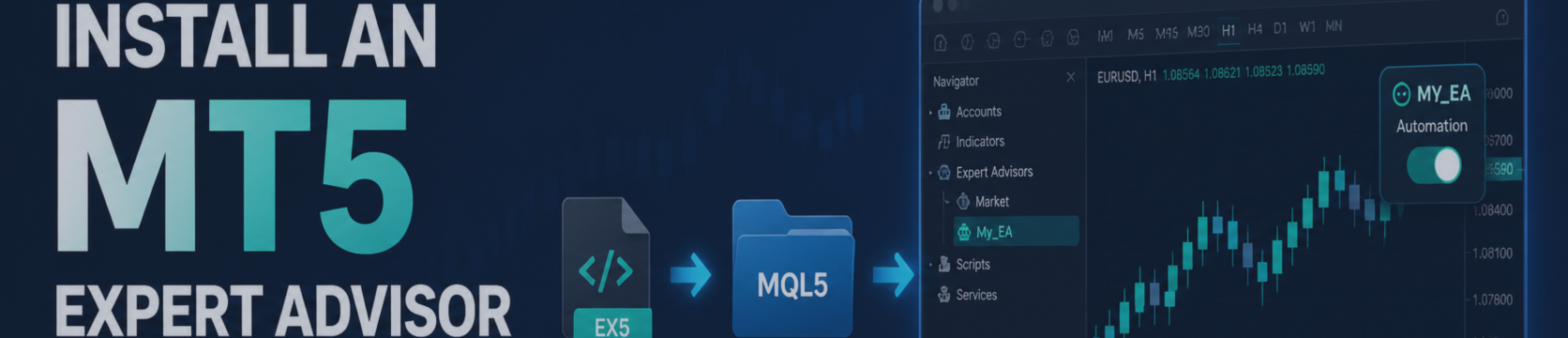

Installing an Expert Advisor (EA) in MetaTrader 5 is usually straightforward, but several settings must be correct before the EA can trade. This guide explains the full process for beginners, including EAs obtained from the MQL5 Market, a developer, or your own MQL5 source code.
An EA is a program that can analyze the market and perform trading operations according to its programmed rules. Installing an EA does not mean it will immediately open a trade. The EA may wait for its entry conditions, the correct trading session, an acceptable spread, or other filters defined by its developer.
Important: Before using any EA on a live trading account, test it in the MetaTrader 5 Strategy Tester and, where possible, on a demo account. Automated trading involves substantial risk. An EA can produce losses, and historical results do not guarantee future performance.
Before You Begin
Before installation, make sure you have the following:
- MetaTrader 5 installed and connected to your broker account.
- The EA file, source code, or access to the EA through the MQL5 Market.
- The EA documentation, including its required symbol, timeframe, recommended inputs, and any account requirements.
- Any preset files supplied by the developer, usually with the .set extension.
- Enough time to test the EA carefully before using real funds.
Different EAs may have different requirements. Some work only on one symbol, such as EURUSD or XAUUSD. Others may require a specific timeframe, such as M15, H1, or H4. Always read the EA documentation before attaching it to a chart.
Step 1: Obtain the EA Files
How you receive the EA depends on where it came from.
EA from the MQL5 Market
If you purchase, rent, or download an EA through the MQL5 Market inside MetaTrader 5, it is normally delivered through the terminal after you sign in to your MQL5.community account. Market products are managed through the platform and should not be treated like ordinary files that can be copied freely between terminals.
After obtaining the product through the Market, look for it in the Navigator window under the appropriate section. If you do not see the Navigator, use View → Navigator or press Ctrl+N.
EA from a Developer or Third Party
An EA supplied outside the Market is commonly delivered as one of the following:
- .ex5 file: A compiled MetaTrader 5 executable file. This is the file that MetaTrader 5 can run.
- .mq5 file: MQL5 source code. It must be compiled in MetaEditor before it can run as an EA.
- .zip file: An archive that may contain the EA, presets, documentation, DLL files, indicator files, or other supporting resources.
- .set file: A preset containing saved EA input values. It does not contain the EA itself.
Only obtain files from sources you trust. Do not enable DLL imports, web requests, or external connections unless you understand why the EA requires them and trust the developer.
Your Own MQL5 Code
If you developed the EA yourself, save the source file in the correct Expert Advisors folder and compile it in MetaEditor. Press F4 in MetaTrader 5 to open MetaEditor, open the .mq5 file, and press F7 to compile it. A successful compilation creates an executable .ex5 file.
Step 2: Open the Correct MT5 Data Folder
MetaTrader 5 can be installed in a protected Windows location, so manually searching for the correct folder can be confusing. The safest method is to open the data folder directly from the terminal.
- Open MetaTrader 5.
- In the top menu, select File.
- Click Open Data Folder.
A file-explorer window opens at the data directory used by that specific MetaTrader 5 installation. This is important because traders may have more than one MT5 terminal installed, such as terminals from different brokers.
Inside the data folder, open:
MQL5
This folder contains the main locations used by MQL5 programs.
Step 3: Place Each File in Its Correct Folder
Inside the MQL5 folder, place files according to their type.
| File Type | Correct Folder | Purpose |
|---|---|---|
| Expert Advisor file (.ex5 or .mq5) | MQL5\Experts | Automated trading robot |
| Preset file (.set) | MQL5\Presets | Saved input parameters |
| Custom indicator (.ex5 or .mq5) | MQL5\Indicators | Chart analysis or indicator calculations |
| Script (.ex5 or .mq5) | MQL5\Scripts | One-time task or command |
| Library or DLL file | Follow developer documentation | Supporting functionality, if required |
For a standard EA installation, copy the .ex5 file into:
MQL5\Experts
You can create a subfolder for organization. For example:
MQL5\Experts\My Expert Advisors\
Then place any supplied preset files in:
MQL5\Presets
Do not place an EA in the Indicators or Scripts folder. MetaTrader 5 separates these program types in the Navigator, and putting a file in the wrong location can make it difficult to find or run correctly.
Step 4: Refresh the Navigator or Restart MT5
After copying the files, MetaTrader 5 must refresh its program list.
- Return to MetaTrader 5.
- Open the Navigator window with Ctrl+N if it is not already visible.
- Expand the Expert Advisors section.
- Right-click inside the Navigator window.
- Select Refresh.
The EA should now appear under Expert Advisors. If it does not appear, close and restart MetaTrader 5.
If the EA still does not appear, check the following:
- Confirm that you opened the data folder from the same MT5 terminal you are currently using.
- Confirm that the EA is in MQL5\Experts, not in the installation directory or Downloads folder.
- Confirm that the file is an MT5 file, usually .ex5 or .mq5, rather than an MT4 .ex4 or .mq4 file.
- If you only have an .mq5 source file, compile it in MetaEditor using F7.
- Check whether antivirus software quarantined, blocked, or removed the file.
- Read any documentation supplied with the EA for required supporting files.
Step 5: Enable Algorithmic Trading
MetaTrader 5 has a platform-wide setting that controls whether EAs are allowed to send trading requests. An EA can be attached to a chart and still be unable to trade if this setting is disabled.
- Locate the AutoTrading button on the MT5 toolbar.
- Enable it so automated trading is permitted.
- Open Tools → Options → Expert Advisors.
- Confirm that Allow Auto Trading is enabled if you intend to let EAs trade.
This setting applies to the platform as a whole. If platform-level automated trading is disabled, individual EAs can still analyze the market and display information, but they cannot open, modify, or close trades.
For safety, MetaTrader 5 can also disable automated trading when you switch accounts, change the terminal profile, or change the chart symbol or timeframe. Review these settings carefully, especially if you run EAs on multiple accounts. MetaTrader 5 allows automated-trading permission to be controlled both platform-wide and per EA. [30][31]
Step 6: Open the Required Chart
Open a chart for the symbol and timeframe required by the EA.
For example, an EA may be designed for:
- EURUSD on the M15 timeframe.
- XAUUSD on the H1 timeframe.
- GBPUSD on the M5 timeframe.
- A multi-symbol setup that can be attached to one chart but monitors several instruments.
Use the exact broker symbol listed in the EA documentation. Broker symbol names can differ. One broker may use EURUSD, while another may use a suffix or prefix such as EURUSD.a, EURUSDm, or another variation.
To open a chart:
- Open View → Market Watch, or press Ctrl+M.
- Find the required trading symbol.
- Right-click the symbol.
- Select Chart Window.
- Select the required timeframe from the toolbar.
Attaching an EA to the wrong symbol or timeframe may prevent trades or cause the EA to operate in a way the developer did not intend.
Step 7: Attach the EA and Configure Its Inputs
Once the EA appears in Navigator and the correct chart is open, attach the EA to that chart.
- In the Navigator, expand Expert Advisors.
- Find the EA you want to run.
- Drag the EA onto the chart.
- Alternatively, double-click the EA or right-click it and select the option to attach it to the chart.
The EA Properties window will open. This window normally includes two important sections: Common and Inputs.
Common Tab
In the Common tab, review the EA permissions carefully.
- Allow Algo Trading: Enable this only if you want the EA to send trading requests.
- Allow DLL imports: Enable only when required by a trusted EA and clearly explained in its documentation.
- Allow WebRequest: Enable only when the EA requires communication with approved web addresses and you understand the purpose.
- Allow modification of Signals settings: Usually not needed for a standard standalone EA.
Grant only the permissions that are necessary. If an EA does not need DLL access or web access, leaving those permissions disabled is generally the safer choice.
Inputs Tab
The Inputs tab contains the EA settings. These may include lot size, risk percentage, stop loss, take profit, trading session, maximum spread, news filter settings, magic number, or symbol options.
If the developer supplied a preset file:
- Open the Inputs tab.
- Click Load.
- Choose the supplied .set file.
- Review every loaded value before clicking OK.
A preset is not automatically safe for every account. Before using one, confirm that it is intended for your account type, deposit size, broker, leverage, symbol suffixes, and risk tolerance.
Pay special attention to these settings:
- Lot size or risk percentage: Determines potential trade exposure.
- Maximum spread: Prevents trades if transaction costs are above the configured threshold.
- Trading hours: May use broker-server time, not your local time.
- News filter: May require a working calendar, internet connection, or additional configuration.
- Maximum positions: Limits the number of simultaneous trades.
- Daily loss limit: May stop new entries after a defined loss threshold.
- Magic number: Helps the EA identify and manage its own trades.
After reviewing permissions and inputs, click OK to attach the EA to the chart.
Step 8: Confirm That the EA Started Correctly
When an EA starts successfully, its name and status icon should appear in the upper-right area of the chart. This confirms that the program is attached and running on that chart.
However, attachment alone does not prove that the EA is allowed to trade. Confirm all of the following:
- The EA name and icon are visible in the upper-right corner of the chart.
- The platform-level AutoTrading control is enabled.
- Algorithmic trading is allowed in the EA properties.
- The EA log does not show initialization errors.
- The correct symbol and timeframe are open.
- The correct account is connected.
- The EA inputs, especially risk and lot-size settings, are correct.
MetaTrader 5 provides two useful areas for checking messages:
- Experts tab: Shows messages generated by Expert Advisors.
- Journal tab: Shows broader platform events, connection messages, and trading-related logs.
These tabs are found in the Toolbox area at the bottom of the terminal. Read the most recent messages after attaching the EA. They often explain exactly why an EA did not initialize or why it decided not to trade.
Why an EA May Not Open Trades
A correctly installed EA does not necessarily trade immediately. Many EAs wait for a defined setup. This is normal behavior and does not automatically indicate a problem.
Common reasons an EA may wait include:
- No valid entry signal has occurred.
- The market is outside the permitted trading session.
- The spread is above the configured maximum.
- A news filter is active.
- The maximum number of trades or positions has been reached.
- The EA has reached a daily-loss limit or drawdown protection limit.
- The symbol name does not match the EA configuration.
- The account balance is too low for the minimum permitted trade volume.
- The broker has temporarily disabled trading for the symbol.
- Algorithmic trading is disabled at either the platform or EA level.
Do not repeatedly change inputs simply because the EA has not traded for a short period. First check the Experts and Journal logs, then compare the current market conditions with the EA's documented entry rules.
Troubleshooting Guide
Problem: “AutoTrading disabled” or “Trading not allowed”
Likely cause: Automated trading is disabled globally or for the individual EA.
What to check:
- Enable the AutoTrading control in the main MT5 toolbar.
- Open Tools → Options → Expert Advisors and confirm that automated trading is allowed.
- Open the EA properties and confirm that Allow Algo Trading is enabled.
- Check whether account changes or profile changes automatically disabled trading.
Problem: The EA does not appear in Navigator
Likely cause: The file is in the wrong folder, belongs to MT4, has not been compiled, or the Navigator has not refreshed.
What to check:
- Use File → Open Data Folder from the active MT5 terminal.
- Confirm the EA file is inside MQL5\Experts.
- Right-click Navigator and select Refresh.
- Restart MetaTrader 5.
- Compile an .mq5 source file in MetaEditor using F7.
- Confirm that you are not attempting to use an MT4 .ex4 file in MT5.
Problem: The EA is attached but does not trade
Likely cause: The EA is waiting for its conditions, its filters are active, or a setting is preventing execution.
What to check:
- Read the Experts tab for status messages.
- Confirm the chart symbol and timeframe match the EA requirements.
- Check maximum-spread, session, news-filter, and maximum-position settings.
- Confirm the current time against the broker-server time used by the EA.
- Check account margin, minimum lot size, and available free margin.
- Confirm the EA is designed for the account type you are using.
Problem: “Invalid license” or activation error
Likely cause: The EA may use product activation, account authorization, or a licensing server.
What to check:
- Confirm that you are logged in to the correct MQL5.community account when using a Market product.
- Confirm that the terminal has a working internet connection.
- Check firewall, antivirus, and network settings if the EA requires a permitted online connection.
- Read the EA documentation for licensing requirements.
- Contact the original developer or product support with the exact error message from the Experts log.
Problem: The EA shows an initialization error
Likely cause: A required symbol, indicator, resource, permission, or input is missing.
What to check:
- Read the first error message in the Experts tab after attachment.
- Confirm any required custom indicators were installed in MQL5\Indicators.
- Confirm required symbols are visible in Market Watch.
- Review input settings for invalid values.
- Only enable DLL imports or WebRequest permissions if the EA documentation specifically requires them.
Recommended Safety Checklist
Before allowing an EA to trade a live account, complete this checklist:
- Read the EA documentation from beginning to end.
- Verify the correct symbol, timeframe, and broker requirements.
- Use the Strategy Tester to understand the EA's behavior.
- Test on a demo account or use very conservative risk initially.
- Review the maximum drawdown and risk characteristics of the strategy.
- Confirm lot size, risk percentage, stop-loss behavior, and maximum exposure.
- Check the Experts and Journal tabs after installation.
- Do not run duplicate copies of the same EA unless its documentation explicitly supports that setup.
- Use a stable computer or VPS if continuous operation is required.
- Monitor the EA regularly; automation does not eliminate the need for supervision.
Frequently Asked Questions
Can I install an MT4 EA in MetaTrader 5?
No. MT4 and MT5 use different program formats. MT4 EAs use .ex4 or .mq4 files, while MT5 EAs use .ex5 or .mq5 files. You need an MT5-compatible version of the EA.
Do I need to keep MetaTrader 5 open?
Yes. An EA needs the MetaTrader 5 terminal to be running and connected if it must monitor the market and trade. Traders who require continuous operation often use a VPS, but a VPS does not remove trading risk or guarantee execution.
Can I close the chart after attaching the EA?
Closing the chart generally removes the EA from that chart, so it will stop operating there. Keep the chart open while the EA is intended to run.
Why does the EA not trade immediately after installation?
Many EAs trade only when their exact conditions are met. Check the Experts log and the EA documentation before assuming there is an installation problem.
Can I use the same preset on every broker?
Not necessarily. Broker spreads, commissions, symbol names, contract specifications, server time, execution conditions, and account leverage can differ. Review settings and test before using a preset on a new broker or account.
Final Reminder
Installing an EA is only the first step. The more important work is understanding its strategy, confirming its risk settings, testing under realistic conditions, and monitoring it after deployment. Use automation as a structured trading tool, not as a substitute for due diligence or risk management.
Risk disclosure: This material is for educational purposes only and does not constitute investment advice, a recommendation, or a guarantee of trading results. Trading leveraged financial instruments involves substantial risk and may not be suitable for every trader.