

Meta Extender
This is the user manual for the Meta Extender, available on the MQL5 Market for MetaTrader 4 and MetaTrader 5.
Quick start
This quick start guide takes only 5-10 minutes to follow.
Installing from the Market
To download from the Market, enter your MQL5 account details in MetaTrader: open MetaTrader 4 or 5 and, under Tools > Options > Community, fill in your MQL5 login and password.
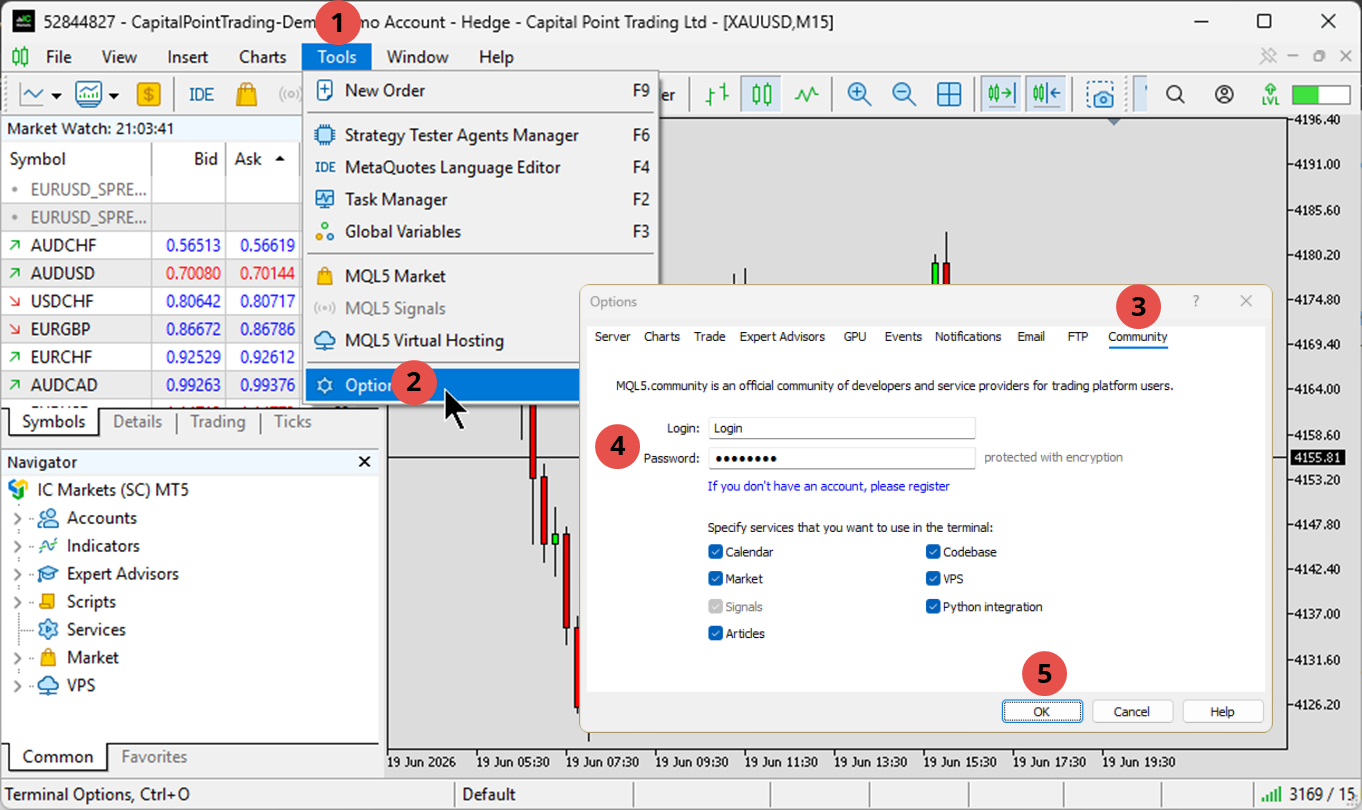
Downloading the Meta Extender MT5 app
In the Navigator, open the My purchases window. Next to the application, click Install, or Update if a new version has been released.
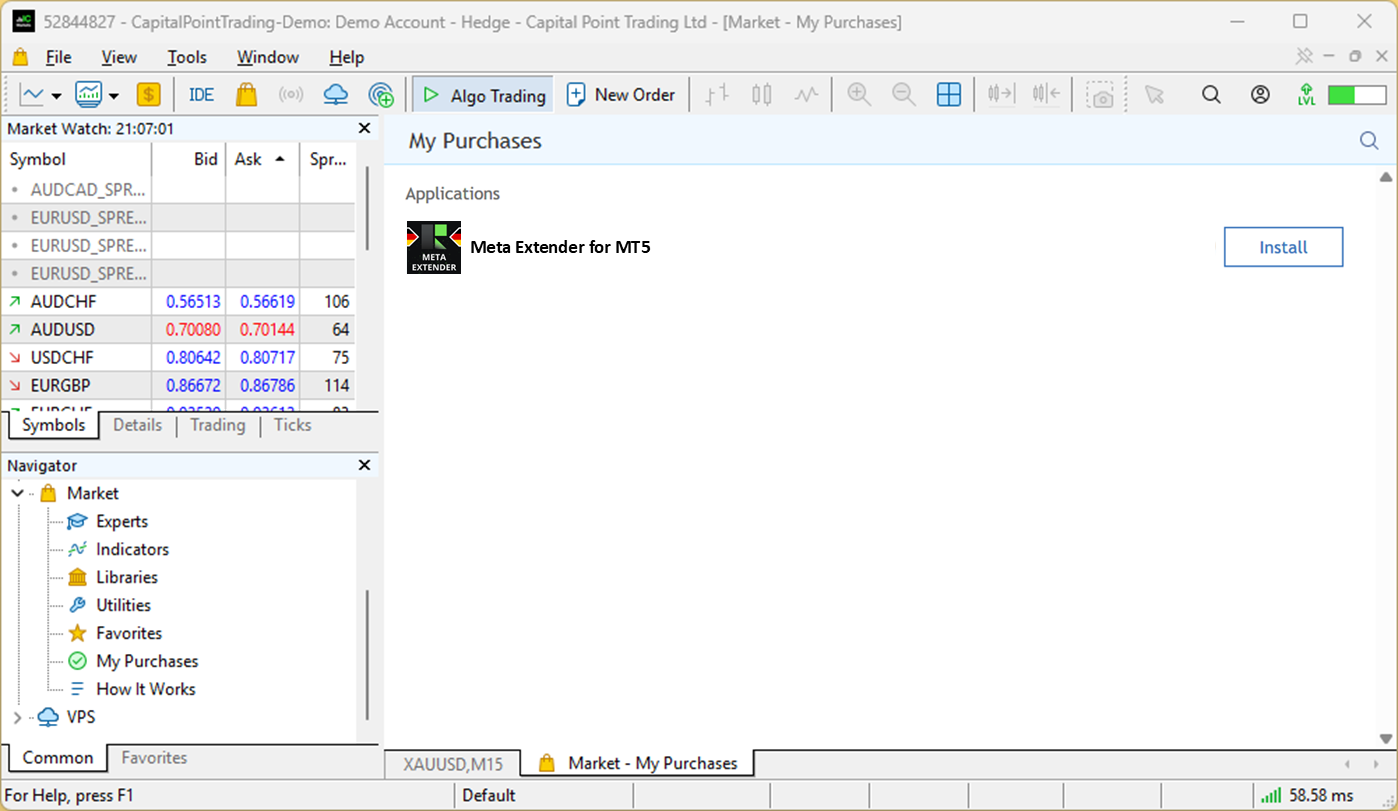
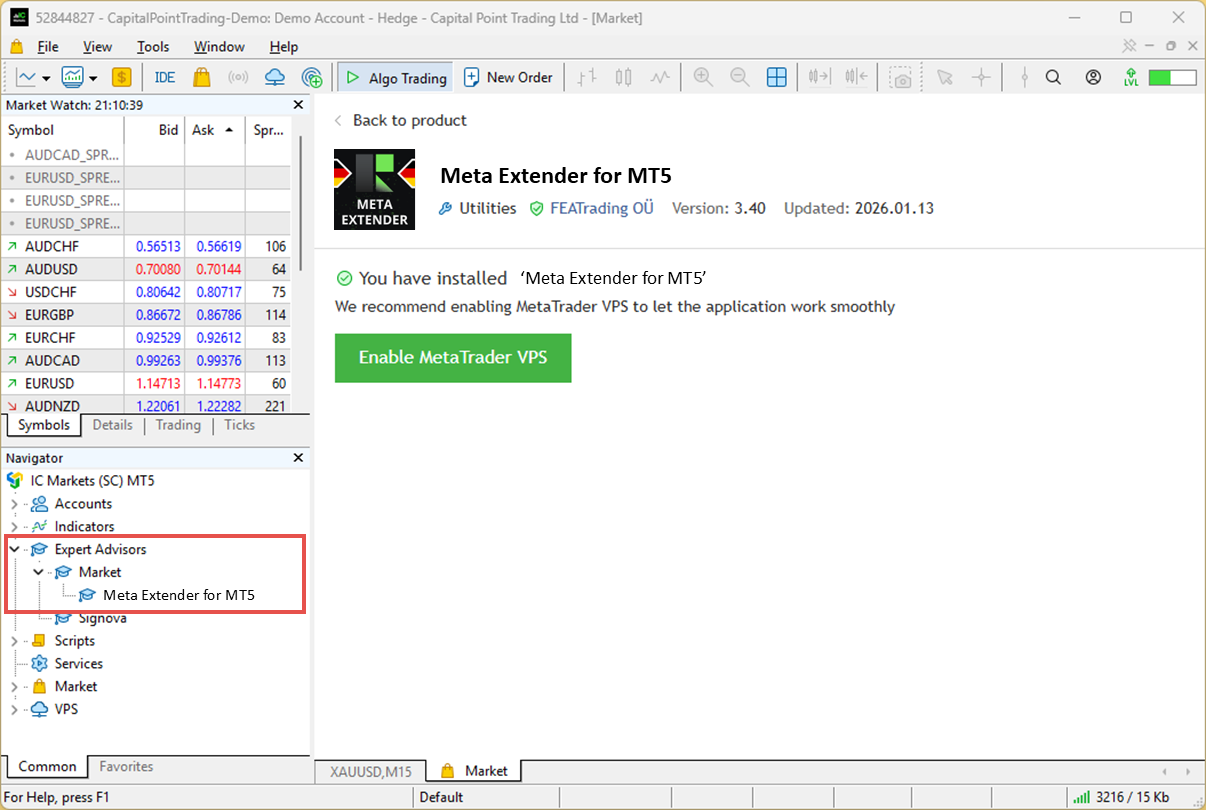
The application will be downloaded to the Expert Advisors > Market folder.
Downloading the Meta Extender MT4 app
In the Terminal window, open the Market > Purchases tab and click Install.
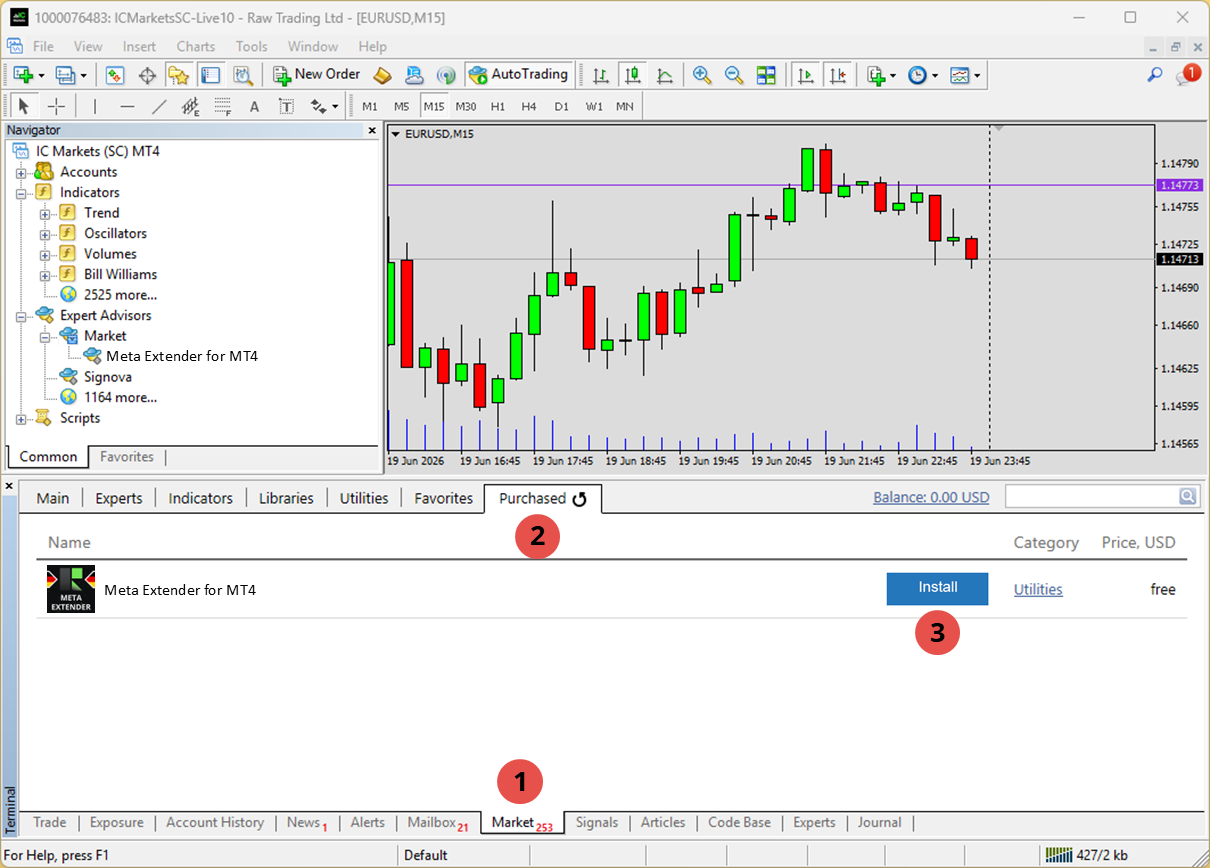
The application will be downloaded to the Expert Advisors > Market folder.
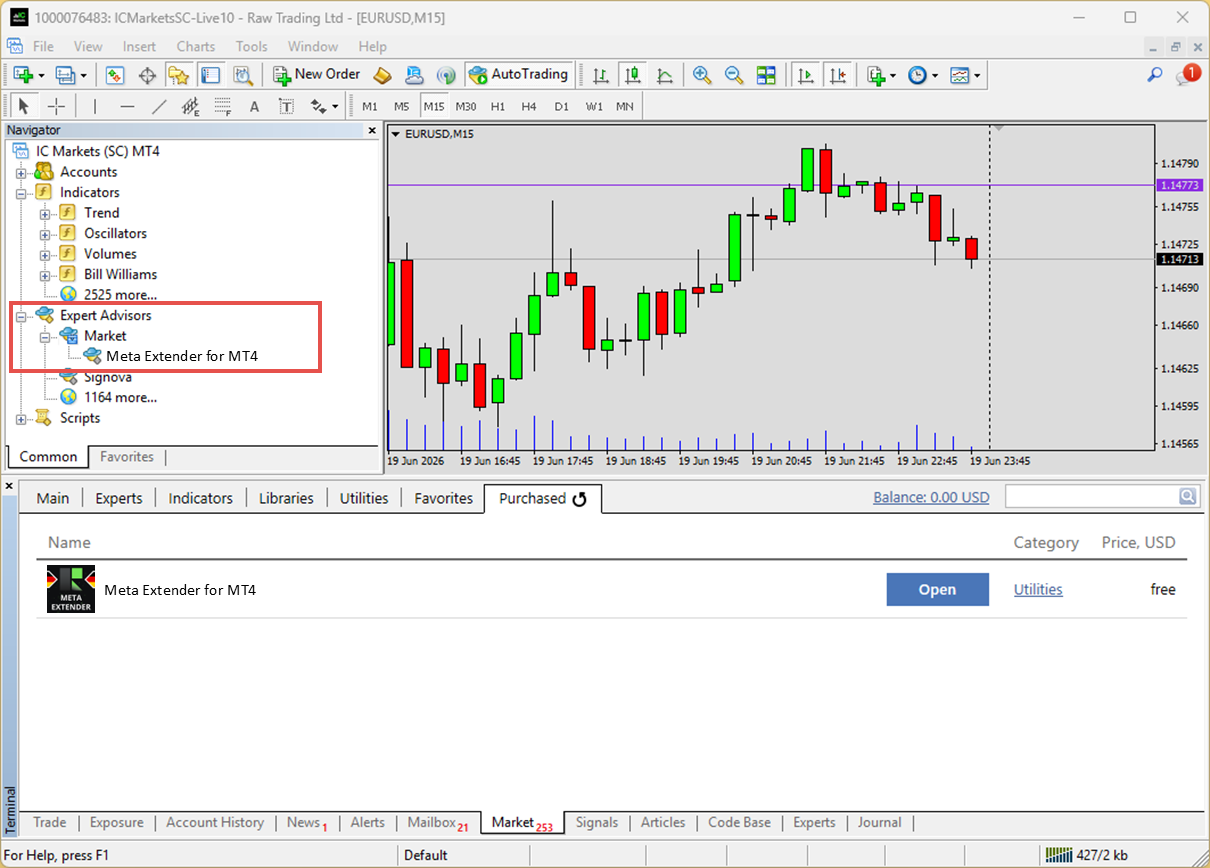
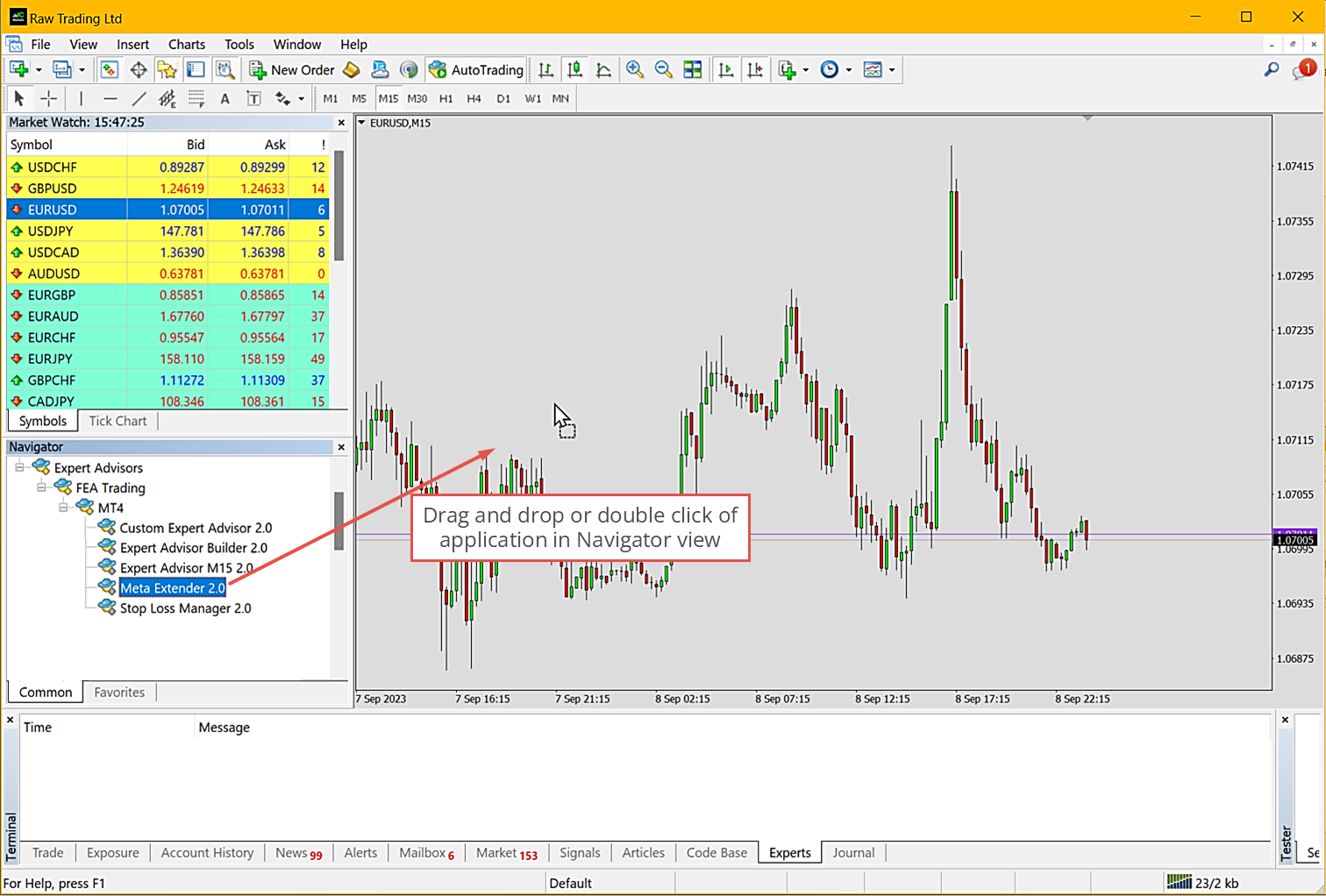
Start of application
Find the Meta Extender in the Navigator under Expert Advisors (right-click and choose Refresh if it isn't listed yet). Double-click it or drag it onto a chart to start it.
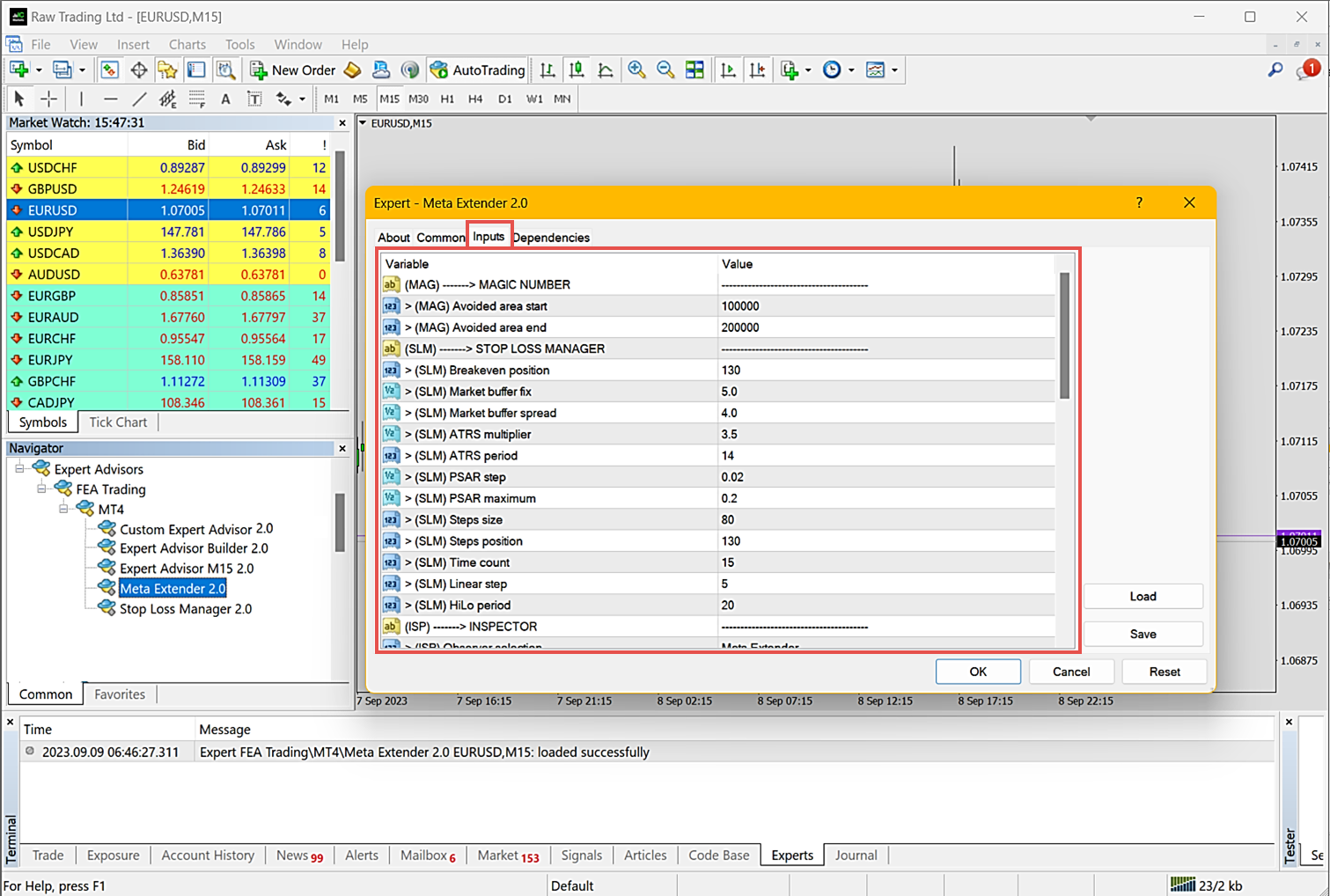
A welcome panel appears at every launch, where you can check the version and adjust the input parameters on the Inputs tab. Most settings can be changed later in the user interface, and the defaults are already well-adjusted, so you can usually leave the inputs as they are.
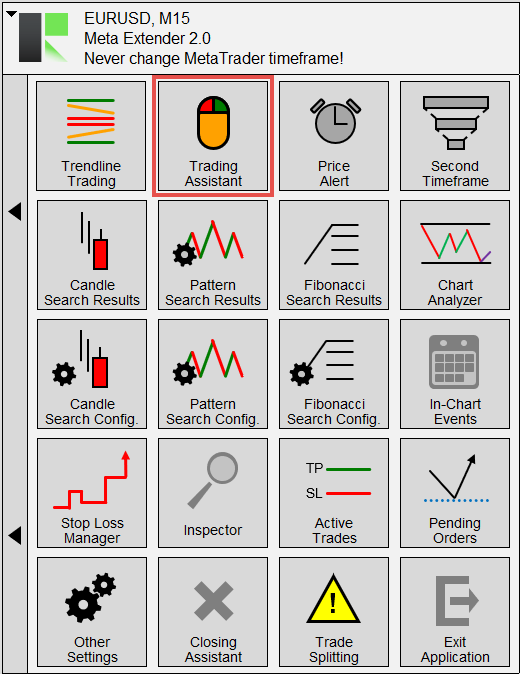
Once launched, the home screen shows the widgets overview:
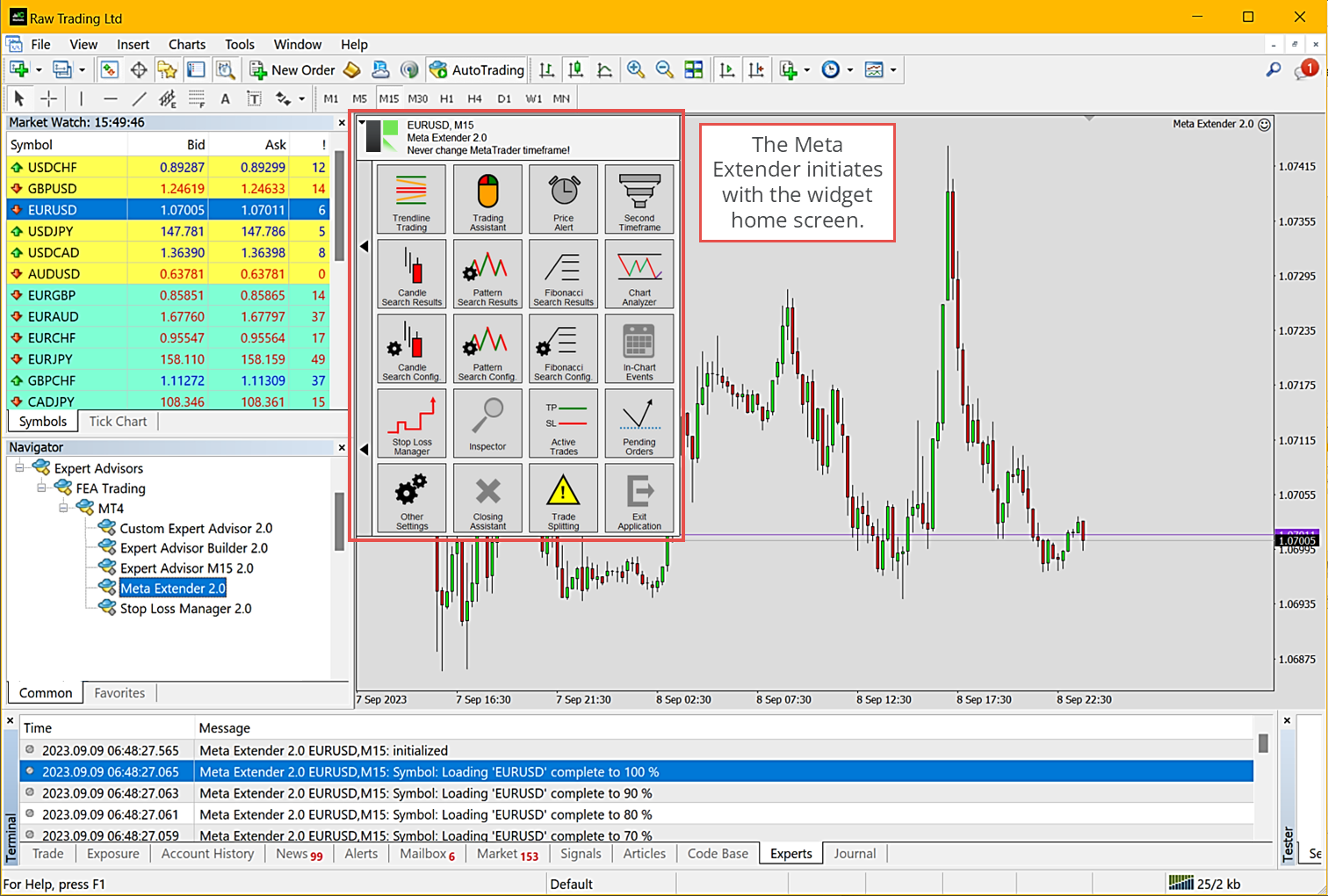
The Meta Extender is now running. Changing the MetaTrader timeframe reinitializes it, so keep the same timeframe while it is active. To view a higher timeframe, use the Second Timeframe (see further down) widget or a second chart window.
Open an order
Let's begin by opening the Trading Assistant (see further down) widget. To launch it, choose the widget from your Meta Extender home screen:
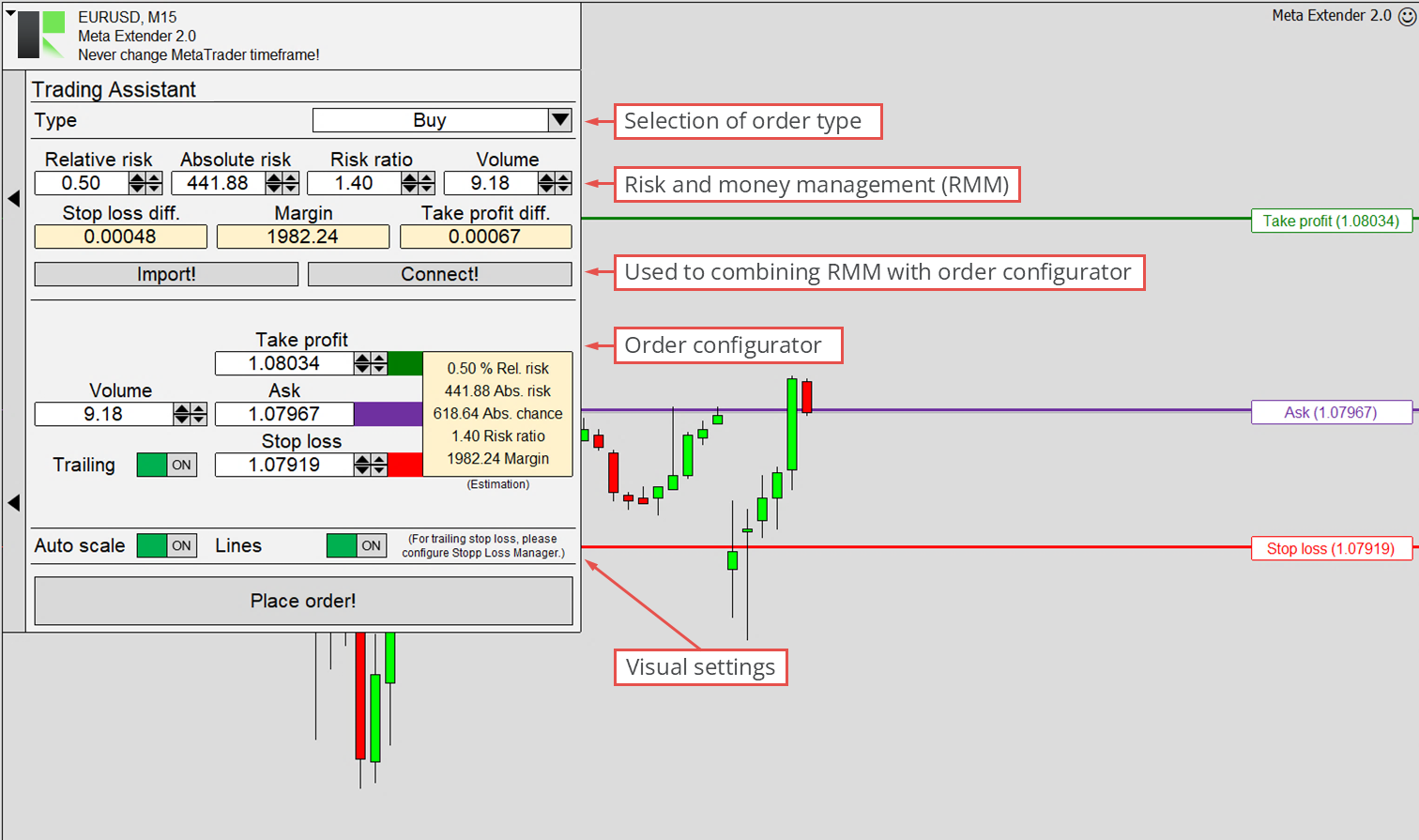
This widget aids manual trading with an integrated risk and money management tool. It shows the key facts of a planned trade and provides a one-click trading panel with an order configurator, including sophisticated stop loss trailing.
It is visually intuitive: you set the stop loss, take profit and pending price with lines on the chart, and past trades are visualized too. See the comfort visualization (see further down) for more.
Configure the input fields to see how the risk and money management interact with the order configurator. Clicking Place Order executes the trade immediately, with no confirmation dialog.
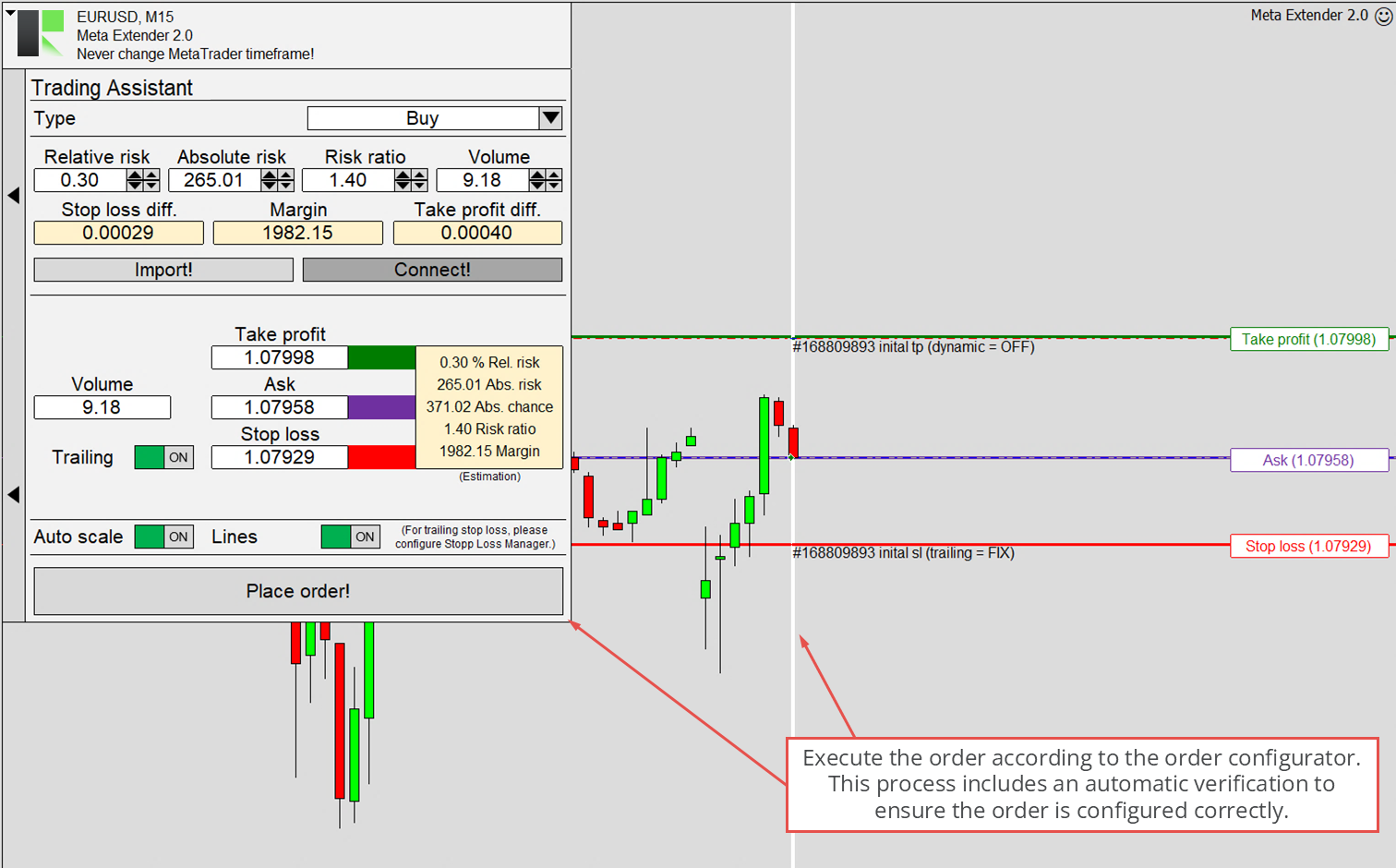
A vertical white line marks where a trade opens and another where it closes; the stop loss and take profit are drawn as red and green lines. Close a trade manually from the Active Trades (see further down) widget or the MetaTrader terminal.
Tester mode
The Meta Extender also works inside the MetaTrader strategy tester. The user interface stays fully operational during a test, so you can practice manual trading in fast-forward and simulate a whole day in minutes. Open it via View - Strategy Tester.
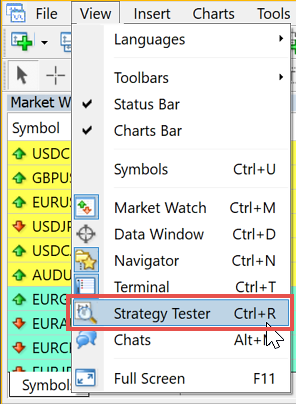
A new window appears at the bottom of MetaTrader. Although the tester is normally used for automated strategies, here you use it to practice manual trading - for example, to replay the previous week in a calm moment, or to teach trading without waiting hours for trades. Because the future price is unknown, it lets you learn realistically on historical charts.
In the strategy tester settings, select the Meta Extender, set the model to Every tick, and enable visual mode so a chart view is available. Any start and end date will do.
Press start and use the Meta Extender in the tester chart as usual.
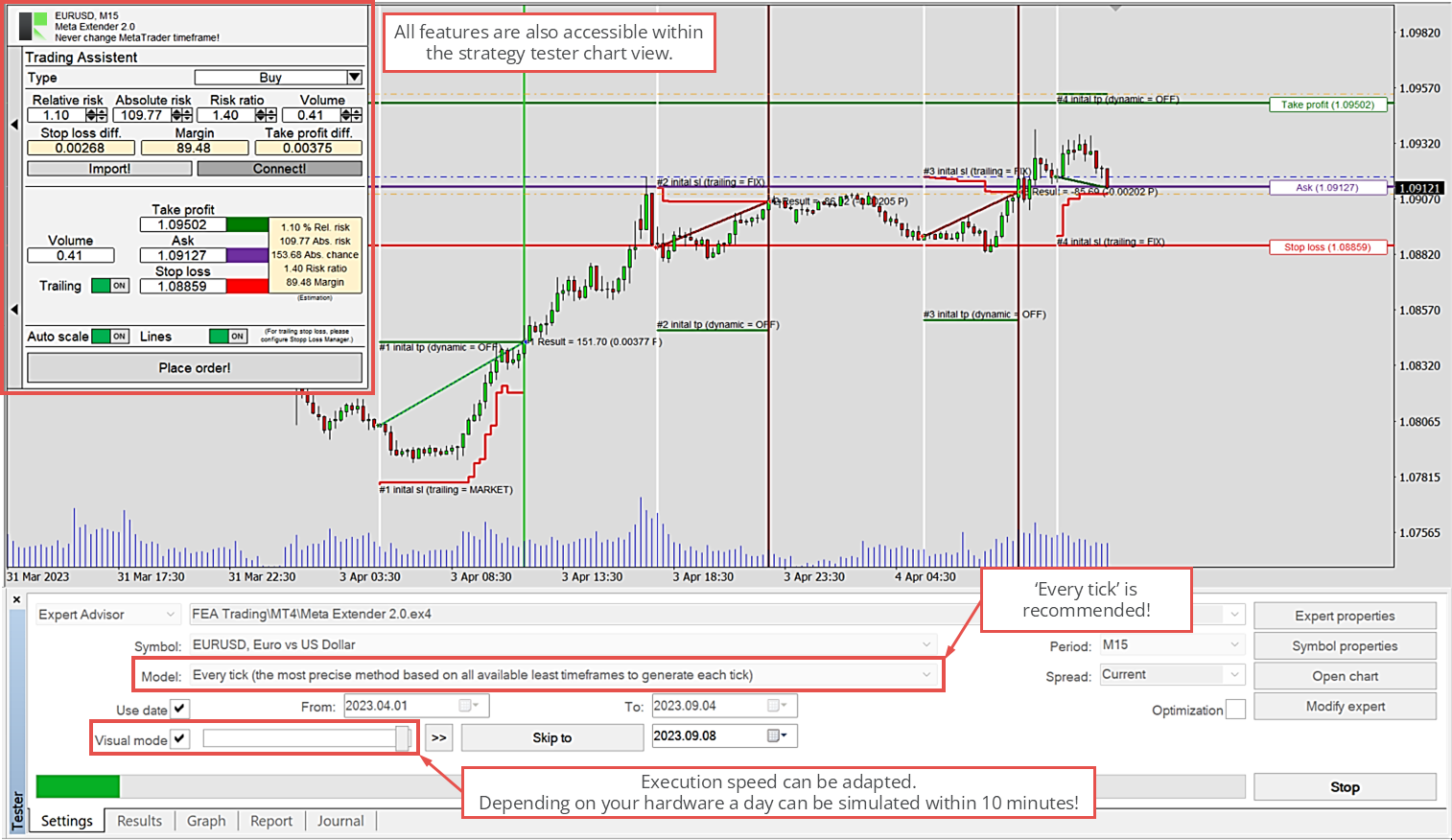
The simulation can replay a day in minutes; adjust the speed with the slider.
Need help?
If you have any questions or need help, our support team is happy to assist.
Inputs configuration
This chapter explains every input parameter. You'll find them in the Inputs tab when you start the Meta Extender on a chart (it looks slightly different in MetaTrader 5 but works the same).
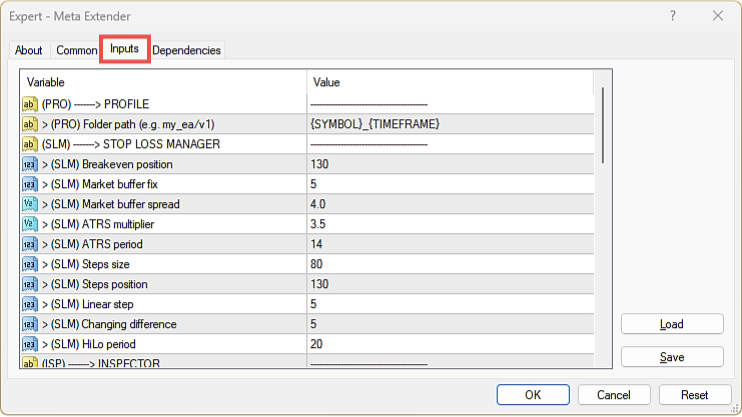
The defaults work everywhere, but tailoring the settings to your symbol and timeframe is recommended. They are a solid starting point for beginners, while advanced traders will often want different settings per symbol and timeframe.
MAG - Magic number
Parameters for the magic number
A magic number is a unique identifier that groups all trades opened by an application, so different applications in MetaTrader don't interfere with each other. Each application should only modify trades carrying its own magic number; the Meta Extender follows this strictly, and we assume any third-party application you use does too.
| Input variable within MetaTrader | Default value | Comment |
|---|---|---|
| > (MAG) Avoided range start | 100000 | The input value cannot be smaller than 0. |
| > (MAG) Avoided range end | 200000 | The input value cannot be smaller than 0. |
Instead of a fixed magic number, the Meta Extender uses > (MAG) Avoided range start and > (MAG) Avoided range end to define a range it will avoid, then automatically picks a free number outside it. All FEA Trading applications follow this principle, and a mechanism prevents the same number being used twice.

In the illustration, with the range set to 100000-200000, the chosen number is any value below 100000 or above 200000. Since all our applications default to avoiding that range, give any other third-party application a magic number inside 100000-200000.
SLM - Meta Extender
To optimize these parameters, use the tester mode described above (see further up).
Parameters for breakeven trailing
Breakeven trailing moves the stop loss once, to the entry price, securing profits already made. The jump happens when the trade is already comfortably in profit and unlikely to reverse.
| Input variable within MetaTrader | Default value | Comment |
|---|---|---|
| > (SLM) Breakeven position | 130 | The input value cannot be smaller or equal to 0. |
> (SLM) Breakeven position defines when the jump happens, relative to the initial stop loss distance (which counts as 100). If that distance is 80 pips and the value is 150, the jump occurs once the price is 40 pips in profit. A larger value means a later jump.
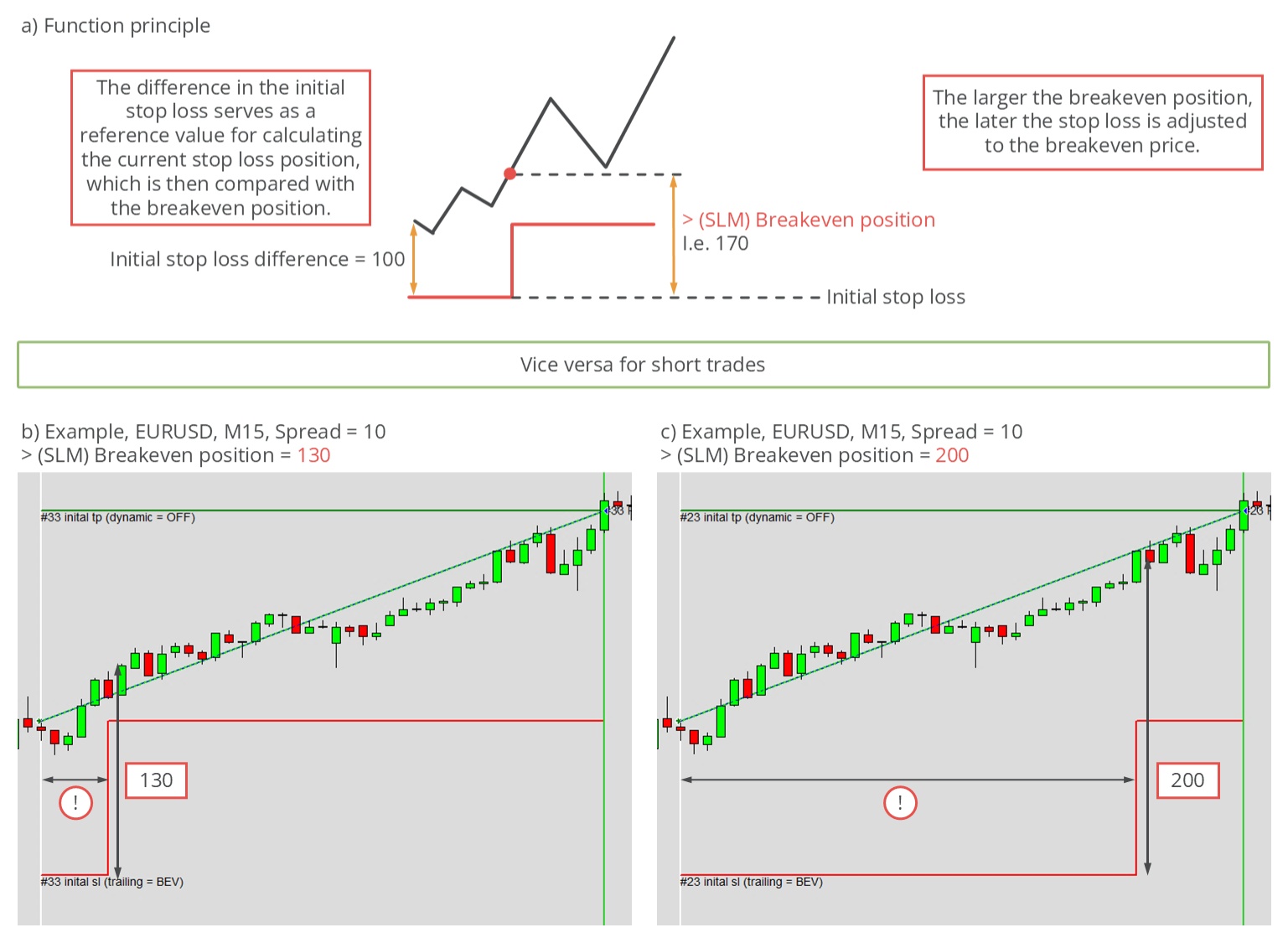
Use this method only with a take profit or manual supervision: since the stop loss never moves again, the best automatic outcome is breakeven. Commission and swap are not included in the breakeven price.
Parameters for market trailing
Market trailing uses the previous candles' open and close prices plus the spread. The only adjustable part is a buffer added to the stop loss distance, set by a fixed value in pips (> (SLM) Market buffer fix) and/or a dynamic value based on the current spread (> (SLM) Market buffer spread).
| Input variable within MetaTrader | Default value | Comment |
|---|---|---|
| > (SLM) Market buffer fix | 5.0 | This parameter introduces a buffer to the stop loss level, calculated based on a fixed number of pips. The input value cannot be smaller or equal to 0. |
| > (SLM) Market buffer spread | 4.0 | This parameter introduces a buffer to the stop loss level, calculated based on a fixed number of pips. However, in this case, the parameter multiplies the current spread value. The product of this multiplication determines the buffer level. The input value cannot be smaller or equal to 0. |
The spread-based buffer helps avoid being stopped out during high-spread phases such as night hours, when a wide spread could otherwise push the stop loss too close to the price.
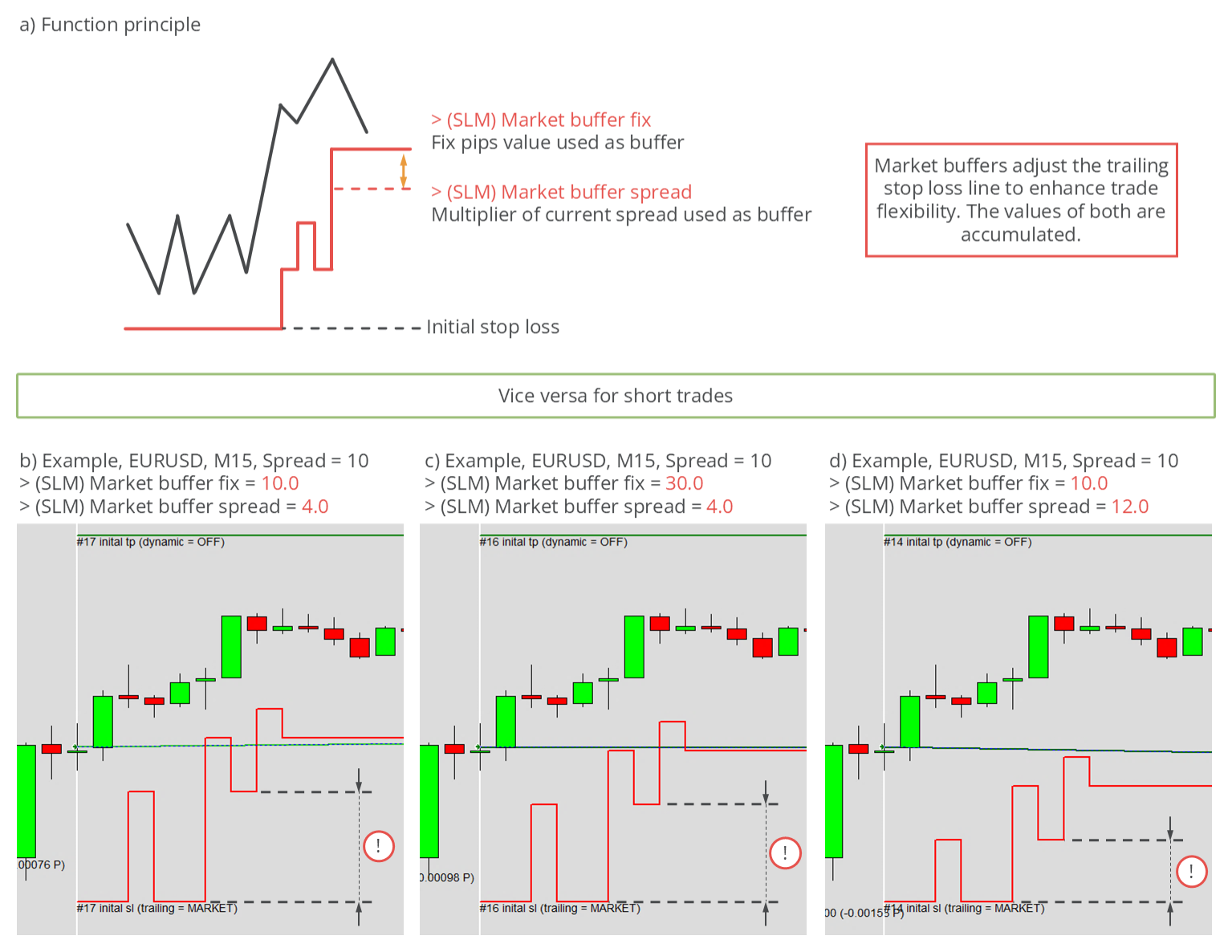
Both parameters move the stop loss further from the price and can be combined; their values then add up.
Parameters for average true range trailing
Average true range (ATR) trailing uses the ATR indicator, a standard volatility measure, to set the stop loss distance.
| Input variable within MetaTrader | Default value | Comment |
|---|---|---|
| > (SLM) ATRS multiplier | 3.5 | The input value cannot be smaller or equal to 0. |
| > (SLM) ATRS period | 14 | The input value cannot be smaller or equal to 0. |
> (SLM) ATRS period is the ATR calculation period, and > (SLM) ATRS multiplier scales the raw ATR (usually too small to use directly) into the stop loss distance. A common multiplier is 3.5.
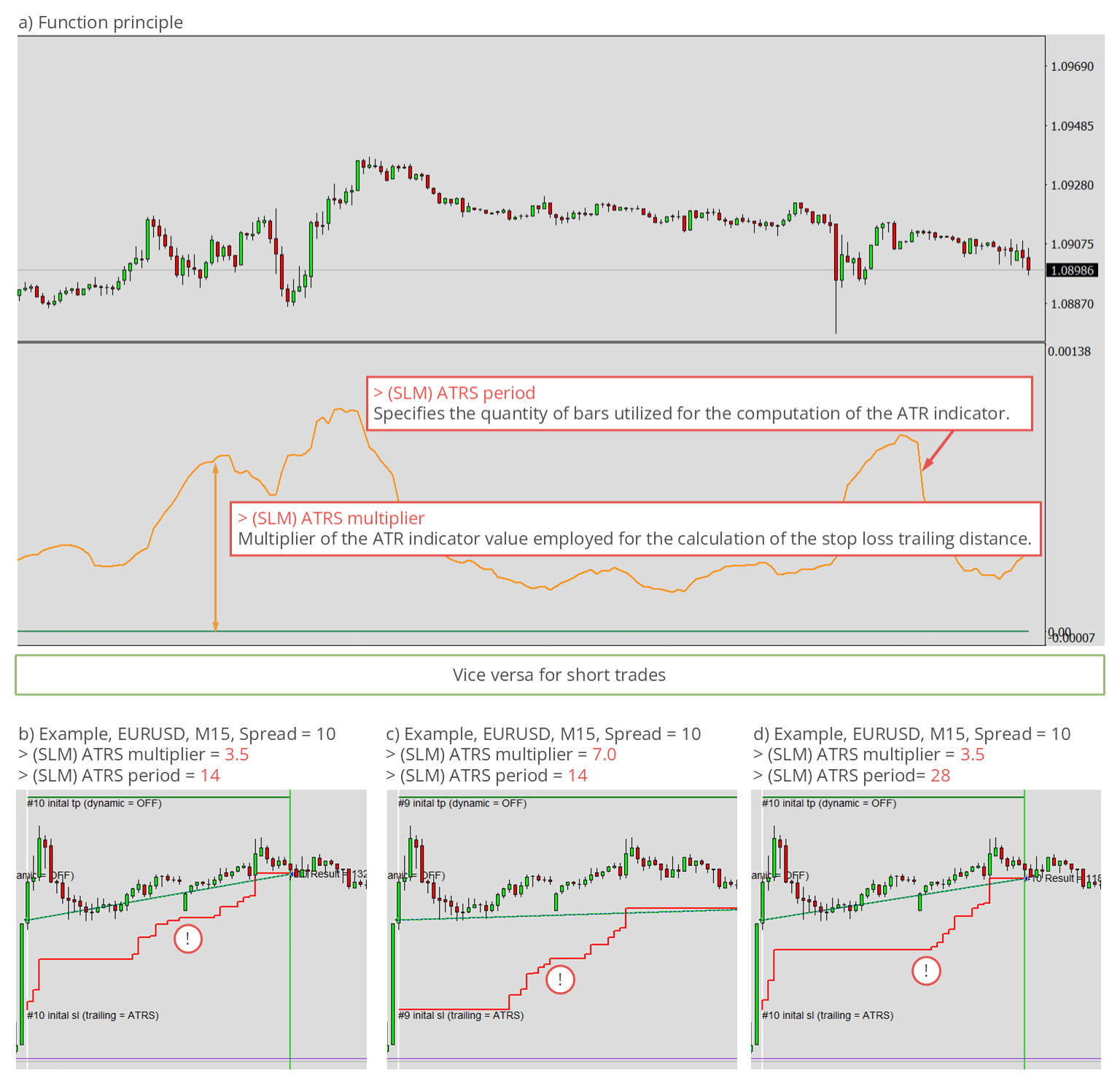
These values change how closely the stop loss follows the price.
Parameters for parabolic SAR trailing
Parabolic SAR trailing uses the PSAR indicator, which has two parameters.
| Input variable within MetaTrader | Default value | Comment |
|---|---|---|
| > (SLM) PSAR step | 0.02 | The input value cannot be smaller or equal to 0. |
| > (SLM) PSAR maximum | 0.2 | The input value cannot be smaller or equal to 0. |
The PSAR value is used directly as the stop loss when it qualifies. Because PSAR sits above or below the price, it sometimes gives no valid value (typically just after a trade opens), and when it flips it can move the stop loss quickly toward the price. > (SLM) PSAR step and > (SLM) PSAR maximum tune this movement.
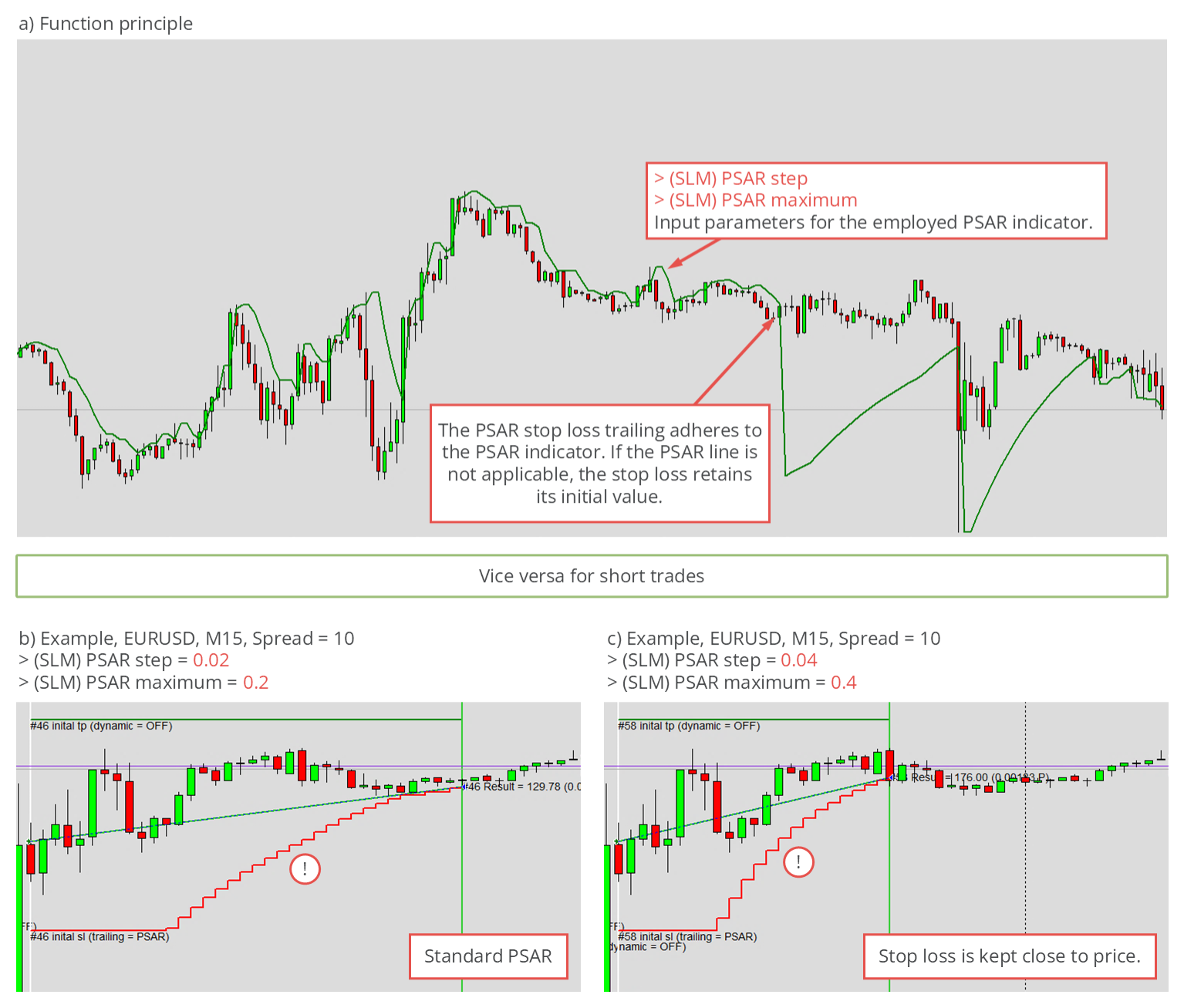
The lower these values are, the more gently the stop loss moves towards the price value.
Parameters for stepwise trailing
Stepwise trailing moves the stop loss closer in equal steps, each triggered when the price advances by a set amount. As usual, the parameters are relative: the initial stop loss distance (opening price to initial stop loss) counts as 100.
| Input variable within MetaTrader | Default value | Comment |
|---|---|---|
| > (SLM) Steps size | 80 | The input value cannot be smaller or equal to 0 and not greater than or equal 100. |
| > (SLM) Steps position | 130 | The input value cannot be smaller or equal to 100. |
> (SLM) Steps size sets each step's size and > (SLM) Steps position sets when the next step fires; both are relative. With an initial distance of 100 pips and a value of 130, steps occur at initial stop loss + 130 pips, then + 260 pips, and so on until the trade is stopped out.
With Steps position 80, steps occur at initial stop loss + 80 pips, then + 160 pips, repeating until stopped out.
The illustration below demonstrates the function principle and provides two examples of the operation of this stop loss trailing method.
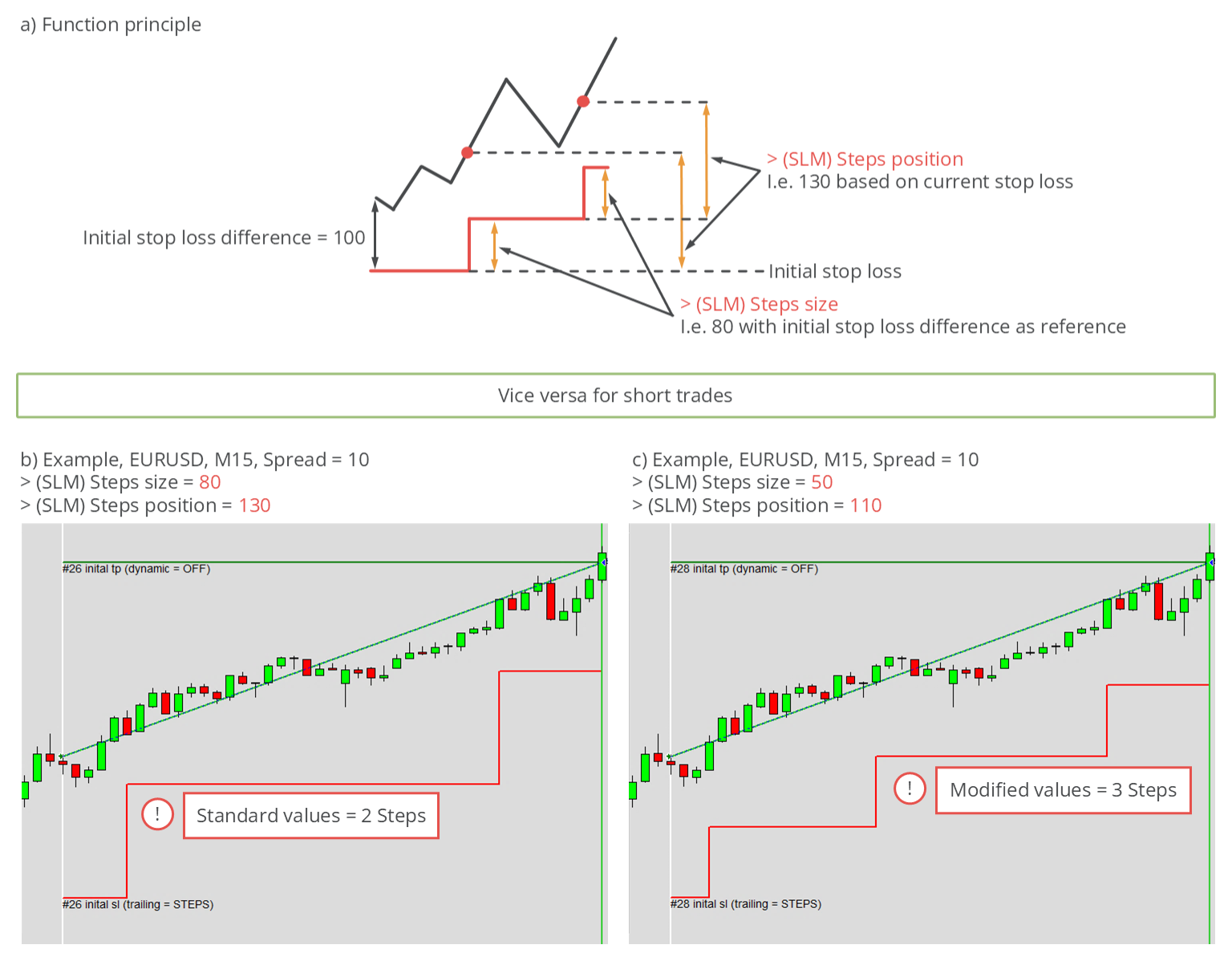
> (SLM) Steps position cannot be below 100 and > (SLM) Steps size cannot exceed 100. Values near these limits make steps more frequent; the time between steps depends on how fast the price moves.
Parameters for time based trailing
Time-based closing isn't really trailing - the stop loss never moves. Instead, the trade is closed after a set time, regardless of its current result.
| Input variable within MetaTrader | Default value | Comment |
|---|---|---|
| > (SLM) Time count | 15 | Positive values represent the period, measured in bars, in the currently active timeframe. On the other hand, negative values represent the period measured in seconds. |
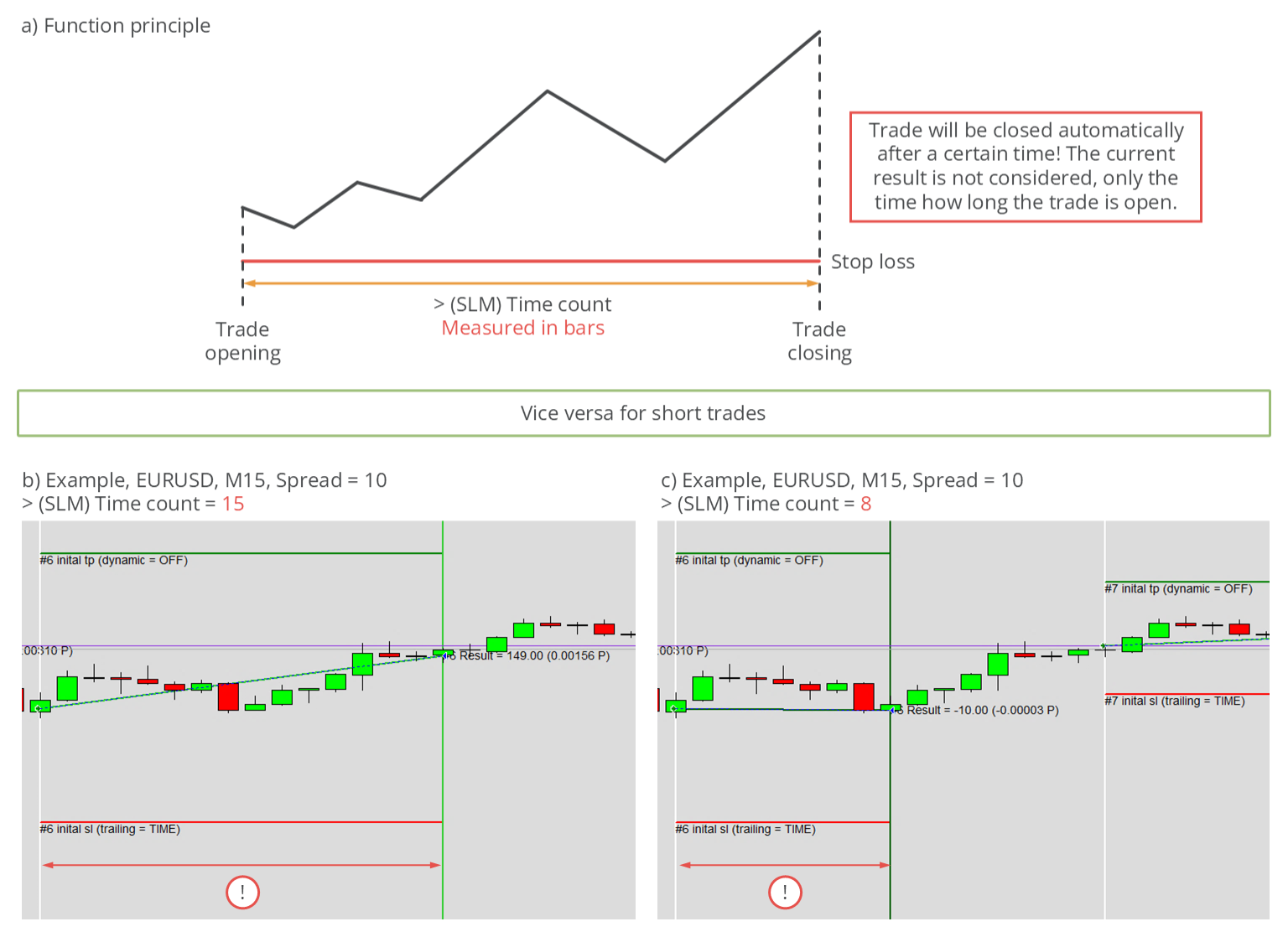
> (SLM) Time count sets the period two ways. Positive values are bars in the current timeframe (e.g. 10 on M5 closes after 50 minutes). Negative values are seconds (e.g. -3600 closes after 60 minutes, -7200 after 120). The illustration below shows two positive-value examples.
Parameters for linear steps trailing
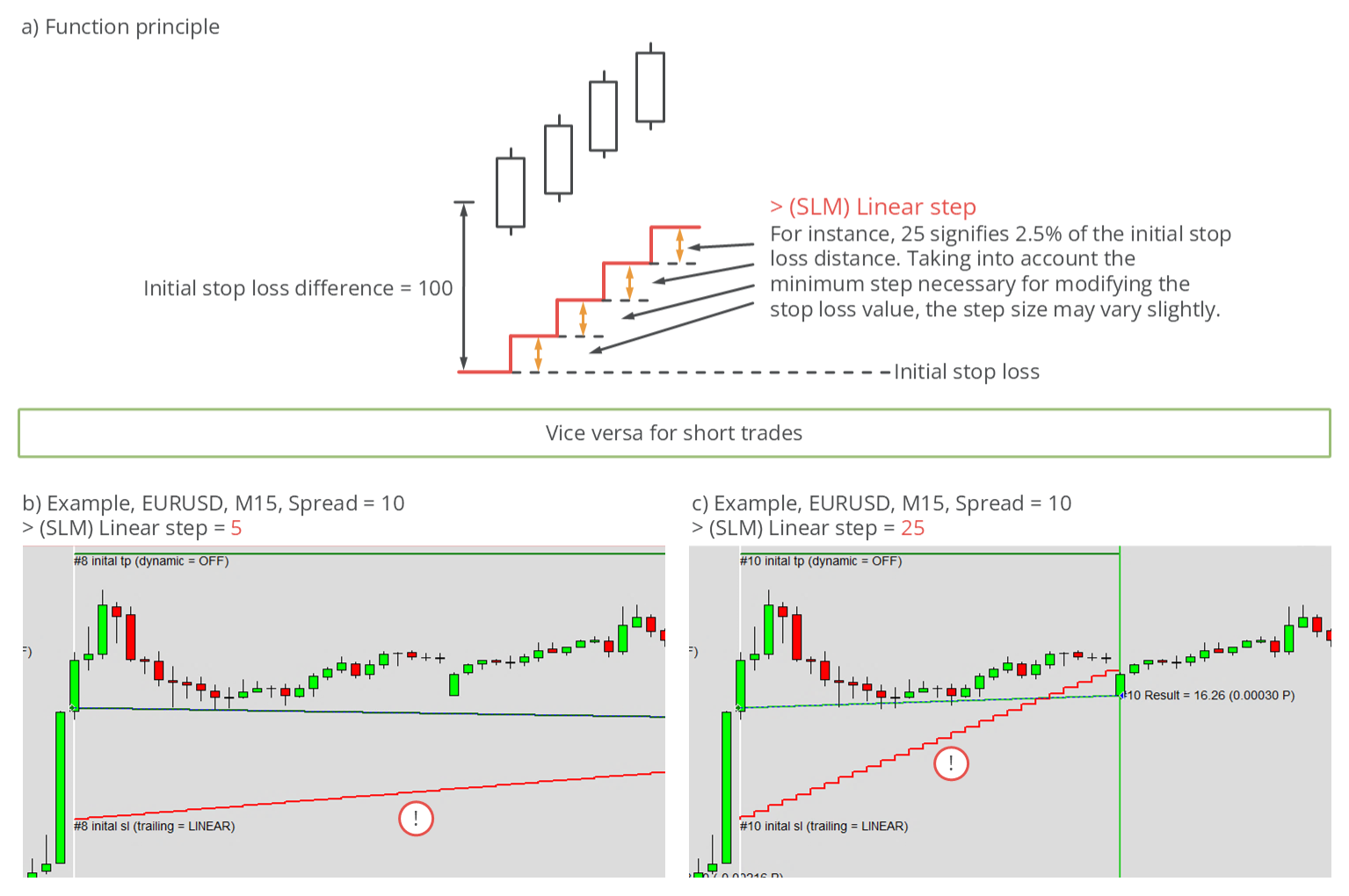
Linear steps trailing raises the stop loss by a fixed amount after every closed bar, giving a strictly linear rise.
| Input variable within MetaTrader | Default value | Comment |
|---|---|---|
| > (SLM) Linear step | 5 | The input value must be greater than 0. Lower values might result in a static stop loss, as the smallest price increment could be larger than the desired step size. |
The initial stop loss distance counts as 100. The only parameter, > (SLM) Linear step, is the step size; the default 5 means the stop loss rises by 0.5% of the initial distance per closed bar (e.g. 5 pips per bar for a 1000-pip distance). On some timeframes the increment can be smaller than the smallest possible stop loss change.
Parameters for HiLo trailing
HiLo trailing sets the stop loss to the lowest low (long trades) or highest high (short trades) within a period of bars. For long trades it follows a higher low whenever one appears and only ever rises; short trades work in reverse.
| Input variable within MetaTrader | Default value | Comment |
|---|---|---|
| > (SLM) HiLo period | 20 | The input value cannot be smaller or equal to 0. |
The only parameter is > (SLM) HiLo period, the number of preceding bars observed; larger values keep the stop loss further from the price. Examples are shown below.
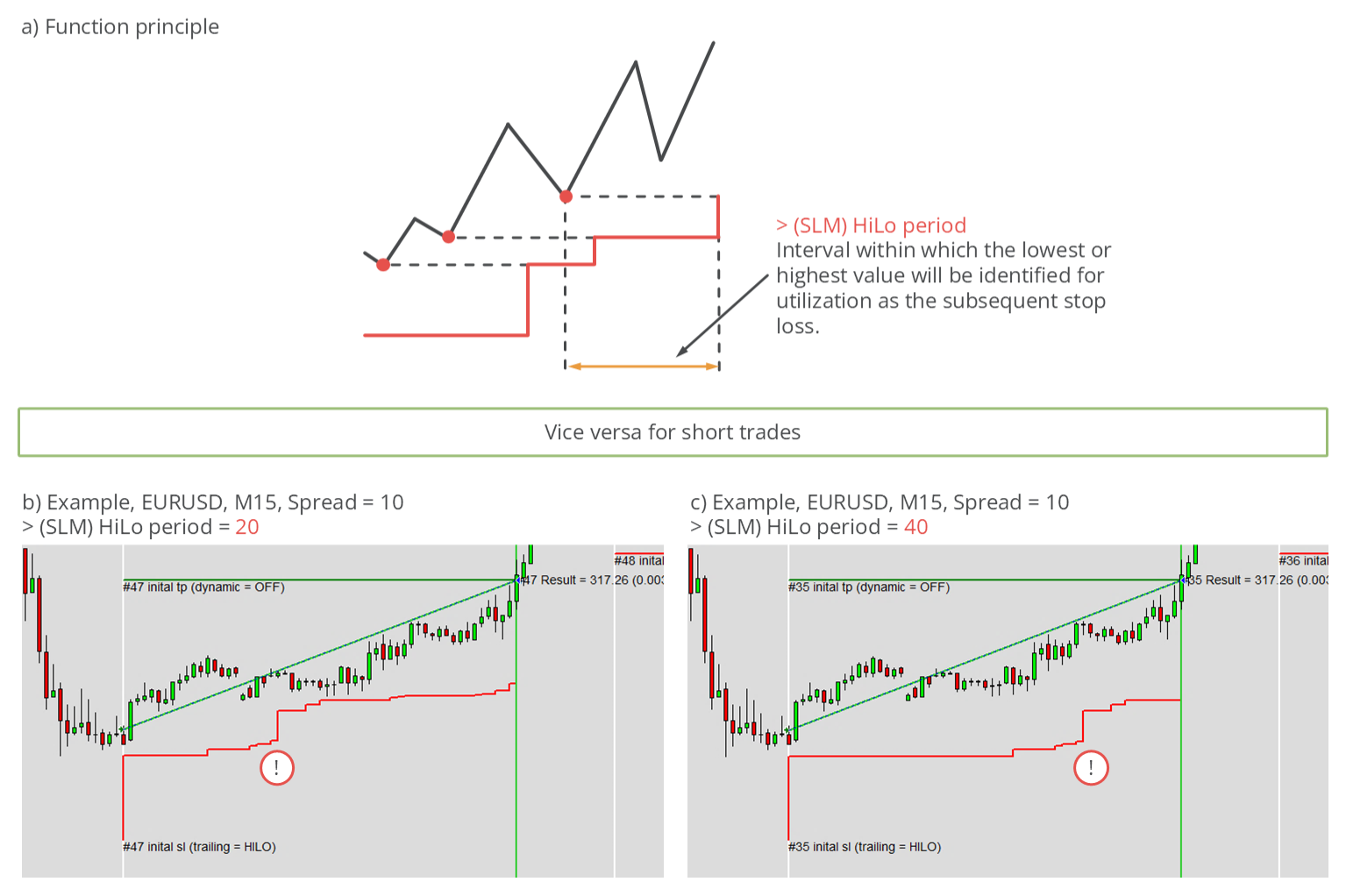
The examples show long trades; short trades behave in reverse.
ISP - Inspector
The Inspector calculates performance, drawdown, and statistics in real time from your closed and open trades, for the current day, week, month, year, and since the application started.
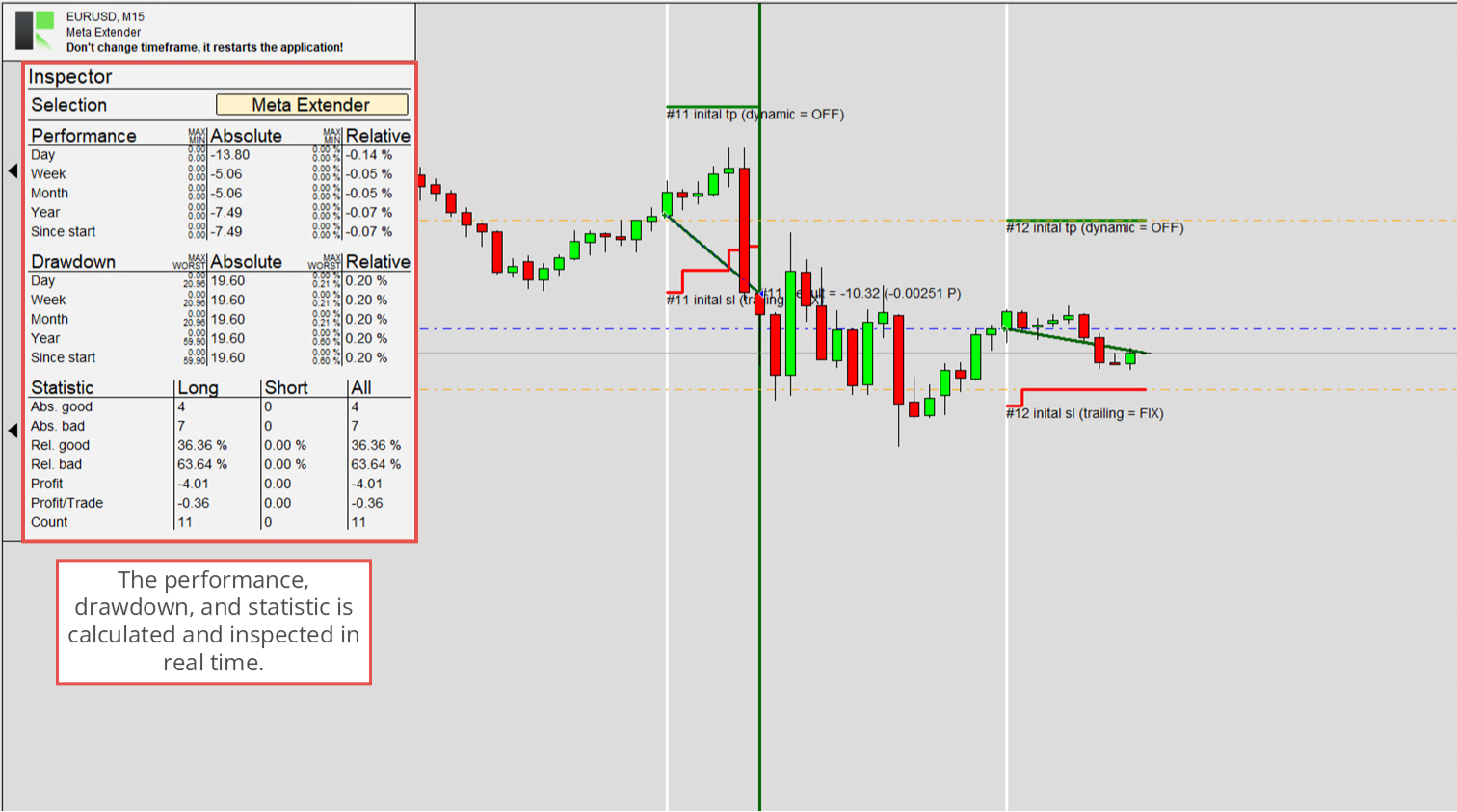
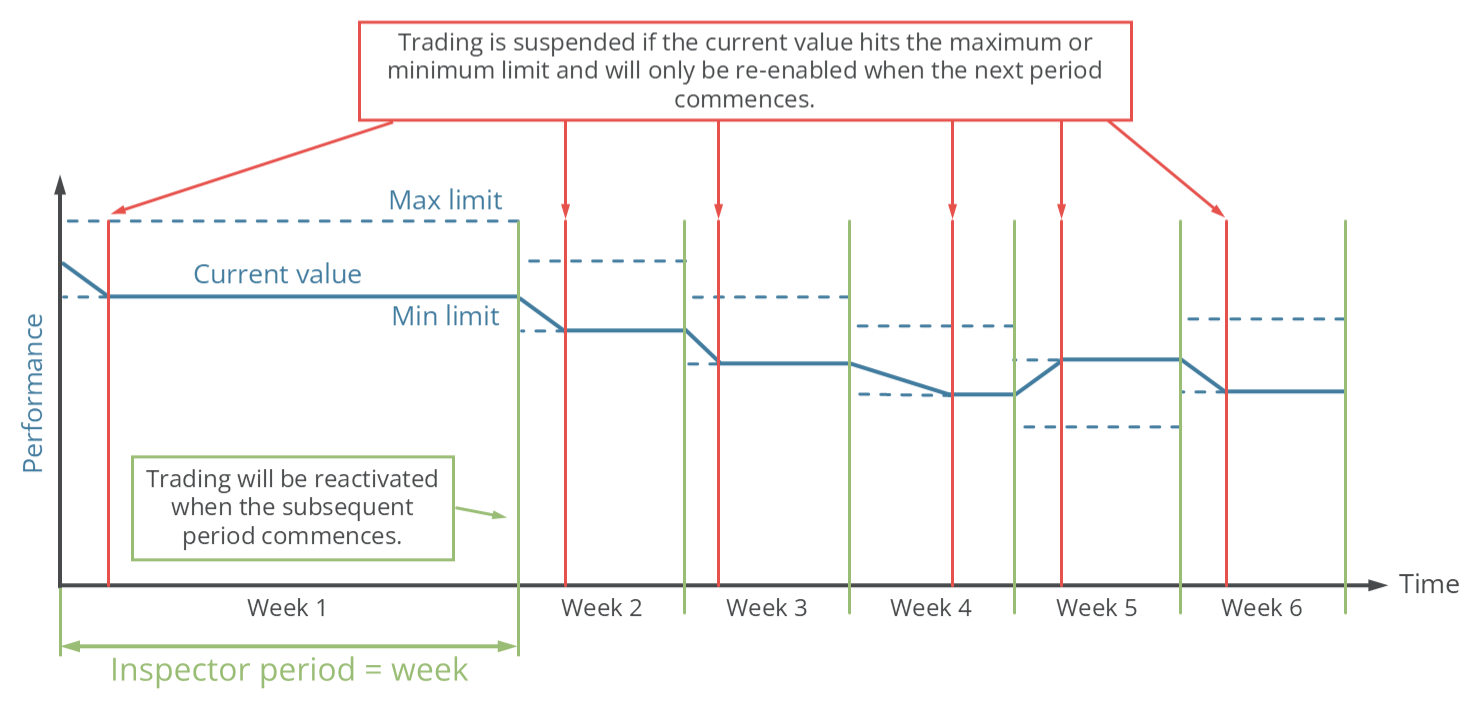
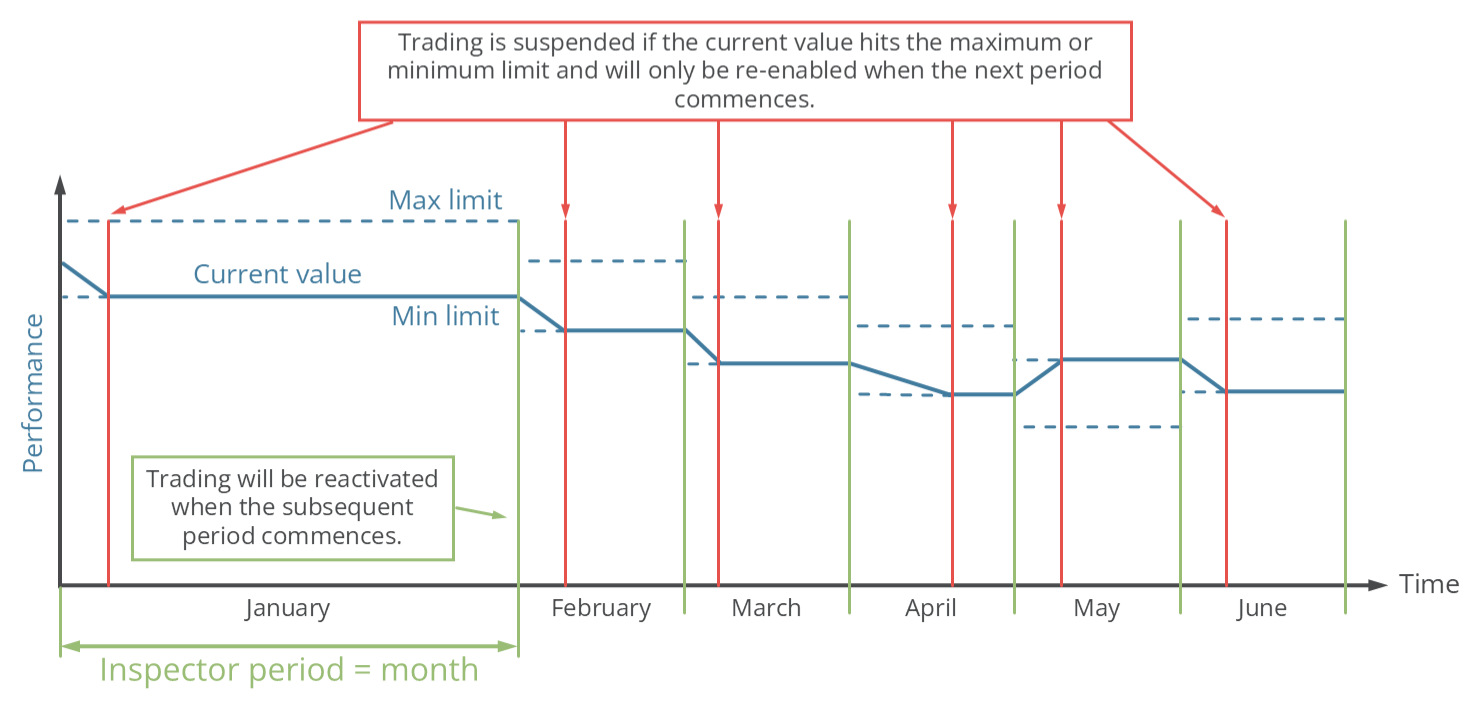
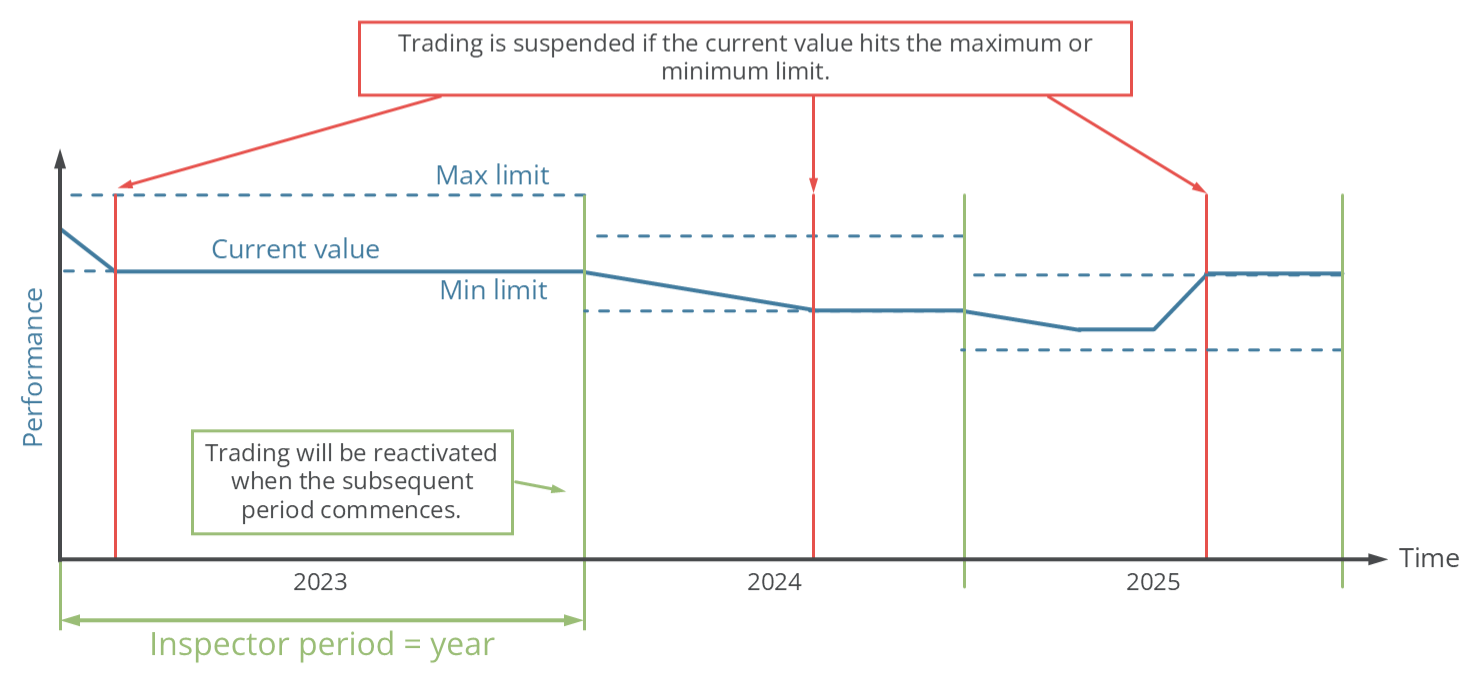
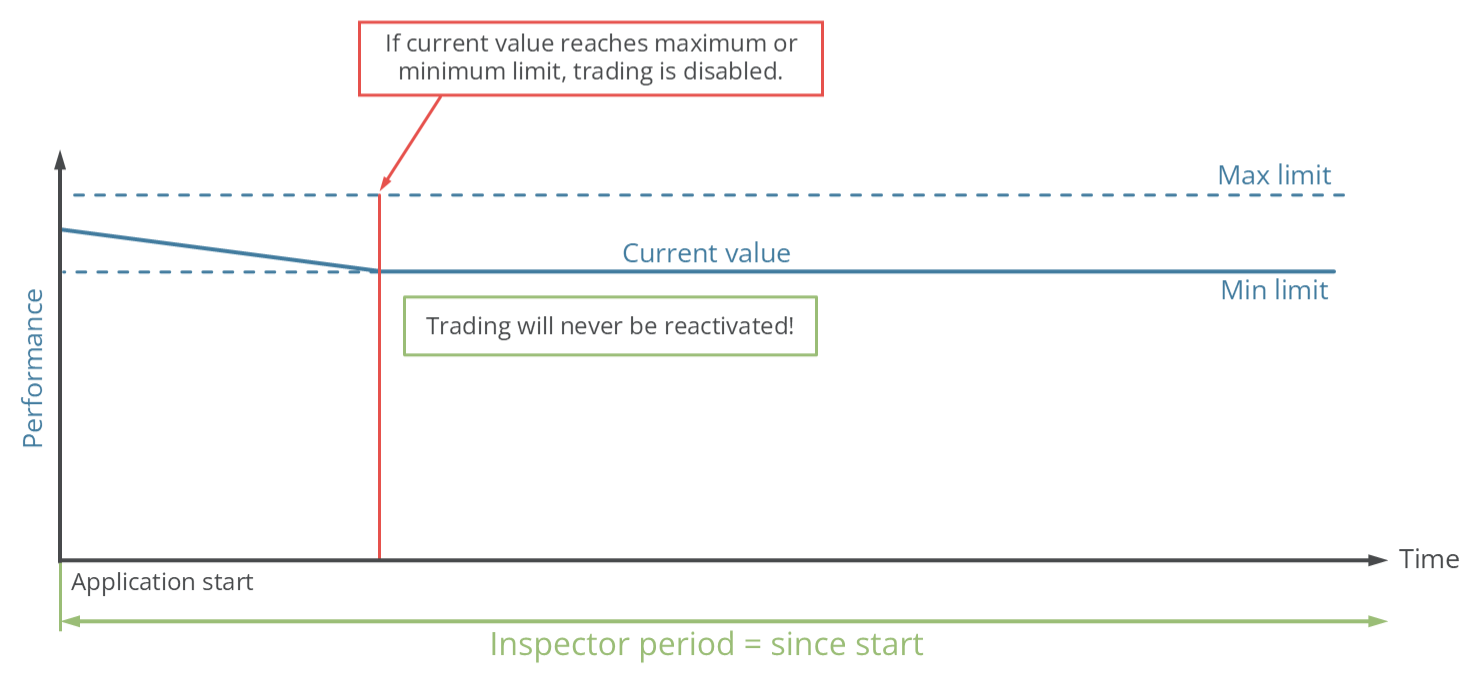
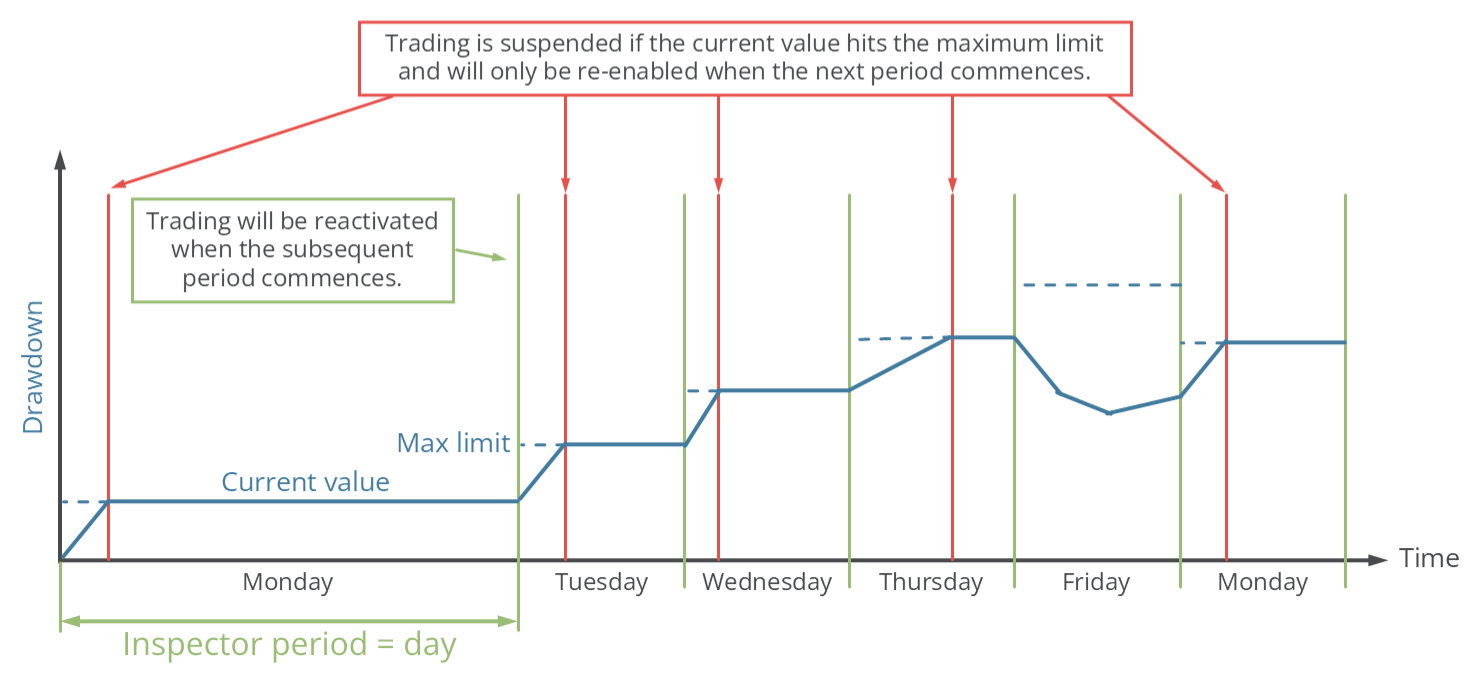
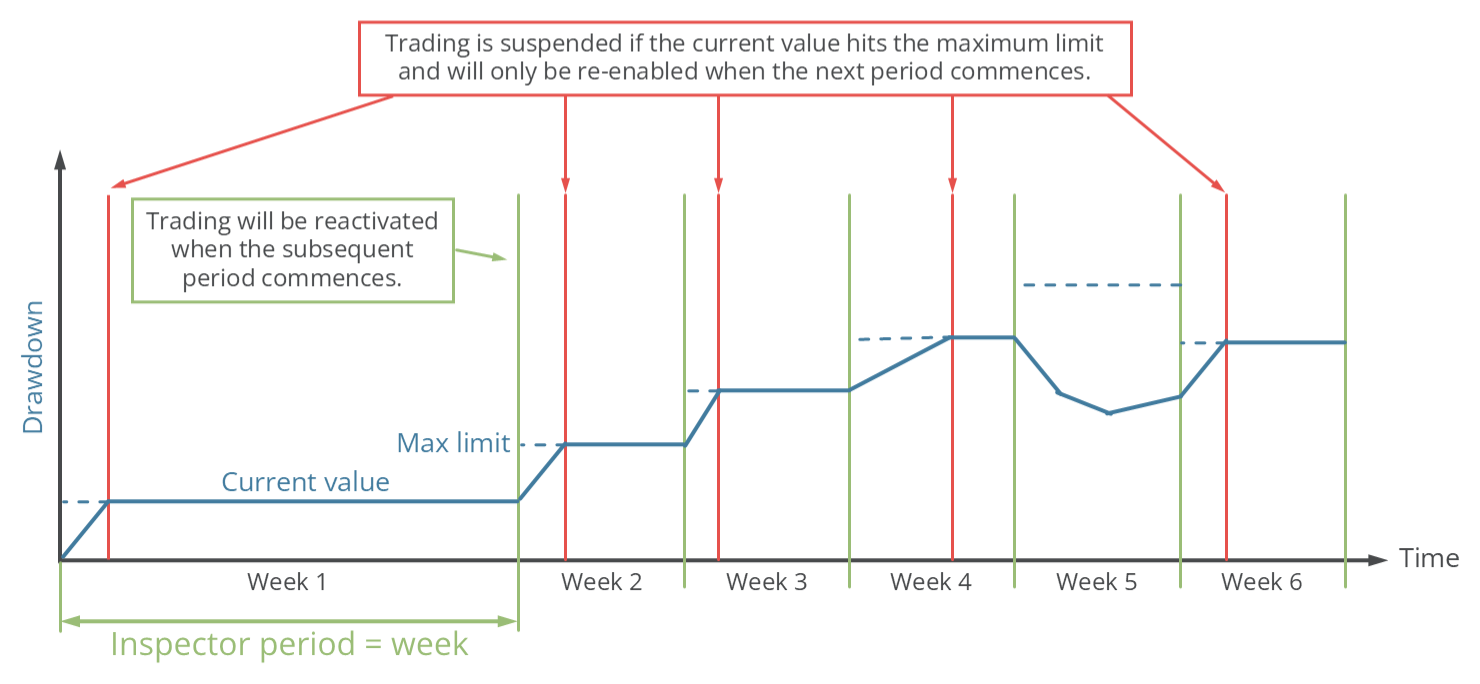
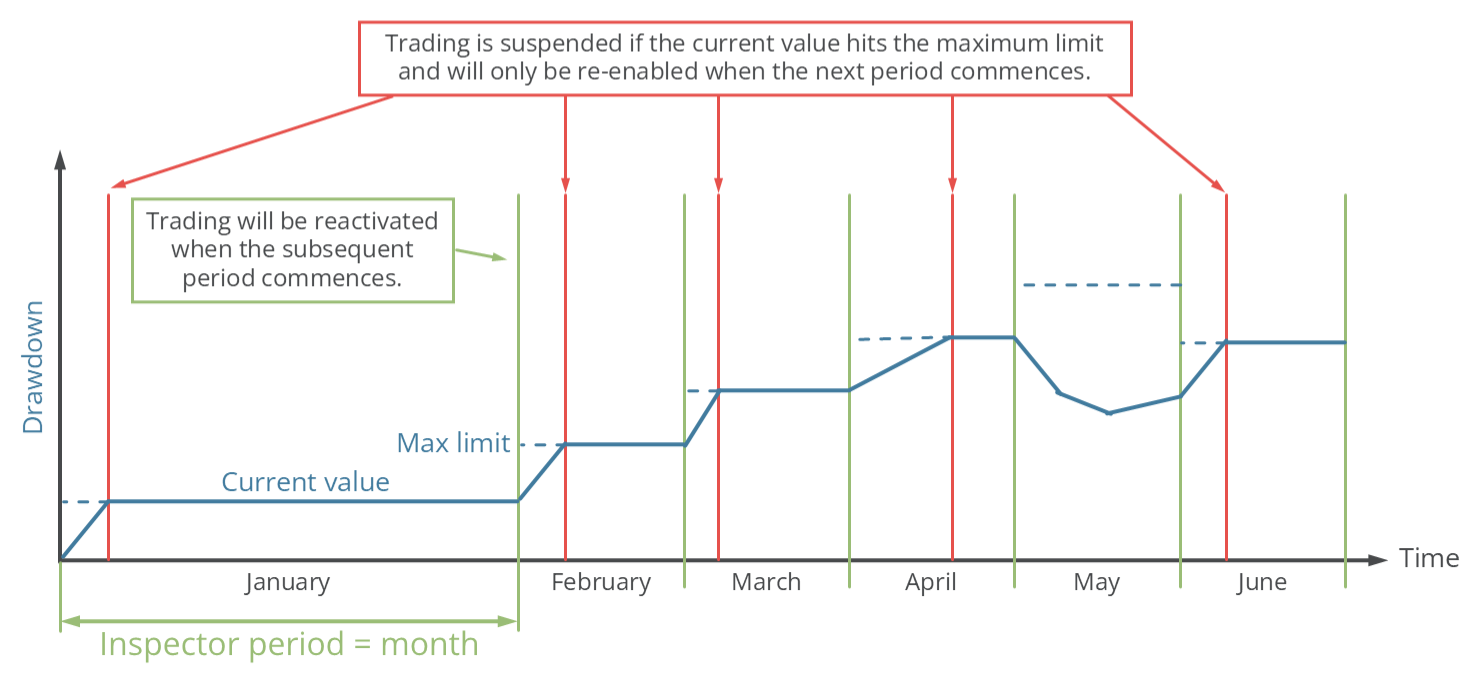
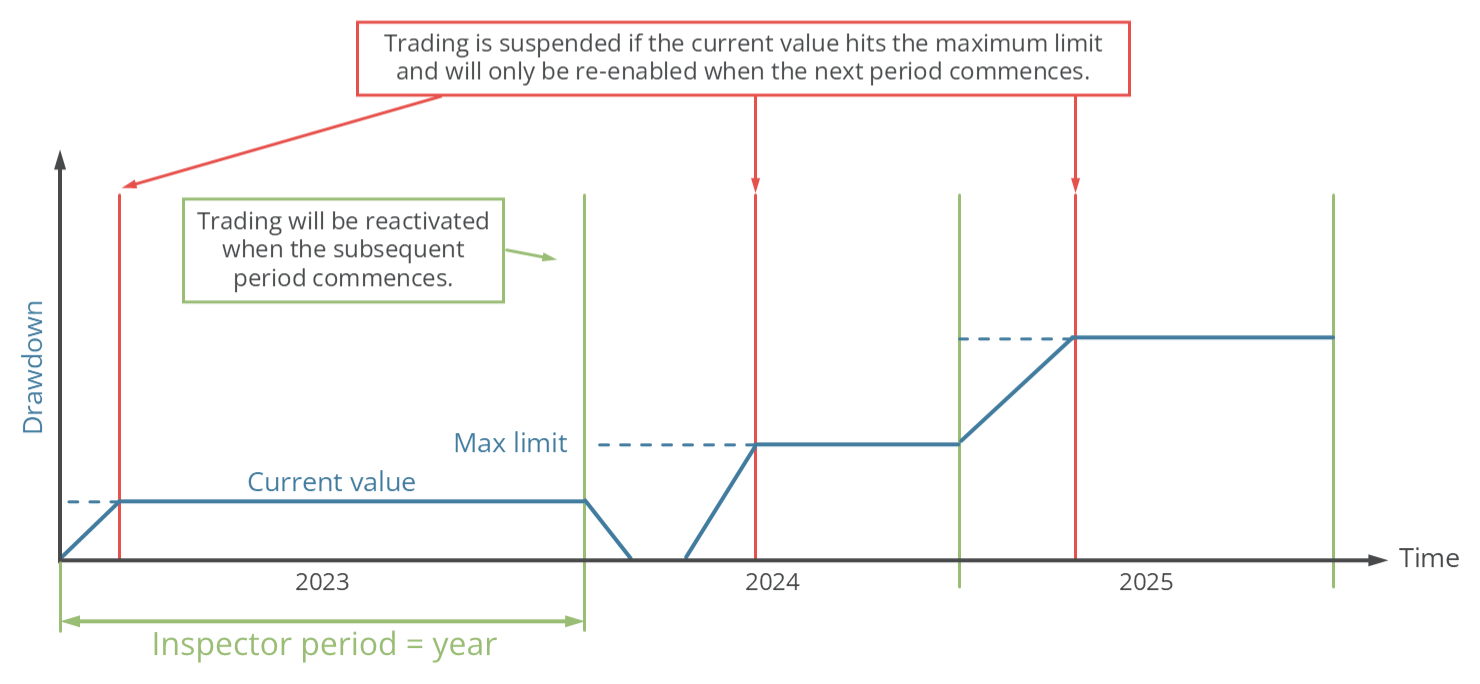
Performance and drawdown are shown as both absolute and relative values, each next to its configured limit, which you set per period with the input parameters below. When a limit is reached, new trades are blocked for the rest of the period (depending on the Observer selection below). For example, with $10,000 equity and a day abs min of -100, trading pauses below $9,900 and resumes next day from the new equity.
Observed orders
The observed orders can vary: the Meta Extender can observe all trades opened with the Meta Extender, opened on the same symbol the MetaTrader is active, or all trades opened with your MetaTrader instance, regardless of the symbol.
| Input variable within MetaTrader | Default value | Comment |
|---|---|---|
| > (ISP) Observer selection | Meta Extender | Options: -Meta Extender -Symbol -MetaTrader |
> (ISP) Observer selection defines which trades the Inspector counts. A session starts at zero when the application starts, so for continuous supervision keep the Meta Extender running, ideally on a VPS.
Observer selection can only be changed at startup. When a limit is reached: with Symbol or MetaTrader, MetaTrader's AutoTrading is disabled; with Meta Extender, only new orders from the Trading Assistant and Trendline Trading widgets are blocked.
Performance protection
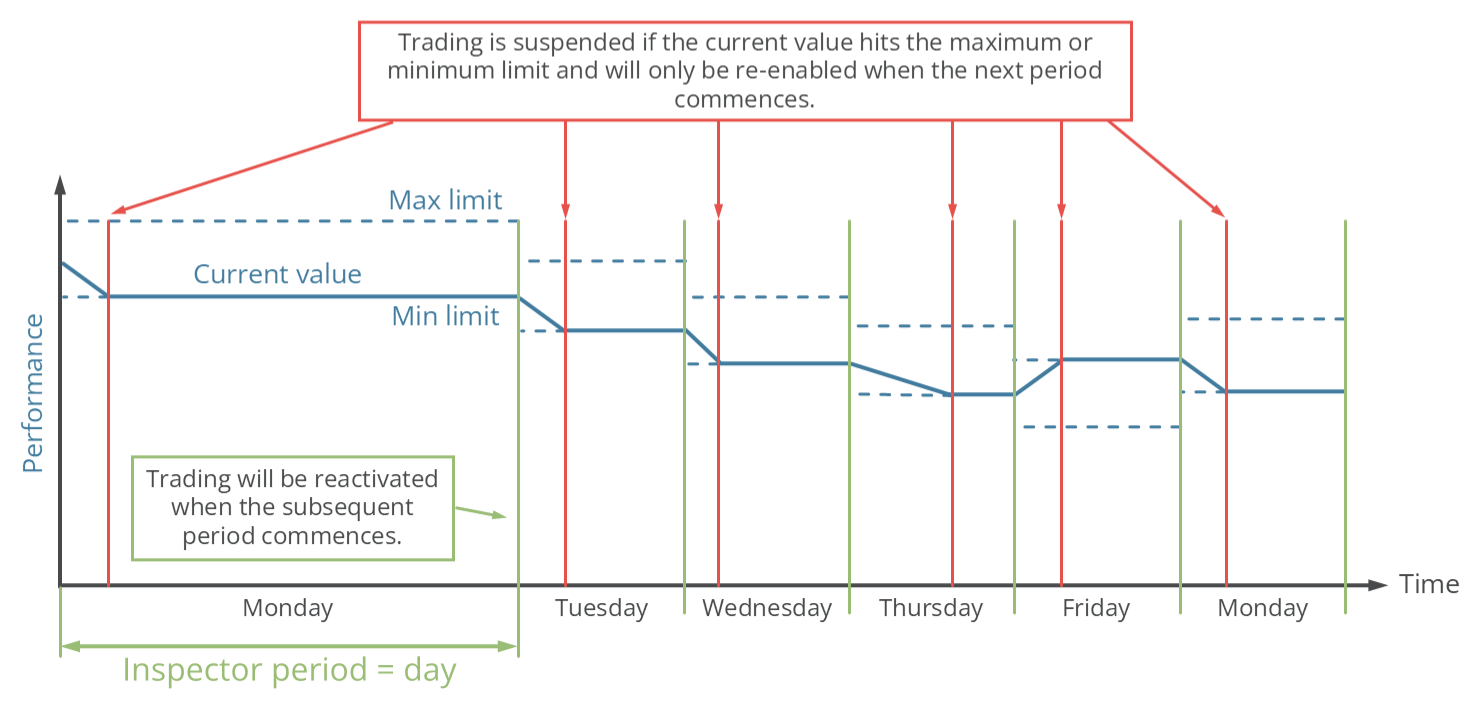
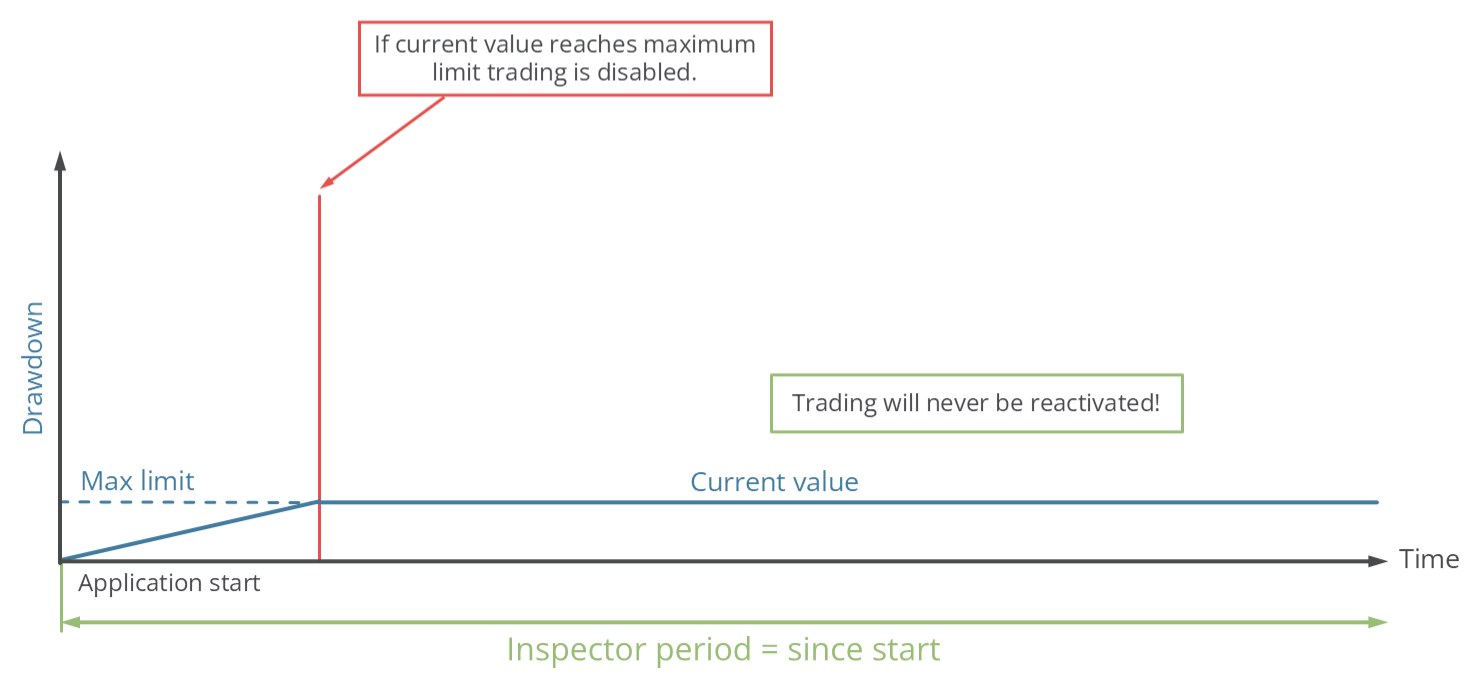
Four inputs set the performance limits, shown below for the day period. The same four exist for every period - just replace day with week, month, year or since start (e.g. > (ISP) Performance week abs min). abs is in account currency, rel is relative; min is a loss limit, max a profit limit. Day, week, month and year limits reset each period; since-start limits never reset and stop trading permanently once hit.
| Input variable within MetaTrader | Default value | Comment |
|---|---|---|
| > (ISP) Performance day abs min (0.0 -> OFF) | 0.0 | Loss limit, account currency. Cannot be greater than 0. |
| > (ISP) Performance day abs max (0.0 -> OFF) | 0.0 | Profit limit, account currency. Cannot be smaller than 0. |
| > (ISP) Performance day rel min (0.0 -> OFF) | 0.0 | Loss limit, relative (e.g. 0.15 = 15%). Cannot be greater than 0. |
| > (ISP) Performance day rel max (0.0 -> OFF) | 0.0 | Profit limit, relative. Cannot be smaller than 0. |
Performance protection for day, week, month, year and since start:
Drawdown protection
Two inputs set the drawdown limits, shown below for the day period; the same two exist for week, month, year and since start (e.g. > (ISP) Drawdown week abs max). abs is in account currency, rel is relative.
| Input variable within MetaTrader | Default value | Comment |
|---|---|---|
| > (ISP) Drawdown day abs max (0.0 -> OFF) | 0.0 | Maximum drawdown, account currency. Cannot be smaller than 0. |
| > (ISP) Drawdown day rel max (0.0 -> OFF) | 0.0 | Maximum drawdown, relative (e.g. 0.15 = 15%). Cannot be smaller than 0. |
Drawdown protection for day, week, month, year and since start:
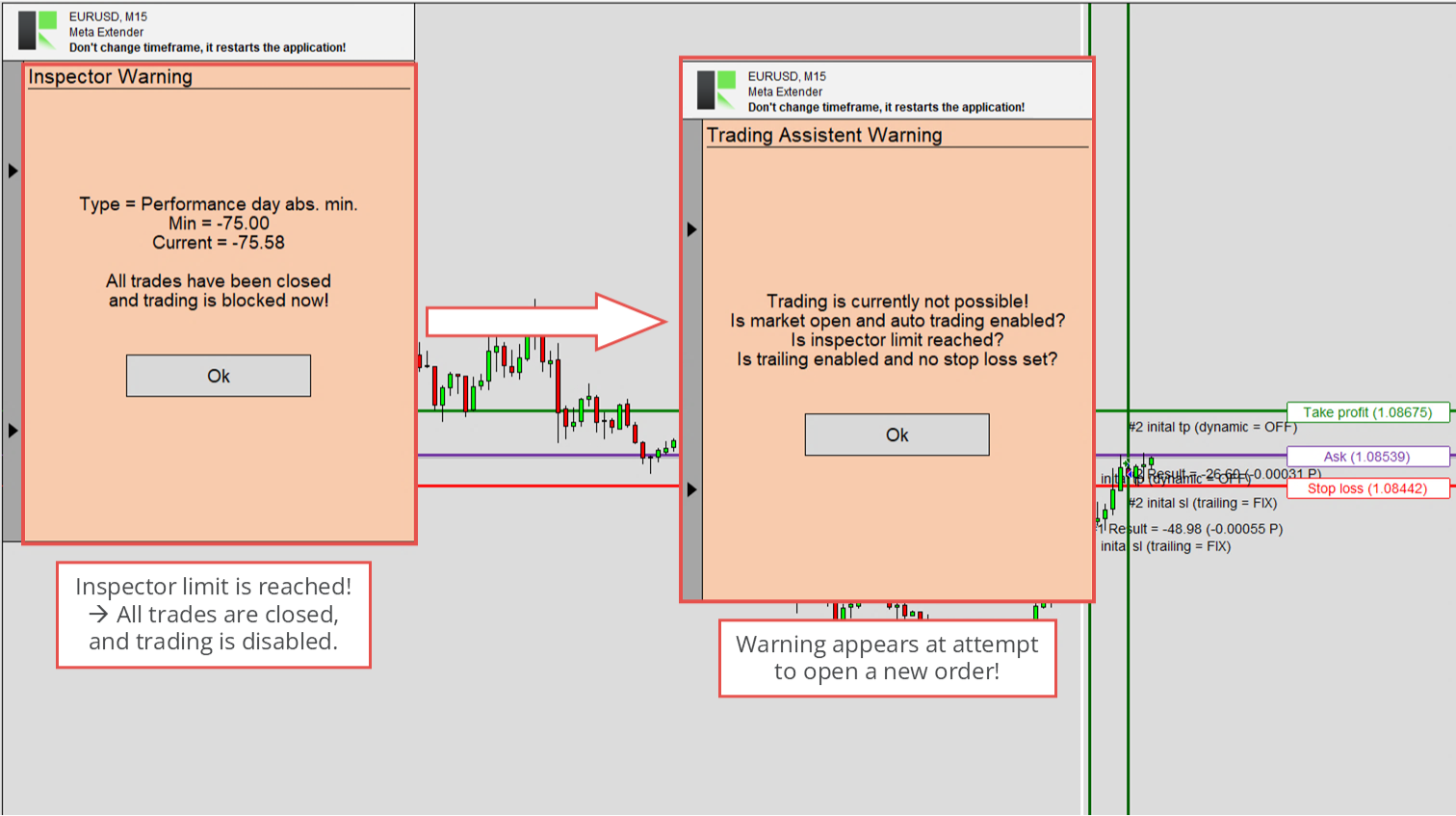
Limit reached warning
When a drawdown or performance limit is reached, the Meta Extender closes all open trades and deletes pending orders, regardless of their profit, and shows a warning.
If Meta Extender is the monitored set, opening new trades via Trendline Trading or Trading Assistant is disabled, with a warning.
If Symbol is monitored, all open trades are closed; new trades aren't blocked but may be closed immediately.
If MetaTrader is monitored, all open trades are closed and new trades are blocked by turning off AutoTrading; newly opened trades may be closed immediately.
When a limit is hit, review your performance and drawdown.
Configuration of notification and email
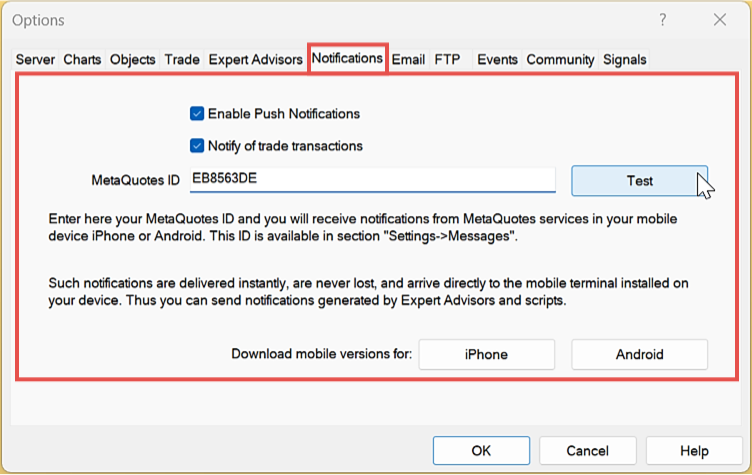
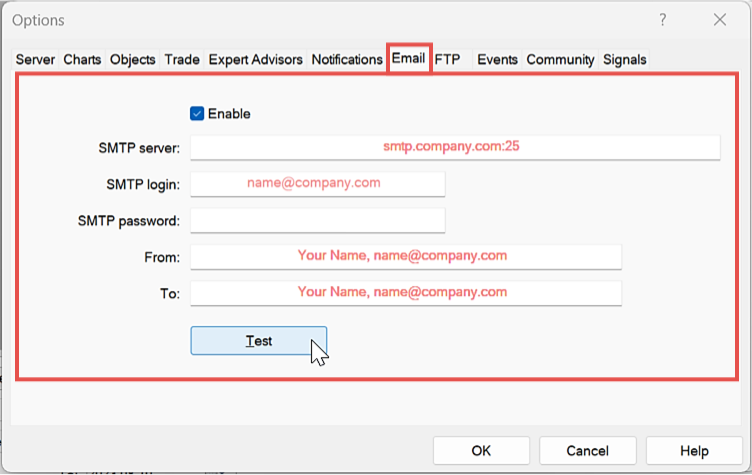
The Meta Extender can send email and mobile notifications when limits are reached, using MetaTrader's built-in API. First configure the email and notification settings in MetaTrader under Tools - Options.
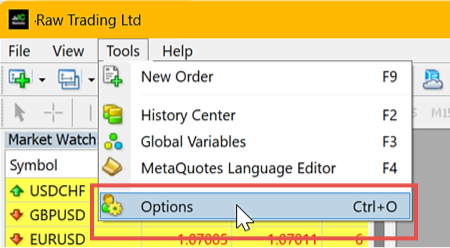
For mobile notifications, you can configure the settings under the Notifications tab.
For email notifications, you can configure the settings under the Email tab.
Widgets
The Meta Extender includes more than 20 widgets. The table below briefly describes each one. The full user manual is officially provided on our website, where every feature is explained in much more detail. You can find the link to the official user manual in the source link at the bottom of this page or via our profile (also linked in the Detailed description column below).
| Widget | Description | Detailed description |
|---|---|---|
| Trendline Trading | Draw trendlines that automatically trigger trades, with separate lines for the stop loss and take profit. | View |
| Trading Assistant | One-click order placement with visual risk and money management and advanced stop loss trailing. | View |
| Price Alert | Email or mobile notifications when a price level is reached. Also available as a standalone app: MT4 / MT5. | View |
| Second Timeframe | Overlay a higher timeframe onto the current chart. Also available as a standalone app: MT4 / MT5. | View |
| Candle Search Results | Lists detected candlestick patterns across all timeframes. | View |
| Pattern Search Results | Lists detected chart patterns across all timeframes. | View |
| Fibonacci Search Results | Lists detected Fibonacci patterns across all timeframes. | View |
| Chart Analyzer | Analyzes support and resistance, market phase and retracement levels. Also available as a standalone app: MT4 / MT5. | View |
| Candle Search Config | Enable or disable individual candlestick patterns per timeframe. | View |
| Pattern Search Config | Enable or disable individual chart patterns per timeframe. | View |
| Fibonacci Search Config | Enable or disable individual Fibonacci patterns per timeframe. | View |
| In-Chart Events | Shows economic calendar news events on the chart as a table or lines. | View |
| Meta Extender | Configure and combine the stop loss trailing methods applied per trade. | View |
| Inspector | Real-time performance, drawdown and statistics, with optional protection limits. Also available as a standalone app: MT4 / MT5. | View |
| Active Trades | Manage open trades and their trailing and trade-splitting settings. | View |
| Pending Orders | Manage pending orders, including local (stealth) orders. | View |
| Other Setting | Notification preferences and additional options. | View |
| Closing Assistant | Close multiple trades at once. Also available as a standalone app: MT4 / MT5. | View |
| Trade Splitting | Split a single trade into several sub-trades. | View |
| Exit Application | Safely close the Meta Extender. | View |




