Signova EA
This is the user manual for Signova, available on the MQL5 Market in three editions:
- Signova Light - MetaTrader 4 / MetaTrader 5
- Signova Standard - MetaTrader 4 / MetaTrader 5
- Signova Premium - MetaTrader 4 / MetaTrader 5
Quick start
This quick start guide takes only 3-5 minutes to follow.
Installing from the Market
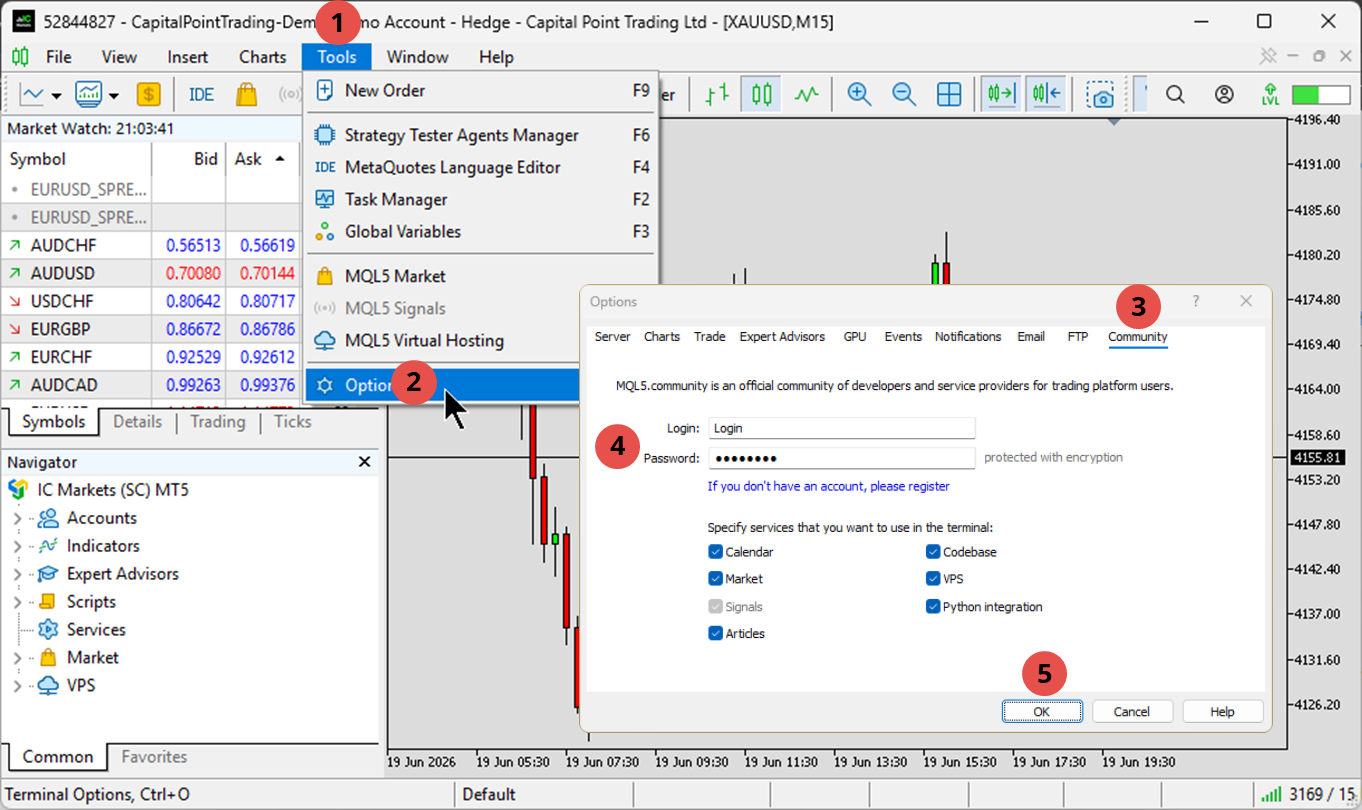
To download the application from the Market, you first need to enter your MQL5 account details into the MetaTrader platform. Open the MetaTrader 4 or 5 platform and, in the top menu, select Tools > Options > Community, then fill in the MQL5 account login and password fields.
You also need a MetaTrader account from a broker.
Downloading the Signova MT5 app
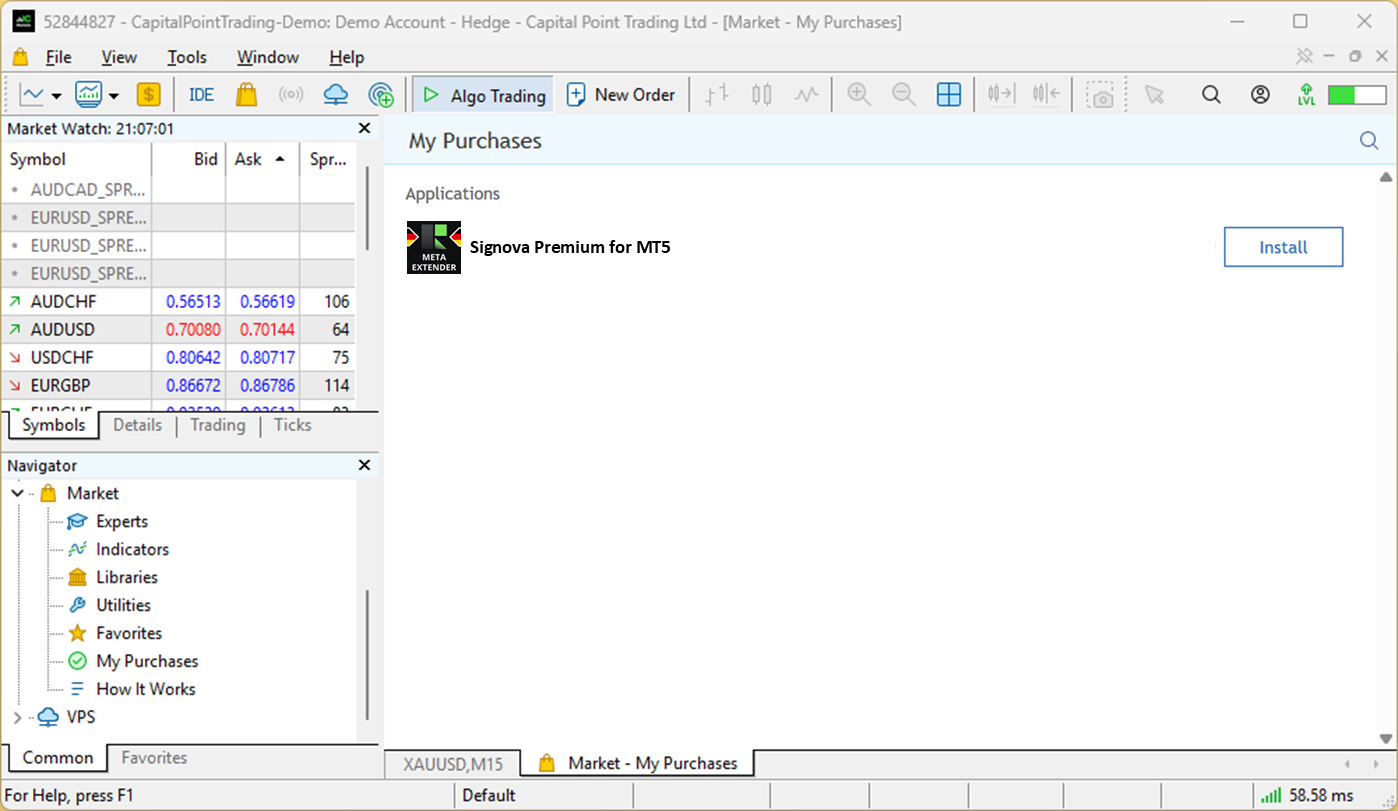
In the Navigator, open the My purchases window. Next to the application, click Install, or Update if a new version has been released.
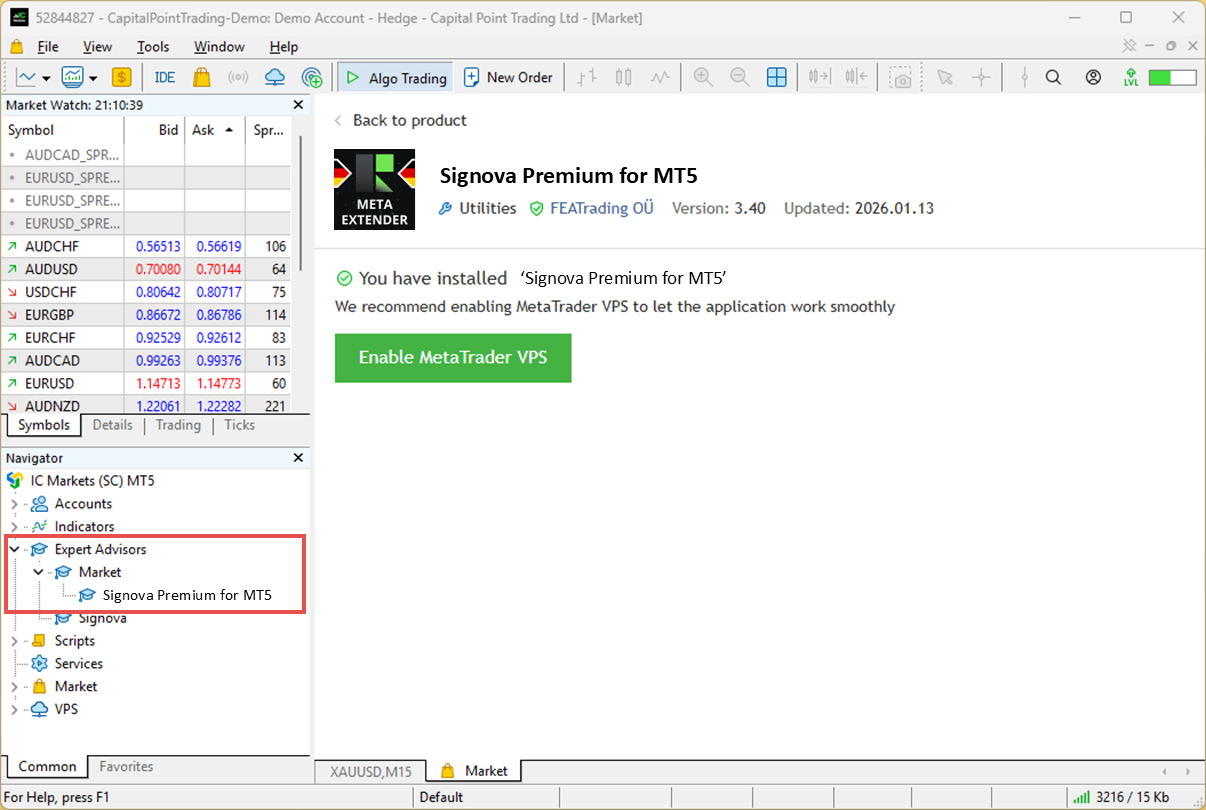
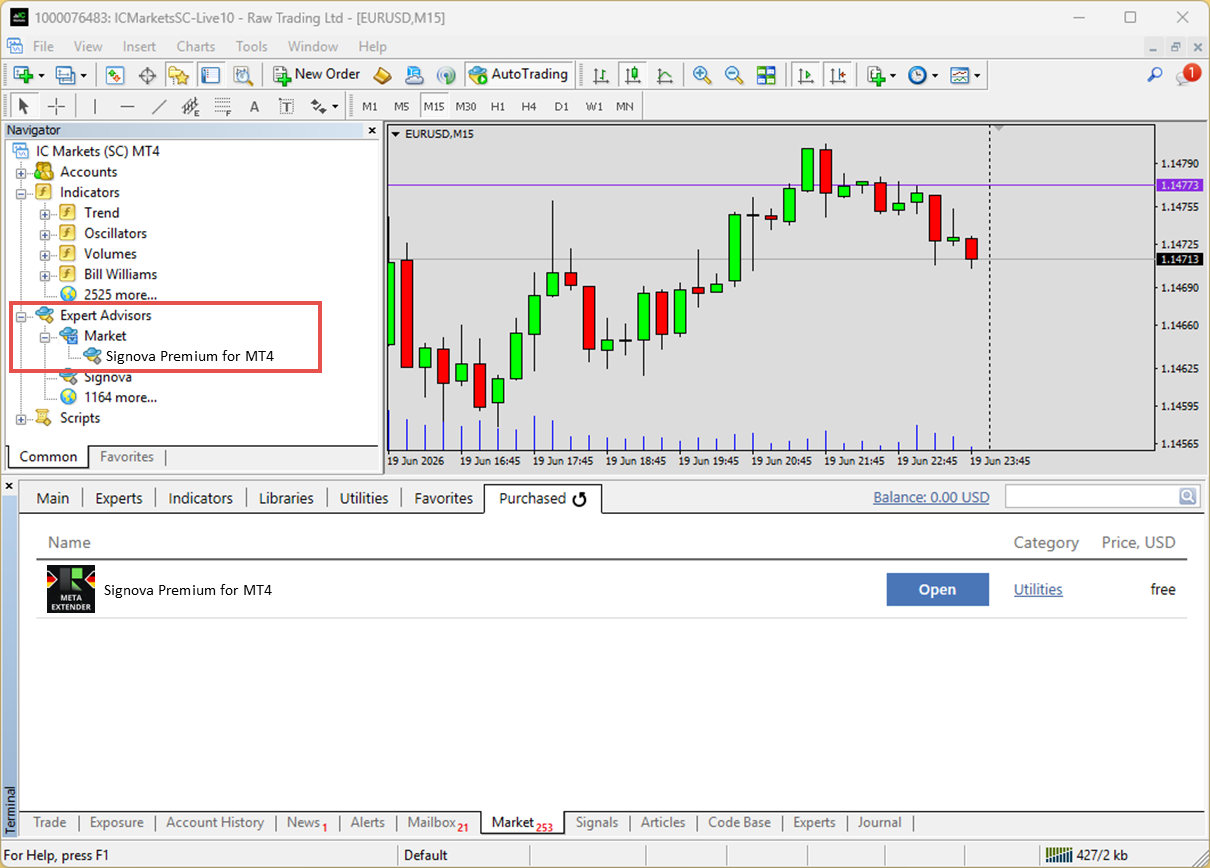
The application will be downloaded to the Expert Advisors > Market folder.
Downloading the Signova MT4 app
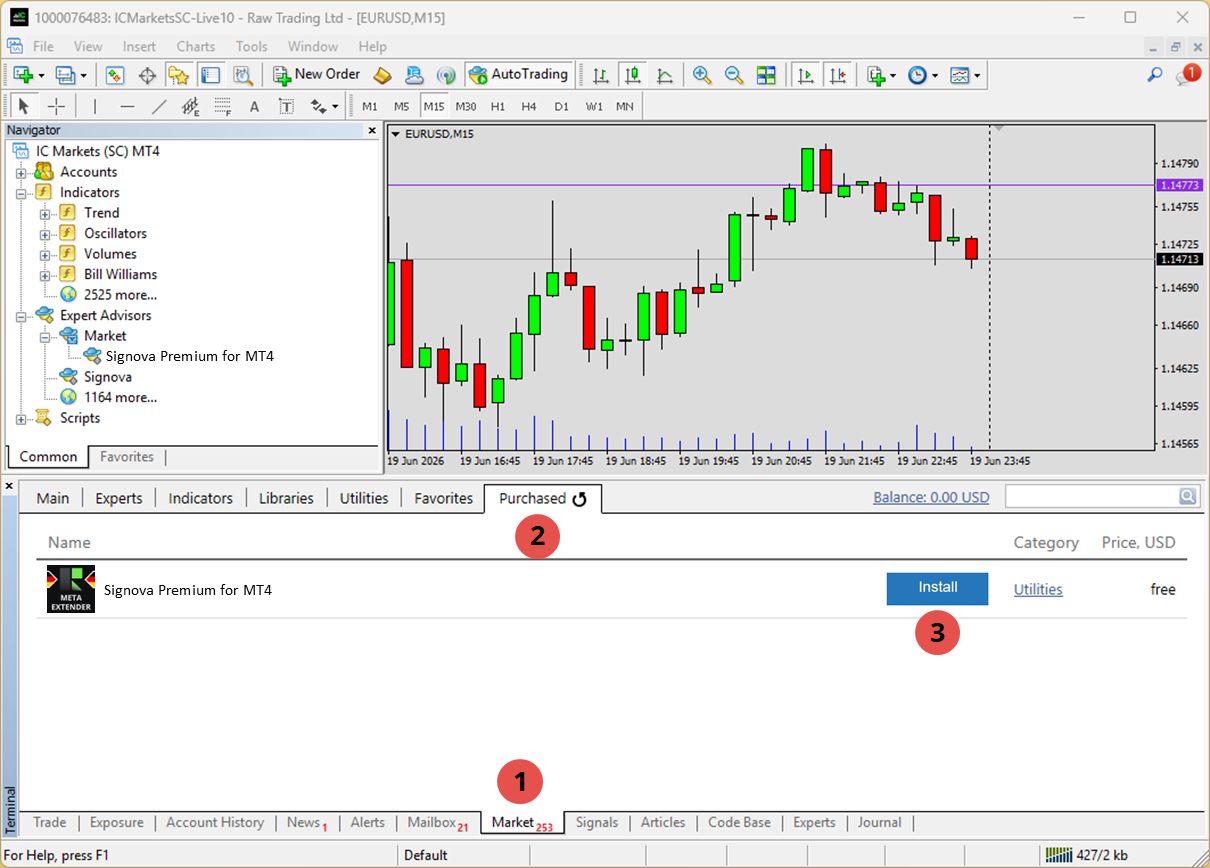
In the Terminal window, open the Market > Purchases tab and click Install.
The application will be downloaded to the Expert Advisors > Market folder.
Start of application
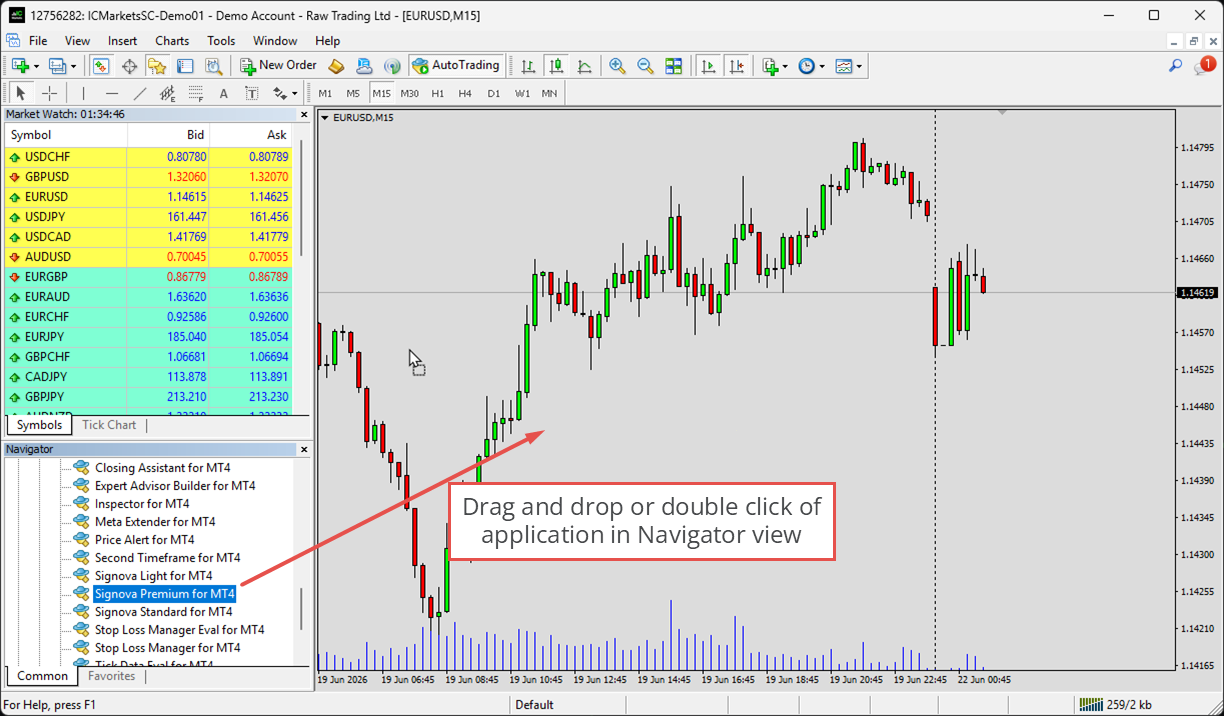
You can find Signova in the Navigator view under Expert Advisors. If the application isn't listed yet, simply right-click anywhere in the Navigator and choose Refresh to update the view. To start the application, double-click on it or drag and drop it onto a chart in your chart view.
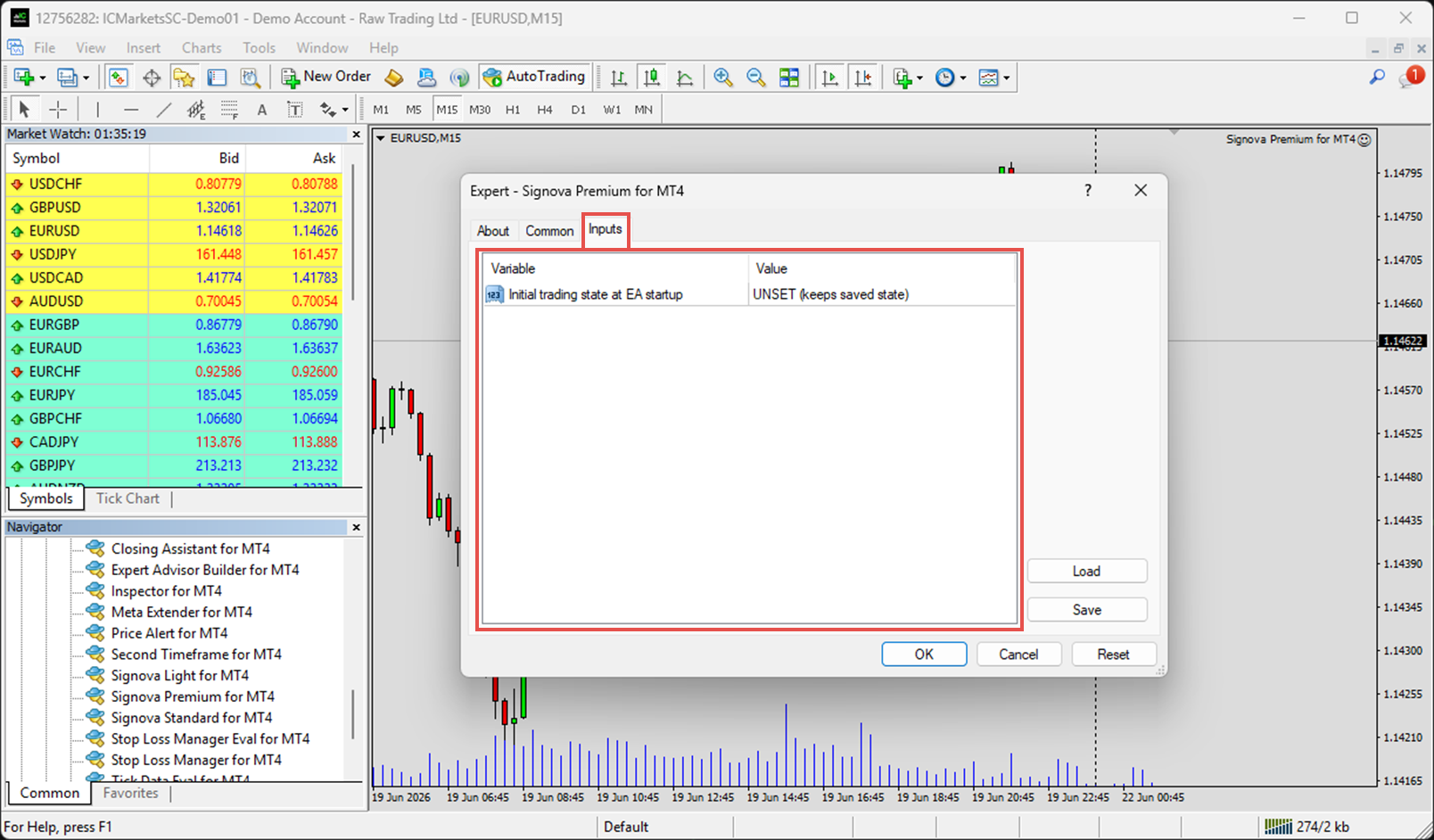
A welcome panel is displayed every time you start Signova. This panel allows you to verify the version number and adjust the input parameters. If you wish to modify the default settings, please open the Inputs tab. Signova only comes with one input setting, which is whether the trading state is enabled when it starts. Trading state means whether Signova is allowed to open trades or not. You can always change this setting later through the user interface as well.
Home screen
Once Signova is started, the home screen appears. As mentioned, here you can also find the trading state switch. If the input setting is set to "OFF" the trading state is disabled at startup. In any case, if you modify the trading state, it is saved and the application starts like you configured it previously.
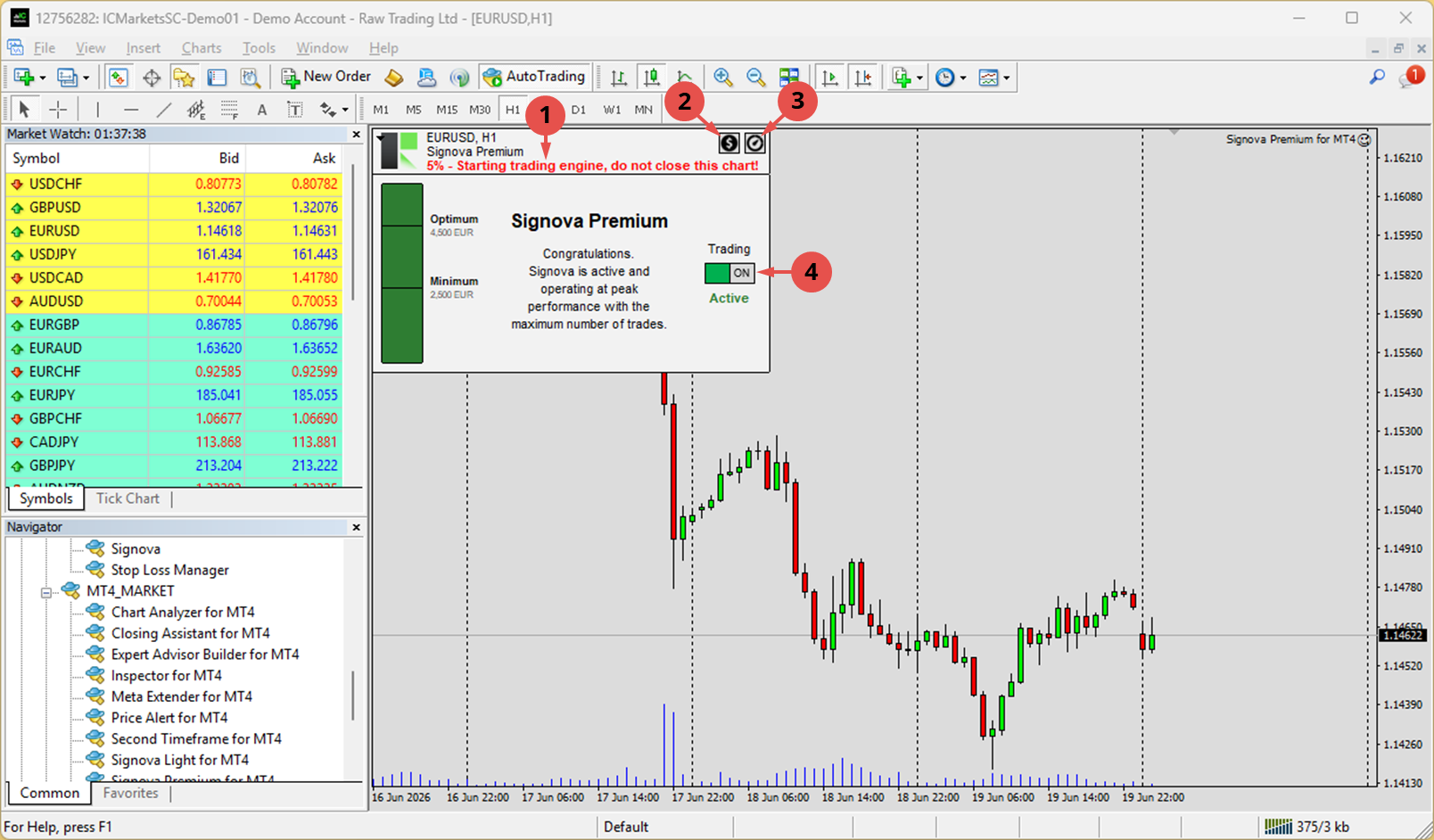
On the left side you'll find the account equity indicator. Because Signova follows strict risk and money management, each Signova version requires a minimum account equity. Below that minimum, trading cannot start, because proper risk and money management cannot be ensured. Between the minimum and optimum values everything is fine, and above the optimum the risk management is very robust.
Need help?
If you have any questions or need help, our support team is happy to assist.
Configuration
Signova is intentionally kept as simple as possible and only exposes the bare minimum of settings that are safe to adjust. As already mentioned, the default values are already ideal. However, if you wish, you can adjust certain aspects of the trading system.
Symbols settings
Signova trades a list of forex symbols on your behalf. The symbol settings let you decide, for each symbol, whether trading is allowed and in which direction.
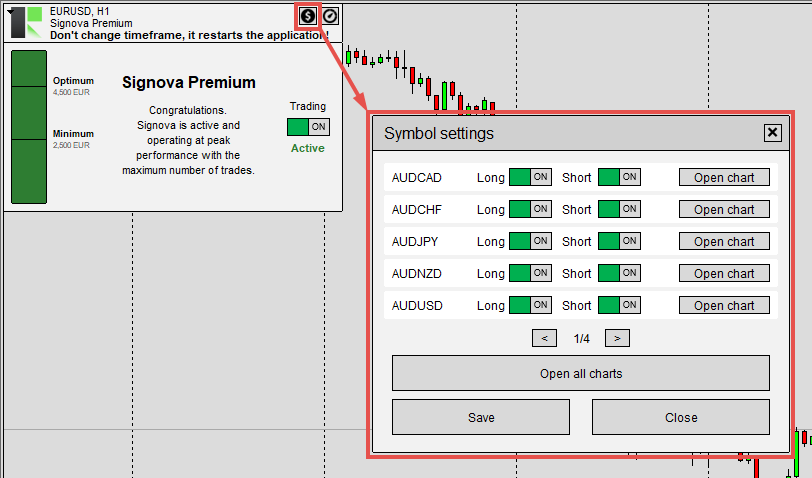
Every symbol available for your subscription tier is listed with two switches:
-
Long: allow Signova to open buy trades for this symbol.
-
Short: allow Signova to open sell trades for this symbol.
Both switches are enabled by default. Turn one off to block new trades in that direction, or turn both off to disable the symbol completely. These settings only affect new trades. Positions that are already open are never closed by changing a switch.
You can also find, for each symbol, a button to open a new chart with the selected symbol. This quickly lets you double-check the trading activity and validate trades. Besides that, at the bottom is a general button that opens all traded symbols, each in a new chart.
The list of available symbols depends on your subscription tier: higher tiers (Light - Standard - Premium) unlock more symbols for greater diversification.
After making changes, click Save to apply them. The indicator at the top shows Unsaved changes until you save, then Saved. Whenever a trade is skipped because of these switches, the reason is recorded in the Trade activity (see further down) log.
Risk settings
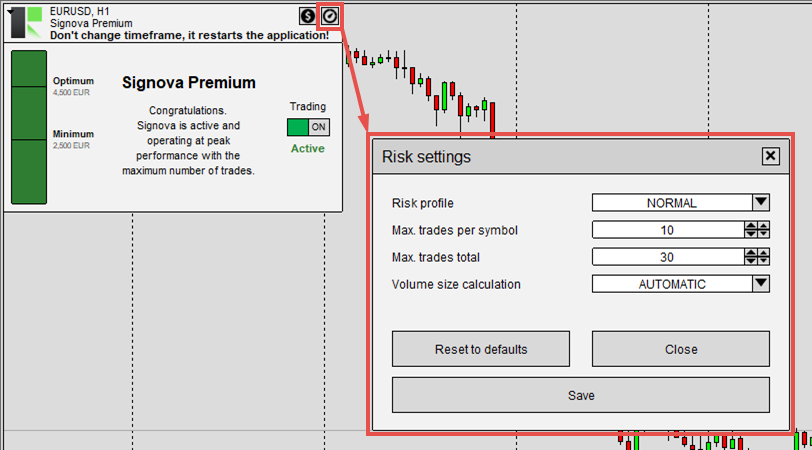
Risk settings - Risk profile
The Risk profile parameter lets you adjust how much you trade per position.
The default setting (NORMAL - Recommended) uses the volume determined by Signova's balanced trading logic. If you want to quickly adjust your risk level, simply change this parameter. It will multiply or divide the standard volume size accordingly.
Here's how each risk profile affects your trade size:
-
LOWEST: Minimum volume → 0.01 Lots
-
LOW: Standard ÷ 3 → 0.20 Lots
-
MODERATE: Standard ÷ 2 → 0.30 Lots
-
NORMAL: Standard volume → 0.60 Lots (Recommended)
-
HIGH: Standard × 2 → 1.20 Lots
-
EXTREME: Standard × 3 → 1.80 Lots
Note: The lot values above are only examples, based on a standard volume of 0.60 Lots. Signova calculates the standard volume from your account size, so your actual figures will differ - the risk profile only multiplies or divides that calculated standard volume. With the standard (NORMAL) volume, the actual risk per trade ranges from 0.5% to 1.25% of your account, depending on Signova's logic and the traded symbol.
This gives you a simple way to scale your position sizes up or down without changing Signova's underlying risk and money management calculations.
Risk settings - Maximum trades
These two settings cap how many trades Signova may hold open at the same time, limiting your overall market exposure.
-
Max. trades per symbol: the maximum number of trades that may be open on a single symbol at once. Once this limit is reached, Signova opens no further trades on that symbol until one of them closes.
-
Max. trades total: the maximum number of trades that may be open across all symbols combined. Once this limit is reached, Signova opens no new trades on any symbol until one of them closes.
Lower these values to reduce the number of simultaneous positions, or raise them to allow more. Like the symbol switches, these limits only affect new trades; positions that are already open are never closed by changing them.
Risk settings - Volume size calculation
The Volume size calculation and Max. volume size per trade parameters work together to give you more detailed control over your position sizes and risk.
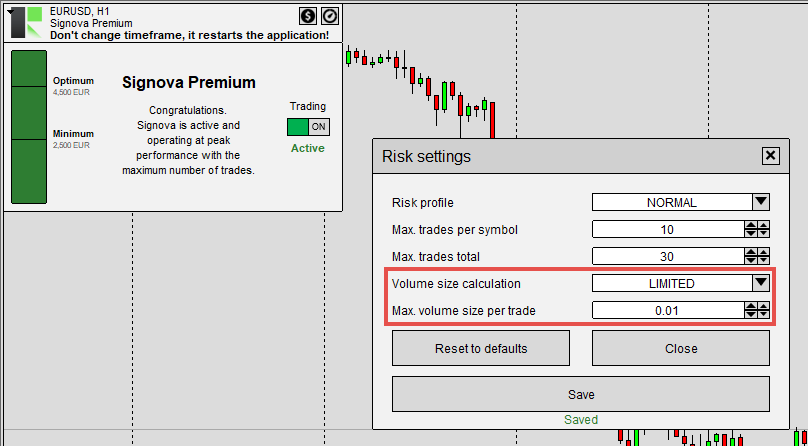
For Volume size calculation, you can choose:
-
AUTOMATIC: Calculates volume based on risk management, money management, and current market conditions. This is the recommended default setting.
-
LIMITED: Calculates volume the same way as automatic, but caps it at the maximum defined in Max. volume size per trade.
If you want to start cautiously, you can use LIMITED mode with a small volume cap to evaluate Signova's performance. Once you're confident, switch to AUTOMATIC mode for optimal results. In automatic mode, Signova follows a maximum drawdown rule while maximizing performance, ensuring your account equity is always properly managed.