
I often receive messages from my regular customers with the problem of the license limit of the program purchased on the MQL5 Market.
Not many people know how to eliminate the cost of licenses when installing a Meta Trader terminal for a new account or broker.
In order to maintain the license limit and use only one license for 10-15 accounts or brokers, follow these steps:
STEP 1
If you need to use an Expert Advisor or indicator on several different accounts or brokers at the same time, rent a powerful VPS. It can be a 4-8 core processor with 8-16 GB of RAM and 60-100 GB of disk space. The more cores and RAM your server has, the more MetaTrader terminals will be able to work smoothly.
On average, 2 MetaTrader terminals can be installed on 1 core and 1 terminal on 1 GB of RAM. Thus, you can safely install up to 16 MetaTrader terminals on an 8-core and 16GB VPS (with an average load of up to 2-3 Experts on each).
You can rent a VPS from any trusted VPS provider, some of them provide ready-made offers for Forex trading, such as Chocoping: click to go
Also, some brokers provide shareware VPS for their clients: RoboForex, TMGM, IC Markets
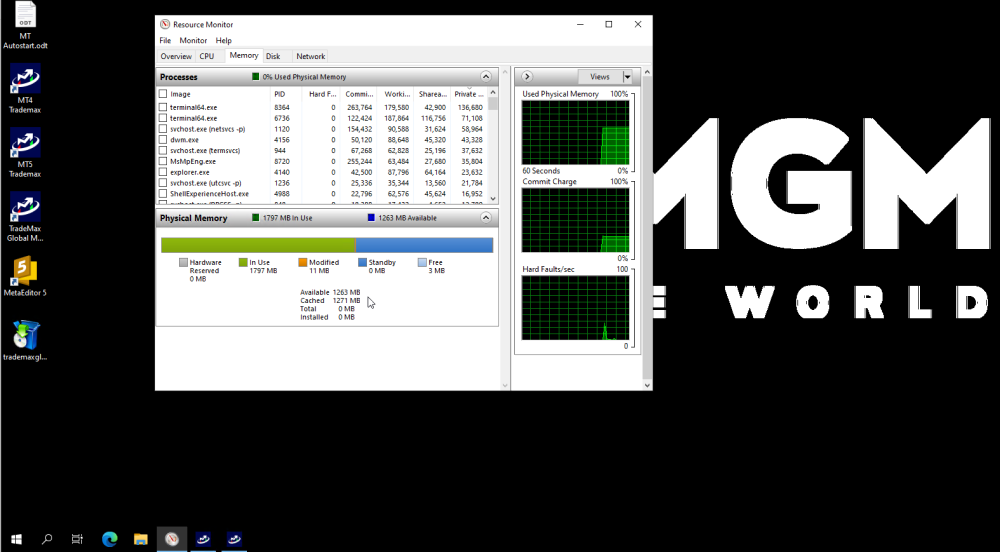
The number of available cores and RAM, as well as the load on the VPS, can be easily monitored through the Resource Monitor from the standard Windows suite.
STEP 2
After installing the required number of MetaTrader terminals (these can be terminals from different brokers, even if you use a VPS from a specific broker), log in to your MQL5 community profile on each terminal

Install the purchased program through the Market/My purchases folder on only one Meta Trader Terminal #1
By the way, you can update programs to the latest version in the same way.
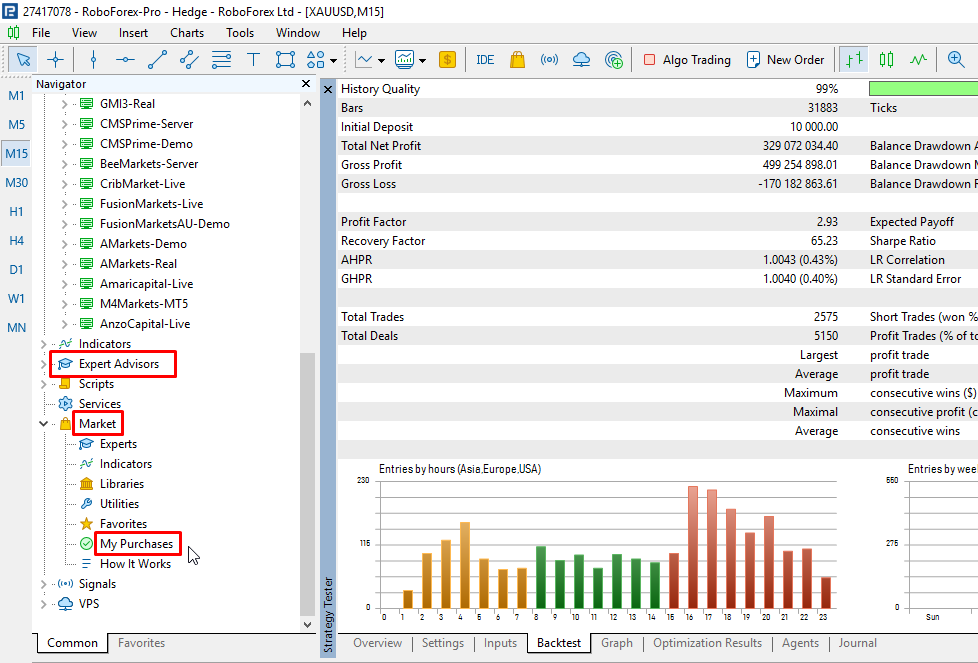
After installing the program purchased on the Market, it will appear in the Expert Advisors/Market folder.
STEP 3
To copy the program to other terminals (within the same VPS or PC), open the Expert Advisors/Market folder through the Terminal #1 and then follow the specified folder of the selected MQL5/Experts/Market terminal.
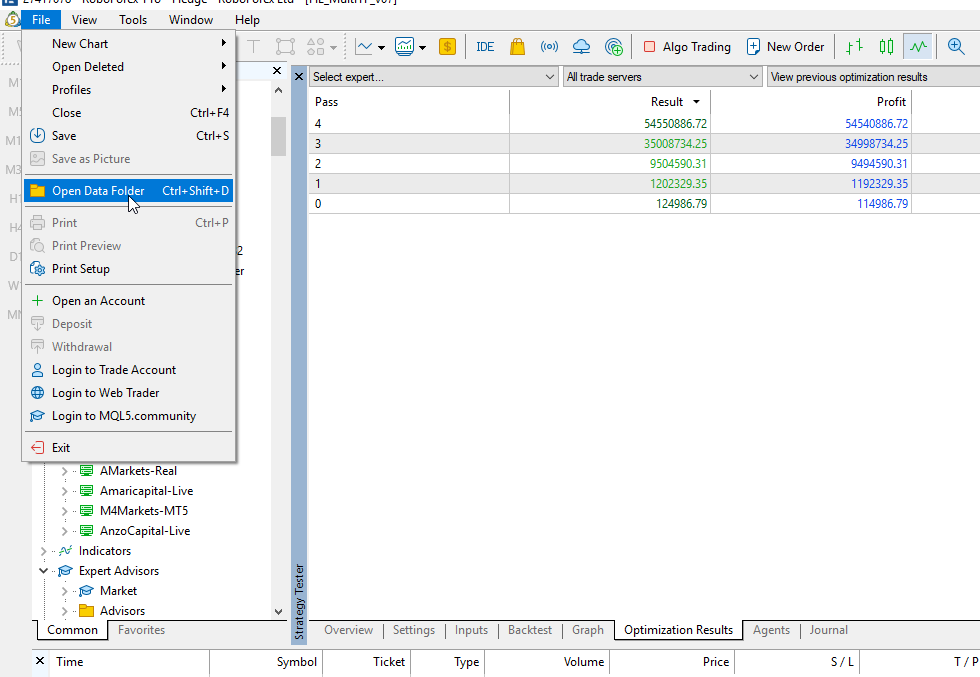
Copy the entire Market folder to the clipboard (or select a specific Expert from the list) and transfer it to Terminal #2 in the same Market folder.
After that, restart Terminal #2. The copied Expert Advisor will appear in Terminal #2 in the Market folder and you can start using it without losing the license to install it.
⚠️ IMPORTANT. This installation method allows you to use one license within only one VPS or PC.
I hope my advice will help you extend the service life of the purchased programs.
Contact me if you have any questions or need help installing programs on your VPS.



![[iVISTscalp5]: XAUUSD. Forecast First. Market Reaction Afterwards](https://c.mql5.com/6/1035/splash-preview-777232.png "[iVISTscalp5]: XAUUSD. Forecast First. Market Reaction Afterwards")