
AutoLot Trade Panel MT5 - Quick Start Guide
The panel is designed for manual traders who want a faster and cleaner workflow directly on the chart.
Main Features
Risk Management:
- Automatic lot size calculation based on risk percentage and stop loss.
- Manual lot mode with live risk display.
- Shows risk in percent and account currency.
- Helps keep risk consistent before opening a trade.
Order Execution:
- Supports Buy and Sell market orders.
- Supports Stop and Limit orders.
- Fast one-click execution directly from the chart.
- Entry, Stop Loss and Take Profit values can be adjusted directly in the panel.
Visual Trade Planning:
- Visual Tool shows Entry, Stop Loss and Take Profit directly on the chart.
- Helps check the risk/reward setup before entering a trade.
- The Visual Tool can be enabled or disabled with the V button.
Positions Manager:
- Shows open positions and pending orders.
- Updates position data live.
- Supports Partial Close.
- Supports Break Even.
- Supports closing positions directly from the manager.
Trade Management:
- Built-in Trailing Stop settings.
- Adjustable trailing distance and trailing step.
- Close All function.
- Cancel Pending Orders function.
AutoLot Trade Panel - Main Panel Overview
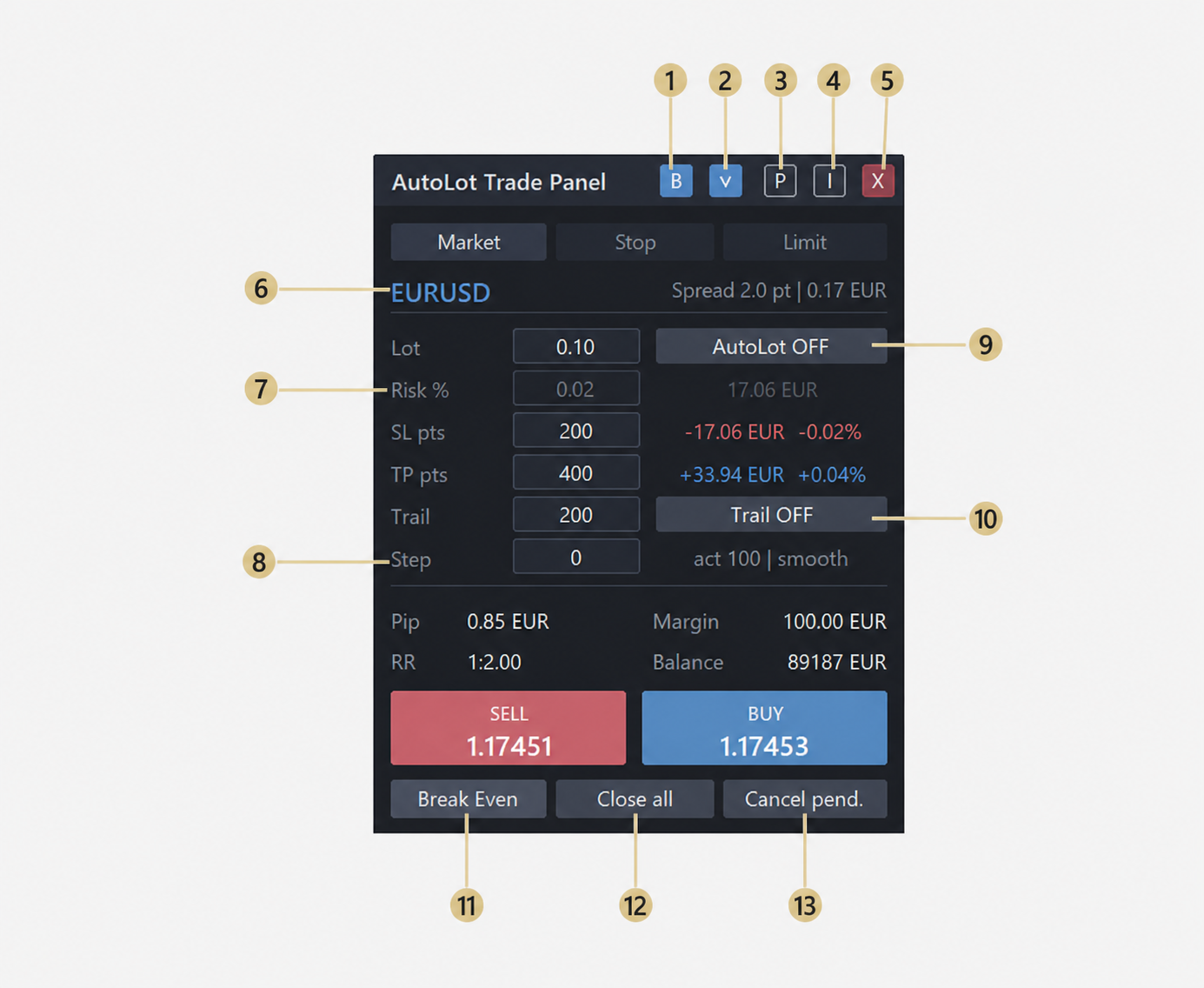
Switches the Visual Tool side between Buy and Sell.
2. V Button
Turns the Visual Tool on or off.
3. P Button
Opens or closes the Positions Manager.
4. Minimize Button
Minimizes the panel.
5. Close Button
Closes the panel from the chart.
6. Symbol Display
Shows the current chart symbol.
7. Risk %
Defines the risk percentage used for AutoLot calculation.
When AutoLot is OFF, this field is disabled but still shows the real risk based on manual lot size and stop loss.
8. Step
Defines the trailing step for the trailing stop function.
9. AutoLot ON/OFF
Enables or disables automatic lot size calculation.
When AutoLot is OFF, you can enter the lot size manually.
10. Trail ON/OFF
Enables or disables the trailing stop function.
11. Break Even
Moves the stop loss to break even for all open positions of the current chart symbol.12. Close All
Closes all open positions of the current chart symbol.
13. Cancel Pending
Cancels all pending orders of the current chart symbol.
AutoLot Trade Panel - Positions Manager Overview
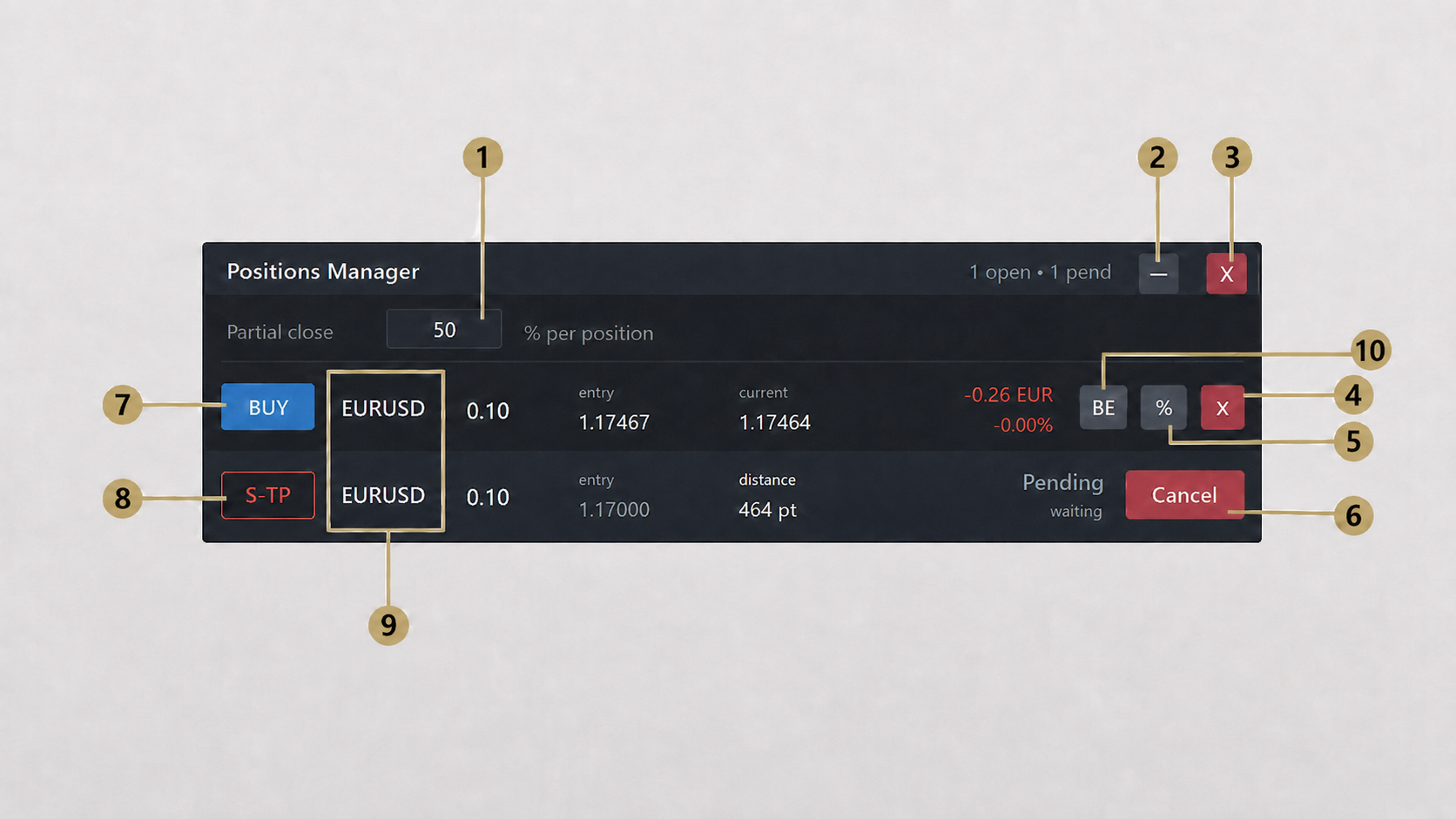
1. Partial Close %
Defines the percentage used for partial close actions.
2. Minimize Button
Minimizes the Positions Manager window.
3. Close Button
Closes the Positions Manager window.
4. Close Position
Closes the selected open position.
5. Partial Close Button
Closes part of the selected open position based on the percentage set in field 1.
6. Cancel Button
Cancels the selected pending order.
7. Buy Position
Shows an open Buy position.
8. Sell Stop Order
Shows a pending Sell Stop order.
9. Position / Order Information
Displays the symbol information for the selected position or pending order.
10. Break Even Button
Moves the stop loss of the selected open position to the break even level.
Important Notes
- AutoLot Trade Panel is a manual trading assistant. It does not provide trading signals and does not open trades automatically based on a strategy.
- Always test the panel on a demo account first to make sure the workflow fits your trading style and broker conditions.
- The calculated lot size and risk values can depend on the symbol, spread, contract size and broker settings.
- When AutoLot is OFF, the lot size can be entered manually. The panel still calculates and displays the real risk based on the manual lot size and stop loss.
- The Positions Manager actions apply to positions and pending orders of the current chart symbol.
- The free demo version is available to test the basic workflow before purchasing the full version.
Final Recommendation
Start with the free demo version, test the workflow on a demo account and make sure the panel fits your trading style before using the full version on a live account.
Try the free demo version first:
https://www.mql5.com/en/market/product/176387
Full version:
https://www.mql5.com/en/market/product/176005



