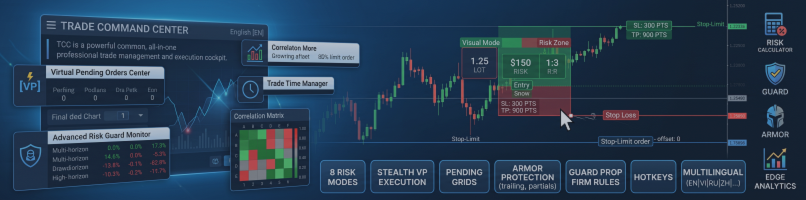

Trade Command Center (TCC) is an on-chart trade execution and position management panel for MetaTrader 4 and MetaTrader 5. It handles one-click lot sizing, on-chart visual order drafting, multi-level trailing stops, client-side virtual pending orders, and prop firm risk rules directly from the chart.
Instead of calculating lot sizes manually or entering order numbers into dialog boxes, set your risk percentage or dollar amount, place your stop loss visually on the chart, and TCC calculates the position size instantly.
Download Trade Command Center on MQL5 Market: https://www.mql5.com/en/market/product/164935
Platform Support: This guide covers features available in both MetaTrader 4 and MetaTrader 5 builds. Separate files are provided for each platform, so make sure to install the version matching your terminal.
1. Overview
Key features:
- Top Strategy Preset Bar: Switch trading setups (Scalp, Day, Swing, Prop) with one click. Categorizes profiles into Global and Symbol-specific presets. Includes Quick Save [💾], New Setup [+], Delete [🗑], Preset Manager [📋], and mismatch alert (*).
- Dynamic Lot Sizing: Calculates lot size across 8 risk modes (% Balance, % Equity, % Free Margin, Prev Day/Week/Month Balance, Fixed $, Fixed Lot).
- Visual Mode: Drag-and-drop on-chart box to set Entry, SL, and TP visually with automatic R:R calculation.
- Virtual Pending Orders: Local client-side orders kept in EA memory to bypass broker stop level and freeze level limits without placing tickets on broker servers.
- Stop-Limit Orders: Native Buy Stop-Limit and Sell Stop-Limit support for pending setups with custom limit offset.
- Trade Time Manager: Automated scheduler for timed market entries, pending orders, and group closures.
- ARMOR Protection: Auto Break-Even with profit offset, Spread Filter protection, Multi-TP partial closes (up to 5 targets), and 5 Trailing Stop algorithms.
- Pending Grid Engine: Multi-order ladders with custom order count (1 to 50), spacing, lots, max total volume, auto-expiry, and 1-click grid cancellation.
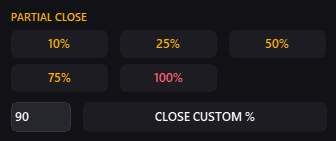
- CTRL Tab: Position dropdown selector, quick partial closes (10%, 25%, 50%, 75%, 100%, Custom %), visual SL/TP modification, and panic close buttons.
- GUARD Tab: Daily drawdown limits, min/max lot rules with real-time exposure tracking, daily auto-close times, and a multi-horizon Risk Guard monitor.
- MarketIntel: Macroeconomic news filter and real-time currency correlation matrix, directly toggleable with dedicated floating panels.
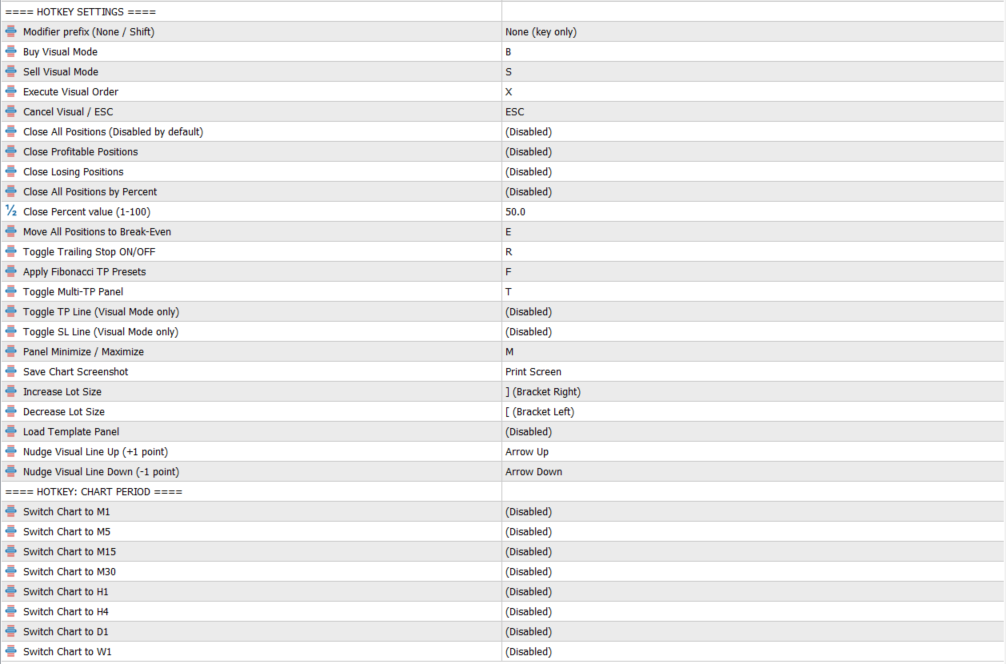
- 30+ Hotkeys: Customizable keyboard shortcuts with optional Shift modifier to prevent terminal conflicts.
- Multilingual UI: Native interface translation across 11 languages.
- EDGE Analytics: Real-time on-chart performance statistics with 4 sub-views: REPORT, ACCOUNT, SYMBOL, and SESSIONS (SESS).
2. Installation
- Copy the EA file to your MQL5\Experts (or MQL4\Experts) folder.
- Restart MetaTrader or right-click Expert Advisors in the Navigator window and click Refresh.
- Drag Trade Command Center onto your chart.
- In the EA settings window, enable "Allow Algo Trading" (or "Allow live trading" in MT4) under the Common tab.
- Click OK. The dashboard will appear on your chart.
3. Panel Layout
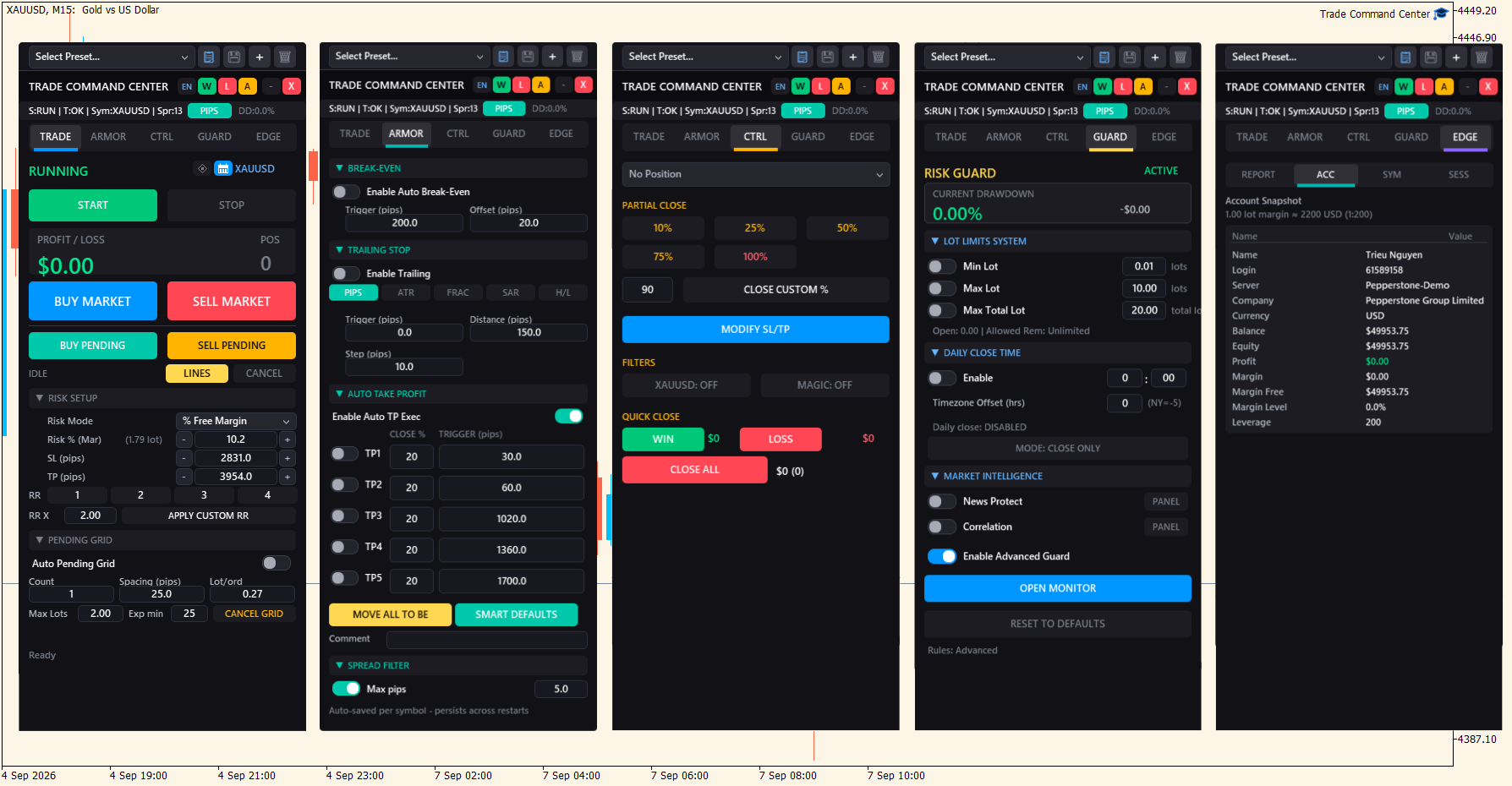
| Element | Description |
|---|---|
| Top Preset Bar | Sits at the top of the dashboard. Contains preset dropdown with Global and Symbol categorization, Preset Manager [📋], Quick Save [💾], New Setup [+], Delete [🗑], and mismatch alert (*). |
| Header Bar | Displays title, language badge ([EN]), 1-click Quick Close buttons (WIN, LOSS, ALL) for instant exit from any tab, Minimize (- / +), and Close (X). Drag the header to reposition the panel. |
| Status Bar | Displays engine state (READY / ARMED / STOPPED), PTS / PIPS unit toggle button, and real-time account drawdown (DD: 0.0%). |
| Tab Bar | Five main operational tabs: TRADE, ARMOR, CTRL, GUARD, EDGE. |
| - (Minimize) | Collapses the panel to show only the preset bar and header (Hotkey: Space or M). |
| X (Close) | Removes the EA and cleans up chart objects cleanly. |
Floating Utility Panels: TCC includes modular floating panels that can be opened, repositioned, and closed independently:
- Strategy Preset Manager [📋]: Browse, inspect, import, and export complete trading presets.
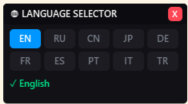
- Language Selector [EN]: Switch the full interface across 11 languages.
- Virtual Pending Orders Center [VP]: Local pending order control dashboard.
- Trade Time Manager (Clock Icon): Visual scheduling tool for timed entries, closures, and terminal exit.
- News Protection Panel: High-impact economic calendar with event countdowns.
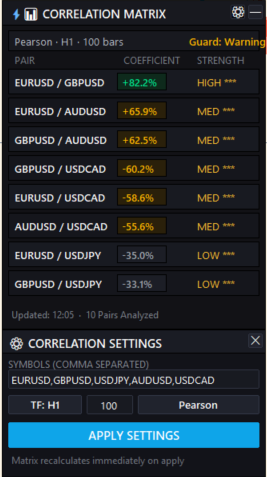
- Correlation Matrix Panel: Multi-pair correlation heat map.
- Risk Guard Monitor: Multi-horizon dashboard tracking hourly, daily, weekly, and monthly drawdowns.
4. Strategy Preset System
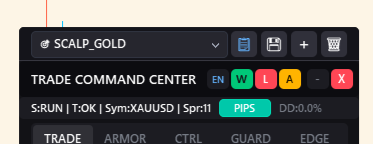
The Preset System lets you switch configurations with one click, loading risk percentages, stops, trailing rules, and grid parameters automatically.
4.1 Top Preset Bar
Located above the main tabs for instant access:
| Control | Function |
|---|---|
| Preset Dropdown | Loads saved presets organized into "--- GLOBAL PRESETS ---" (universal) and "--- [SYMBOL] PRESETS ---" (dedicated to the current pair). |
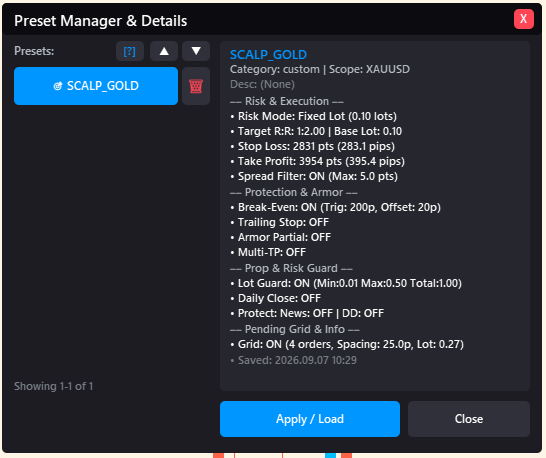
| [📋] Manager Button | Opens the floating Preset Manager with full parameter inspection and setup details. |
| [💾] Quick Save | Saves current dashboard settings directly into the active preset profile. |
| [+] New Preset | Opens a dialog to create a new named preset from current settings. |
| [🗑] Delete Preset | Opens a confirmation dialog to delete the selected preset profile. |
| Mismatch Alert (*) | An asterisk appears next to the preset name whenever on-chart settings differ from the loaded profile. |
4.2 Preset Manager & Live Inspector
Click [📋] to view and inspect all preset parameters before loading:
- Risk Parameters: Risk Mode, Risk value, default SL and TP distances in points and pips.
- Execution Settings: Target R:R ratio, Pending Grid settings (Count, Spacing, Lot, Expiry).
- ARMOR Settings: Auto Break-Even settings, Multi-TP levels (TP1 to TP5), Trailing Stop mode, and Spread Filter limit.
- GUARD Limits: Min lot, max single lot, max total lot, daily loss limits, and daily close hour.
- Scope: Choose Global (shared across all symbols) or Pair-Specific (locked to XAUUSD, US30, etc.).
5. TRADE Tab
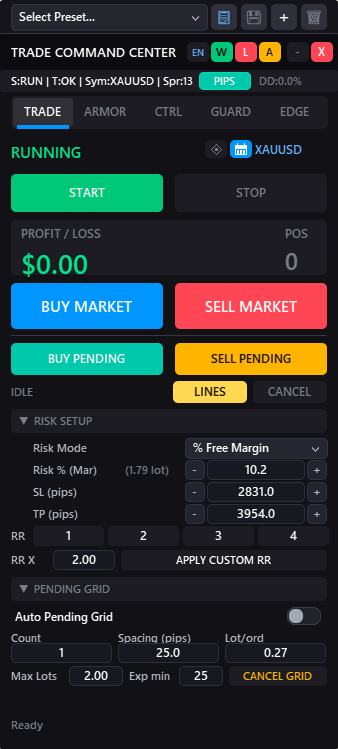
The TRADE tab configures order sizing and executes market, pending, and grid trades.
5.1 START / STOP Switch
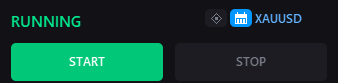
| Button | What it does |
|---|---|
| START | Arms the EA engine (green). Required for placing trades and opening Visual Mode. Status bar displays "READY". |
| STOP | Disarms the EA engine (amber). Disables order placement and visual drafting. Status bar displays "STOPPED". |
5.2 Real-Time P/L Display

Shows total floating profit or loss in account currency across all open managed trades, along with the active position count (POS).
5.3 Order Execution Buttons
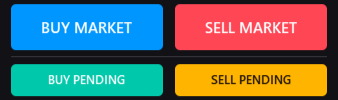
| Button | What it does |
|---|---|
| BUY MARKET | Opens Visual Mode at current Ask for instant market buy upon confirmation. |
| SELL MARKET | Opens Visual Mode at current Bid for instant market sell upon confirmation. |
| BUY PENDING | Opens Visual Mode for Buy Limit or Buy Stop, automatically determined by entry line position relative to Ask. |
| SELL PENDING | Opens Visual Mode for Sell Limit or Sell Stop, automatically determined by entry line position relative to Bid. |
A visual divider separates Market and Pending order rows to prevent misclicks. Clicking any execution button displays the Visual Mode Box on the chart, letting you position Entry, SL, and TP lines before confirming.
5.4 Stop-Limit Order Execution
For pending orders placed in Stop territory, TCC supports Stop-Limit orders (Buy Stop-Limit and Sell Stop-Limit). Click the [STL] toggle on the visual Entry box to display a limit offset line, entering only if price pulls back to the limit level after triggering the stop.
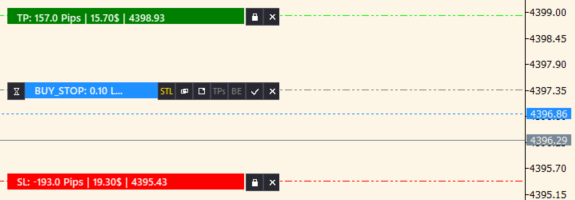
5.5 Visual Mode Controls

| Button / Label | What it does |
|---|---|
| LINES | Toggles visibility of visual lines without losing configured prices. |
| CANCEL | Exits Visual Mode immediately and removes chart lines (Hotkey: ESC). |
| State Badge | Displays current visual state: IDLE, ARMED BUY, ARMED SELL, or HIDDEN. |
5.6 Risk Setup & 8 Sizing Modes
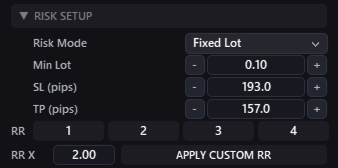
TCC provides 8 risk calculation modes suitable for personal and prop firm trading:
| Risk Mode | Calculation Method |
|---|---|
| Risk Money ($) | Fixed dollar loss per trade (e.g. $150). Lot size scales to Stop Loss distance. |
| Risk % (Balance) | Percentage of current account balance (e.g. 1.0%). |
| Fixed Lot | Fixed lot size for all orders without dynamic sizing (e.g. 0.50 lots). |
| % Equity | Calculates risk based on current account equity. |
| % Free Margin | Calculates risk based on available free margin. |
| % Prev Day Balance | Calculates risk using account balance at 00:00 server time. Useful for prop firms with daily drawdown rules based on starting day balance. |
| % Prev Week Balance | Calculates risk using opening balance of the current trading week. |
| % Prev Month Balance | Calculates risk using opening balance of the calendar month. |
SL and TP Stepper Fields:
- SL: Default Stop Loss distance in points or pips, adjustable with - and + buttons.
- TP: Default Take Profit distance in points or pips, adjustable with - and + buttons.
Click the PTS / PIPS toggle button in the status bar to switch all distance inputs and readouts between Points and Pips.
5.7 Quick R:R Multipliers (1 · 2 · 3 · 4) & Custom R:R

Click any number (1, 2, 3, 4) to set Take Profit to that exact multiple of your Stop Loss distance.
Custom R:R Ratio: Right below the quick buttons, enter any desired target ratio into the RR X field (e.g. 1.5 or 2.5) and click APPLY CUSTOM RR to update your TP distance instantly.
5.8 Grid Pending Quick Setup
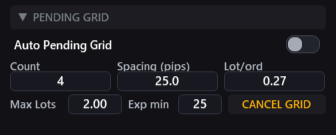
Scale into positions automatically using the Pending Grid section below Risk Setup:
| Control | Description |
|---|---|
| Auto Pending Grid | Master toggle to activate pending order grid ladders. |
| Count | Number of additional grid orders (1 to 50). Total orders = Count + 1. |
| Spacing | Distance between each grid order level in pips. |
| Lot/ord | Lot size per order. Set to 0 to divide calculated risk lot evenly across orders. |
| Max Lots | Maximum combined volume for the entire grid (0 = unlimited). |
| Exp min | Auto-cancels unfilled grid orders after specified minutes (0 = GTC, no expiry). |
| CANCEL GRID | One-click button to cancel all unfilled pending grid orders immediately. |
6. Stealth Virtual Pending Orders Engine
Brokers frequently enforce minimum Stop Level and Freeze Level gaps (50 to 200 points) on Gold (XAUUSD), Indices, and Crypto, blocking tight pending orders. The Virtual Pending Engine bypasses these restrictions by storing orders locally.
6.1 How Stealth Orders Work
- Pending orders (Buy Stop, Sell Stop, Buy Limit, Sell Limit) are kept in local EA memory.
- No Broker Tickets: Orders are not placed on the broker server before triggering, preventing stop hunting and front-running.
- Zero Minimum Distance: Place virtual orders as close as 1 point from market price.
- Instant Market Execution: When market price hits the virtual trigger level, TCC executes a market order with your defined SL, TP, and emergency stop.
6.2 Floating Virtual Pending Dashboard
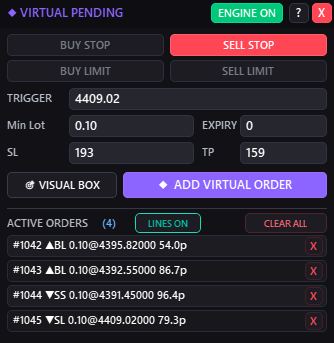
Click [VP] in the header or expand the Virtual Pending section on the TRADE tab to open the VP dashboard:
| Control | Function |
|---|---|
| ENGINE ON / OFF | Master switch to enable or pause virtual order monitoring. |
| Order Type | Select BUY STOP, SELL STOP, BUY LIMIT, or SELL LIMIT. |
| Price & Distance | Set trigger price manually or by distance from current Bid/Ask. |
| VISUAL BOX | Displays on-chart visual lines to position trigger price, SL, and TP. |
| Max Slippage / Gap | Maximum allowable slippage tolerance during fast price spikes. |
| Emergency SL | Attaches a hard stop loss upon broker execution to protect against disconnection. |
| [?] Quick Guide | Opens built-in reference documentation in your active language. |
6.3 Visual Dragging for Virtual Orders
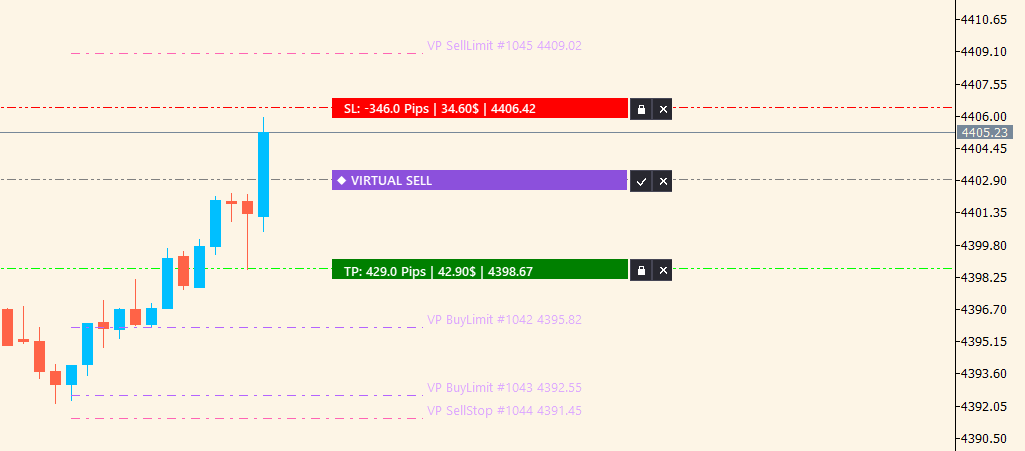
Active virtual orders display dotted lines directly on the chart (e.g. VP BuyStop #1010 2485.50 ). Click and drag these lines directly to adjust trigger levels.
7. Trade Time Manager (Automated Scheduling)
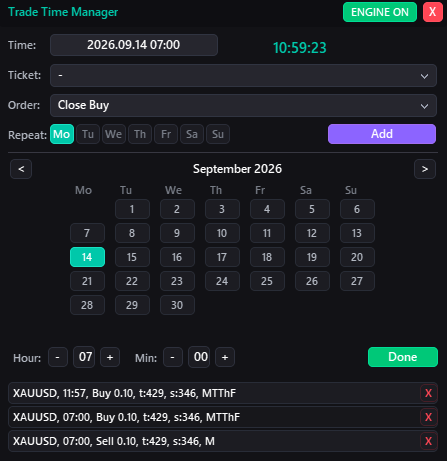
The Trade Time Manager automates order placement, position liquidations, and terminal shutdown at specified times.
Click the Clock Icon on the TRADE tab to open the Time Manager panel.
7.1 Scheduled Actions
| Category | Supported Actions |
|---|---|
| Market Execution | Execute Buy or Sell market orders at a specific hour and minute. |
| Pending Placement | Place Buy/Sell Stop or Limit orders with pre-set SL and TP. |
| Position Liquidations | Close specific tickets or groups: Close Buy, Close Sell, Close Profit, Close Loss, or Close All. |
| Order Purge | Delete Buy/Sell Stops, Buy/Sell Limits, or all pending orders before session close. |
| Terminal Shutdown | Exits MetaTrader automatically after tasks finish. |
7.2 Scheduling Options
- Visual Time Picker: Select execution time with automatic broker timezone adjustment.
- Visual Price Positioning: Click LINES to drag scheduled pending order entries directly on chart.
- Weekday Recurrence: Toggle Monday to Sunday checkboxes for recurring weekly tasks (e.g. close all Friday at 21:55).
- Persistent Tasks: Scheduled tasks are saved to TCC_TimeTasks.csv and restored automatically.
8. ARMOR Tab (Autonomous Protection)
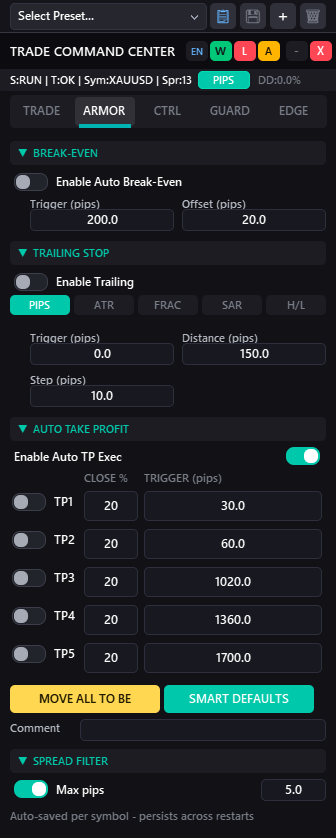
ARMOR manages active positions: automated break-even, multi-algorithm trailing stops, multi-level partial profit taking, and spread protection.
8.1 Auto Break-Even
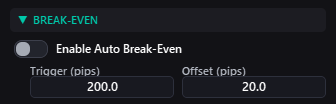
Moves Stop Loss to entry price (or slightly past entry to cover spread and commission) once a trade reaches a specified profit target.
| Field | Description |
|---|---|
| Enable Auto Break-Even | Activates automatic break-even management for open positions. |
| Trigger (pts) | Profit distance in points required before moving SL to break-even. |
| Offset (pts) | Points added past entry price (e.g. +20 pts to cover commission and spread). |
8.2 Multi-Algorithm Trailing Stop
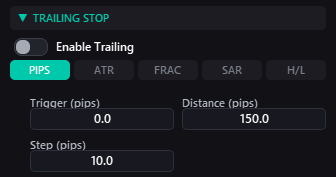
TCC provides 5 trailing stop modes suited to different market conditions:
| Mode | Behavior |
|---|---|
| PTS (Points) | Maintains a fixed point distance behind highest high (buys) or lowest low (sells). |
| ATR (Volatility) | Adjusts trailing distance dynamically based on Average True Range. |
| SAR (Parabolic) | Trails behind Parabolic SAR dots, accelerating as trend strength increases. |
| FRAC (Fractals) | Trails behind recent swing highs and swing lows based on Bill Williams Fractals. |
| H/L (Candle Step) | Trails bar-by-bar behind previous closed candle High or Low. |
Trailing Parameters:
- Trigger (pts): Profit required before trailing starts (0 = immediate).
- Distance (pts): Base trailing distance for points mode.
- Step (pts): Minimum price movement required before modifying the broker stop order.

8.3 Auto Take Profit (Multi-TP Engine)
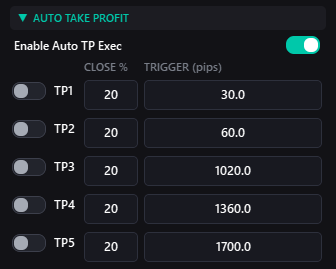
Closes position volume in stages across up to 5 price targets:
| Control | Description |
|---|---|
| TP1 to TP5 Checkboxes | Enable or disable each partial take profit level. |
| CLOSE % | Percentage of remaining position volume closed at this level. |
| TRIGGER (pips) | Profit distance in pips required to trigger partial close. |
| Auto TP Master Toggle | Master switch to activate or deactivate the Multi-TP engine. |
8.4 Quick Actions
| Action | Function |
|---|---|
| MOVE ALL TO BE | Moves stop losses of all open positions to break-even immediately (Hotkey: E). |
| SMART DEFAULTS | Recalculates SL, TP, BE, and Trailing distances based on current symbol spread and volatility. |
8.5 Spread Filter Protection
Located in the collapsible SPREAD FILTER section on the ARMOR tab:
| Control | Function |
|---|---|
| Spread Filter Toggle | Activates spread monitoring before trade execution. |
| Max (pips) | Maximum allowed spread threshold in pips. If current market spread exceeds this value, new orders are blocked to prevent excessive slippage. |
8.6 Order Comment Field
Attaches a custom tag to all outgoing orders for strategy tracking in account history.

9. CTRL Tab (Tactical Position Management)
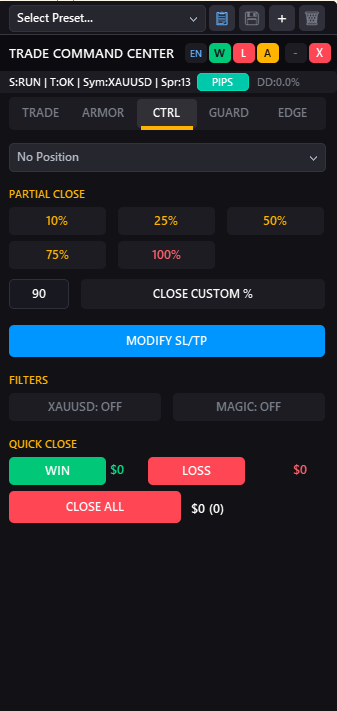
The CTRL tab manages active trades with partial liquidations, visual line adjustment, and panic closes.
9.1 Position Dropdown Selector
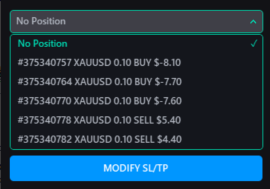
Select any open trade from the dropdown combobox. The list shows ticket number, direction, volume, and current profit. Modification and partial close actions apply to the selected position.
9.2 1-Click Partial Close
| Button | Volume Closed |
|---|---|
| 10% / 25% / 50% / 75% | Closes that percentage of the selected position's volume. |
| 100% | Closes the full selected position immediately. |
| CLOSE CUSTOM % | Closes the exact percentage entered in the custom input field. |
9.3 Modify SL/TP Visually
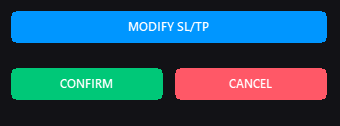
Click MODIFY SL/TP to show chart lines for the active trade's Stop Loss and Take Profit. Drag them to new levels and click CONFIRM to apply, or CANCEL to discard.
9.4 Tactical Position Filters
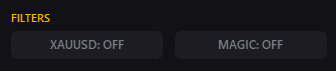
| Filter | Effect |
|---|---|
| SYMBOL: ON / OFF | When ON, restricts bulk actions and Quick Close buttons strictly to current chart symbol. |
| MAGIC: ON / OFF | When ON, restricts actions strictly to trades opened by TCC (matching Magic Number). |
9.5 Quick Close Panic Buttons
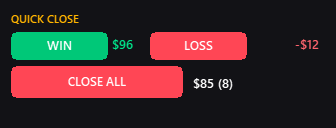
| Button | Action |
|---|---|
| WIN | Closes all profitable positions matching active filter criteria. Displays running profit. |
| LOSS | Closes all losing positions matching active filter criteria. Displays running loss. |
| CLOSE ALL | Closes all filtered positions simultaneously. |
10. GUARD Tab & Risk Guard (Prop Firm Defense)
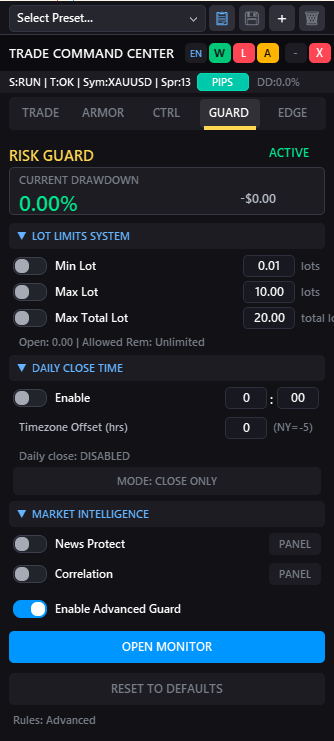
The GUARD tab enforces daily drawdown limits, lot ceilings, and session close times required by prop firms and risk guidelines.
10.1 Real-Time Drawdown Tracking
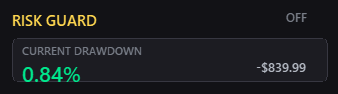
Monitors daily loss in percentage and cash value calculated from 00:00 server time.
10.2 Lot Limits & Exposure Enforcement
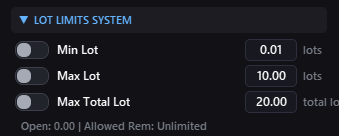
| Parameter | Description |
|---|---|
| Min Lot Protection | Enforces minimum allowable lot size per trade (e.g. 0.01 lots). |
| Max Lot Protection | Limits maximum lot size for any single position (e.g. 1.00 lot). |
| Max Total Lot Protection | Limits total combined open lots across all positions on the account (e.g. 10.00 lots). |
The live exposure label directly displays current open volume and allowed remaining lot capacity: Open: X.XX | Allowed Rem: Y.YY . Orders exceeding lot limits are blocked automatically to keep the account compliant.
10.3 Daily Close Time & Session Flatting

Closes positions before rollover or mandatory weekend holding cutoffs (e.g. Friday 16:55 NY time):
| Setting | Description |
|---|---|
| Enable Daily Close | Toggles automated daily session closing. |
| Hour : Minute | Target close time in 24-hour format. |
| TZ Offset (hrs) | Offset between broker server time and target timezone (e.g. -5 for New York). |
| Daily Close Mode | Choose between closing positions only, or closing positions and blocking re-entry. |
A countdown timer (Time until close: HH:MM) displays on the GUARD tab.
10.4 Risk Guard & Market Intel Settings
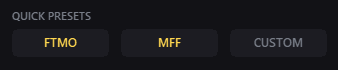
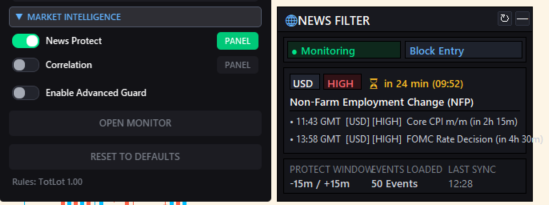
Set custom dollar or percentage loss limits matching your prop firm challenge rules. You can also toggle News Protection and Correlation Analysis directly inside the GUARD tab under MARKET INTEL, using dedicated [PANEL] buttons to launch floating windows.
10.5 Advanced Risk Guard Monitor
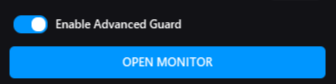
Enable the master toggle and click OPEN MONITOR on the GUARD tab to open the floating risk dashboard:

Tracks your account against 6 risk parameters:
- Max Hourly Loss ($): Prevents overtrading after sharp market moves.
- Max Daily Loss ($): Enforces daily loss boundary.
- Max Weekly Loss ($): Prevents compounding multi-day losses.
- Max Monthly Loss ($): Protects funded accounts against monthly limits.
- Max Equity Drawdown (%): Trailing drawdown threshold.
- Max Floating Loss ($): Emergency stop closing open trades if floating drawdown exceeds limits.
Use the RESET DEFAULTS button to restore initial guard thresholds at any time.
11. EDGE Tab (Performance Analytics)
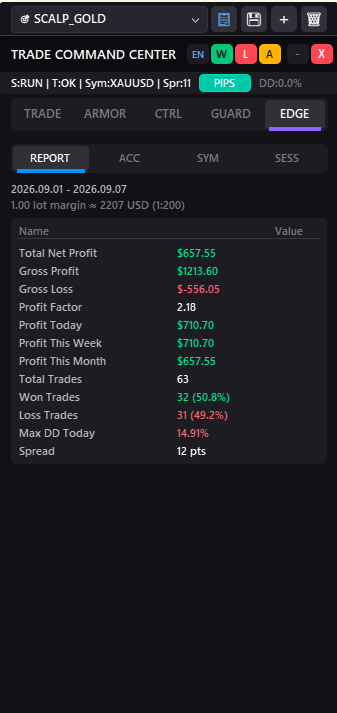
The EDGE tab calculates performance metrics directly from terminal history.
11.1 Sub-Views
| Sub-View | Metrics |
|---|---|
| REPORT | Detailed metrics for trades managed by TCC: Win Rate %, Profit Factor, Expected Payoff, Average Win vs Loss, Long vs Short ratio, and Consecutive Wins or Losses. |
| ACC (Account) | Aggregated account performance including manual trades and other EAs. |
| SYM (Symbol) | Performance filtered strictly to the current chart instrument. |
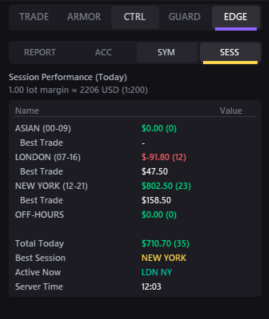
| SESS (Sessions) | Session-by-session performance breakdown across Asian, London, and New York trading sessions. |
12. Grid Pending Orders (Scaling Strategies)
Pending Grids place multiple orders spaced across key support and resistance zones.
12.1 Setup Steps
- Enable Auto Pending Grid on the TRADE tab or in your active preset.
- Set Count (additional orders, 1 to 50) and Spacing (distance in pips).
- Set Lot/ord (or set 0 to distribute calculated risk lot across orders).
- Click BUY PENDING or SELL PENDING to preview grid lines on chart.
- Confirm execution to place the grid with synchronized SL and TP levels.
12.2 Practical Uses
- Breakouts: Place Buy Stops above resistance to scale into trending moves.
- Range Mean-Reversion: Space Buy Limits below support or Sell Limits above resistance.
- Risk Control: Set Max Lots and an Exp min (e.g. 120 min) to avoid stale orders. Click CANCEL GRID to purge unfilled grid orders in one click.
13. MarketIntel (News Filter & Correlation Analysis)
MarketIntel protects against news slippage and currency over-exposure.
13.1 Automated News Protection
Reads macroeconomic calendar feeds to safeguard accounts during high-impact releases (NFP, CPI, FOMC):
| Mode | Behavior |
|---|---|
| BLOCK_NEW (Default) | Blocks new order entry during the news window (e.g. 15 min before and after). Open trades remain active. |
| CLOSE_ALL | Closes open trades and deletes pending orders before the event. |
| ALERT_ONLY | Displays chart notifications while allowing manual trading. |
The floating News Panel displays upcoming events for the next 24 hours with currency tags and release countdowns.
13.2 Real-Time Correlation Matrix
Trading correlated pairs (e.g. EURUSD and GBPUSD) multiplies directional exposure. The Correlation Matrix highlights co-movements across your watchlist:
| Coefficient | Color | Meaning |
|---|---|---|
| +0.80 to +1.00 | Green | Strong positive correlation. Pairs move together. Avoid opening same-direction trades simultaneously. |
| -0.80 to -1.00 | Red | Strong negative correlation. Pairs move in opposite directions. |
| -0.50 to +0.50 | Muted | Low correlation. Pairs move independently. |
14. 30+ Hotkey System
Configure keyboard execution in EA Properties (F7) under ==== HOTKEY SETTINGS ==== .
14.1 Hotkey Reference
| Action | Default Key | Description |
|---|---|---|
| Buy Visual Mode | B | Arms Visual Mode for Buy trade. |
| Sell Visual Mode | S | Arms Visual Mode for Sell trade. |
| Execute Visual Order | X or Enter | Submits the visual trade. |
| Cancel Visual Mode | ESC | Cancels Visual Mode and removes chart lines. |
| Move All to Break-Even | E | Moves open position stops to break-even. |
| Toggle Trailing Stop | R | Toggles trailing stop ON or OFF. |
| Apply Fibonacci TP | F | Sets Take Profit targets to Fibonacci extension levels. |
| Toggle Multi-TP Panel | T | Toggles on-chart Multi-TP overlay. |
| Increase Lot Size | ] | Increases fixed lot size by symbol step. |
| Decrease Lot Size | [ | Decreases fixed lot size by symbol step. |
| Nudge Visual Line Up | Up Arrow | Moves active dragged line up by 1 point. |
| Nudge Visual Line Down | Down Arrow | Moves active dragged line down by 1 point. |
| Minimize / Maximize | Space or M | Collapses or expands the main dashboard. |
| Capture Screenshot | PrintScreen | Saves a chart screenshot to the Files folder. |
| Close All Positions | Custom (Disabled) | Emergency shortcut to close all open positions. |
| Close Profitable Only | Custom (Disabled) | Closes winning positions only. |
| Close Losing Only | Custom (Disabled) | Closes losing positions only. |
| Close % of Positions | Custom (Disabled) | Closes a percentage across all open trades. |
| Timeframe Switching | Custom (Disabled) | Switches chart timeframe (M1 to W1). |
15. Visual Mode (In-Depth Guide)
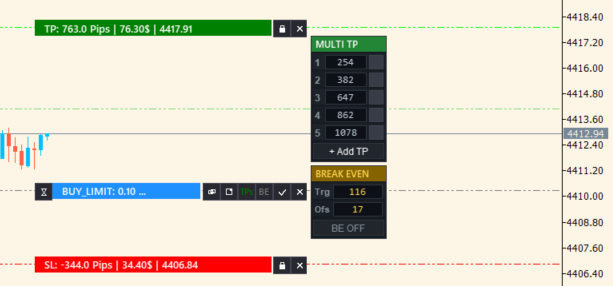
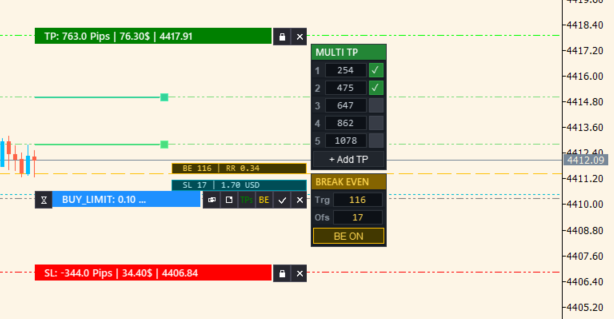
Visual Mode lets you compose orders directly on chart candles with draggable risk zones.
15.1 Opening Visual Mode
- Click BUY MARKET, SELL MARKET, BUY PENDING, or SELL PENDING (or press B or S).
- A color-coded trade box appears on your chart.
- Green Zone: Take Profit target.
- Red Zone: Stop Loss risk area.
- Gray Line: Entry price line.
15.2 Moving Lines & Drag Mechanics
- Click any line or colored zone to grab it.
- Move your mouse to the desired price level.
- Click again to drop and lock the line. (Use Up/Down arrow keys to nudge by 1 point).
- Press ESC to cancel drag mode or abort the setup.
15.3 Visual Box Controls
| Control | Function |
|---|---|
| ✓ (Confirm) | Executes the trade with displayed Entry, SL, and TP prices. |
| × (Entry Switch) | Toggles order type between Market, Limit, and Stop. |
| [STL] (Stop-Limit) | Toggles Stop-Limit mode when entry line is in Stop territory. |
| SL / TP Lock Icons | Locks stop price in place so moving the entry box does not shift your SL level. |
| SL / TP Disable | Disables SL or TP for manual exit management. |
| RR Sync | Locks Risk:Reward ratio so moving SL automatically adjusts TP. |
15.4 On-Chart Multi-TP Overlay
When Visual Mode is active, an on-chart Multi-TP overlay lets you set progressive targets:
- Toggle TP1 to TP5 levels with one click.
- Drag individual target lines within the profit zone.
- Click percentage badges to set partial volume amounts.
- Click FIB (or press F) to align targets with standard Fibonacci extension levels.
15.5 On-Chart Break-Even Bar
Visual Mode displays an on-chart Break-Even trigger bar (BE Bar) inside the profit zone. Drag the bar to set the exact price where the trade becomes risk-free.
15.6 Dynamic Lot Size Readout
As you move the Stop Loss line, TCC recalculates position volume in real time. Calculated lot size, cash risk ($), and R:R ratio update continuously on the visual box.
15.7 Modifying Open Trades Visually
- Go to the CTRL tab.
- Select the open position from the position dropdown menu.
- Click MODIFY SL/TP.
- Drag the SL or TP lines on chart.
- Click CONFIRM to submit changes to the broker.
16. Multilingual UI Engine
Trade Command Center includes built-in translations for 11 languages:
- English (EN), Vietnamese (VI), Russian (RU), Chinese (ZH), Japanese (JA)
- German (DE), French (FR), Spanish (ES), Portuguese (PT), Italian (IT), Turkish (TR)
Click the language badge (e.g. [EN]) in the header to open the Language Selector. The selected language is saved across symbol changes, timeframe switches, and restarts.