
How To Setup and Receive notifications from Golden Boom and Crash And PainX and GainX Spike Indicator

Tired of staring at charts all day? The key to successful trading isn't just a good strategy; it's also efficient execution. For boom and crash enthusiasts, timely entries are everything. That's where powerful indicators like the Golden Boom & Crash and Golden PainX & GainX Spike come in, especially when paired with instant mobile notifications.
In this step-by-step guide, we’ll walk you through how to install these indicators on your MetaTrader 5 platform and, most importantly, how to set up push notifications so you never miss a crucial spike or crash again.
Download the indicators here :
Golden Boom and Crash Spike Indicator: https://www.mql5.com/en/market/product/145480
Golden PainX and GainX Spike Indicator: https://www.mql5.com/en/market/product/150172
Join our official channel at : mql5.com.
Before You Begin: What You'll Need
-
The Indicator Files: Ensure you have downloaded the trusted .ex5 files for your chosen indicators (Golden Boom & Crash, Golden PainX & GainX Spike, etc.).
-
MetaTrader 5: Installed on your desktop or laptop.
-
MetaTrader 5 Mobile App: Installed on your smartphone (iOS or Android).
Part 1: Installing the Indicator on MetaTrader 5
Step 1: Download the Indicator
Obtain the .ex5 indicator file from your trusted source or provider. Always ensure you're downloading from a reputable website to protect your computer and trading account.
Step 2: Locate Your MetaTrader 5 Data Folder
-
Open your MT5 platform.
-
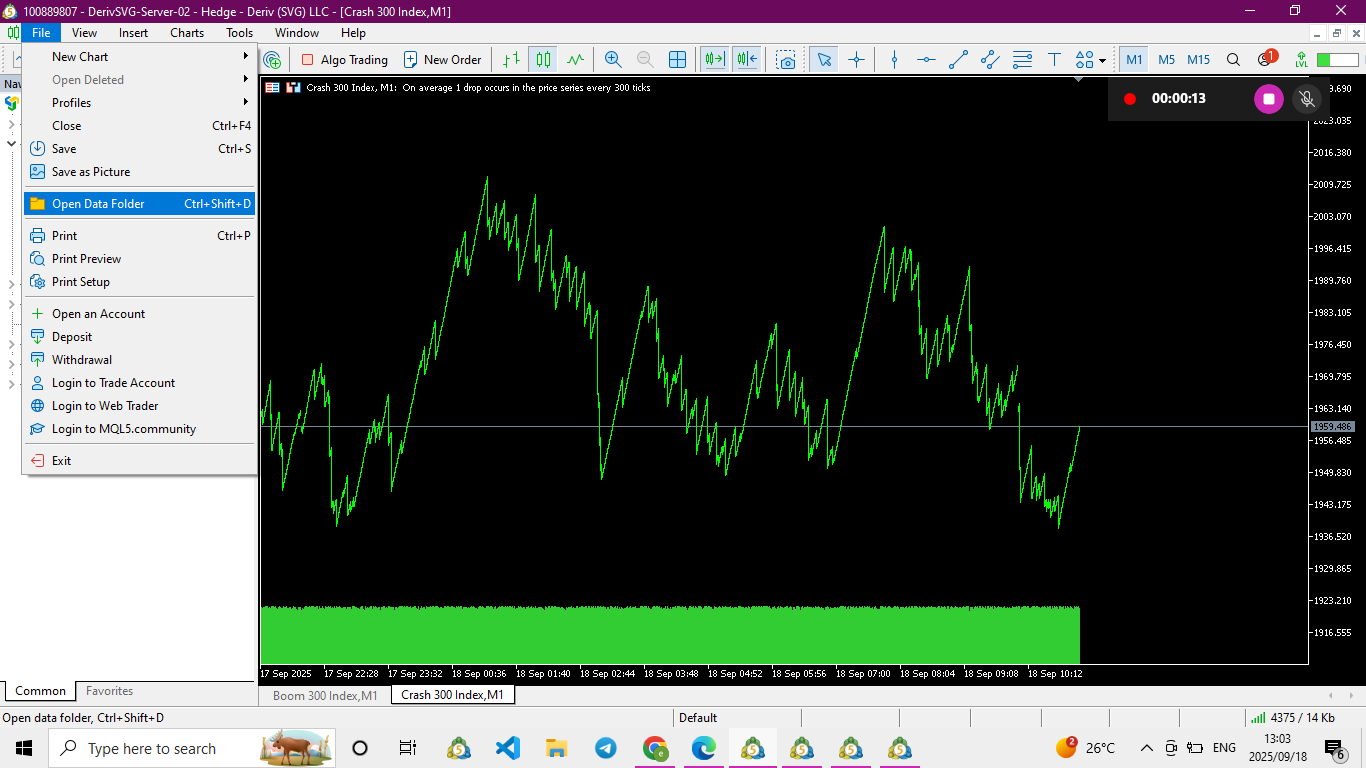
On the top menu bar, click File.
-
Select Open Data Folder.
[  ]
]
Image 1: MT5 File Menu showing the 'Open Data Folder' option.
Step 3: Paste the Indicator File
-
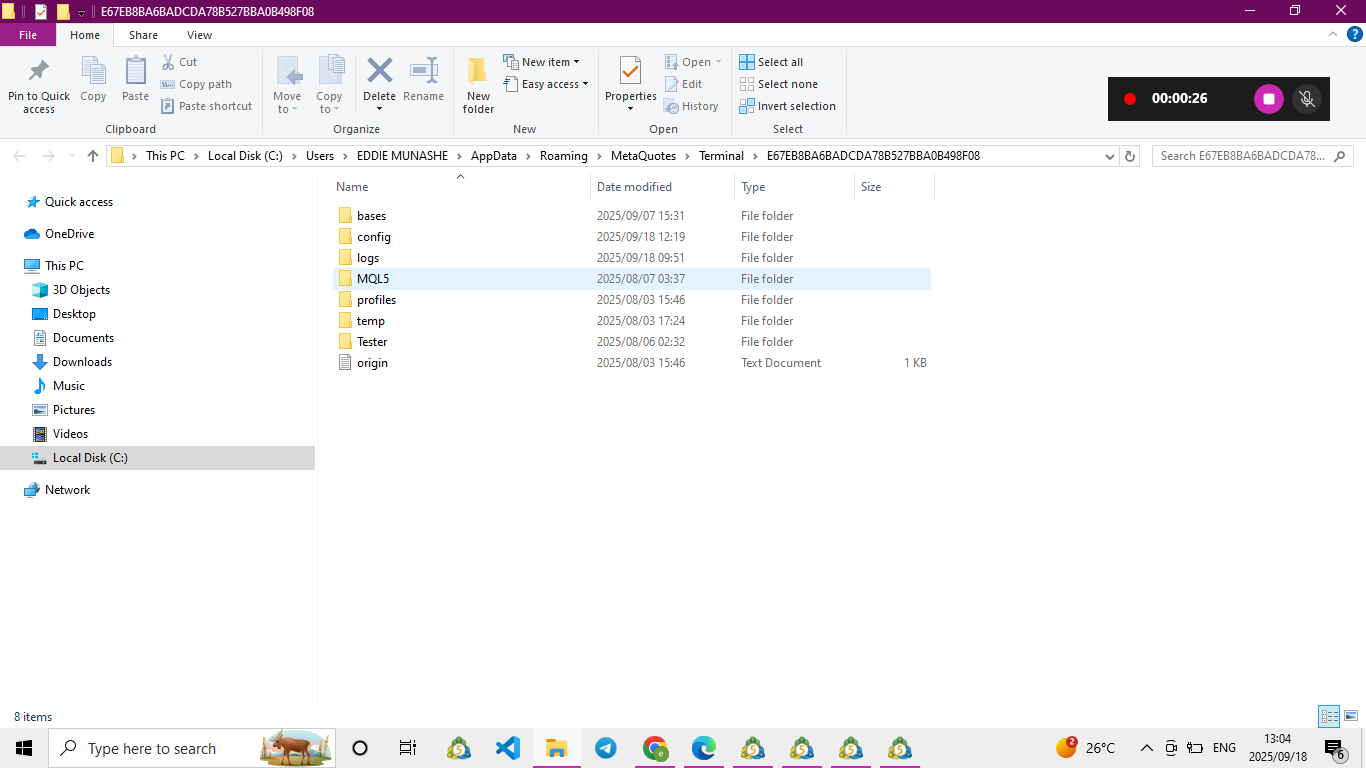
In the Data Folder window, navigate to the MQL5 directory.
[  ]
]
Image 2: MT5 Data Folder highlighting the MQL5 folder.
-
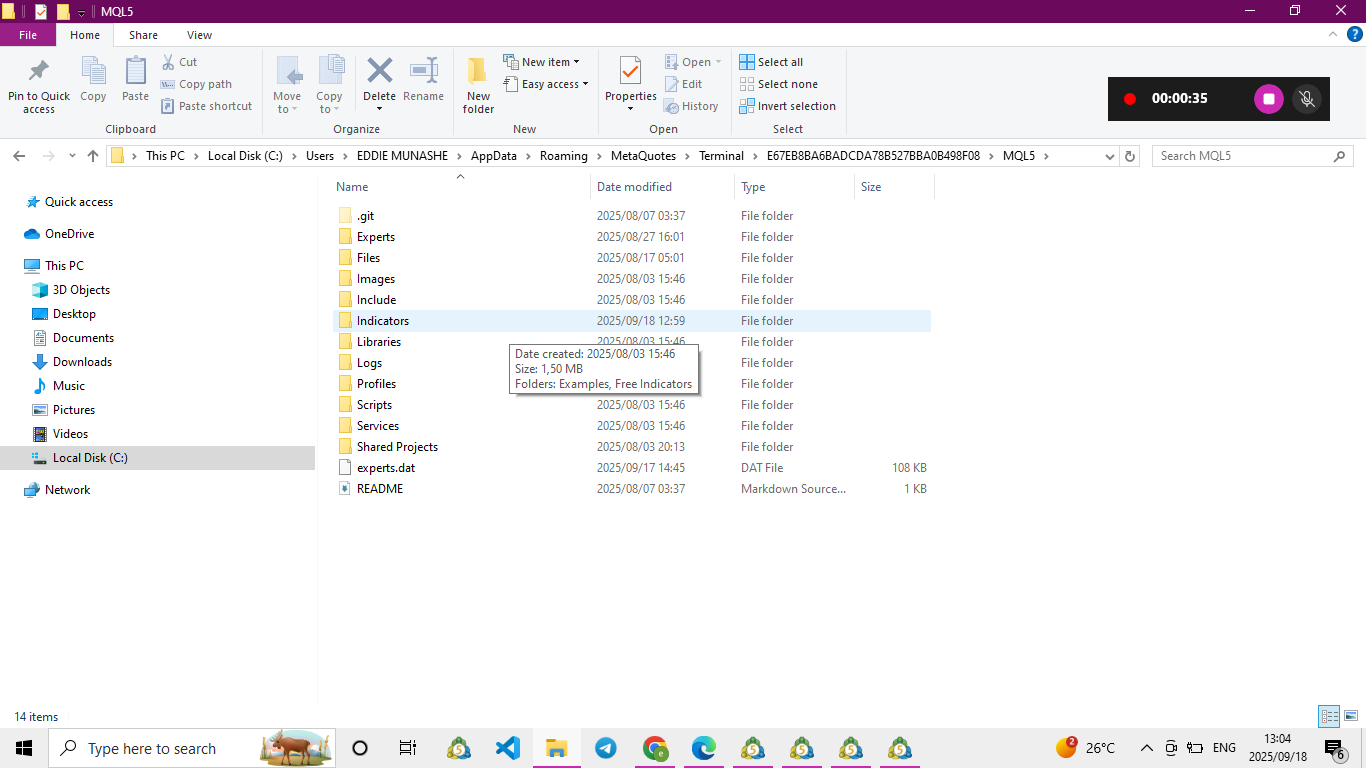
Then, open the Indicators folder.
[  ]
]
Image 3: MQL5 Folder highlighting the Indicators subfolder.
-
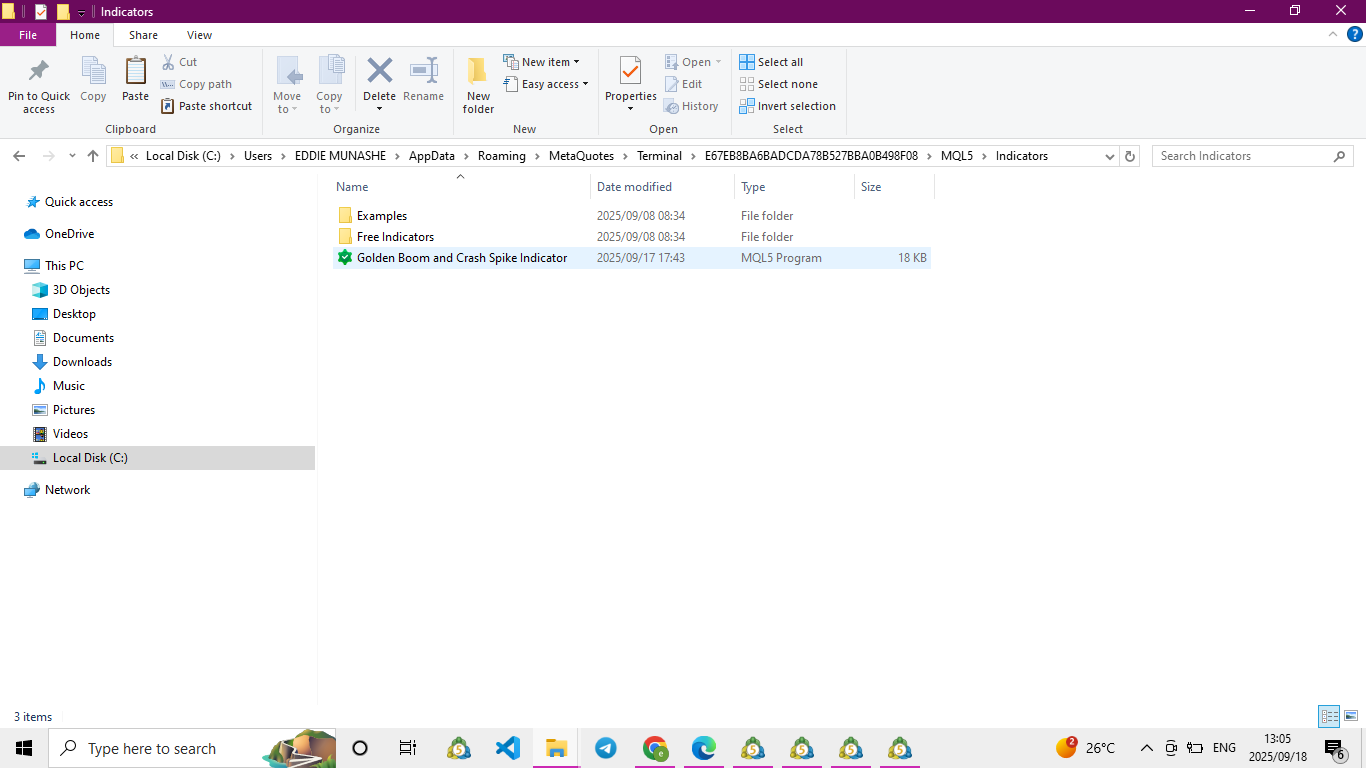
Copy and paste your downloaded .ex5 file into this Indicators folder.
Step 4: Restart and Refresh
Close MetaTrader 5 completely and then reopen it. This is a crucial step—it forces the platform to recognize and load the new indicator file.
Step 5: Attach the Indicator to a Chart
-
Open the chart for the asset you want to monitor (e.g., Boom 300 Index , Crash 300 Index , PainX 400 , GainX 400 ).
-
Press Ctrl + N to open the Navigator panel on the left.
-
Find your new indicator under the Indicators list.
-
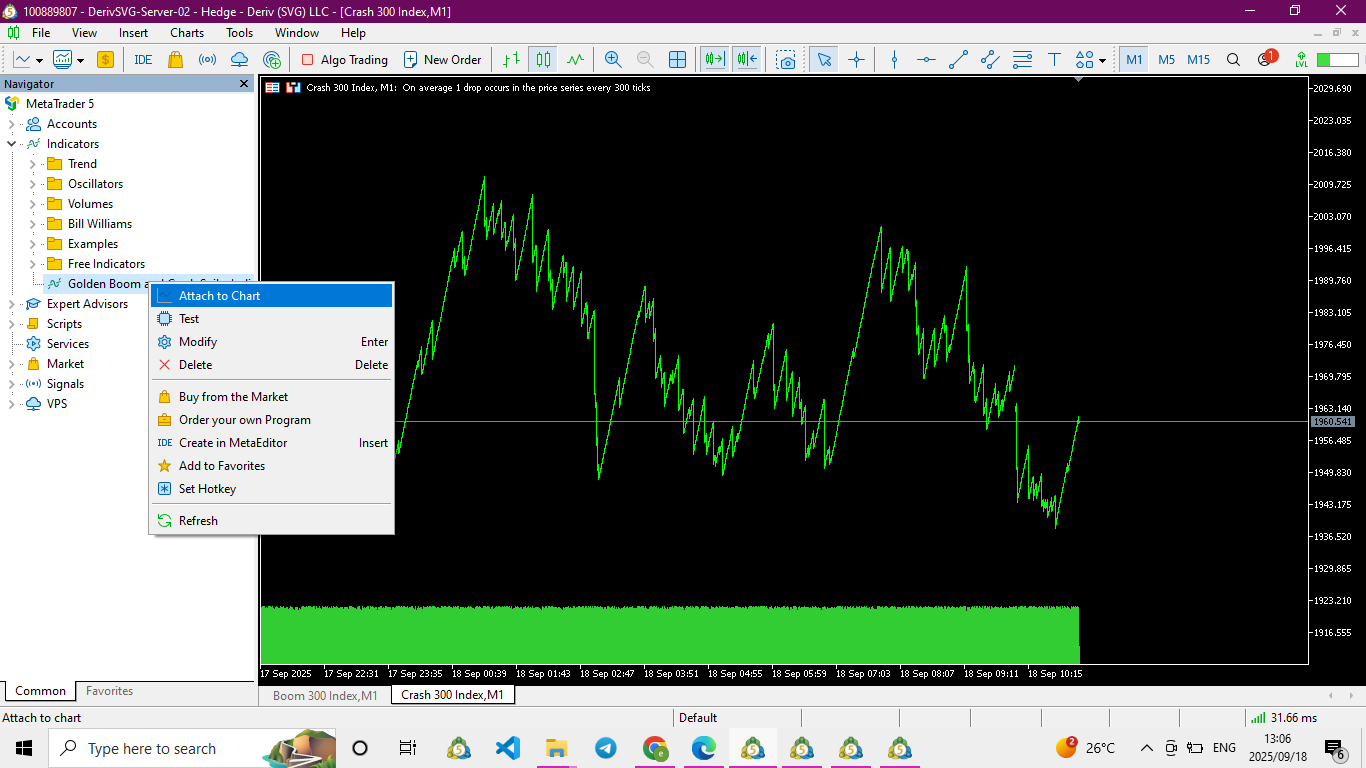
Drag and drop the indicator directly onto your chart, or right-click it and select Attach to a chart.
[  ]
]
Image 4: MT5 Navigator showing the indicator list and the 'Attach to chart' option.
-
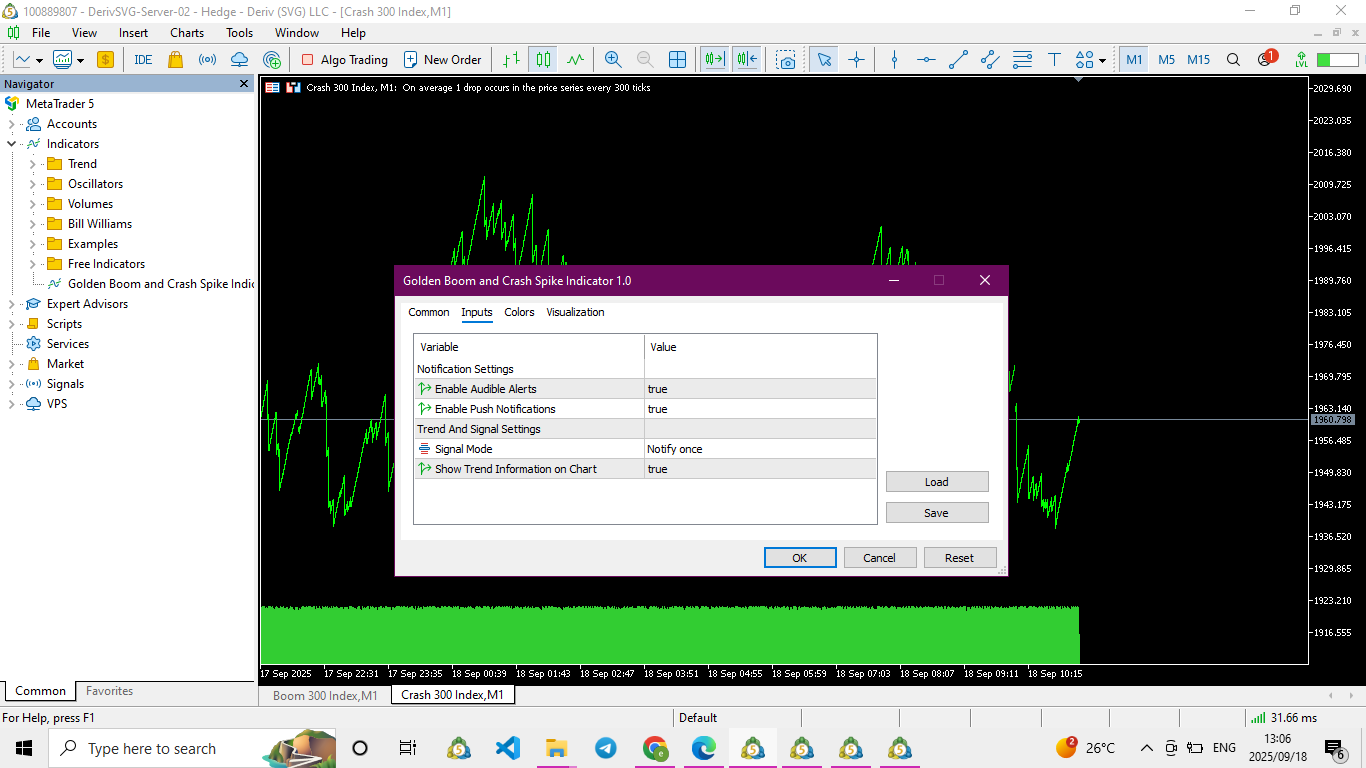
A settings window will pop up. Configure your preferred parameters (e.g., Notification Settings, colors) and ensure Enable Notifications or similar is checked. Click OK.
[  ]
]
Image 5: Indicator Settings Window highlighting the 'Notifications' checkbox.
Part 2: The Golden Key - Setting Up Push Notifications
This is the most important part! Setting up notifications ensures the indicator can alert you on your phone.
Step 1: Find Your MetaQuotes ID on Your Phone
This ID is the unique address that links your desktop platform to your mobile app.
-
Open the MetaTrader 5 app on your smartphone.
-
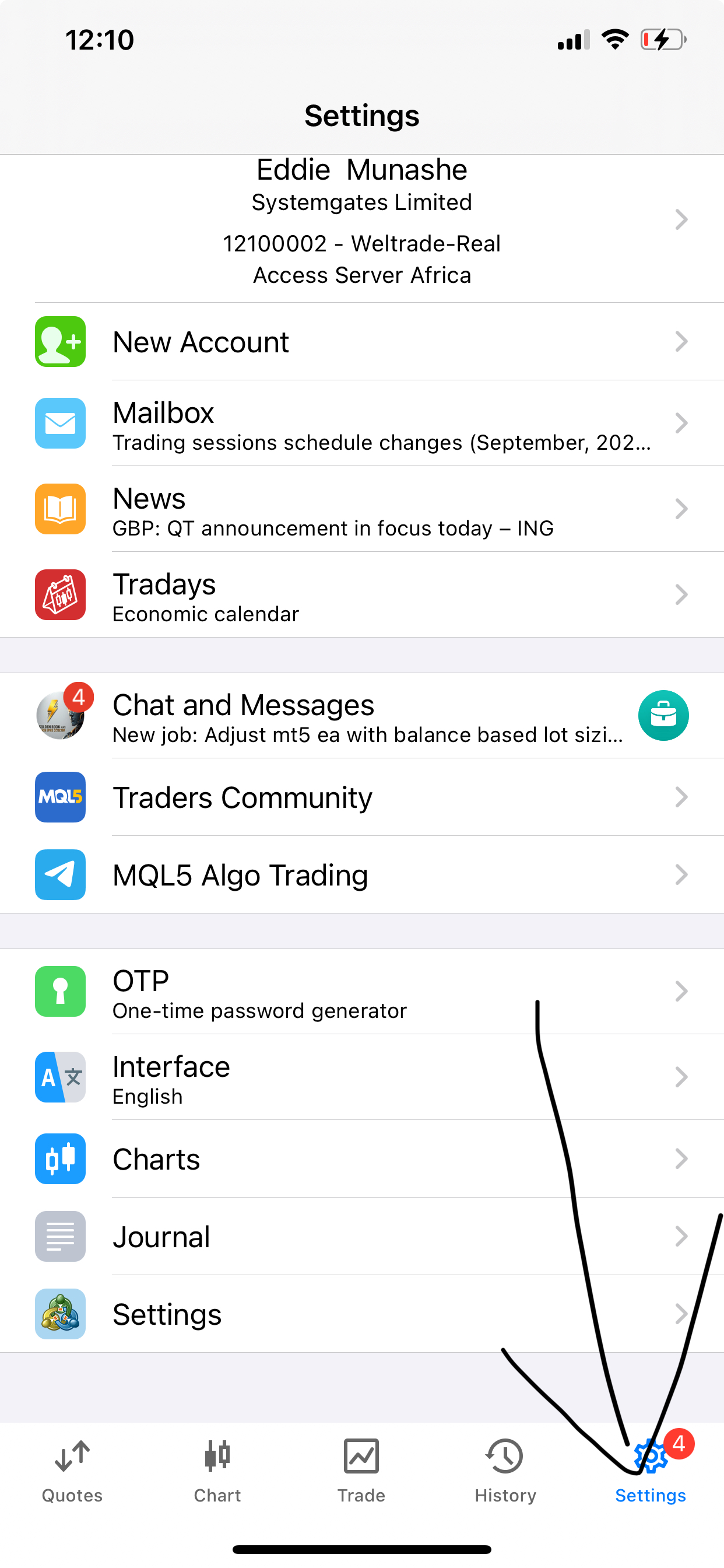
Tap on the Settings gear icon (usually in the bottom right corner).
[  ]
]
Image 6: MT5 Mobile App home screen with Settings icon highlighted.
-
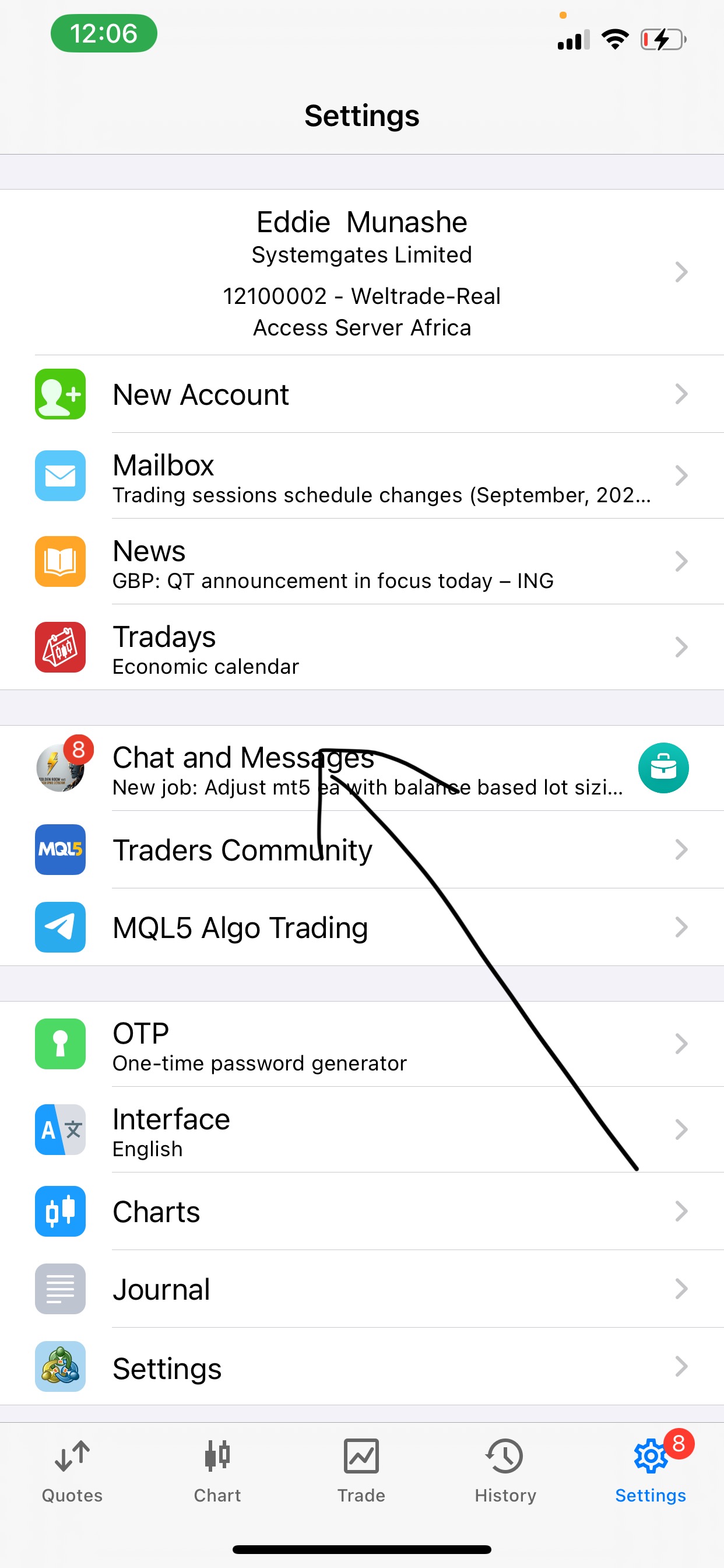
Tap on Chats and Messages.
[  ]
]
Image 7: MT5 Mobile Settings showing 'Chats and Messages' option.
-
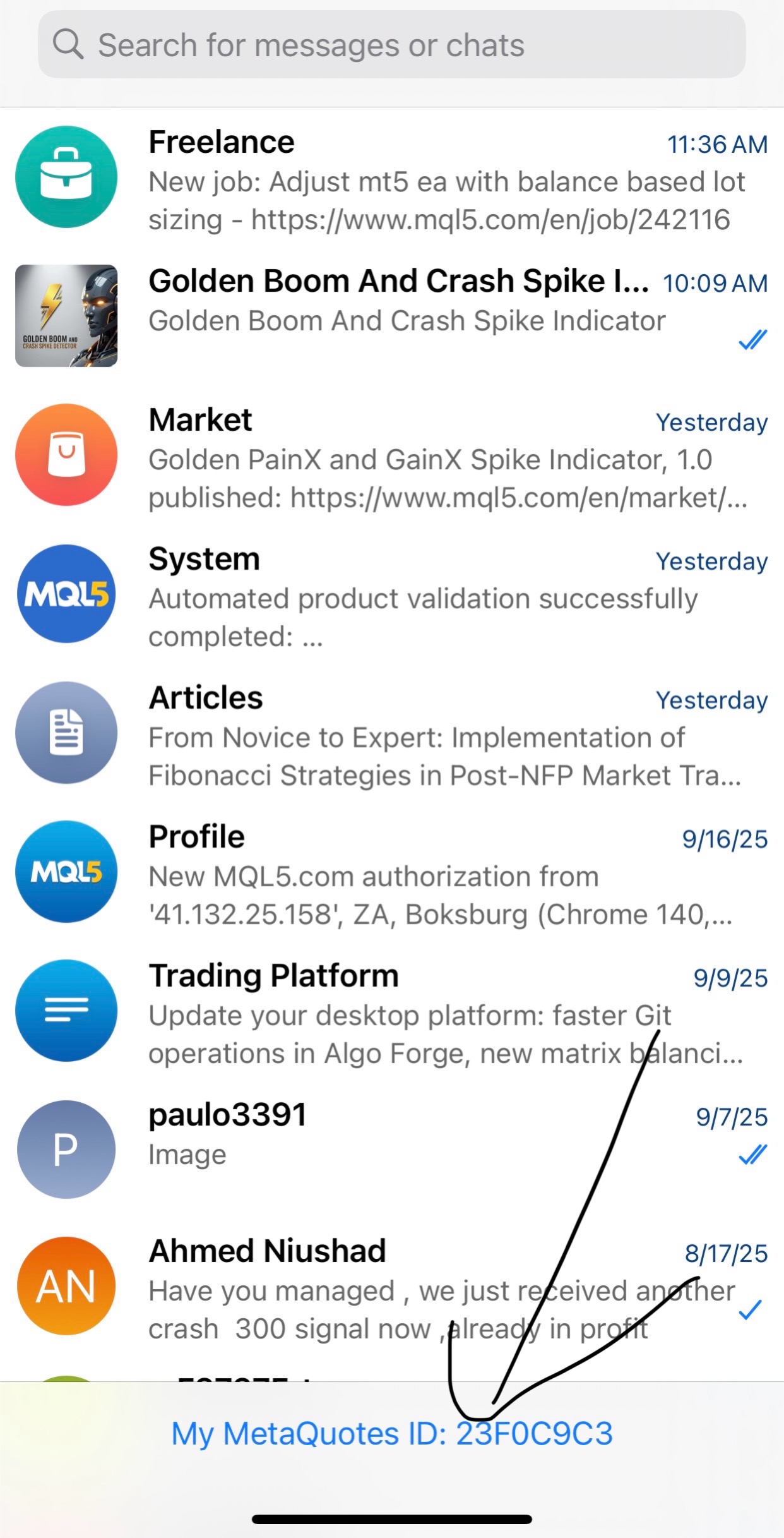
At the top/bottom, you will see your MetaQuotes ID. It's a long string of numbers and letters.
[  ]
]
Image 8: MT5 Mobile Chats screen highlighting the MetaQuotes ID.
-
Copy this ID or have it ready to type. You will need it on your desktop.
Step 2: Enable Push Notifications on MT5 Desktop
-
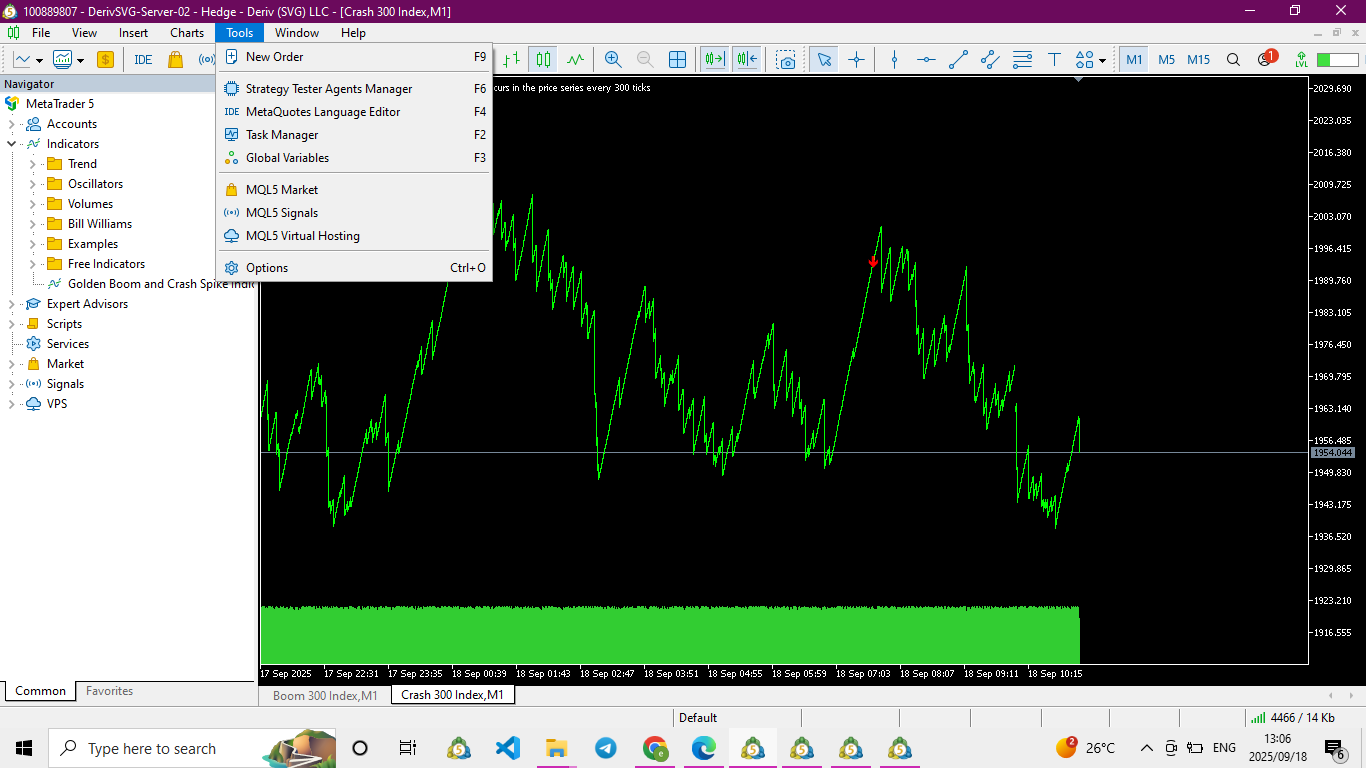
Back on your MT5 desktop platform, go to the top menu and click Tools > Options.
[  ]
]
Image 9: MT5 Desktop Tools menu with Options highlighted.
-
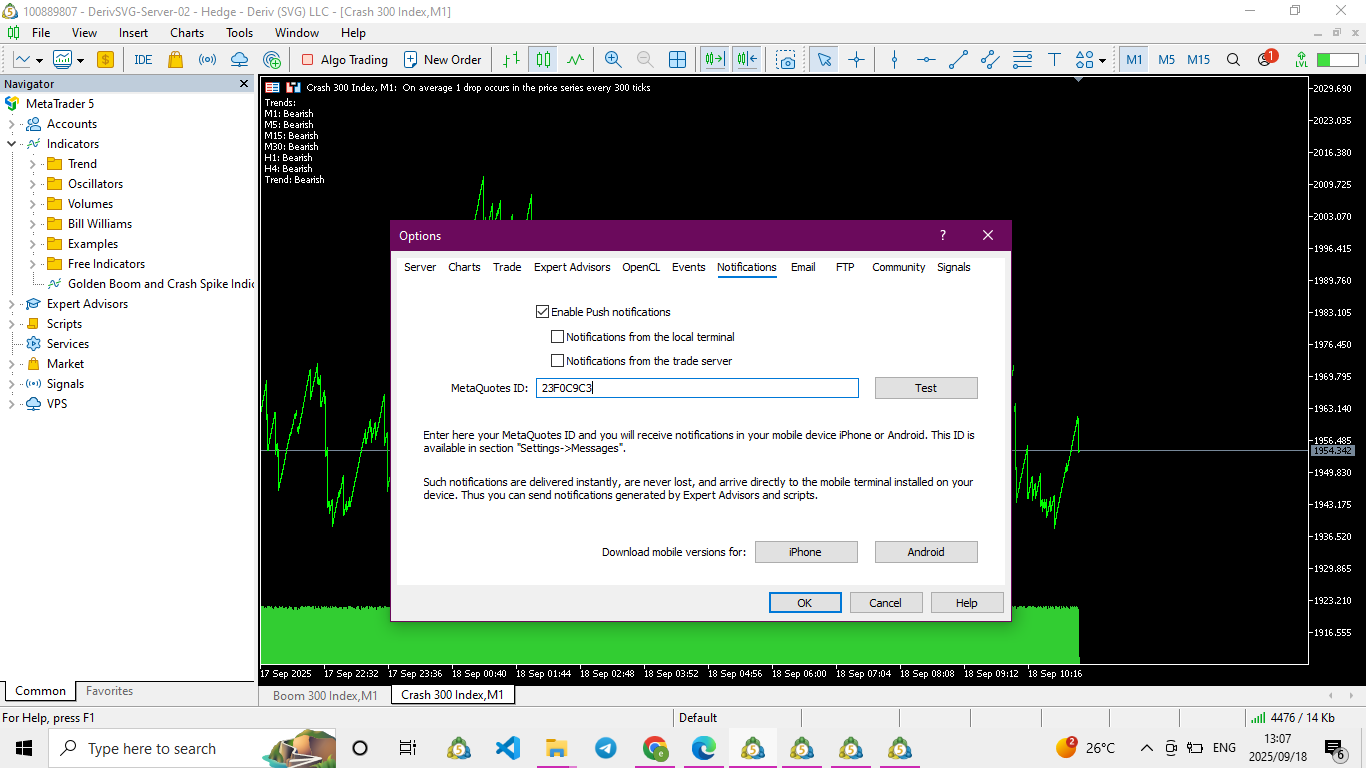
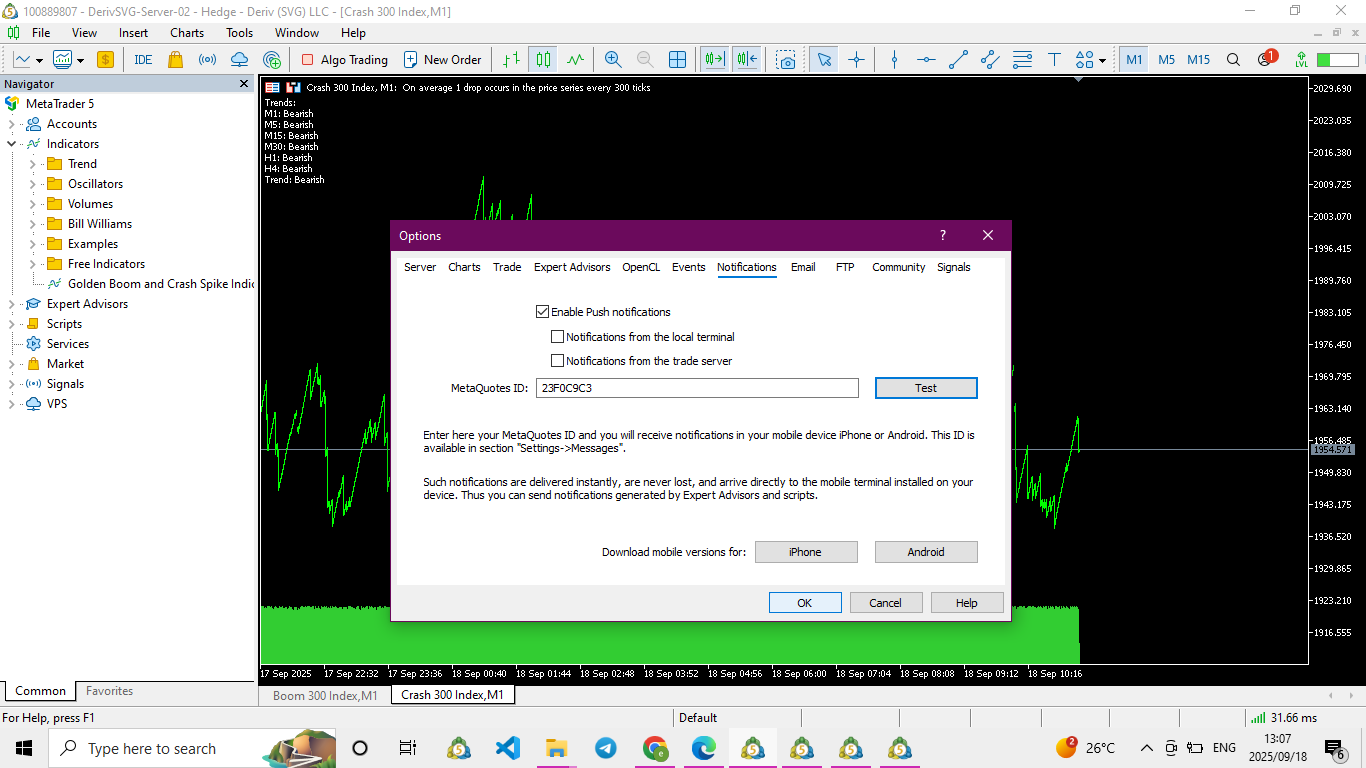
In the Options window, click on the Notifications tab.
-
Check the box that says Enable Push Notifications.
-
In the MetaQuotes ID field, paste the ID you copied from your phone.
-
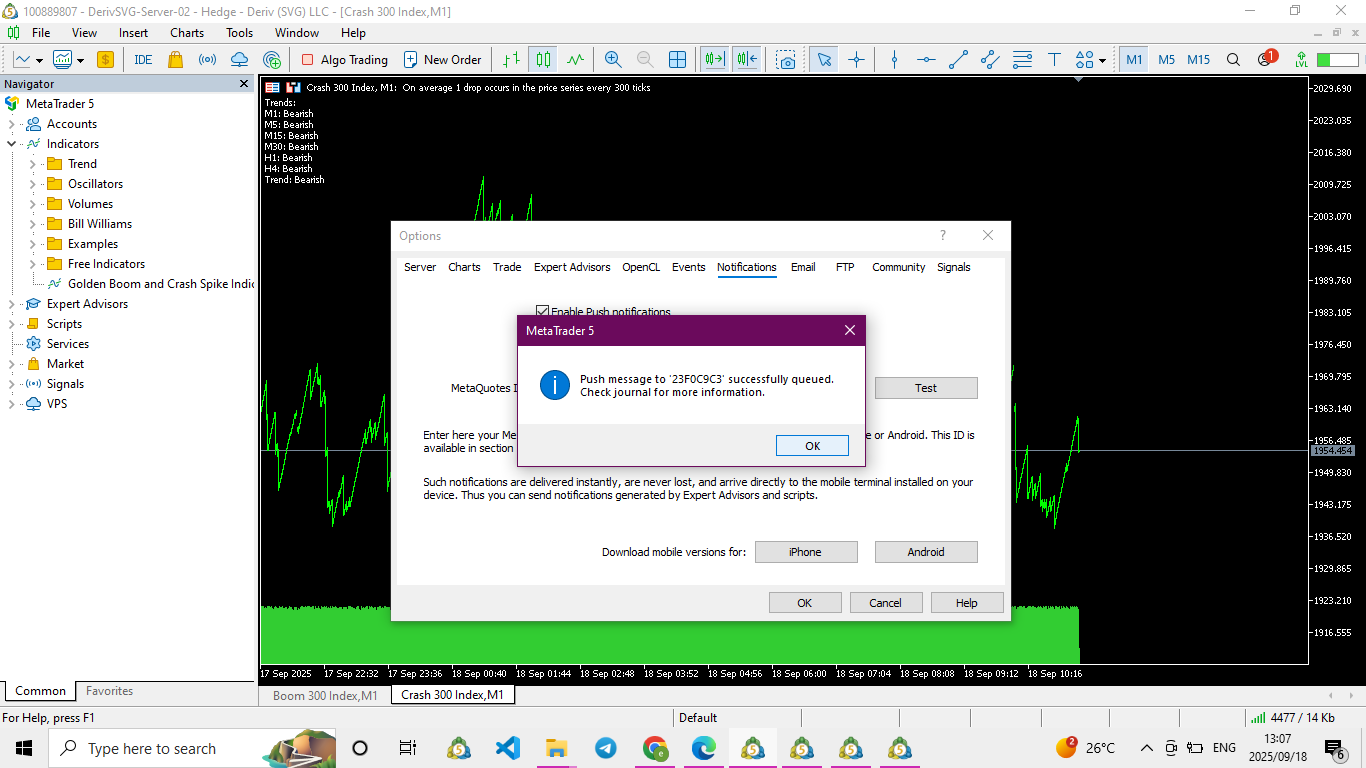
Click the Test button. You should instantly receive a test notification on your phone that says "Test Push Notification". If you do, it means the connection is successful!
[  ]
]
Image 10: MT5 Options Notifications Tab showing enabled push notifications and the Test button.
-
Click OK to save these settings.
Conclusion: Trade Smarter, Not Harder
You’ve done it! You've successfully installed a powerful trading indicator and configured it to send real-time alerts directly to your pocket. Now, whether the Golden Boom & Crash indicator spots a massive spike or the Golden PainX & GainX signals a reversal, you’ll be the first to know—giving you the edge to act fast and capitalize on opportunities.
No more screen-watching. Just smart, notified trading.
Happy Trading!
Disclaimer: Trading boom and crash indices, derivatives, and forex carries a high level of risk and may not be suitable for all investors. Always test indicators and strategies on a demo account first. This blog post is for educational purposes only and is not financial advice.
Download the Indicator here
Golden Boom and Crash Spike Indicator: https://www.mql5.com/en/market/product/145480
Golden PainX and GainX Spike Indicator: https://www.mql5.com/en/market/product/150172
Join our official channel at : mql5.com
#Trading #Forex #DayTrading #BoomAndCrash #PainX #GainX #FinancialMarkets #TradingEducation #HowTo



