Trading Journal pro
- Yardımcı programlar
- Sürüm: 2.0
- Etkinleştirmeler: 5

Here our more valuable tools
SMC Trend Trading , Easy SMC Trading , Institutional SMC Architect
Key Features
1. Total Immersion UI (The "Blackout")
-
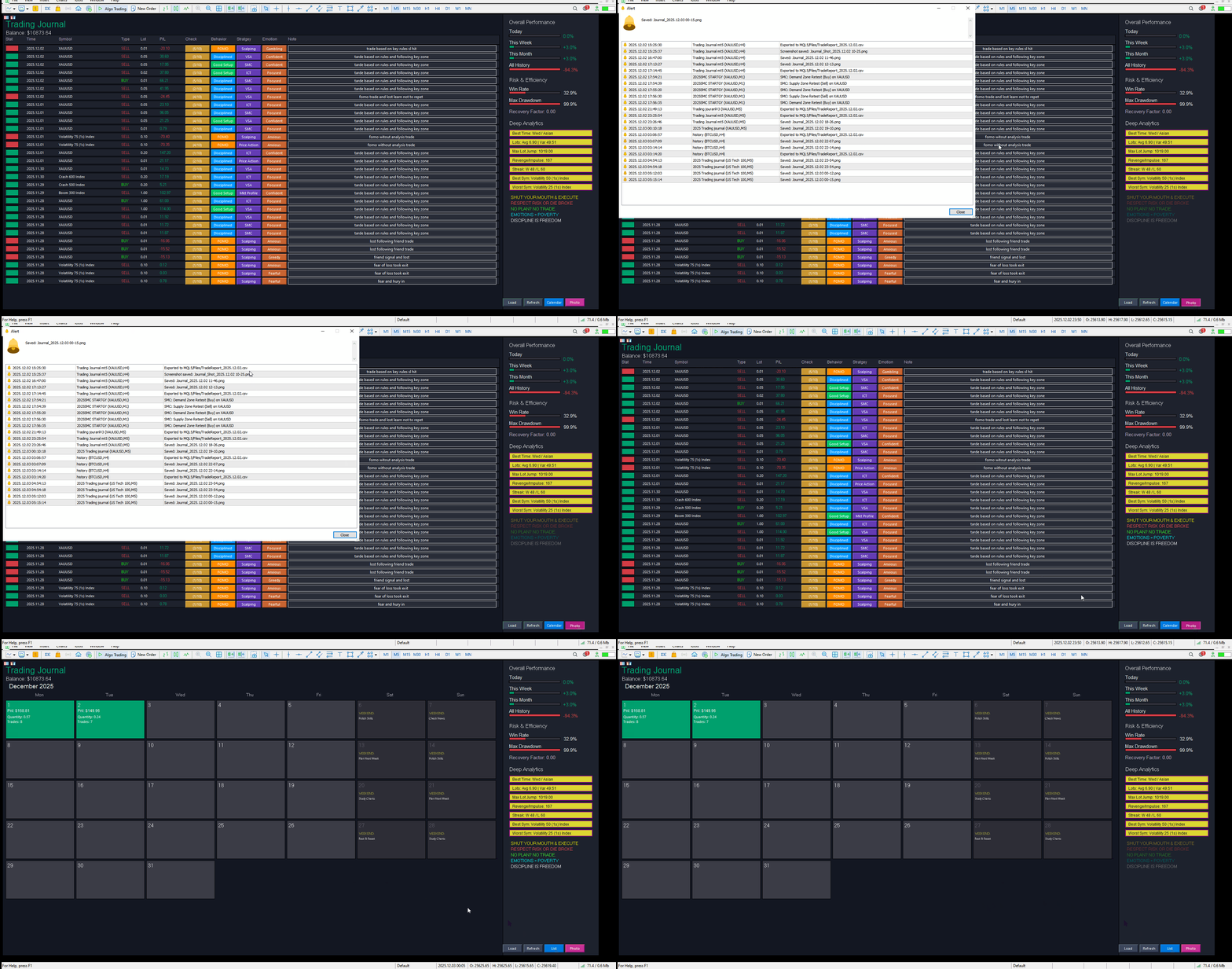
Chart Masking: Upon loading, the tool turns the background, grid, and candles pitch black. This hides the noise of the market ticks, allowing you to focus purely on your performance data without emotional distractions.
-
Smooth Rendering: The interface updates instantly without flickering or blinking, providing a premium software feel.
2. Interactive Trade Journal (List View)
A table view of your trading history with interactive tagging features:
-
Automated Data: Auto-fills Date, Symbol, Type (Buy/Sell), Volume (Lots), and Profit/Loss.
-
Manual Tagging (Click-to-Cycle):
-
Behavior: Tag trades as Disciplined, FOMO, Revenge, Hesitant, Good Setup.
-
Strategy: Tag trades by system (e.g., SMC, ICT, Price Action, Scalping).
-
Emotion: Record your state of mind ( Confident, Anxious, Greedy, Fearful).
-
-
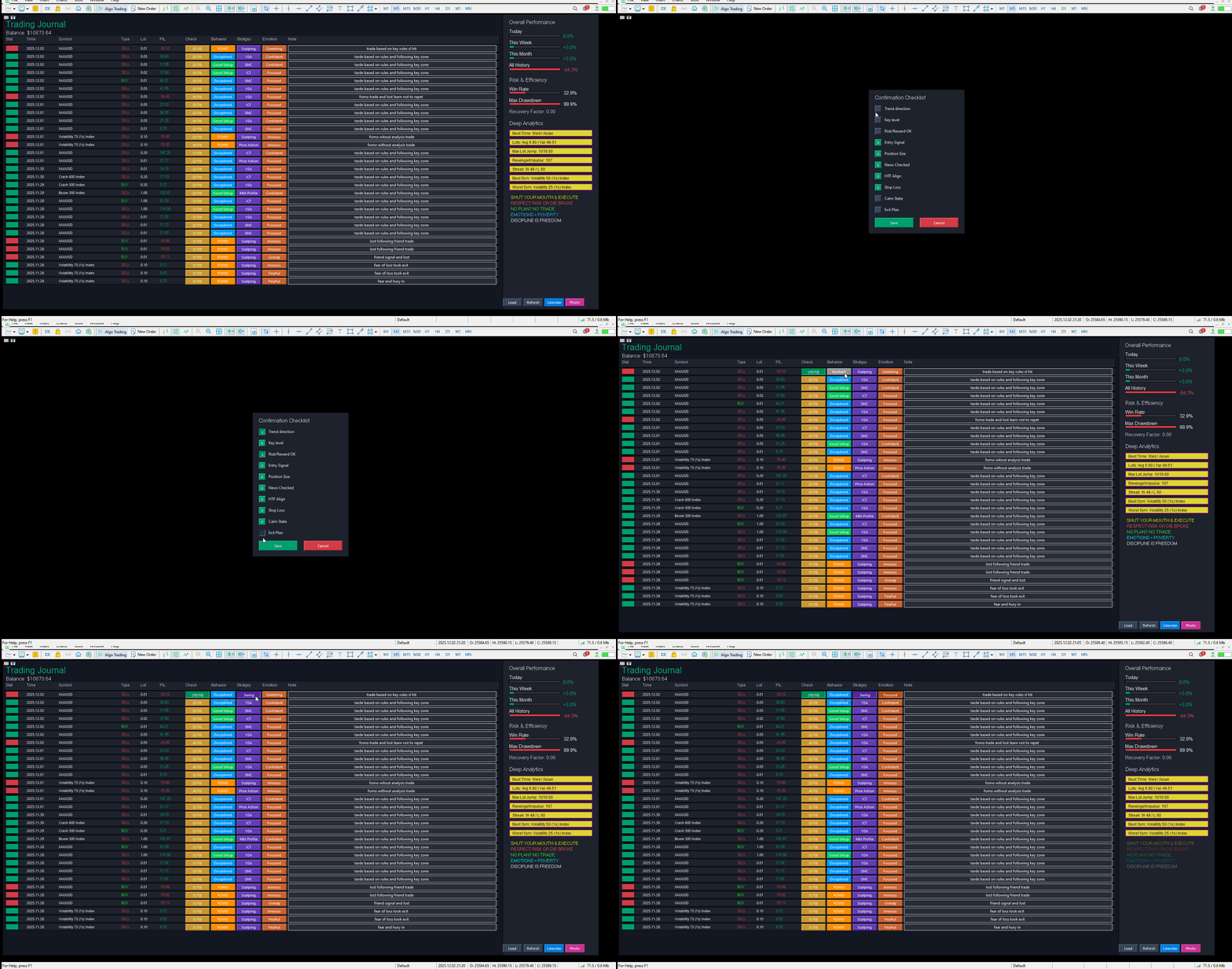
10-Point Checklist: Click the check button to open a popup window where you can confirm if you followed your rules (e.g., Trend Direction, Risk/Reward, Stop Loss in place).
-
Notes: A text box for every trade to type specific comments.
3. Performance Calendar (Calendar View)
A visual monthly overview of your performance:
-
Daily Aggregation: Shows Total P/L, Total Lot Size, and Trade Count for each day.
-
Color Coded:
-
Matte Green: Profitable Day.
-
Matte Red: Losing Day.
-
Grey: Break-even or Neutral.
-
-
Smart Badges:
-
🔵 Goal Reached: Appears if your daily profit exceeds your target (set in inputs).
-
🔴 Max Loss Reached: Appears if your loss exceeds your daily limit (set in inputs).
-
-
Weekend Mode: Saturdays and Sundays display rotating educational tips (e.g., "Backtest Strategy", "Rest & Reset") instead of empty space.
- Deep Analytics Sidebar
The right-hand panel provides advanced metrics displayed in a Ribbon Style (Yellow/Gold background with Purple borders):
-
Best Time/Session: Analyzes if you trade better during Asian, London, or NY sessions.
-
Lot Consistency: Shows your Average Lot size and Variance (how much you deviate from your standard size).
-
Risk Detection (Max Lot Jump): Detects if you suddenly increased your lot size significantly (a sign of gambling/tilting).
-
Revenge/Impulse Monitor: Counts how many times you opened a trade less than 5 minutes after a loss.
-
Streaks: Tracks current winning and losing streaks.
-
Best/Worst Symbols: Identifies which assets make you money and which ones drain it.
5. Glowing Golden Rules
To keep your psychology in check, the bottom of the sidebar features 5 strict trading rules.
-
Animation: The text slowly pulses/glows from dim to bright neon every few seconds.
-
Purpose: Catches your eye to remind you: "Respect Risk or Die Broke" or "Emotions = Poverty".
Configuration (Inputs)
When you attach the tool, you can configure:
-
Colors: Customize the Background, Win/Loss colors, and Ribbon colors.
-
DailyProfitGoal: Set this to your monetary target (e.g., $500). If you hit this in a day, the Calendar shows a blue badge.
-
DailyMaxLoss: Set this to your risk limit (e.g., $200). If you lose this much, the Calendar shows a red badge.
3. Using the List View
-
Reviewing Trades: Scroll through the list.
-
Tagging: Click the grey buttons under the Behavior, Strategy, or Emotion columns. Keep clicking to cycle through options (e.g., change "-" to "FOMO").
-
Checklist: Click the button that says (0/10). A popup appears. Check the boxes that applied to that trade. Click Save. The button will update to (10/10) and turn green if perfect.
-
Notes: Click inside the text box on the right, type your note, and press Enter (or click away) to save.
4. Using the Calendar View
-
Click the "Calendar" button at the bottom menu.
-
This gives you a bird's-eye view of the month.
-
Look for the Red Badges ("Max Loss Reached"). If you see one, click back to "List" view for that date to analyze why you failed (e.g., did you tag those trades as "Revenge"?).
5. Using the Buttons (Bottom Menu)
-
Load: Loads data from the saved CSV file (useful if you restarted MT5).
-
Refresh: Forces a re-scan of your account history to find new trades immediately.
-
List / Calendar: Toggles between the two main views.
-
Photo: Takes a screenshot of the dashboard and saves it to your MQL5/Files/ folder.
-
CSV (Blue Button in older versions): Exports your journal data to Excel format.