Zen Command MT4
- Утилиты
- Версия: 1.0
- Активации: 5

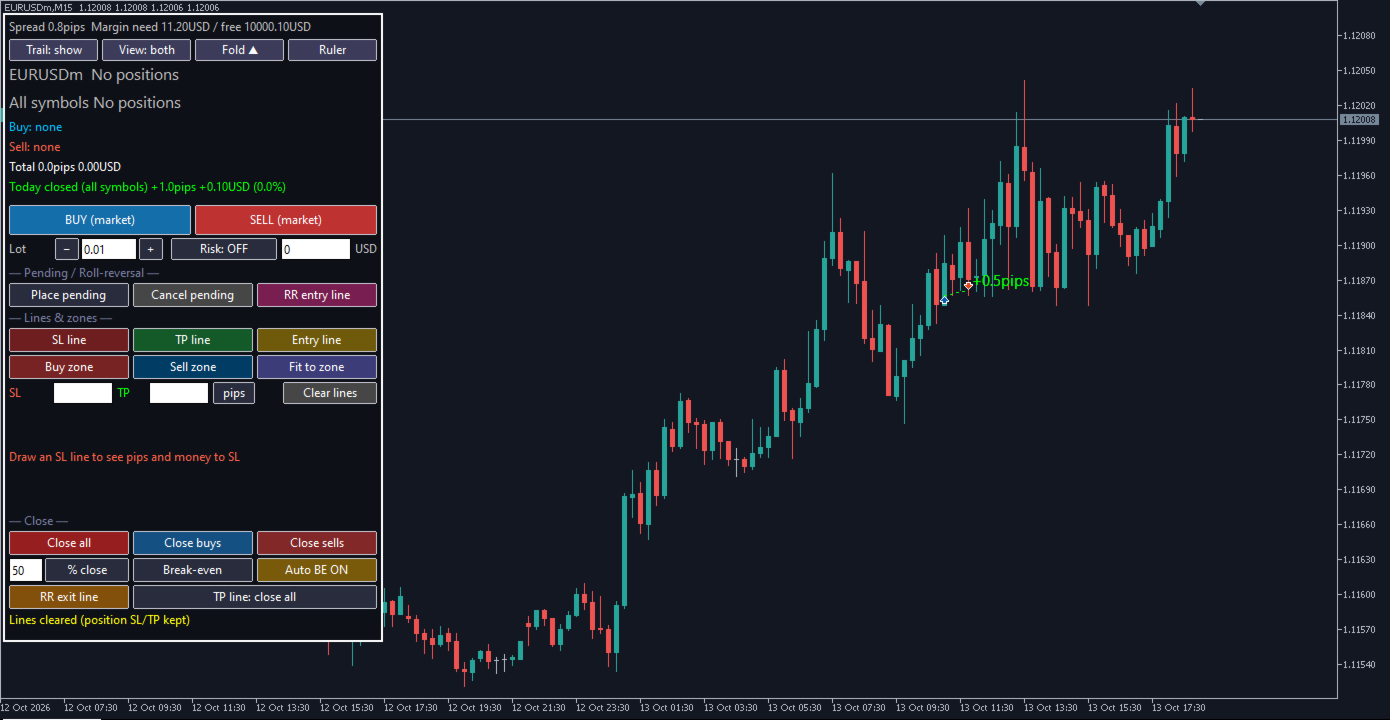
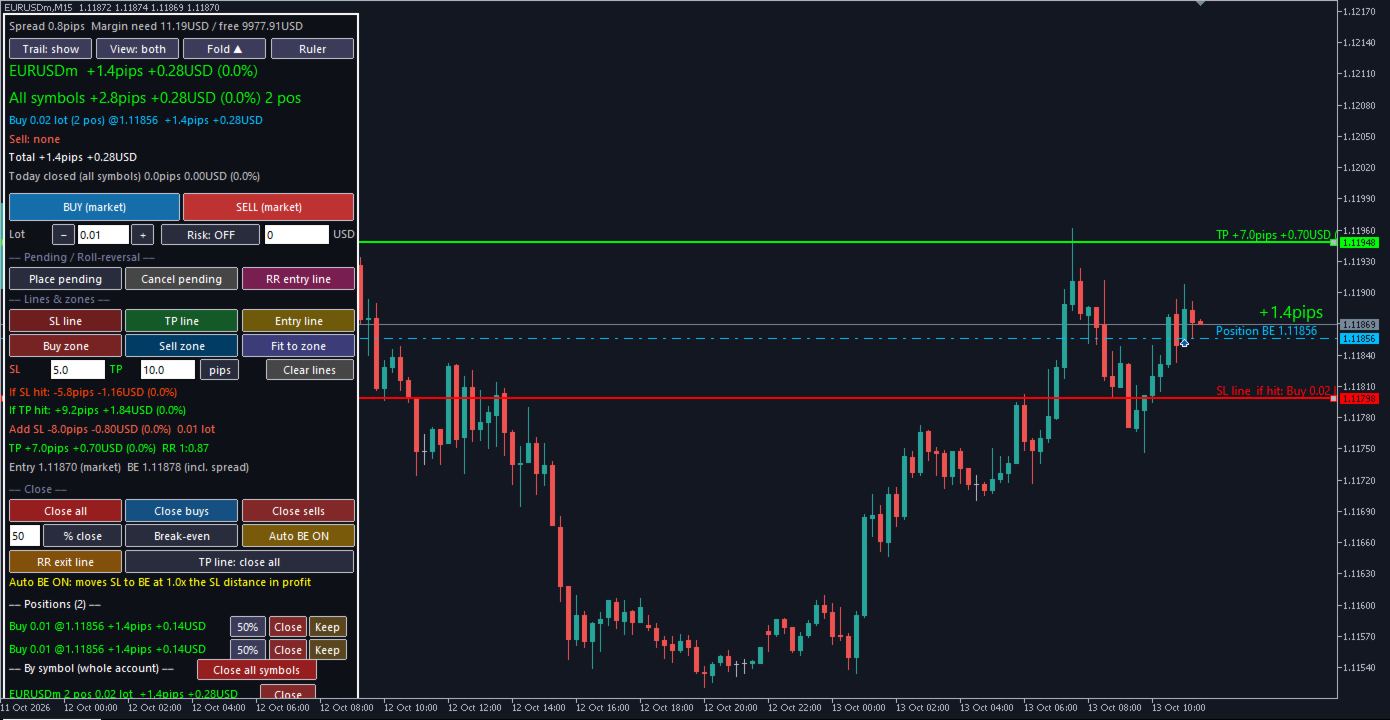
ZEN COMMAND is a trade management panel for manual traders. You place orders, set protection and close positions from one panel on the chart.
The name ZEN carries three Japanese meanings: 全 (all) - every function in one panel; 禅 (calm) - trade with a steady mind; 善 (better) - review your trades and improve.
Key points
- Automatic position sizing: set your risk once, as money or a percentage of the balance, and the lot follows the stop loss line.
- Every line is spread-aware: the values next to the stop loss, take profit and entry lines include the spread, and for sell positions the stop loss and take profit are placed so they trigger when the chart price touches the line.
- Spread included everywhere else too: the risk, the stop loss and take profit boxes and the ruler all show what you actually lose or gain.
- Stop loss and take profit by pips, money or percentage of the balance: type a value and the line moves to the matching price.
- Automatic records: every entry and exit is written to a journal file with a chart screenshot.
- Trade trails: closed trades stay on the chart as a dotted line with the result in pips.
- English and Japanese display.
Orders
Buy and sell at market with one click. The lot can be set by hand, or the panel can size the position for you: set your risk once, as a fixed amount of money or a percentage of the balance, and the lot is calculated from the distance between entry and the stop loss line, with the spread included. Every time you move the stop loss line, the lot is recalculated, so the loss at the stop stays at the risk you chose.
Lines
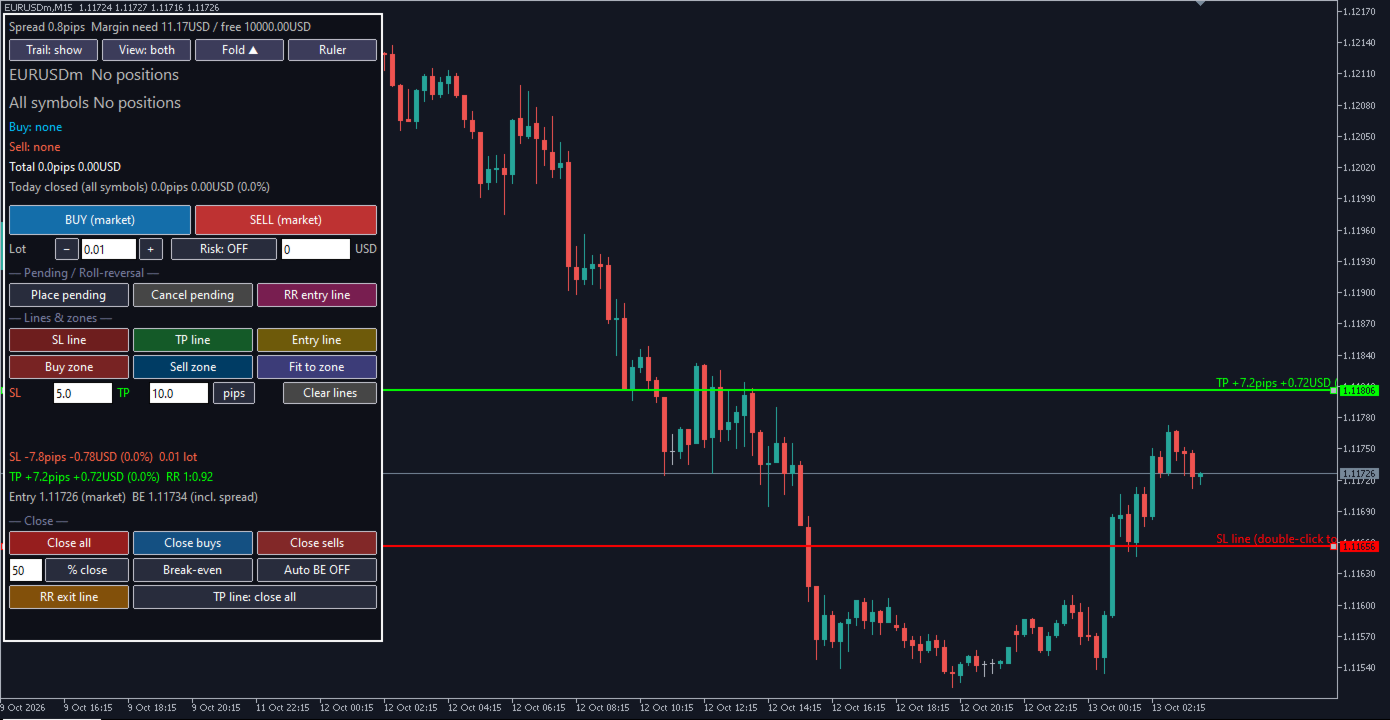
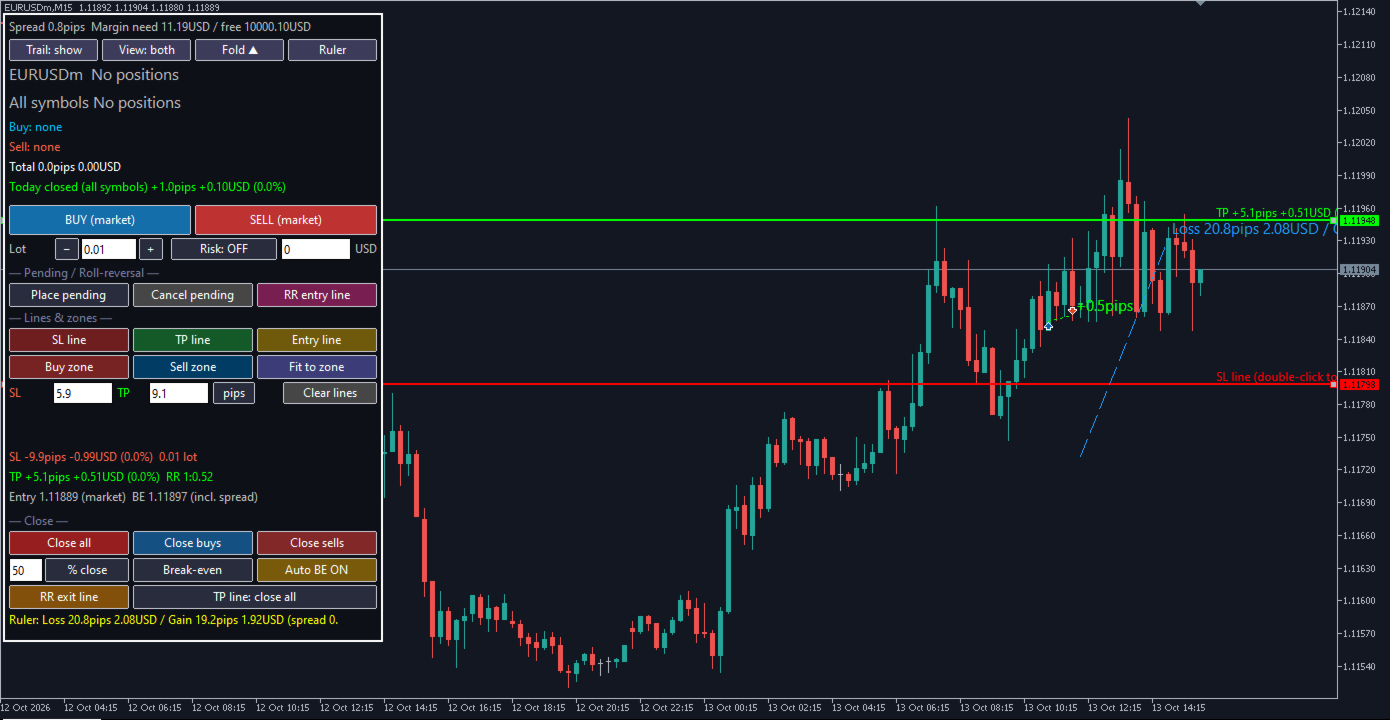
Draw a stop loss line, a take profit line and an entry line on the chart and move them with the mouse. Next to each line the panel shows the distance in pips, the money at the current lot and the risk-reward ratio. All of these values include the spread: the stop loss shows what you actually lose and the take profit shows what you actually gain. When you move the lines, the stop loss and take profit of open positions move with them. Lines are drawn at chart (bid) prices; for sell positions the panel adds the spread when it sets the stop loss and take profit, so they trigger when the chart price reaches the line.
Stop loss and take profit boxes
Below the line buttons there are two boxes. Switch their unit between pips, money and percentage of the balance. Type 1 in the stop loss box in percentage mode and the stop loss line moves to the price where the loss, spread included, is 1% of the balance. When you drag a line, the boxes show its current value in the selected unit.
Pending orders
Press Place pending to put a limit or stop order on the entry line. The panel chooses the order type from the position of the line.
Zones
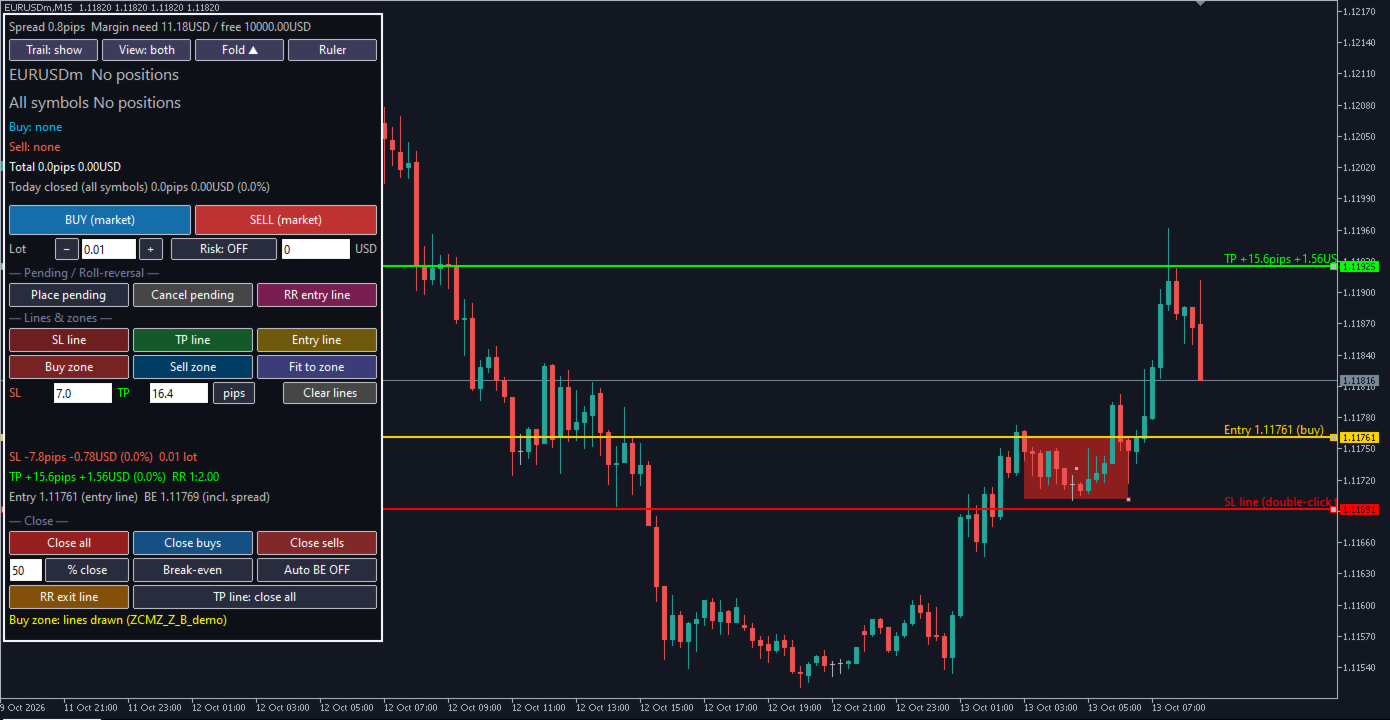
Press Buy zone or Sell zone and drag a rectangle over a consolidation area or a range edge. The edges snap to wick tips. Fit to zone draws three lines at once: entry at the near edge, stop loss just beyond the far edge, take profit at a multiple of the stop distance. Zones extend to the right bar by bar until price touches them.
Roll-reversal lines
An RR entry line opens a trade when a bar closes beyond the line and price returns to touch it. An RR exit line closes the positions of the symbol in the same way.
Closing
Close all, close buys only, close sells only, close a percentage, move the stop loss to break-even, or let Auto BE move it when the profit reaches a set multiple of the stop distance. The take profit line can close everything or close a percentage and move the rest to break-even. Each position has its own buttons: close a percentage, close, or keep only this one. A list shows all symbols in the account and can close them together. Close-all buttons need a second press to avoid mistakes.
Ruler
Press Ruler and drag on the chart. It shows two values with the spread included: the loss if the distance is used as a stop loss, and the gain if it is used as a take profit.
Records
At every entry and exit the panel saves a line in a journal file (CSV) and a screenshot of the chart in the MQL4 Files folder, without any extra action. Closed trades also leave a dotted line from entry to exit with the result in pips, so you can review your trades directly on the chart.
Other
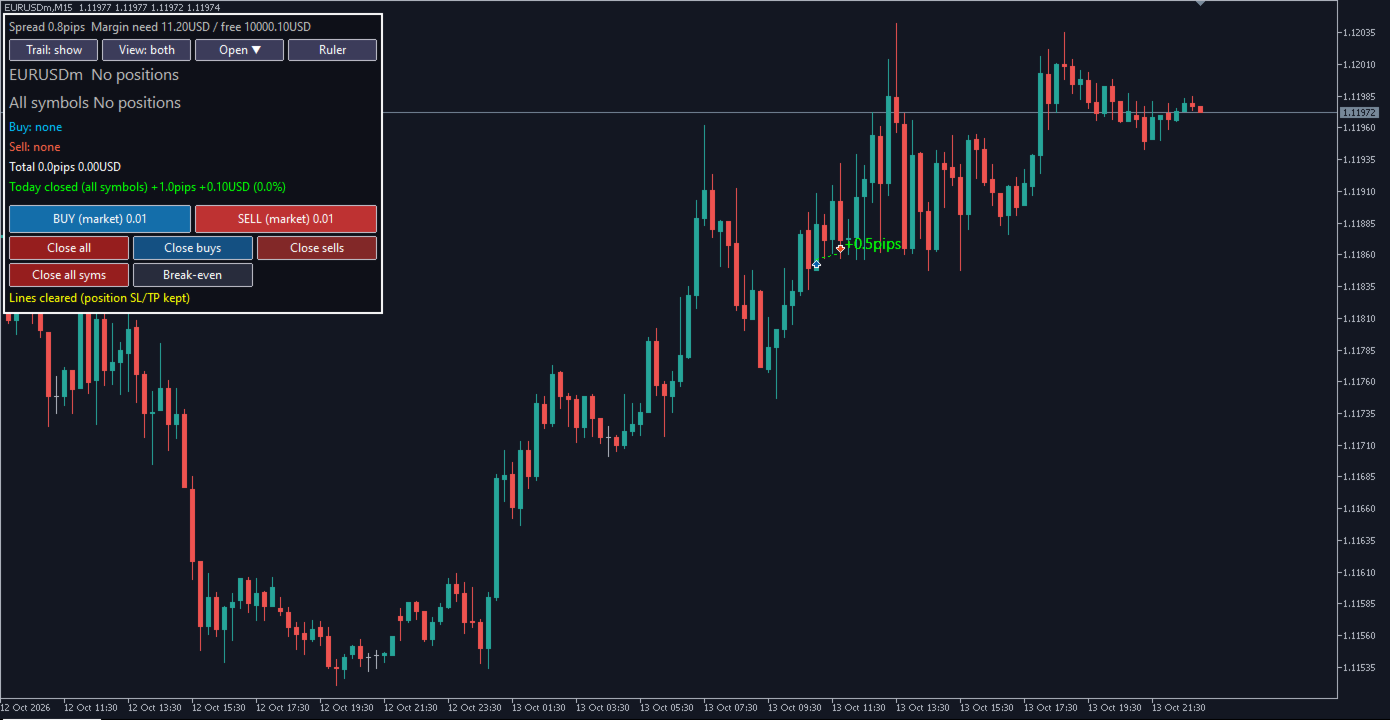
The panel can be folded; market orders, closing and break-even stay available while folded. Manual orders placed from a phone on the same symbol can also be managed. Colors, fonts and panel size can be changed in the inputs. The One Click Trading panel of the terminal is hidden while the panel is attached and restored when it is removed. Money values use the tick value provided by your broker. The pip size is detected automatically (gold names such as XAUUSD or GOLD, silver, crypto, and 3/5-digit FX); for other symbols you can set it in the PipList input, for example GOLD=0.1,US30=1.
Notes
The panel is a tool for manual trading and does not open trades by itself, except for the pending orders and roll-reversal lines you set. Auto BE, the take profit line modes and roll-reversal lines need the terminal to stay open. Please practice on a demo account first.