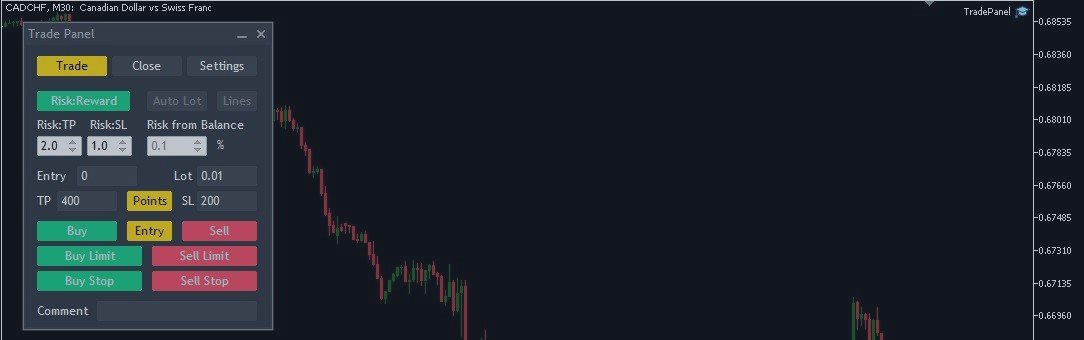

Trade Panel MetaTrader 5 is a manual trading and position management tool for MT5. This guide and the attached demo describe version 3.46.
Download TradePanelDemo.ex5 — demo accounts only. The same file is attached at the end of this page. It works on MT5 demo accounts; real and contest accounts are rejected. The full version is available in the MQL5 Market.
Market and pending orders
Screenshots show illustrative demo settings and prices, not trading results.
The Trade tab provides Buy and Sell market orders, Buy Limit, Sell Limit, Buy Stop and Sell Stop. Set the entry distance or use the chart lines to prepare a pending order. Choose a fixed lot size or enable Auto Lot. Risk:Reward links the planned Take Profit and Stop Loss distances. The panel also displays the current spread in points.
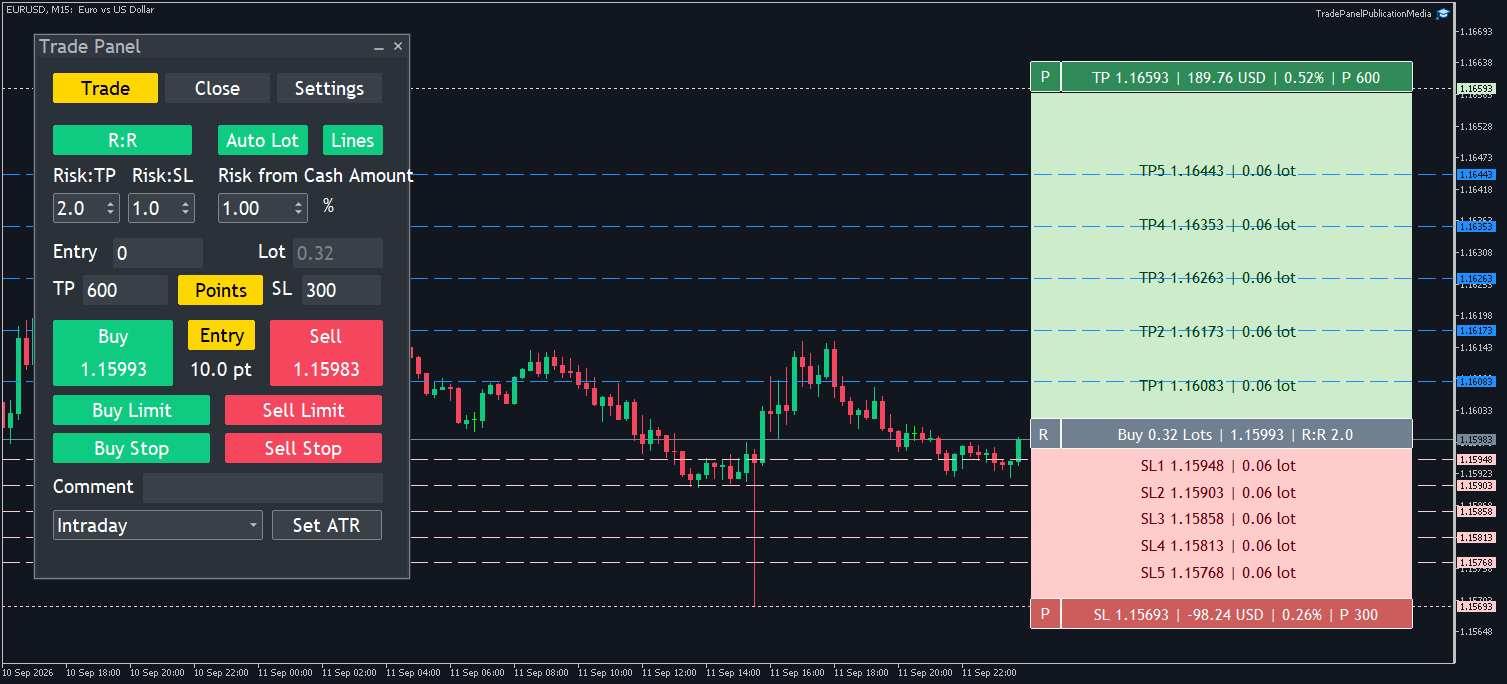
Auto Lot and risk calculation
Auto Lot calculates volume from the Stop Loss and the selected risk percentage. In Settings → Main, select Balance, Equity, Free Margin or Cash Amount as the calculation base. Cash Amount is a custom base: for example, 1% of a cash base of 10,000 is a risk budget of 100 in account currency.
Calculated volume is rounded down to the broker's lot step. If even the minimum lot exceeds the specified risk budget, entry is rejected. Optional commission accounting uses the round-trip commission per lot entered in Settings → Entry. This is an estimate based on the configured fee and planned prices; actual fills, slippage and broker charges can change the final result.
Chart lines and position controls
Lines displays the planned Entry, Stop Loss and Take Profit, shaded risk/reward zones, and enabled partial exit levels. Drag levels to adjust the setup, pin SL or TP to a price, and reverse the ruler between buy and sell. Values can be displayed as prices or points.
Opened positions have an optional mini-bar with position information and controls for breakeven, partial closing and closing the position. The position's gear opens its own settings. Use Apply position or Cancel edits for an existing position; changing the next-trade template does not overwrite its management settings.
Group closing and pending-order deletion
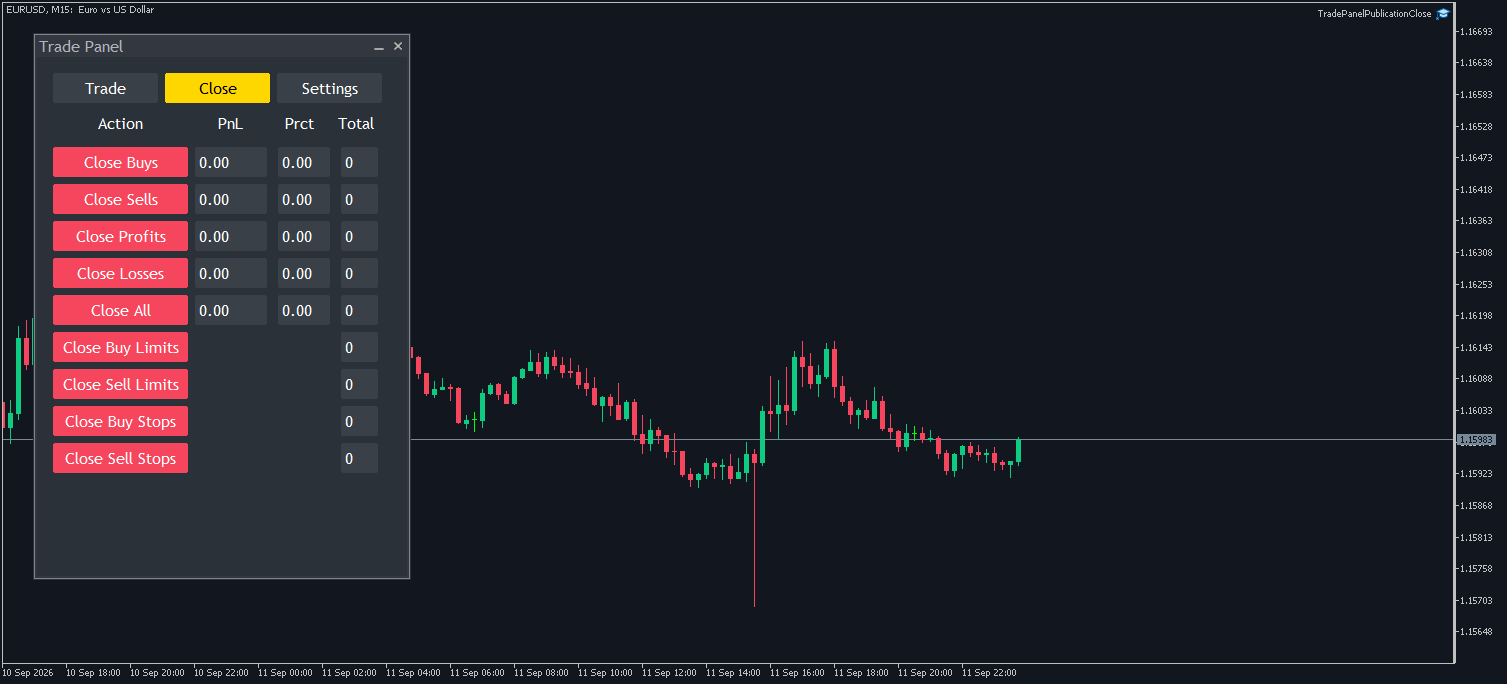
The Close tab can close all managed positions, Buy positions, Sell positions, profitable positions or losing positions. It also deletes pending orders by type: Buy Limit, Sell Limit, Buy Stop and Sell Stop. The Trade tab's exit controls additionally offer deletion of all pending orders or orders by side. Operations apply to the chart symbol and use the configured Magic Number ownership filter, which is enabled by default. On netting accounts, a managed position is the aggregate position for the symbol; Magic filtering cannot separate independently closeable volumes inside it.
Breakeven and trailing stop
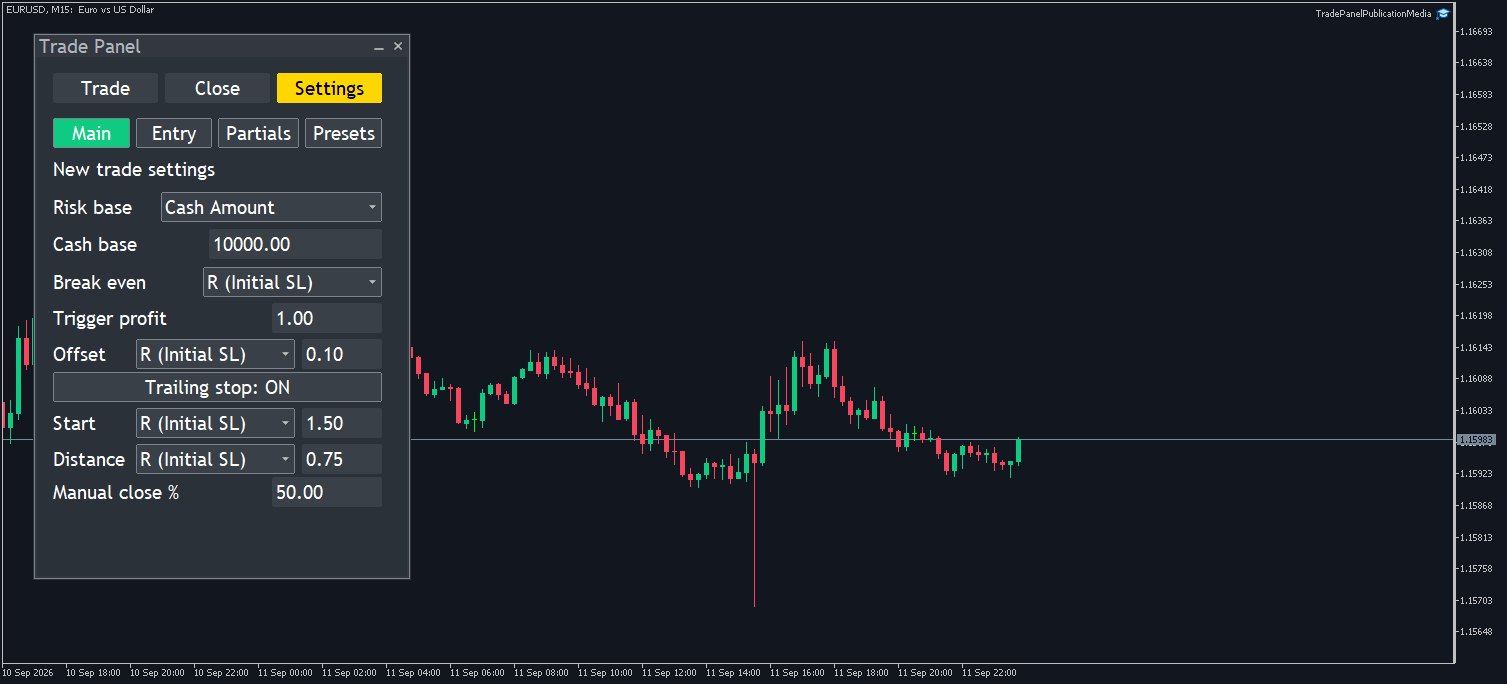
Settings → Main contains the risk base, automatic breakeven, trailing stop and the percentage for manual partial closing. Breakeven can trigger in points, percentage price change, money or R. Its offset can use points, percentage change or R. Trailing start and distance can also use points, percentage change or R.
R means the position's initial Entry-to-Stop-Loss distance. It remains based on the initial SL even after the stop moves. Automatic breakeven moves SL to Entry adjusted by the offset in the trade direction: above Entry for Buy and below Entry for Sell. This does not guarantee that commission or other costs are recovered.
Spread limit, commission and ATR
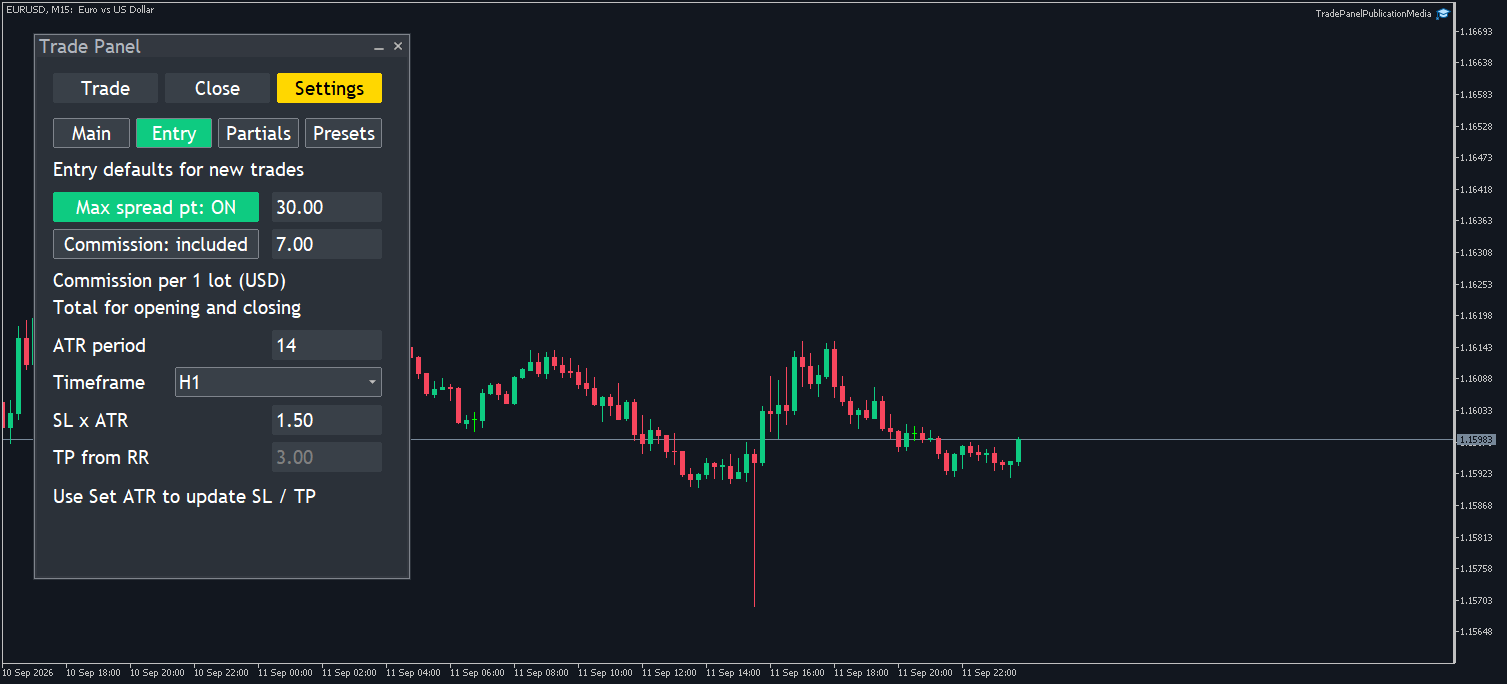
Settings → Entry contains defaults for new trades:
- Max spread: optionally reject an entry when the spread exceeds the configured limit in points. It is checked again before sending. For a pending order, this controls placement, not the spread when the broker later fills it.
- Commission: optionally include a manually entered fee in lot sizing and planned risk/reward. Enter the total for opening and closing one lot, in account currency.
- Set ATR: apply initial SL/TP distances from ATR with a chosen period, timeframe and multipliers. It uses the last completed bar of that timeframe and applies the distances once when pressed. It is not an ATR trailing mode.
Automatic partial Take Profit and Stop Loss
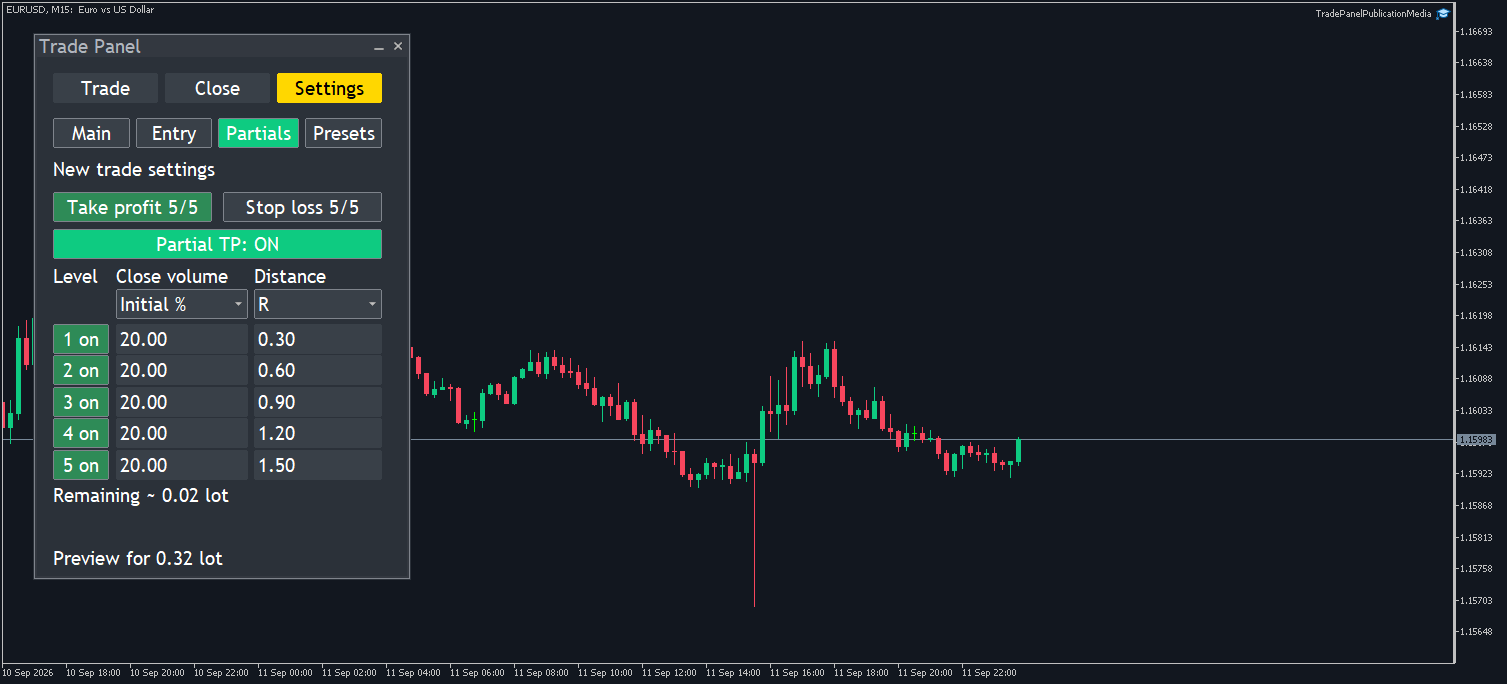
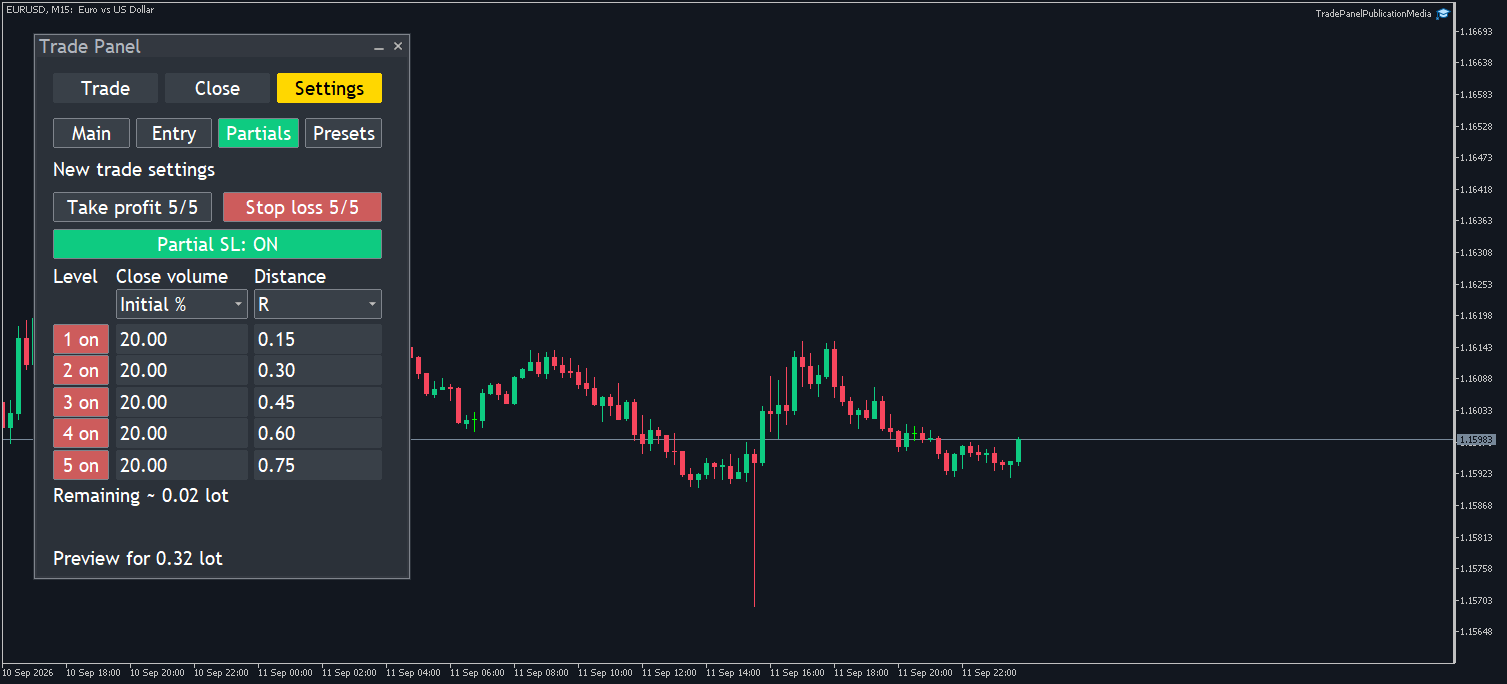
Settings → Partials has two independent groups: up to five partial TP levels and up to five partial SL levels. Enable the desired group and individual levels. Closing volume can be expressed as a percentage of initial volume, a percentage of current remaining volume, or lots. Level distances can use Auto, percentage change, points, an exact price or R.
Partial volumes must satisfy the broker's minimum lot and lot step. Execution state is retained and reconciled with deal history after a restart. An unresolved or partly filled request is not automatically resent as a fresh full request; review any error shown by the panel.
Named presets and saved settings
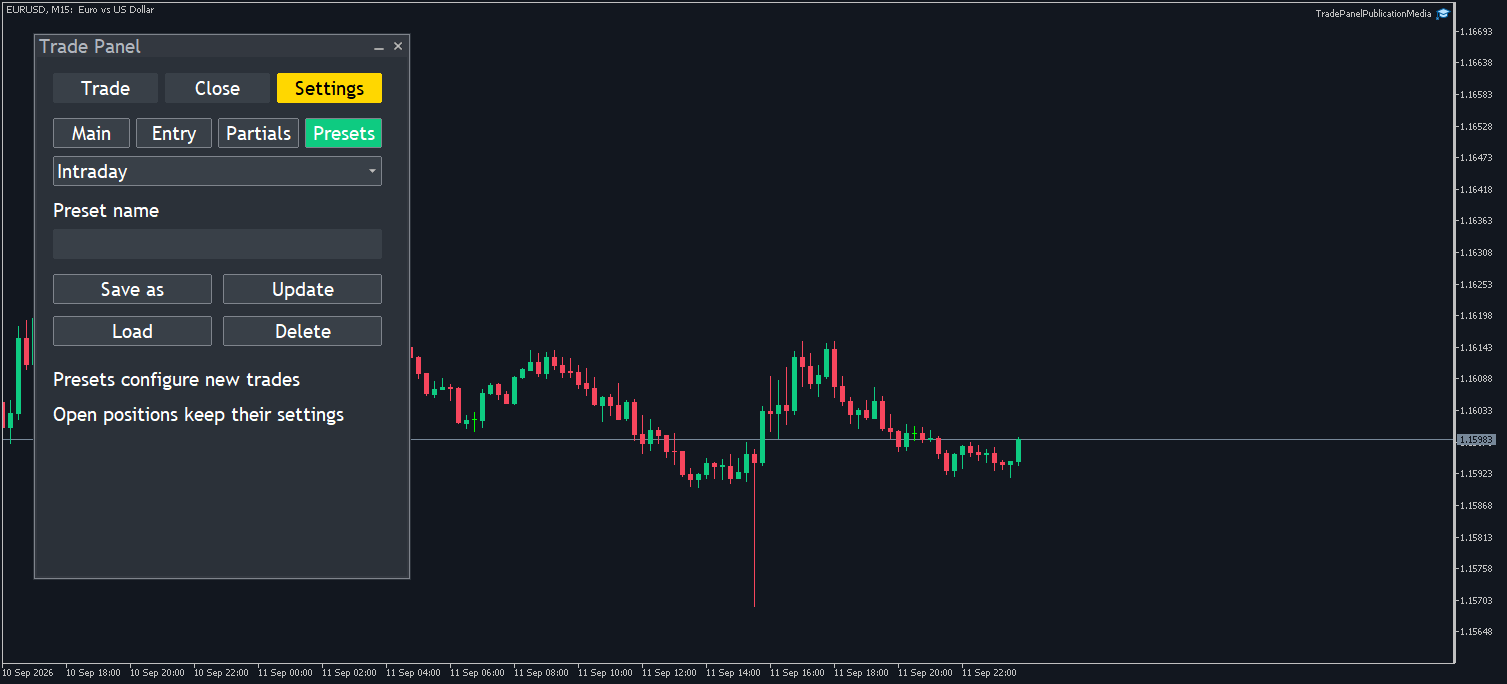
Settings → Presets provides Save as, Load, Update and Delete. The Trade tab also has a quick preset selector. Presets configure new trades; open positions retain their own settings. Current settings and position management state are saved separately by account/server and symbol, and restored after restarting MT5.
Hotkeys and appearance
EA inputs provide optional hotkeys for market and pending orders, group closing, order deletion, chart lines, reversing lines and trailing stop. You can also configure the Magic Number, ownership filter, position mini-bars, line placement, colors and fonts. Trading hotkeys are unassigned by default.
Install and test the demo
- Download TradePanelDemo.ex5.
- In MT5, choose File → Open Data Folder and place the file in MQL5 → Experts.
- Refresh Expert Advisors in Navigator, or restart MT5, then attach TradePanelDemo to a chart on a demo account.
- Enable algorithmic trading for the terminal and this EA to use its trading and automatic management functions.
Keep MT5 and the panel running for automatic breakeven, trailing and partial exits: these functions are processed by the EA on incoming ticks. Ordinary SL/TP sent to the broker remain server-side. The demo has no calendar expiration and rejects real and contest accounts both at initialization and before sending any trading request.
Download TradePanelDemo.ex5 — version 3.46, demo accounts only. The compiled file is also attached below.