Multi TF Symbol Scanner Alerts
- 유틸리티
- 버전: 1.0
- 활성화: 10

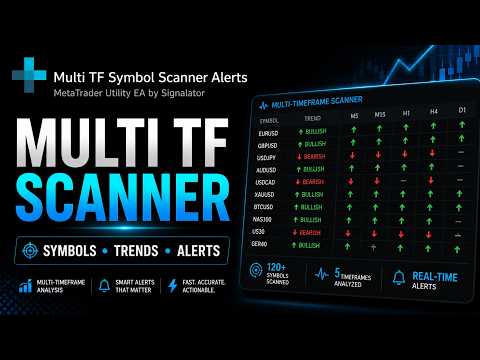
Multi TF Symbol Trend Scanner Alerts helps you scan selected symbols, compare trend direction across multiple timeframes, and receive alerts when important market conditions appear.
You attach it to a MetaTrader chart and get a clean dashboard where you can see the current symbol trend, monitor a symbol watchlist, check cross-timeframe confirmation, and control alert delivery from one place.
The goal is simple: less manual chart switching, faster market overview, and a clearer notification workflow.
A detailed setup guide with installation steps, panel explanation, alert configuration, Telegram bot creation, Chat ID setup, WebRequest settings, and troubleshooting is available here:
https://www.mql5.com/en/blogs/post/771406
The interface is built for practical chart use. It includes compact panel navigation, draggable panels, click-to-change-chart behaviour, clean visual styling, theme options, and multilingual interface support.
Current Symbol Trend Panel
The Trend panel focuses on the currently selected chart symbol.
It shows:
• timeframe-by-timeframe trend direction
• bullish, bearish, neutral, and fading states
• trend strength percentage
• visual strength bars
• current selected symbol and timeframe
• optional chart trend line display
This gives you a fast overview of the active instrument without opening every timeframe manually.
Cross-Timeframe Monitoring
The Cross-Timeframe panel helps you compare faster and higher timeframes.
It shows:
• fast timeframe direction and score
• higher timeframe direction and score
• Active / Counter status
• configurable pair combinations such as M1 → M5, M5 → M15, M15 → M30, M30 → H1, H1 → H4, and others
This is useful when you want to see whether short-term movement agrees with the higher timeframe or moves against it.
Multi-Symbol Monitoring Panel
The Symbol Monitor lets you watch several instruments in one table.
Symbols for monitoring can be selected in two ways:
• manual input, when you want to enter your own symbol list
• visual selection from the symbols available with your broker
It shows:
• selected symbols in rows
• visible timeframe columns such as M1, M2, M5, M15, M30, H1, and H4
• bullish, bearish, and neutral icons
• symbol row selection
• quick visual comparison between symbols and timeframes
This makes it easier to see which instruments are aligned, mixed, or changing without switching between many charts.
Notification Engine
The notification engine supports alerts for both the currently selected instrument and symbols from the Symbol Monitor list.
Supported alert channels include:
• Telegram
• Popup alerts
• MQL5 Push notifications
• Email alerts
You can use alerts for current-symbol monitoring, multi-symbol monitoring, and cross-timeframe conditions, depending on the active settings.
Telegram delivery can be tested directly from the product panel, so you can check your setup before waiting for a real market event.
Available Languages
The interface currently supports:
• English
• Spanish
• Russian
• Chinese
What This Tool Is For
Multi TF Symbol Scanner Alerts is useful for traders who want:
• faster multi-timeframe market reading
• a symbol watchlist directly inside MetaTrader
• trend direction comparison across several instruments
• visual confirmation before opening additional charts
• Popup, Push, Email, and Telegram notifications
• less manual chart switching
• a clean monitoring and alert dashboard
What This Tool Does Not Do
This product does not open trades, close trades, modify orders, or manage positions.
It is not an automatic trading robot. It is a visual scanner, monitoring dashboard, and alert utility.
No profit is promised or implied. The purpose of the tool is market monitoring, trend visibility, notification delivery, and workflow improvement.
Detailed Setup Guide
The full setup and usage guide is provided separately in the MQL5 blog article.
The guide includes:
• installation
• first launch
• panel controls
• Symbol Monitor setup
• custom symbols
• cross-timeframe setup
• alert configuration
• Telegram bot creation
• Telegram Chat ID setup
• MetaTrader WebRequest settings
• test message workflow
• troubleshooting
• practical usage examples
Detailed guide:
https://www.mql5.com/en/blogs/post/771406