
Pro Session Volume Profile
- 지표
- 버전: 1.60
- 업데이트됨: 3 6월 2026

PRO SESSION VOLUME PROFILE
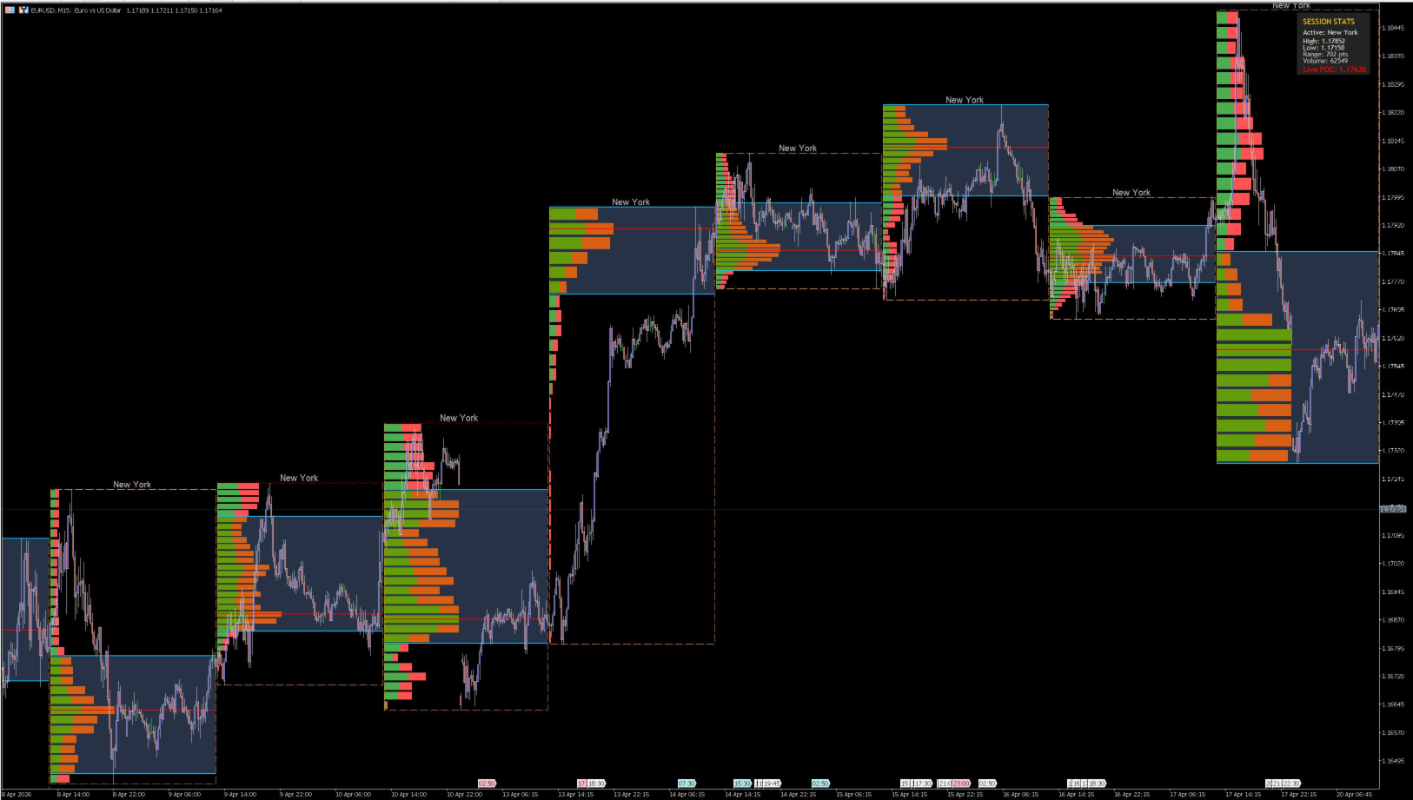
Welcome to the Pro Session Volume Profile. This indicator bridges the gap between time and volume, allowing you to visualize exactly where the heaviest trading activity occurred during specific global market sessions. Complete with a real-time Heads-Up Display (HUD), this tool provides institutional-grade market context right on your chart.
Below is a detailed breakdown of every feature and setting so you can customize the indicator to your exact trading style.
1. Core Configuration
These are the foundational settings that dictate what data the indicator looks at.
-
Session Type: Choose the specific time window you want to analyze.
-
Options include: Tokyo, London, New York, Daily, Weekly, or Monthly.
-
Tip: Set this to "Daily" to see the volume profile for the entire day, or pinpoint specific liquidity hours by selecting a major Forex session.
-
-
Volume Type: MetaTrader 5 offers two types of volume.
-
Tick Volume: Counts the number of price changes in a candle. This is the standard for Forex and works perfectly on all brokers.
-
Real Volume: The actual amount of contracts/lots traded. Note: Most Forex brokers do not provide Real Volume. If you select Real Volume and your broker doesn't support it, the indicator will intelligently auto-fallback to Tick Volume to keep your chart working.
-
2. Display Settings
Toggle these settings to keep your chart as clean or as detailed as you prefer.
-
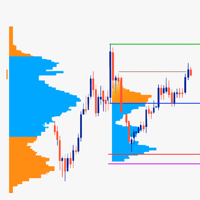
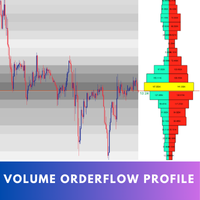
Show Volume Profile: Turns the left-to-right volume histograms (the green/red bars) inside the session box on or off.
-
Show Session Box: Toggles the dashed background rectangle that outlines the absolute High, Low, Start, and End time of the chosen session.
-
Show Session Labels: Toggles the text floating at the top of the session box (e.g., "London", "Daily") so you can easily identify historical boxes at a glance.
-
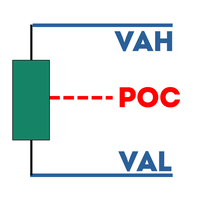
Show POC (Point of Control): The POC is the exact price level where the most volume was traded during the session. Toggling this draws a thick line (default red) across the session. This is often a massive magnet for future price action.
-
Show VAH and VAL Lines: Toggles the Value Area High and Value Area Low lines. These mark the upper and lower boundaries where the majority of the session's volume took place.
-
Show Value Area Box: Toggles a shaded background rectangle that connects the VAH and VAL lines, creating a visual "zone" of heavy acceptance.
3. Dashboard (HUD) Settings
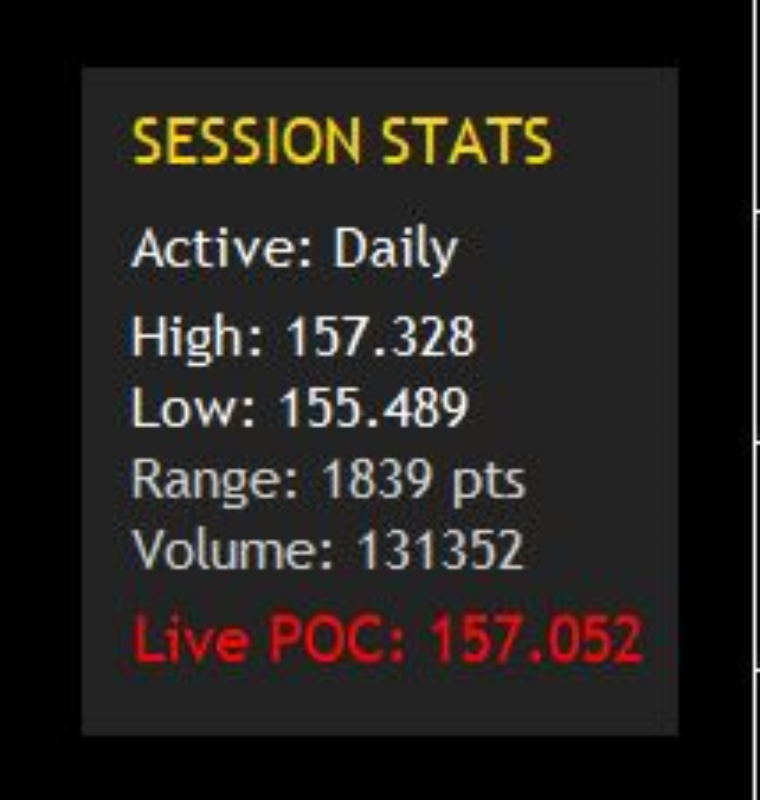
The HUD is your live-readout terminal for the current, active session. It updates on every single tick.
-
Show Dashboard Panel: Turns the corner UI on or off.
-
Dashboard Corner: Choose which corner of your chart the HUD lives in (Top-Right, Bottom-Left, etc.). The panel will automatically format its padding so it never falls off your screen.
-
HUD Background & Text Color: Fully customize the visual theme of the dashboard to match your chart's template.
What the HUD tells you:
-
Active Session: Confirms which session is currently printing.
-
High & Low: The exact price extremes of the current session.
-
Range: The total distance (in Points) between the session High and Low. Great for gauging daily volatility.
-
Volume: The cumulative total volume built up in the session so far.
-
Live POC: The exact price coordinate of the Point of Control, updating in real-time as new volume flows in.
4. Volume Profile Settings
This controls the mathematical engine building your histograms.
-
Resolution (Bins): Determines how detailed the volume profile is.
-
A higher number (e.g., 50) chops the session into many small rows, creating a highly detailed profile.
-
A lower number (e.g., 15) creates larger, chunkier blocks, which can be easier to read for broad support/resistance zones.
-
Default is 30.
-
-
Value Area Volume %: Dictates how much volume is considered the "Value Area".
-
By default, this is set to 70%, meaning the VAH and VAL lines will wrap around the price zone that contains 70% of all trading activity.
-
5. Appearance
Every single color and line thickness in the indicator can be customized here to fit your personal chart aesthetic.
-
Up Volume / Down Volume: Change the colors of the volume profile histograms.
-
Value Area Box Color: Adjust the background tint of the heavy-volume zone.
-
POC, VAH, VAL Colors & Thickness: Make your key levels stand out. Tip: We recommend keeping the POC a bright, highly contrasting color like Red or Gold.



























사용자가 평가에 대한 코멘트를 남기지 않았습니다