
Institutional Order Block Detector
- 지표
- 버전: 1.59
- 업데이트됨: 5 6월 2026

INSTITUTIONAL ORDER BLOCK DETECTOR
Welcome to the Institutional Order Block Detector, developed by My Trading Profit LLC.
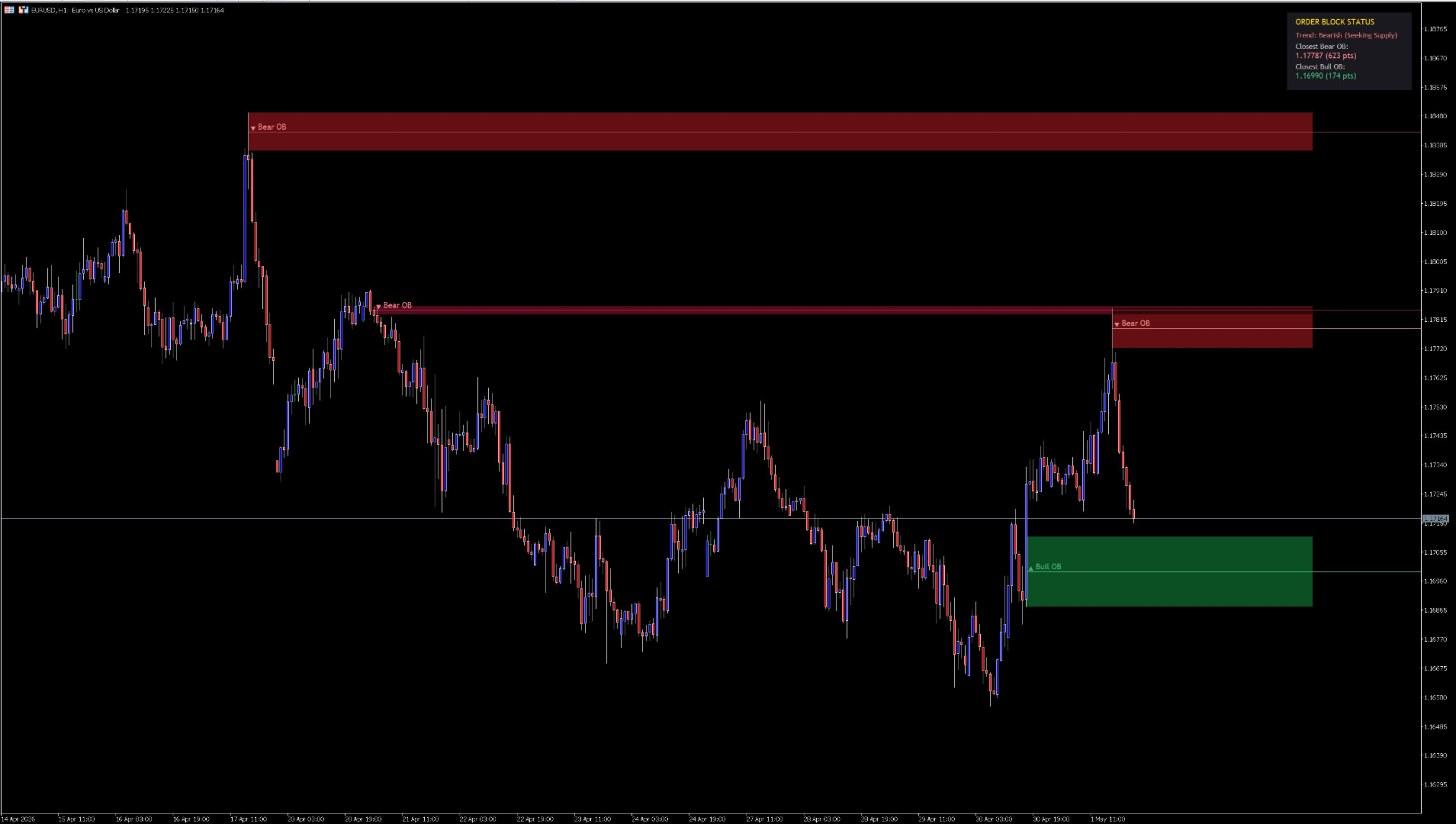
This premium indicator is designed to automatically detect and draw high-probability Bullish and Bearish Order Blocks based on Volume Pivot extremes. Complete with a real-time Heads-Up Display (HUD) and dynamic mitigation tracking, this tool removes the guesswork from finding institutional supply and demand zones.
Below is a complete breakdown of the indicator's features and how to customize them to fit your trading style.
1. Detector Settings (The Engine)
These settings control the mathematical logic the indicator uses to identify and validate Order Blocks.
-
Volume Pivot Length: Determines the lookback window for identifying pivot highs and lows.
-
Lower values (e.g., 3-5) will detect micro order blocks for scalping on lower timeframes.
-
Higher values (e.g., 10-15) will filter out the noise and only draw major, macro-level supply and demand zones for swing trading.
-
-
Mitigation Method: Dictates how an Order Block is considered "Mitigated" (invalidated/broken).
-
Wick: The Order Block is instantly removed from the chart the moment a candle wick pierces through the back of the zone. (Stricter, safer).
-
Close: The Order Block remains valid even if a wick pierces it, and is only removed if a candle closes beyond the zone. (Allows for liquidity sweeps/fake-outs).
-
2. Display & Style (The Visuals)
Keep your chart clean and professional by customizing exactly what is drawn.
-
Show OB Text Labels: Toggles the clean "▲ Bull OB" and "▼ Bear OB" text anchors on or off.
-
Max Bullish / Bearish OBs to Draw: Limits the number of historical zones drawn on your chart to prevent clutter. If set to 3, it will only show the 3 most recent, unmitigated zones for both directions.
-
Background Colors: Customize the shading of the Order Block rectangles. (Default is a premium Muted Green and Deep Crimson to prevent eye strain).
-
Average Line Color & Style: Customizes the central "Fair Value" line that runs through the middle of every Order Block. You can change it to Solid, Dashed, or Dotted, and adjust its thickness.
3. Dashboard (HUD) Settings
The HUD acts as your real-time command center, calculating distances and trends on every single tick.
-
Show Dashboard Panel: Toggles the corner UI on or off.
-
Dashboard Corner: Choose where the panel sits on your screen (Top-Right, Bottom-Left, etc.). The panel automatically adjusts its margins so it never gets cut off.
-
Background & Text Color: Match the dashboard to your MetaTrader chart template.
What the HUD tells you:
-
Trend: Displays the current micro-trend based on the most recent pivot state (Seeking Demand vs. Seeking Supply).
-
Closest Bear/Bull OB: Displays the exact price coordinate of the nearest unmitigated average lines.
-
Distance (pts): Shows the live distance in points from the current price to the closest supply/demand zones, allowing you to gauge your exact risk-to-reward ratio before placing a trade.
How to Use Order Blocks
1. The Retest (Sniper Entries):
Institutional Order Blocks represent areas where heavy volume was injected into the market. When price leaves these zones rapidly and later returns to "retest" them, these boxes act as massive magnets and subsequent rejection zones.
2. The Average Line (Fair Value):
The line drawn through the middle of the box represents the mean volume price. If price enters a zone, it will frequently wick exactly to this center line before reversing. Use this center line as a highly optimized Limit Order entry point.
3. Invalidations (Stop Losses):
Once price breaks completely through a zone (Mitigation), the zone is deleted. Place your stop losses just beyond the back-edge of the Order Block rectangle to protect your capital if the institutional level fails to hold.

























Very good Indicator