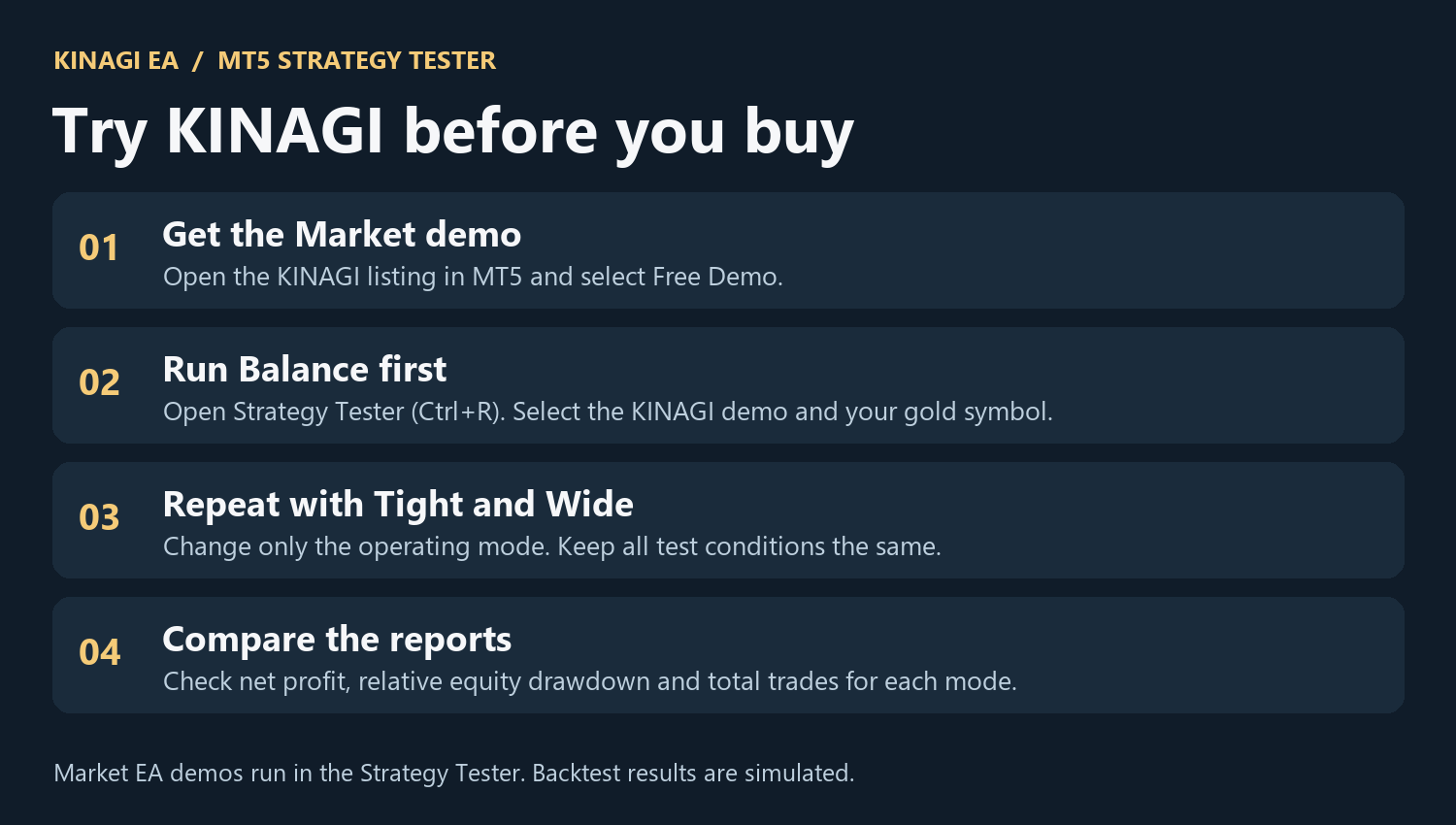
The free KINAGI EA demo lets you compare Balance, Tight, and Wide in the MT5 Strategy Tester before buying. Start with Balance, the default mode, and save that result as your baseline.
1. Install the Market demo
In desktop MetaTrader 5, sign in to MQL5.community, open the Market, search for Kinagi EA, and select Free Demo. The Market EA demo runs in the Strategy Tester. See the official MT5 Strategy Tester guide for the tester controls.
2. Set up your first Balance test
Press Ctrl+R to open Strategy Tester. Choose a single test and select the KINAGI demo. Choose your broker’s USD-quoted gold symbol. If the Inputs tab has an explicit TradeSymbol value, check that it matches the actual symbol name at your broker.
For a starting example, use a D1 chart, January 1 through December 31, 2024, a USD 2,100 deposit, 1:1,000 leverage if available, and the 1-minute OHLC model. Turn optimization off, select Balance in Inputs, and leave the default buy DI filter enabled. Click Start. Broker history, symbol specifications and costs may affect the result.
3. Run Tight and Wide under the same conditions
Save the Balance report. Change only the operating mode to Tight and run the test again. Repeat with Wide. Keep the EA version, broker server, symbol, timeframe, dates, deposit, leverage, model, execution settings, and all other inputs fixed.
4. Compare the three reports
For each run, record total net profit, relative equity drawdown, and total trades. Repeat the comparison on another period before deciding which mode fits your priorities. If a run shows zero trades, check the Journal for errors, confirm the symbol and history are available, and review the tester deposit and margin conditions.
Backtests are simulations. Live execution and costs can differ, and past performance does not guarantee future results.