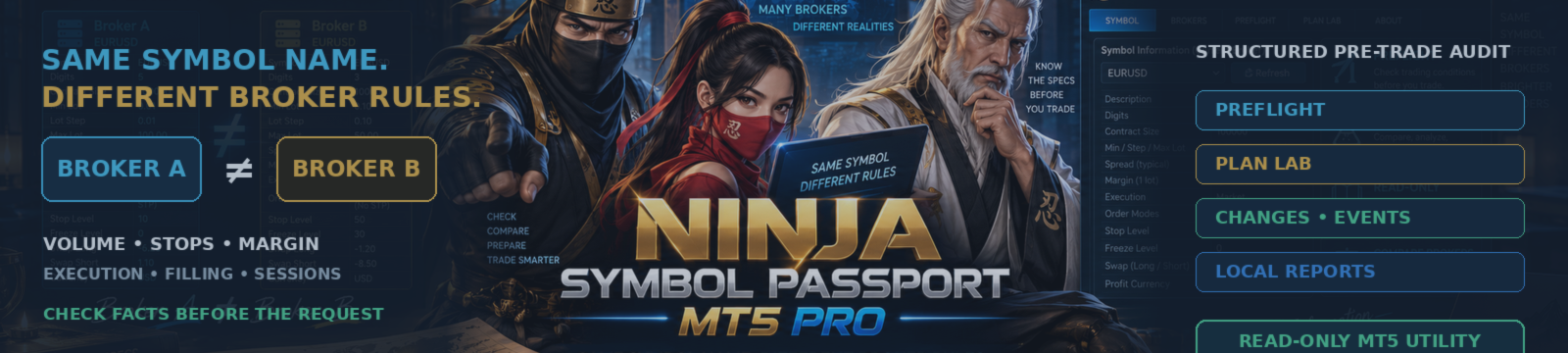
Same Symbol Name. Different Broker Rules. | Ninja Symbol Passport MT5 Pro

The same symbol name does not always mean the same broker rules.
EURUSD, XAUUSD or US500 can look familiar on the chart while the contract and execution conditions behind the symbol are different. A new broker, account type or server can change the permitted volume, margin requirement, Stops Level, Freeze Level, trading session, filling mode, order modes, contract size, tick value, swap, spread and quote condition.
Knowing the strategy is not the same as knowing what the current broker environment will permit.
Ninja Symbol Passport MT5 Pro was built for that practical gap. It is a completely read-only MetaTrader 5 utility that inspects, compares and records broker-provided symbol and execution conditions before the user makes an independent decision.
At the time of this article, the MQL5 Market lists the product as Version 1.1 at 30 USD. The internal build and panel notation is 1.01.
Watch the Detailed English Guide
Same Symbol Name. Different Broker Rules. | Ninja Symbol Passport MT5 Pro
The long-form guide explains the six-tab workflow, PREFLIGHT, PLAN LAB, change tracking, confirmed events, rolling statistics, notifications, reports and the read-only boundary.
What Problem Does the Pro Version Solve?
Moving an EA or a manual workflow to another broker can create problems that are not visible from the symbol name alone.
Examples include:
- A requested lot does not match the broker's minimum volume or step.
- An SL or TP is too close for the current Stops Level.
- A pending price conflicts with the broker's current rules.
- The required filling or order mode is unavailable.
- The symbol is outside its published trading session.
- The contract is approaching expiry.
- The estimated margin is much larger than expected.
- The quote is stale or the current spread is unusually high.
Ninja Symbol Passport MT5 Pro does not decide whether a strategy is good. It provides a structured way to inspect the environment in which that strategy would operate.
A Six-Tab Read-Only Workflow
The panel is organized into six tabs:
- SYMBOLS
- PREFLIGHT
- PLAN LAB
- CHANGES
- EVENTS
- REPORTS
The utility can scan Market Watch, All Server or a Custom List, with an effective limit of up to 200 symbols. It supports timer-based scanning and a manual REFRESH.
SYMBOLS: Start with the Broker-Provided Facts
The SYMBOLS tab is the broad multi-symbol inspection area.
It can organize information such as:
- Trading Session and Expiration
- Volume Min, Max and Step
- Current Spread Cost
- Estimated Margin for a reference volume
- Spread relative to ATR
- Trade Mode
- Execution and Filling Modes
- Available Order Modes
- Stops Level and Freeze Level
- Swap information
- Base, profit and margin currencies
- Tick Value, Tick Size and Contract information
This is useful when the user needs a consistent view across several Forex pairs, metals, indices or CFDs instead of opening each symbol specification window separately.
PREFLIGHT: Review Current Conditions, Not Direction
PREFLIGHT evaluates the implemented execution-condition checks without attempting to predict whether price will rise or fall.
It can review:
- Current spread
- Estimated margin
- Quote freshness
- Rolling spread data
- Symbol-specification state
- Trade mode
- Account permission
- The configured risk context
The 0-100 value is an execution-condition score. It is not a market forecast, a strategy win rate, a direction ranking or a recommendation to use the symbol.
The practical value is in the visible deduction reasons. Instead of receiving only one number, the user can review which current condition reduced the result.
Risk, Lot and Margin Context
The Pro workflow can provide a reference lot estimate based on a selected risk percentage and an ATR-based assumed stop distance.
It can also compare up to three fixed-volume scenarios and show point-in-time estimated loss and margin context.
These figures are planning references. They can change with price, broker specification, account currency, leverage, commission, spread and available data.
PLAN LAB: Six Hypothetical OrderCheck Scenarios
PLAN LAB is one of the clearest reasons to consider the Pro version.
For the selected symbol, it can build up to six hypothetical request types:
- BUY MARKET
- SELL MARKET
- BUY STOP
- SELL STOP
- BUY LIMIT
- SELL LIMIT
For each scenario, the panel can show:
- Requested Volume
- Checked Volume
- Entry Price
- SL and TP
- Estimated Loss
- Estimated Margin
- Retcode
- Terminal Error
- Broker Comment
The words BUY and SELL identify the direction of the hypothetical request. They do not tell the user what to do.
PLAN LAB uses OrderCheck, while OrderCalcProfit and OrderCalcMargin are used for point-in-time calculations and estimates.
No order is transmitted. There is no OrderSend or OrderSendAsync path in the product, and the utility does not open, modify, cancel or close positions or orders.
A successful point-in-time check also does not prove that a later request will receive the same result. Quotes, permissions, sessions, margin and broker conditions can change.
Watch the 55-Second Overview
Same Symbol. Different Broker Rules. | Ninja Symbol Passport MT5 Pro #Shorts
The Short uses a dedicated script, newly generated Andrew narration, a new vertical layout, NINJA action and large English captions. It is a quick introduction; the long guide provides the fuller operating explanation.
CHANGES: Compare an Accepted Baseline with Current Specifications
A saved baseline can preserve selected fixed symbol specifications for later comparison.
The CHANGES tab displays readable old → new differences when current fixed specifications no longer match the accepted baseline.
ACCEPT CHANGES should be used only after the user has reviewed a valid scan and deliberately decided that the current specification should become the new reference.
The baseline is a record for comparison. It is not an instruction to trade and it does not make a later broker condition permanent.
EVENTS: Keep Confirmed Changes, Not Endless Duplicate Rows
EVENTS can preserve confirmed items such as:
- WARN
- BLOCK
- RECOVERY
- PREFLIGHT
- Specification Change
- Trading Session Change
- OUTLIER
- Recovery from Outlier
The design is intended to record confirmed state changes rather than append the same unchanged condition during every scan.
Optional notifications can use Popup, Sound and standard MT5 Push. A notification grace period helps reduce a burst of messages immediately after startup or reconnection.
REPORTS and Rolling Statistics
Manual, daily and weekly HTML/CSV report sets can be saved in the local MT5 file area.
Reports are not sent externally by the utility.
Rolling Spread/ATR statistics can provide:
- Median
- p90
- p99
- A selected percentile
- OUTLIER status
- RECOVERY after an outlier condition
These statistics need a warmup period and describe the collected data. They do not predict future execution quality.
A report may contain broker name, symbol, price, scenario and estimate information. Review the file before sharing it with another person or publishing it.
Free Version or Pro Version?
The free NINJA Symbol Passport MT5 remains useful for core broker and symbol inspection.
The free version already provides:
- Read-only multi-symbol inspection
- Up to 200 effective symbols
- PENDING, PASS, WARN and BLOCK reasons
- CSV output
- Background scanning
- Basic baseline checking
The Pro version adds a more structured workflow:
- Six dedicated tabs
- Non-directional PREFLIGHT with visible deductions
- Risk, lot and margin context
- Up to six hypothetical OrderCheck scenarios
- Custom List scope
- Rolling statistics
- Dedicated CHANGES
- Confirmed EVENTS
- Notifications
- Scheduled local reports
For a quick broker and symbol check, the free version may be enough.
For users who want a repeatable pre-trade review, hypothetical request checks, specification-change records, confirmed events and scheduled reports, the Pro workflow is the stronger fit.
Who May Find the Pro Version Useful?
Ninja Symbol Passport MT5 Pro may be useful for:
- Discretionary traders who monitor several symbols
- EA users who want to inspect broker conditions before deployment
- Users comparing brokers or account types
- Traders who want spread, margin, volume rules and order modes in one workflow
- Users who want hypothetical OrderCheck results before creating their own request
- Users who need specification-change and recovery records
- Users who prefer factual pre-trade review instead of direction predictions
- Users who need recurring local HTML/CSV reports
Important Read-Only Boundary and Limitations
Ninja Symbol Passport MT5 Pro does not:
- Predict market direction or entry timing
- Tell the user when to buy or sell
- Rank symbols by future profitability or suitability
- Send, modify, cancel or close an order
- Manage open-position risk automatically
- Confirm that a later broker request will be accepted
PASS or BASIC CHECK PASSED means only that the implemented checks did not identify a current warning or blocker in the available data.
It does not establish strategy compatibility, future execution, accuracy or profit.
Some broker fields may be unavailable and shown as N/A. Spread, quote freshness, margin, permissions, sessions and contract details can change after the scan.
A Practical Demo Workflow
- Install the product in a demo MT5 terminal.
- Select Market Watch, All Server or Custom List.
- Run the first scan and review the SYMBOLS tab.
- Choose a symbol and inspect every PREFLIGHT deduction.
- Compare the risk-based lot reference with the fixed-volume scenarios.
- Build only the PLAN LAB scenarios relevant to your intended request.
- Read the retcode, terminal error and broker comment carefully.
- Save a baseline only after confirming the scan is valid.
- Use REFRESH later and review CHANGES and EVENTS.
- Create a manual report and inspect its contents before sharing.
This process lets the user learn what the broker environment is reporting without exposing a live position to the test.
Check the Rules Before the Request
The value of Ninja Symbol Passport MT5 Pro is not a prediction about the next price move.
Its value is the structure:
- Inspect up to 200 symbols
- Review current execution conditions
- Understand transparent deductions
- Compare lot, loss and margin references
- Run six types of hypothetical OrderCheck
- Track accepted specification changes
- Keep confirmed events
- Save local operational reports