JKEFtrendMartingale
- Experts
-
Shi Yuan Wang
 Sviluppo indicatori personalizzati, Expert Advisor (EA), script e strumenti di trading per MetaTrader 4 e MetaTrader 5, nonché indicatori per TradingView (Pine Script).
Cosa posso fare per te: - Versione: 1.1
- Attivazioni: 5
JKEFtrendMartingale — Volatility-Adaptive Trend-Following Martingale Trading System
Overview
JKEFtrendMartingale is a fully automated Expert Advisor for MetaTrader 5. On the selected timeframe it adapts to market volatility to follow the trend and trade breakouts. After a losing trade it increases the lot size of the next trade according to the configured rule, and returns to the initial lot size once profits have absorbed the accumulated loss.
The system evaluates the state of closed bars only, so signals are not revised by an unfinished bar. Once a direction is confirmed, the robot can enter with a market order or place a stop order at a defined distance from the current price and wait for breakout confirmation, trailing that pending order while it remains unfilled. Only one position is held per cycle; positions are not stacked in the same direction at the same time.
Please note that this product includes a mechanism that increases lot size after a loss. This is a high-risk money management method that can significantly increase the size of both single-trade and cumulative losses. Understand the mechanism fully and complete demo testing before considering live use.
Trading Logic
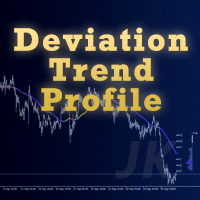
State detection. Price volatility is measured first: the stronger the volatility, the faster the moving average tracks price; the calmer the market, the smoother the average. The average then receives a momentum-weighted smoothing step to produce a trend baseline. A recent deviation percentile is calculated above and below the baseline. A close above the upper deviation percentile sets the long state, and a close below the lower deviation percentile sets the short state. States are updated on completed bars only. The signal timeframe is defined by InpTF and may differ from the chart timeframe.
Lot level rules. The robot maintains a cumulative loss ledger and a lot level:
- when a closed position has a negative net result (profit plus swap plus commission), the cumulative loss increases and the lot level rises by one, capped at the limit set by InpMaxLevel;
- when the net result is positive, the profit reduces the cumulative loss. The lot level is reset to zero only when the cumulative loss has been fully absorbed and reaches zero, returning the lot size to its initial value;
- until that reset happens, every new position uses the lot size that corresponds to the current level.
Lot size is calculated in one of two modes. In additive mode, the current lot equals the initial lot plus the level multiplied by the step. In multiplicative mode, the current lot equals the initial lot multiplied by the multiplier raised to the power of the level. The final lot size is limited to the symbol minimum and maximum and rounded to the symbol lot step.
First entry. After loading or after pressing Start, if the current symbol has no position and no pending order from this system, the robot reads the current signal direction. When a direction is defined and permitted, it opens a market position immediately with the initial stop loss attached. When the direction is neutral, it keeps waiting until a defined direction appears. The first position also uses the lot size of the current level.
After a position is closed. When a position ends — by stop loss, by trailing stop, or manually — the robot records the close time, waits for the configured number of seconds, and then places a stop order in the direction of the current signal: a buy stop for long and a sell stop for short, at the configured distance from the current market price.
Pending order management. While a stop order is waiting, the robot keeps comparing it with the current signal:
- if the signal direction flips, the pending order is deleted and a new one is placed in the opposite direction;
- if the direction is excluded by the trade direction filter, the pending order is deleted and the wait timer restarts;
- if price moves in the favorable direction, the pending price follows it — a buy stop moves down and a sell stop moves up — so the order trails the market instead of staying fixed.
A filled pending order becomes an open position.
Position management. While a position is open, all unfilled pending orders are removed and the stop loss is maintained according to the trailing stop parameters: the trailing stop activates once profit reaches the trigger distance, keeps the configured distance from the current price, and moves only in the favorable direction.
Exit. No fixed take profit is used. Exits are produced by the initial stop loss, by the trailing stop, or by the Close All button on the panel.
State Persistence
The cumulative loss and the lot level are kept in memory. How they are handled when the robot loads is defined by InpPersistState:
- when enabled, the robot scans the outgoing deals of the last seven days that match the current symbol and the configured order identifier, and rebuilds the cumulative loss and the lot level, so the previous sequence can continue after a restart;
- when disabled, no rebuild is performed and both the cumulative loss and the lot level start from zero.
Note that the rebuild covers the last seven days only. Older history is not taken into account, and manually closed deals that do not carry the matching order identifier are not counted either.
Risk Management
- Every entry carries an initial stop loss at the configured distance in points; a value of zero means no stop loss is attached.
- Optional trailing stop with separate trigger and distance parameters; setting either to zero disables the feature.
- The lot level has an upper limit set by InpMaxLevel. Once the limit is reached, the lot size is not increased further.
- Free margin is calculated before each order request. If free margin is insufficient, no order is sent, an entry is written to the log, and a cooldown period starts to avoid repeated failed requests.
- The filling mode supported by the symbol is detected automatically, with fallback retries when needed. Market orders and pending orders are handled separately.
- Trading sessions and symbol trade modes are checked, so no requests are sent while the market is closed and a cooldown is applied to reduce unnecessary error messages.
- Lot size is normalized to the symbol minimum, maximum, and step to avoid server rejections caused by precision.
These measures do not remove the risk created by progressive lot sizing. A stop loss may be filled at a worse price during gaps, slippage, or extreme market conditions, and the actual loss can be larger than the configured stop distance.
On-Chart Panel
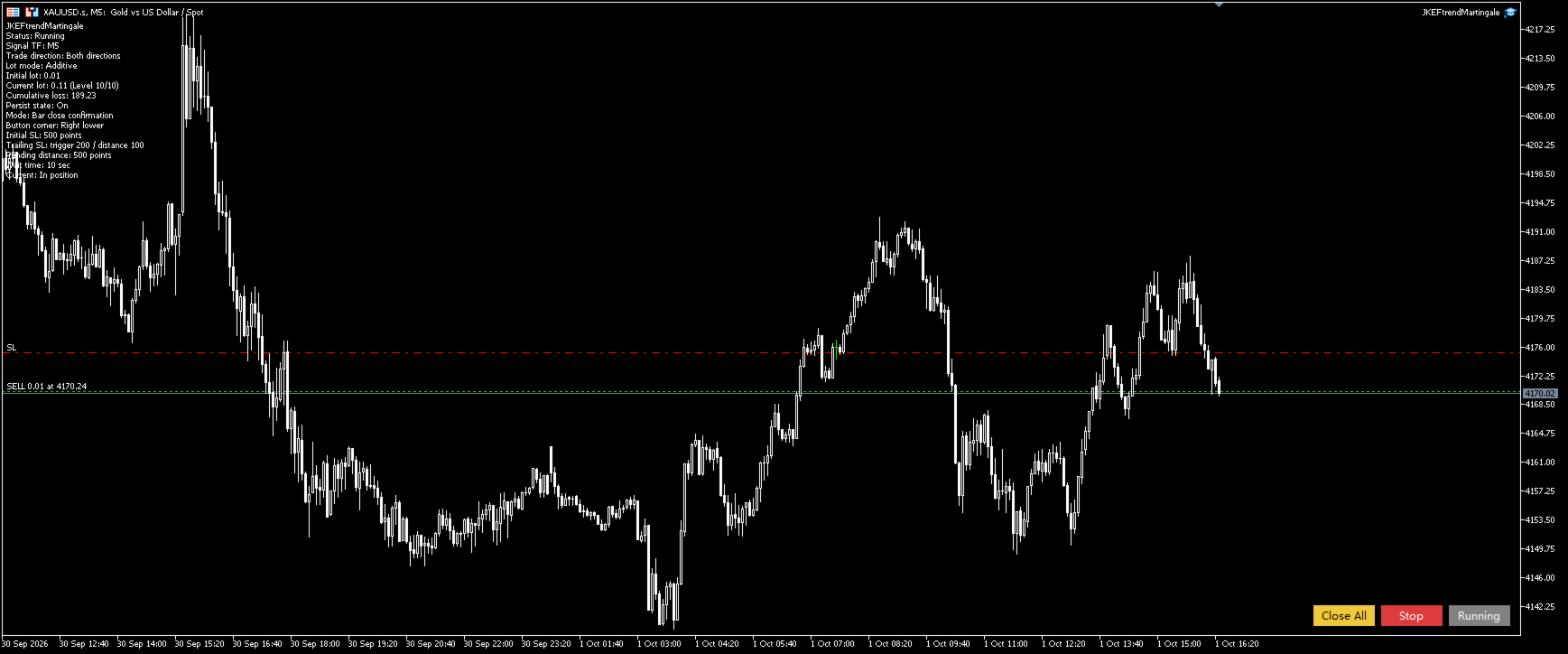
The chart shows three buttons — Start, Stop, and Close All — plus a status block.
- Start enables automated trading. If there is no position, the first entry is attempted according to the current signal. Market-closed and insufficient-funds cooldowns are cleared.
- Stop stops new entries. Open positions are not affected and the trailing stop keeps running.
- Close All closes positions opened by this system on the current symbol, deletes pending orders, and stops automated trading. The cumulative loss and the lot level are not cleared by this action; to start from zero, disable state persistence and reload the robot.
The status block shows running or stopped state, signal timeframe, permitted direction, lot mode, initial lot, current lot with level, cumulative loss, state persistence switch, confirmation mode, initial stop loss, trailing trigger and distance, pending distance, wait time, and the current phase: market closed, insufficient funds, waiting for first entry, in position, pending order, waiting for pending order, or flat.
Button group placement (one of four chart corners), horizontal and vertical offset, button width and height, and font size are all configurable.
Recommended Operating Conditions
- Symbol: instruments with good liquidity and stable spreads, such as major currency pairs, liquid crosses, precious metals, and major index CFDs. Verify on a demo account first.
- Timeframe: the robot can be attached to any chart; the signal timeframe is set by InpTF, M5 by default.
- Account type: both netting and hedging accounts are supported.
- Account size: because lot size increases after losses, the required capital is considerably higher than for a fixed-lot approach. Estimate capital from the total loss of a losing sequence that reaches the maximum level, not from a single stop loss. With the default settings (initial lot 0.01, additive mode, step 0.01, maximum level 10, initial stop loss 500 points), the lot size at the highest level is 0.11, and an account balance of at least 1000 USD or the equivalent is generally suggested on major currency pairs. In multiplicative mode, calculate the highest-level lot first: with the default multiplier of 2.0 and a maximum level of 10, that lot is about 1024 times the initial lot, which means about 10.24 lots from an initial 0.01 lot. In that case, either provide substantially more capital or reduce the multiplier and the maximum level. This is a capital-tolerance suggestion only and is not a performance expectation.
- Environment: use an account with stable execution and low latency, and keep the terminal online on a VPS so that state is not rebuilt incompletely after a restart.
Input Parameters
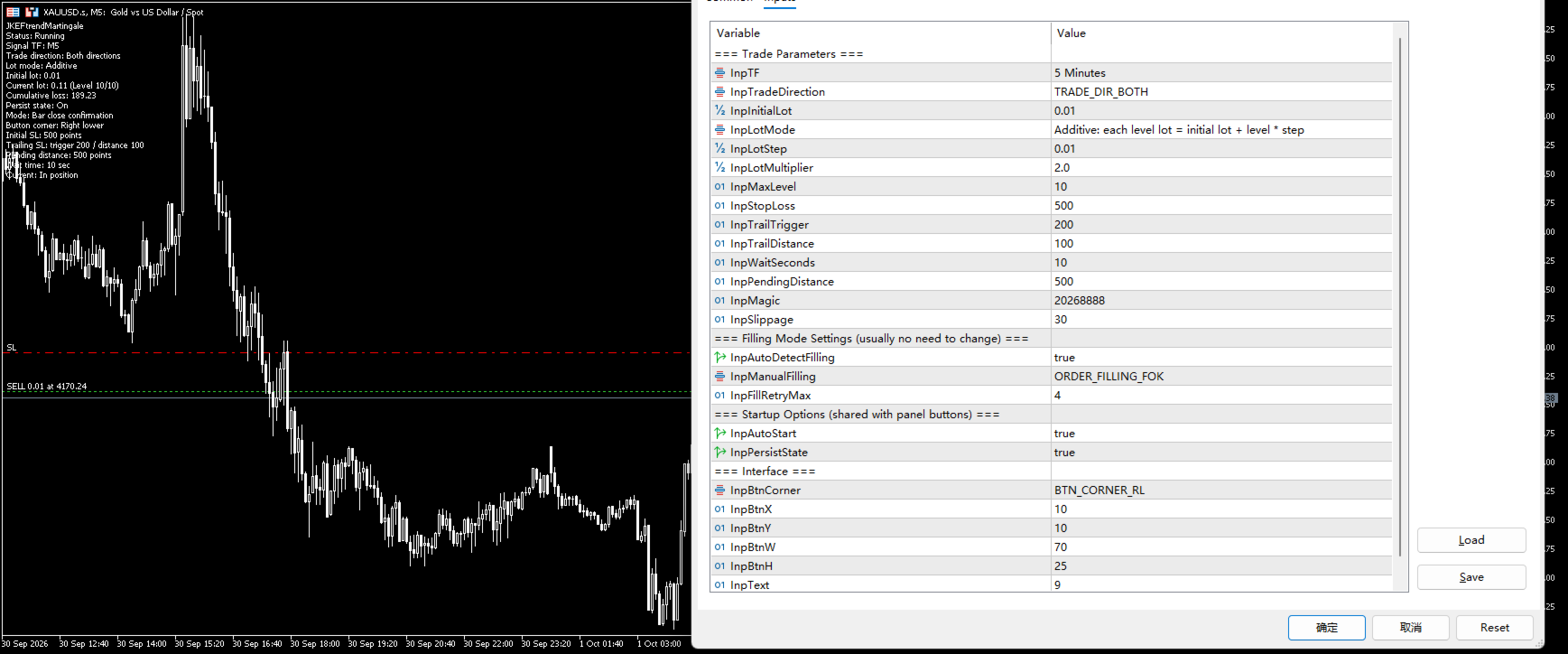
Trade Parameters
Parameter | Default | Description |
|---|---|---|
InpTF | PERIOD_M5 | Timeframe used for signal calculation; may differ from the chart timeframe |
InpTradeDirection | TRADE_DIR_BOTH | Permitted direction: both, long only, or short only |
InpInitialLot | 0.01 | Lot size used at level zero |
InpLotMode | LOT_MODE_ADD | Lot progression mode: additive or multiplicative |
InpLotStep | 0.01 | Lot added per level in additive mode |
InpLotMultiplier | 2.0 | Lot multiplier per level in multiplicative mode |
InpMaxLevel | 10 | Maximum lot level; no further increase beyond this limit |
InpStopLoss | 500 | Initial stop loss distance in points; 0 means no stop loss |
InpTrailTrigger | 200 | Profit required to activate the trailing stop, in points |
InpTrailDistance | 100 | Distance kept between the trailing stop and current price, in points |
InpWaitSeconds | 10 | Seconds to wait after a position is closed before the next pending order |
InpPendingDistance | 500 | Distance of the stop order from the current market price, in points |
InpMagic | 20268888 | Order identifier used to separate this system from other programs |
InpSlippage | 30 | Maximum accepted deviation for order sending, in points |
Startup Options
Parameter | Default | Description |
|---|---|---|
InpAutoStart | true | Start trading immediately after loading; shared with the panel Start button |
InpPersistState | true | Rebuild cumulative loss and lot level from the last seven days of deals on loading |
Filling Mode Settings
Parameter | Default | Description |
|---|---|---|
InpAutoDetectFilling | true | Detect the filling modes supported by the symbol automatically |
InpManualFilling | ORDER_FILLING_FOK | Filling mode used when automatic detection is disabled |
InpFillRetryMax | 4 | Maximum number of filling mode retries |
Interface
Parameter | Default | Description |
|---|---|---|
InpBtnCorner | BTN_CORNER_RL | Chart corner for the button group |
InpBtnX | 10 | Horizontal offset from the selected corner, in pixels |
InpBtnY | 10 | Vertical offset from the selected corner, in pixels |
InpBtnW | 70 | Button width in pixels |
InpBtnH | 25 | Button height in pixels |
InpText | 9 | Button font size |
Installation and Quick Start
- Install the product from the Market or the Navigator; it appears in the Experts\Market folder.
- Open a chart of the target symbol and attach the robot.
- Set the initial lot, lot mode with step or multiplier, maximum level, initial stop loss, trailing stop, pending distance, and signal timeframe in the Inputs tab.
- Make sure AutoTrading is enabled in the terminal and that the robot name with a smiley icon appears in the top-right corner of the chart.
- Keep InpAutoStart set to true for an immediate start, or press Start on the panel.
- Press Stop to halt new entries, or Close All to close positions and delete pending orders.
Testing Recommendations
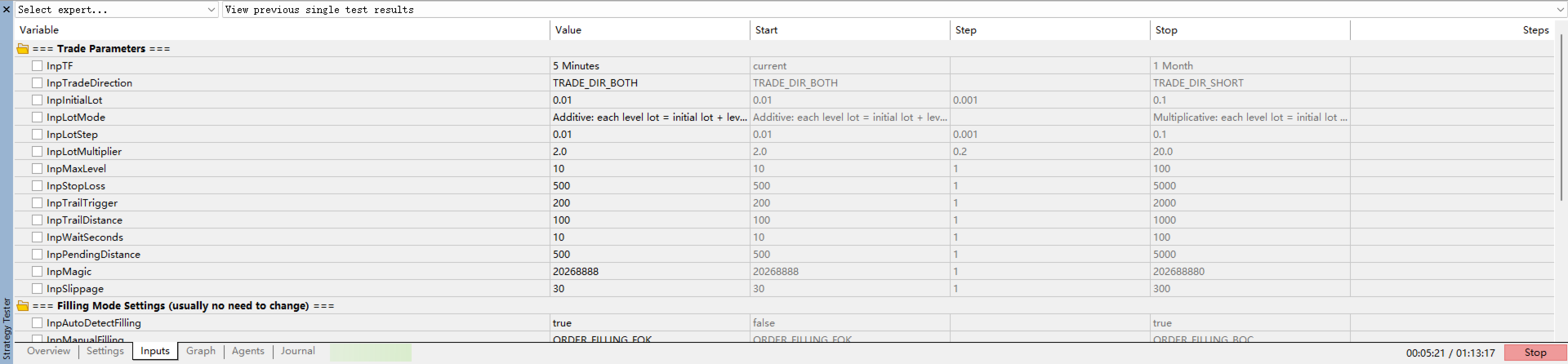
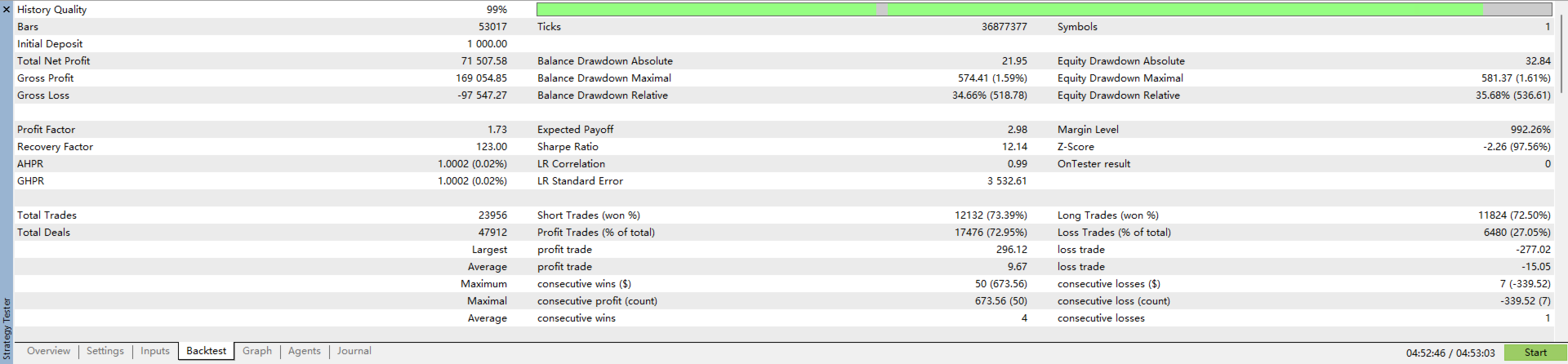
- Download complete history for the symbol and test with real or custom spreads in the Strategy Tester. Pay particular attention to maximum margin usage and maximum drawdown during losing sequences.
- Run the robot on a demo account first to confirm lot level changes, pending order behavior, trailing stop behavior, and log output.
- Start testing with additive mode and a small maximum level. Only consider other settings once you are comfortable with the cumulative loss in a worst-case sequence.
- When running on several symbols in one account, use a separate chart per symbol and consider separate order identifiers to keep records clear.
- Before changing the lot settings, estimate the maximum loss per trade implied by the highest-level lot combined with the initial stop loss.
Limitations and Notes
- The robot manages only positions and pending orders on the current chart symbol that carry its own order identifier. Manual positions and orders from other programs are not affected.
- No take profit target is used; how much profit is given back depends on the trailing stop parameters.
- There is no built-in news filter, session filter, spread filter, maximum holding time, daily loss limit, or maximum drawdown limit.
- Lot size is not calculated automatically from an account risk percentage, so adjust it manually when the account size changes.
- State persistence reads the last seven days of deals only. After a restart or reload, results outside that window will not be reflected in the rebuilt values.
- The terminal must stay online. No requests are sent during disconnection, and the state after reconnection depends on the positions and orders that exist at that moment.
- Pending orders and stop loss modifications are involved, so actual fill prices depend on spread, slippage, and liquidity.
Risk Notes on Progressive Lot Sizing
Increasing lot size after a loss is the part of this product that needs the most attention. Please confirm the following before use:
- The longer a losing sequence runs, the larger the following lot becomes, and both margin usage and potential loss grow additively or geometrically.
- Multiplicative mode grows faster. The multiplier and the maximum level directly determine the largest lot, so calculate that value before deciding on account size.
- The initial stop loss is not the maximum loss. Gaps, slippage, and thin liquidity can all cause fills worse than the configured stop level.
- When free margin is insufficient, no order is sent and a cooldown begins, which interrupts the progression. Later profits may then not absorb the accumulated loss as planned.
- If this level of risk is not acceptable, reduce the maximum level, use additive mode with a smaller initial lot, or choose an approach that does not increase lot size after losses.
Risk Notice
Automated trading does not remove market risk, and increasing lot size after losses raises account risk further. Results obtained on historical data do not represent future results, and demo account results may differ from live account results. This product does not guarantee any profit and is not investment advice. Set lot size, maximum level, and stop loss according to your own risk tolerance and test thoroughly before using a live account. Trading results obtained with this product remain the responsibility of the user.
Frequently Asked Questions
The robot did not open a trade right after starting. Is that expected?
Yes. If the signal direction is neutral at startup, the robot waits until a defined long or short state appears.
When does the lot level return to zero?
Only when the cumulative loss has been fully absorbed by later profits and reaches zero. Until that happens, the level does not decrease even if some trades are profitable.
Is the lot level kept after restarting the terminal?
It depends on InpPersistState. When enabled, the level is rebuilt from the outgoing deals of the last seven days that match the symbol and the order identifier. When disabled, it starts from zero.
Can it be used on several symbols at once?
Yes. Attach it to one chart per symbol. Separate order identifiers are recommended. The cumulative loss and the lot level are tracked independently for each symbol.
Why does the log show an insufficient funds message?
Free margin is checked before each request. When it is insufficient, no order is sent, the event is logged, and a cooldown begins. Reduce the initial lot, step, or multiplier, lower the maximum level, or add funds.
Does pressing Close All reset the lot level?
No. Close All only closes positions and deletes pending orders. The cumulative loss and the lot level keep their values. To start from zero, disable state persistence and reload the robot.