MTCommander
- Utilità
- Versione: 3.35
- Attivazioni: 5

MTCommander - MT4 Manual Trading Panel and Trade Management Assistant
============================================================
Short Market Description
============================================================
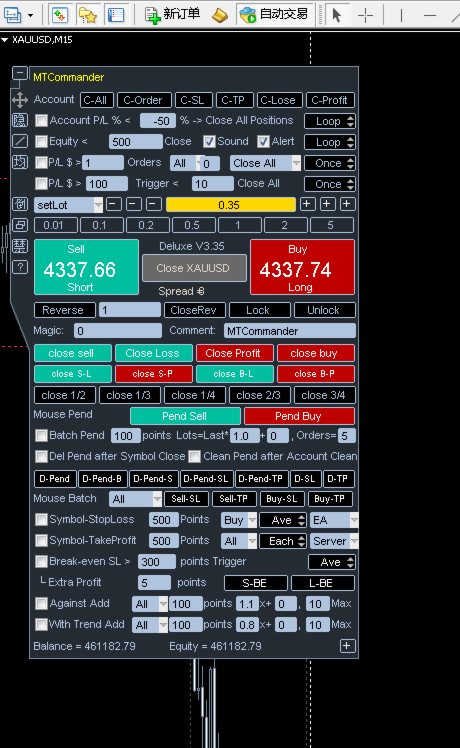
MTCommander is a professional manual trading panel for MetaTrader 4.
It helps traders open, close, protect and manage positions directly from the chart. The panel includes one-click market execution, pending order tools, partial close tools, break-even stop loss, trailing stop loss, batch SL/TP tools, account and symbol protection rules, and practical trade management shortcuts.
MTCommander is not a signal robot and does not predict market direction. It is a trading utility for faster manual execution and structured trade management. Please test all functions on a demo account before using it on a live account.
============================================================
Product Overview
============================================================
MTCommander is installed as an Expert Advisor because MT4 chart panels must run through an EA container. Its purpose is trade management, not market prediction.
The tool is designed for traders who want a compact control panel on the chart instead of switching between many MT4 windows and order dialogs. Most common trade operations can be executed from the panel:
- Open Buy or Sell positions.
- Close positions by symbol, account, direction, profit, loss, magic number or comment.
- Place pending orders by exact price, distance in points, mouse position or batch/grid rules.
- Apply or delete stop loss and take profit.
- Move positions to break-even.
- Run trailing stop loss tools.
- Partially close positions.
- Reverse, lock or unlock positions.
- Monitor account balance, equity, spread and selected position information.
- Use account-level and symbol-level protection tools.
The Market version is prepared for MQL5 Market requirements:
- No DLL import.
- No Windows API call.
- No external command execution.
- No PowerShell or Microsoft TTS dependency.
- Built-in MT4 sounds and alerts are used where applicable.
============================================================
Who It Is For
============================================================
MTCommander is suitable for:
- Manual traders who need faster order execution.
- Day traders and scalpers who frequently open, close or adjust positions.
- Traders who manage several positions on the same symbol.
- Traders who need fast partial close, close profit, close loss, reverse or hedge actions.
- Traders who use pending orders and want faster batch placement or deletion.
- Traders who want account-level and symbol-level protection tools on the chart.
- Traders who prefer visible controls instead of editing orders one by one in the MT4 terminal.
MTCommander is not intended to be used as a fully automatic profit-making strategy. It does not decide market direction for the user. The user is responsible for every trading decision and every enabled management rule.
============================================================
Main Features
============================================================
1. One-Click Market Trading
- Open Buy or Sell positions from the chart panel.
- Display Sell / Buy price areas with Short / Long action labels.
- Use fixed lot size or risk-based lot calculation.
- Use preset lot buttons for frequently used lot sizes.
- Support large lot split logic where enabled by settings.
- Show current spread and basic account information on the panel.
2. Position Closing Tools
- Close all positions on the current symbol.
- Close all account positions.
- Close Buy positions or Sell positions.
- Close profitable positions.
- Close losing positions.
- Close positions by magic number.
- Close positions by comment text.
- Close fixed total lot amount.
- Partial close tools such as close 1/2, close 1/3, close 1/4, close 2/3 and close 3/4.
- Directional profit/loss close buttons for Buy or Sell positions.
3. Reverse, Lock and Unlock
- Reverse current symbol exposure.
- Lock positions by opening opposite-side hedge positions.
- Unlock hedged positions where the user decides to release the hedge.
- These tools can change market exposure quickly, so they should be tested carefully before live use.
4. Pending Order Tools
- Place Sell Stop, Sell Limit, Buy Stop and Buy Limit pending orders by point distance.
- Place pending orders at an exact price.
- Place pending orders by mouse-selected price area.
- Create batch pending orders.
- Create grid-style pending order sets.
- Create breakout-style pending order sets.
- Delete all pending orders.
- Delete current symbol pending orders.
- Delete pending orders after symbol close or account close-all when the related option is enabled.
Terminology note:
In this manual, "position" means an already opened market trade. "Pending order" means an unfilled order such as Buy Stop, Sell Stop, Buy Limit or Sell Limit.
5. Stop Loss and Take Profit Tools
- Set stop loss or take profit by point distance.
- Set SL/TP for current symbol positions.
- Set SL/TP for all positions or selected direction.
- Choose average-price mode or each-position mode where supported.
- Choose EA-managed or server-side SL/TP where supported by the specific function.
- Delete pending-order SL or TP.
- Delete position SL or TP.
- Apply batch SL/TP by mouse-selected price.
- Apply batch SL/TP by exact price.
6. Break-Even and Trailing Tools
- Break-even SL tools for moving stop loss to a safer level after a trigger condition.
- Extra profit points can be kept beyond the entry price.
- Standard trailing stop loss.
- ATR-based trailing stop loss.
- MA-based trailing stop loss.
- Custom trailing stop loss options where enabled.
- Batch trailing stop loss management.
- Floating-loss take-profit exit tools.
7. Add-Position Tools
- Counter-trend add-position tools.
- Trend-following add-position tools.
- Batch add-position tools.
- Breakout add-position tools.
- Direction filters for All / Buy / Sell where supported.
- Distance, multiplier, extra lots and maximum count fields where supported.
These features can increase exposure. Use conservative settings and test them on a demo account first.
8. Account and Symbol Protection
- Account P/L percent trigger.
- Account P/L amount trigger.
- Account equity greater-than or less-than trigger.
- Account trailing amount protection.
- Symbol P/L amount trigger.
- Symbol P/L percent or money-based protection tools where enabled.
- Magic-number based P/L trigger.
- Daily or weekly timed close functions.
- Close-all and remove-EA style protection where supported.
- Blocking or force-close controls for selected risk situations.
Protection tools are not a substitute for a complete risk plan. They depend on terminal connection, broker execution, spread, slippage and account conditions.
9. Interface and Chart Tools
- Compact chart panel.
- Move panel by dragging.
- Minimize and restore panel.
- Hide unused UI elements.
- Show average price line.
- Show trade path or historical order path where enabled.
- Show Daily ATR information where enabled.
- Show server time and local information where supported.
- Built-in tooltips for many buttons and inputs.
10. Alerts and Sound
- MT4 alerts can be used for selected events.
- Built-in MT4 PlaySound-based sound behavior is used where applicable.
- The Market version does not use DLL-based TTS or external speech engines.
============================================================
Quick Start
============================================================
1. Install MTCommander from MQL5 Market.
2. Attach it to an MT4 chart.
3. Enable AutoTrading in MetaTrader 4.
4. Allow live trading for this Expert Advisor in the EA settings.
5. Check the panel position and display settings.
6. Check lot settings before placing any trade.
7. Start on a demo account.
8. Test the basic functions first:
- Open a small Buy or Sell position.
- Close the current symbol position.
- Place a small pending order.
- Delete the pending order.
- Apply and remove SL/TP.
- Test break-even and trailing tools with small size.
9. Move to a live account only after you understand how each enabled button and rule behaves.
============================================================
Typical Workflows
============================================================
Workflow 1: Open a Position With Fixed Lot
1. Select or type the lot size.
2. Confirm the current symbol and spread.
3. Click the Buy or Sell area.
4. Check the opened position in MT4 Terminal.
Workflow 2: Use Risk-Based Lot Calculation
1. Switch the lot mode to risk mode where enabled.
2. Enter the stop loss points or stop loss price.
3. Check the calculated lot value.
4. Open the position only after confirming the result.
Workflow 3: Close Positions Quickly
Use one of the closing tools depending on the target:
- Close current symbol positions.
- Close all account positions.
- Close Buy positions.
- Close Sell positions.
- Close profitable positions.
- Close losing positions.
- Close part of the position size.
Always confirm whether the action is for current symbol, account, direction, magic number or comment.
Workflow 4: Place Pending Orders
Choose one of the pending order methods:
- Distance in points: place pending orders by point distance from current price.
- Exact price: type the target price and choose Buy Pending or Sell Pending.
- Mouse pending: use chart price interaction where enabled.
- Grid or batch pending: create multiple pending orders by configured distance and count.
Check broker stop level, minimum distance and spread before using pending order tools.
Workflow 5: Apply Break-Even Stop Loss
1. Enable the break-even SL line or button.
2. Set trigger points.
3. Set extra profit points if needed.
4. Choose the direction or position scope where supported.
5. Monitor the result after price reaches the trigger.
Workflow 6: Use Trailing Stop Loss
1. Choose the trailing method.
2. Set trailing distance and step settings.
3. Confirm whether the tool applies to Buy, Sell or all positions.
4. Keep the terminal running while EA-managed trailing logic is active.
============================================================
Important Settings
============================================================
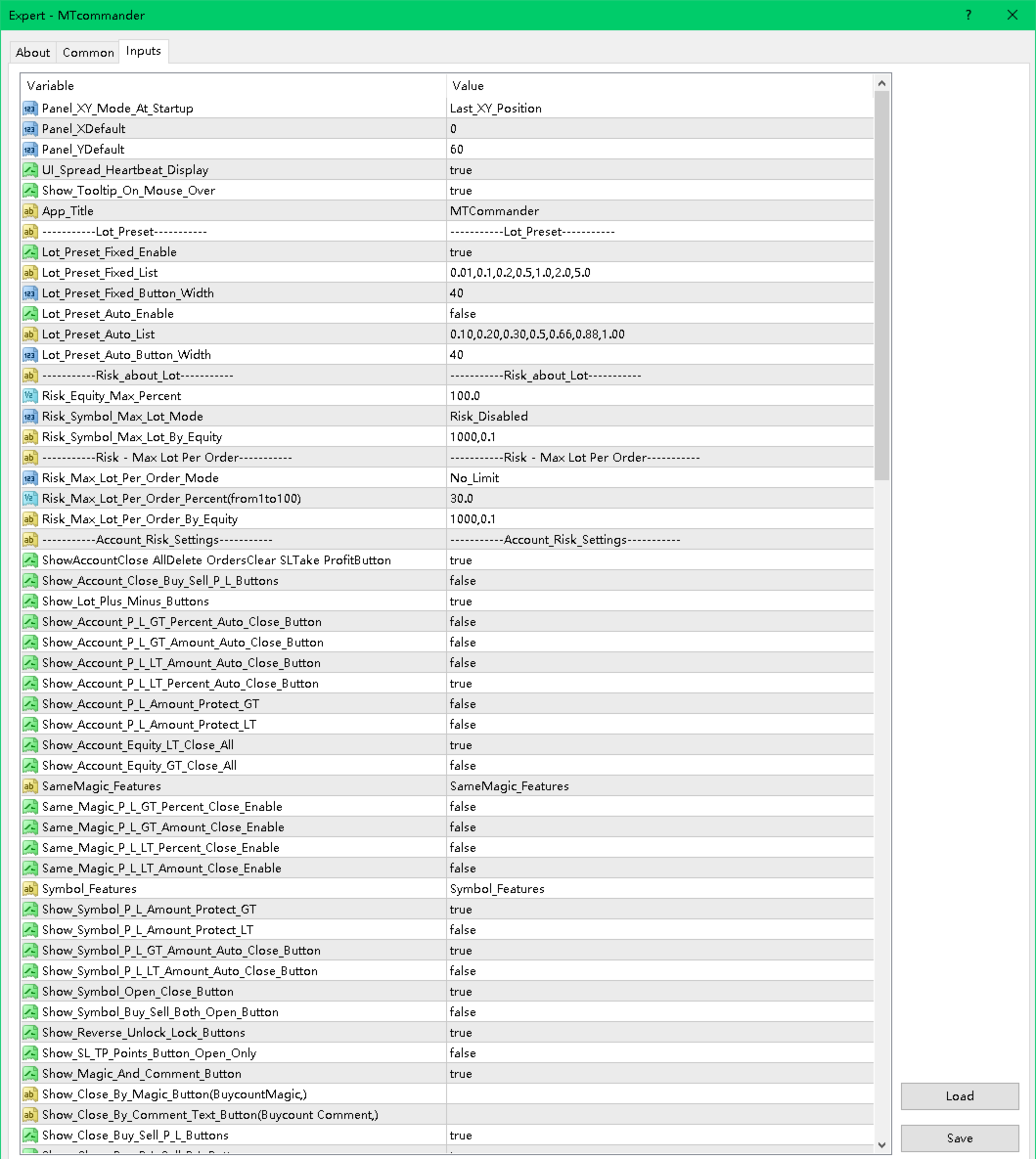
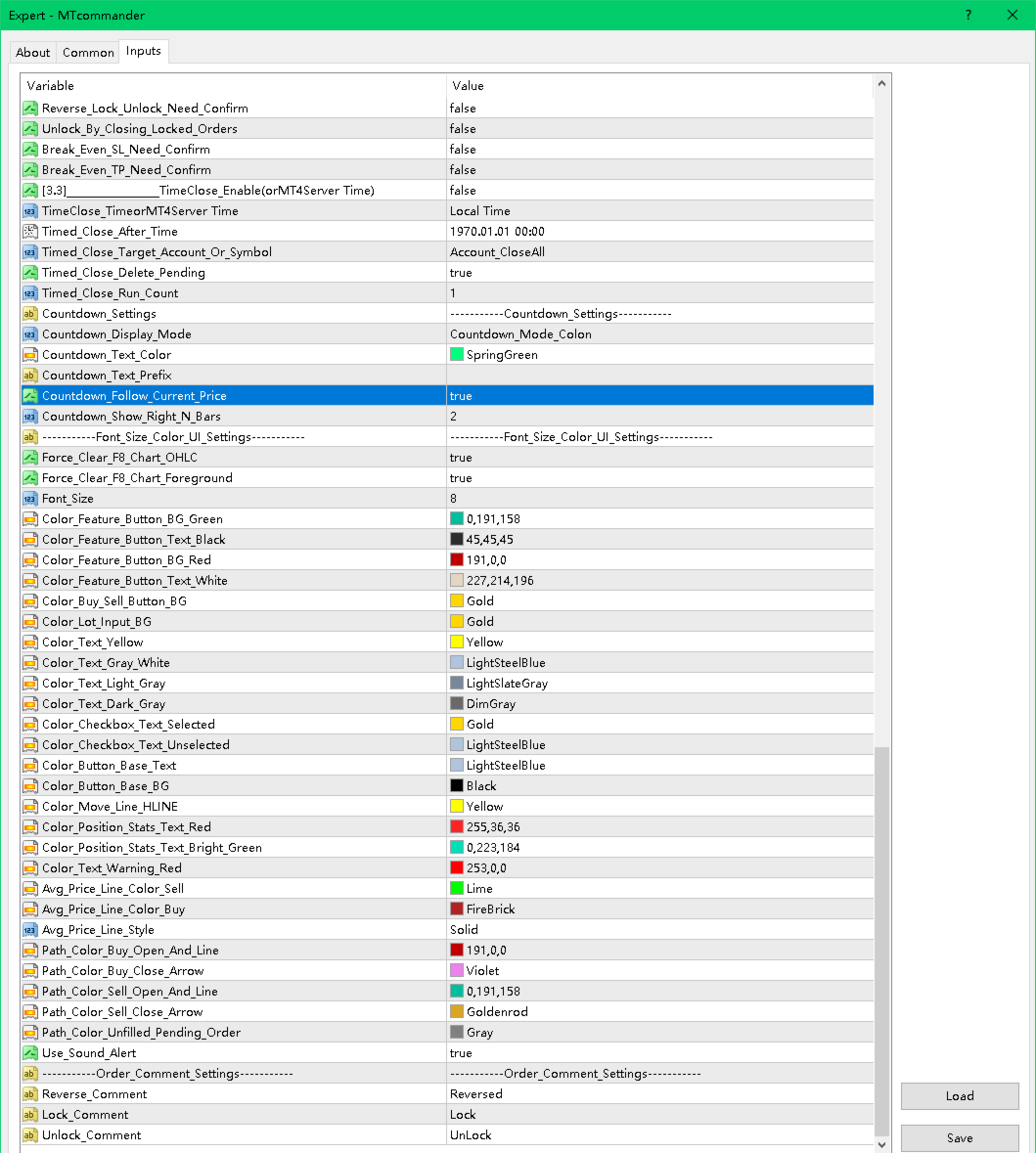
Panel and Display
- Panel startup position.
- Fixed X/Y panel coordinates.
- Tooltip display.
- Spread heartbeat display.
- Hide unused elements.
- Minimize and restore behavior.
Lot and Risk
- Fixed lot preset list.
- Auto lot preset list.
- Risk-based lot calculation.
- Maximum account risk percent.
- Symbol maximum lot controls.
- Maximum lot per order controls.
- Large lot split options.
Hotkeys
If hotkeys are enabled in the product settings, check the assigned keys carefully. A hotkey can send a trading command quickly. Disable hotkeys that you do not use.
Account Risk Settings
- Account close-all buttons.
- Account close Buy/Sell.
- Account close profit/loss.
- Account P/L percent or amount trigger.
- Account equity trigger.
- Account trailing amount protection.
- Daily or weekly timed close.
- Account floating loss controls.
Symbol Features
- Current symbol open/close buttons.
- Buy/Sell/Both open buttons.
- Reverse / Lock / Unlock.
- Magic and comment tools.
- Partial close buttons.
- Fixed-lot close tools.
- Average price display and calculations.
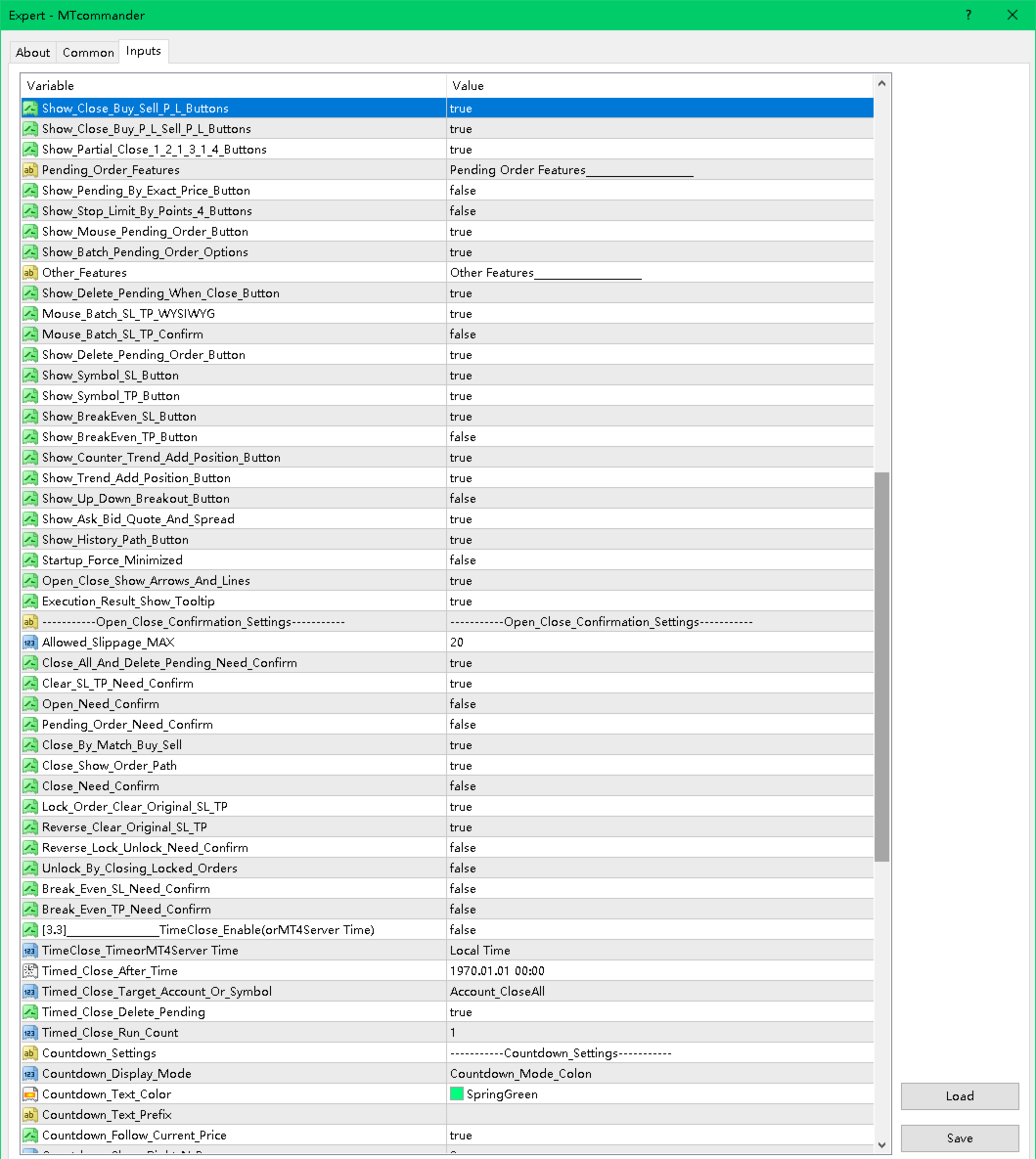
Pending Order Features
- Pending by exact price.
- Pending by distance in points.
- Four-button pending order layout.
- Mouse pending.
- Batch pending order options.
- Delete pending after close options.
SL/TP and Trailing
- Symbol stop loss and take profit tools.
- Batch SL/TP.
- Mouse SL/TP.
- Exact price SL/TP.
- Break-even SL.
- Trailing SL.
- ATR trailing.
- MA trailing.
- Floating-loss take-profit exit.
Add-Position Tools
- Counter-trend add.
- Trend-following add.
- Batch counter-trend add.
- Batch trend-following add.
- Breakout add.
============================================================
Safety Notes
============================================================
MTCommander can send trading requests immediately. A wrong click, wrong lot size, wrong symbol, wrong direction or wrong scope may cause real loss.
Please read and follow these safety notes:
- Test on a demo account first.
- Use the smallest lot size during testing.
- Check broker minimum lot, maximum lot and lot step.
- Check spread and stop level before placing pending orders or SL/TP.
- Check margin before opening or adding positions.
- Be careful with grid, batch pending and add-position functions because they can increase exposure quickly.
- Keep MT4 connected if you rely on EA-managed rules.
- Server-side SL/TP can remain with the broker, but EA-managed logic requires the terminal to run.
- Protection rules may fail to execute during disconnection, high volatility, rejected trade requests, trading disabled state, market close, broker restrictions or insufficient margin.
- No tool can remove trading risk.
- Market risk remains with every trade.
============================================================
FAQ and Troubleshooting
============================================================
1. The panel does not appear.
- Confirm that the EA is attached to the chart.
- Check that AutoTrading is enabled.
- Check the Experts and Journal tabs.
- Try changing the panel X/Y position.
- Make sure the chart is not too small.
2. Buttons do not open or close trades.
- Confirm that live trading is allowed for this EA.
- Confirm that AutoTrading is enabled.
- Check broker trading hours.
- Check spread, margin and symbol trade permission.
- Check the Experts tab for rejection messages.
3. Lot size is rejected.
- Check broker minimum lot.
- Check broker maximum lot.
- Check lot step.
- Check whether the calculated risk lot is below the minimum or above the maximum.
4. Pending order is rejected.
- The pending price may be too close to current price.
- The broker stop level may require a larger distance.
- The symbol may have special execution rules.
- The market may be closed.
5. SL or TP is rejected.
- SL/TP may be too close to market price.
- The broker stop level or freeze level may block modification.
- The direction may be wrong for the selected position.
- Some symbols require different point value handling.
6. What is the difference between position and pending order?
- A position is an already opened trade.
- A pending order is not opened yet. It waits for price to reach a trigger level.
- MTCommander uses "position" for opened trades and "pending order" for Buy Stop, Sell Stop, Buy Limit and Sell Limit orders.
7. Does MTCommander use DLL?
No. The Market version is prepared without DLL import and without external command execution. Sound and alert functions use allowed MT4 mechanisms.
8. Is MTCommander an automatic trading strategy?
No. It is mainly a manual trading panel and trade management assistant. Some management rules can be enabled, but it does not predict market direction.
9. Can I use it on any symbol?
It is designed for MT4 symbols supported by your broker. Always test each symbol first because contract size, tick value, spread, stop level and execution rules may differ.
10. Can I use it on a live account immediately?
It is strongly recommended to test on a demo account first. Use a live account only after you understand the behavior of the functions you enable.
============================================================
Suggested Market Page Text
============================================================
Title idea:
MTCommander - One Click Trade Manager for MT4
Subtitle idea:
A compact manual trading panel for fast order execution, position management, pending orders, SL/TP, break-even and risk control.
Feature bullets:
- One-click Buy/Sell and close tools.
- Fixed lot and risk-based lot workflow.
- Close all, close Buy/Sell, close profit/loss and partial close.
- Pending orders by exact price, points, mouse and batch/grid tools.
- SL/TP, break-even, trailing stop and batch modification tools.
- Account, symbol, magic and comment based management options.
- Compact draggable chart panel with tooltips.
- No DLL in the Market version.
Risk statement:
MTCommander is a trading utility, not a market prediction robot. It can send and close trades quickly. Test all functions on a demo account before live trading.
============================================================
Suggested Screenshot Captions
============================================================
1. Main trading panel with Sell / Buy price area and Short / Long action labels.
2. Account-level close and protection tools.
3. Current symbol position management tools.
4. Pending order tools by points and exact price.
5. Batch pending and grid order functions.
6. Symbol SL/TP and batch SL/TP tools.
7. Break-even SL and trailing stop tools.
8. Add-position and breakout management tools.
9. Panel display, tooltip and chart helper functions.
============================================================
Keywords
============================================================
manual trading panel
trade manager
one click trading
MT4 trading panel
MetaTrader 4 utility
position management
pending orders
close all
partial close
break even
trailing stop
risk management
SL TP manager
order management
grid pending orders
trade assistant
============================================================
Support
============================================================
For questions, bug reports or suggestions, please use the MQL5 Market Comments or MQL5 Messages system.
When reporting an issue, include:
- Product version.
- MT4 build number.
- Broker name and symbol.
- Screenshot of the panel.
- Experts tab message.
- Exact steps to reproduce the issue.
============================================================
Final Reminder
============================================================
Trading involves risk. MTCommander can make trade management faster, but faster execution also means mistakes can happen faster. Start with demo testing, use small lot sizes, and enable only the functions you understand.