DuoFX Risk & Prop Guard user guide: prop firm risk manager for MT5 and MT4

This is the user guide for DuoFX Risk & Prop Guard for MT5 and MT4, a prop firm risk manager and lot size calculator in one panel. It keeps the numbers of a challenge in view every second: the lot size for your risk, how much of today's loss limit is used, how far you are from the max drawdown and how close the profit target is. It never opens a trade.
How-tos and articles: How to pass a prop firm challenge without breaking the daily loss limit (MT5/MT4) and Lot size from risk and drawdown meters for prop traders.
What it is
- An Expert Advisor with a panel. It never opens trades. It watches, warns and, only if you switch it on, closes.
- A lot size calculator: drag the stop line on the chart and the lot size for your risk updates at once.
- An account guard: today's P/L, daily loss and max drawdown meters, room to the nearest limit, profit target progress, days with closed trades and an optional consistency check.
- Rule presets that start from the published rules of FTMO, FundedNext, Funding Pips, The5ers and Alpha Capital, plus generic 2-step, 1-step, instant funding and personal templates. Every value is editable.
- Open risk: money at risk to your stops across all positions, positions without a stop flagged in red, and what equity would be left if every stop hit.
- Alerts at two warning levels and at the limit, and an optional auto-close at a loss limit, off by default.
- MT5 and MT4, same features. No DLLs, no internet connection.
Install and first run
- 1. Install it from the Market: in the terminal press Ctrl+T, open the Market tab, then Purchased, and click Install.
- 2. Open one chart of the symbol you trade, for example XAUUSD.
- 3. In the Navigator, find DuoFX Risk & Prop Guard under Expert Advisors, Market, and drag it onto the chart.
- 4. If you want the Close all button or auto-close, allow Algo Trading on the Common tab (MT4: "Allow live trading") and switch on the Algo Trading button in the toolbar (MT4: AutoTrading). The meters and the calculator work without it.
- 5. On the Inputs tab, check at least the rule template, the account size and the challenge start date. Then press OK.
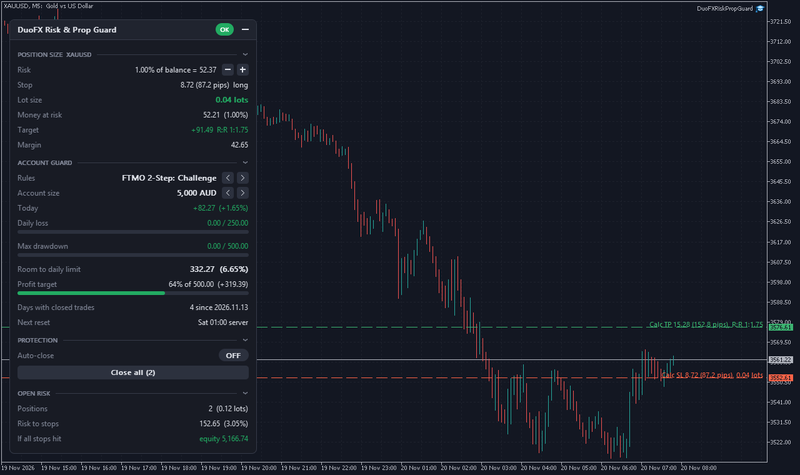
The panel opens at the top left with four sections: Position size, Account guard, Protection and Open risk. The status pill in the header reads OK, then CAUTION at the first warning level, DANGER at the second, LIMIT when a limit is reached and AUTO-CLOSE while auto-close is active. Drag the header to move the panel, and click a section title to fold it.
Account size and challenge start
The limits of a challenge are measured from the account size you bought, not from today's balance. Pick it on the panel with the arrows next to Account size (5K to 400K, or the balance), or type it in the inputs. Left blank, the guard takes your balance when first attached and flags it until you pick your size.
If you are already partway through a challenge, type the start date in "Challenge start date". The guard then rebuilds the closed balance high and the end-of-day high from your deal history since that date. The equity high cannot be rebuilt, since past floating profit is not in the history, so it is tracked from the moment you attach the guard, and the panel says so.
Rule templates and firm presets
Pick the template on the panel with the arrows next to Rules, or in the inputs. The firm presets follow each firm's public rules pages as of 2026-11-09:
- FTMO: 2-Step (Challenge, Verification, Funded), 1-Step (Challenge, Funded), Instant.
- FundedNext: Stellar 2-Step (Phase 1, Phase 2, Funded), Stellar 1-Step (Challenge, Funded).
- Funding Pips: 2-Step Standard (Phase 1, Phase 2), 2-Step Pro.
- The5ers: Hyper Growth, 2-Step (Step 1, Step 2), Instant Funding.
- Alpha Capital: Pro 10% (Phase 1, Phase 2), One 10% (Evaluation, Qualified), Direct.
Generic templates: 2-step phase 1 (5% daily, 10% max, 10% target), phase 2 (5% target), funded 2-step, 1-step trailing (4% daily, 6% trailing), instant funding style (3% daily, 6% end-of-day trailing), personal limits and custom. Any value can be overridden in the inputs, in % of the account size or in money.
Prop firms change their rules often, so check your firm's current rules and edit the values to match. DuoFX is not affiliated with, endorsed by or sponsored by any prop firm; the names only say which published rules a preset follows.
The position size section
- Risk: % of balance, % of equity or a fixed amount of money, 1% of balance by default. The minus and plus buttons step it (0.25% at a time for a percentage).
- Stop: from the chart lines by default. Drag the red "Calc SL" line and the green "Calc TP" line. You can also type the stop in points, pips or price in the inputs.
- Lot size: risk money divided by the loss per lot at your stop, plus commission, rounded down to the broker's volume step. Minimum and maximum lot are respected, with a warning when the minimum lot is already too big for your risk.
- Money at risk: what the rounded lot size really risks, with its share of the balance.
- Target and R:R: the reward at the target line and the reward to risk ratio.
- Margin: the margin the lot size needs.
The stop shows as a price distance with its pips: 0.10 is a pip on gold, so a 17.55 stop on XAUUSD reads "17.55 (175.5 pips)", and 10 points is a pip on 5-digit forex. Change "Points per pip" if your broker counts differently. The how-to Lot size from risk and drawdown meters for prop traders walks through the maths with gold examples.
The account guard section
- Today: P/L since the daily reset, in money and %.
- Daily loss: the loss used today against the daily limit, as a bar that turns amber, then red, as you get closer.
- Max drawdown or Trailing drawdown: the drawdown used against the max limit.
- Room to daily limit or Room to max drawdown: the money left before the nearest limit, or LIMIT HIT.
- Profit target: progress in plain words, such as "0% of 1,000.00 (-258.74)" on a losing start.
- Consistency: the best day as a share of total profit, on presets that have the rule.
- Days with closed trades and Next reset in server time.
Deposits, withdrawals, credit and bonus are taken out of today's P/L, the highs and the target progress, so a payout or a top-up never shows as a profit or a breach.
Daily reset and server time
A firm's trading day starts at its own reset time in its own time zone, which is rarely your broker's server time. With a firm preset, the guard takes the firm's reset (for example FTMO's 00:00 CE(S)T) and converts it to server time with real daylight saving rules for both clocks. On a GMT+2/+3 server that is 01:00 most weeks and 02:00 in the weeks when Europe and the US change clocks on different dates. The broker's server clock is detected automatically, or you can set it by hand. You can also pick "Server time" or any time zone and type the reset time.
The daily loss can be measured from the balance at day start, the equity at day start or the higher of the two, as your firm's rules say.
Max drawdown: static or trailing
Static drawdown is measured from the account size. Trailing drawdown can follow the equity high, the closed balance high or the end-of-day high, with an optional lock that stops it rising past the starting balance. The presets set the type each firm publishes.
Alerts
Two warning levels, 50% and 80% of a limit by default, then the limit itself. Each alert can go out as a popup, a push notification to your phone, an email and a sound. Each fires once per level per trading day, not on every tick, and not again after a restart. Change your limits and the alerts re-arm. An optional alert flags any position without a stop loss.
With several charts on one account, alerts come from one chart only; the others show "Alerts are sent from another chart". Use the same settings on every chart that carries the guard.
Auto-close and Close all
Auto-close is off by default. Switched on, when a limit reaches the level you set (95% by default), the guard closes your open positions, then closes any new trade as soon as it appears, usually within about a second, until the daily reset. Pending orders are deleted too while it is active (an input). It can also act at the profit target if you choose.
- It cannot stop a trade from being opened in MetaTrader. It closes it afterwards, after the spread and commission are paid.
- A magic number and a symbol filter limit it to the trades you choose. Typing XAUUSD also covers your broker's XAUUSD.a or XAUUSDm.
- Switching it on, or off during an active lock, takes a second click to confirm.
- It pauses itself, with a note, when the balance is far from the account size (usually a wrong Account size setting) and while the balance and the deal history disagree.
- It retries a failed close a limited number of times, never loops, and logs every action in the Experts tab.
Close all closes your open positions (and pending orders, if that setting is on) after a second click to confirm, with the same filter as auto-close.
Panel, minimised bar and themes
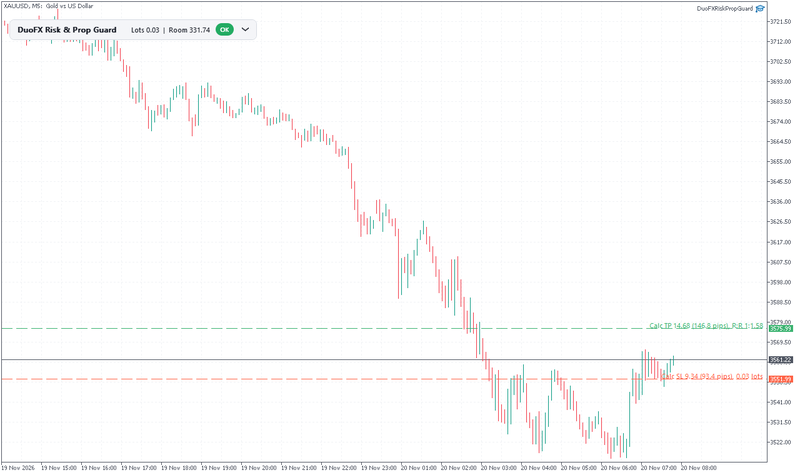
The minus in the header minimises the panel to a slim bar that keeps the lot size and the room to the limit, or "Limit hit". On a short chart, missing stops and an active auto-close stay at the top and the info notes give way first. The theme follows your chart, dark or light, or you set it in the inputs. The panel updates once a second and redraws only when a number changes. The day start, the drawdown highs, the auto-close state and the alerts already sent survive restarts, timeframe changes and terminal reboots.
Settings
- Position size: risk based on, risk, minus and plus step, stop from, stop and target values, points per pip, commission per lot.
- Rules: template, account size, daily loss limit and unit, daily reference, daily % base, max drawdown, unit and type, trailing lock, profit target, consistency, daily reset mode, time and zone, server clock, challenge start date.
- Alerts: two warning levels, popup, push, email, sound, alert on a position without a stop.
- Auto-close: on or off, action level, also at the profit target, delete pending orders, magic number filter, symbol filter, max slippage.
- Dashboard: corner, offsets, theme, font, font size, start minimised, Strategy Tester DEMO mode.
FAQ
- Does it open trades? No. It never opens a trade. It closes only if you switch auto-close on or click Close all.
- Can it block a trade? No. MetaTrader gives an EA no way to block an order. With auto-close on it closes a new trade as soon as it appears.
- Does it check minimum trading days or news rules? No. It watches daily loss, drawdown, profit target and consistency.
- Does it need to stay open? Yes. Keep the terminal running, on a VPS if you can: no EA can watch an account while the terminal is closed.
- What does "(est.)" next to the day start mean? With a day start measured from equity, the guard must be running at the reset. If it was not, it uses the first equity it sees that day and marks the figure "(est.)".
- What do I need on MT4? Set the Account History tab to "All History" so past days are counted. MT4 updates on price ticks, so the new day starts on the first tick after the reset.
- Can I try it in the Strategy Tester? Yes. It runs a DEMO mode with simulated P/L, labelled DEMO on the panel. The panel buttons do not respond in the tester, so set the risk in the inputs.
- Can I use it on a normal account? Yes. Pick "Personal limits" or "Custom", or use it only as a lot size calculator.
The screenshots come from a demo account with the account size set to 5,000 and a few small test positions open. They show how the panel reads, not a trading result.
Risk note: trading forex, gold and CFDs carries a high risk of loss. DuoFX Risk & Prop Guard is a risk management tool: it shows your numbers, warns and can close trades, and the trading decisions stay yours. Stops and closes can fill further away in gaps and fast markets, so a limit can still be passed. It is not financial advice and does not promise any result. Firm presets follow public rules as of 2026-11-09: verify them with your firm.