Source-reviewed guide: 18 November 2026, EA version 2.14. Features and controls described below reflect the reviewed source, not a fresh end-to-end certification of every online service or broker execution path. Check current release notes.
Learn the process. Understand the decision. Control the risk.
Read this first
This is an adult trading-tool manual, not a guarantee of profitable trades. The game-style interface, KID character, XP and missions do not make leveraged trading safe. Use a broker demo account first. If a child uses the learning interface, an adult must supervise and keep it disconnected from real-money trading.
The EA includes execution-capable code. Do not assume that “SIM”, Rookie, a sleeping character or a practice-style screen means broker orders are impossible. The reviewed build defaults Structure entries to ON. Manual popup mode alone does not disable this separate automatic entry engine.
Safe first launch
Use a demo account. Leave MT5 Algo Trading OFF while installing and reviewing settings.
Set Settings > KID Behaviour > Structure trades OFF, select Manual decisions and clear remembered approval choices before practice.
Check both EA inputs and saved in-panel settings. Confirm account, symbol, risk, limits and any existing positions before enabling execution.
Do not activate live execution until the publisher has verified the release-specific risk and graduation behaviours for your installed version.
Inside this guide
1 Installation and connection • 2 First session and trade decisions • 3 Every main page • 4 Fundamental intelligence • 5 Settings reference • 6 Learning and multiplayer • 7 Better decision workflow • 8 Troubleshooting
1 Install and connect
Requirements
MetaTrader 5 desktop with a working broker connection, a demo account for initial practice, sufficient chart history and an internet connection. MT5 mobile is not a host for this desktop EA.
The correct licensed/approved EA build and its supplied resources. Do not mix old include files or artwork with a new build. A source package is not the same as a Market installation.
Access to the hosted Sim Kid AI service. Current setup does not ask buyers to embed their own AI provider key in the EA. Hosted AI, news and community functions depend on the service being available.
Installation steps
1. Open MT5 and confirm the account is DEMO. Keep Algo Trading OFF.
2. For a Market copy, install through your signed-in MT5 Market purchases. For an authorized developer package, use File > Open Data Folder and the supplied MQL5 > Experts location; preserve the package folders. Refresh Navigator or restart MT5 after installation.
3. Open a chart for a symbol your broker actually provides. Load its history. Attach the EA from Navigator > Expert Advisors.
4. Review Inputs. Set StructureEntries false for initial practice, then also verify the saved in-panel Structure trades setting is OFF. Saved settings may take precedence.
5. Open Tools > Options > Expert Advisors. Enable Allow WebRequest for listed URL and add the address below. Click OK.
6. Return to the setup screen and choose CHECK AGAIN if it does not check automatically. Wait for the service health check to succeed.
7. Check Settings, set your nickname, and inspect the chart before permitting any order execution.
WebRequest address:
https://kid-ai-sims-multiplayer.kidsim-community.workers.dev
The setup check expects a successful /health response identifying KID AI SIMS. Until it passes, KID remains asleep and scan/decision functions are gated. A network connection alone is not proof that AI responses, news or mentor data are available.
Optional notifications and display
For phone notifications, configure your MetaQuotes ID in MT5 Tools > Options > Notifications and test it there. PhoneNotifications and ShowDecisionPopups are enabled by default in the source. FillChart and StretchPanel default ON. Resize the chart first if text is clipped; choose keep-shape behaviour if stretching is uncomfortable.
Keep the installation private
Never share login details, broker account numbers, identity tokens or provider secrets in community chat or screenshots. Check the About page and terminal title before capturing images.
2 First session and trade controls
Practice before execution
Begin with one chart, one symbol, manual decisions and Structure trades OFF. Review the account and current positions in the MT5 Toolbox. A panel pause or disabled Algo Trading does not close an already-open trade. Existing positions still require supervision.
Understand the decision popup
Approve: permits the proposed order path, subject to checks. Read direction, entry, stop loss, take profit, size and expected risk first. Approval against KID advice can incur XP penalties; a penalty is not a block.
Wait: defers the decision to a later candle. This is appropriate when conditions or data are unclear.
Reject: records the decision without taking that proposed trade.
Discuss: explores the mentor summary and interpretation before deciding. Discussion is not proof of a profitable setup.
The default decision interval is 180 seconds. Manual, Auto-Wait and Full Auto control the popup decision path. Full Auto has a two-tap confirmation. Remembered choices can affect subsequent decisions; use Forget choice to reset them. Structure trades is a separate automatic strategy and must be reviewed independently.
Two different kinds of “trade”
The Fundamental page’s Buy/Sell/Wait choice is a practice idea and does not place an order. Execution controls elsewhere in the EA can place broker orders. Never infer execution behaviour from colour, XP rewards or the word “ready”. Verify the terminal trade record after every demo action.
Pre-order checklist
Correct demo account, symbol and timeframe; market is open and broker permits the operation.
A clear entry reason and an invalidation level; stop loss and target make sense for the current spread and volatility.
Lot size fits broker minimum, maximum and step; margin is sufficient. If the minimum lot exceeds your intended risk, skip the trade.
Total exposure includes other charts and other EAs, not just the current card.
No duplicate order after a timeout. Check open positions and history before retrying.
Risk defaults need deliberate review
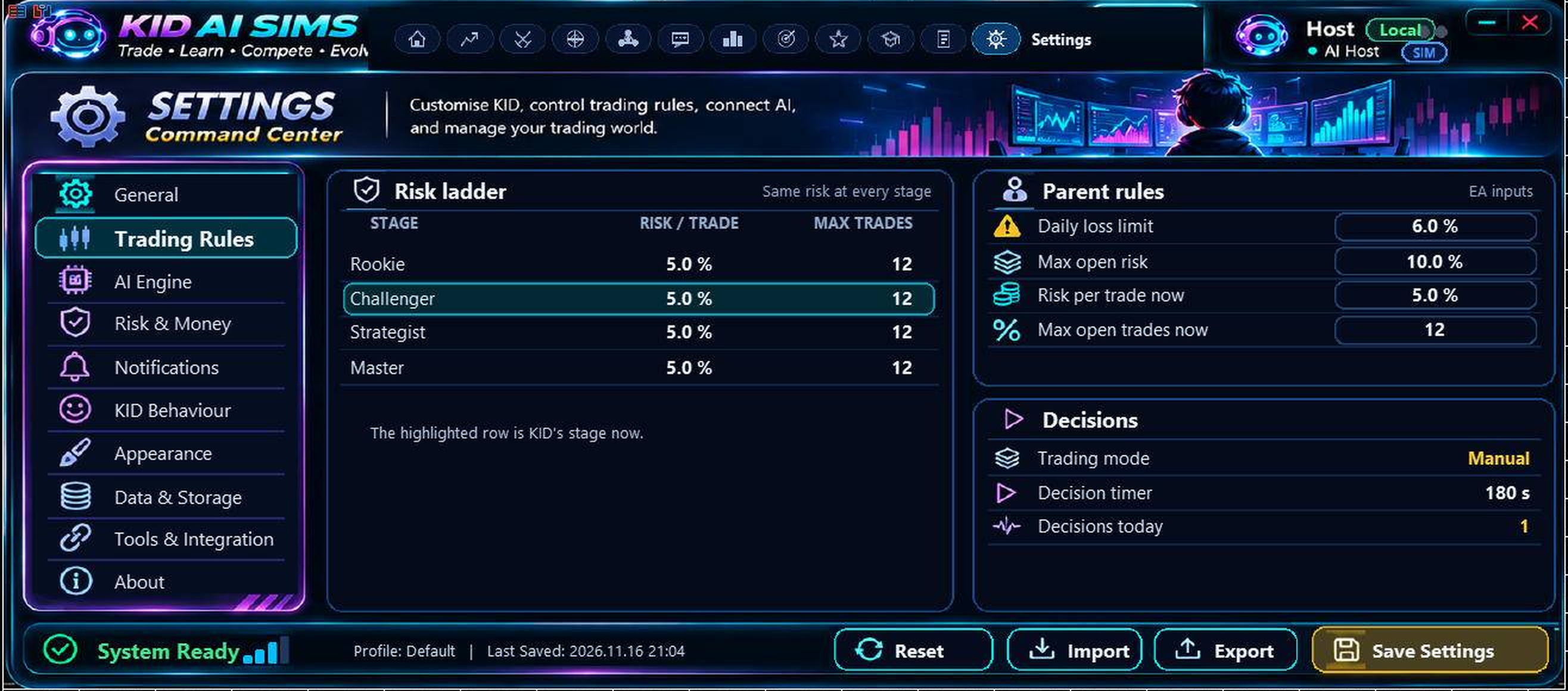
The reviewed stage risk base is 5% per trade, a high-risk setting, not a recommendation. Main inputs default to a 6% daily-loss limit and 10% maximum exposure. Structure code contains a 0.5% risk minimum in some paths, so choosing 0.1% in a panel does not establish that every order risks 0.1%. Do not enable live automation on the assumption that all limits are uniformly enforced.
3 Every main page: what to do
KID
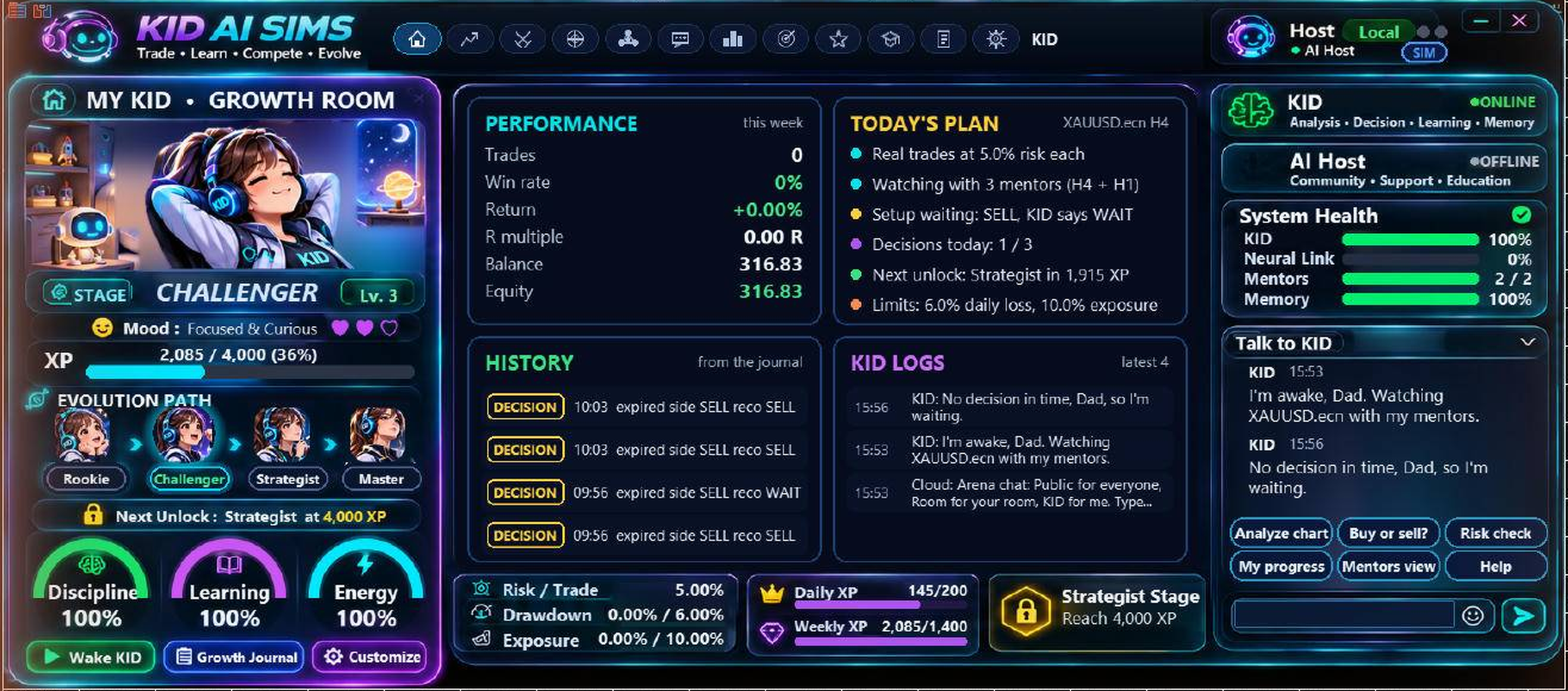
Your companion and growth view: mood, XP, discipline, learning, energy, stage and activity. Use Wake KID after setup succeeds, review the Growth Journal and customize the character. Learning and XP percentages are engagement/progression measures, not statistically calibrated win probabilities.
Trade
Review the current chart, setup and proposed execution details. Confirm higher-timeframe context, momentum, spread and risk. Use the decision workflow rather than treating a coloured signal as an instruction. A trade-page visit can count toward a mission; it does not establish trade quality.
Arena
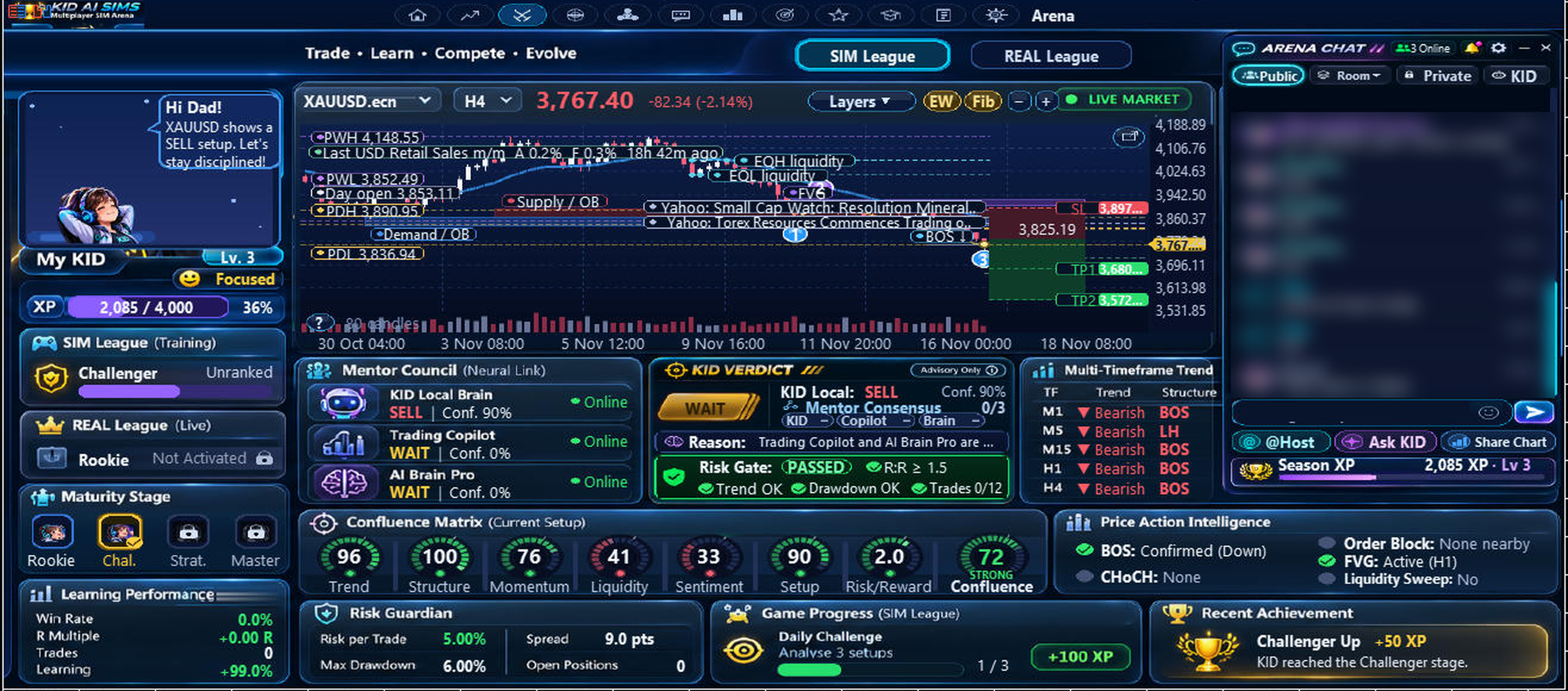
The main activity dashboard combines chart context, timeframe controls, growth and community. Timeframe chips include M1, M5, M15, H1, H4 and D1. Review trend, ATR volatility, session, mentor disagreement and system health. Embedded chat offers Public, Room, Private and KID views.
Neural Link
Inspect the mentor connections, reasoning, signal/confidence information and disagreement. Mentor One is the price-action path; Mentor Two uses the hosted AI Brain Pro path. A connection badge alone does not prove fresh usable analysis. If data are unavailable or stale, wait rather than substitute assumptions.
Chat
Use the channel list to select public, room, private or KID conversation. Read Players here and Friends carefully before sending. Private chat requires the friendship flow. Tap a message for available add-friend, private-chat, mute or report actions. Do not share personal information or follow unsolicited financial instructions.
Leaderboard
Compare the displayed competition/progression metrics. Check the metric and period shown. Rank, activity and XP are not audited returns or evidence that another player’s strategy suits you. Never increase risk merely to climb a ranking.
Missions
Switch between Daily, Weekly and Event Missions, then filter All, In Progress or Completed. Categories cover Trading Analysis, Decision & Discipline, Learning & Growth, Risk Management, KID Interaction and Trading Wars Event. The source defines 18 missions. Prefer learning/review tasks; never take extra trades just to earn XP.
Achievements
Review earned and upcoming milestones. Treat badges as progress markers, not broker permission or an investment qualification. Check each stated requirement before assuming a milestone should unlock.
3 Every main page: continued
Academy
Complete the six core lessons in order: What is a trade?; Your stop loss; Risk per trade; Reading the trend; RSI and momentum; Why waiting is a skill. Read the lesson and complete its quiz. A seventh “From your Brain” lesson uses linked AI Brain Pro history when available. It can show strongest/weakest setup information and coaching, but requires sufficient actual data.
Some instructional wording in the source describes Rookie shadow practice, while other paths can execute. Treat the explicit execution settings and terminal record as authoritative; do not rely on lesson text to prove orders are disabled.
Journal
Review previous decisions and trade ideas. Record why you approved, waited or rejected, whether you followed the plan, and what happened after costs. Use the journal to distinguish a good process with a losing outcome from a poor process that happened to win. Back up the journal before updates.
Settings
The control centre contains ten sections, documented on the next page. Recheck saved settings after importing a profile, reattaching, changing account or upgrading. Input values and current runtime values can differ.
Fundamental
Use the four-card workflow on the next page to connect scheduled events, previous market reactions and present price action. Interpretation is not prediction. Its practice choices do not themselves place orders.
Specialists and helper views
A separate Specialists page and contextual Ask/AI Host tools are present. Use the role and explanation displayed to understand the perspective offered. This review did not verify every specialist’s live output or availability, so no specialist-specific performance claim is made. Check availability rather than assuming all experts are connected.
Typical 15-minute practice session
1. Check setup and account safety.
2. Read Arena and Trade context without entering.
3. Check Fundamental for relevant event risk.
4. Ask KID to explain one setup and one reason to reject it.
5. Make one deliberate Approve/Wait/Reject decision on demo, only if you understand the effect.
6. Review the result in Journal and the terminal.
7. Complete a lesson or review mission. Stop when your planned session ends.
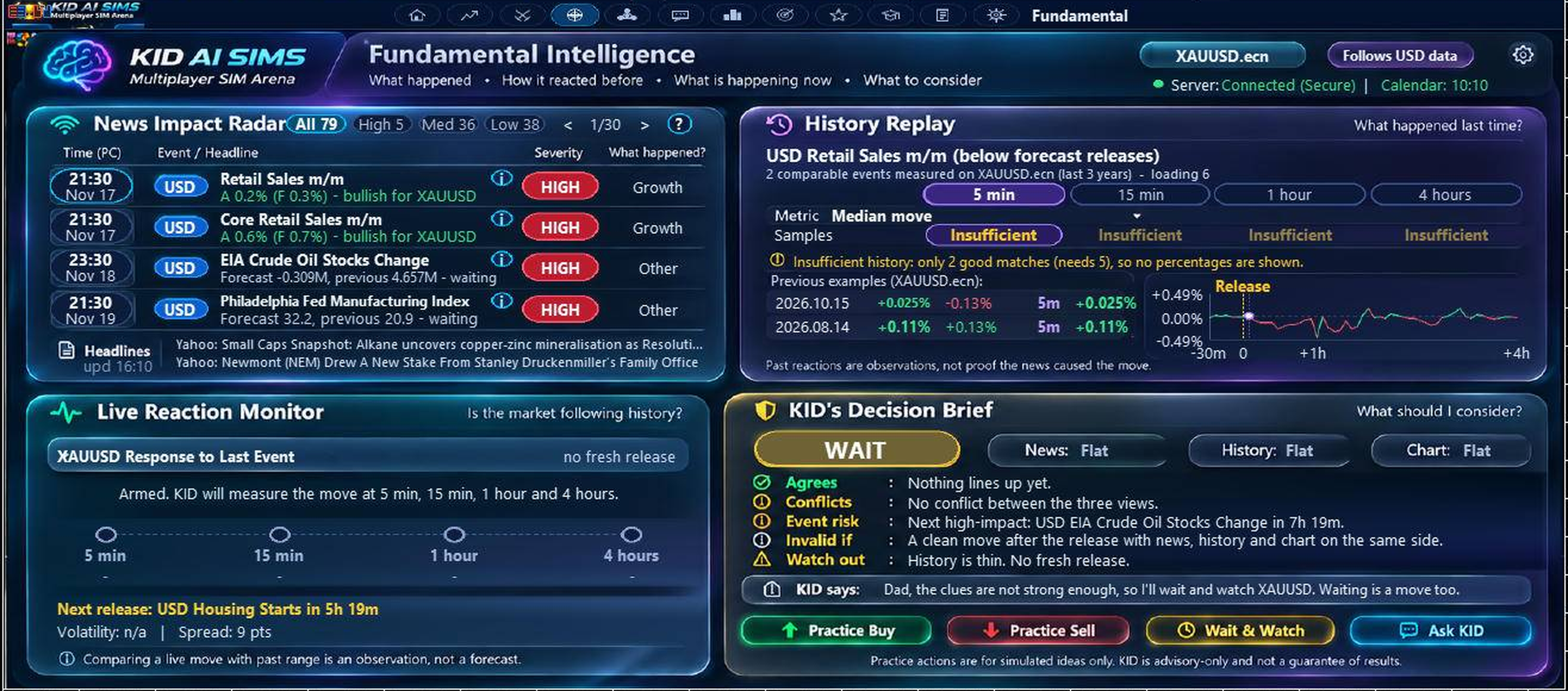
4 Fundamental intelligence: four cards
1. News Impact Radar: what happened?
Combines MT5 economic-calendar events with headlines from the hosted feed. Review event currency, importance, release time, actual, forecast and previous values when supplied. Filter by impact and select an event. A headline without an actual/forecast comparison is not a measured surprise. Check whether the event is relevant to the chart symbol.
2. History Replay: what happened last time?
The source searches comparable releases of the same calendar event and surprise direction, then measures M1-chart movements over 5 minutes, 15 minutes, 1 hour and 4 hours. Select a window and inspect the available examples. Missing historical candles or too few comparable events mean evidence is limited. A historical move is not a future target or a probability estimate.
3. Live Reaction Monitor: is price following?
Observe the current move, volatility and spread since the release, alongside past reactions. Wait for actual price confirmation rather than assuming the first spike will persist. Wide spreads, gaps, delayed prices and conflicting reactions can make an otherwise plausible idea unsuitable.
4. KID’s Decision Brief: what should I consider?
Reads the news/history context together with the EA’s chart view to form bullish, bearish, mixed or wait interpretations. Use the practice Buy/Sell/Wait choice to record a view, not to send a broker order. Ask what would invalidate the interpretation and what data are missing.
Useful questions
“What changed versus the forecast, and why does it matter to this symbol?”
“How many comparable releases are available, and are any candle measurements missing?”
“Is the current spread or volatility unusually high compared with normal conditions?”
“What evidence supports waiting instead of entering now?”
Headlines, calendar data, local price history and AI interpretations have different sources and update timings. Do not present a combined card as a verified causal explanation. This manual confirms the code’s intended workflow, not the completeness of today’s feed or the validity of a trading edge.
5 Settings: all ten sections
General
Review EA running/paused state, trading mode, primary timeframe, current symbol, chart fill, KID identity and connection summaries. Primary timeframe choices include M5, M15, M30, H1, H4 and D1.
Trading Rules
Review decision behaviour and limits shown. Keep manual review for initial practice. Confirm remembered choices are cleared and do not mistake popup mode for the separate Structure trades switch.
AI Engine
Review hosted connection and mentors. Mentor enable inputs are EnableMentorOne and EnableMentorTwo. Confirm actual fresh output, not just a connection badge. No buyer provider key is required by the reviewed hosted setup.
Risk & Money
Review per-trade risk, daily loss, exposure and maximum trades together. “Use defaults” restores stage/input-derived settings, which are not necessarily conservative. The UI permits very high values; this is not a recommendation to use them.
Notifications
Review decision alerts and phone-notification preferences. Configure and test MetaQuotes ID separately in MT5. Notifications may be delayed and are not guaranteed protective controls.
KID Behaviour
Set Structure trades deliberately. It is independent of popup mode and defaults ON in the reviewed build. Inspect learning/decision behaviour before enabling unattended execution.
Appearance
Adjust Fill chart and shape/stretch behaviour for readability. Permanent input settings include FillChart and StretchPanel. Keep all values and action buttons visible; do not trade from a clipped panel.
Data & Storage
Save/export/import the settings profile and reload journal data as offered. Profile export is not a full backup of XP, identity and history. Back up both data files and relevant MT5 global variables.
Tools & Integration
Use Check again for hosted-service connection, save chart picture, Ask KID chart and Talk AI Host. Inspect screenshots for account data before sharing. Keep only the required trusted service URL allowed.
About
Verify EA version, MT5 build and account/server details. These details can be sensitive. Record version when reporting issues, but redact account identifiers in public posts.
6 Learning, community and storage
Growth is not a profit guarantee
Source stage thresholds are Rookie, Challenger (1,000 XP), Strategist (4,000 XP) and Master (12,000 XP plus a displayed win-rate condition). Lesson gates also apply: two, four and six passed core lessons respectively. Demo/live stage restrictions exist. Do not fund a real account just to unlock a game stage. Exact release-specific gate behaviour needs final verification.
XP can reward decisions, waiting, lessons, review and interaction. Some unsafe or contrary decisions receive XP penalties, but a penalty is not necessarily an execution block. “Learning” can be calculated from weekly XP; it is not a trained model’s measured predictive accuracy.
Community identity and communication
Your online player ID and friend code are intended to persist when your displayed nickname changes. Use /name, /friend CODE, /code and /help where supported. Preserve local identity data; losing a token can create a new identity. Changing broker accounts is not a supported method of evading moderation or creating extra players.
Public and room chat are visible to other participants. Private chat is intended for accepted friends. Use mute/report instead of engaging with abuse. Backend review/cooling controls and registration limits can restrict activity. Their effective values are server-managed and were not verified live for this guide. Do not promise a specific cooling duration or registration quota to customers until confirmed.
Local persistence and backups
The reviewed build stores journal/profile text under MQL5\Files\KID_AI_SIMS and uses MT5 global variables for XP, lessons and counters. A settings_profile.txt export is not a complete account-state backup. Before reinstalling or moving PCs, preserve the appropriate data securely and confirm identity recovery with the publisher. Do not distribute player tokens or secrets with a support bundle.
Backtesting versus online operation
MT5 Strategy Tester does not run WebRequest. The setup health gate is bypassed in the tester and decision handling can differ from live popup interaction. Therefore a backtest can assess a local strategy path, but cannot prove multiplayer, hosted AI, news, notifications or live broker execution work. Test those separately on demo.
Updates
Check the installed EA version against the publisher’s release notes. Close or supervise existing positions before changing builds. Back up first, update the approved binary, reattach only once, review all saved settings and confirm connections. Update notices depend on the EA’s reported version and hosted latest-version setting being aligned.
7 Build better decisions, not promises
There is no setting or sequence that guarantees winning trades. Use SIM to improve discipline and evaluate whether a repeatable approach remains useful after costs. The following is a practice process, not personalized investment advice.
Before a session
Choose a single setup definition, market and timeframe for the exercise. Write the reason to enter and the reason not to enter.
Check current news risk, spread, trading session and data freshness. Avoid evaluating an unclear or unavailable feed as a bullish/bearish signal.
Set a demo-session loss/stop condition and do not increase it after a loss. Check all open exposure across the account.
Before each trade
Ask KID: “Explain the setup, its invalidation and the strongest argument against it.” Compare that explanation with the actual chart. Identify stop placement first, then size the position. If broker minimum size or margin rules conflict with intended risk, skip instead of increasing risk. Wait when mentors disagree or the reward does not justify the uncertainty.
After each trade
Record planned risk, actual result including costs, and whether you followed the plan. Track average win, average loss, losing streaks, drawdown and expectancy, not win rate alone. A simple expectancy estimate is win fraction × average win minus loss fraction × average loss; use comparable units and include trading costs.
How to make AI assistance more useful
Ask focused questions using the current symbol, timeframe and decision. Do not ask only “buy or sell?”.
Ask the model to separate observations, assumptions and missing evidence.
Use your journal to review repeated mistakes. Do not treat a few favourable trades as proof of an edge.
Retest changes on an unseen period and forward demo. Change one setting at a time and record the version.
Stops can slip or gap; spread, commission and financing can change outcomes. Broker execution, connectivity and service outages matter. Do not rely on this EA to enforce prop-firm or broker rules without independently checking those rules and every relevant execution path.
8 Troubleshooting
Common problems
KID asleep / connection blocked: confirm the exact WebRequest URL, click OK in MT5 Options and retry CHECK AGAIN. Codes 4014/4060 indicate the request is not allowed in the current context. In Strategy Tester, online features are unavailable by design.
Mentor or Brain lesson empty: check the linked source, actual data availability and trade-history sample. Hosted mentor access and a linked Brain-history lesson are not the same dependency.
No order: inspect Algo Trading permission, EA pause, decision mode, market session, account gate, margin, lot constraints and the Experts/Journal log. Do not loosen safeguards simply to force a trade.
Unexpected order: turn Algo Trading OFF to prevent new EA requests, inspect existing positions, then check Structure trades and remembered approvals. Disabling automation does not automatically close existing trades.
Text clipped: resize/maximize the chart, adjust fill/stretch/shape and check display scaling. Make sure critical controls remain readable.
Registration/chat blocked: inspect the service error, identity state and moderation status. Do not repeatedly create accounts or bypass rate limits.
Missing news/history: verify calendar availability, symbol mapping, M1 history and hosted feed separately. Missing data are not a zero-impact event.