Scalping Gold Pro v1.22
Easy Guide to Optimizing the EA in MetaTrader 5

🛒 BUY SCALPING GOLD PRO ON MQL5 MARKET
This guide explains, step by step, how to open the MT5 optimizer, configure the Settings and Inputs tabs, optimize a small number of variables at a time, select a result, create a .set file, and load it into Scalping Gold Pro.
⚠ IMPORTANT: optimization does not guarantee future profits. A set file depends on the broker, the specifications of its Gold symbol, spread, commission, leverage, and the historical period used.
Scalping Gold Pro is designed for Gold/XAUUSD, the M1 timeframe, and a Hedging account. If your broker uses a name such as XAUUSD.a, GOLD, or XAUUSDm, select that exact symbol.
1. How to Open the Strategy Optimizer
- Open MetaTrader 5 and connect to the broker account whose data you want to use.
- Press Ctrl+R or open View → Strategy Tester.
- Select the Expert Advisor optimization task.
- In the Expert field, select Scalping Gold Pro.
Alternative: in Navigator → Expert Advisors, right-click Scalping Gold Pro and select Test. Then enable an optimization mode in the Settings tab.
2. How to Configure the Settings Tab
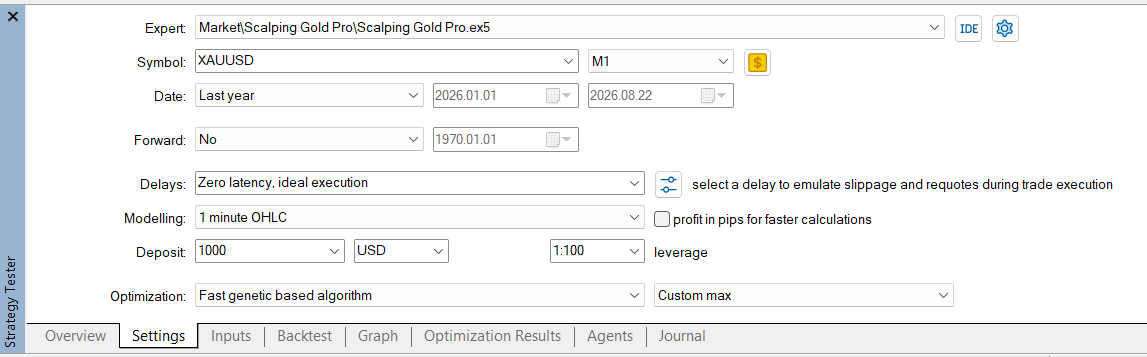
| Field | Recommended setting | Explanation |
|---|---|---|
| Expert | Scalping Gold Pro | Select the copy installed from MQL5 Market. |
| Symbol | Your broker's Gold symbol | Usually XAUUSD, although it may include a prefix or suffix. |
| Period | M1 | This is the EA's operating timeframe. |
| Date | Custom or predefined period | Last year is only an example. The longer the period, the longer the optimization will take. |
| Forward | No during exploration; 1/3 during confirmation | During the final optimization, you can reserve the most recent third of the period to verify the parameters. |
| Delays | Zero latency, ideal execution | Makes the initial comparison simpler and faster. |
| Modelling | 1 minute OHLC | This is the recommended mode for optimizing Scalping Gold Pro. New entries are evaluated at the start of each M1 candle. |
| Profit in pips | Unchecked | Allows the tester to consider the deposit currency and margin. |
| Deposit | Match the intended account | The USD 1,000 shown in the screenshot is only an example. |
| Leverage | Match your account | Leverage changes the margin used. |
| Optimization | Fast genetic based algorithm | Significantly reduces the number of tests when many combinations exist. |
| Criterion | Depends on your objective | You can use Custom max, Complex Criterion max, Drawdown min, or Profit Factor max. Each one ranks the combinations differently. |
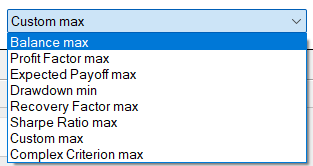
How to Choose the Optimization Criterion
The criterion tells the genetic algorithm which results should be considered better. There is no single correct criterion for every user.
| Criterion | What it prioritizes | When to use it |
|---|---|---|
| Custom max | Scalping Gold Pro's own criterion combines compounded monthly return, equity drawdown, and weekly trading activity. Passes with fewer than 5 trades or no profit receive a score of 0. | Use it when you want a balance specifically defined for this EA. |
| Complex Criterion max | MT5 combines multiple metrics, including the number of trades, drawdown, expected payoff, Recovery Factor, and Sharpe Ratio. | Use it when you want an overall evaluation without concentrating on one statistic. |
| Drawdown min | Searches for the lowest relative balance drawdown. | Use it when reducing drawdown is the main priority. Also check profit and trade count, because a nearly inactive setup may show very little drawdown. |
| Profit Factor max | Searches for the best ratio between gross profit and gross loss. | Use it when you want efficiency between profits and losses. Require enough trades to avoid selecting an exceptional result based on a small sample. |
Practical recommendation: run the main search with Custom max or Complex Criterion max. Then review how the best candidates perform when results are sorted by drawdown, Profit Factor, profit, and trade count. You can also repeat a small stage with another criterion for comparison.
How Much Historical Data Should You Use?
- Initial search: you can begin with 3–6 months.
- Confirmation: use a longer period containing different Gold market conditions.
- Rule: the longer the period, the longer each test will take.
3. How the Inputs Tab Works
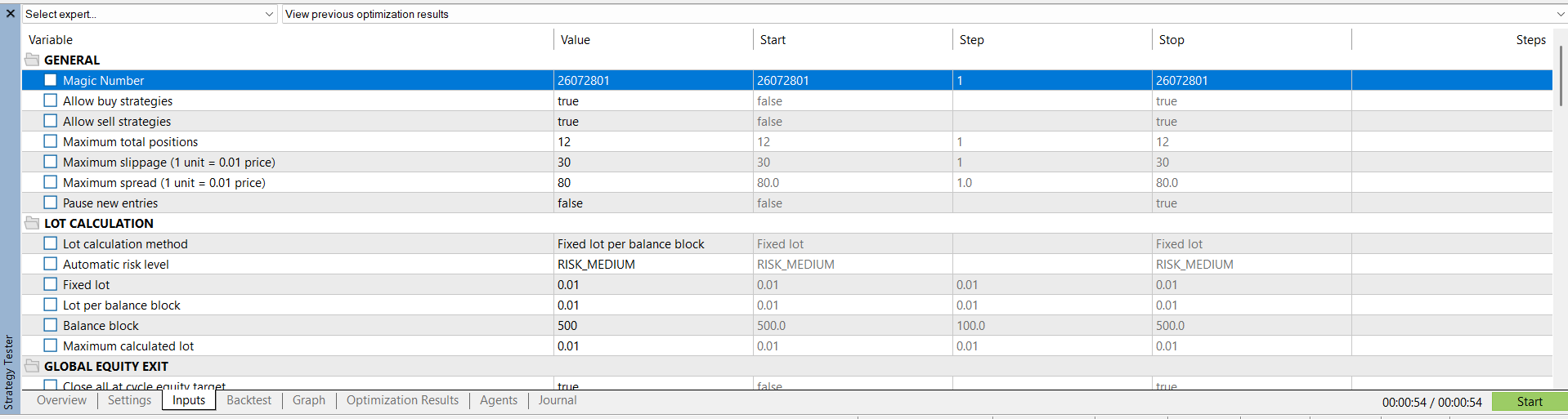
| Column | Meaning |
|---|---|
| Checkbox | Checked: MT5 changes that input during optimization. Unchecked: it remains fixed. |
| Value | The fixed value used when the checkbox is unchecked. |
| Start | The first value MT5 will test. |
| Step | The increment between one value and the next. |
| Stop | The final value in the range. |
| Steps | The number of values generated for that input. |
Example: Start 3, Step 3, and Stop 15 generates the values 3, 6, 9, 12, and 15.
Total combinations = values of input 1 × values of input 2 × values of input 3...
If too many variables are selected, the number of combinations grows exponentially.
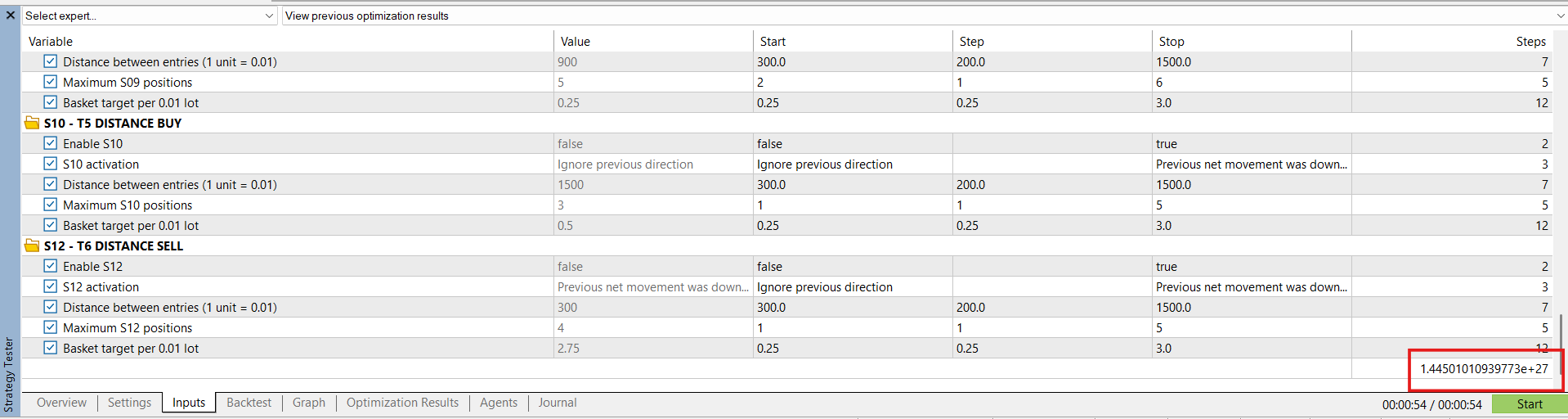
❌ DO NOT OPTIMIZE EVERYTHING AT ONCE. In the screenshot, MT5 shows more than 1027 combinations. The recommended approach is to work with one strategy and only 1–2 inputs at a time.
Lot Management During the Search
To compare the strategy logic without lot growth distorting the results, initially use:
- Lot calculation method: Fixed lot.
- Fixed lot: 0.01.
- Maximum calculated lot: 0.01.
Before saving the final set file, restore the lot calculation method you actually intend to use and run the complete backtest again.
4. Recommended Ranges for Periodic Strategies
This group includes S01, S02, S03, and S06.
| Input | Start | Step | Stop |
|---|---|---|---|
| Enable Sxx | Do not optimize. Keep true for the strategy being studied and false for the others. | ||
| Sxx activation | Ignore previous direction | Automatic | Previous net movement was downward |
| Entry interval — S01 | 3 | 3 | 15 |
| Entry interval — S02/S03/S06 | 5 | 5 | 30 |
| Maximum Sxx positions | 1 | 1 | 5 |
| Basket target per 0.01 lot | 0.25 | 0.25 | 2.00 |
Stage A: Activation + Entry interval = 15–18 combinations.
Stage B: Maximum positions + Basket target = 40 combinations.
5. Recommended Ranges for Distance Strategies
This group includes S08, S09, S10, and S12.
| Input | Start | Step | Stop |
|---|---|---|---|
| Enable Sxx | Do not optimize. Keep true for the strategy being studied and false for the others. | ||
| Sxx activation | Ignore previous direction | Automatic | Previous net movement was downward |
| Distance between entries | 300 | 200 | 1500 |
| Maximum Sxx positions | 1 | 1 | 5 |
| Basket target per 0.01 lot | 0.25 | 0.25 | 3.00 |
One distance unit equals 0.01 in the Gold price. For example, 300 represents a distance of 3.00.
Stage A: Activation + Distance = 21 combinations.
Stage B: Maximum positions + Basket target = 60 combinations.
6. Shared Filters
Optimize these filters only after adjusting the strategies:
| Input | Start | Step | Stop |
|---|---|---|---|
| Previous M1 bars to evaluate | 30 | 30 | 120 |
| Minimum previous net movement | 0 | 250 | 1500 |
| Minimum previous range | 0 | 500 | 3000 |
| Maximum previous net movement | Keep at 0 during the first search. | ||
| Maximum previous range | Keep at 0 during the first search. | ||
Do not optimize minimum and maximum filters simultaneously. This may generate contradictory or excessively restrictive combinations.
Final Adjustment of the Complete EA
| Input | Start | Step | Stop |
|---|---|---|---|
| Maximum total positions | 4 | 2 | 12 |
| Equity growth target per cycle (%) | 0.20 | 0.20 | 1.00 |
DO NOT OPTIMIZE: Magic Number, spread, slippage, Pause new entries, lot calculation method, automatic risk level, lot sizes, Emergency equity drawdown, Action at emergency limit, Minimum margin level, or calendar filters.
Important: Emergency equity drawdown must be fixed before starting. If you select Custom max, this value also allows the criterion to adapt its return and drawdown targets. If you want the emergency limit at 10%, enter 10 and leave its checkbox unchecked. A value of 0 disables the protection.
7. Recommended Step-by-Step Optimization Procedure
Stage 0 — Save the Original Values
- In Inputs, right-click and select Save.
- Save the file as SGP_ORIGINAL.set.
Stage 1 — Select One Strategy
- Start, for example, with S01.
- Set Enable S01 = true, but leave its optimization checkbox unchecked.
- Set all other Enable Sxx inputs to false and leave their checkboxes unchecked.
- Check only S01 activation and Entry interval in minutes.
- Enter the ranges and click Start.
Result: only 15 combinations for S01 instead of millions.
Stage 2 — Adjust the Basket
- Set the chosen Activation and Interval/Distance values in the Value column.
- Uncheck those two variables.
- Check only Maximum Sxx positions and Basket target per 0.01 lot.
- Run a new optimization.
Stage 3 — Repeat with the Other Strategies
Keep the selected values, temporarily disable that strategy, and repeat Stages 1 and 2 with the others.
Stage 4 — Test the Complete EA
- Re-enable the strategies you want to keep.
- Uncheck every optimization checkbox in the Sxx groups.
- Run a complete backtest.
- Then optimize only Maximum total positions and Equity growth target per cycle.
Stage 5 — Perform a Fine Search
- If 9, 12, and 15 minutes perform well: test Start 9, Step 1, and Stop 15.
- If 700, 900, and 1100 perform well: test Start 700, Step 100, and Stop 1100.
- If 1.00, 1.25, and 1.50 perform well: test Start 1.00, Step 0.10, and Stop 1.50.
Stage 6 — Final Validation
- Keep Modelling = 1 minute OHLC.
- Use a longer period and do not select only favorable months.
- Use Forward 1/3 or test the set file on a historical period that was not used to select it.
- Restore the lot calculation method, deposit, leverage, and protections you actually intend to use.
- Test the set file on a demo account.
8. How to Select an Optimization Result
- Open the Optimization Results tab.
- Sort Result from highest to lowest.
- Do not look only at Profit. Compare drawdown, trade count, Profit Factor, Recovery Factor, and forward results.
- Look for a stable area containing several reasonable neighboring values.
- Right-click a candidate and select Set Input Parameters.
- Run a single backtest and review the report and balance/equity curve.
❌ REJECT: unacceptable drawdown, too few trades, excessive margin pressure, profits concentrated in a short period, or poor forward results.
9. How to Generate the .set File
- In Optimization Results, right-click the selected candidate.
- Select Set Input Parameters.
- Open Inputs and confirm the values.
- Restore the strategies, lot calculation method, and protections you actually intend to use.
- Right-click inside Inputs and select Save.
- Save the file with the .set extension.
Example filename: SGP_ICMarkets_XAUUSD_M1_2024-2026.set
10. How to Load the Set File into the EA
- Open a chart of your broker's Gold symbol.
- Change the timeframe to M1.
- Drag Scalping Gold Pro from Navigator onto the chart.
- Open the Inputs tab.
- Click Load and select the .set file.
- Review Magic Number, lot calculation method, Maximum calculated lot, Emergency equity drawdown, and Minimum margin level.
- Click OK and verify that Algo Trading is enabled.
✅ BEFORE TRADING LIVE: test the set file on a demo account using the same broker and symbol.
Quick Summary
- ✅ Select your broker's Gold/XAUUSD symbol and M1.
- ✅ Last year is an example, not a mandatory period.
- ✅ Use 1 minute OHLC.
- ✅ Use Fast genetic based algorithm and a criterion that matches your objective.
- ✅ Optimize one strategy and only 1–2 inputs per stage.
- ✅ Use a broad range first and a fine search afterward.
- ✅ Select results based on stability and risk, not profit alone.
- ✅ Test the set file on demo before trading live.
Risk Warning
Leveraged trading can result in substantial losses. Historical results and optimizations do not guarantee future performance. Use a level of risk you can afford and validate every configuration before trading live.
🛒 BUY SCALPING GOLD PRO ON MQL5 MARKET
© Simón Del Vecchio