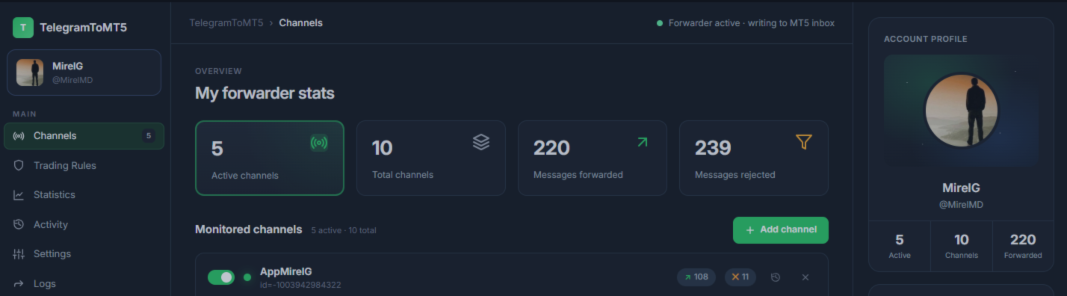

This product has two parts that work together:
- The Expert Advisor (EA) — runs inside MetaTrader 5 and places/manages the trades.
- The companion desktop app ("Telegram To MT5") — reads your Telegram channels and passes the signals to the EA. It is required because MetaTrader cannot connect to Telegram on its own.
Follow the steps below once and you are ready to trade.
Before you start — requirements
- Windows 10 or higher (Windows Server 2016+ recommended).
- Microsoft Edge WebView2 Runtime (latest). Most PCs already have it; if not, the installer will tell you.
- MetaTrader 5 (latest build recommended), logged in to your broker account.
- A Telegram account that is already a member of the channels/groups you want to copy.
Tip: test everything on a demo account first.
Part 1 — Install the desktop app
- Download the installer: DOWNLOAD (file: Telegram To MT5.exe ).
- Run the installer and follow the wizard. It installs to your user profile and adds a Start Menu / desktop shortcut.
- If Windows SmartScreen warns about an unknown publisher, choose More info → Run anyway (the app is safe; this happens with new installers).
- Launch Telegram To MT5 from the shortcut.
On the first launch a short guided tour appears and walks you through the steps below.
Part 2 — Connect your Telegram account
You first need your own free Telegram API keys (api_id + api_hash). Telegram requires these for any third-party app, and you create them once — they stay on your PC.
- Open my.telegram.org (use the link inside the Sign-in dialog, or the my.telegram.org button in the app's left sidebar). Log in with your phone number and the code Telegram sends you.
- Click API development tools, create an app (any App title and Short name, e.g. "MT5"), then copy your api_id (a number) and api_hash (a long text string).
- Back in the app, click Sign in (bottom-left) and enter your api_id, api_hash and phone number.
- Enter the login code Telegram sends you (it arrives inside your Telegram app).
- If you use two-factor authentication, enter your password.
Your account stays signed in for next time, and your api_id/api_hash are saved locally. The app only reads the channels you choose — it never posts on your behalf.
Part 3 — Connect your Telegram account
- In the app, click Sign in (bottom-left).
- Enter your phone number (the one your Telegram account uses).
- Enter the login code Telegram sends you.
- If you use two-factor authentication, enter your password.
Your account stays signed in for next time. The app only reads the channels you choose — it never posts on your behalf.
Part 4 — Add your channels
- Open the Channels tab.
- Click + Add channel.
- Paste the channel/group @username or invite link, confirm the preview, and add it.
- Repeat for every signal provider you want to copy. You can enable/disable each one anytime.
Part 5 — Attach the EA in MetaTrader 5
- In MetaTrader 5, open the Navigator (Ctrl+N), find TelegramToMT5 under Expert Advisors.
- Drag it onto one chart (any symbol). Use one EA instance per terminal — a guard blocks duplicates.
- In the dialog, on the Common tab, allow Algo Trading / Allow modifying trading account. The EA has no input parameters — everything is controlled from the app and the chart dashboard.
- Make sure the Algo Trading button in the MT5 toolbar is ON.
You should now see the Telegram To MT5 dashboard on the chart, and the app's Connected MT5 panel (right side) should list your account.
Part 6 — Set your rules and arm trading
- In the app, open Trading Rules. Set risk and limits:
- Start with Defaults (applies to all channels), then override per channel → per MT5 account → per asset as needed. The most specific scope wins.
- Choose risk type (% of balance, fixed lot, fixed money, or from signal), lot cap, spread/slippage/entry limits, multi-TP behavior, sessions and news filter.
- On the chart dashboard in MT5, click the ACTIVE button to arm trading.
- Auto-trading starts OFF by default — nothing is executed until you click ACTIVE.
That's it. New messages in your channels are now copied as managed trades.
Verify it works
- App → Connected MT5: your terminal shows online with balance and EA version.
- App → Statistics: per-channel net P&L, trades, win rate and equity curve build up as trades close.
- The chart dashboard shows the same per-channel stats.
Updates
The desktop app checks for updates automatically and shows a notice at the bottom-left when a new version is available — click Install to update. If an MT5 terminal runs an older EA, its card shows an "EA update available" badge with the new version.
Troubleshooting
- App window is blank / renders wrong: install the latest Microsoft Edge WebView2 Runtime, then restart the app.
- My MT5 is not in "Connected MT5": make sure the EA is attached to a chart, Algo Trading is ON, and the app's MT5 folder is correct (Settings → it is auto-detected on most setups).
- "Already running on this terminal": the EA is attached to more than one chart on the same terminal — keep only one.
- No trades: confirm the channel is enabled, the dashboard shows ACTIVE, and your broker offers the symbol from the signal (symbol mapping handles GOLD→XAUUSD, suffixes, etc.).
- Replay the setup tour: click Setup guide at the bottom-left of the app.
Important notes
- The companion desktop app must be running for signals to reach MetaTrader.
- The EA executes the signals you choose — it does not generate them. Your results depend on the channels you follow and your risk settings. Trading is high risk; test on a demo account first.


