Fast Trade Assistant Panel is an on-chart trading utility for MetaTrader 5. Market orders, pending orders, risk-based lot sizing, selective close, break-even, step take-profit, partial take-profit, and chart helpers live on the chart. Configure from the main panel and the Settings window — you do not need to fill EA Inputs before you start trading.
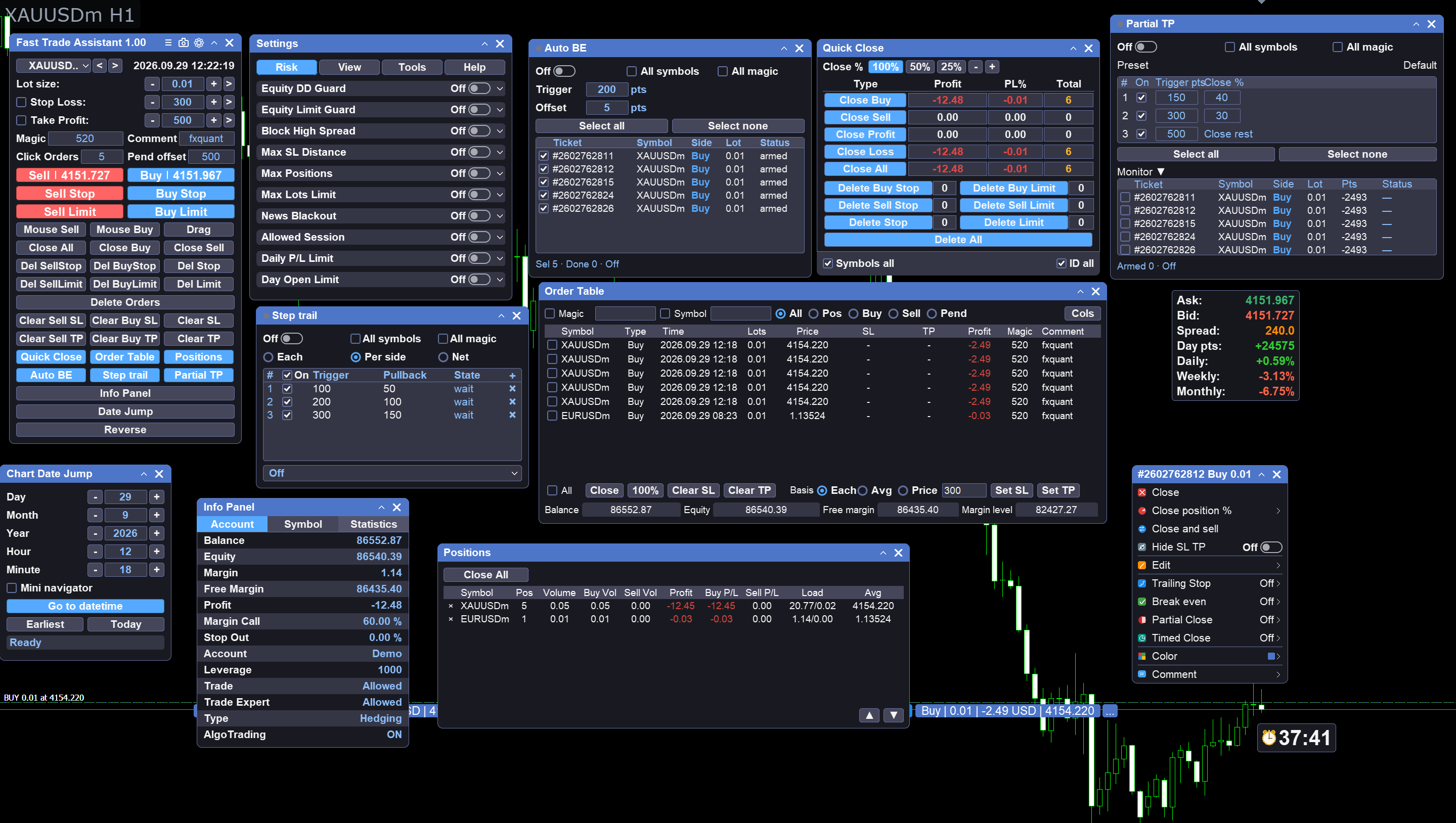
Caption: Overview — main panel and open tool windows.
Main features
Execution
-
Market Buy / Sell with lot size and optional Stop Loss / Take Profit on the panel
-
Hover Buy or Sell to preview dashed SL/TP lines and a status line (SL / TP / Lot)
-
Mouse pending: Sell Limit, Sell Stop, Buy Limit, Buy Stop — follow the price line, double-click to place; Esc cancels
-
Drag pending: drag Entry / SL / TP bars on the chart, confirm to place; lot follows the main panel; Esc closes the tool
Lot and risk sizing
-
Panel size field: Fixed lot, Risk % of balance, or Risk money
-
Switch the mode in Settings; edit the value on the main panel
-
Risk % and Risk money need Stop Loss enabled on the panel
Close tools
-
Close All / Close Buy / Close Sell and delete-pending helpers on the main panel
-
One Key Close window: close by profit / loss / buy / sell (and combinations), clear positions, delete pendings
Position protect
-
Break-even: when floating profit reaches the trigger, move stop loss to protect capital; symbol / magic filters; title lamp and main-button state show when the engine is on
-
Step take-profit: step table with per-ticket / by-side / net modes; advance take-profit targets by steps
-
Partial take-profit: scale out by volume steps at profit targets
Panels
-
Orders table — tickets, type, lots, SL/TP, profit
-
Positions summary — exposure by symbol
-
Info panel — account and trading status
-
Date jump — jump the chart to a chosen date/time
Chart helpers
-
Candle timer — time left until the current bar closes (default Bar Right)
-
Chart labels — quote, spread, and day/week/month change overlays
Filters
-
Magic number and current symbol only filters in Settings / panel
-
Optional fast async mode for mass-close requests (Settings)
Getting started
-
Attach Trade Assistant Panel to a chart.
-
Enable AutoTrading in the terminal.
-
On the main panel, set lot (or risk value) and optional SL/TP. Open Settings for lot mode, magic, symbol filter, button layout, Risk guards, or timer style.
-
Click Buy or Sell. An Alert appears if the order cannot open.
-
Mouse pending: select LIMIT/STOP, move on the chart, double-click; Esc to cancel.
-
Drag pending: select type, click Drag, drag Entry / SL / TP, confirm; Esc to close.
-
Use close-all / delete helpers when needed. For selective close, open One Key Close.
-
For capital protect, open Break-even. For stepped or partial targets, open Step take-profit or Partial take-profit, fill the table, and enable.
Main panel — market orders
Set lot, optional SL/TP, magic, and comment on the main panel. Click Sell or Buy to send a market order. Hover a side button to preview SL/TP lines on the chart; the lines clear when the cursor leaves the button.

Caption: Market Buy/Sell and lot / SL / TP.
<!-- Hover preview shot not present in 截图/ — add file and link here if needed -->
Mouse pending
Select Sell Limit, Sell Stop, Buy Limit, or Buy Stop. Move the mouse so the price line follows the chart. Double-click to place. Press Esc to cancel. Offset and lot follow the main panel.
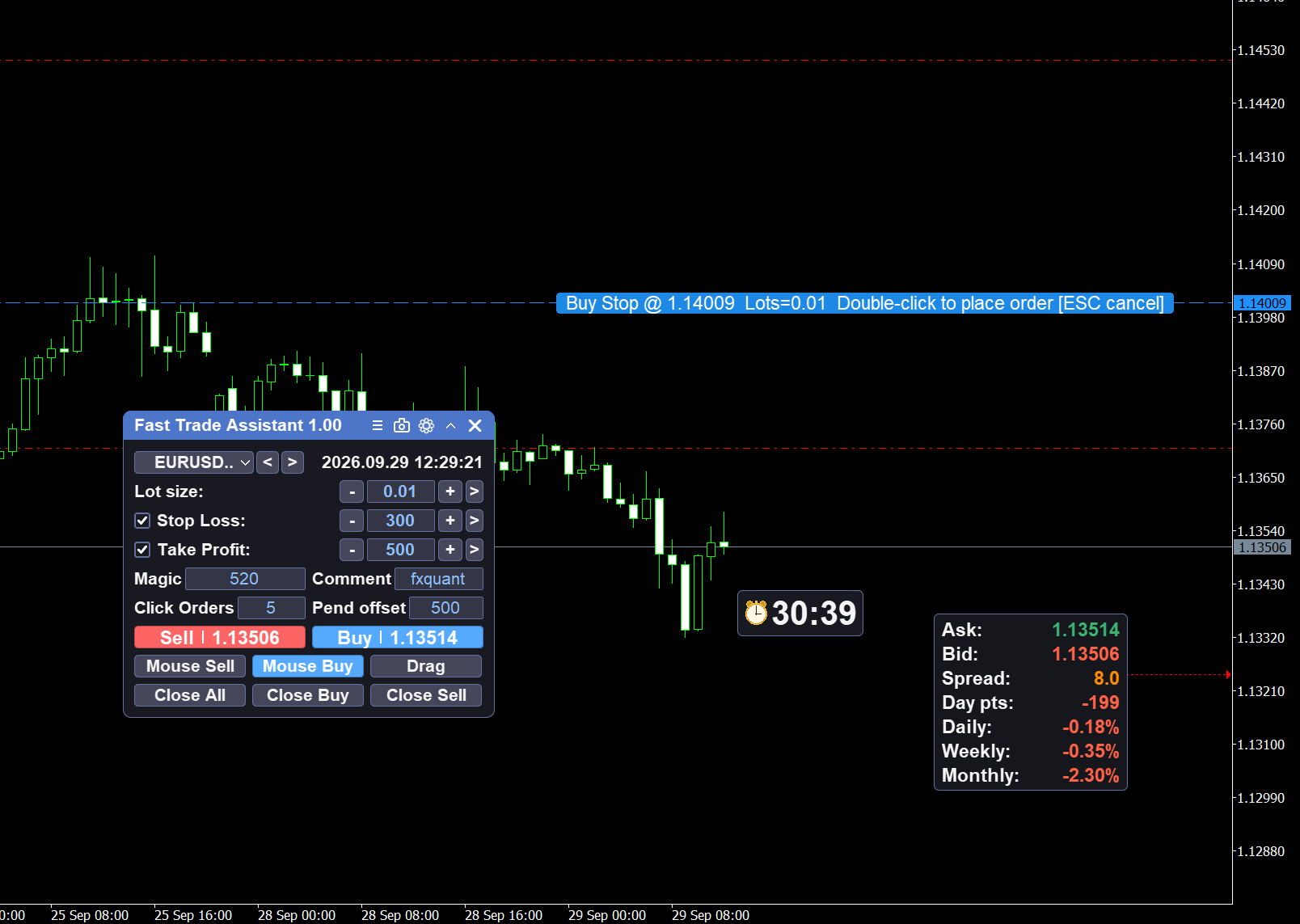
Caption: Mouse pending — price line and double-click to place.
Drag pending
Click Drag to open the on-chart Entry / SL / TP bars. Drag levels to the prices you want, then confirm. Lot follows the main panel lot box. Press Esc to close the tool without placing.
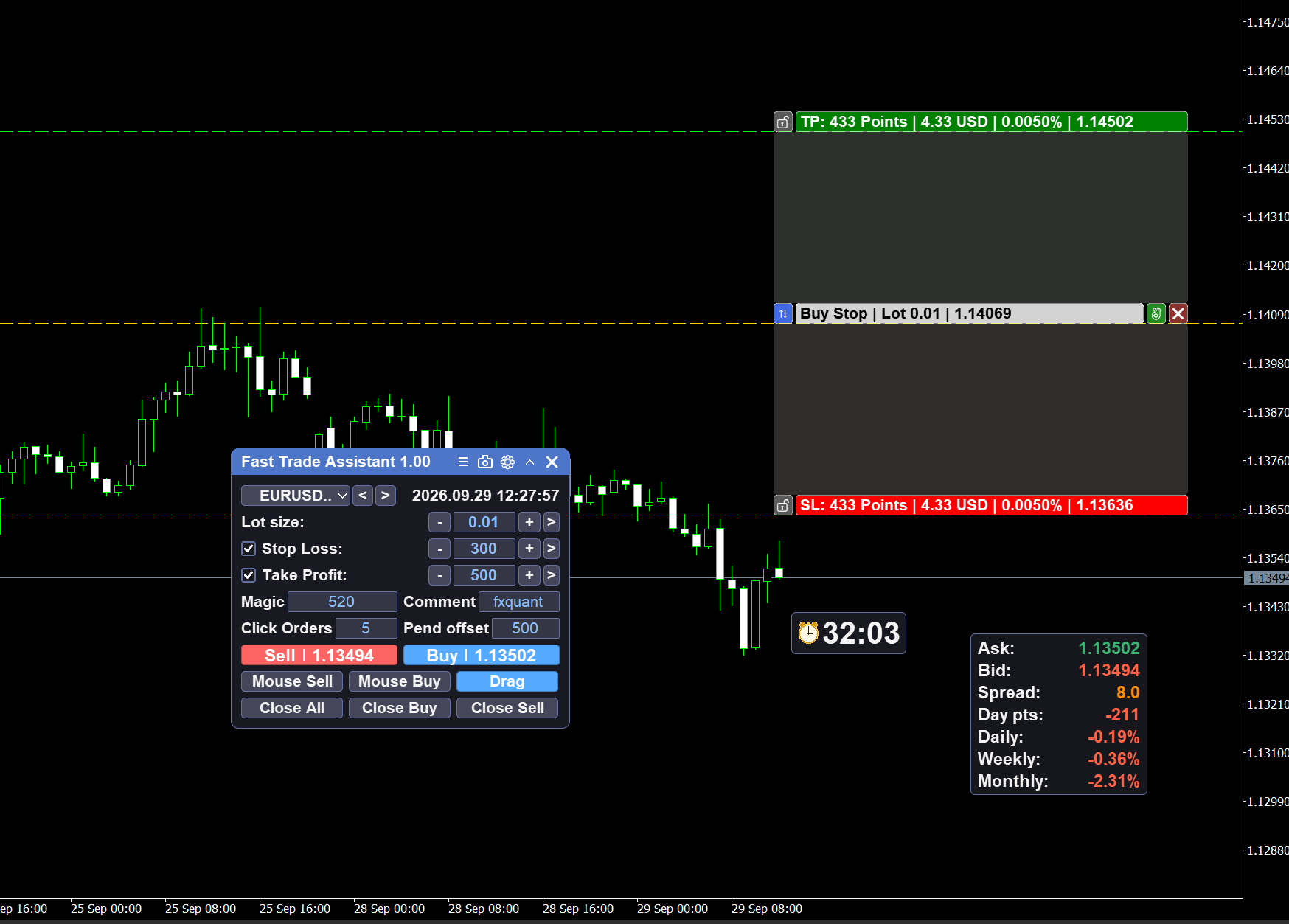
Caption: Drag pending — Entry / SL / TP bars.
One Key Close
Open One Key Close from the main panel. Close by profit, loss, buy, sell, or combinations. Clear positions and delete pending orders from the same window. Filters follow the panel magic / symbol settings when enabled.
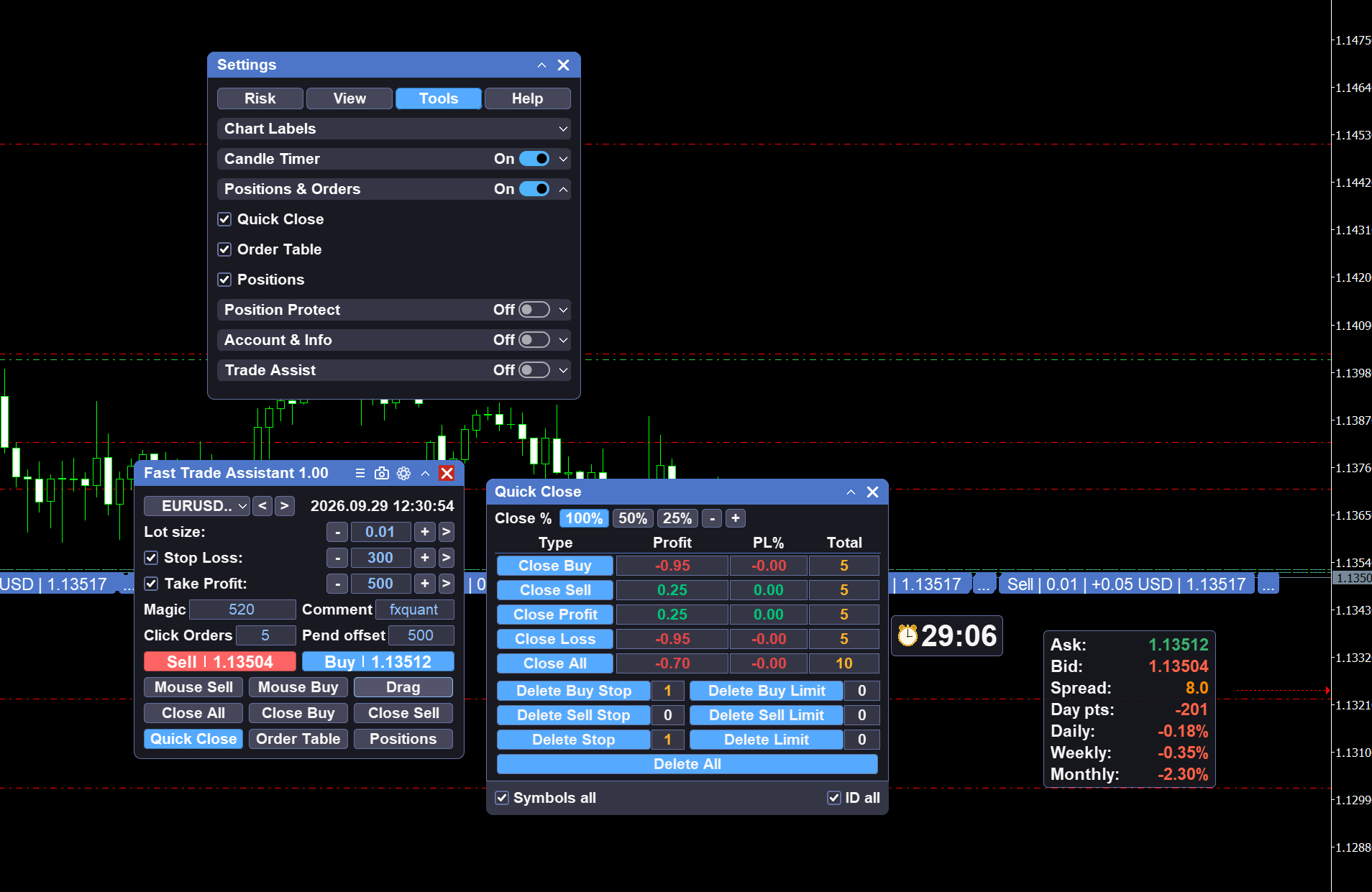
Caption: One Key Close — selective close and pending delete.
Break-even
Open Break-even from the main button. Set trigger and offset. When floating profit reaches the trigger, the engine moves stop loss to protect capital. Symbol and magic filters apply on the panel. The title lamp and main-button state show when the engine is on.
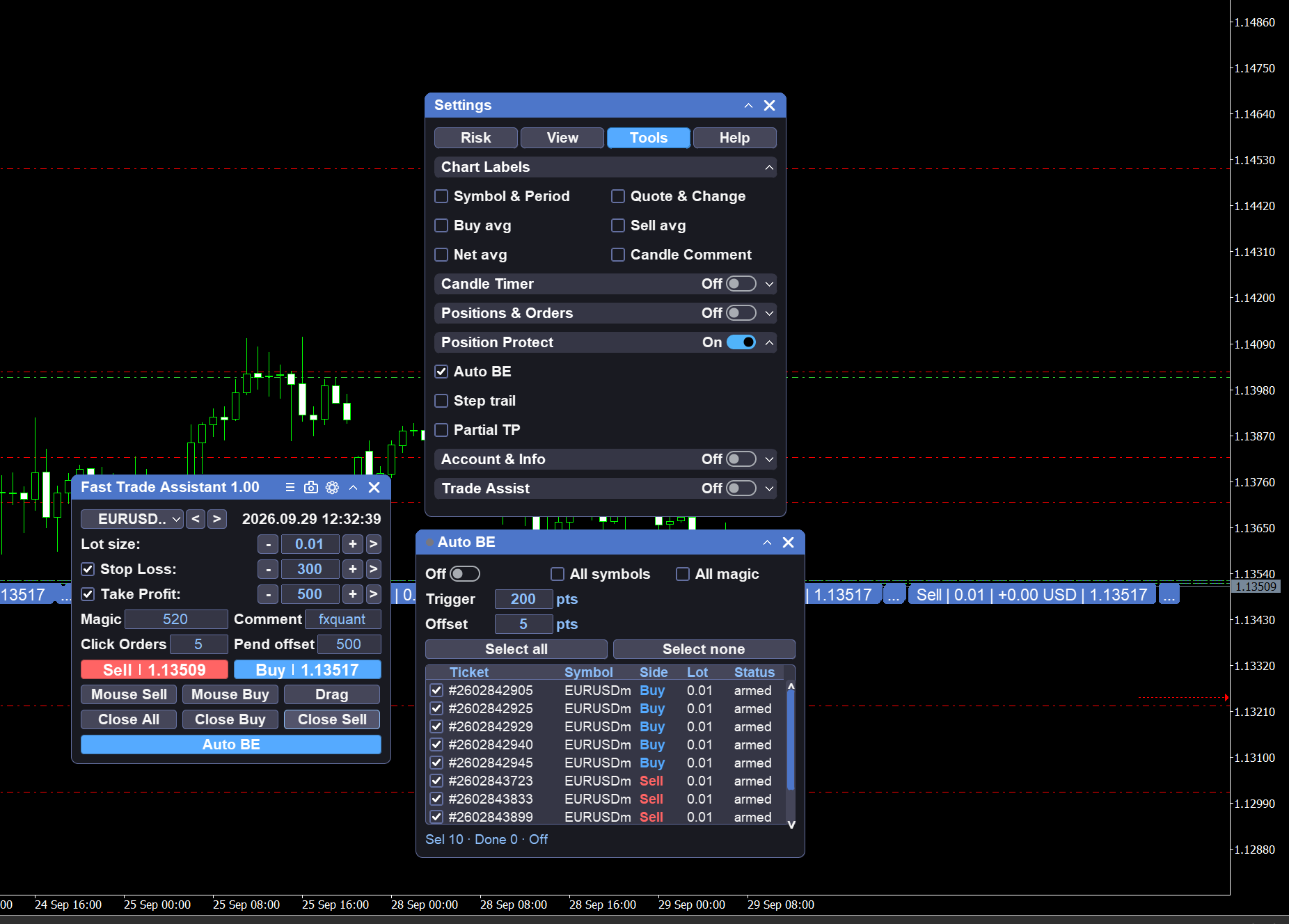
Caption: Break-even — trigger, offset, and engine on.
Step take-profit
Open Step take-profit. Fill the step table (trigger / pullback). Choose per ticket, by side, or net. Enable the engine on the panel. Symbol and magic filters apply.
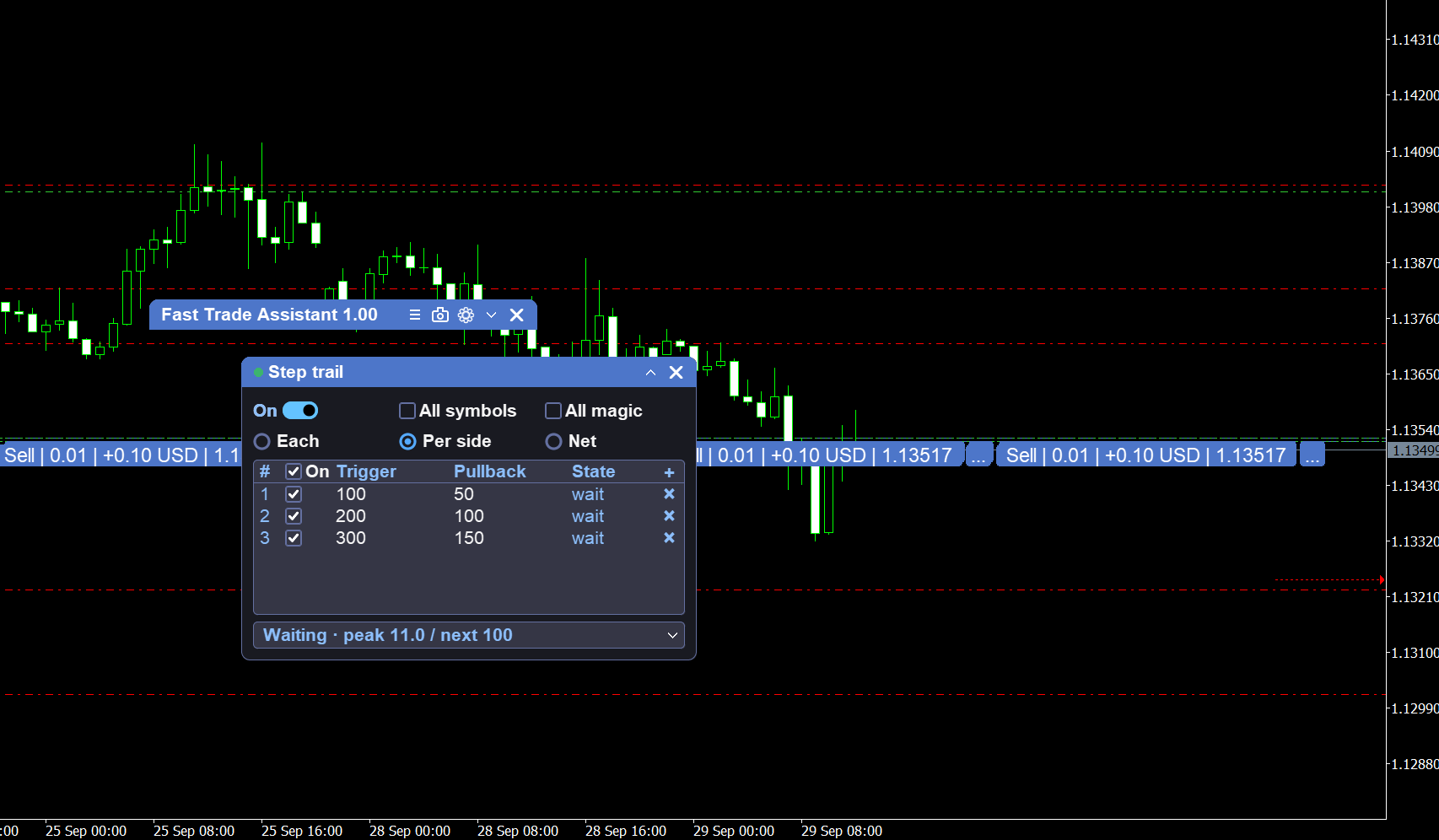
Caption: Step take-profit — step table and mode.
Partial take-profit
Open Partial take-profit. Define volume steps at profit targets (for example close a share at each level, then the rest). Enable the engine when the table is ready.
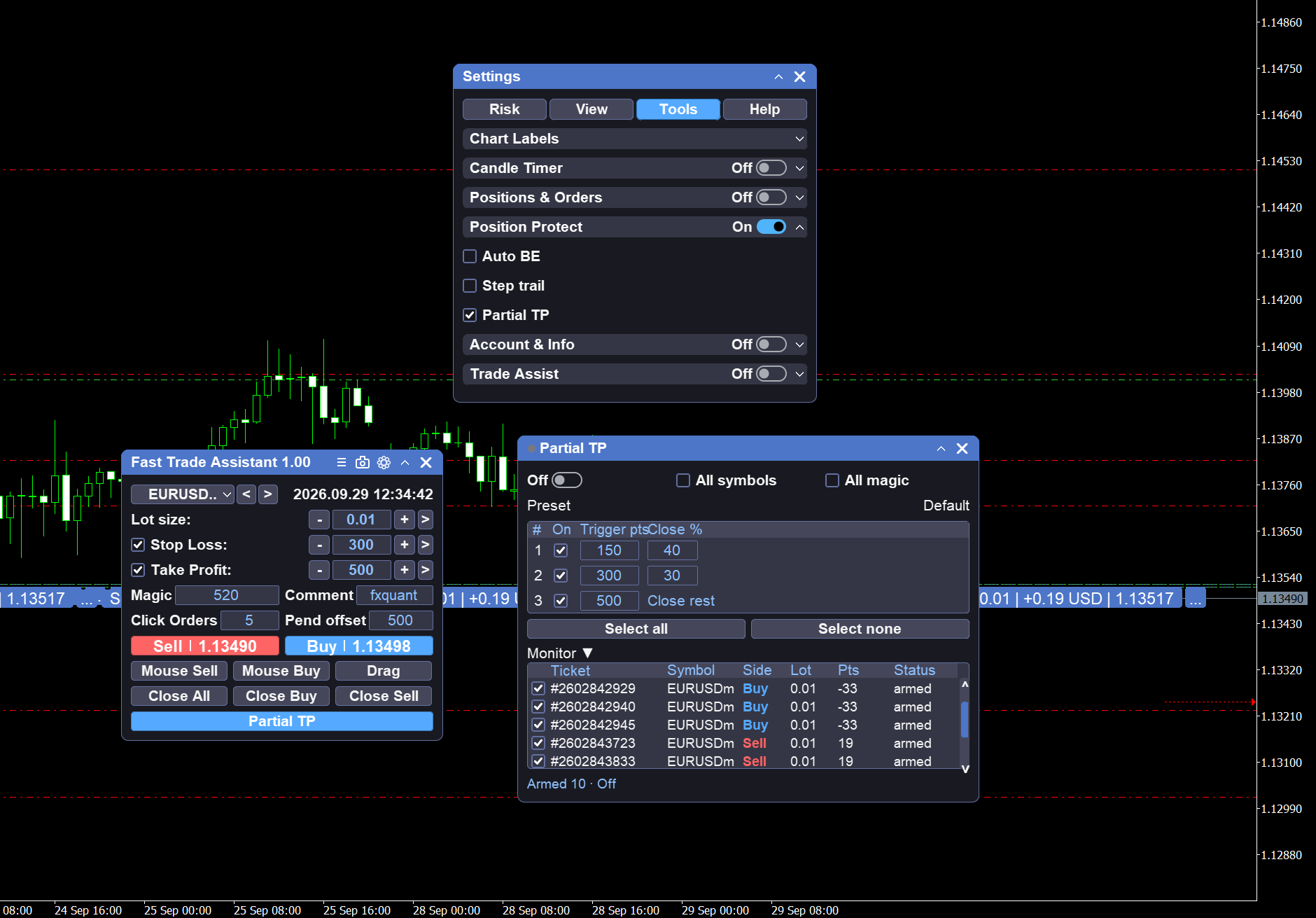
Caption: Partial take-profit — volume steps.
Orders table and positions summary
Orders table lists open and pending tickets with type, lots, SL/TP, and profit. Positions summary aggregates exposure by symbol. Use both to monitor what the panel and filters are managing.
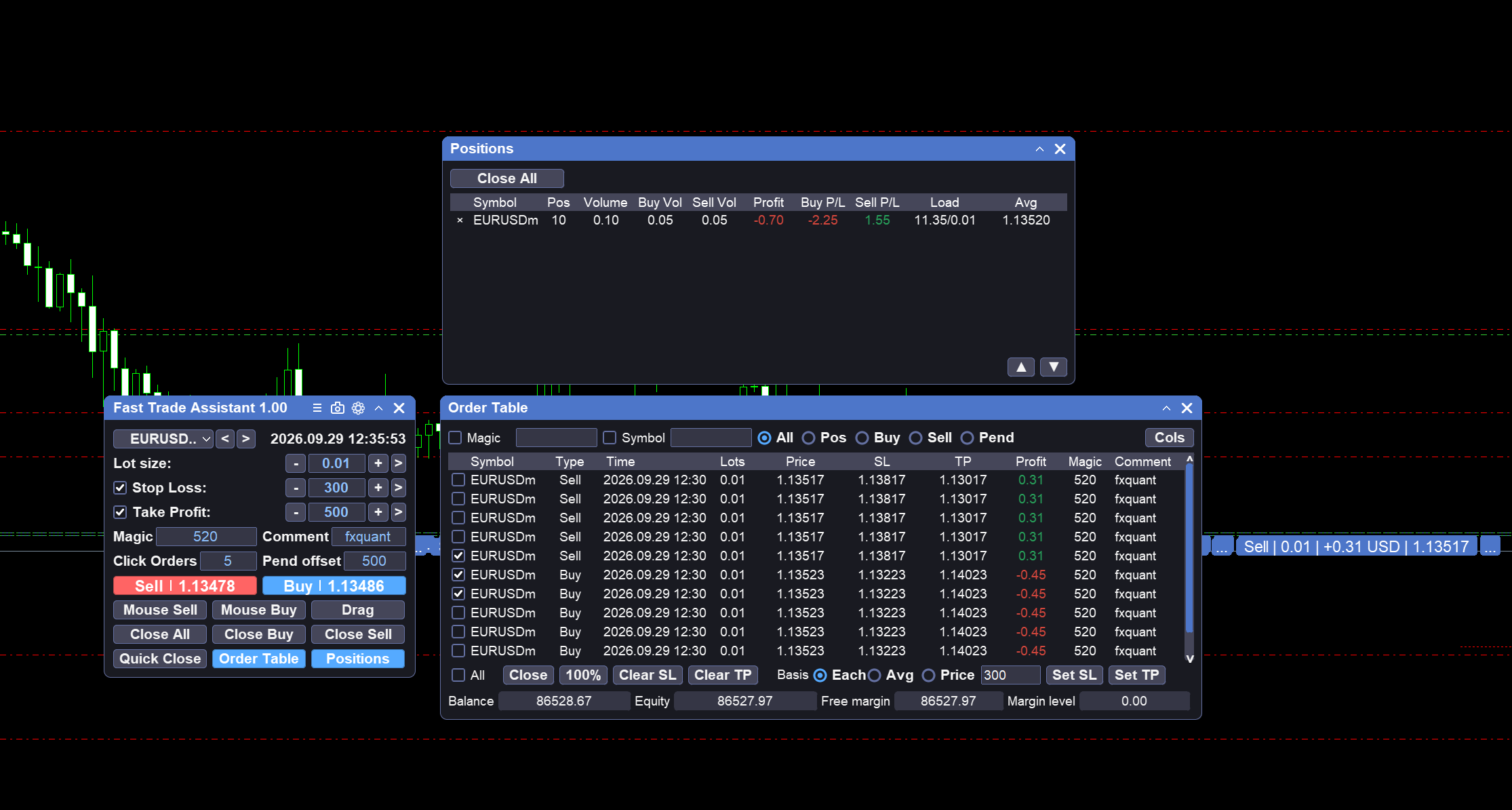
Caption: Orders table and positions summary.
Candle timer and chart labels
Candle timer shows time left until the current bar closes (placement and style in Settings). Chart labels show ask/bid, spread, and day/week/month change on the chart.
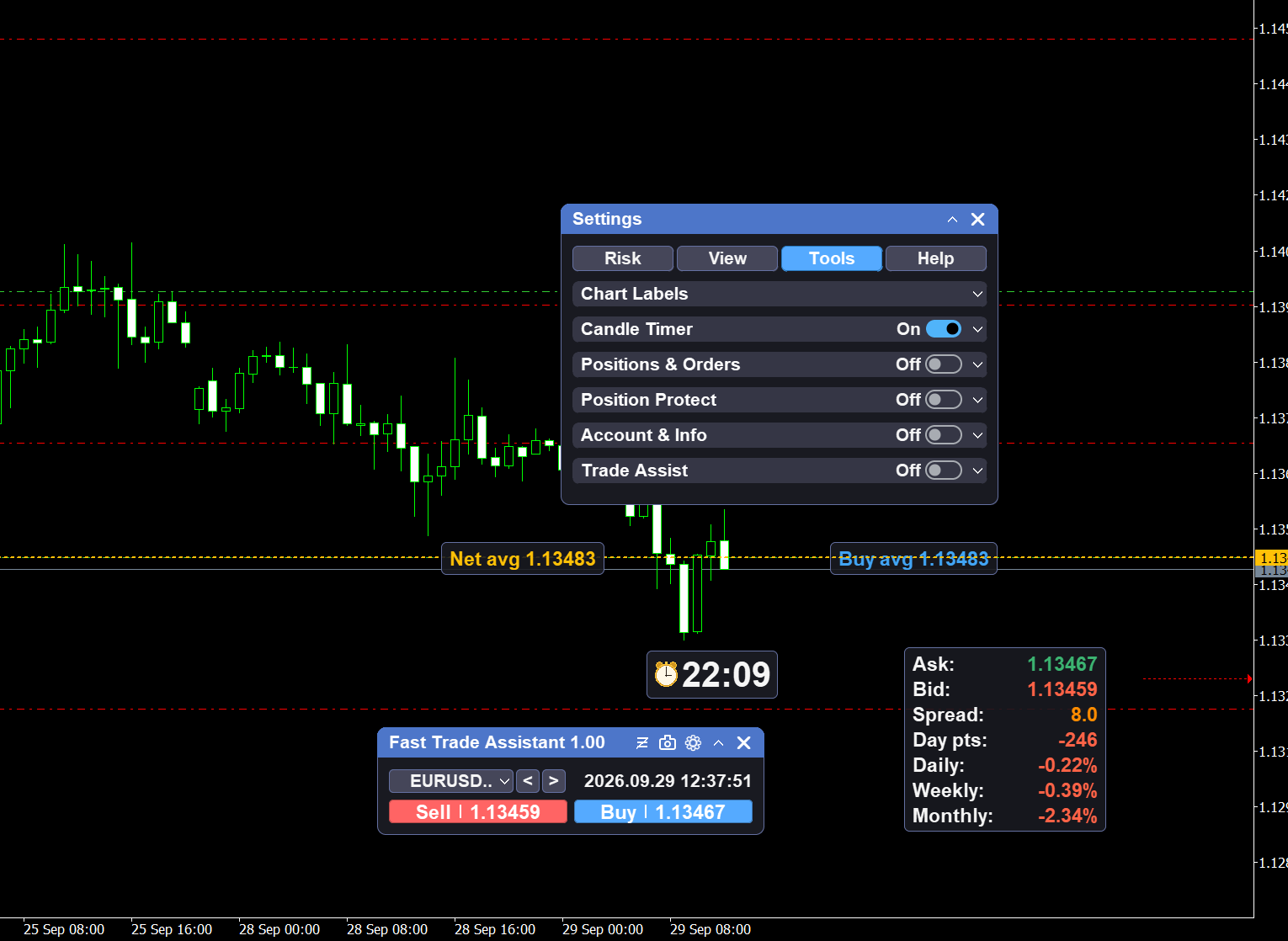
Caption: Candle timer and chart quote / period labels.
Info panel, date jump, and Settings
Info panel shows account and trading status. Date jump moves the chart to a chosen date and time. Open Settings for lot mode, Risk guards, button layout, magic / symbol filters, and timer options.
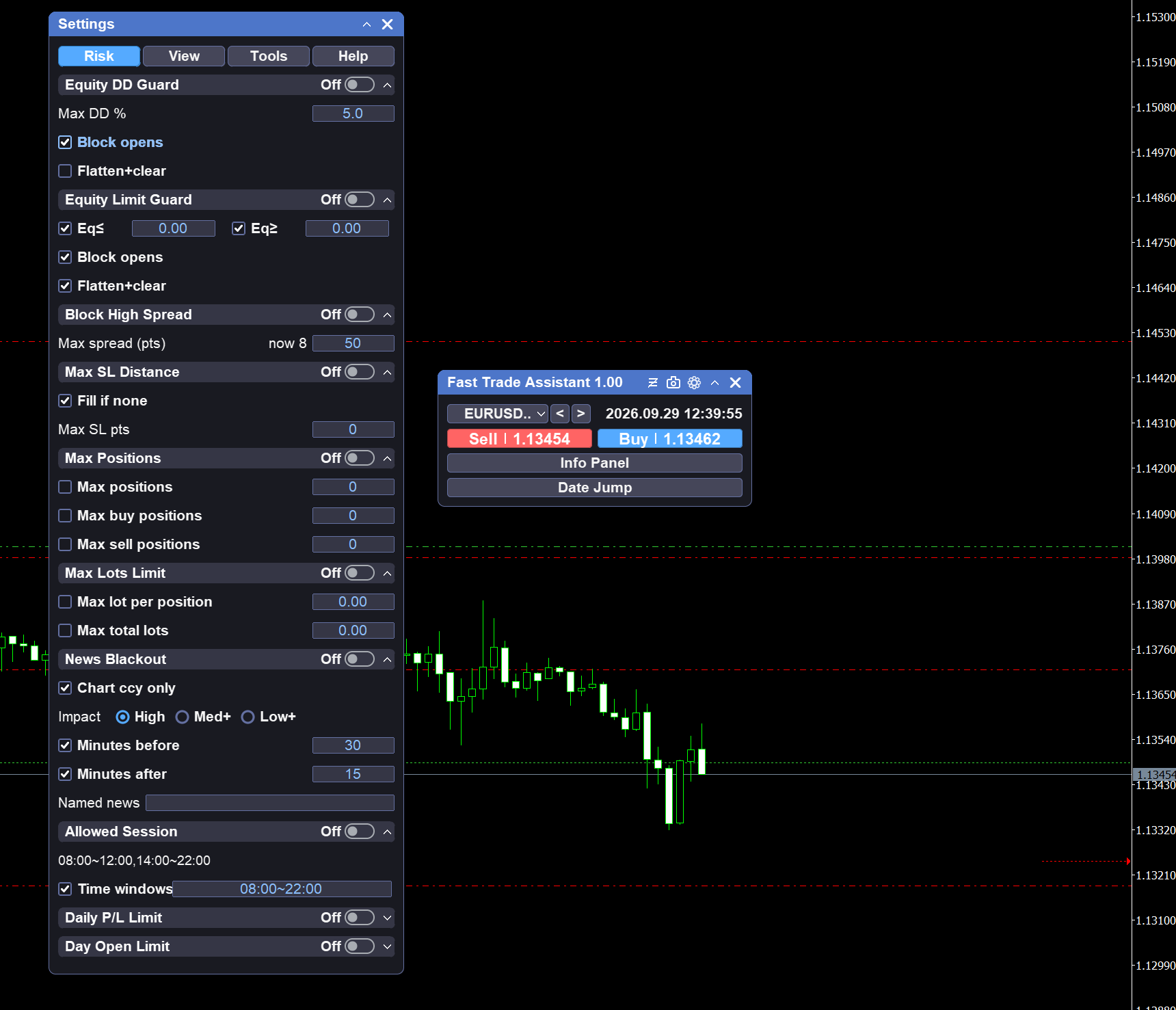
Caption: Settings.
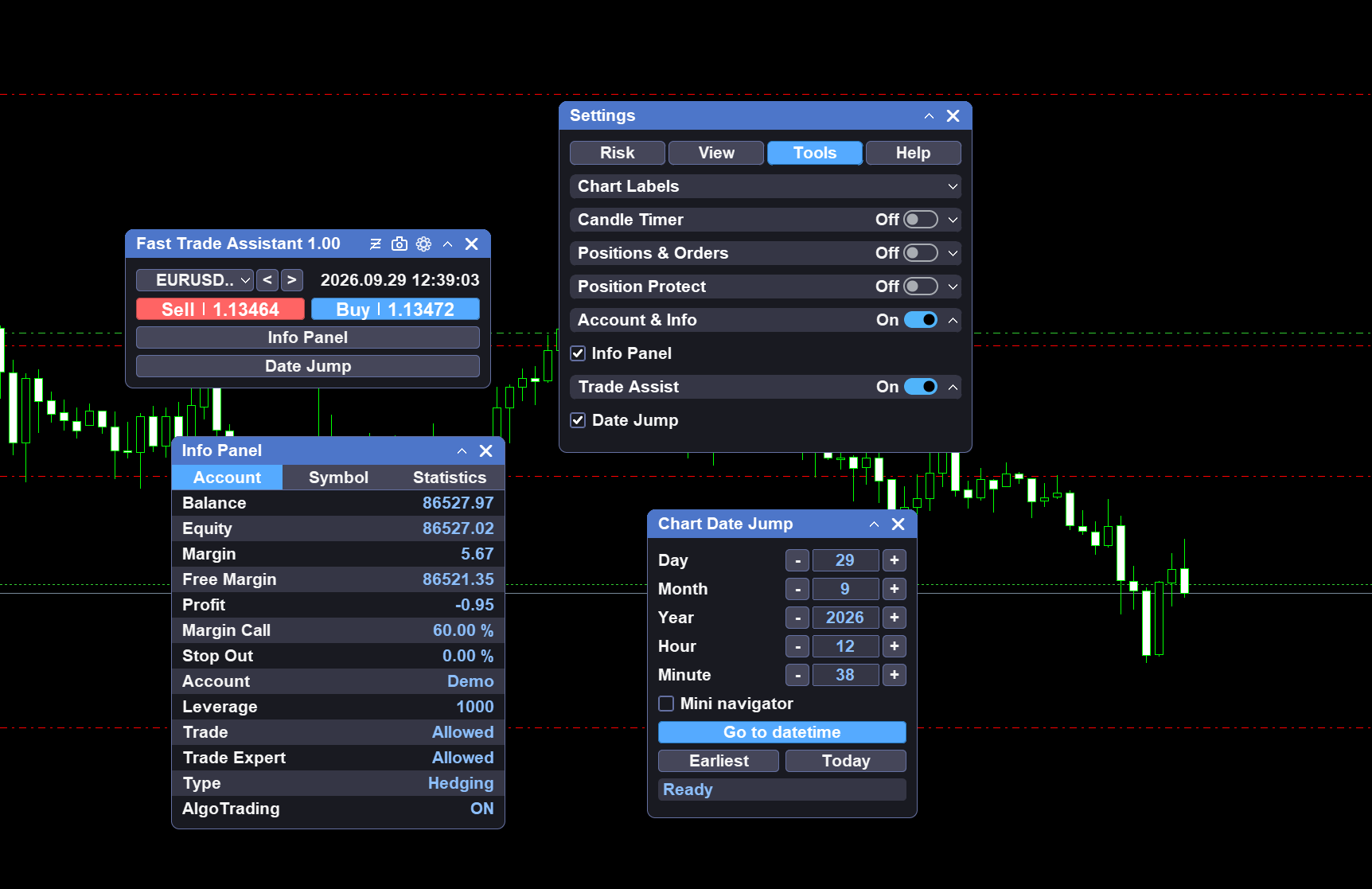
Caption: Date jump and info panel.
Magic number and symbol filter
The panel uses a magic number to identify which positions and orders it manages. With the default settings, it works on trades opened under that magic. In Settings you can change the magic or allow a broader set of tickets according to the filter options. Use current symbol only when you want the panel to ignore other symbols on the same account. If you run more than one copy on charts of the same symbol, give each copy a different magic so they do not fight over the same tickets.
Settings overview
Open Settings from the main panel title bar.
-
Lot mode — Fixed lot, Risk % of balance, or Risk money
-
Risk page — trading guards (lot limits, daily limits, drawdown, spread, session-related limits, and similar rules)
-
Display / buttons — show or hide main-panel tools so the panel stays compact
-
Candle timer — placement and style
Lot-box risk sizes the next order. Risk-page guards apply to the account and trading environment.