
ApexForge Visual Pending Orders is a visual pending-order utility designed for MetaTrader 5 manual traders.
Instead of repeatedly opening the standard MT5 order window and manually entering prices, the utility allows pending orders to be planned directly on the chart using draggable price lines.
Select the required pending-order mode, position the lines visually, adjust the trading parameters, and send the order when ready.
This page provides the Demo Version of the MQL5 Market product ApexForge Visual Pending Orders.
The Demo Version allows users to test the interface and available functions on an MT5 Demo Account before purchasing the full version.
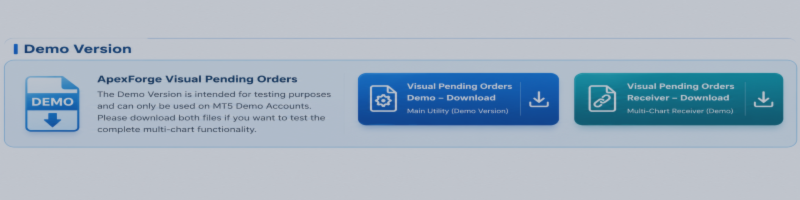
◆ Demo VersionThe Demo Version is intended for testing purposes and can only be used on MT5 Demo Accounts.
Main Demo
ApexForge Visual Pending Orders Demo – Download
This is the main Visual Pending Orders utility.
Receiver
ApexForge Visual Pending Orders Receiver – Download
The Receiver is used with the main utility when working with the multi-chart synchronization functions.
Demo Limitations
- Works on MT5 Demo Accounts only
- Cannot be used on Real Accounts
- Designed for evaluating the product before purchasing the full version
- Multi-chart functions require the appropriate Receiver setup
- Trading and execution results may vary depending on the broker and current market conditions
◆ Visual Pending Orders
ApexForge Visual Pending Orders allows pending orders to be prepared visually directly on the MT5 chart.
Instead of manually entering an entry price into the standard order window, the corresponding order lines are created directly on the chart.
Simply drag the line to the desired price and confirm the order when ready.
This provides a more visual workflow for discretionary traders who prefer to plan their entries directly from price action.
◆ Pending Order Types
The utility supports the main pending-order types required for visual trade planning.
Depending on the selected direction and order mode, you can prepare pending orders for entries above or below the current market price.
The order structure is handled according to the selected mode while the trader controls the final entry location directly from the chart.
◆ Drag to Adjust Entry Price
After creating a pending-order line, the entry level can be adjusted simply by dragging the line on the chart.
There is no need to repeatedly reopen the standard MT5 order dialog just to change the entry price.
Move the line to the desired level, confirm the final position, and send the order when ready.
◆ Visual TP / SL
Take Profit and Stop Loss levels can be included in the visual order-planning process.
This allows the trader to review the planned:
Entry Price
Take Profit
Stop Loss
directly on the chart before sending the pending order.
TP and SL values can be carried into the order when it is submitted.
◆ Lot Size Control
The trading lot size can be adjusted directly through the Visual Pending Orders interface.
The Lot field can be selected for input, allowing the trader to change the required volume without repeatedly opening the standard MT5 order window.
The final lot size remains entirely under the trader's control.
◆ Fast Keyboard Operation
Visual Pending Orders includes keyboard controls designed to make the order-planning workflow faster.
Available operations include:
Enter — Confirm / Send
Esc — Cancel
Space — Send Order
These controls reduce unnecessary mouse movement when preparing and submitting visual pending orders.
◆ S / C Quick Controls
The chart interface also provides compact S / C controls for fast order operation.
These controls can be positioned according to the working layout and used for quick order submission or cancellation.
This provides an alternative to keyboard operation when the trader prefers direct chart interaction.
◆ Multi-Chart Synchronization
ApexForge Visual Pending Orders supports a multi-chart workflow.
The main utility can work together with the Visual Pending Orders Receiver so that the required order-planning information can be synchronized across the relevant MT5 charts.
This is useful for traders who monitor the same trading environment across multiple charts or timeframes.
◆ H Main Chart Control
The system includes an H main-chart control for the multi-chart workflow.
This allows the trader to define the primary chart used for the Visual Pending Orders operation while the Receiver handles the corresponding synchronized behavior on additional charts.
The main chart and Receiver structure helps keep visual order management organized when several charts are open.
◆ Compact Chart Interface
The Visual Pending Orders interface is designed to remain compact and unobtrusive on the chart.
The panel can be positioned according to the trader's workspace, allowing the tool to remain accessible without unnecessarily covering price information.
The interface is designed specifically for manual trading workflows where fast chart interaction is important.
◆ Installing the Demo Version
Two files are provided for the Demo setup:
1. ApexForge Visual Pending Orders Demo
2. ApexForge Visual Pending Orders Receiver
Download both files if you want to test the complete multi-chart functionality.
Installation
- Download the Visual Pending Orders Demo.
- Download the Visual Pending Orders Receiver.
- Open MetaTrader 5.
- Select:
File → Open Data Folder
- Open:
MQL5 → Experts
- Copy the downloaded files into the appropriate Experts location.
- Return to MetaTrader 5 and refresh the Navigator, or restart MetaTrader 5.
- Log in to an MT5 Demo Account.
- Attach ApexForge Visual Pending Orders Demo to the primary chart.
- When testing multi-chart synchronization, attach the Receiver to the required additional chart(s).
- Configure the available settings according to your trading workflow.
The Demo Version is now ready for testing.
◆ Recommended Demo Test
When testing ApexForge Visual Pending Orders for the first time, you can try the complete visual workflow:
Select Pending Order Mode
→ Create the Visual Entry Line
→ Drag the Entry Price
→ Adjust Lot Size
→ Configure TP / SL
→ Confirm the Planned Order
→ Send or Cancel
You can then open additional charts and test the Main + Receiver multi-chart synchronization workflow.
This provides a practical way to evaluate the product directly in an MT5 Demo Account before purchasing the full version.
◆ Designed for Manual Traders
ApexForge Visual Pending Orders does not generate Buy or Sell signals and does not determine market direction.
The trader decides:
Direction
Entry Price
Order Type
Lot Size
Take Profit
Stop Loss
When to Send the Order
The utility is designed to make the execution of that trading plan faster and more visual.
◆ Full Version
If the Demo Version meets your requirements, the full version of:
ApexForge Visual Pending Orders
is available from the MQL5 Market.
The full version removes the Demo Account restriction and is intended for normal use according to the product specifications.
◆ Important Notice
ApexForge Visual Pending Orders is a trading utility.
It does not provide Buy or Sell trading signals.
It does not predict future market direction.
It does not guarantee order execution at a specific price, trading performance, or profitability.
Actual order execution depends on the broker server, market liquidity, spread, price movement, trading permissions, and current market conditions.
All trading decisions and trading risks remain entirely under the control and responsibility of the user.
ApexForge
MT5 Trading Utilities for Discretionary Traders