Manual Volume Profile MS MT4
- Göstergeler
-
Mariusz Sedlak
 I am Mariusz Sedlak, based in Poland, where I lead Selenita as its President. My work combines strategic leadership with a deep passion for financial markets and algorithmic trading. I specialize in developing custom indicators for MetaTrader 5 — tools that turn raw market data into clear
 - Sürüm: 1.0
- Etkinleştirmeler: 5
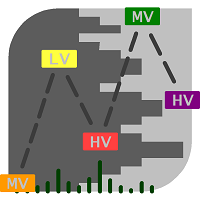
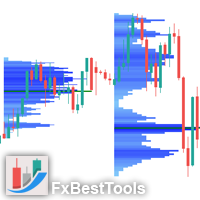
Manual Volume Profile MS shows where volume was actually traded. It draws today's session profile live and lets you place up to 10 independent volume profile ranges anywhere on the chart with two mouse clicks. Every profile shows the POC, VAH, VAL and the Value Area.
KEY FEATURES
- Daily profile – today's volume profile, drawn to the right of the current bar or over the day's bars, updated live.
- Manual ranges PV 1 – PV 10 – click a PV button, click the start and the end of the range, and the profile is calculated instantly. Move or resize the box – the profile recalculates automatically.
- POC, VAH, VAL and Value Area for every profile, with optional price labels.
- Extended levels – the POC (and optionally VAH/VAL) of each range can be extended to the right as reference levels.
- Real or tick volume – real volume is used when your broker provides it, with automatic fallback to tick volume. An on-chart status line shows exactly which volume is used.
- Volume from another symbol – e.g. chart a CFD and build the profile from the futures contract available at the same broker. The price offset between the symbols is calculated automatically or set manually.
- Accurate distribution – volume is distributed using M1 data (configurable), independently of the chart timeframe.
- Snap to price – range top and bottom snap to the High/Low of the selected bars, or set a free price band to count only the volume inside it.
- Memory – positions of all ranges are kept after timeframe change and terminal restart.
- Quick delete – remove selected ranges (e.g. "2" or "1,3") or all of them ("0") with one button.
- Fully customizable colors, opacity, row height, Value Area %, panel position.
QUICK START
- Attach the indicator to a chart, for example M5. Today's profile appears to the right of the current bar.
- Click PV 1 in the button panel (top right corner of the chart).
- Click on the chart where the range should start, move the mouse – a rectangle follows the cursor – and click where the range should end.
- The profile is calculated immediately. POC, VAH and VAL are labelled to the right of the range.
- Drag the rectangle or its corners to adjust the range. The profile recalculates on the fly.
- Click PV 1 again to hide the range. Click it once more to bring it back.
CONTROL PANEL
- Day – shows or hides today's profile. Coloured = on, grey = off. The state is remembered.
- PV n (coloured) – the range is shown. Click to hide it; its position is remembered.
- PV n (gold) – waiting for your clicks on the chart. Click the button again or press Esc to cancel.
- PV n (grey) – click to restore a hidden range or to place a new one.
- Range field – which ranges the Delete button removes: 0 = all (also "all" or "*"), 2 = PV 2 only, 1,3 or 1 3 = PV 1 and PV 3.
- Delete – removes the ranges entered in the field from the chart and from memory.
- Status line (below the buttons) – shows the volume actually used for the profiles.
DAILY PROFILE
The daily profile covers the current trading day, from the open of today's D1 bar (broker server time) up to now. It refreshes every 2 seconds and on every new bar.
- Right of the current bar (default) – the profile is drawn in the free space to the right of the last candle.
- From the start of the day – the profile is drawn over the day's candles, starting at the session open.
MANUAL RANGES
- Placing – click a grey PV button, then click the start and the end of the range in the main chart window. If both clicks fall on the same bar, the range is made 5 bars wide.
- Adjusting – each range is a standard MetaTrader rectangle. Drag it or pull its corners; the profile recalculates and the new position is saved. To select an unselected range, double-click its border.
- Snap to price ON (default) – the top and bottom of the range snap to the highest high and lowest low of its bars. You only set the time span.
- Snap to price OFF – you set the price band freely and only the volume traded inside the band is counted. Useful to isolate one area of a larger move.
- Live ranges – if the right edge of a range is on the current bar or beyond, the range keeps updating as new prices arrive.
- Hiding and restoring – click PV n to hide a range. Click it again: if the remembered position is visible on the screen, the range comes back; otherwise you place a new one.
- Delete key – selecting the rectangle and pressing Delete switches the range off; its last position stays in memory.
- Memory – positions, which ranges are on and the Day button state are stored per chart. They survive timeframe changes and terminal restarts. Removing the indicator from the chart or closing the chart clears them.
READING THE PROFILE
- Histogram rows – each row is one price level; its length is proportional to the volume traded there during the profile period.
- POC (Point of Control) – the price with the highest volume. Drawn in gold with a thick line and a label.
- Value Area – the rows around the POC that contain the chosen share of total volume (default 70%). Drawn in a lighter colour.
- VAH / VAL – the upper and lower boundaries of the Value Area, drawn as dashed lines.
- Extended lines – the POC of each range can continue to the right edge of the chart (on by default); VAH and VAL can be extended as well.
Typical uses: compare today's Value Area with the previous session, mark the volume structure of a trend leg, a consolidation or a news move, and use extended POC lines of past ranges as reference levels.
VOLUME DATA
- Real volume is exchange volume (futures, stocks), available if your broker provides it. Tick volume is the number of price changes; for forex and most CFDs it is the only volume available.
- With Volume type = Real volume (default), each bar uses its real volume when present and its tick volume otherwise.
- Volume from another symbol – if your broker offers both a CFD and the corresponding futures contract with real volume, keep the CFD chart and enter the futures symbol name (exactly as in Market Watch, including any suffix) in Take volume from another symbol.
- Price offset – Auto measures the price difference between both symbols at the end of the range; Manual uses your value; No offset is for symbols quoted at the same price level.
Status line messages:
- Volume: real – all bars of the profile have real volume.
- Volume: real (x% of bars, rest tick) – real volume is missing on part of the bars.
- Volume: TICK - SYMBOL has no real volume at this broker (orange) – tick volume is used.
- Volume: tick – tick volume was selected in the inputs.
- | from SYMBOL, offset +x – volume is taken from another symbol.
- | symbol not found: NAME – the volume symbol does not exist at this broker; the chart symbol is used.
INPUT PARAMETERS
- Object name prefix – change it only to run two copies on the same chart.
- Source timeframe – data used to distribute volume (default M1).
- Volume type – Real volume (falls back to tick) / Tick volume.
- Take volume from another symbol – symbol name at the same broker, e.g. a futures contract (empty = chart symbol).
- Price offset of the volume symbol – Auto / Manual / No offset, plus the manual offset value.
- Show which volume is being used – status line on/off.
- Row height in points – fixed row height, or 0 = automatic; AutoRows – a larger value gives thinner rows.
- Value Area % – default 70.
- POC color, VAH/VAL line color and style, labels, price in labels, label font size.
- Daily profile – on/off at start, position, offset from the current bar, width, colors, opacity.
- Manual ranges – number of PV buttons (1–10), snap to price, histogram width, opacity, POC and VAH/VAL extension, 5 range colors.
- Panel – show/hide, button size, margins, colors. With the panel hidden, existing ranges stay but new ones cannot be placed.
- Live refresh – refresh interval of live profiles in seconds (default 2).
STRATEGY TESTER
In the Strategy Tester chart buttons are not interactive (MetaTrader limitation), so range PV 1 is placed automatically on the previous trading day for demonstration. Today's profile works as on a live chart.
TROUBLESHOOTING
- Nothing is drawn right after attaching – the terminal is downloading M1/D1 history; the indicator retries automatically every few seconds.
- A range far back in history shows no profile – scroll the chart to that period once so the terminal loads the history; if needed, increase "Max bars in chart" in Tools → Options → Charts.
- Status line shows TICK in orange – your broker provides no real volume for this symbol; this is normal for forex and CFDs.
- Profile from another symbol is shifted – use the Manual offset (e.g. after a futures rollover).
- Clicking a PV button starts placing instead of restoring – the remembered position is off screen; scroll to it and click again, or place a new range.
- Ranges gone after re-adding the indicator – removing the indicator clears its ranges by design; changing the timeframe or restarting the terminal keeps them.
NOTES
- A user guide in PDF (English and Polish) is available – send me a private message.
- The indicator is an analysis tool. It does not open, modify or close trades and does not give trading signals. Trading involves risk.