Seconds Candles
- Yardımcı programlar
- Sürüm: 1.0
- Etkinleştirmeler: 5

Seconds Candles Chart Utility
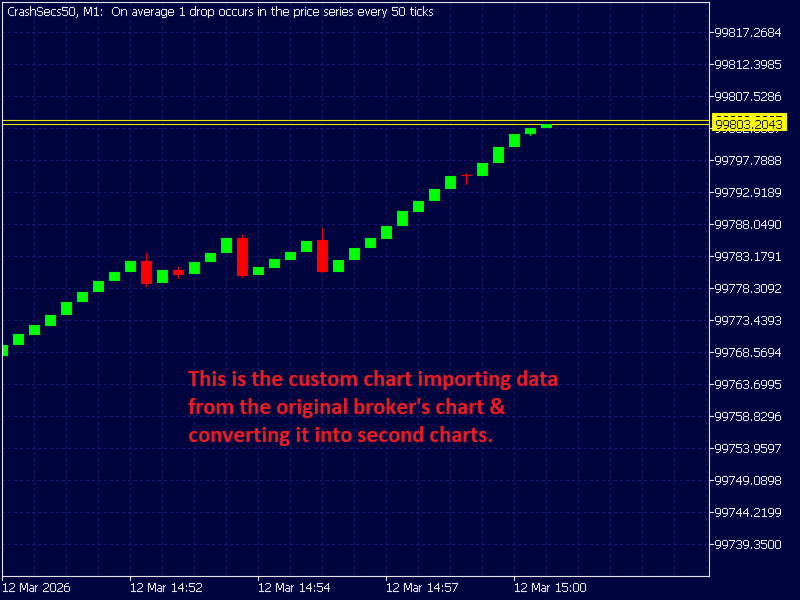
This Expert Advisor creates custom time-based candles shorter than 1 minute (10s–50s) by converting incoming market ticks into synthetic OHLC bars.
Normally, MetaTrader only supports timeframes like: M1, M5, M15, H1 etc.
This EA allows you to generate sub-minute candles such as: 10-second candles, 20-second candles, 30-second candles, 40-second candles, 50-second candles
These candles are written into a custom symbol so they behave like a normal chart.
Traders use this for:
- Crash/Boom tick trading
- high-frequency scalping
- micro-structure analysis
- synthetic index strategies
What the EA Actually Does:
1. Reads Live Market Ticks
Every tick from the source symbol (for example EURUSD) is captured using:
SymbolInfoTick()
Each tick contains:
price, time, volume, bid/ask
2. Groups Ticks Into Time Slots
Ticks are grouped into candle windows based on the selected seconds.
Example for 10-second candles:
Time Candle
12:00:00 – 12:00:09 Candle 1
12:00:10 – 12:00:19 Candle 2
12:00:20 – 12:00:29 Candle 3
The EA determines which candle a tick belongs to using: tickTime % CandleSeconds
3. Builds OHLC Candle Data
For every candle it calculates:
Open – first tick price, High – highest tick, Low – lowest tick, Close – last tick price, Tick Volume – number of ticks in the candle
4. Writes Candles to the Custom Symbol
The EA sends the candle to the custom symbol using: CustomRatesUpdate()
This creates real chart candles.
5. How it Works & How to set it up
EURUSD (source)
↓
EA converts ticks
↓
Custom Symbol
↓
10-Second Candles
How to Create the Custom Chart (Step-by-Step)
Step 1 — Open Custom Symbols
Steps In MT5:
- Step 1
Market Watch
Right Click
→ Symbols
- Step 2 — Create a Custom Symbol
Go to the Custom tab
Click Create Custom Symbol
Copy settings from the original symbol (example EURUSD)
Example:
Name: EURUSDsecs (NO SPACES IN THE NAME)
Copy From: EURUSD
Press OK
- Step 3 — Enable Custom Ticks
Open the new symbol settings and make sure:
Use Custom Ticks = Enabled
- Step 4 — Open the Custom Chart
In Market Watch
Right Click → Crash
Open Chart
You will see an empty chart.
This is normal.
- Step 5 — Attach the EA to the SOURCE chart
Open the real market chart, for example:
" EURUSD": Attach the EA to this chart. Do NOT attach it to the custom chart.
- Step 6 — Set the EA Inputs
Example:
CustomSymbol = EURUSDsecs
CandleSeconds = 10
- Step 7 — Enable Algo Trading
Make sure:
AutoTrading = ON
- Step 8 — Watch the Custom Chart
Return to the EURUSDsecs chart.
Within a few seconds you will see:
10-second candles forming live
Important Rules
1. EA must stay on the source symbol
Example:
EA → EURUSD
Chart → EURUSDsecs (custom)
2. Do NOT close the EA chart
If you close it:
custom candles stop updating and you will have gaps in your candles because they are formed in realtime