Custom Trader Tools
- Göstergeler
- Sürüm: 1.3
- Güncellendi: 4 Mart 2026

Product Overview
This indicator is a sophisticated trading tool designed to integrate essential market data and technical indicator management into a single, highly intuitive dashboard. Developed for professional traders who demand both efficiency and clarity, it provides a centralized control hub for candle timing, spread monitoring, and the deployment of core technical analysis tools without cluttering the chart workspace.
Key Features
Advanced Graphical User Interface
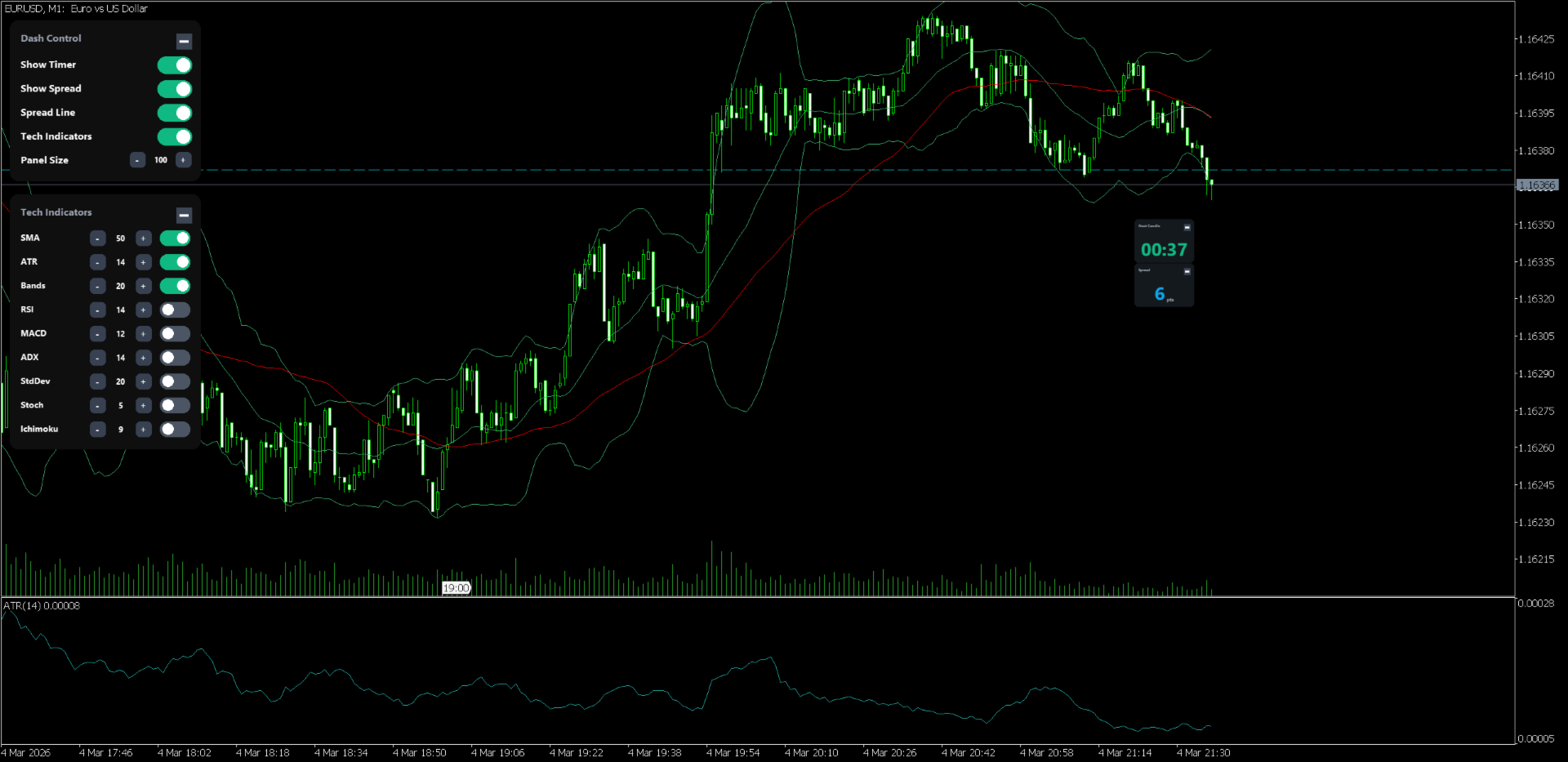
The dashboard features a modular, high-performance interface that can be freely dragged and positioned anywhere on the chart. Users can minimize or expand specific blocks (Control, Timer, Spread, Indicators) to suit their current needs. The entire GUI supports dynamic scaling from 30 percent to 500 percent, with full DPI-aware architecture ensuring crystal-clear rendering on high-resolution 4K monitors.
Real-time Market Data and Visual Aids
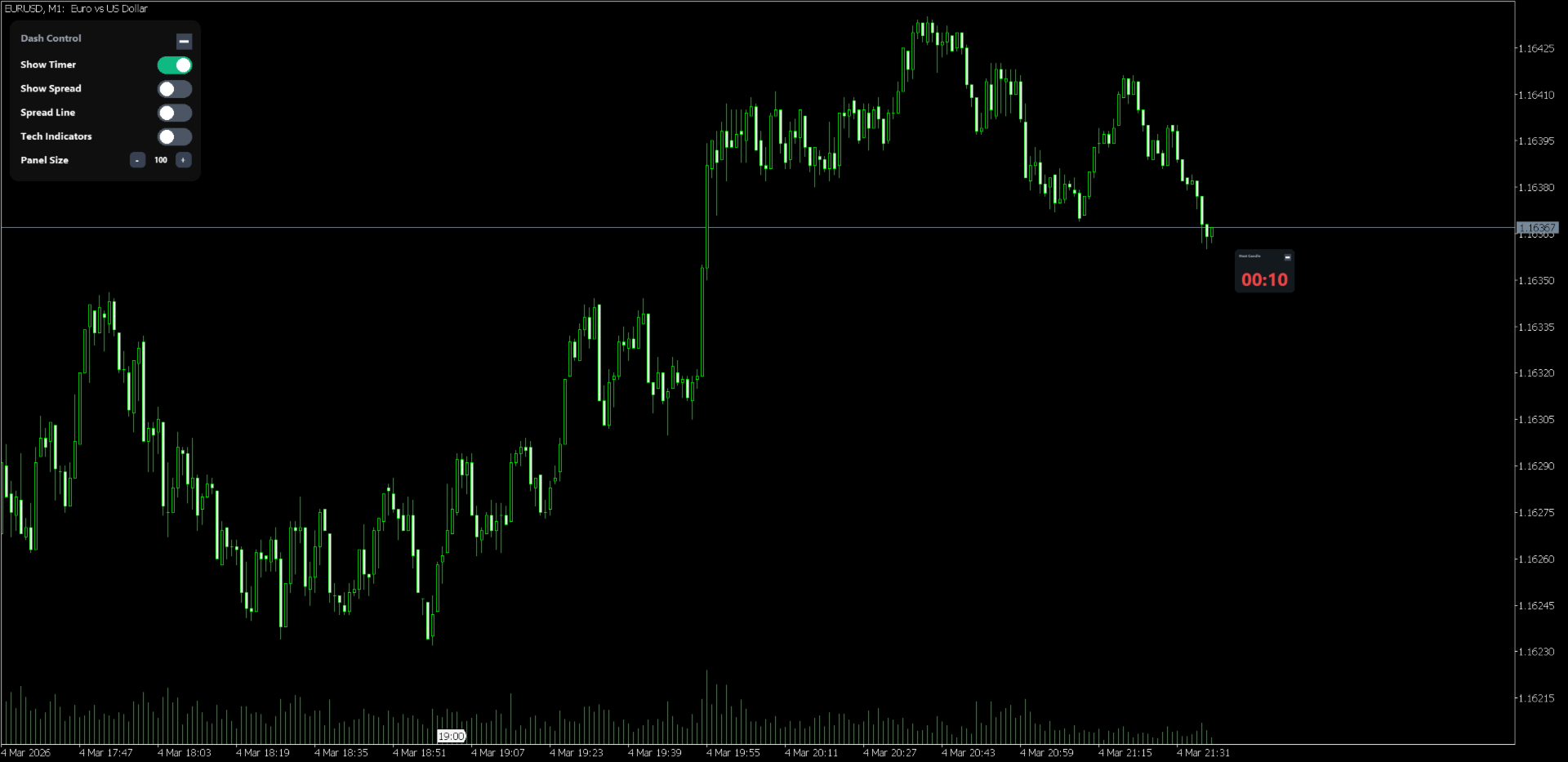
The system provides a high-visibility countdown timer for the current candle's closing time. For higher timeframes (Daily, Weekly, Monthly), the display automatically switches to a smart format (e.g., days and hours). In addition to a precise numerical spread display in points, the indicator supports a toggleable Ask Line (Spread Line) to provide a constant visual representation of current liquidity conditions.
Integrated Indicator Suite with Bi-directional Sync
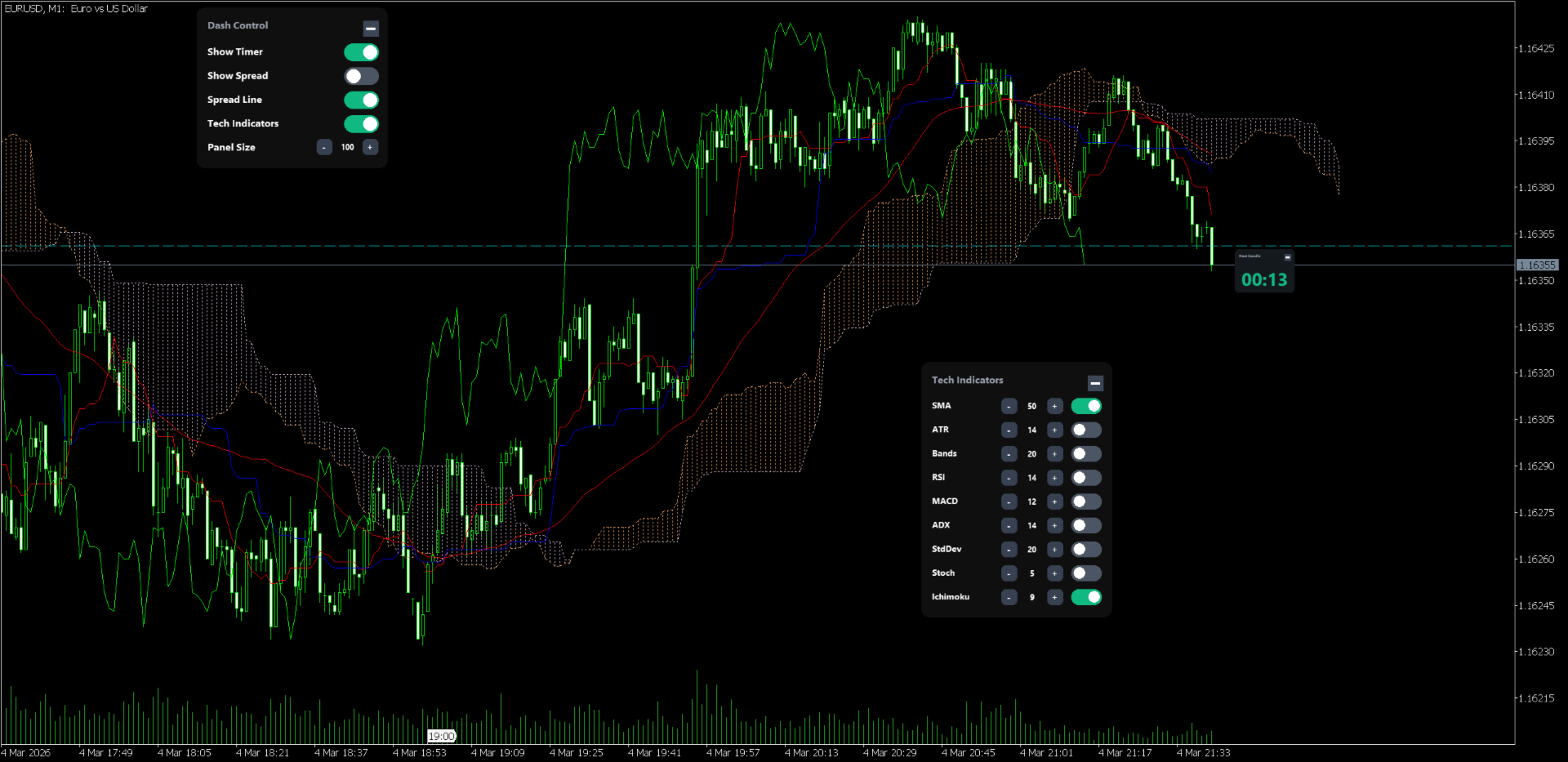
Control nine industry-standard indicators directly from the dashboard: SMA, ATR, Bollinger Bands, RSI, MACD, ADX, Standard Deviation, Stochastic, and Ichimoku Kinko Hyo. Enabling an indicator on the panel instantly draws it on the chart. Parameters such as periods can be adjusted in real-time via GUI buttons or direct keyboard input. Furthermore, the tool features advanced synchronization logic: if you modify an indicator's properties via the standard MT5 dialogue, the dashboard automatically detects the change and updates its internal values to match.
User Instructions
Moving the Panel: Click and hold any empty area of the dashboard to drag the entire suite to your preferred chart location.
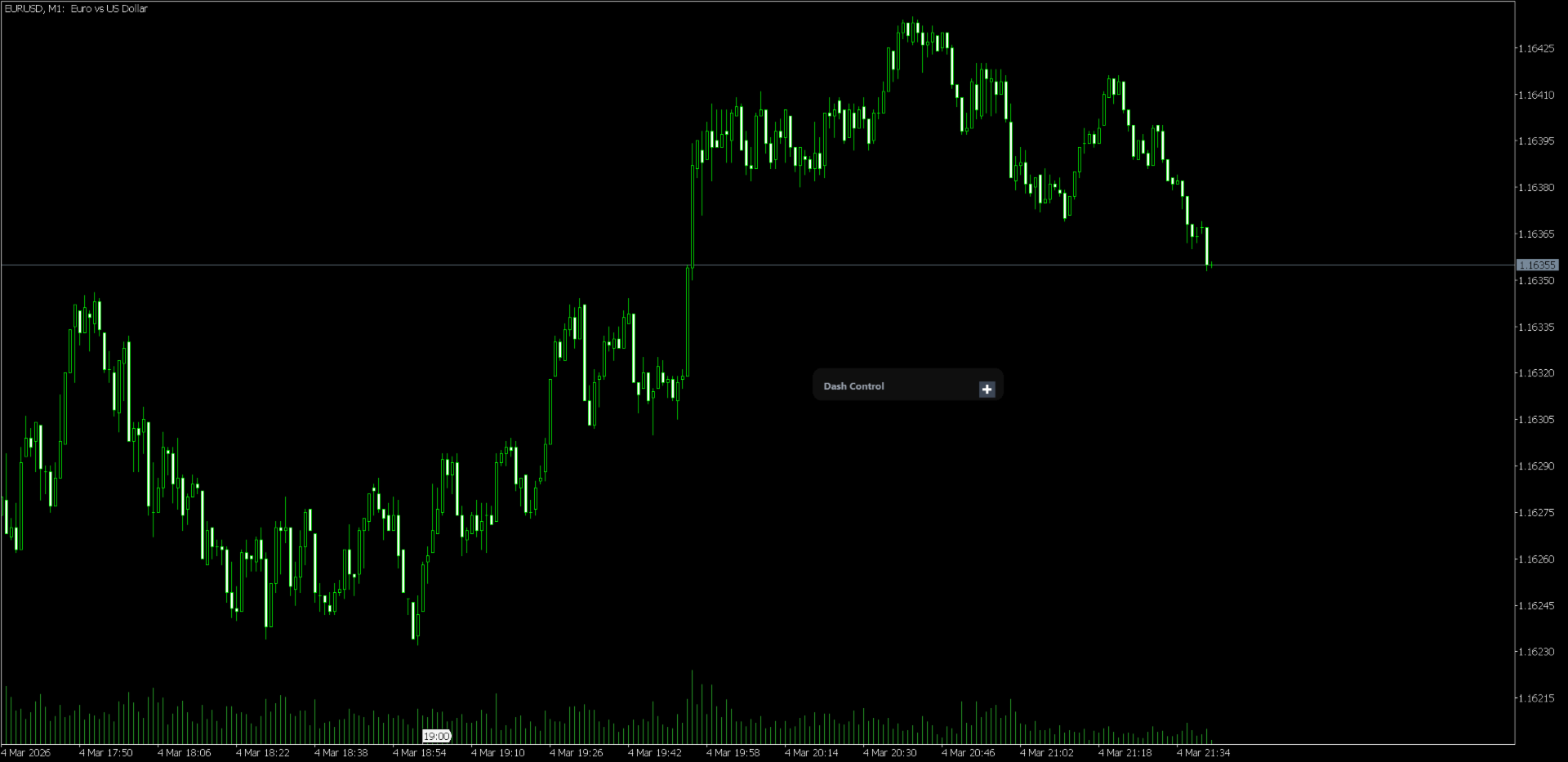
Minimizing Blocks: Use the toggle button in the top-right corner of each block to hide or show detailed information.
Adjusting Values: Click the plus or minus buttons for quick adjustments, or click the numerical value directly to enter a new period via your keyboard (press Enter to confirm).
Input Parameters
Display Settings
Spread (Ask) Line Color: Sets the color for the horizontal Ask line drawn on the chart.
Default Indicator Periods
Sets the initial periods and calculation values used when an indicator is first activated. These values can be modified on the fly through the dashboard interface during active trading.