Version 1.00 | MetaTrader 5 | Manual trade-management utility
Trade Station is built for traders who make their own entry decisions, but want the execution process to be cleaner: plan the trade on the chart, size it from risk, check the setup before sending, then manage the position from one panel.
It is not a signal robot. It does not search for entries, does not promise performance, and does not trade by itself. You decide what to trade; Trade Station helps you place and manage that decision with consistent controls.
1. What You Can Do With Trade Station
Trade Station gives you a visual trading workspace:
- Build a trade plan directly on the chart: Entry, Stop Loss, Take Profit and optional TP2.
- Size the order from Risk% and stop distance, rounded to the broker lot step.
- Keep TP linked to a selected 1:RR ratio, or detach TP and set it manually.
- Split the target with TP2: separate broker order on hedging accounts, automatic partial close on netting accounts.
- Use Break-even and Trailing Stop automation after a trade is open.
- Block unsafe sends with Lock, Daily Loss Guard, committed-risk checks and the validation strip.
- Close or cancel Trade Station positions/orders for the current symbol and magic number.
Always test on a demo account first, especially on a new broker or unusual CFD symbol.
2. Install and First Run
- Install Trade Station from the MQL5 Market, or copy TradeStation.ex5 into MQL5\Experts\ .
- Restart MetaTrader 5 or refresh the Navigator.
- Enable Algo Trading in the terminal toolbar.
- Attach Trade Station to a chart.
- In the EA settings, allow Algo Trading. Leave Diagnostics off for normal use.
- The Control Panel, Quick Toolbar and Visual Trade Plan appear on the chart.
Settings and the chart plan are remembered across timeframe changes and terminal restarts.
Important: Trade Station is an interactive chart panel. The MetaTrader Strategy Tester cannot properly exercise mouse-driven panels and chart-object dragging. Use a demo chart for real testing.
3. Quick Start - Your First Demo Trade
Use this as the first check after installation.
- Attach Trade Station to a demo chart, for example a Forex or Gold symbol.
- Set Risk% in the Control Panel.
- Set the 1:RR value. When the RR cell is green, TP is linked to RR.
- Drag the Visual Trade Plan:
- Move Entry to the price where you want to trade.
- Move SL to the invalidation level.
- Let TP follow RR, or drag TP manually if you want a custom target.
- Read the validation strip under the Control Panel. It should explain whether the setup is ready, blocked or needs attention.
- If using TP2, click the small + button on the Visual Trade Plan, then place the TP2 plaque.
- Click the Toolbar order button, or press Ctrl+Shift+S .
- After entry, manage the position with BE/TS, Close modes or manual MT5 controls.
If the order button is locked, do not guess. Read the validation strip first - it usually names the exact reason.
4. Workspace Overview
The interface has three main parts.
Main workspace callouts
- Control Panel (CPnl) - the top panel. It shows account/risk status and opens the main settings.
- Validation strip - the text line under CPnl. It tells you whether sending is ready, blocked or risky.
- Quick Toolbar (TB) - the compact trading toolbar, usually near the bottom-left of the chart.
- Toolbar Settings Dialog (TB SD) - the expanded toolbar panel for volume limits and BE/TS automation settings.
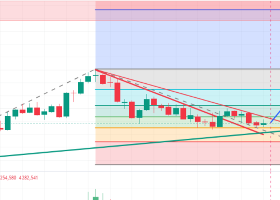
- Visual Trade Plan (VBck) - the draggable chart plan: Entry, SL, TP and TP2.
- Native MT5 order/position lines - after sending, MT5 may also draw its own broker lines. Trade Station does not try to replace them.

5. Control Panel (CPnl)
The Control Panel is the top command strip. It is designed to be read before you send anything.
CPnl top row callouts
- Settings button - opens or closes the CPnl Settings Dialog.
- Balance - account balance used as the base for risk display.
- Risk% - click to cycle risk presets. Trade Station sizes the lot from this value and the stop distance.
- 1:RR - click to cycle the reward/risk ratio. Green means TP is still linked to RR. Neutral means TP has been moved manually.
- Trade Plan visibility - show/hide the Visual Trade Plan.
- Remove EA button - removes Trade Station from the chart after confirmation.
- Validation strip - live send status. It can show the lot, TP2/TP split, warnings, or a blocking reason such as Lock, DLG, invalid stops or insufficient margin.

How to use CPnl in normal trading
- Set Risk% .
- Set 1:RR .
- Check whether the RR cell is green or neutral.
- Read the validation strip.
- Only send when the strip says the setup is ready.
Risk sizing rule: if you move SL farther away, the lot gets smaller. If you move SL closer, the lot gets larger. The goal is to keep the planned loss near the chosen Risk% , within broker lot-step limits.
6. CPnl Settings Dialog (CPnl SD)
Open the Settings button on CPnl to access presets, visuals, profiles, guards and close modes.
General settings callouts
- Hotkeys - enables or disables keyboard shortcuts.
- Info icon - opens the hotkey mini-manual.
- Manual - opens the in-terminal quick guide.
- RR presets - choose which RR values are available for quick cycling and digit hotkeys.
- Display: Zones + dots / Hide dot guides / Hide zone fills - changes how much of the Visual Trade Plan is drawn.
- Info icons: On/Off - shows or hides small help buttons in settings.
- Trade Plan colors - Zones - cycles the color theme for risk/reward zones.
- Opacity - changes zone transparency.
- Trade Plan colors - Plaques - cycles the plaque color theme.
- Profiles: Save 1/2/3 - saves the current setup into a slot.
- Profiles: Load 1/2/3 - restores a saved setup.
- reset to default - resets key panel settings to the default state.

Profiles are useful if you trade different styles: conservative RR, trend RR, or separate settings for Forex and Crypto.
Guards callouts
- DLG On/Off - enables or disables Daily Loss Guard.
- Max DD X% - sets the daily loss limit.
- Pre-send On/Off - toggles the confirmation dialog before sending.
- DLG status text - shows Disabled, Active (new-trade lock), or New trades locked.
- STOP NOW - emergency action for Trade Station positions/orders on this symbol and magic number.
- Clear Stop / Stop Clear - clears the emergency block after you decide trading may resume.

Daily Loss Guard blocks new trades. It does not automatically close open positions. It also checks committed risk: if open Trade Station positions plus the new order would exceed the daily limit, the new order is blocked before sending.
Close mode callouts
- Close Open - closes open Trade Station positions for the current symbol and magic number.
- Close Profit - closes positions currently in profit.
- Close Loss - closes positions currently in loss.
- Close ALL - closes open positions and cancels pending orders in this scope.
- Cancel Pending - cancels pending orders only.
- symbol + magic note - reminds you that close actions are scoped to this chart symbol and the Trade Station magic number.

Close actions ask for confirmation. Always check the symbol and account before using them.
7. Quick Toolbar (TB)
The Quick Toolbar is the fast execution area. It can be dragged around the chart and expanded when you need broker volume information or BE/TS automation settings.
Toolbar row callouts
- Expand button - opens the Toolbar Settings Dialog.
- Symbol/category plaque - shows the detected market category and current symbol.
- Order button - sends the current plan. The text changes automatically between market and pending order types, for example Buy, Sell, Buy Stop, Sell Limit.
- Lock button - blocks new sends. Green/unlocked means sending is allowed; locked state overlays the order button.
- Magnet button - toggles magnet behavior for cleaner dragging.
- Flip button - flips Buy/Sell direction vertically.
- Exchange button - swaps the plan side horizontally.

The Order button respects every safety gate: Lock, Daily Loss Guard, risk-vs-DLG, invalid stops, broker limits, margin and the pre-send checks.
Common toolbar actions
- Click Lock before moving the plan if you do not want accidental sends.
- Use Magnet when you want the plan to snap cleanly around price.
- Use Flip when the idea changes from long to short or short to long.
- Use Expand when you need BE/TS settings or broker volume information.
8. Toolbar Settings Dialog (TB SD)
The expanded Toolbar panel shows broker volume limits and controls BE/TS automation. TP2 is controlled from the Visual Trade Plan itself.
Toolbar Settings Dialog callouts
- Volume limits (min / step / max) - shows broker lot constraints for the current symbol.
- Automation (BE/TS) info icon - opens the BE/TS mini-manual.
- BE On/Off - enables Break-even logic.
- BE trigger Xp - cycles the profit distance needed before BE can move SL.
- TS On/Off - enables Trailing Stop logic.
- TS distance Xp - cycles how far SL should trail behind price.
- BE lines: Off/On/Applied - controls visual BE guide lines.
- State line - shows whether BE is off/armed/applied and TS is off/standby/active.
- Last action line - shows the last BE/TS action or reason.

BE and TS are automation features. They require the EA to remain attached to the chart and AutoTrading to remain enabled. If MetaTrader is closed or AutoTrading is off, automation pauses.
9. Visual Trade Plan (VBck)
The Visual Trade Plan is the most important part of Trade Station. It lets you plan visually before the order is sent.
VBck callouts
- Entry / center plaque - the planned entry. Drag vertically to move the trade plan.
- SL plaque - stop loss. The money-risk readout changes as SL and lot update.
- TP plaque - main take profit. When RR is linked, TP follows the selected 1:RR . When manual, it stays where you place it.
- TP2 plaque - optional second take profit.
- TP2 add button ( + ) - appears between Entry and TP when TP2 is off. Click it to enable TP2.
- TP2 close button ( x ) - appears next to the TP2 plaque when TP2 is on. Click it to remove TP2.
- TP2 lot text - double-click the lot value inside the TP2 plaque to edit the TP2 volume.
- Risk zone - the area between Entry and SL.
- Reward zone - the area between Entry and TP.
- Dot guides - guide lines to help read the plan against the price scale.
- Plaque width/position - plaques can be moved and resized without changing the actual broker order until you send.

How RR-linked TP works
When the RR cell is green, TP is connected to the selected ratio. If you drag SL, Trade Station moves TP to keep the planned reward/risk relationship. If you drag TP manually, TP becomes detached and the RR cell returns to neutral.
How TP2 works visually
TP2 sits between Entry and the main TP. Click the + button to add it, drag the TP2 plaque to move the target, double-click the TP2 lot text to edit its volume, or click x to remove it. On netting accounts, Trade Station keeps one position and closes the TP2 part automatically when price reaches TP2. On hedging accounts, TP2 is sent as a separate broker order.
10. Building and Sending a Trade
Workflow: RR-linked trade
- Choose a chart and attach Trade Station.
- Set Risk% .
- Set 1:RR .
- Confirm the RR cell is green.
- Drag Entry and SL until the setup matches your trade idea.
- Read the validation strip.
- Send from the Toolbar or press Ctrl+Shift+S .
Workflow: manual TP
- Build the trade normally.
- Drag TP to your own target.
- Confirm the RR cell is neutral.
- Read the validation strip.
- Send.
Workflow: TP2 split
- Click the TP2 + button on the Visual Trade Plan.
- Drag the TP2 plaque to the partial-close target.
- Double-click the TP2 lot text if you want to change the TP2 volume.
- Confirm the validation strip shows the split as TP2 and TP .
- Send.
On netting accounts, leave Trade Station running for automatic TP2 partial close. If a partial close fails repeatedly, Trade Station stops retrying and asks you to close the remaining part manually.
11. Safety Controls
Lock
Lock blocks new sends. It does not close open positions. Use it when adjusting the plan, changing symbols, or leaving the terminal unattended.
Validation strip
The strip is your final checklist. It can show:
- Ready state and lot split.
- Warnings from broker or symbol conditions.
- Blocked state: Lock, Daily Loss Guard, invalid stops, no money, market restrictions, or risk over daily limit.
Daily Loss Guard
Daily Loss Guard is a new-trade lock. It blocks new Trade Station sends when the daily loss limit is reached or when committed risk would push you beyond the limit. It does not auto-close existing positions.
STOP NOW
STOP NOW is an emergency action for the current symbol and Trade Station magic number. It closes exposure/cancels relevant orders and blocks new sends until cleared. Use it deliberately.
12. Break-even and Trailing Stop
Break-even and Trailing Stop are designed for position management after entry.
Break-even (BE)
BE can move SL near entry after price has moved in your favor by the configured trigger distance. Use it when you want to reduce open risk after the trade starts working.
Trailing Stop (TS)
TS can move SL behind price by the configured distance. Use it when you want the stop to follow the market after the trade is active.
Important automation note
BE, TS and netting TP2 partial close run only while:
- Trade Station is attached to the chart.
- AutoTrading is enabled.
- MetaTrader 5 is running and connected.
If any of these are false, automation cannot act until the EA is running again.
13. Supported Accounts, Symbols and Limits
Account types
- Hedging: TP2 is placed as a separate broker order.
- Netting: one position is opened; Trade Station handles TP2 as an automatic partial close.
Symbols
Designed mainly for Forex, Metals, Crypto, Energy and CFDs with workable lot steps.
Known limitation - whole-lot indices
On index symbols that trade only in whole-number lots, TP can visibly step while dragging SL with TP linked to RR. This comes from coarse lot granularity and broker profit calculation. Workaround: set TP manually on those symbols. Broader index support is planned for a later version.
Strategy Tester limitation
Trade Station is not suitable for interactive testing in the MetaTrader Strategy Tester. The tester does not handle chart-object mouse interaction like a real chart. Use a demo chart.
14. Hotkeys
| Key | Action |
|---|---|
| Tab | Show / hide the Visual Trade Plan |
| Ctrl+Shift+S | Send the current plan |
| Q | Cycle RR |
| W | Cycle Risk% |
| 1 - 0 | Set RR to an enabled preset |
| F | Flip Buy/Sell |
| Shift+F | Exchange / swap plan side |
| X | Reset the plan layout |
| M | Toggle Magnet |
| L | Toggle Lock |
| Shift+Esc | Cancel pending orders for this symbol |
Shift+mousewheel Vertical chart shift(price scale up/down). Used when "Scale fix" is enabled in chart properties, "Common" tab
Hotkeys can be enabled or disabled in CPnl Settings.
15. Inputs
Diagnostics (advanced - leave off for normal use)
- InpDebugBeTsLogs - detailed BE/TS diagnostics in the Experts log.
- InpAuditLog - writes Common\Files\TS_audit.log for support/debugging.
- InpVbckPerfMetrics - visual plan rendering performance metrics.
Turn diagnostics on only when you need to reproduce a problem for support.
Notifications
- InpAlertOnSend - optional MT5 alert after sends.
- InpErrorPopups - optional modal error popups. Off means non-blocking chart messages.
Performance
- InpPlanDragRedrawMinMs - redraw throttle while dragging the Visual Trade Plan. Higher values can reduce CPU load on slower machines.
16. Troubleshooting
The Order button is locked
Check the validation strip. Common reasons:
- Lock is enabled.
- STOP NOW block is active.
- Daily Loss Guard is blocking.
- Risk% is higher than DLG%.
- Open committed risk plus the new trade would exceed DLG%.
The order was rejected
Possible causes:
- Not enough margin.
- Invalid stops or broker minimum-distance rule.
- Market closed or symbol close-only.
- Price moved during send.
Trade Station validates before sending and retries certain transient market-price failures, but the broker always has the final decision.
TP2 did not close on netting
Check that Trade Station is attached, AutoTrading is enabled and the terminal is connected. If the partial close fails repeatedly, the EA stops retrying and asks for manual close to avoid hammering the broker.
Clicks do not work in Strategy Tester
Expected. Use a demo chart. The tester does not provide normal chart-object mouse interaction.
I need support
Enable InpAuditLog , reproduce the issue, then send Common\Files\TS_audit.log through the MQL5 product Comments or private messages.
17. FAQ
Does Trade Station trade automatically?
No. It sends and manages the trades you plan.
Can I use it on hedging and netting accounts?
Yes. TP2 behavior differs: separate order on hedging, partial close on netting.
Can I use it on demo first?
Yes. That is recommended.
Does Daily Loss Guard close losing trades automatically?
No. It blocks new trades. Optional auto-close is a roadmap item, not v1 behavior.
Why does TP sometimes move in small steps on indices?
Some index symbols use whole-lot steps. That can make the RR solver step visibly. Set TP manually on those symbols.
Will BE/TS work if I close MT5?
No. Automation needs the EA running, AutoTrading enabled and the terminal connected.
18. Changelog
v1.00 - initial release.