CloseAll n Change TP SL All Orders
- Utilitários
-
Panthita Aichoi
 BTC Wallet :
bc1qx685px03km775uapdvje8qz6t839g3fzt0gegv
ETH ERC20
USDT Address:
0x57cF049c965fbE4D25bD2a9aE02B27a04F5574F9 - Versão: 2.0
- Atualizado: 26 maio 2026
- Ativações: 7
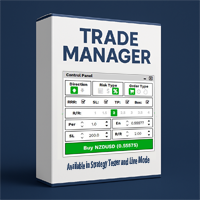
Trade Manager Panel is an on-chart utility that helps you open, manage,
and close trades with one click. It is designed for manual and semi-manual
traders who want fast order execution and clear risk control directly from
the chart.
The lot size is calculated automatically from your account balance, your
chosen risk percent, and the distance to your Stop Loss line. Position size
and money value are computed using the broker tick value and tick size, so
the calculation is correct on all symbols, including XAUUSD and other
3-digit instruments.
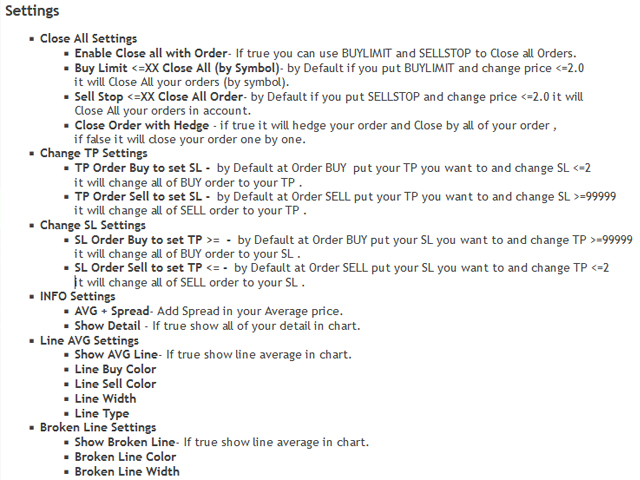
Main Features
* One-click Close All orders for the symbol the panel is attached to.
* One-click Close All orders in the whole account.
* 2 close modes: 1) close orders one by one, 2) hedge first, then close
by Close-By to reduce closing cost.
* One-click Buy and Sell market execution from on-chart buttons.
* Pending order mode: Buy Stop, Buy Limit, Sell Stop, Sell Limit using
draggable open and Stop Loss lines.
* Automatic lot size from account balance, risk percent, and Stop Loss
distance. Money and lots use broker tick value and tick size, so the
result is correct on XAUUSD and all 3-digit symbols.
* Optional commission per lot included in the risk calculation.
* Maximum lot limit and minimum lot protection.
* Automatic Take Profit line based on a Risk/Reward ratio.
* Set or clear Stop Loss and Take Profit for all open and pending orders
at once.
* Change Take Profit for all orders by a price trigger.
* Change Stop Loss for all orders by a price trigger.
* Trailing Stop with start point, trailing distance, and breakeven gap.
* Option to delete pending orders and cut opposite positions when the
trailing stop activates.
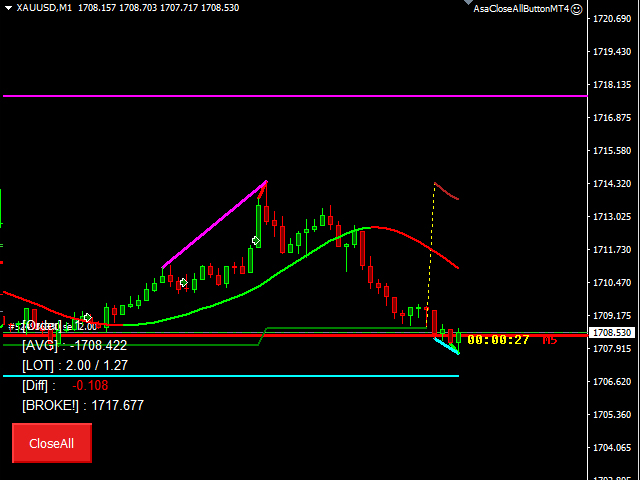
* Show order count, average price (with horizontal line), open lots, and
price difference from average to current price.
* Show estimated stop-out ("broke") price with a horizontal line.
* Adjustable colors, line styles, font size, and on-chart info panel.
* Easy to use, works on PC, iOS, and Android terminals.
How to use
Open a Trade (with auto lot size)
* PC : press the SL button to place a Stop Loss line, then drag it to
your level. The panel shows the calculated lot size and risk in money.
Press Buy Open or Sell Open to execute.
* To place pending orders : press the P button to switch to Pending
mode, drag the open line and Stop Loss line to your levels, then press
Buy Pending or Sell Pending.
Close All (Symbol)
* PC : click the Close button at the bottom-left corner of the chart.
* iOS / Android / PC : place a BUY LIMIT order and set its price to XX
(value set in inputs). The panel will close all orders for the symbol.
Close All in Account
* iOS / Android / PC : place a SELL STOP order and set its price to XX
(value set in inputs). The panel will close all orders in the account.
Change Take Profit (all orders)
* iOS / Android / PC : set the Take Profit you want, then set the Stop
Loss to XX (value set in inputs) to trigger the change to all orders.
Change Stop Loss (all orders)
* iOS / Android / PC : set the Stop Loss you want, then set the Take
Profit to XX (value set in inputs) to trigger the change to all orders.
Set / Clear SL and TP for all orders
* PC : press the S button to apply the existing SL/TP to all open and
pending orders at once. Press the C button to clear SL and TP from all
orders.
Trailing Stop
* PC : press the TL button to turn the trailing stop on or off. When
active, it follows price using your start point, trailing distance, and
breakeven gap settings.