
This is the official configuration page for the Indicator Center WebRequest connections.
The current URLs required by Indicator Center are always maintained on this page. If any service address changes in the future, this guide will be updated.
QUICK COPY – REQUIRED WEBREQUEST URLs
Copy the following three URLs and add them to MetaTrader 5.
https://zoephos-sync-relay.quintanaleonel2020fl.workers.dev
https://zoephos-communication.quintanaleonel2020fl.workers.dev
Copy and add each URL separately.
Do not add spaces or modify the addresses.
1. HOW TO ADD THE URLs TO METATRADER 5
This configuration must be completed on each MetaTrader 5 terminal where Indicator Center is used.
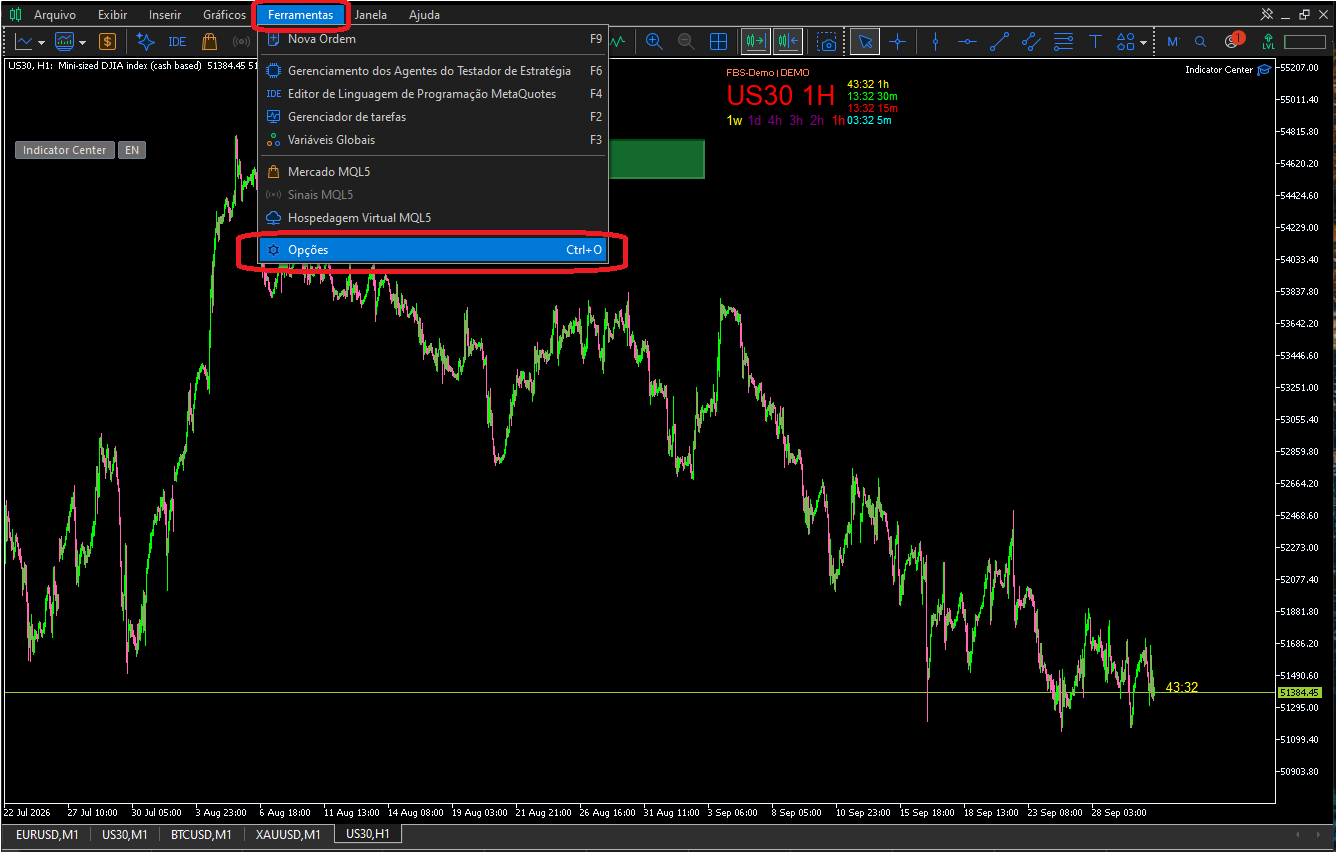
In MetaTrader 5, open:
Tools → Options
In the Options window, select the Expert Advisors tab.
Make sure the following options are enabled:
• Allow algorithmic trading
• Allow WebRequest for listed URL
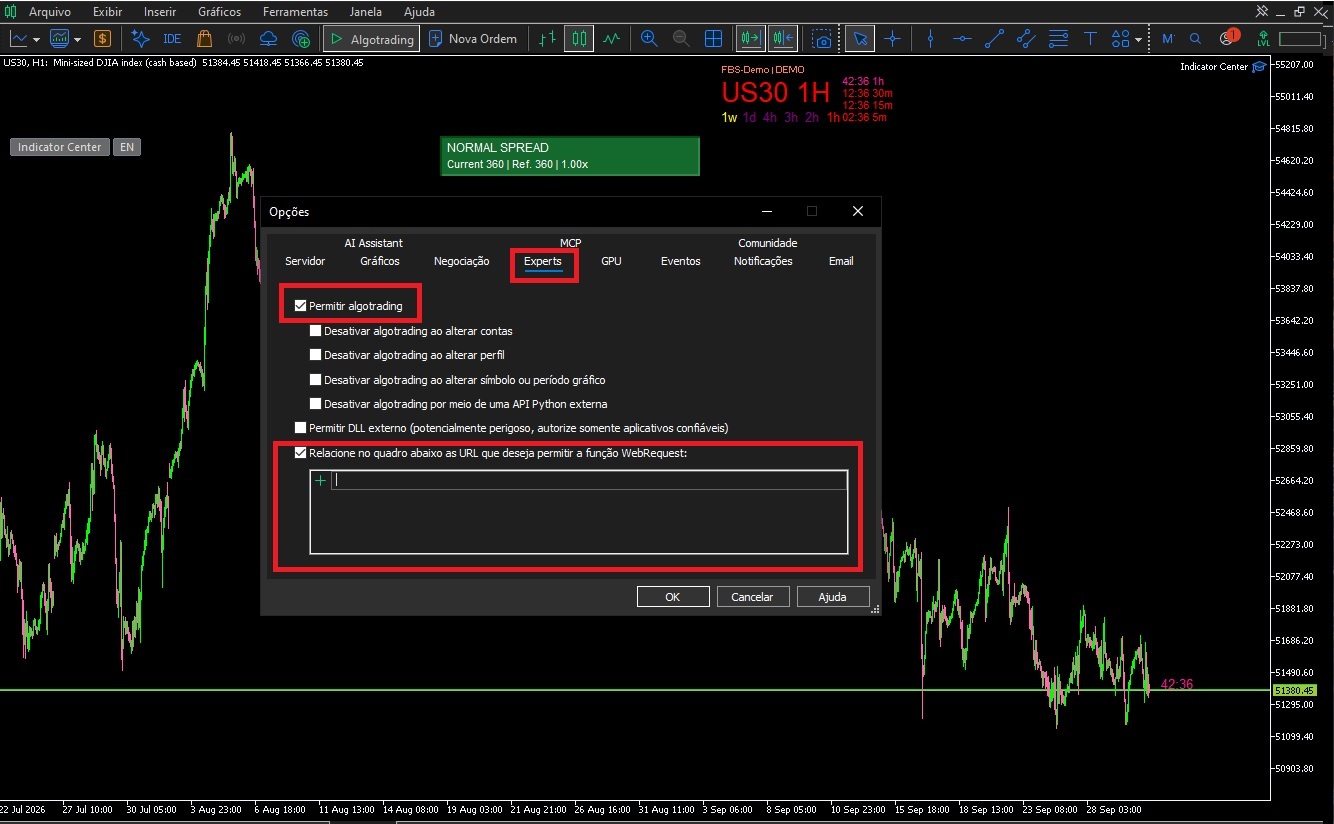
Click the Add (+) button.
Return to the Quick Copy section at the top of this page and copy the three URLs.
Paste each URL separately into the WebRequest authorization list.
When finished, your configuration should contain all three addresses.
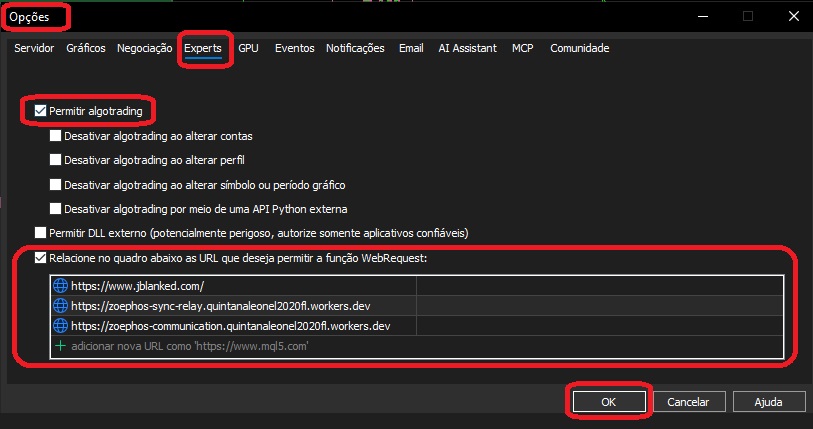
Check the addresses carefully and click OK.
DLL imports are not required for this configuration.
2. WHAT EACH URL IS USED FOR
The three authorized addresses have different functions within Indicator Center.
Complementary News Service
This address is used as a complementary source for economic news information.
The native MetaTrader 5 Economic Calendar remains the primary economic calendar used by Indicator Center.
Indicator Center Network
https://zoephos-sync-relay.quintanaleonel2020fl.workers.dev
This address is used for operational synchronization and communication between supported terminals connected through the Indicator Center Network.
Indicator Center Communication / Telegram
https://zoephos-communication.quintanaleonel2020fl.workers.dev
This address is used by Indicator Center communication services, including its operational Telegram integration.
3. IMPORTANT – EACH TERMINAL MUST BE CONFIGURED
WebRequest authorization is stored locally in MetaTrader 5.
If you use Indicator Center on more than one MetaTrader 5 terminal, the required URLs must be added separately to each terminal.
For example:
• MetaTrader 5 – Terminal 1 → Add the three URLs
• MetaTrader 5 – Terminal 2 → Add the three URLs
• MetaTrader 5 – Terminal 3 → Add the three URLs
When installing Indicator Center on another terminal, return to this page and copy the current URLs from the Quick Copy section.
4. INDICATOR CENTER NETWORK
After completing the WebRequest configuration, open the Network section inside Indicator Center.
Use the options displayed in the panel to create or link your Network connection.
If the Network cannot establish a connection, first verify that the Network URL listed on this page has been correctly added to the MetaTrader 5 WebRequest authorization list.
5. TELEGRAM INTEGRATION
Telegram integration is an operational communication feature of Indicator Center.
After completing the WebRequest configuration, open the Telegram section inside Indicator Center and follow the linking procedure displayed by the system.
Depending on the available configuration, follow the options provided by Indicator Center to connect the supported Telegram communication feature.
Telegram is used as an operational feature of the product.
Official Indicator Center product support is provided exclusively through the resources available on the MQL5 website.
6. ECONOMIC NEWS INFORMATION
Indicator Center primarily uses the native MetaTrader 5 Economic Calendar for economic event information.
The external news service authorized on this page works as a complementary information source.
It does not replace the native MetaTrader 5 Economic Calendar.
7. VIDEO TUTORIAL
A complete video tutorial showing the configuration process will be available in this section.
[VIDEO – Indicator Center Connection & WebRequest Configuration]
The video shows how to:
• Open Tools → Options
• Access the Expert Advisors settings
• Enable WebRequest
• Copy the required URLs from this page
• Add each URL to MetaTrader 5
• Confirm the final configuration
• Prepare Indicator Center to use Network, Telegram and complementary news services
8. TROUBLESHOOTING
If Network, Telegram, or complementary news services are not connecting, check the following:
1. Required URLs
Make sure all three URLs shown in the Quick Copy section have been added.
2. Address accuracy
Make sure there are no spaces, missing characters, or typing errors.
3. WebRequest authorization
Make sure Allow WebRequest for listed URL is enabled.
4. Algorithmic trading
Make sure Allow algorithmic trading is enabled.
5. Internet connection
Make sure MetaTrader 5 has access to the internet.
6. Multiple MetaTrader 5 terminals
Remember that WebRequest authorization must be configured separately on each terminal.
7. Configuration changes
After changing the configuration, restart Indicator Center if necessary.
ALWAYS USE THE CURRENT URLs FROM THIS PAGE
The WebRequest addresses required by Indicator Center may be updated when communication or external services are changed.
For this reason, when configuring a new MetaTrader 5 terminal, always return to this official page and use the URLs displayed in the Quick Copy section.
This avoids manually typing long addresses and helps prevent configuration errors.
Last Updated: September 30, 2026
Product: Indicator Center
Platform: MetaTrader 5
Configuration: WebRequest • Network • Telegram • News